Mengirim pesan
Gunakan panduan ini saat pesan tidak terkirim meskipun device atau nomor sudah terlihat terhubung.
Device terhubung tetapi pengiriman gagal
Jalani daftar periksa ini dari atas ke bawah:
Periksa Status — Buka Channel → WhatsApp → Devices (atau WABA / Telegram / Email). Jika Status
disconnect, hubungkan device terlebih dahulu.Periksa Quota — Jika Credits menampilkan
0, buka Billing → Order untuk memperpanjang, atau periksa apakah target red Free (parked) dan aktifkan slot gratis. Klik badge Plan untuk detail. Lihat Paket dan kuota.Periksa Expires — Jika badge menampilkan Expired (teks merah), perpanjang sebelum mengirim lagi, atau tunggu isi ulang free tier jika Anda di slot aktif green Free.
Periksa token device — Jika mengirim lewat API, salin token segar dari kolom Token / API token pada baris yang benar. Token dari device lain akan gagal. Lihat Salin token API device.
Periksa device tertaut di ponsel — Untuk WhatsApp: buka WhatsApp → Linked devices di ponsel. Jika Kirisan tidak ada, hubungkan lagi.
Periksa handler masuk — Jika Anda mengharapkan kirim memicu autoreply atau flow, buka dialog edit device dan konfirmasi On incoming message disetel dengan benar.
Pesan terkirim tetapi tampilannya salah
Gejala: Pesan terkirim tetapi penerima melihat konten atau format yang salah.
- Konfirmasi blok
contentAnda menggunakan kunci channel yang benar (whatsapp,waba,telegram, atauemail). Lihat Send API. - Untuk WABA, hanya template yang disetujui yang bisa memulai percakapan yang diinisiasi bisnis. Periksa status template di Channel → WABA → Templates.
- Untuk variabel WhatsApp, konfirmasi placeholder (
[[varname]]) cocok dengan template Anda dan payload kirim mengisi setiap variabel.
Pengiriman massal atau kampanye berhenti di tengah jalan
Gejala: Kampanye atau jadwal menampilkan baris terkirim lebih sedikit dari yang diharapkan.
- Buka Send → Campaign atau Send → Schedule dan periksa Status baris — mungkin paused atau failed.
- Buka Channel → WhatsApp → Logs (atau log channel terkait) dan filter menurut waktu kirim untuk menemukan baris error.
- Periksa Quota — batch besar bisa menghabiskan kredit di tengah pengiriman; perpanjang di Billing → Order.
- Kampanye email bisa paused jika jenis template itu diblokir di Channel → Email → Domains (label
transactionalataumarketingdi bawah Sending health). Acknowledge dulu, lalu lanjutkan kampanye setelah pengiriman dibuka lagi.
Email API menjawab queued tetapi Logs masih kosong
Tujuan: Memastikan email marketing atau tanpa template yang API terima benar-benar terkirim.
Mulai saat: POST /v1/send mengembalikan "queued": true dan "request_id", tetapi Channel → Email → Logs belum menampilkan baris.
Tunggu beberapa detik, lalu buka Channel → Email → Logs.
Filter Sender ke pengirim yang Anda pakai, atau cari Recipient.
Jika masih kosong, siapkan webhook status kirim dan cocokkan
request_id.- Anda seharusnya melihat baris sent atau failed setelah Kirisan mengirim (bukan saat API menjawab
queued).
- Anda seharusnya melihat baris sent atau failed setelah Kirisan mengirim (bukan saat API menjawab
Selesai saat: Baris log (atau webhook) menampilkan hasil akhir. Kredit dipotong hanya saat terkirim.
Email marketing atau tanpa template ditolak segera
Tujuan: Membaca alasan penolakan dan memperbaiki permintaan.
Mulai saat: API mengembalikan "status": false dengan rate_limited, queue_full, not_in_email_pool, atau email_lane_blocked.
Baca
"reason"di root atau di"channels.email.reason".Cocokkan dengan tabel di API errors.
Untuk
rate_limited, tungguretry_afterdetik (paling banyak 2 permintaan per detik per domain untuk marketing dan tanpa template).Untuk
queue_full, tunggu sampai beberapa email terkirim, lalu coba lagi.Untuk
not_in_email_pool, kirim template transactional atau email tanpa template ke alamat itu dulu — atau pakai alamat yang sudah pernah Anda kirimi.Untuk
email_lane_blockedatauemail_domain_suspended, buka Channel → Email → Domains dan acknowledge jenis yang diblokir.- Anda seharusnya melihat permintaan berikutnya lolos setelah batas, antrean, daftar penerima, atau blok domain sudah beres.
Selesai saat: Permintaan mengembalikan "status": true (langsung atau queued).
Sending health Blocked untuk satu jenis email
Tujuan: Membuka kembali jenis email yang diblokir tanpa menghentikan jenis lain.
Mulai saat: Banner Sending is blocked muncul di Channel → Email → Domains, atau kiriman gagal dengan email_lane_blocked.
- Buka Channel → Email → Domains.
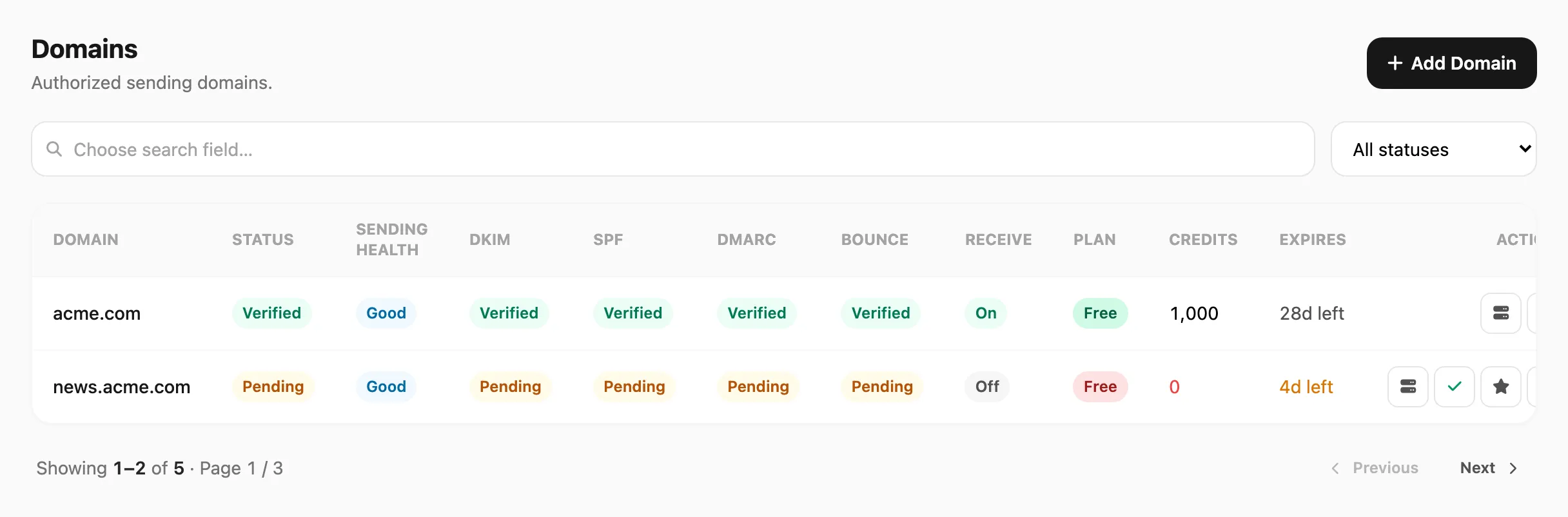
Data sampel ditampilkan.
Di kolom Sending health, baca badge Blocked dan label kecil di bawahnya (
transactional,marketing, atauraw).Klik Acknowledge di banner atau Acknowledge block pada baris.
Isi What did you fix? di popup Acknowledge sending block, lalu kirim.
- Anda seharusnya melihat Pending admin review, lalu banner Acknowledgement received. Waiting for admin to reopen sending.
Selesai saat: Badge Blocked hilang untuk jenis itu. Jenis lain di domain yang sama bisa sudah jalan sejak awal.
Statistik pengiriman terlihat salah
Buka Logs → Statistics untuk membandingkan rentang waktu dan rincian per channel.
Jumlah hari ini terlihat tidak cocok
- Buka Logs → Statistics dan klik Today di header.
- Total sends dan subjudul menampilkan jumlah per channel untuk hari UTC saat ini.
- Untuk membandingkan dengan rentang lebih panjang, klik 7 days dan gulir grafik Daily activity ke bar paling kanan (tanggal UTC hari ini).
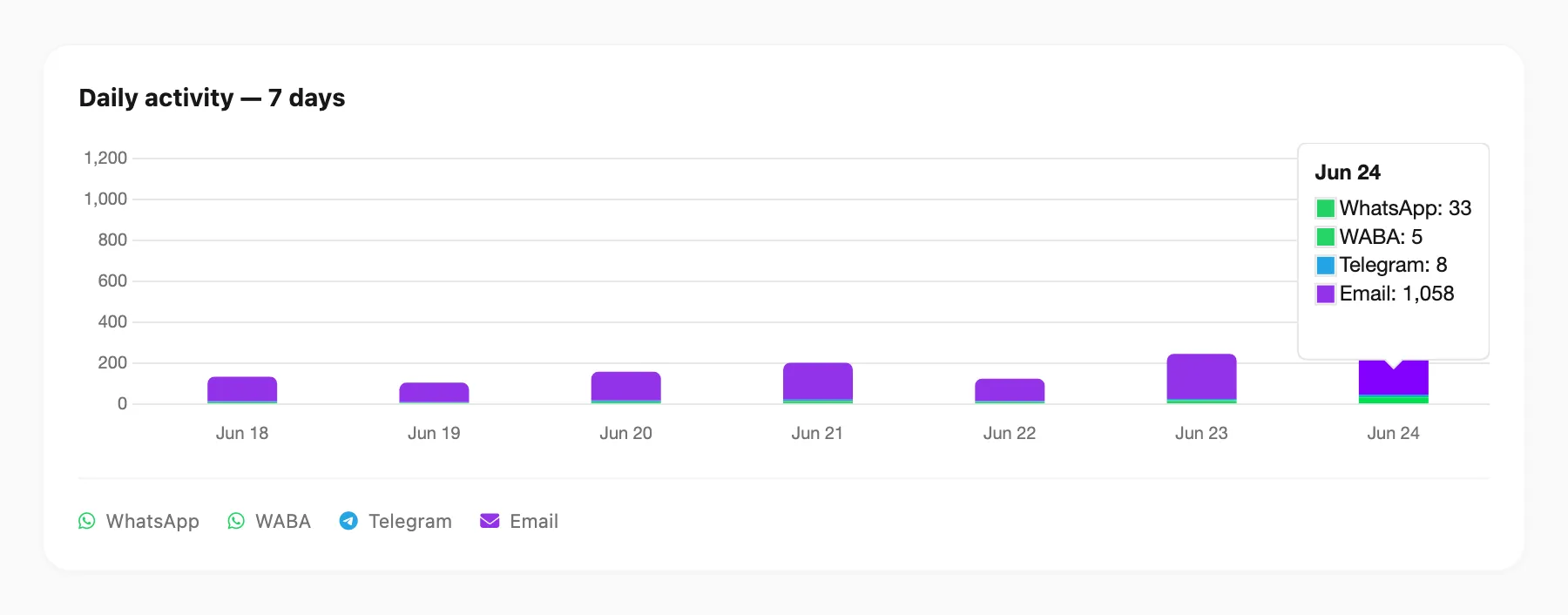
- Anda seharusnya melihat total panel hover cocok dengan yang ditampilkan Today.
Grafik 30 hari terlihat kosong
Klik 30 days, lalu gulir ke kanan di grafik Daily activity — hari ini selalu bar paling kanan.
Jumlah berbeda antara Statistics dan log channel
- Logs → Statistics menghitung setiap upaya kirim keluar di semua channel dalam satu tempat.
- Log per channel (misalnya Channel → WhatsApp → Logs) menampilkan rincian per device untuk channel itu saja.
- Gunakan Statistics untuk total; gunakan log per channel saat perlu melacak pesan tertentu.
Perbaiki masalah umum
Gejala: Jumlah baca selalu 0.
Wajar saat tanda baca WhatsApp tidak tersedia untuk kiriman Anda. Delivered dan Failed tetap terbarui normal.
Gejala: Buka atau bounce email hilang dari Statistics.
Buka Channel → Email → Statistics untuk keterlibatan dan deliverability email. Logs → Statistics hanya menampilkan upaya kirim keluar.
Gejala: Tidak bisa melihat rincian per device.
Buka Channel → WhatsApp → Statistics (atau Telegram / WABA) untuk tabel By device. Logs → Statistics tidak memecah per device.
Terkait
- Koneksi — device tidak terhubung atau masalah token
- Menerima pesan — pesan masuk tidak muncul
- Webhook — webhook tidak aktif pada lalu lintas live
- Send API — referensi body permintaan lengkap, termasuk tiga jenis email
- API errors —
rate_limited,queue_full, dan alasan email lain - Domains — Sending health dan Acknowledge
- Referensi Statistics — penjelasan setiap kolom dan grafik