Domain email
Buka Channel → Email → Domains.
Fungsi halaman ini
Anda harus memverifikasi domain sebelum membuat pengirim di domain tersebut. Kirisan menampilkan record DNS (SPF, DKIM, DMARC, CNAME bounce) untuk ditambahkan di host DNS Anda, melacak kesehatan pengiriman, dan mengelola free tier serta paket berbayar per domain.
Anda juga dapat mengaktifkan Receive agar alamat terdaftar bisa menerima email masuk (lihat Inbox). Itu memakai record inbound MX terpisah dan baru aktif setelah MX tersebut diverifikasi.
Tambahkan pengirim di Emails hanya setelah domain menampilkan Verified.
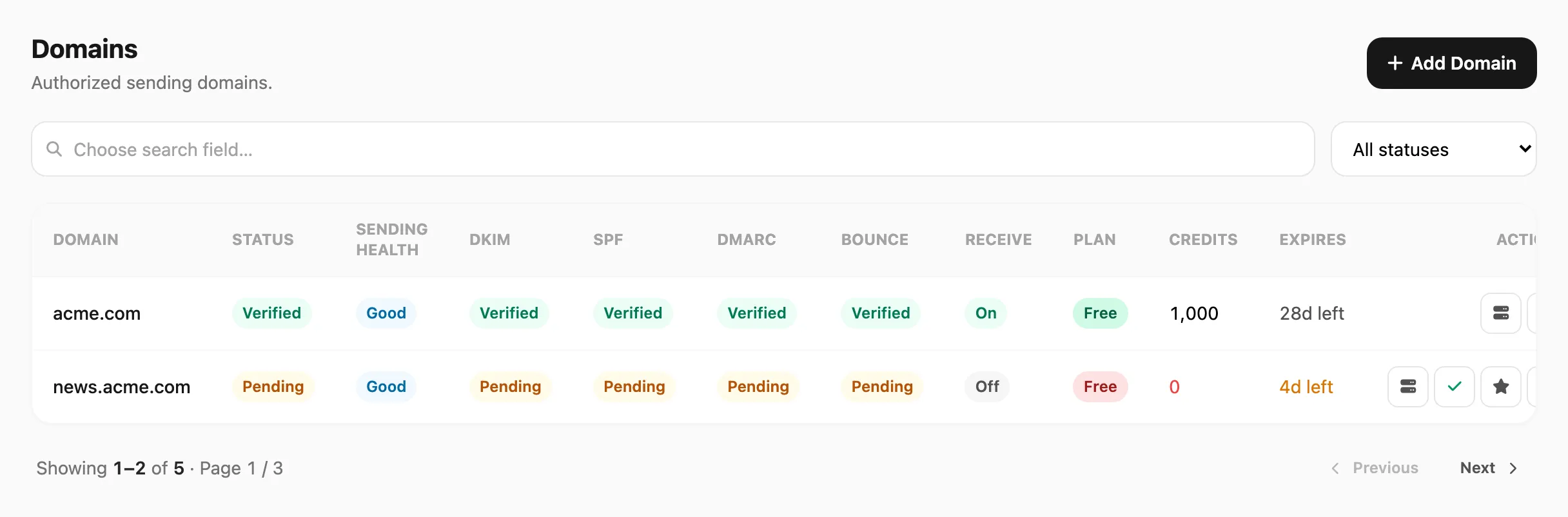
Data sampel ditampilkan.
| Kontrol header | Fungsi |
|---|---|
| Add Domain | Daftarkan domain pengiriman baru dan buat record DNS |
Pencarian dan filter
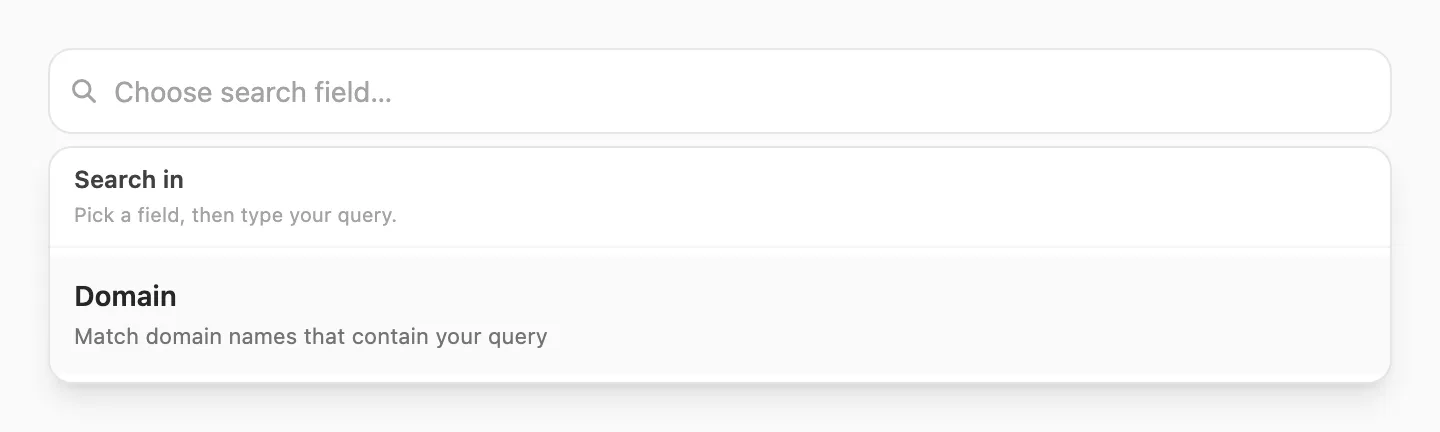
Pencarian berbasis field — klik area pencarian terlebih dahulu, pilih Domain, lalu ketik kueri Anda.
| Langkah | Yang terjadi |
|---|---|
| 1. Klik pencarian | Popup Search in terbuka — Anda harus memilih field sebelum mengetik |
| 2. Pilih Domain | Hanya satu field tersedia untuk domain |
| 3. Ketik | Kirisan memfilter tabel saat Anda mengetik (debounce singkat) |
Filter Status di kanan mempersempit berdasarkan status verifikasi:

| Filter | Menampilkan |
|---|---|
| All statuses | Semua domain |
| Verified | Domain siap untuk pengirim |
| Pending | Domain masih menunggu DNS |
| Field pencarian | Cocok dengan | Panjang minimum |
|---|---|---|
| Domain | Nama domain yang mengandung kueri Anda (misalnya acme cocok dengan news.acme.com) | 3 karakter |
Paginasi di bawah tabel menampilkan 25 domain per halaman jika hasil lebih dari satu halaman.
Tabel domain

| Kolom | Arti |
|---|---|
| Domain | Domain pengiriman — menampilkan Pending removal jika dijadwalkan dihapus |
| Status | Verified (hijau) atau Pending (amber) — verifikasi DNS pengiriman keseluruhan |
| Sending health | Skor deliverability dari bounce dan keluhan — Excellent, Good, Warning, Review, atau Blocked. Saat Blocked, label kecil di bawah badge menampilkan jenis mana yang berhenti (transactional, marketing, atau raw) |
| DKIM / SPF / DMARC / Bounce | Setiap record autentikasi — Verified atau Pending |
| Receive | On atau Off — klik untuk mengaktifkan atau menonaktifkan terima email di domain ini |
| Plan | Paket gratis atau berbayar — klik badge untuk membuka Domain plan |
| Credits | Sisa kuota kirim — 0 berwarna merah |
| Expires | Hari tersisa pada paket — Expired berwarna merah; di bawah 5 hari berwarna amber |
| Added | Kapan domain didaftarkan di Kirisan |
| Actions | Tombol ikon — lihat aksi baris di bawah |
Status inbound MX tidak ditampilkan sebagai kolom tabel. MX hanya muncul di popup DNS saat Anda mengaktifkan terima email.
Domain plan
Klik badge Plan mana pun untuk membuka Domain plan:
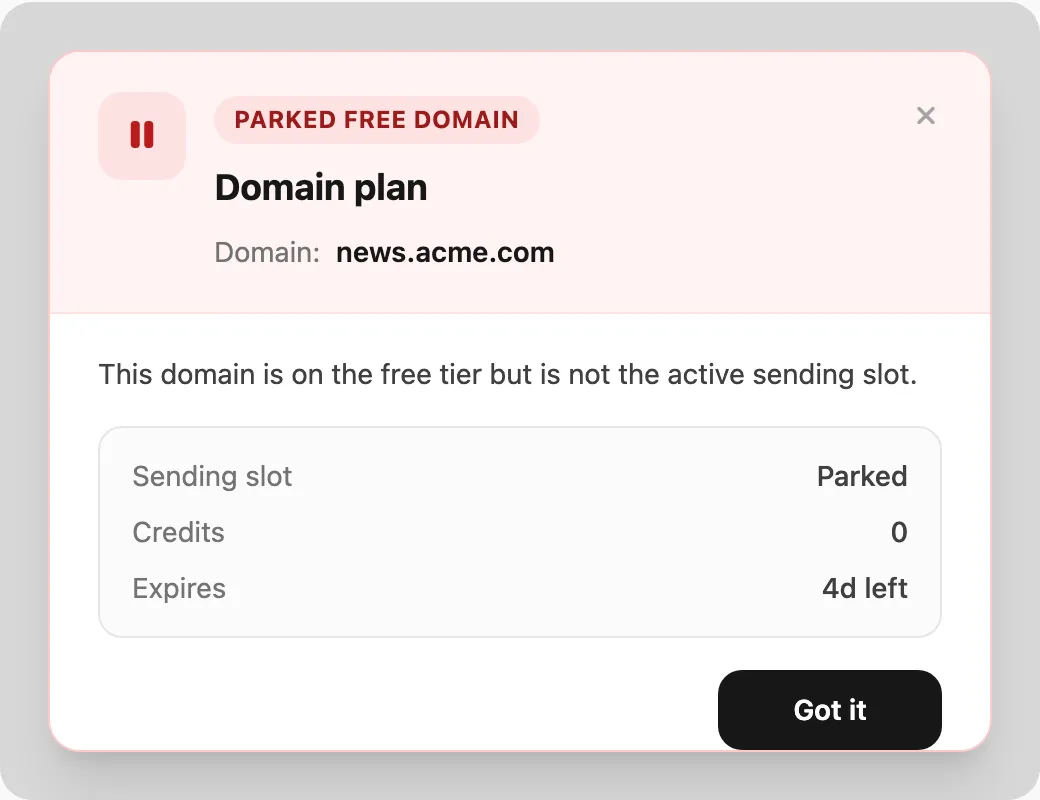
Popup mencakup:
| Bagian | Yang ditampilkan |
|---|---|
| Header | Badge status, Domain, dan tutup () |
| What this means | Apakah domain ini slot gratis aktif, diparkir, atau paket berbayar |
| Details | Slot pengiriman, kredit, masa berlaku, dan nama paket |
| What to do next | Alihkan slot gratis, tambahkan pengirim, perpanjang di Billing → Order |
| Got it | Menutup popup |
Setiap domain baru dimulai dengan free plan berisi 1.000 kredit dan jendela validitas 30 hari. Saat periode gratis aktif berakhir, Kirisan mengisi ulang 1.000 kredit dan 30 hari lagi secara otomatis. Saat paket berbayar kedaluwarsa, domain kembali ke gratis dengan 1.000 kredit (lihat Plans and quota).
Warna badge di tabel:
| Badge | Arti |
|---|---|
| Green Free | Domain pengiriman gratis aktif (hanya satu per akun yang dapat mengirim di free tier) |
| Red Free | Domain gratis diparkir — bukan slot pengiriman aktif |
| Violet plan name | Paket berbayar (misalnya Lite) — badge menampilkan nama paket sebenarnya |
Pada free tier, hanya domain gratis aktif yang dapat mengirim. Gunakan aksi bintang pada domain gratis diparkir untuk mengalihkan slot (paling banyak sekali setiap 7 hari).
Memperpanjang paket berbayar yang sama selama masih aktif menambah kredit dan memperpanjang masa berlaku. Mengganti ke paket berbeda mengganti kredit dan mengatur ulang masa berlaku dari hari ini. Lihat Plans and quota.
Tambah domain
- Klik Add Domain.
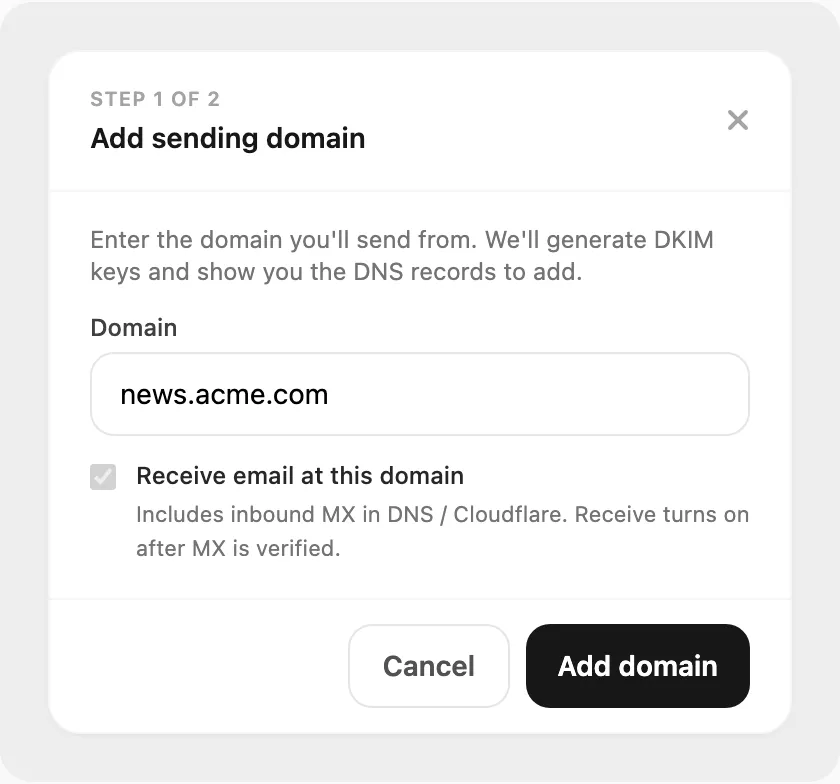
- Masukkan domain (misalnya
news.acme.com). - Opsional centang Receive email at this domain jika ingin inbound MX ikut di daftar DNS (Receive tetap On hanya setelah MX diverifikasi nanti).
- Klik Add domain. Kirisan membuat kunci DKIM dan menampilkan record DNS.
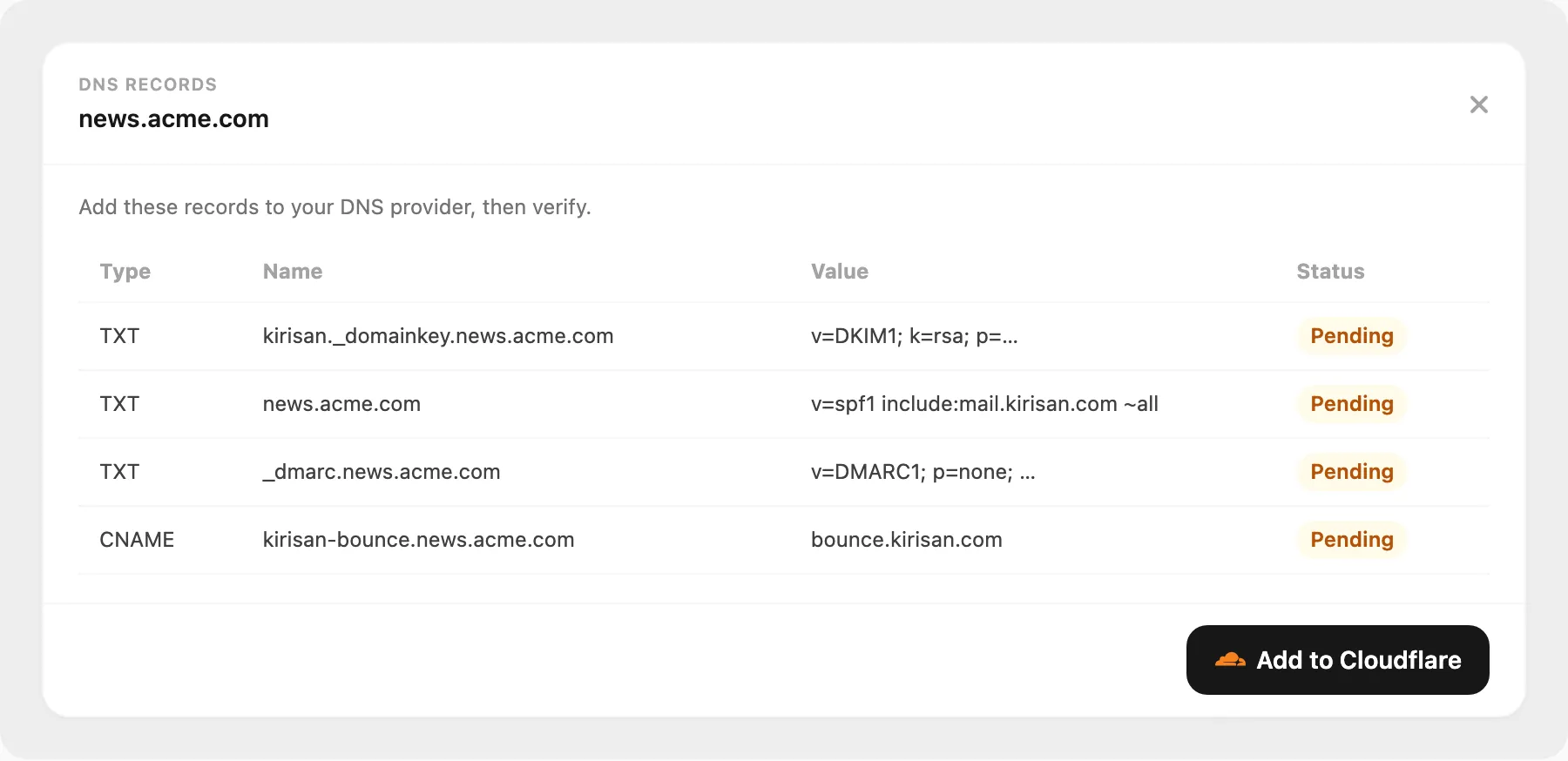
- Tambahkan setiap record di host DNS Anda persis seperti yang ditampilkan, atau gunakan Add to Cloudflare.
- Tutup popup, lalu gunakan Verify DNS pada baris setelah propagasi (sering beberapa menit, kadang lebih lama).
Jika Anda sudah memiliki SPF di domain apex, gabungkan menjadi satu record TXT alih-alih membuat duplikat.
Verifikasi DNS
Pada baris yang masih perlu dicek, klik Verify DNS. Kirisan memeriksa DKIM, SPF, DMARC, dan CNAME bounce (serta inbound MX saat Anda menyiapkan terima email).
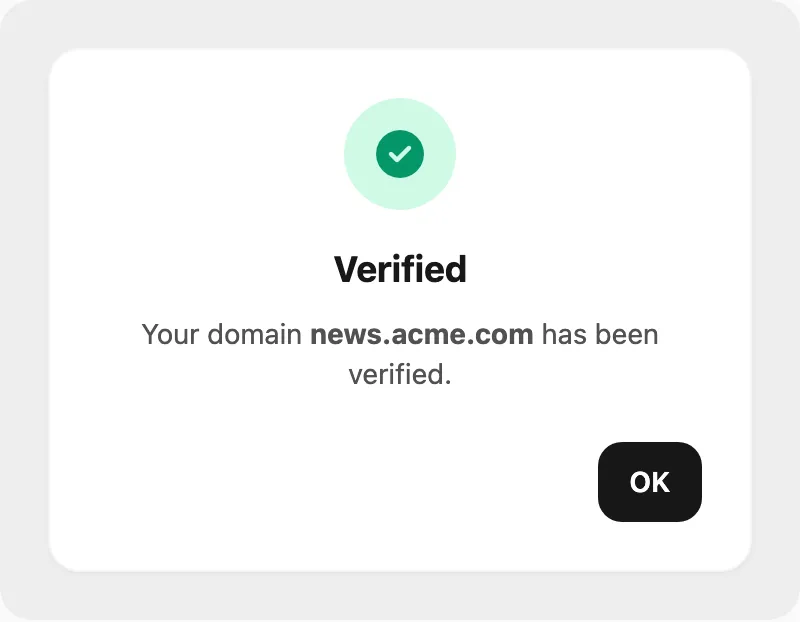
- Verified — domain siap untuk pengirim di Emails.
- Not verified yet — Kirisan menjelaskan apa yang masih kurang; buka DNS Records untuk menyalin nilai lagi.
Anda juga dapat membuka DNS Records kapan saja tanpa menambahkan domain lagi.
Terima email masuk
Agar alamat terdaftar bisa menerima email (lihat Inbox), domain harus menjadi slot free aktif atau punya paket berbayar (domain free yang diparkir menolak inbound meskipun Receive On):
- Klik Receive (Off) pada baris domain.
- Konfirmasi peringatan — mengarahkan MX ke Kirisan mengganti host email sebelumnya untuk seluruh domain.
- Jika inbound MX sudah terverifikasi, Receive langsung On (tanpa popup DNS).
- Jika MX belum terverifikasi, Kirisan membuka popup DNS yang menyertakan inbound MX:
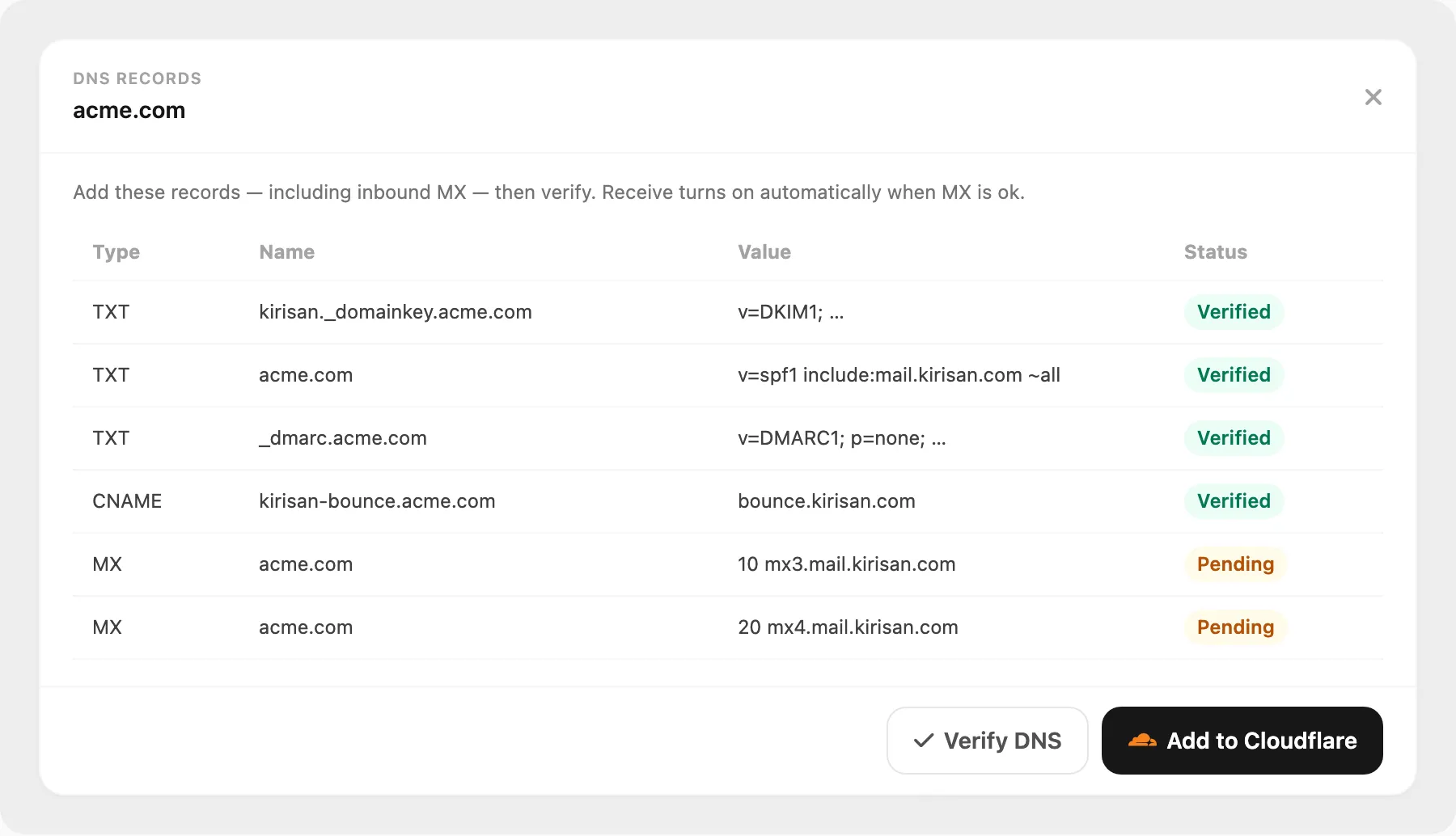
- Tambahkan record MX (manual atau dengan Add to Cloudflare), lalu klik Verify DNS.
- Saat MX berhasil diverifikasi, Receive otomatis menjadi On.
Mengubah Receive dari On ke Off langsung tanpa pengecekan DNS.
Override per alamat (ikuti domain / paksa aktif / paksa nonaktif) ada di Emails.
Aksi baris
Tombol yang muncul bergantung pada status verifikasi, paket, dan kesehatan pengiriman.
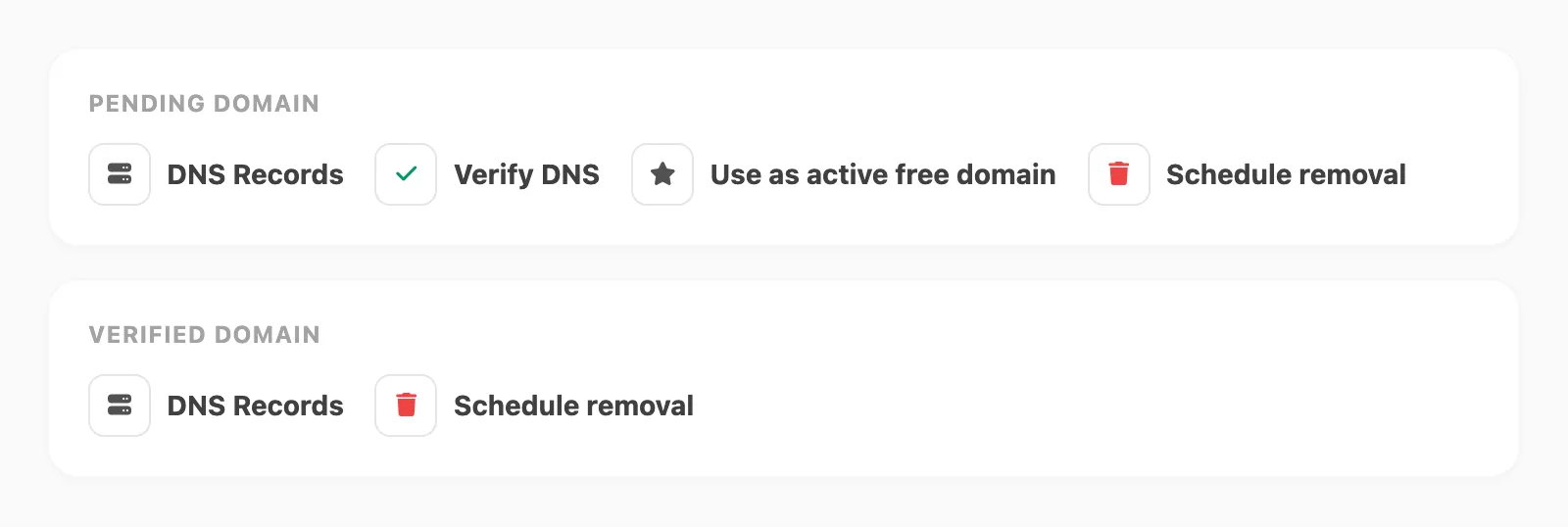
Domain pending
| Action | Fungsi | |
|---|---|---|
| DNS Records | Membuka modal record DNS (inbound MX hanya saat setup terima membutuhkannya). | |
| Verify DNS | Menjalankan verifikasi terhadap host DNS Anda. | |
| Use as active free domain | Pada domain gratis diparkir di free tier — mengalihkan satu slot pengiriman gratis aktif ke domain ini. | |
| Schedule removal | Memulai masa tenggang 7 hari sebelum penghapusan permanen. |
Domain verified
Baris verified menampilkan DNS Records dan Schedule removal, kecuali pengiriman Blocked (lihat di bawah). Verify DNS juga muncul jika bounce atau setup terima masih perlu dicek.
Alihkan slot gratis
Saat domain gratis diparkir, klik aksi bintang:
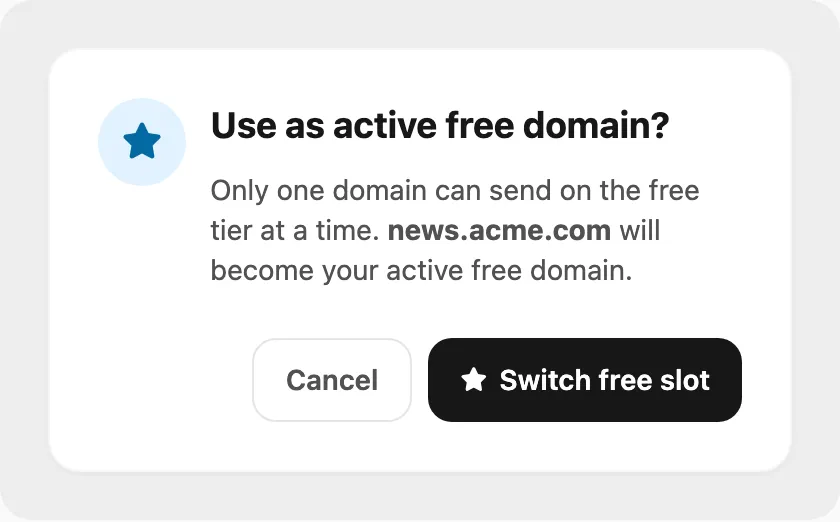
Konfirmasi untuk menjadikan domain tersebut pengirim gratis aktif Anda. Anda bisa mengalihkan paling banyak sekali setiap 7 hari.
Jadwalkan penghapusan
Klik pada baris mana pun:
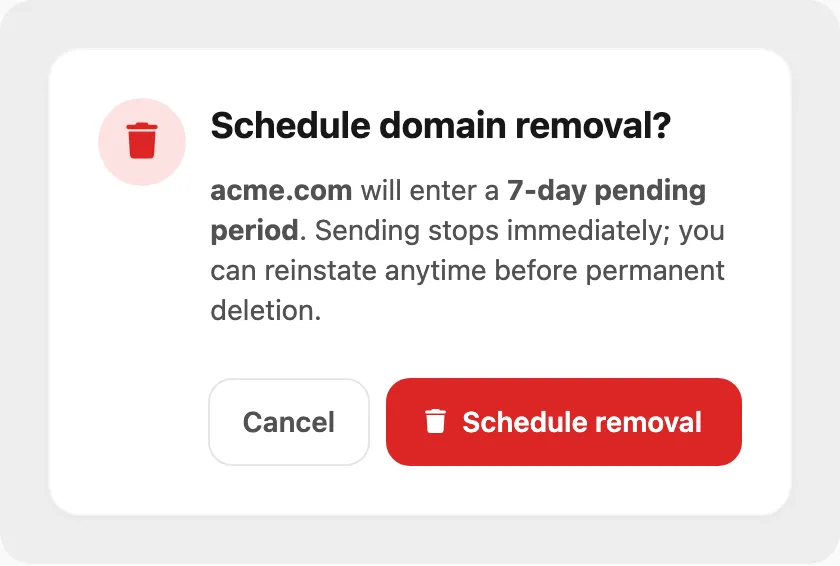
Pengiriman berhenti segera. Domain menampilkan Pending removal dengan aksi Reinstate sampai masa tenggang berakhir. Domain berbayar hanya dapat dihapus setelah paket kedaluwarsa.
Kesehatan pengiriman Blocked
Saat Sending health adalah Blocked, Kirisan menjeda satu jenis email — bukan selalu seluruh domain. Label di bawah badge (transactional, marketing, atau raw) menunjukkan jenis mana yang berhenti. Jenis lain di domain yang sama bisa tetap terkirim.
Banner merah Sending is blocked muncul di atas tabel. Aksi Acknowledge tetap ada sampai Anda mengirim penjelasan perbaikan.
- Klik Acknowledge di banner, atau Acknowledge block pada baris.
- Popup Acknowledge sending block terbuka. Baca domain (dan jenis, jika ditampilkan).
- Isi What did you fix? — misalnya daftar alamat invalid sudah dibersihkan, atau penerima sudah konfirmasi opt-in lagi.
- Kirim. Badge bisa menampilkan Pending admin review.
- Tunggu admin membuka pengiriman. Banner berubah menjadi Acknowledgement received. Waiting for admin to reopen sending.
Badge kesehatan juga bisa menampilkan Suspended until … atau Permanently suspended untuk jeda kesehatan. Tunggu tanggal yang ditampilkan, atau acknowledge jika tombol muncul.
Pemeriksaan harian
- Status / DKIM / SPF / DMARC / Bounce — harus Verified sebelum menambahkan pengirim.
- Receive — On hanya setelah inbound MX diverifikasi (atau langsung jika MX sudah ok).
- Plan / credits / expires — klik badge Plan untuk detail; perpanjang di Billing → Order sebelum kredit habis.
- Sending health — perhatikan Warning atau Blocked setelah bounce atau keluhan tinggi.
- Free tier — pastikan domain yang Anda kirimkan adalah slot green Free aktif, bukan yang red diparkir.
Terkait
- Inbox — baca email masuk dan kelola aturan blok / spam
- Plans and quota — free tier, perpanjangan, perubahan paket, dan masa berlaku
- Emails — buat pengirim pada domain terverifikasi
- Templates — desain tata letak HTML dengan variabel untuk pengiriman
- Email log — status pengiriman per baris
- Statistics — tingkat bounce dan keluhan untuk deliverability