Pengirim email
Buka Channel → Email → Emails.
Fungsi halaman ini
Setiap baris adalah alamat from pada domain terverifikasi. Setiap pengirim memiliki token API untuk Send API dan muncul di pemilih device Send → Send.
Anda membutuhkan setidaknya satu domain terverifikasi di Domains sebelum dapat menambahkan pengirim di sini.
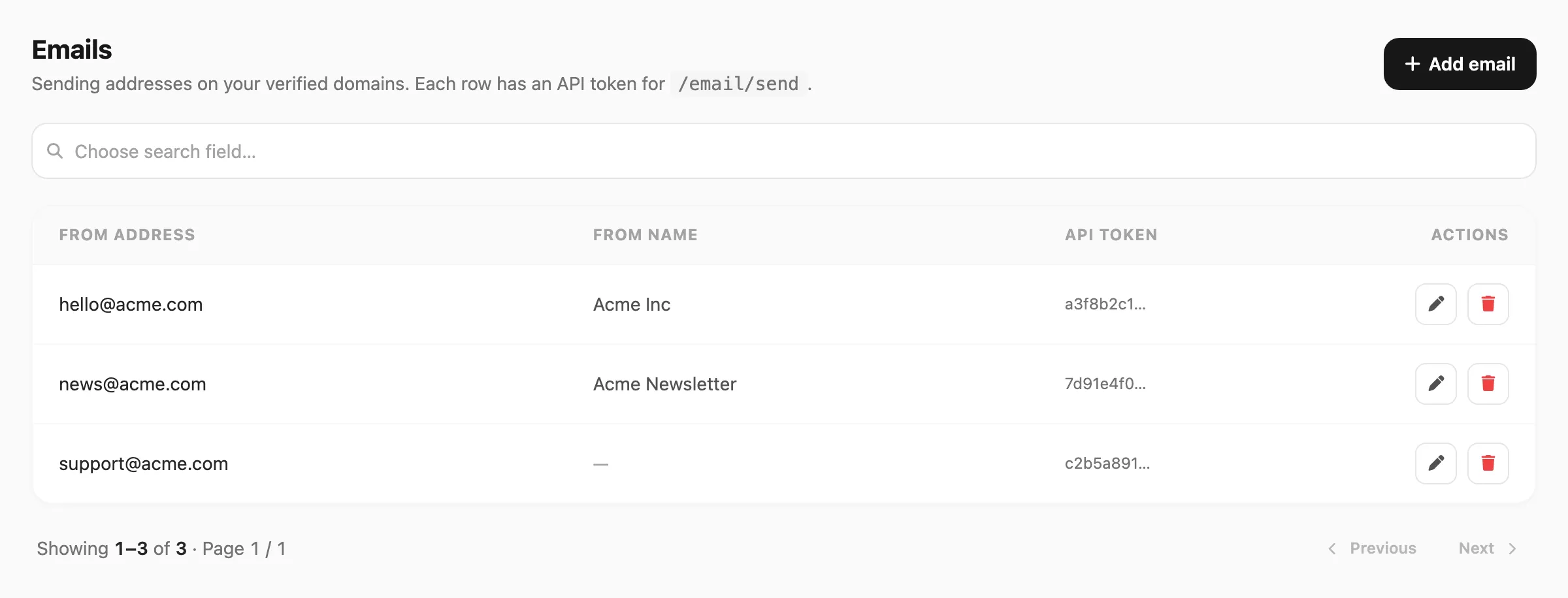
Data sampel ditampilkan.
| Kontrol header | Fungsi |
|---|---|
| Add email | Daftarkan alamat pengiriman baru pada domain terverifikasi |
Pencarian
Pencarian berbasis field — klik area pencarian terlebih dahulu, pilih kolom yang dicari, lalu ketik kueri Anda.
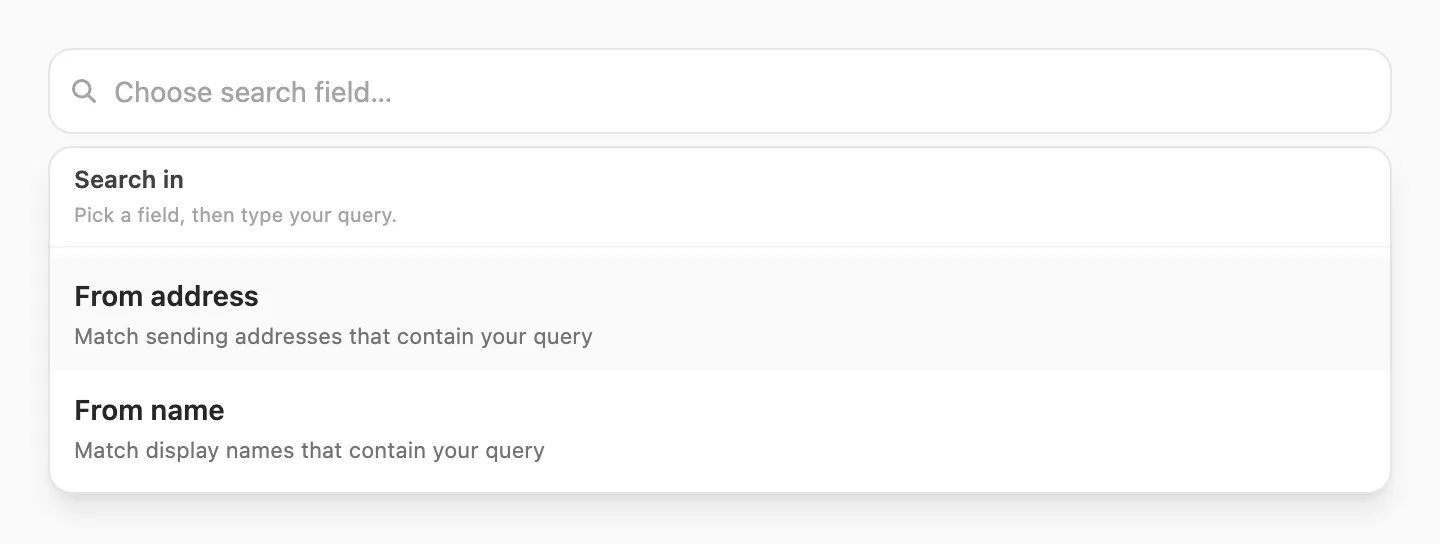
| Langkah | Yang terjadi |
|---|---|
| 1. Klik pencarian | Popup Search in terbuka — Anda harus memilih field sebelum mengetik |
| 2. Pilih field | From address atau From name |
| 3. Ketik | Kirisan memfilter tabel saat Anda mengetik (debounce singkat) |
Setelah memilih field, bilah pencarian menampilkan nama field di kiri (misalnya From address ▼). Klik untuk mengganti field — mengganti field menghapus kueri.

| Field pencarian | Cocok dengan | Panjang minimum |
|---|---|---|
| From address | Email pengiriman yang mengandung kueri Anda (misalnya hello cocok dengan hello@acme.com) | 3 karakter |
| From name | Nama tampilan yang mengandung kueri Anda | 3 karakter |
Jika Anda mengetik kurang dari tiga karakter, Kirisan menunggu sampai minimum terpenuhi dan menampilkan petunjuk singkat di bawah bilah pencarian.
Tabel pengirim

| Kolom | Arti |
|---|---|
| From address | Email pengiriman lengkap (mailbox @ domain terverifikasi) |
| From name | Nama tampilan yang dilihat penerima — opsional |
| Receive mode | Cara alamat ini menangani email masuk — Inherit (ikuti Receive domain), Force on, atau Force off |
| API token | Token pengirim terpotong untuk Send API — nilai lengkap hanya ditampilkan sekali saat dibuat |
| Actions | Edit dan Remove |
Paginasi di bawah tabel menampilkan 25 pengirim per halaman jika hasil lebih dari satu halaman.
Tambah pengirim
- Pastikan domain verified di Domains.
- Klik Add email.
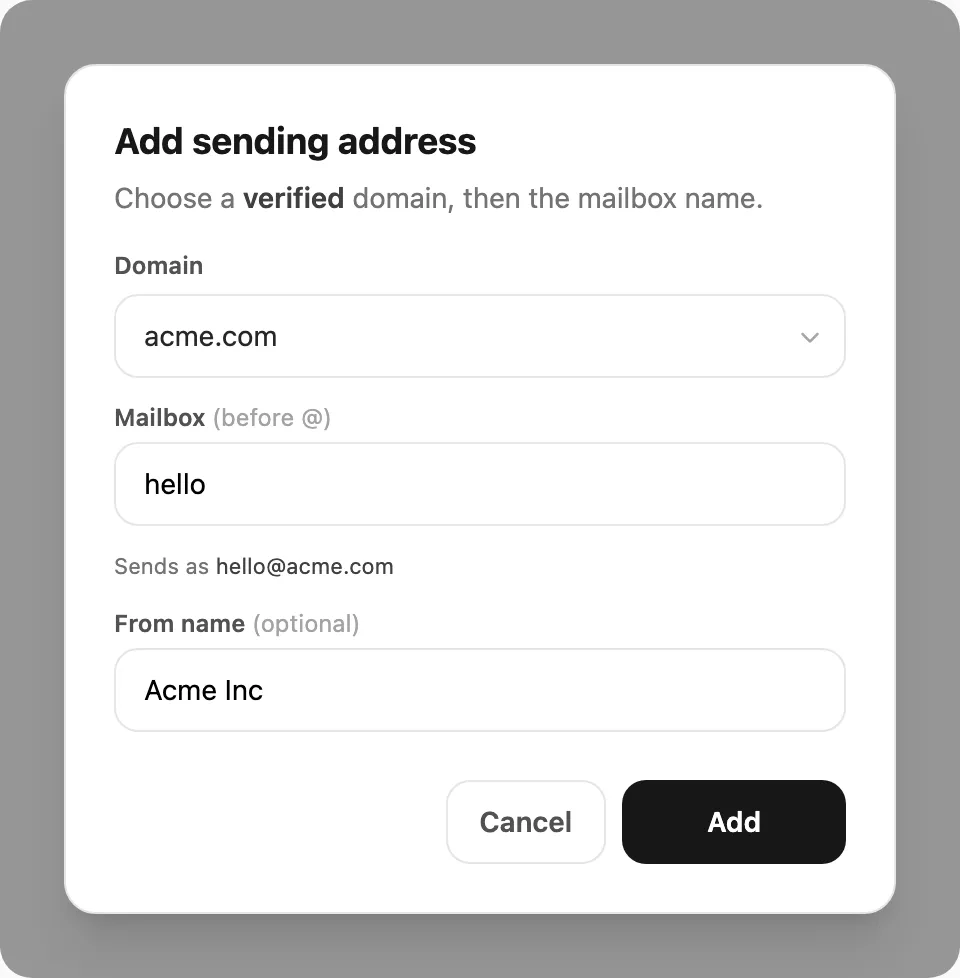
- Pilih Domain dari daftar terverifikasi Anda.
- Masukkan nama Mailbox (bagian sebelum
@, misalnyahello→hello@yourdomain.com). - Opsional, atur From name (misalnya
Acme Inc). - Klik Add.
Saat sukses, Kirisan menampilkan token API sekali — salin dan simpan sebelum menutup dialog.
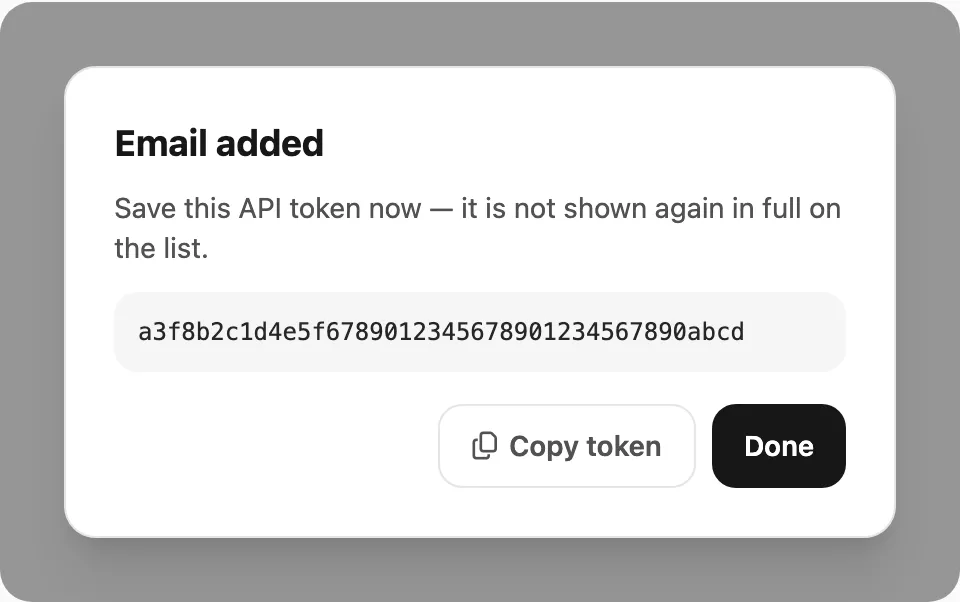
Token tidak ditampilkan lengkap di daftar setelahnya. Anda tetap dapat memilih pengirim di Send → Send tanpa memasukkan token lagi.
Edit pengirim
Klik ikon Edit pada baris untuk mengubah From name dan Receive mode. Alamat from dan token API tidak bisa diubah — hapus dan tambahkan lagi jika Anda membutuhkan mailbox berbeda.
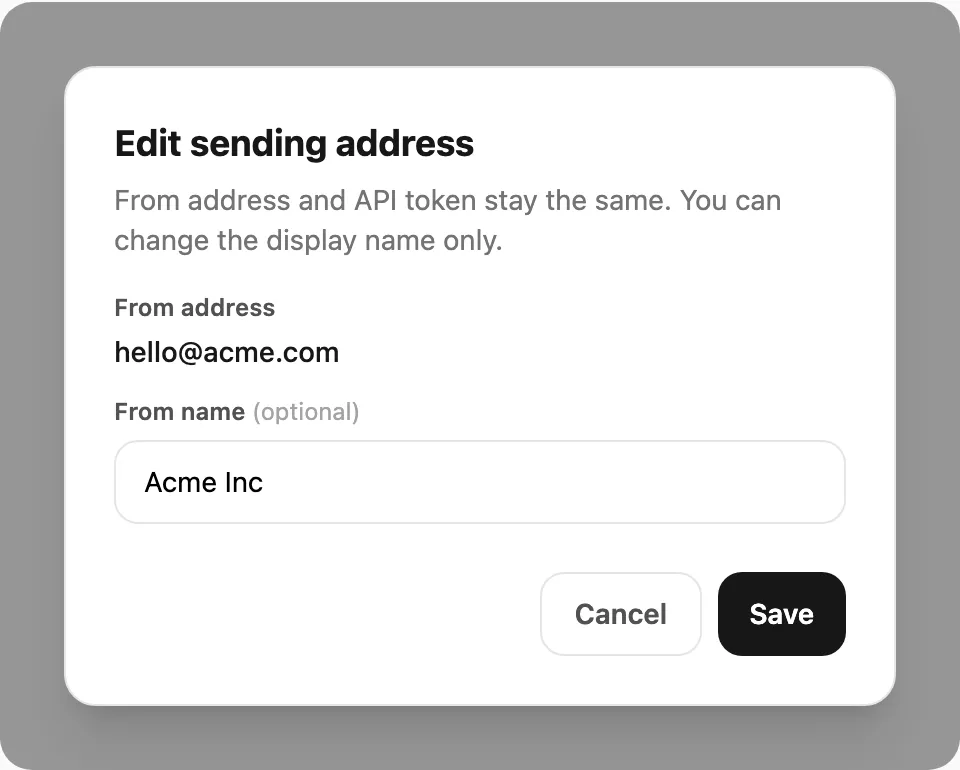
Opsi Receive mode:
| Mode | Arti |
|---|---|
| Inherit | Mengikuti saklar Receive domain di Domains |
| Force on | Tetap terima email untuk alamat ini meski Receive domain Off (tetap butuh inbound MX terverifikasi, dan domain harus slot free aktif atau berbayar) |
| Force off | Tidak pernah terima email untuk alamat ini, meski Receive domain On |
Email masuk muncul di Inbox.
Hapus pengirim
Klik ikon Remove. Kirisan meminta konfirmasi, lalu menonaktifkan alamat dan token API-nya.
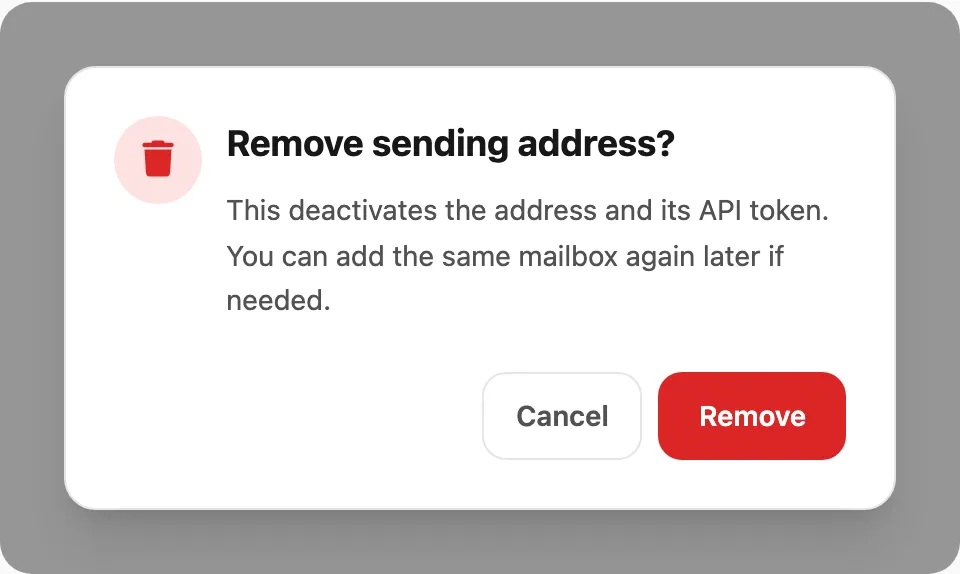
Anda bisa mendaftarkan mailbox yang sama lagi nanti jika diperlukan.
Terkait
- Domains — verifikasi domain dan aktifkan terima
- Inbox — baca email masuk
- Templates — tata letak HTML yang dapat digunakan kembali untuk pengiriman email
- Email log — riwayat pengiriman keluar dan status SMTP
- Send API — kirim secara programatis dengan token API pengirim
- SMTP submission — WordPress / wp_mail lewat host SMTP