Device Telegram
Buka Channel → Telegram → Devices.
Fungsi halaman ini
Setiap baris adalah bot Telegram yang terhubung dengan bot token dari @BotFather. Kirisan memeriksa token dengan Telegram, mendaftarkan bot, dan memberi Anda token API Kirisan untuk Send API dan pemilih device.
Pilih bot saat mengirim dari Send → Send, aturan autoreply, flows, atau webhooks.
Buat bot di Telegram terlebih dahulu (/newbot di BotFather), lalu tempel token di sini — Kirisan tidak membuat bot untuk Anda.
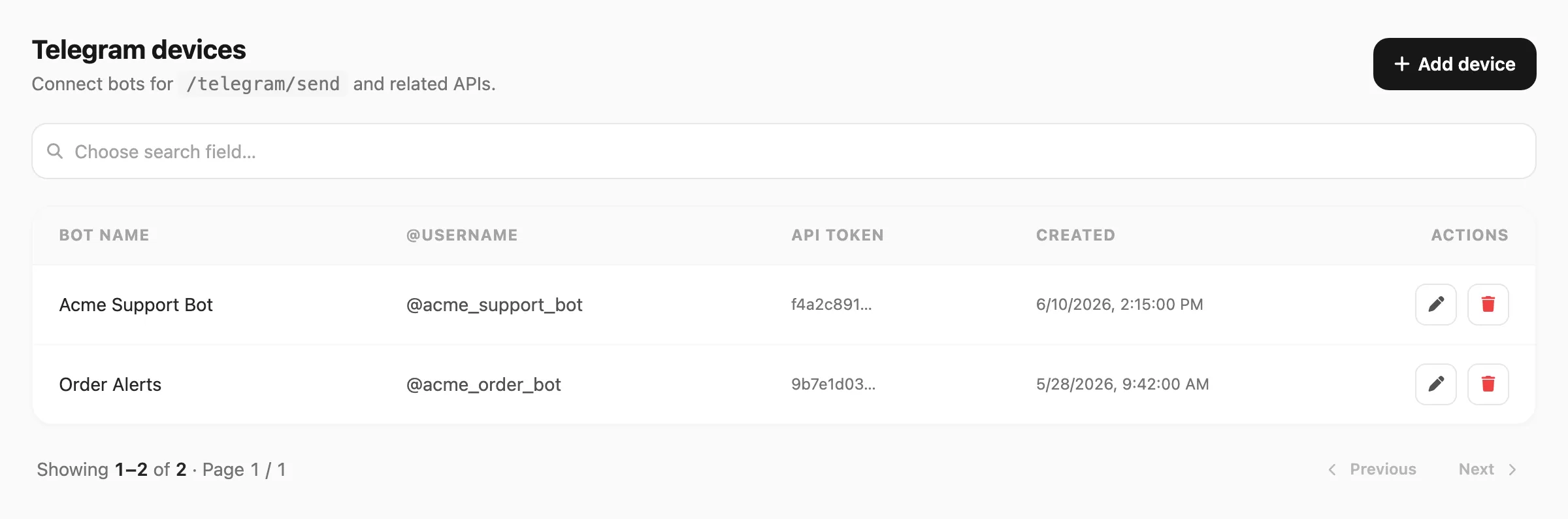
Data sampel ditampilkan.
| Kontrol header | Fungsi |
|---|---|
| Add device | Buka dialog untuk menempel token BotFather dan mendaftarkan bot |
Pencarian
Pencarian berbasis field — klik area pencarian terlebih dahulu, pilih kolom yang dicari, lalu ketik kueri Anda.
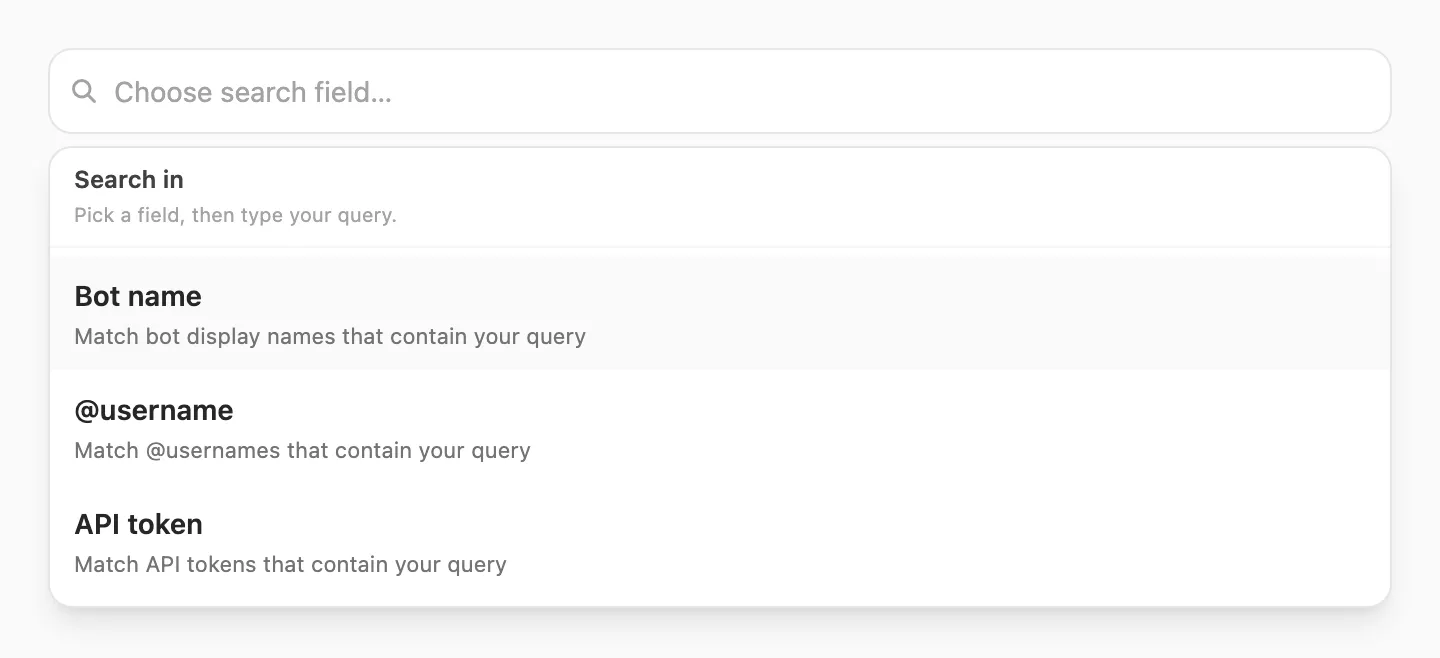
| Langkah | Yang terjadi |
|---|---|
| 1. Klik pencarian | Popup Search in terbuka — Anda harus memilih field sebelum mengetik |
| 2. Pilih field | Bot name, @username, atau API token |
| 3. Ketik | Kirisan memfilter tabel saat Anda mengetik (debounce singkat) |
Setelah memilih field, bilah pencarian menampilkan nama field di kiri (misalnya Bot name ▼). Klik untuk mengganti field — mengganti field menghapus kueri.

| Field pencarian | Cocok dengan | Panjang minimum |
|---|---|---|
| Bot name | Nama tampilan bot yang mengandung kueri Anda | 3 karakter |
| @username | @username Telegram yang mengandung kueri Anda | 3 karakter |
| API token | Token API Kirisan yang mengandung kueri Anda | 3 karakter |
Jika Anda mengetik kurang dari tiga karakter, Kirisan menunggu sampai minimum terpenuhi dan menampilkan petunjuk singkat di bawah bilah pencarian.
Tabel device
Setiap baris adalah satu bot Telegram:

| Kolom | Arti |
|---|---|
| Bot name | Nama tampilan yang Telegram laporkan untuk bot |
| @username | Handle bot publik (ditampilkan dengan @) |
| Plan | Badge paket gratis atau berbayar — klik untuk membuka Telegram plan (lihat Plan and free slot di bawah) |
| Credits | Sisa kredit kirim pada bot ini |
| Expires | Hari tersisa pada paket — Expired berwarna merah; di bawah 5 hari berwarna amber |
| API token | Token device Kirisan terpotong — nilai lengkap hanya ditampilkan sekali saat bot ditambahkan |
| Created | Kapan bot didaftarkan di Kirisan |
| Actions | Edit, Remove, dan opsional Use as active free device — lihat di bawah |
Paginasi di bawah tabel menampilkan 25 device per halaman jika hasil lebih dari satu halaman.
Plan and free slot
Klik badge Plan mana pun untuk membuka Telegram plan:
| Bagian | Yang ditampilkan |
|---|---|
| Summary | Apakah bot ini slot gratis aktif, diparkir di free tier, atau paket berbayar |
| Details | Kredit, masa berlaku, dan tanggal active-since untuk device gratis |
| What to do next | Alihkan slot gratis, perpanjang di Billing → Order, atau salin token API |
Setiap bot baru dimulai dengan free plan berisi 1.000 kredit dan jendela validitas 30 hari. Saat periode gratis aktif berakhir, Kirisan mengisi ulang 1.000 kredit dan 30 hari lagi secara otomatis. Saat paket berbayar kedaluwarsa, bot kembali ke gratis dengan 1.000 kredit (lihat Plans and quota).
Warna badge di tabel:
| Badge | Arti |
|---|---|
| Green Free | Bot pengiriman gratis aktif (hanya satu bot Telegram yang dapat mengirim di free tier pada satu waktu) |
| Red Free | Bot gratis diparkir — bukan slot pengiriman aktif |
| Violet plan name | Paket berbayar (misalnya Lite) — badge menampilkan nama paket sebenarnya |
Pada free tier, hanya bot gratis aktif yang dapat mengirim. Pada baris gratis diparkir, klik Use as active free device untuk mengalihkan slot (paling banyak sekali setiap 7 hari). Upgrade bot ke paket berbayar di Billing → Order menghapusnya dari slot gratis secara otomatis.
Memperpanjang paket berbayar yang sama selama masih aktif menambah kredit dan memperpanjang masa berlaku. Mengganti ke paket berbeda mengganti kredit dan mengatur ulang masa berlaku dari hari ini. Lihat Plans and quota.
Tambah device
- Di Telegram, buka @BotFather dan buat bot dengan
/newbot, atau buka bot yang ada dan salin tokennya. - Di Devices, klik Add device.
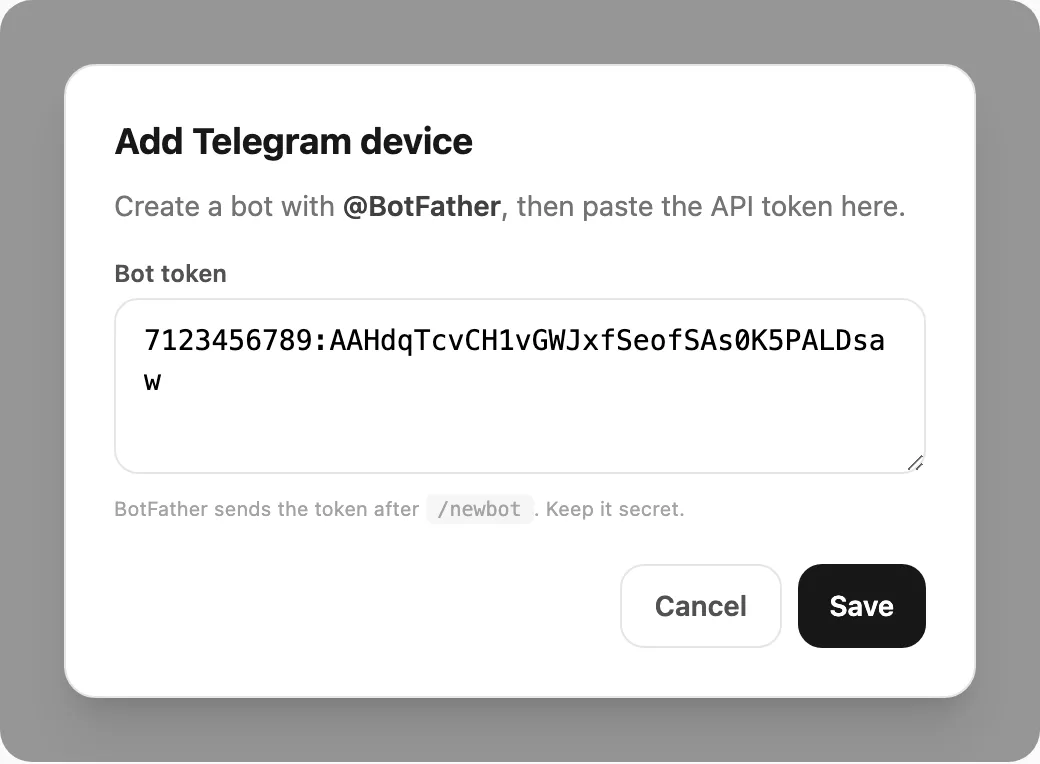
- Tempel Bot token ke field.
- Klik Save.
Jika token valid dan belum terdaftar, bot muncul di daftar.
Saat sukses, Kirisan menampilkan token API Kirisan sekali — salin dan simpan sebelum menutup dialog.
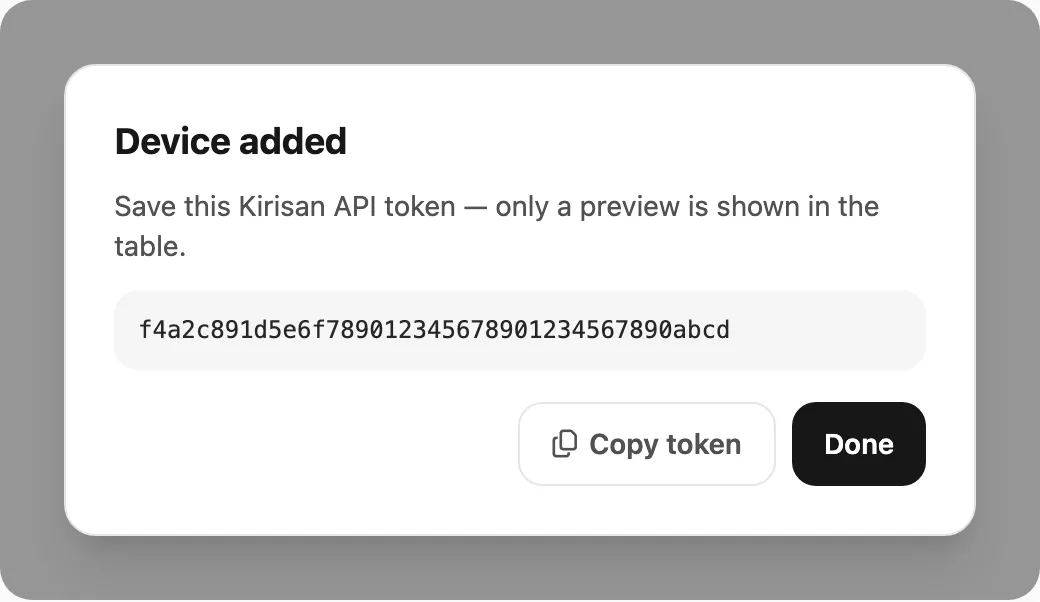
Token tidak ditampilkan lengkap di daftar setelahnya (hanya pratinjau pendek). Anda tetap dapat memilih bot di Send → Send dan pemilih lain tanpa memasukkan token lagi.
Edit device
Klik ikon Edit pada baris untuk mengonfigurasi penanganan pesan masuk dan pengambilan kontak opsional.
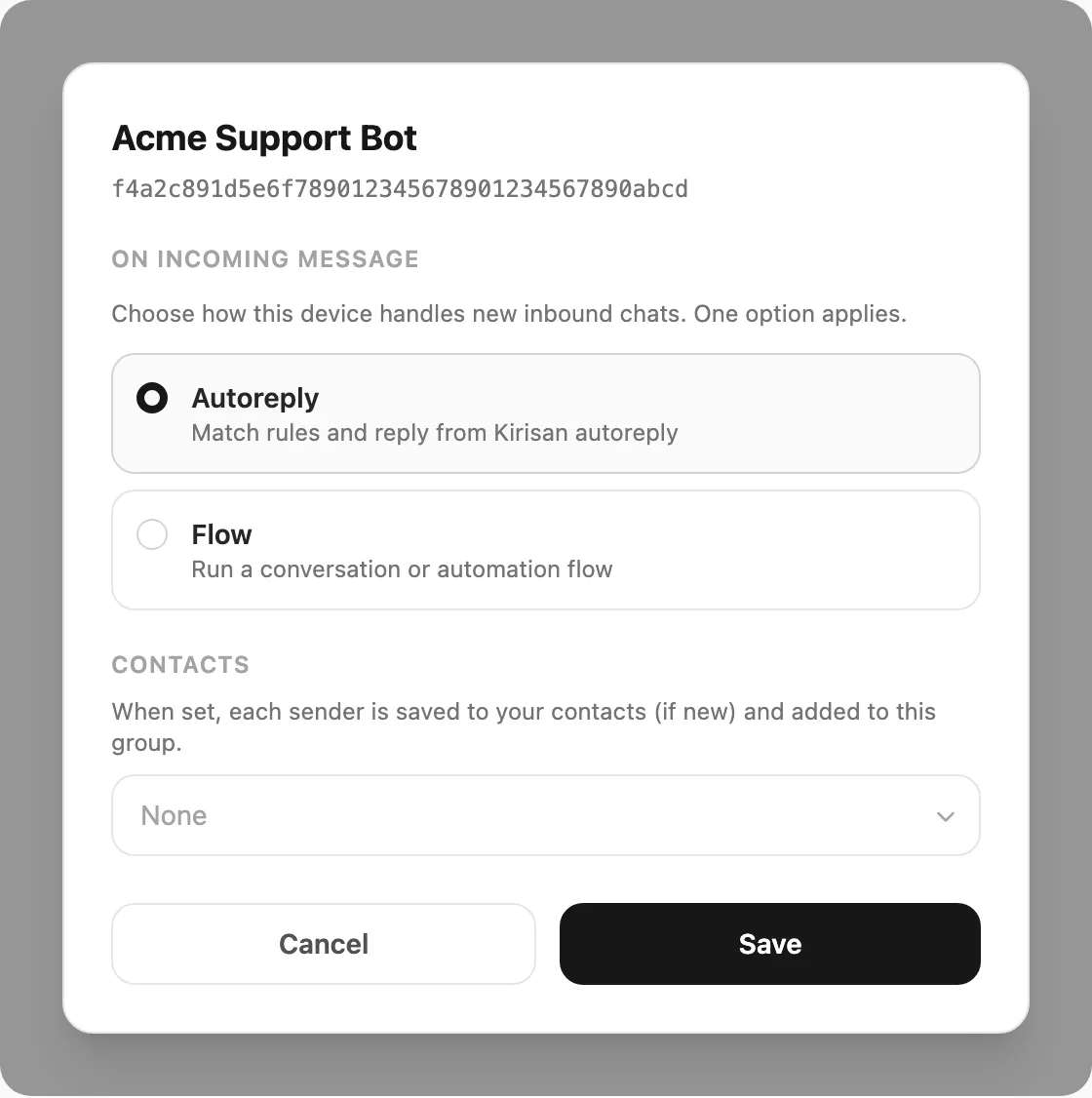
| Bagian | Fungsi |
|---|---|
| On incoming message | Tepat satu handler untuk chat masuk baru: Autoreply, Flow, Spreadsheet, atau Webhook |
| Contacts | Grup kontak opsional — jika diatur, pengirim baru disimpan ke kontak dan ditambahkan ke grup tersebut |
Token BotFather dan token API Kirisan tidak bisa diubah di sini. Hapus device dan tambahkan lagi jika Anda perlu menghubungkan bot berbeda.
Hapus device
Klik ikon Remove. Kirisan meminta konfirmasi, lalu memutus bot dari akun Anda.
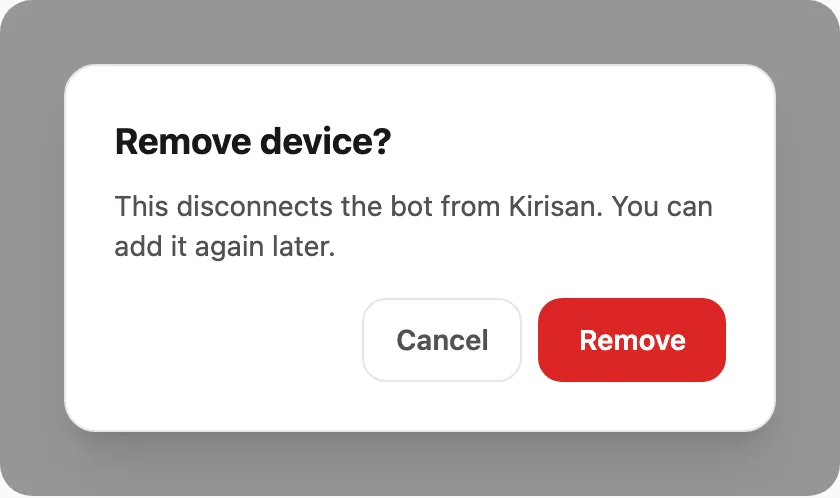
Anda bisa mendaftarkan bot yang sama lagi nanti dengan token BotFather yang sama jika diperlukan.
Terkait
- Templates — tata letak pesan yang dapat digunakan kembali untuk bot
- Inbox — baca pesan masuk ke bot Anda
- Logs — riwayat pengiriman keluar
- Plans and quota — free tier, perpanjangan, perubahan paket, dan masa berlaku
- Place an order — upgrade bot dari paket gratis ke berbayar
- Send API — kirim secara programatis dengan token API device