Tagihan & pembayaran
Setiap bagian di bawah adalah tugas bernomor. Untuk referensi layar lengkap, lihat dokumen referensi Billing. Untuk free tier, perpanjangan, perubahan paket, dan kedaluwarsa, lihat Paket dan kuota.
Buat pesanan
Tujuan: Perpanjang atau tingkatkan paket untuk channel mana pun.
- Buka Billing → Order.
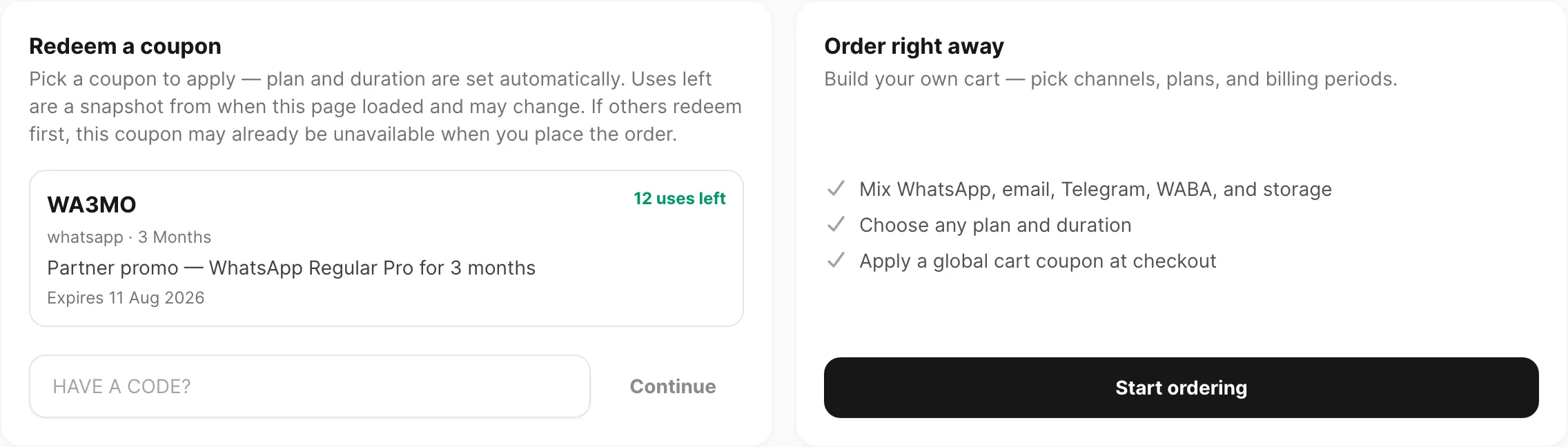
- Jika Anda melihat Redeem a coupon dan Order right away, klik Start ordering (kecuali Anda menebus kupon channel — lihat Tebus kupon channel di bawah).
Pilih tab channel (WhatsApp, WABA, Email, Telegram, atau Storage).
Di daftar periksa, centang device, nomor, atau domain yang ingin Anda tingkatkan.
Pilih paket di Plans & add-ons dan atur Billing period.
- Anda seharusnya melihat baris muncul di Order summary di kanan yang menampilkan jumlah target, paket, dan harga.
Untuk memasukkan beberapa channel dalam satu checkout, ganti tab sebelum klik Place order — baris keranjang tetap sampai Anda mengirim.
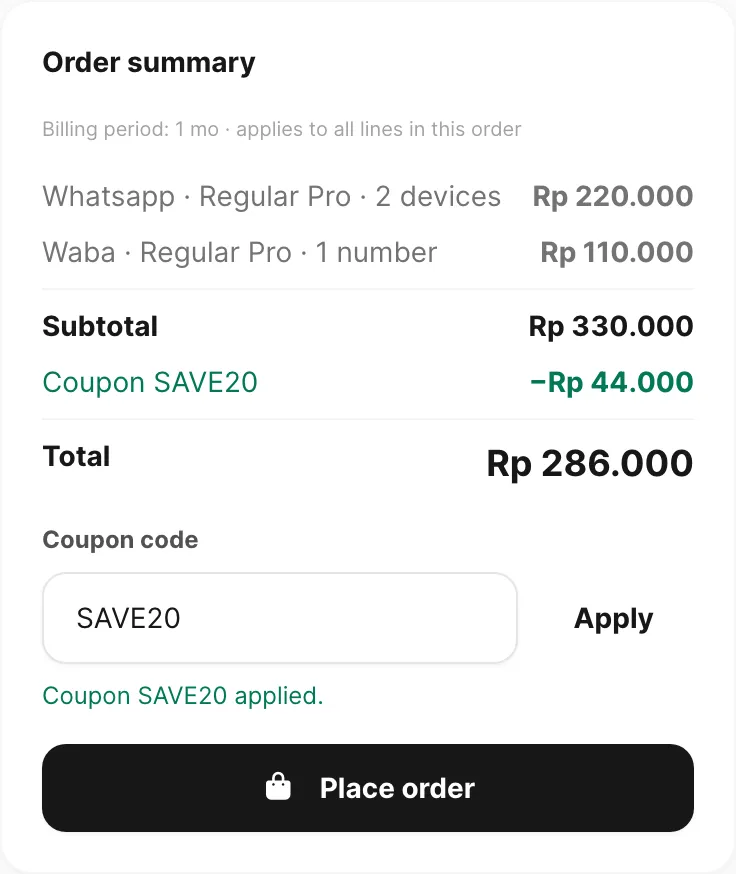
Konfirmasi Billing period berlaku untuk setiap baris channel, lalu klik Place order.
- Anda seharusnya melihat toast sukses dengan ID pesanan dan Billing → Checkout terbuka otomatis.
Selesai saat: Billing → Checkout dimuat dengan invoice pending Anda dan Transfer amount.
Perpanjang paket yang sama
Tujuan: Tambah kredit dan perpanjang kedaluwarsa tanpa kehilangan saldo saat ini.
Mulai saat: Target masih memiliki paket berbayar yang sama aktif (belum kedaluwarsa) dan Anda ingin lebih banyak kuota atau waktu.
Buka Channel → pilih WABA, Telegram, atau Email → Domains dan klik badge Plan pada baris.
Konfirmasi nama paket cocok dengan yang ingin dibeli (misalnya Regular di baris dan pesanan).
Buka Billing → Order, pilih tab channel yang cocok, centang target itu, dan pilih paket yang sama serta Billing period.
Selesaikan Place order dan bayar di Billing → Checkout.
- Anda seharusnya melihat di checkout: Currently expires … → expected active until … (kedaluwarsa diperpanjang dari tanggal saat ini, bukan dari hari ini).
- Setelah success, Credits pada baris harus bertambah sebesar kuota paket untuk periode yang dibeli.
Selesai saat: Credits naik dan Expires bergeser lebih lambat tanpa reset ke “baru dibeli hari ini” kecuali paket lama sudah kedaluwarsa.
Jika Anda memilih tier paket berbeda saat yang saat ini masih aktif, Kirisan mengganti kredit dan mereset kedaluwarsa dari hari ini — lihat Beralih ke paket berbeda. Referensi: Paket dan kuota.
Beralih ke paket berbeda
Tujuan: Pindahkan target dari satu tier berbayar ke tier lain (misalnya Lite → Regular).
Mulai saat: Anda ingin tier lebih tinggi atau lebih rendah dan menerima bahwa sisa kredit dan hari tersisa pada paket lama tidak dibawa.
Buka Billing → Order, pilih tab channel, dan centang target.
Pilih paket baru (bukan paket yang saat ini ditampilkan di baris).
Atur Billing period dan klik Place order, lalu bayar di Billing → Checkout.
- Anda seharusnya melihat Expected active until … dari hari ini (bukan “Currently expires … →”), karena Kirisan memulai masa baru.
- Setelah success, Credits sesuai kuota paket baru untuk periode — bukan saldo lama ditambah yang baru.
Selesai saat: Badge Plan menampilkan tier baru dan Expires mencerminkan masa baru dari tanggal pembayaran.
Aktifkan slot pengiriman gratis
Tujuan: Biarkan device, bot, atau domain gratis yang parked mengirim di free tier.
Mulai saat: Kirim gagal dengan error free tier atau slot tidak aktif, atau baris menampilkan red Free sementara target lain di channel yang sama menampilkan green Free.
Buka Channel → WABA → Devices, Channel → Telegram → Devices, atau Channel → Email → Domains.
Temukan target yang ingin Anda kirim dari. Jika badge Plan-nya red Free, berarti parked.
Klik Use as active free device (atau Use as active free domain di email).
Konfirmasi dialog.
- Anda seharusnya melihat baris ini berubah green Free dan baris free aktif sebelumnya berubah red Free.
- Jika Kirisan memblokir pergantian, Anda mungkin masih dalam cooldown 7 hari — tunggu sampai dialog menampilkan tanggal berikutnya yang diizinkan.
Selesai saat: Target yang Anda kirim dari menampilkan green Free (atau badge paket berbayar) dan kirim uji berhasil.
Setiap target gratis dimulai dengan 1.000 kredit dan jendela 30 hari. Hanya slot gratis aktif yang diisi ulang otomatis saat periode berakhir. Lihat Paket dan kuota.
Tebus kupon channel
Tujuan: Gunakan kupon channel yang mengunci plan dan periode billing.
Mulai saat: Anda punya kode kupon channel, atau Billing → Order menampilkan kupon di Redeem a coupon.
- Buka Billing → Order.
- Di Redeem a coupon, klik kartu kupon (atau ketik kode lalu Continue).
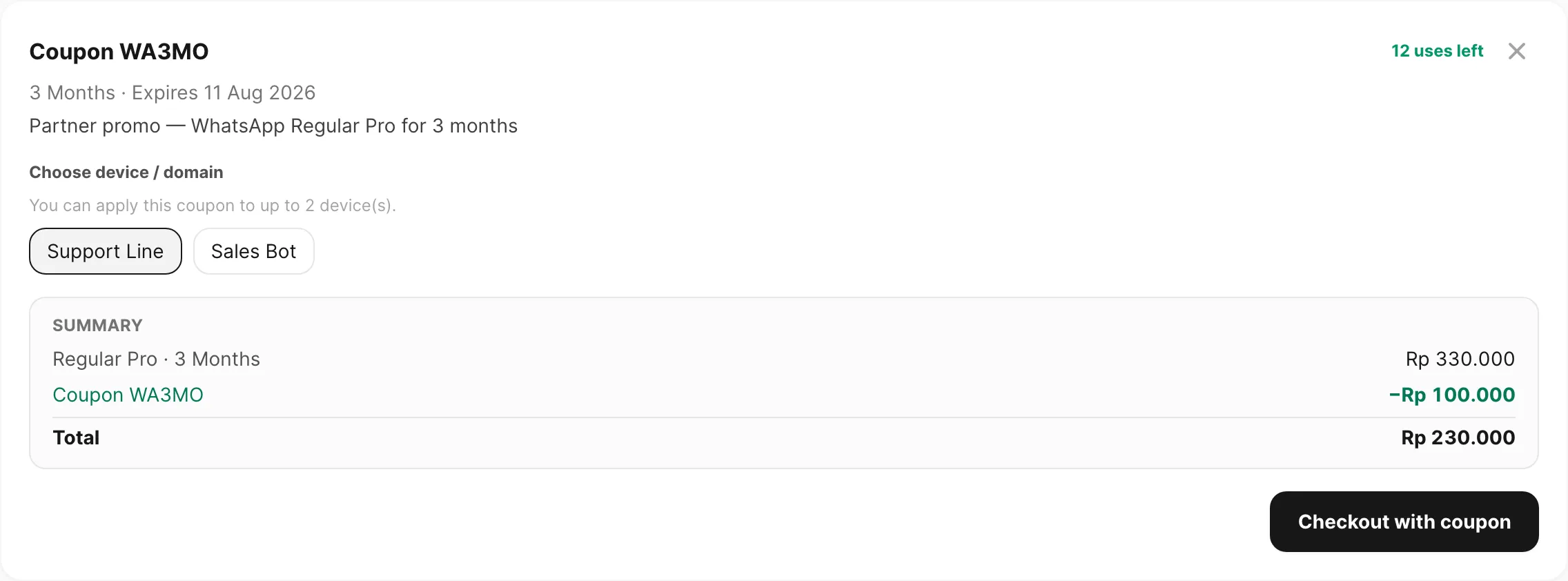
- Pilih channel jika diminta, lalu pilih device atau domain yang diterapkan.
- Tinjau Summary (Total setelah diskon).
- Klik Checkout with coupon.
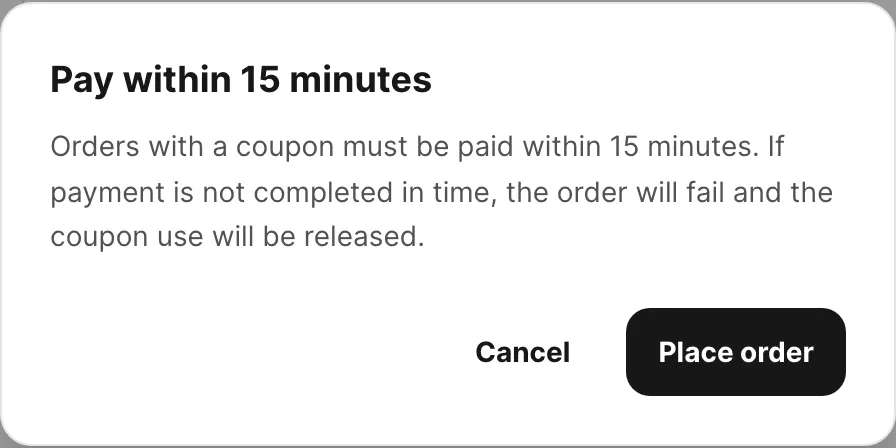
- Jika Total di atas Rp 0, konfirmasi Bayar dalam 15 menit.
Selesai saat:
- Total masih di atas Rp 0 — Billing → Checkout dimuat; bayar dalam 15 menit.
- Total = Rp 0 — Kirisan menyetujui segera dan membuka Billing → Receipts.
Referensi: Place an order (Tebus kupon channel).
Terapkan kupon
Tujuan: Kurangi total keranjang biasa dengan kode diskon global.
Mulai saat: Anda sudah klik Start ordering (atau tidak ada kupon channel), dan Order summary menampilkan setidaknya satu baris dan Subtotal.
- Gulir ke Coupon code di bawah total di Order summary.
- Ketik kode Anda (tidak peka huruf besar/kecil) dan klik Apply.
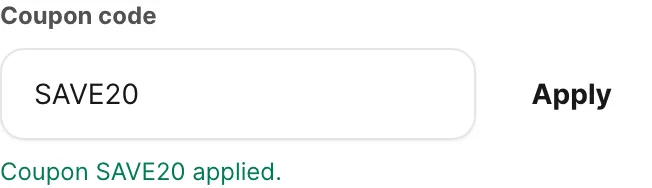
- Anda seharusnya melihat Coupon YOURCODE applied. berwarna hijau. Baris Coupon menampilkan diskon dan Total turun.
- Tinjau Total, lalu klik Place order.
- Jika Total di atas Rp 0, konfirmasi Bayar dalam 15 menit.
Selesai saat:
- Total masih di atas Rp 0 — diskon diterapkan dan Billing → Checkout dimuat — bayar dalam 15 menit.
- Total = Rp 0 — Kirisan menyetujui pesanan segera, menampilkan toast gratis-dengan-kupon, dan membuka Billing → Receipts. Plan langsung aktif; unduh PDF kuitansi Free di sana. Anda tidak memakai checkout atau transfer bank.
Kirisan menghapus kupon saat Anda mengubah target, paket, atau billing period. Klik Apply lagi setelah menyelesaikan keranjang.
Bayar lewat transfer bank
Tujuan: Transfer Transfer amount yang tepat agar Kirisan menandai invoice Anda success.
Mulai saat: Anda punya invoice pending di Billing → Checkout (tercapai otomatis setelah Place order ketika total di atas Rp 0, atau lewat Pay di Billing → Invoice). Lewati bagian ini jika kupon membuat pesanan gratis — lanjut ke Unduh PDF tanda terima.
Pesanan kupon dengan sisa bayar harus dibayar dalam 15 menit atau akan gagal.
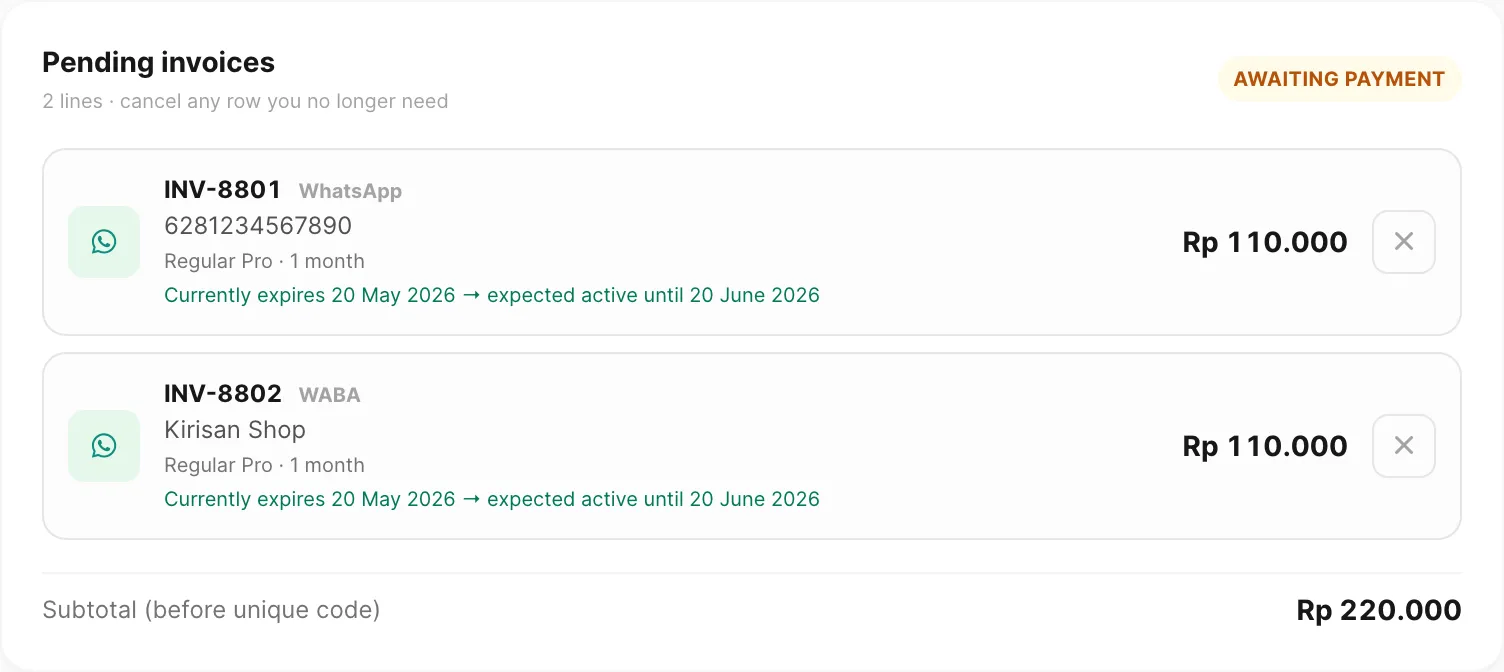
- Di Billing → Checkout, konfirmasi setiap invoice yang Anda harapkan muncul di bawah Pending invoices.
- Klik Copy transfer amount di panel Direct transfer.
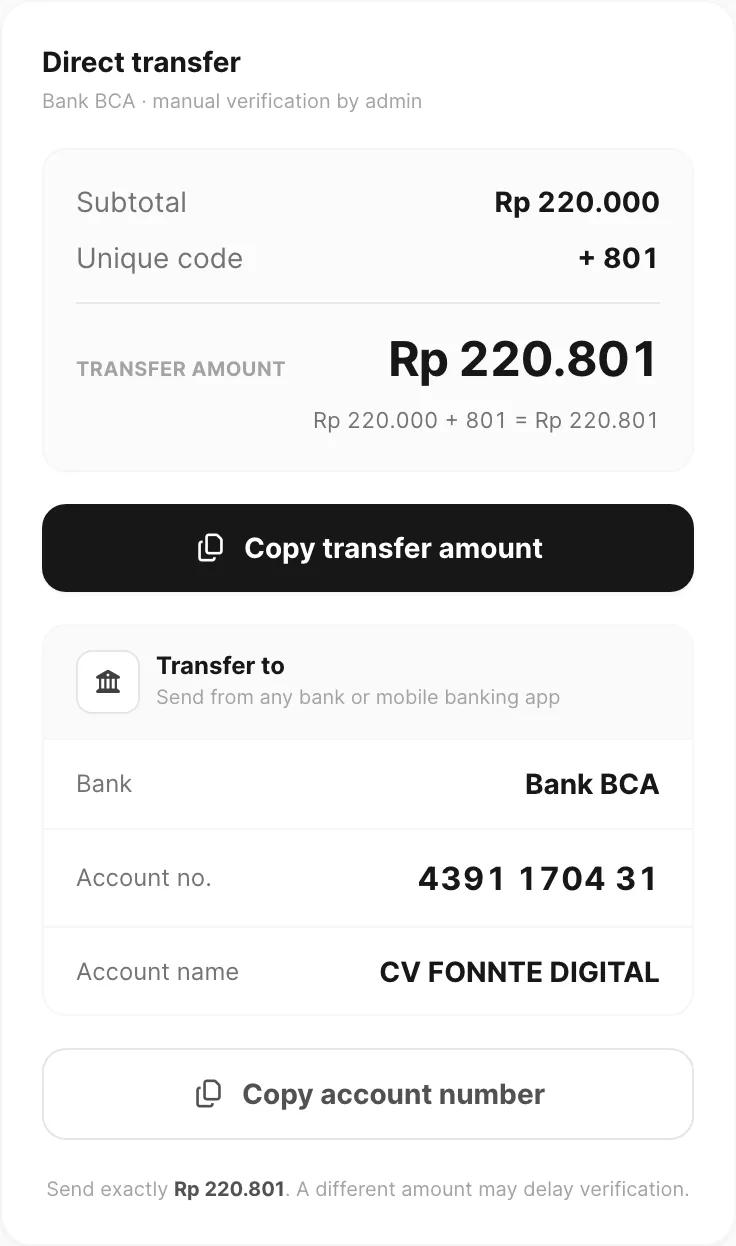
- Angka ini termasuk unique code — jangan bayar subtotal saja; unique code mengidentifikasi batch Anda.
Opsional: klik Download invoice untuk menyimpan PDF (Invoice · Awaiting payment) dengan item baris, kode unik, amount due, dan detail BCA.
Di aplikasi perbankan Anda, kirim Transfer amount ke:
Bank BCA · 4391170431 · CV FONNTE DIGITAL
Simpan bukti transfer Anda. Verifikasi manual — admin mencocokkan jumlah unik dengan invoice Anda.
- Anda seharusnya melihat invoice berpindah dari pending ke success di Billing → Invoice setelah verifikasi (waktu tergantung jam dukungan).
Selesai saat: Semua invoice terkait menampilkan success dan paket atau kuota Anda aktif.
Temukan invoice dan konfirmasi pembayaran
- Buka Billing → Invoice.
- Setel Status ke pending untuk melihat yang belum dibayar, atau success untuk mengonfirmasi pembayaran lalu.
- Cari menurut INV-##### jika Anda tahu nomor invoice.
- Klik baris untuk detail lengkap — Pay now membuka kembali checkout untuk invoice pending.
Selesai saat: Setiap invoice yang Anda bayar menampilkan success dan paket atau kuota penyimpanan aktif di halaman channel.
Batalkan invoice pending
Mulai saat: Anda memesan paket salah, menduplikasi pesanan, atau berubah pikiran sebelum membayar.
- Buka Billing → Invoice, filter Status → pending, dan klik baris invoice.
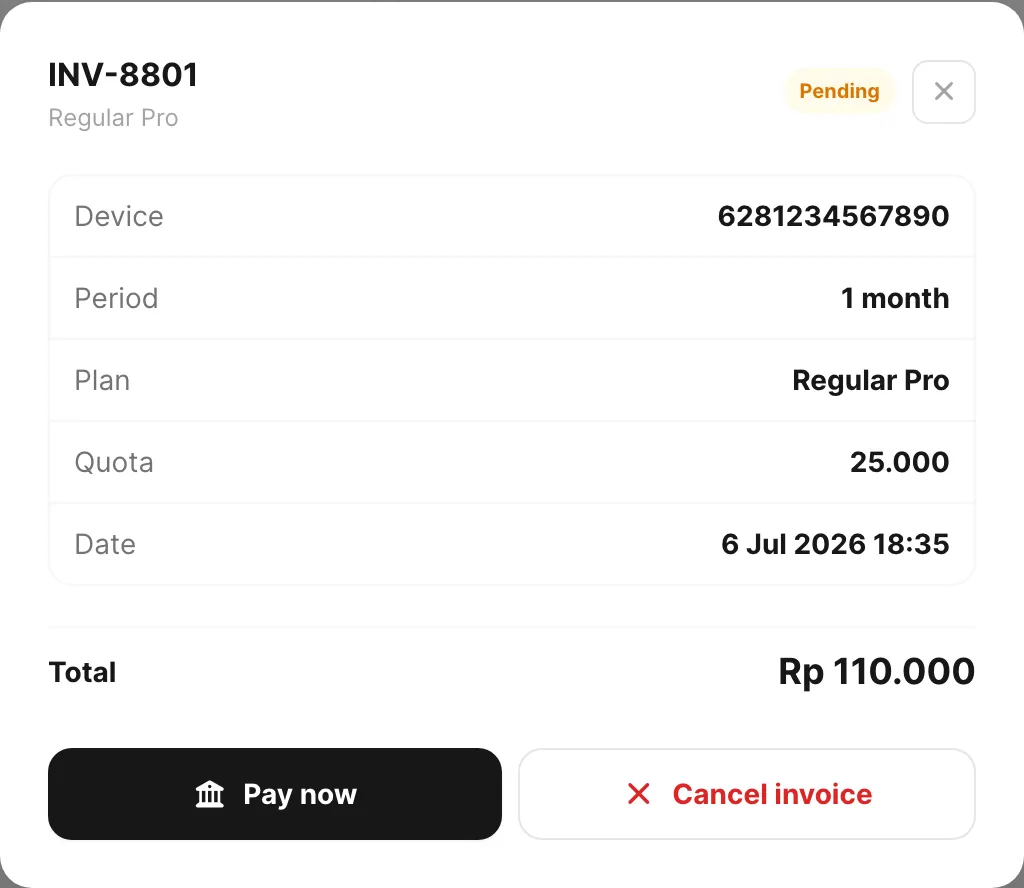
Klik Cancel invoice dan tunggu pesan sukses.
- Anda seharusnya melihat baris menampilkan cancelled setelah refresh.
- Di Billing → Checkout, baris yang dibatalkan hilang dari pending invoices.
Selesai saat: Invoice menampilkan cancelled.
Unduh PDF tanda terima
Tujuan: Dapatkan PDF setelah pembayaran selesai (verifikasi bank atau kupon gratis).
Mulai saat: Invoice Anda menampilkan success di Billing → Invoice, atau Kirisan membuka Billing → Receipts langsung setelah pesanan kupon gratis.
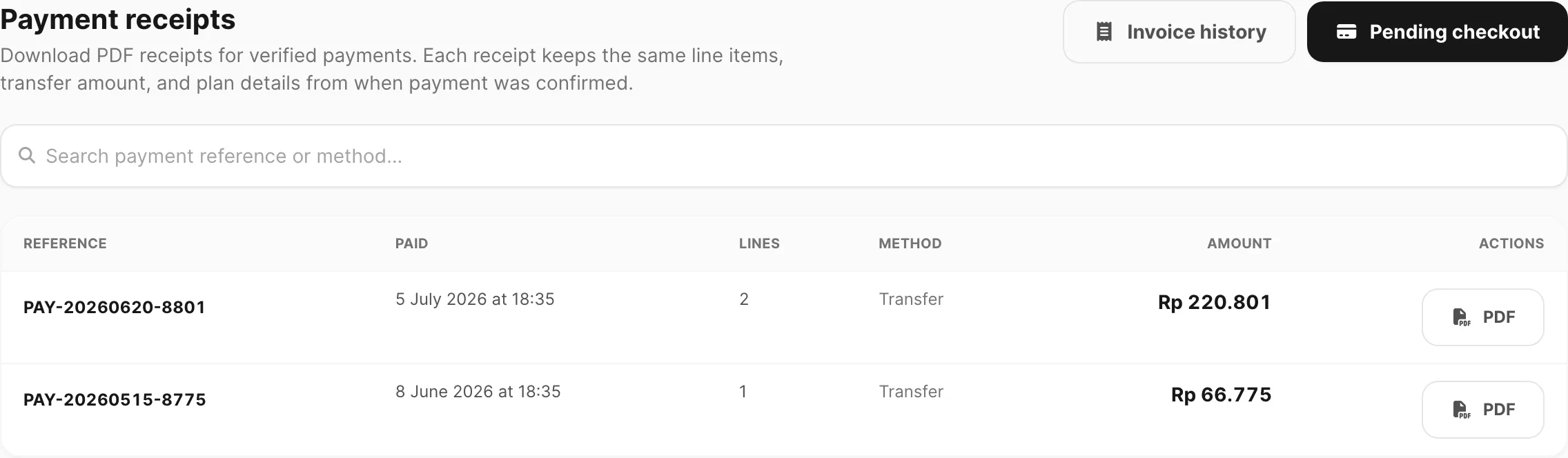
- Buka Billing → Receipts.
- Temukan baris — Reference terlihat seperti
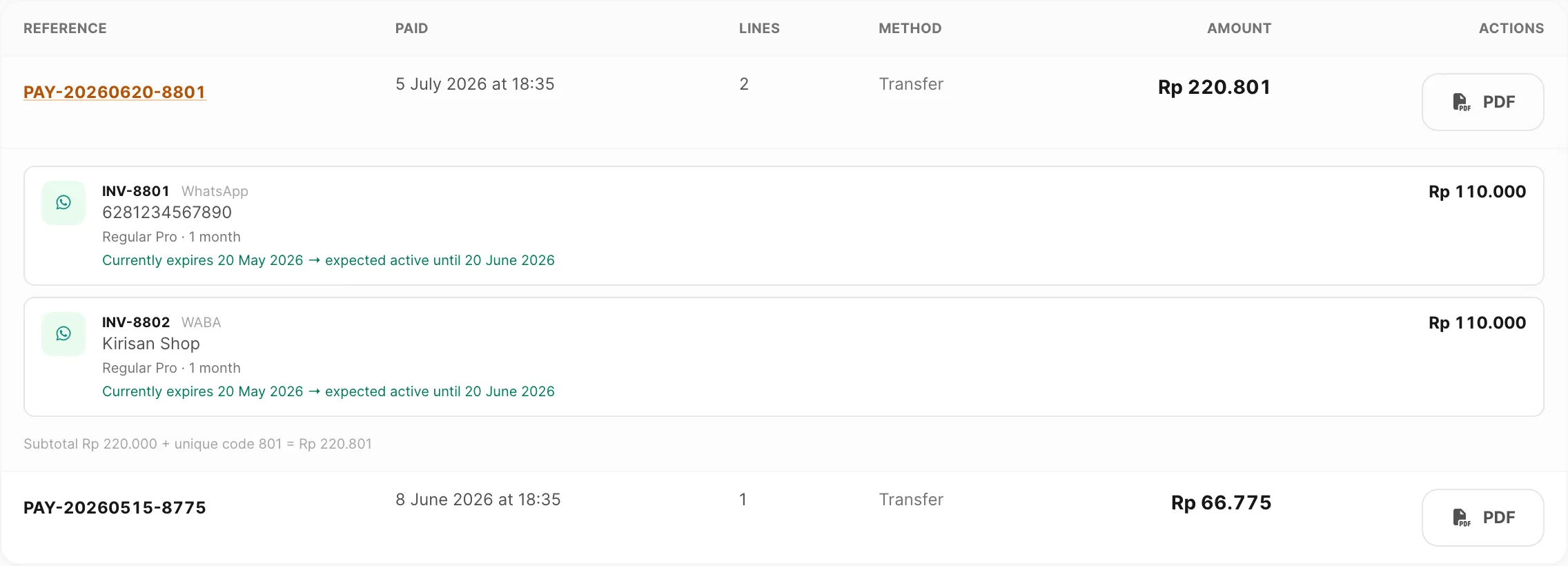
PAY-YYYYMMDD-#####, dengan tanggal Paid dan tombol PDF. Method adalah transfer atau coupon; Amount adalah total transfer atau Rp 0.
- Opsional: klik Reference untuk memperluas dan konfirmasi baris INV yang disertakan.
- Klik PDF dan konfirmasi unduhan.
Selesai saat:
- Pembayaran bank — status PDF Paid; jumlah dan detail BCA cocok dengan transfer Anda.
- Kupon gratis — status PDF Free; metode Coupon; jumlah Free; tanpa kode unik atau blok bank.
Untuk mencari menurut referensi, tempel kode PAY-… di kotak pencarian.
Pesan penyimpanan file
Tujuan: Tingkatkan disk file akun serta kuota write/read untuk media, lampiran, dan file manager.
- Buka Billing → Order dan klik tab Storage.
- Baca Storage usage — catat disk, write, read, dan Expires.
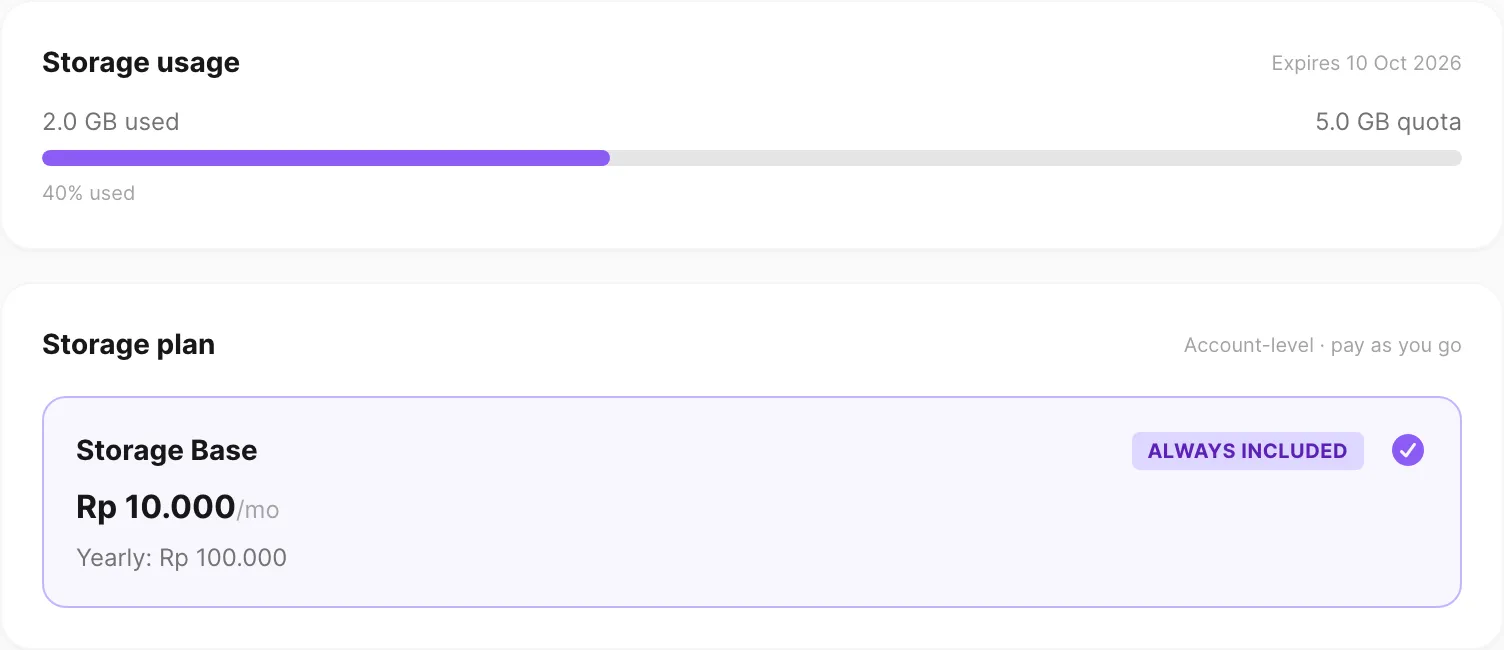
Di bawah Storage plan, Storage Base selalu disertakan. Di bawah Additional storage, klik + untuk menambah GB ekstra (0–100). Setiap GB juga menambah kuota write dan read. Hapus gratis.
Opsional: tambah Paket write atau Paket read jika butuh operasi lebih tanpa disk ekstra.
Atur Billing period dan periksa Order summary — menampilkan Storage Base, GB ekstra dan paket opsional, serta Total quota.
Klik Place order, lalu bayar di Billing → Checkout (lihat Bayar lewat transfer bank di atas).
Selesai saat: Invoice menampilkan success dan Storage usage mencerminkan disk serta kuota ops baru setelah refresh.
Perbaiki masalah umum
Gejala: Daftar target kosong (“No WhatsApp devices on this account yet…”).
Tambahkan device, nomor, atau domain di halaman channel yang cocok terlebih dahulu (Channel → WhatsApp → Devices, Channel → WABA → Devices, dll.), lalu kembali ke Billing → Order dan refresh.
Gejala: Tombol Place order abu-abu.
- Pilih setidaknya satu target dan paket di tab channel aktif.
- Untuk Storage, pilih Billing period yang valid — tidak perlu memilih device.
- Billing period kustom harus bilangan bulat dari 1 hingga 120.
Gejala: Paket WABA atau Telegram tidak dimuat.
Konfirmasi Anda punya nomor atau bot di akun. Jika daftar tetap kosong, tunggu sebentar dan muat ulang Billing → Order.
Gejala: Baris channel hilang dari Order summary.
Mengganti tab menghapus pilihan tab itu jika Anda belum memilih target dan paket. Pilih ulang target dan paket; baris tab lain tetap kecuali Anda klik Clear di sana.
Gejala: Kode kupon ditolak (Invalid coupon).
- Periksa ejaan. Kode tidak peka huruf besar/kecil.
- Kupon mungkin terbatas pada channel, paket, jumlah minimum, atau jumlah penggunaan tertentu.
- Beberapa kupon satu-akun — konfirmasi Anda di akun yang benar.
Gejala: Kupon hilang setelah mengubah keranjang.
Kirisan menghapus kupon saat target, paket, atau billing period berubah. Klik Apply lagi.
Gejala: Pesanan kupon menjadi failed sebelum saya bayar.
Pesanan kupon dengan sisa bayar harus dibayar dalam 15 menit. Setelah itu Kirisan menandai failed dan mengembalikan pemakaian kupon — buat pesanan lagi dan transfer segera. Pesanan kupon gratis (Rp 0) melewati jendela ini.
Gejala: Invoice tetap pending setelah transfer bank.
- Konfirmasi Anda mentransfer Transfer amount (subtotal ditambah unique code), bukan subtotal saja.
- Hubungi dukungan dengan INV-##### dan bukti transfer Anda.
Gejala: Tidak ada invoice terlihat.
Hapus semua teks pencarian dan setel All statuses / All channels. Jika tabel masih kosong, belum ada pesanan — gunakan Billing → Order.
Gejala: Belum ada tanda terima pembayaran.
- Verifikasi mungkin masih pending — periksa Billing → Invoice → Status → pending.
- Tanda terima dibuat hanya setelah invoice menjadi success.
- Untuk PDF sebelum membayar, gunakan Download invoice di Billing → Checkout.
Gejala: Tombol PDF tanda terima error.
Coba lagi dengan koneksi stabil. Catat Reference dan hubungi dukungan jika berlanjut.
Gejala: Kuota penyimpanan tidak bertambah setelah pembayaran.
Konfirmasi status invoice success, bukan pending. Refresh Billing → Order atau buka Resources → Files untuk melihat batas terbaru.
Gejala: Unggah gagal padahal disk masih sisa.
Kuota write mungkin habis. Beli paket write atau GB tambahan di Billing → Order → Storage. Lihat Files (Saat kuota habis).
Gejala: Pratinjau atau kirim dengan lampiran gagal; disk masih cukup.
Kuota read mungkin habis. Beli paket read atau GB tambahan di Billing → Order → Storage.
Gejala: Add-on menampilkan “Use support to purchase…”
Beberapa add-on belum self-serve. Hubungi dukungan Kirisan dengan nama add-on dan target yang Anda butuhkan.
Gejala: Kredit tidak bertambah setelah saya bayar (saldo terlihat diganti, bukan ditambah).
Anda mungkin memesan paket berbeda saat yang lama masih aktif — Kirisan mereset kuota dan kedaluwarsa saat ganti paket. Untuk menumpuk kredit, beli paket yang sama lagi sebelum kedaluwarsa. Lihat Perpanjang paket yang sama dan Paket dan kuota.
Gejala: Kirim diblokir — free tier tidak aktif / badge red Free.
Hanya satu nomor WABA, bot Telegram, atau domain email gratis yang bisa mengirim pada satu waktu. Aktifkan target dengan aksi bintang, atau tingkatkan ke berbayar di Billing → Order. Lihat Aktifkan slot pengiriman gratis.
Gejala: Kredit menampilkan 0 di free tier tetapi paket belum kedaluwarsa.
Konfirmasi baris green Free (slot aktif). Target free yang parked tidak diisi ulang otomatis. Ganti slot atau tunggu siklus isi ulang target free aktif. Target berbayar kedaluwarsa kembali ke free dengan 1.000 kredit — refresh halaman beberapa menit setelah melewati kedaluwarsa.
Gejala: Paket berbayar kedaluwarsa — sekarang Free dengan 1.000 kredit.
Perilaku yang diharapkan. Perpanjang di Billing → Order untuk kembali ke tier berbayar, atau terus gunakan kuota free aktif sampai jendela isi ulang berikutnya.
Terkait
- Paket dan kuota — kredit, perpanjangan, perubahan paket, dan kedaluwarsa
- Referensi buat pesanan — tur UI checkout lengkap
- Referensi invoice — filter status dan panel detail
- Referensi checkout — instruksi transfer bank
- Referensi tanda terima pembayaran — tabel tanda terima dan unduhan PDF
- Afiliasi — komisi terpisah dari kupon
- Koneksi — tambahkan device sebelum memesan