Semua kontak
Buka Contact → All Contacts.
Fungsi halaman ini
Direktori Contacts adalah buku alamat bersama di semua channel. Setiap orang memiliki name, setidaknya satu pengenal jangkauan (WhatsApp, Telegram, atau email), notes opsional, field extra data kustom, dan keanggotaan dalam satu atau lebih groups.
Gunakan kontak saat mengirim dari Send → Send (satu penerima atau target Contact massal), campaigns, dan pengiriman recurring. Pengaturan device juga dapat menambahkan pengirim masuk ke grup secara otomatis — lihat Auto-add dari device.
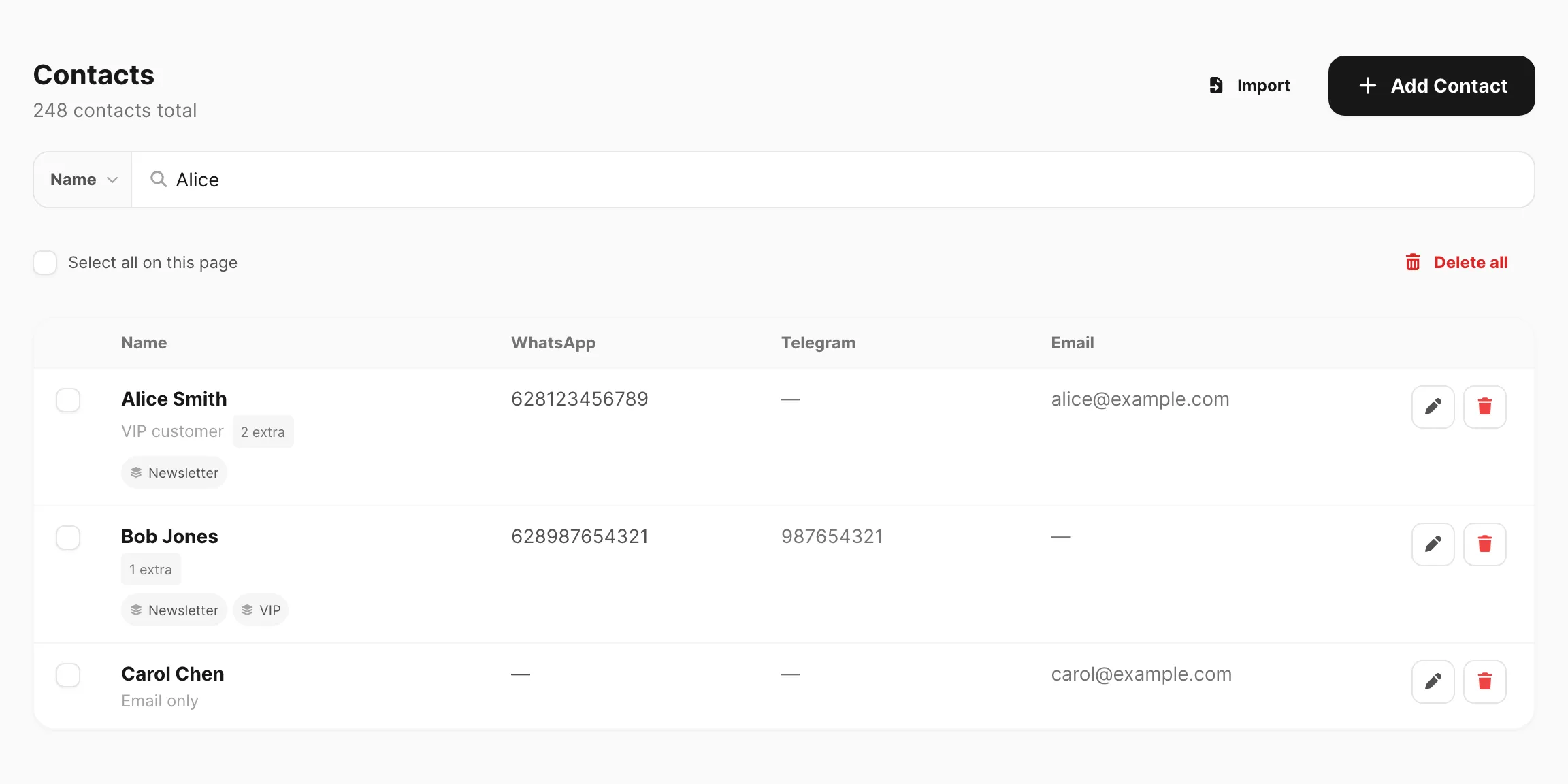
Data sampel ditampilkan.
Daftar kontak
| Kontrol / kolom | Fungsi |
|---|---|
| Import | Buka dialog impor — file CSV atau Google Sheet. |
| Add Contact | Buat satu kontak secara manual. |
| Search | Berbasis field — pilih Name, WhatsApp, Telegram, atau Email, lalu ketik (minimum 3 karakter). Lihat Cari kontak. |
| Select all on this page | Centang setiap baris di halaman saat ini untuk hapus massal. |
| Delete all / Delete selected (N) | Hapus kontak secara permanen. Grup tetap ada; daftar anggota dikosongkan. |
| Name | Nama tampilan. Menampilkan notes, badge N extra untuk field kustom, dan chip group jika diatur. |
Telepon dalam format internasional tanpa + (misalnya 628123456789). | |
| Telegram | Pengguna atau chat ID Telegram. |
| Alamat email untuk pengiriman email. | |
| Actions | Edit atau Delete pada setiap baris. |
Paginasi muncul di bawah jika Anda memiliki lebih banyak baris daripada satu halaman.
Setiap kontak memerlukan setidaknya satu dari WhatsApp, Telegram, atau email. Name wajib.
Cari kontak
Pencarian berbasis field — klik area pencarian terlebih dahulu, pilih kolom yang dicari, lalu ketik kueri Anda (minimum 3 karakter).
| Langkah | Yang Anda lakukan |
|---|---|
| 1. Klik pencarian | Popup Search in terbuka — pilih Name, WhatsApp, Telegram, atau Email sebelum mengetik |
| 2. Ketik kueri | Kirisan memfilter daftar setelah Anda mencapai panjang minimum |
| 3. Ganti field | Klik pill field di kiri (misalnya Name ▼) untuk mengganti kolom — mengganti menghapus kueri |
| Field pencarian | Cocok dengan |
|---|---|
| Name | Nama kontak yang mengandung teks Anda (tidak peka huruf besar/kecil) |
| Nomor WhatsApp yang mengandung digit Anda | |
| Telegram | ID pengguna atau chat Telegram yang mengandung teks Anda |
| Alamat email yang mengandung teks Anda |
Jika Anda mengetik kurang dari tiga karakter, Kirisan menunggu dan menampilkan petunjuk singkat di bawah bilah pencarian.
Tambah atau edit kontak
Klik Add Contact atau Edit pada baris.
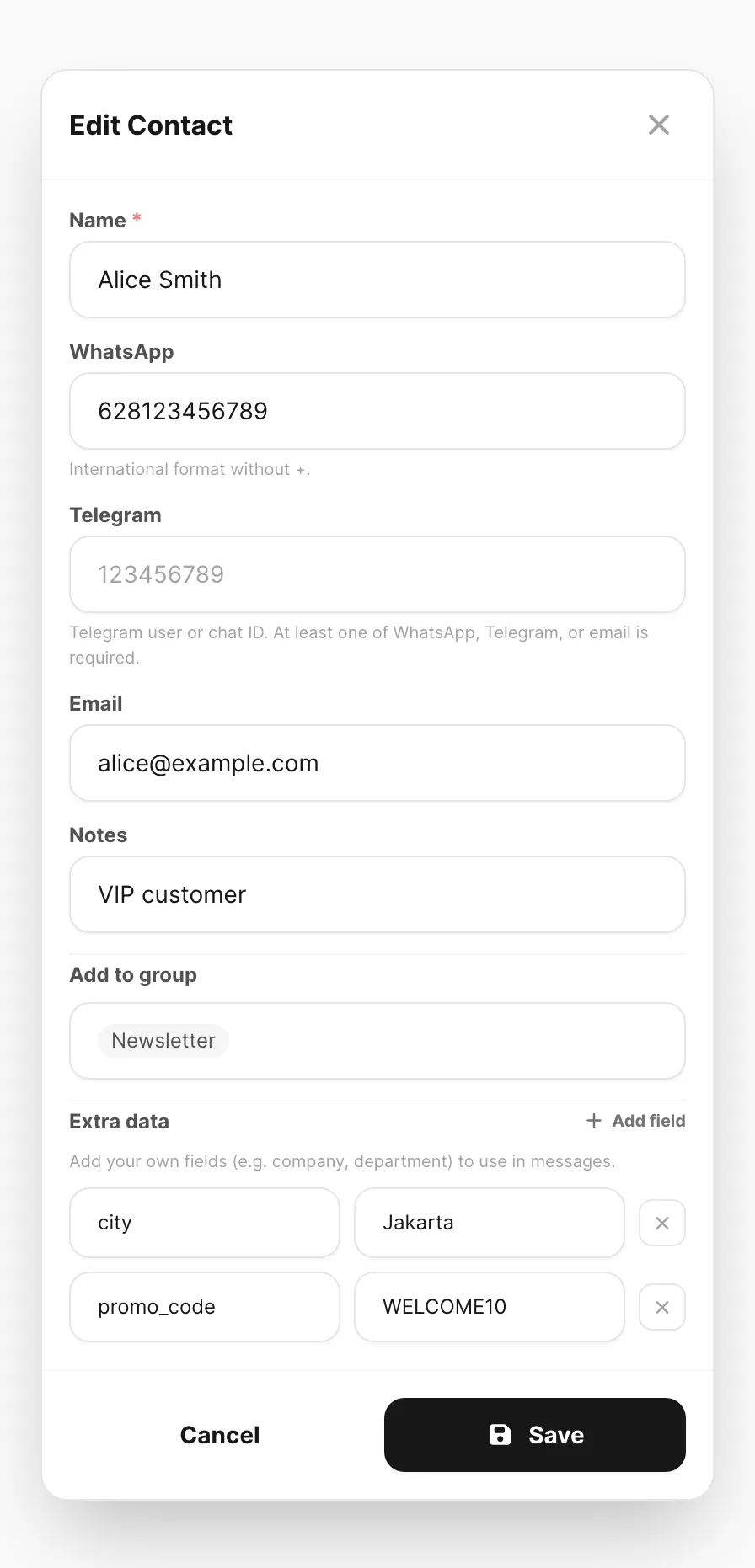
Data sampel ditampilkan.
| Field | Yang dimasukkan |
|---|---|
| Name | Wajib — ditampilkan di daftar dan pemilih pengiriman. |
Hanya digit, kode negara disertakan, tanpa +. | |
| Telegram | ID pengguna atau chat numerik dari Telegram. |
| Digunakan untuk pengiriman channel email. | |
| Notes | Label privat (misalnya VIP customer) — tidak dikirim ke penerima. |
| Add to group | Cari dan centang satu atau lebih daftar Contact → Groups. |
| Extra data | Pasangan key/value kustom (misalnya city, promo_code) — tersedia sebagai variabel template saat mengirim. |
Klik Add Contact (atau Save saat mengedit).
Impor kontak
Klik Import di halaman daftar.
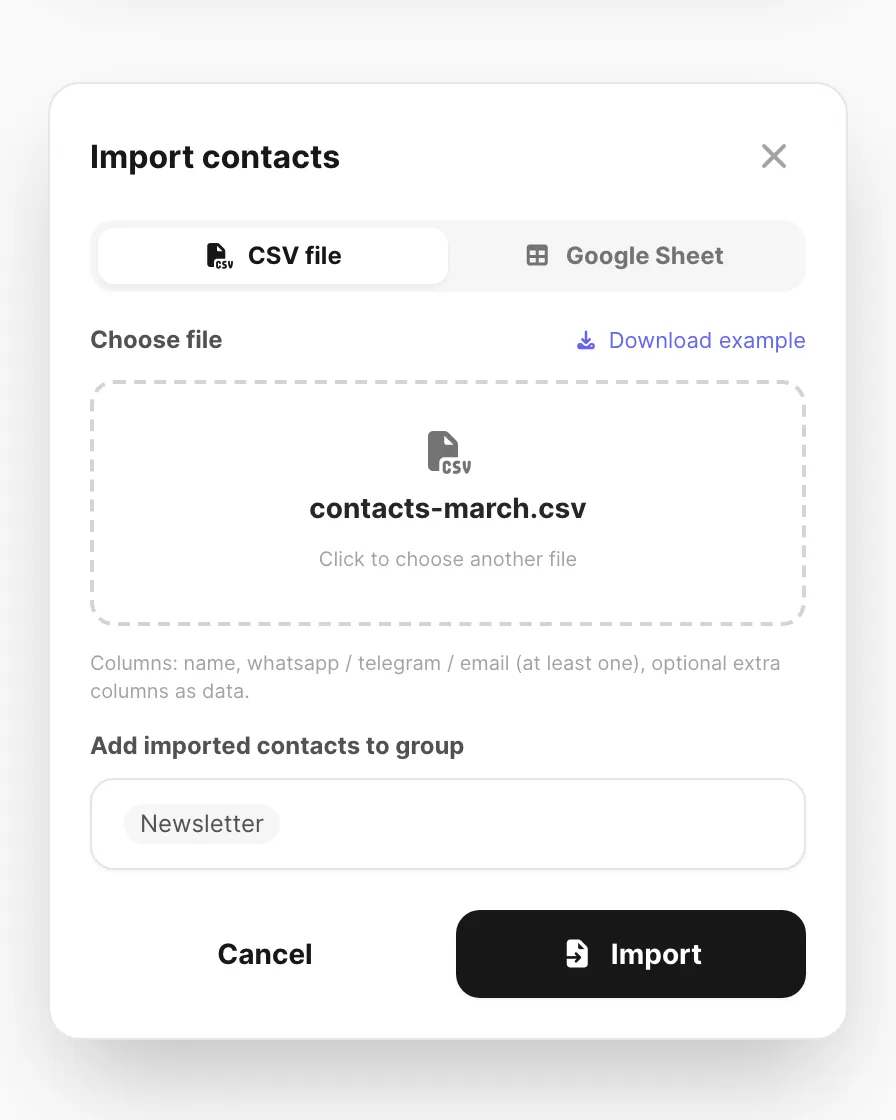
Data sampel ditampilkan.
File CSV
- Pilih CSV file.
- Klik zona drop dan pilih file
.csv, atau gunakan Download example untuk file awal. - Opsional pilih groups untuk menambahkan setiap baris impor ke grup tersebut.
- Klik Import.
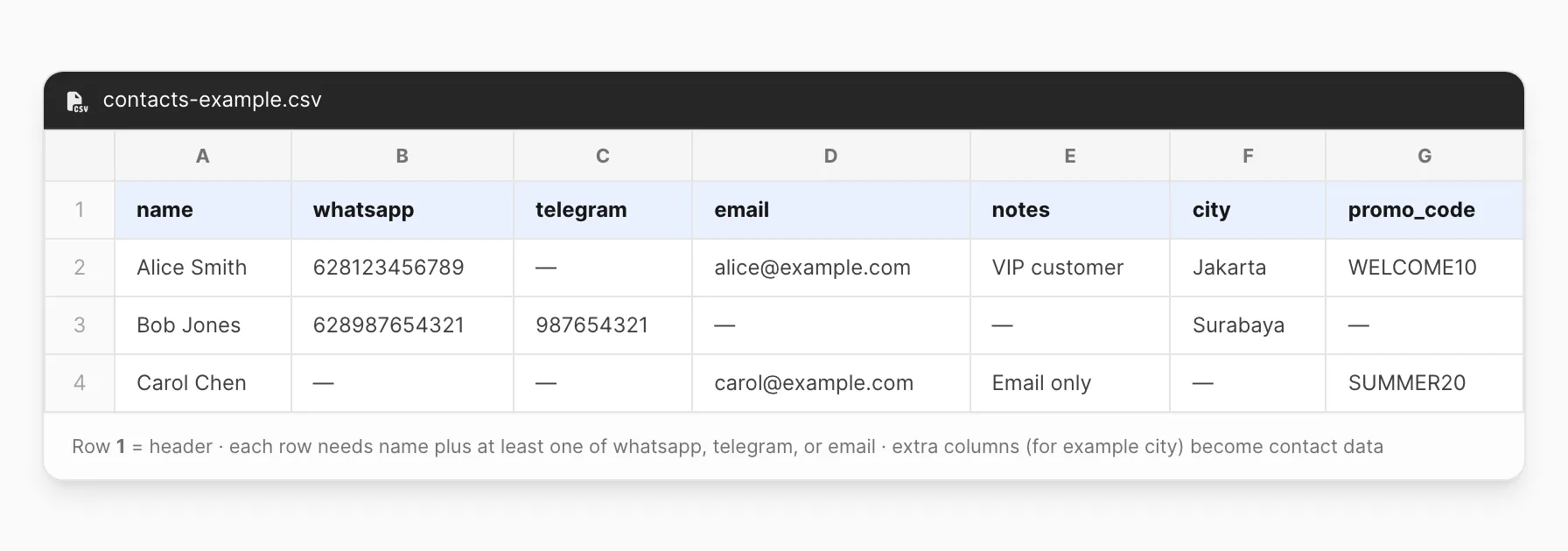
Data sampel ditampilkan — baris 1 adalah header; data dimulai di baris 2.
Kolom yang diharapkan (baris pertama = header; nama fleksibel):
| Kolom | Wajib | Catatan |
|---|---|---|
name | Ya | Dilewati jika kosong. |
whatsapp | Salah satu dari tiga | Juga cocok dengan header seperti phone, number, wa. |
telegram | Salah satu dari tiga | Juga cocok dengan tg. |
email | Salah satu dari tiga | |
notes | Tidak | Disimpan pada kontak. |
| Header lainnya | Tidak | Menjadi extra data (misalnya city, promo_code). |
Contoh baris header:
name,whatsapp,telegram,email,notes,city,promo_codeSetiap baris harus memiliki name plus setidaknya satu dari whatsapp, telegram, atau email.
Duplikat WhatsApp, Telegram, atau email
Setiap pengenal milik satu kontak saja per akun — nomor WhatsApp, ID Telegram, atau email yang sama tidak bisa disimpan pada dua kontak.
Impor tidak memperbarui kontak yang ada saat baris mengulang pengenal yang sudah tersimpan. Kirisan membuat kontak baru hanya jika pengenal bebas.
| Jalur impor | Yang terjadi pada pengenal duplikat |
|---|---|
| CSV file | Baris tersebut gagal dengan error simpan. Baris sebelum kegagalan sudah tersimpan; impor berhenti dan menampilkan error. |
| Google Sheet | Batch yang berisi duplikat gagal. Batch sebelumnya (hingga 500 baris masing-masing) mungkin sudah dikomit; toast melaporkan berapa banyak yang diimpor dan dilewati. |
Untuk mengubah nama, notes, grup, atau extra data untuk seseorang yang sudah ada di direktori, gunakan Edit pada barisnya alih-alih mengimpor ulang.
Baris duplikat dalam file yang sama berperilaku sama: baris pertama menang; baris berikutnya dengan pengenal yang sama gagal.
Google Sheet
- Beralih ke Google Sheet.
- Tempel URL sheet (
https://docs.google.com/spreadsheets/d/…). - Bagikan sheet sebagai Anyone with the link — Viewer (atau publish to web).
- Gunakan nama kolom yang sama seperti CSV (
name,whatsappatauphone,email,notes, plus kolom tambahan). Telegram didukung pada impor CSV; pengimpor Google Sheet saat ini memetakan phone / whatsapp dan email saja. - Opsional tetapkan group, lalu klik Import.
Hingga 10.000 baris per impor Google Sheet. Baris tidak valid (nama atau pengenal hilang) dihitung sebagai skipped di toast hasil. Baris dengan pengenal yang sudah ada di file dapat gagal batch — lihat Duplikat WhatsApp, Telegram, atau email di atas.
Gunakan kontak saat mengirim
| Target pengiriman | Cara kontak digunakan |
|---|---|
| Contact (tanpa nama Campaign) | Pilih satu kontak dari direktori. |
| Contact (dengan nama Campaign) | All contacts atau custom multi-select — disimpan sebagai kampanye. |
| Kampanye Recurring | Memuat ulang All contacts atau pilihan Anda pada setiap eksekusi. |
Lihat Send messages dan Campaigns.
Field extra data dapat mengisi placeholder template saat alur pengiriman mendukung variabel — lihat Variables.
Auto-add dari device
Saat mengedit device WhatsApp, Telegram, atau WABA, Contacts → Auto-add senders to group dapat menyimpan pengirim masuk baru secara otomatis:
- Buka Channel → channel → Devices.
- Edit device.
- Di bawah Contacts, pilih grup (atau biarkan None).
- Simpan.
Pengobrol baru ditambahkan ke All Contacts (jika baru) dan ditempatkan di grup tersebut. Ini terpisah dari impor manual di halaman ini.
Tips
- Gunakan groups untuk segmentasi newsletter, VIP, atau wilayah — lihat Groups.
- Jaga nomor WhatsApp dalam format internasional yang konsisten untuk menghindari entri yang terlihat duplikat.
- Impor CSV terlebih dahulu, lalu perbaiki baris dengan Edit untuk notes dan field tambahan.
- Delete all menghapus setiap kontak tetapi mempertahankan definisi grup kosong.
Terkait
- Groups — segmentasi kontak untuk pengiriman dan auto-add
- WA Groups — grup obrolan WhatsApp (bukan daftar kontak)
- Send messages — target pengiriman Contact
- Campaigns — pengiriman kontak massal dan berulang
- WhatsApp Devices — auto-add pengirim ke grup
- Telegram Devices — auto-add pengirim ke grup
- Variables — extra data dalam template