Tur dashboard
Beranda dashboard
Halaman Dashboard adalah layar utama setelah Anda masuk. Semua angka di sini mengacu pada 7 hari terakhir, kecuali disebutkan lain. Gunakan Refresh di header untuk memuat ulang angka.
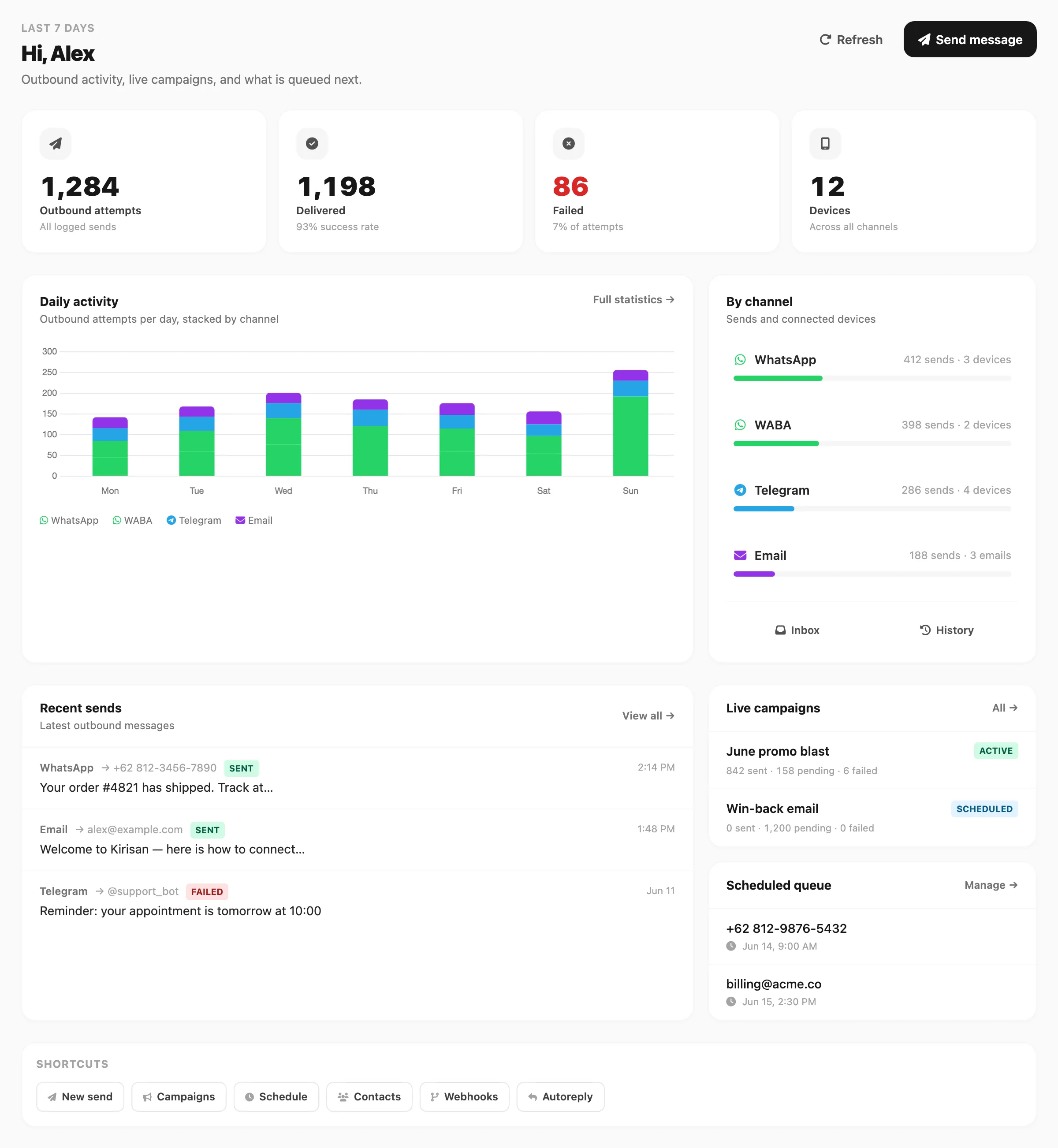
Contoh data ditampilkan. Angka di akun Anda mengikuti aktivitas 7 hari terakhir.
Kartu KPI
Empat kartu merangkum aktivitas kirim keluar dan channel yang terhubung:

| Kartu | Arti |
|---|---|
| Outbound attempts | Setiap kiriman tercatat dalam 7 hari terakhir — berhasil maupun gagal |
| Delivered | Kiriman berstatus sent, beserta tingkat keberhasilan di bawahnya |
| Failed | Kiriman berstatus failed atau partial, beserta tingkat kegagalan di bawahnya |
| Devices | Total device WhatsApp, nomor WABA, bot Telegram, dan pengirim email yang terhubung |
Outbound attempts adalah metrik volume Anda. Delivered ÷ Outbound attempts adalah tingkat keberhasilan pengiriman minggu ini.
Aktivitas harian
Grafik batang bertumpuk menampilkan upaya kirim per hari, dipecah per channel:
- WhatsApp (hijau)
- WABA (hijau)
- Telegram (biru)
- Email (ungu)
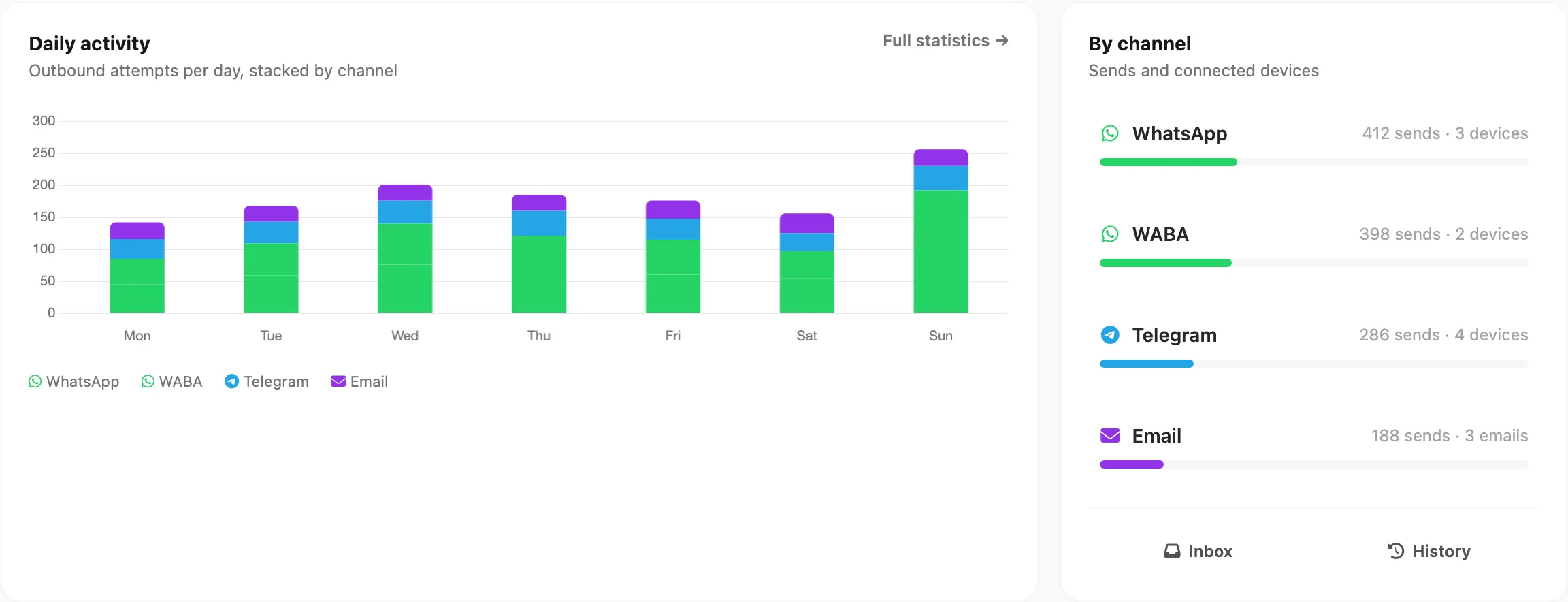
Arahkan kursor ke batang untuk membuka tooltip dengan total hari dan jumlah per channel. Klik Full statistics → untuk membuka Logs → Statistics dengan jendela Today, 7-day, atau 30-day dan grafik harian yang sama dengan rentang lebih besar.
By channel
Panel By channel mencantumkan setiap channel dengan:
- Sends — upaya kirim dalam 7 hari terakhir untuk channel tersebut
- Devices or emails — WhatsApp, WABA, dan Telegram menampilkan jumlah device; Email menampilkan berapa banyak alamat pengirim yang Anda miliki (label email / emails)
Setiap baris bisa diklik dan membuka halaman pengaturan channel tersebut (misalnya Channel → Email → Emails). Bilah progres menampilkan porsi volume pengiriman tiap channel terhadap total minggu ini.
Tautan cepat di bagian bawah membuka Inbox dan Logs → History.
Recent sends
Daftar Recent sends menampilkan delapan pesan keluar terbaru di semua channel: channel, penerima, status, pratinjau singkat, dan waktu.
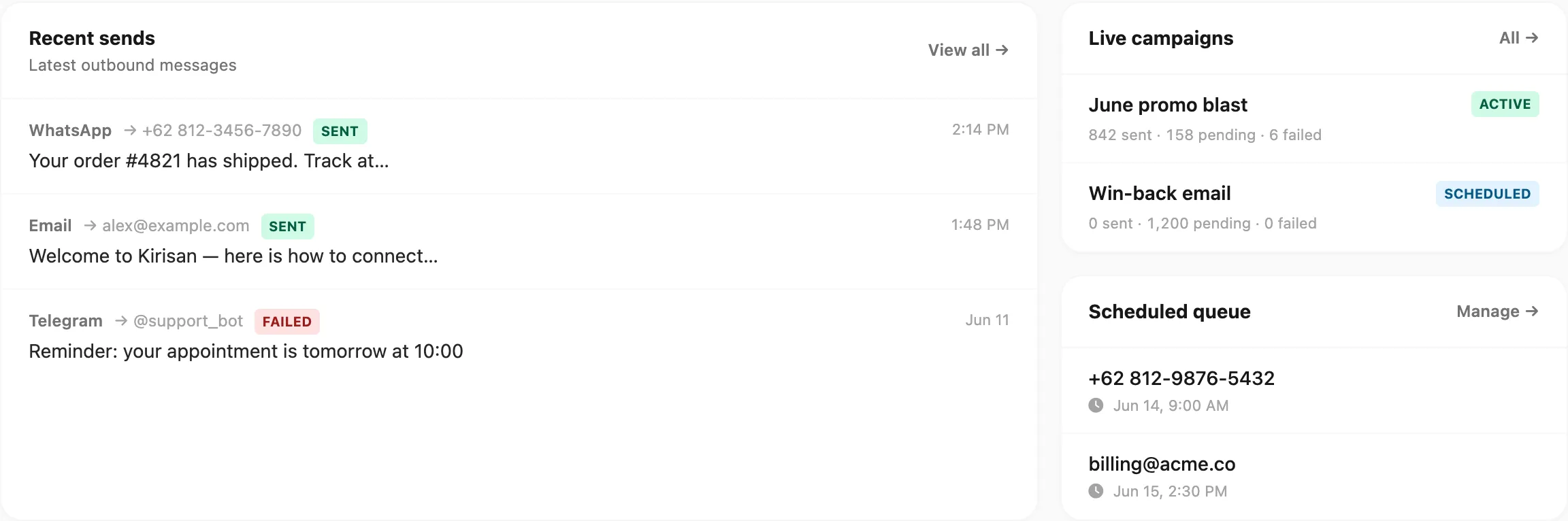
- Pratinjau Email menampilkan teks biasa (tag HTML dihilangkan), mirip Channel → Email → Log.
- Klik baris atau View all → untuk membuka Logs → History.
Live campaigns
Mencantumkan Campaign yang active, paused, atau scheduled, dengan jumlah sent / pending / failed. Klik Campaign untuk membuka halaman detail, atau All → untuk daftar lengkap.
Scheduled queue
Menampilkan pengiriman terjadwal berikutnya yang masih pending (job Send → Schedule di masa depan). Klik Manage → untuk mengedit atau membatalkannya.
Shortcuts
Tautan sekali klik ke New send, Campaigns, Schedule, Contacts, Webhooks, dan Autoreply.

Langkah selanjutnya
| Tujuan | Buka |
|---|---|
| Hubungkan channel dulu | Channel → pilih WhatsApp, WABA, Telegram, atau Email |
| Kirim pesan sekarang | Send → Send |
| Rencanakan batch dengan pelacakan | Send → Campaign |
| Baca balasan pelanggan | Channel → pilih channel → Inbox, atau Multics → Inbox untuk chat ber-thread |
| Perbaiki pengiriman gagal | Channel → pilih channel → Logs atau Logs → History |
| Beli kapasitas lebih | Billing → Order · Plans and quota · Invoices untuk riwayat |
| Mitra affiliate | Billing → Affiliate — tautan referral dan payout |
| Biaya WABA Cloud API | WABA billing — biaya percakapan Meta |
| Undang rekan kerja | Account → Team — halaman, aksi, dan akses perangkat |
Untuk analitik lebih mendalam, lihat Logs → Statistics dan Log pesan.