Invoice
Buka Billing → Invoice.
Untuk apa halaman ini
Invoices adalah riwayat billing lengkap Anda — setiap baris pesanan dari Billing → Order, dengan status pembayaran di WhatsApp, WABA, email, Telegram, dan storage. Gunakan untuk memeriksa apakah transfer sudah dikonfirmasi, menemukan nomor INV-##### untuk support, atau lompat ke Payment untuk baris belum bayar.
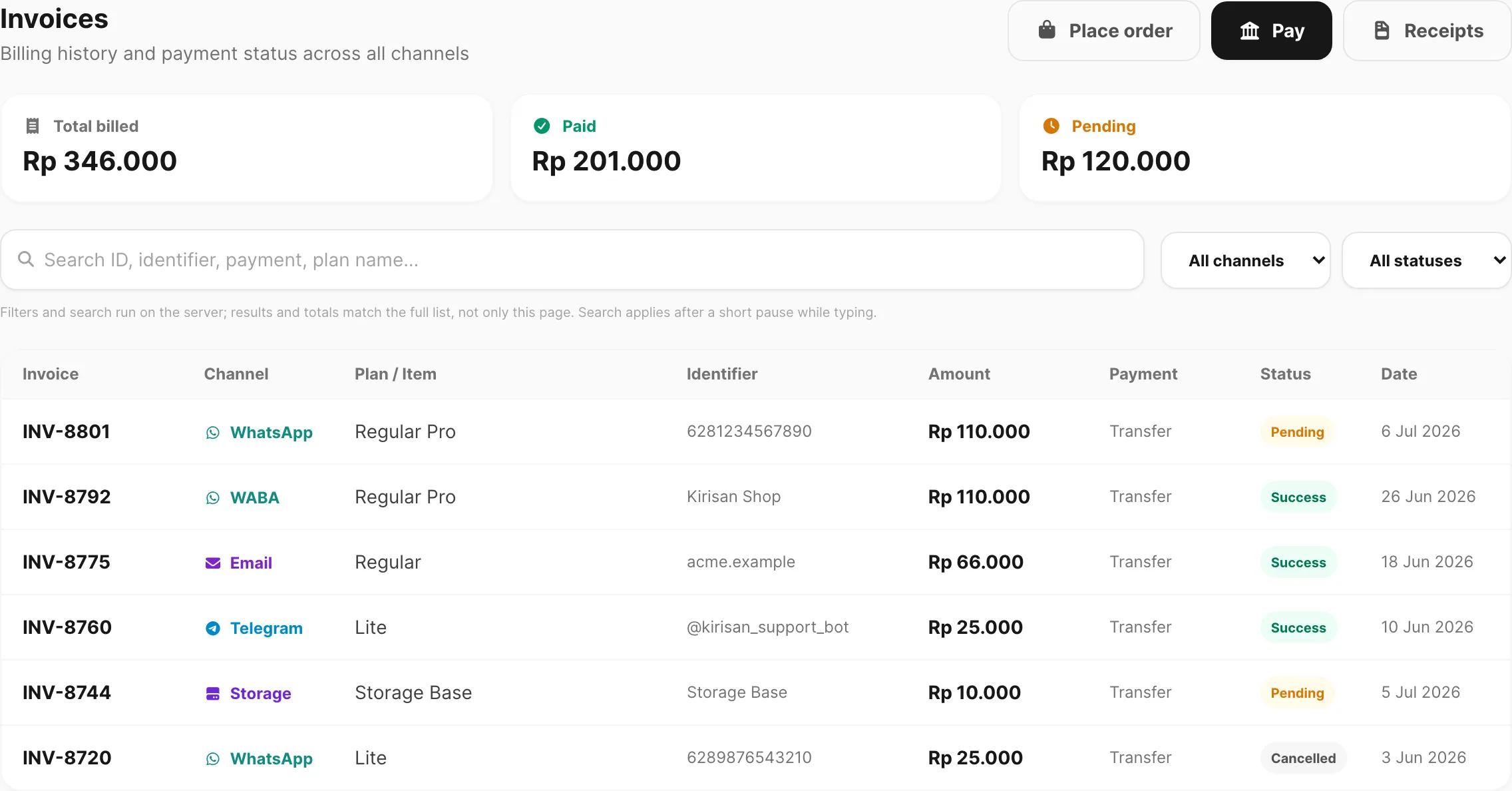
Contoh data ditampilkan.
| Kontrol | Fungsi |
|---|---|
| Place order | Buka Billing → Order untuk membuat invoice baru |
| Pay | Buka Billing → Checkout untuk semua invoice pending |
| Receipts | Unduh PDF receipt setelah pembayaran diverifikasi atau pesanan kupon gratis |
| Total billed / Paid / Pending | Ringkasan jumlah untuk daftar terfilter |
| Search | Cari invoice berdasarkan ID, identifier, metode pembayaran, atau nama plan |
| All channels / All statuses | Persempit tabel (filter diterapkan server-side) |
Kartu ringkasan
Tiga kartu di bagian atas menampilkan total yang sesuai filter saat ini (bukan hanya baris di halaman ini):
| Kartu | Arti |
|---|---|
| Total billed | Jumlah invoice dalam set terfilter |
| Paid | Jumlah invoice dengan status success |
| Pending | Jumlah yang masih menunggu verifikasi transfer bank |
Ketika Anda mengubah Status atau Channel, kartu dan tabel dimuat ulang bersamaan.
Pencarian dan filter
Kotak pencarian cocok dengan ID invoice, nomor device, domain, nama bot, nama plan, dan label pembayaran. Hasil diperbarui setelah jeda singkat saat Anda mengetik.
| Filter | Opsi |
|---|---|
| Channel | Semua channel, WhatsApp, WABA, Email, Telegram, Storage |
| Status | Semua status, pending, success, rejected, failed, cancelled |
Paginasi di bawah menampilkan berapa banyak baris cocok. Gunakan Previous / Next untuk berpindah halaman.
Tabel invoice
Setiap baris adalah satu baris pesanan dari checkout.
| Kolom | Arti |
|---|---|
| Invoice | INV-##### — nomor invoice unik |
| Channel | Tipe produk (WhatsApp, WABA, email, Telegram, storage) |
| Plan / Item | Nama plan dari katalog |
| Identifier | Nomor device, nama tampilan WABA, domain, username bot, atau label storage |
| Amount | Harga baris dalam IDR |
| Payment | Label metode (misalnya transfer) |
| Status | pending, success, cancelled, failed, atau rejected |
| Date | Kapan invoice dibuat |
Klik baris mana pun untuk membuka panel detail.
Detail invoice
Panel detail menampilkan field spesifik plan (device, domain, bot, periode, kuota) plus Date dan Total.
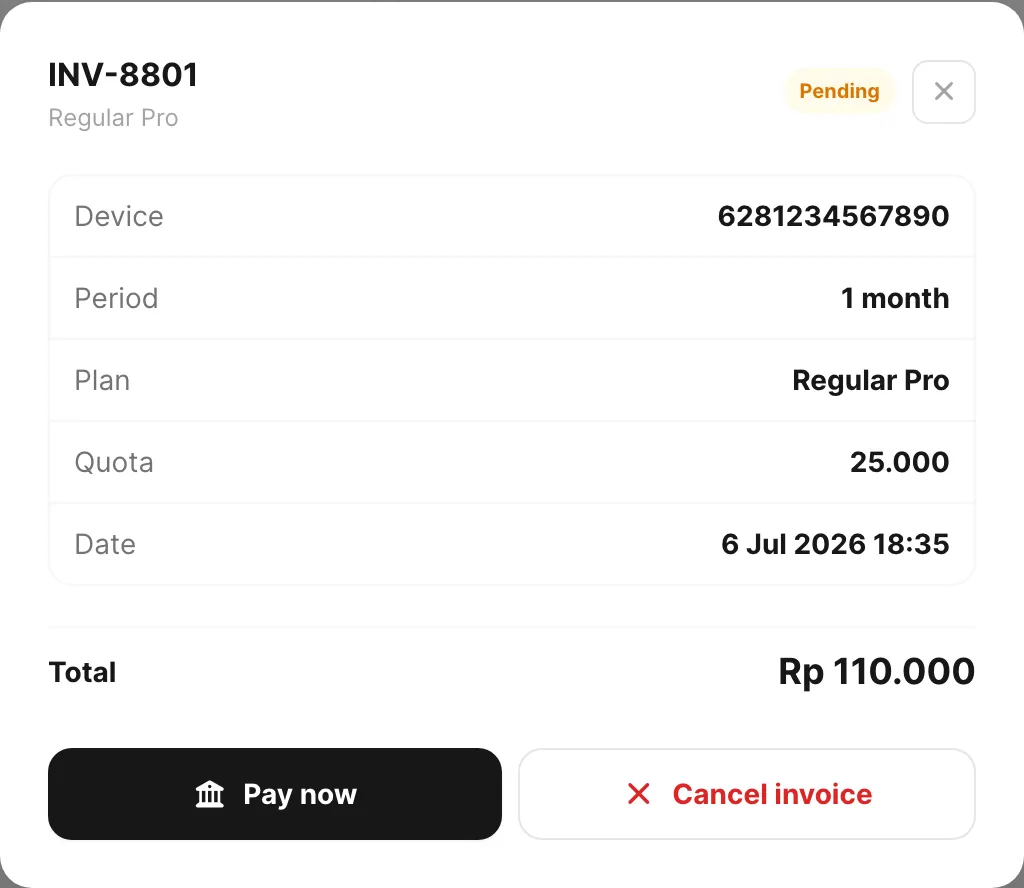
Contoh data ditampilkan.
| Field detail | Konten tipikal |
|---|---|
| Device / Domain / Bot | Target tempat plan diterapkan |
| Plan | Nama plan katalog |
| Period | Term billing (misalnya 1 month) |
| Quota | Batas send jika ditampilkan |
| Date | Tanggal dan waktu lengkap invoice dibuat |
| Note | Catatan admin atau sistem jika ada |
Untuk invoice pending:
| Tombol | Fungsi |
|---|---|
| Pay now | Menutup panel dan membuka Payment |
| Cancel invoice | Menandai invoice cancelled — hilang dari Payment dan tidak bisa dibayar |
Invoice berbayar atau dibatalkan hanya menampilkan detail (tanpa aksi bayar atau batalkan).
Arti status
| Status | Arti |
|---|---|
| pending | Menunggu transfer bank — bayar dari Payment |
| success | Terverifikasi — plan atau storage aktif |
| cancelled | Anda atau support membatalkan sebelum pembayaran |
| failed / rejected | Pesanan tidak bisa dipenuhi — periksa Note atau hubungi support |
Setelah success, unduh PDF pembayaran dari Billing → Receipts jika belum disimpan dari Payment. Kredit dan kedaluwarsa pada setiap target mengikuti aturan di Plans and quota.
Terkait
- Plans and quota — cara pembayaran memperbarui kredit dan kedaluwarsa
- Place an order — buat invoice baru
- Apply a coupon — diskon saat pesan
- Checkout — bayar invoice pending
- Payment receipts — unduh PDF setelah verifikasi
- Download a receipt PDF — tutorial langkah demi langkah
- Find and pay pending invoices — tutorial langkah demi langkah
- Pay by bank transfer — jumlah transfer dan kode unik