Kuitansi pembayaran
Buka Billing → Receipts.
Fungsi halaman ini
Kuitansi pembayaran disimpan saat batch pembayaran selesai — setelah admin memverifikasi transfer bank, atau segera ketika kupon menutupi seluruh pesanan (Rp 0). Setiap kuitansi adalah snapshot batch pada saat itu — item baris, jumlah, dan detail paket — sehingga Anda bisa mengunduh PDF nanti meskipun faktur pending sudah tidak ada di Billing → Checkout.
Gunakan kuitansi ketika:
- Anda sudah membayar tetapi tidak mengklik Download invoice di checkout
- Kupon membuat pesanan gratis dan Kirisan mengarahkan Anda ke sini setelah Place order
- Anda membutuhkan salinan PDF untuk akuntansi atau dukungan
- Anda ingin memastikan apa saja yang termasuk dalam pembayaran sebelumnya
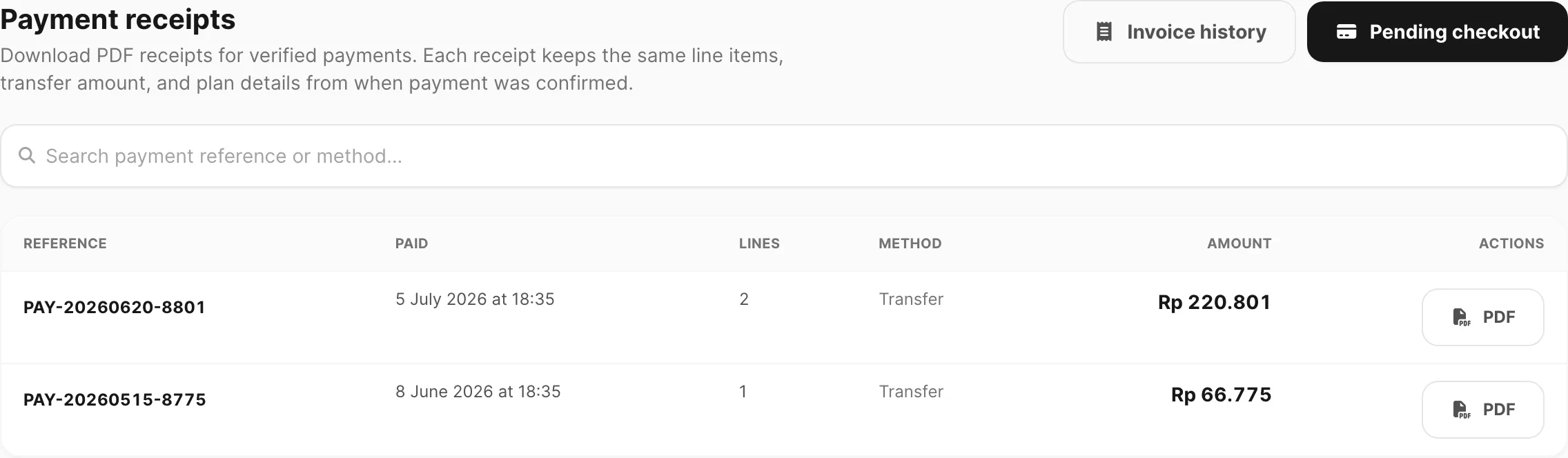
Data sampel ditampilkan.
| Kontrol | Fungsi |
|---|---|
| Invoice history | Buka Billing → Invoice untuk status per baris |
| Pending checkout | Buka Billing → Checkout untuk faktur belum dibayar |
| Pencarian | Temukan kuitansi berdasarkan referensi pembayaran atau metode |
Kuitansi muncul hanya setelah faktur berstatus success. Baris pending atau dibatalkan tidak tercantum di sini.
Belum ada kuitansi
Jika Anda belum menyelesaikan pembayaran terverifikasi, halaman menampilkan keadaan kosong.
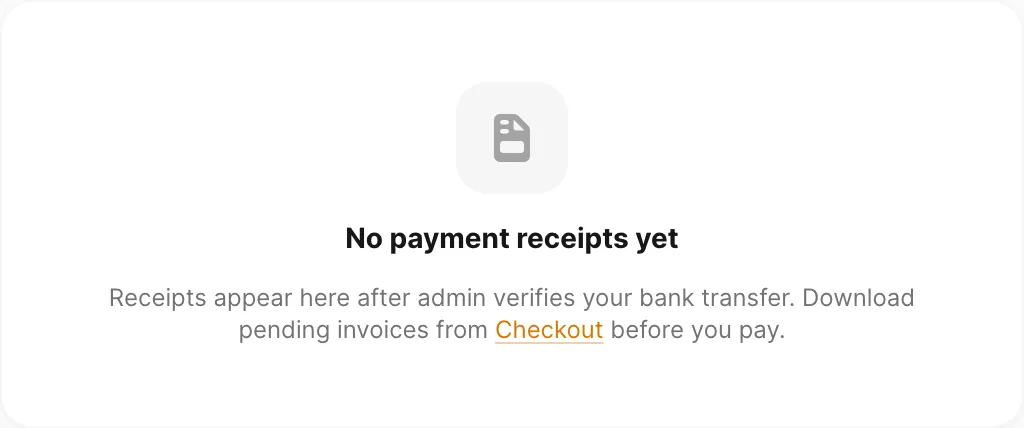
Data sampel ditampilkan.
| Kontrol | Fungsi |
|---|---|
| Tautan Checkout di pesan | Buka Billing → Checkout untuk mengunduh PDF sebelum Anda membayar |
| Pending checkout (header) | Sama — bayar atau unduh selama faktur masih pending |
Setelah admin mengonfirmasi transfer Anda, segarkan Billing → Receipts atau buka Billing → Invoice dan filter Status → success.
Pencarian
Kotak pencarian mencocokkan referensi pembayaran (misalnya PAY-20260620-8801) dan metode pembayaran (misalnya transfer). Hasil diperbarui setelah jeda singkat saat Anda mengetik.
Paginasi muncul jika kuitansi Anda lebih banyak dari satu halaman.
Tabel kuitansi
Setiap baris adalah satu batch pembayaran terverifikasi — biasanya grup yang sama yang Anda bayar sekaligus di checkout.
| Kolom | Arti |
|---|---|
| Reference | ID pembayaran (PAY-YYYYMMDD-firstInvoiceId) — klik untuk memperluas item baris |
| Paid | Tanggal dan waktu pembayaran dicatat (verifikasi atau persetujuan complimentary) |
| Lines | Jumlah baris faktur dalam batch |
| Method | transfer untuk pembayaran bank, atau coupon saat pesanan diskon penuh |
| Amount | Total transfer (subtotal + kode unik), atau Rp 0 untuk kuitansi kupon gratis |
| Unduh PDF kuitansi untuk batch ini |
Item baris yang diperluas
Klik Reference untuk memperluas baris tanpa meninggalkan halaman.
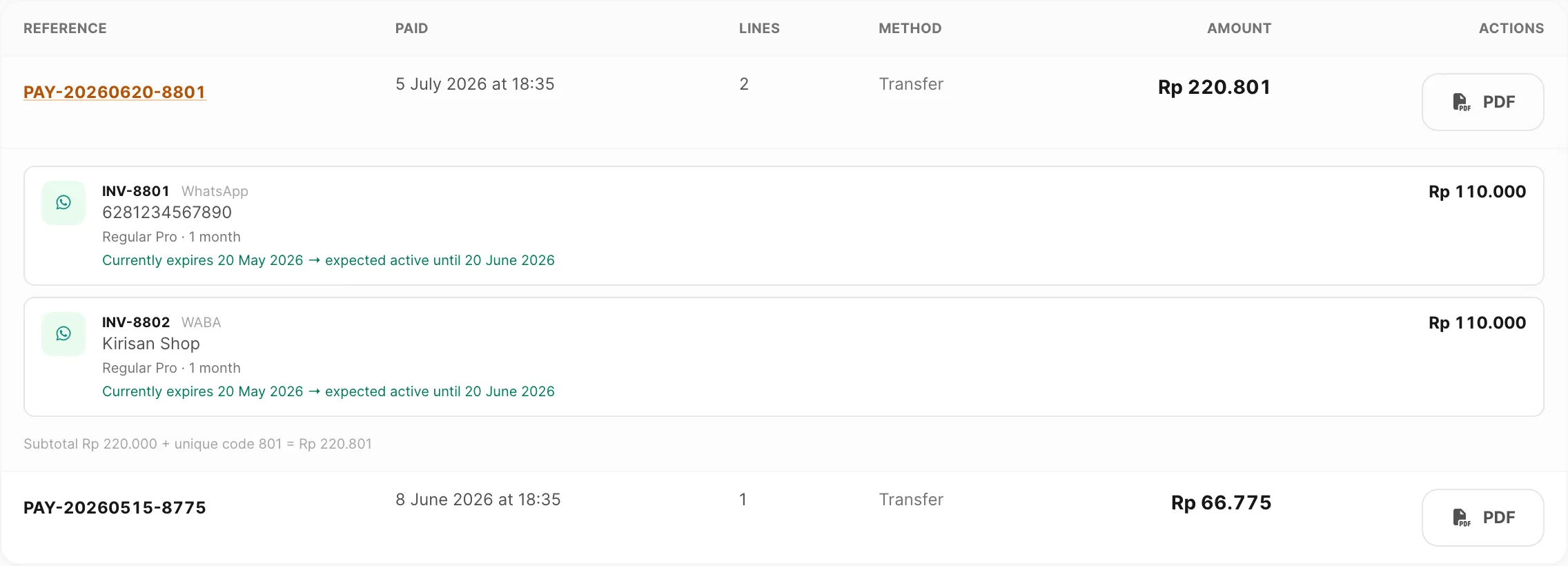
Data sampel ditampilkan.
Setiap kartu bersarang menampilkan:
| Bagian | Arti |
|---|---|
| INV-##### | Nomor faktur asli |
| Channel | WhatsApp, WABA, Email, Telegram, atau Storage |
| Identifier | Device, nama WABA, domain, bot, atau label storage |
| Baris paket | Nama paket · periode dibekukan pada saat pembayaran |
| Baris masa berlaku | Tanggal aktif-hingga yang diharapkan, dicatat saat pembayaran diverifikasi |
| Harga baris | Jumlah untuk faktur tersebut |
| Persamaan footer | Untuk transfer berbayar: Subtotal + kode unik = jumlah transfer. Batch kupon gratis menampilkan Rp 0 tanpa kode unik. |
Klik referensi lagi untuk menutup baris.
Unduh PDF kuitansi
Klik PDF pada baris mana pun untuk menghasilkan dokumen Receipt. PDF selalu mencakup:
- Logo Kirisan, referensi pembayaran, dan tanggal dibayar
- Bill-to (nama dan email Anda)
- Setiap baris dengan channel, identifier, paket, periode, dan snapshot masa berlaku
Isi tambahan bergantung pada jenis pembayaran:
| Jenis | Status di PDF | Jumlah | Bank / kode unik |
|---|---|---|---|
| Transfer bank | Paid | Subtotal, kode unik, Amount paid | Detail BCA dari transfer asli |
| Kupon penuh (Rp 0) | Free | Subtotal Rp 0, Amount due menampilkan Free | Tidak ada — metode Coupon (KODE) |
Konten sesuai dengan yang disimpan saat persetujuan — bukan tanggal kedaluwarsa device secara langsung.
Kuitansi vs PDF checkout
| Checkout — Download invoice | Receipts — PDF | |
|---|---|---|
| Kapan | Selama faktur pending | Setelah pembayaran diverifikasi, atau segera untuk pesanan kupon gratis |
| Judul / status | Invoice · Awaiting payment | Receipt · Paid atau Free |
| Item baris | Daftar pending saat ini | Snapshot dibekukan pada saat pembayaran |
| Kode unik & bank | Ya (transfer pending) | Ya untuk transfer; dihilangkan pada kuitansi kupon gratis |
| Lokasi | Billing → Checkout | Billing → Receipts |
Terkait
- Plans and quota — kredit dan masa berlaku setelah pembayaran
- Checkout — bayar faktur pending dan unduh PDF sebelum pembayaran
- Invoices — status per baris dan panel detail
- Place an order — buat faktur baru
- Affiliate program — komisi mitra setelah pembayaran terverifikasi
- Download a receipt PDF — tutorial langkah demi langkah
- Pay by bank transfer — selesaikan pembayaran terlebih dahulu