Webhook
Setiap bagian adalah tugas bernomor — ikuti langkahnya, periksa Anda seharusnya melihat, lalu lanjutkan. Untuk referensi layar lengkap, lihat Referensi webhook.
Tambahkan endpoint webhook
Tujuan: Daftarkan URL HTTPS yang menerima event JSON Kirisan.
Mulai saat: Endpoint server Anda siap menerima permintaan POST dan mengembalikan 200 atau 201.
Buka Webhooks → Webhook dan klik Add webhook.
- Anda seharusnya melihat modal New webhook dengan bagian Endpoint, Devices, Events, dan Security.
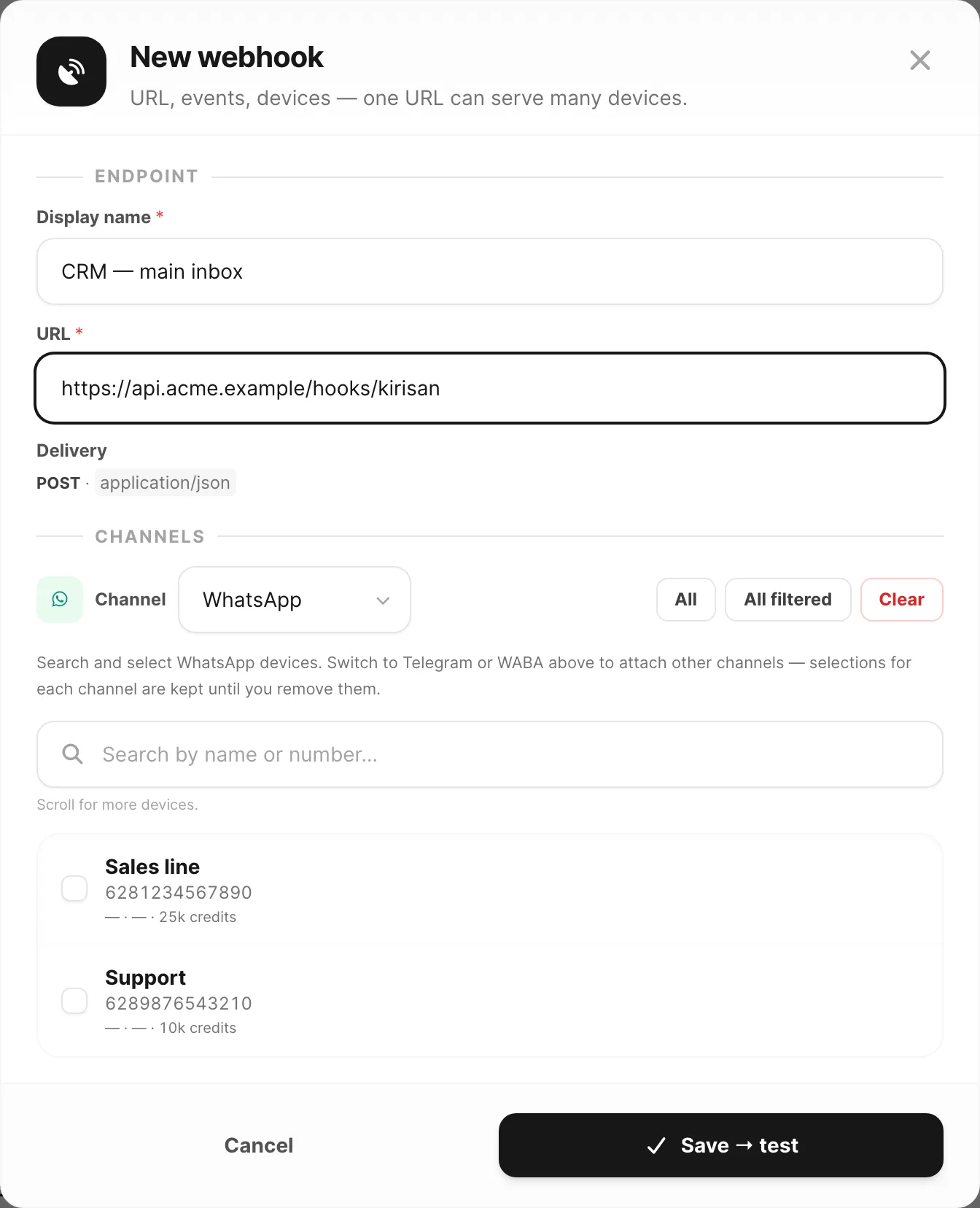
Di bawah Endpoint, masukkan Display name dan HTTPS URL Anda (misalnya
https://api.yoursite.com/webhooks/kirisan).Di bawah Devices, pilih tab channel (WhatsApp, Telegram, atau WABA) dan pilih setidaknya satu device.
Di bawah Events, centang setidaknya satu: Incoming Message atau Submission (WABA juga punya Message status).
Opsional: atur Signing secret — Kirisan mengirimkannya sebagai X-Webhook-Secret di setiap POST.
Klik Save → test.
- Anda seharusnya melihat Webhooks → Test terbuka untuk endpoint baru. Status menampilkan Pending test di Webhooks → Webhook sampai tes berhasil.
Selesai saat: Endpoint muncul di tabel dengan URL dan event Anda.
Aktifkan dengan tes (Pending test → Active)
Tujuan: Pindahkan endpoint dari Pending test ke Active dengan mengembalikan 2xx.
Mulai saat: Anda mendarat di Webhooks → Test setelah menyimpan (atau endpoint menampilkan Pending test).
Buka Webhooks → Test dan pilih endpoint Anda di dropdown Webhook.
- Label menampilkan name · device · event · URL. Endpoint yang belum diverifikasi menyertakan pending di label.
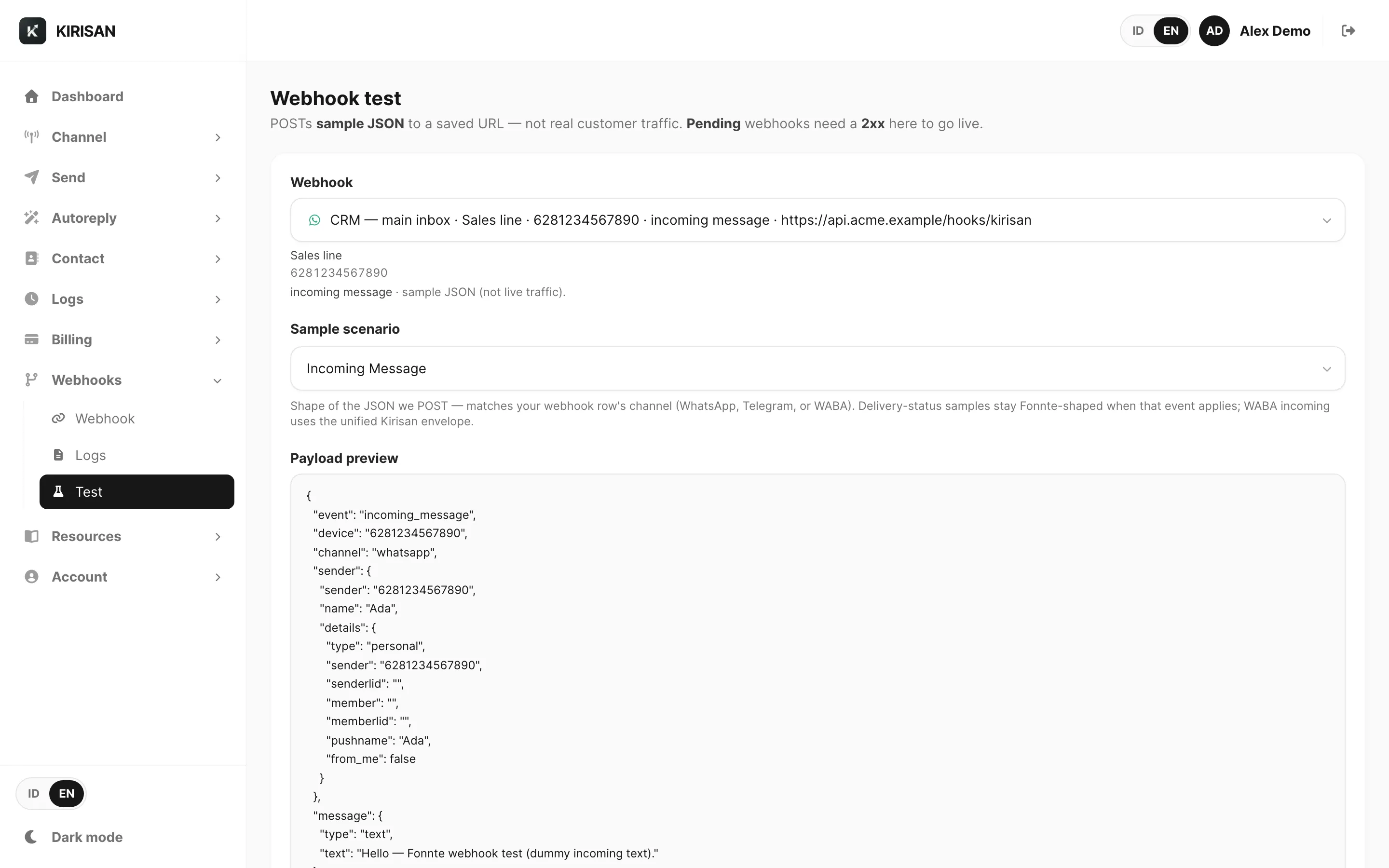
Tinjau Payload preview — konfirmasi bentuk JSON cocok dengan yang diharapkan handler Anda.
Klik Send test.
- Anda seharusnya melihat kartu hasil: Success atau Failed, status HTTP, durasi, dan body respons.
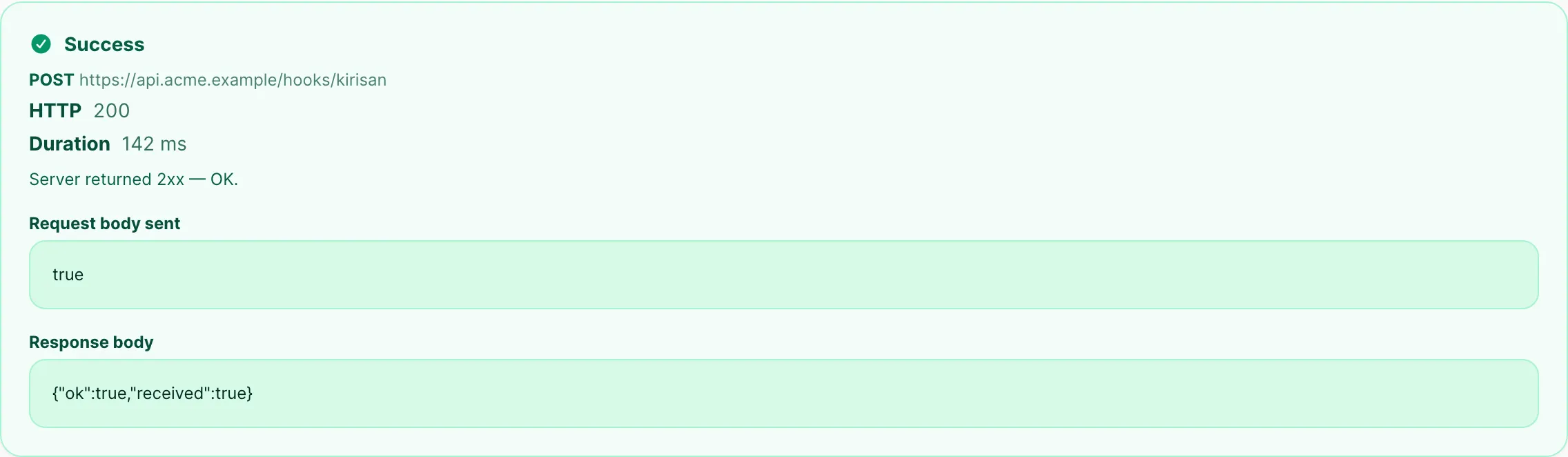
- Pada Success, buka Webhooks → Webhook dan konfirmasi endpoint menampilkan Active.
Selesai saat: Status Active di Webhooks → Webhook.
Satu tes berhasil mengaktifkan setiap endpoint dari batch Save → test yang sama. Anda tidak perlu menguji setiap endpoint secara terpisah.
Uji webhook submission
Tujuan: Verifikasi payload event Submission sebelum formulir asli selesai.
Mulai saat: Anda mengaktifkan Submission pada endpoint dan menghubungkan device yang memiliki formulir autoreply.
- Di Webhooks → Test, pilih baris yang labelnya menyertakan submission.
- Konfirmasi Payload preview menyertakan submission, answers, dan
"production": false. - Klik Send test dan konfirmasi Success.
- Opsional: selesaikan submission uji nyata pada device terhubung dan bandingkan hasil di Webhooks → Logs.
Selesai saat: Handler Anda mem-parsing array answers sampel tanpa error.
Tambahkan device ke endpoint yang ada
Tujuan: Kirim event dari device baru ke URL yang sudah Anda punya.
- Di Webhooks → Webhook, klik Edit pada baris endpoint.
- Ganti tab channel dan pilih device tambahan.
- Klik Save → test dan jalankan tes berhasil jika status reset ke Pending test.
- Konfirmasi jumlah Devices pada baris terbarui.
Selesai saat: Lalu lintas live sampai untuk setiap device terhubung.
Periksa pengiriman yang gagal
Tujuan: Pahami mengapa Kirisan tidak bisa mengirim webhook dan apa yang diperbaiki di server Anda.
Buka Webhooks → Logs dan setel All statuses ke Failed.
- Anda seharusnya melihat hanya baris di mana server mengembalikan kode non-2xx, habis waktu, atau tidak bisa dijangkau.
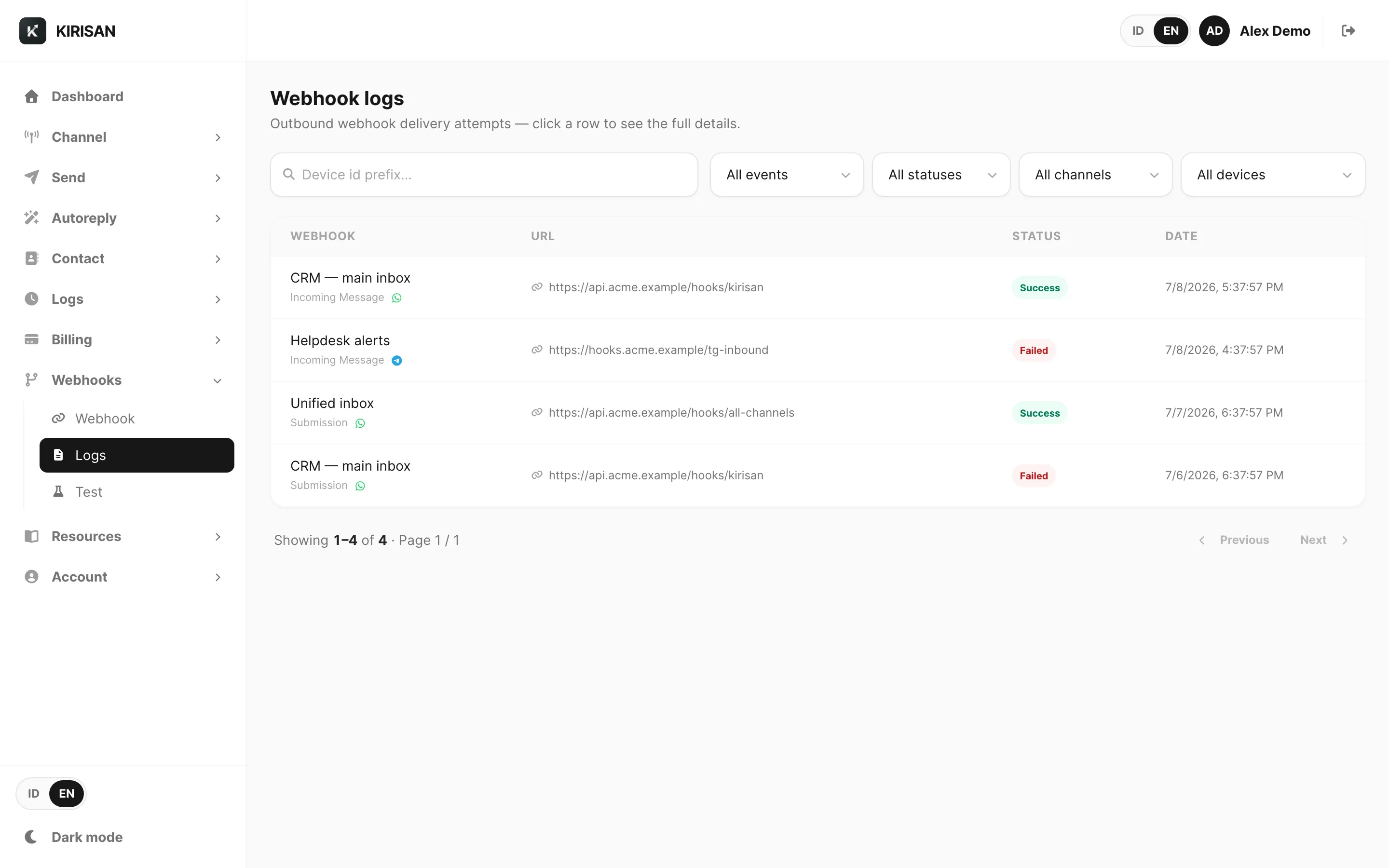
Opsional: filter All devices untuk menyempit ke satu jalur atau bot.
Klik baris yang gagal.
- Anda seharusnya melihat Webhook delivery dengan HTTP code, Duration, Device, dan panel Error.
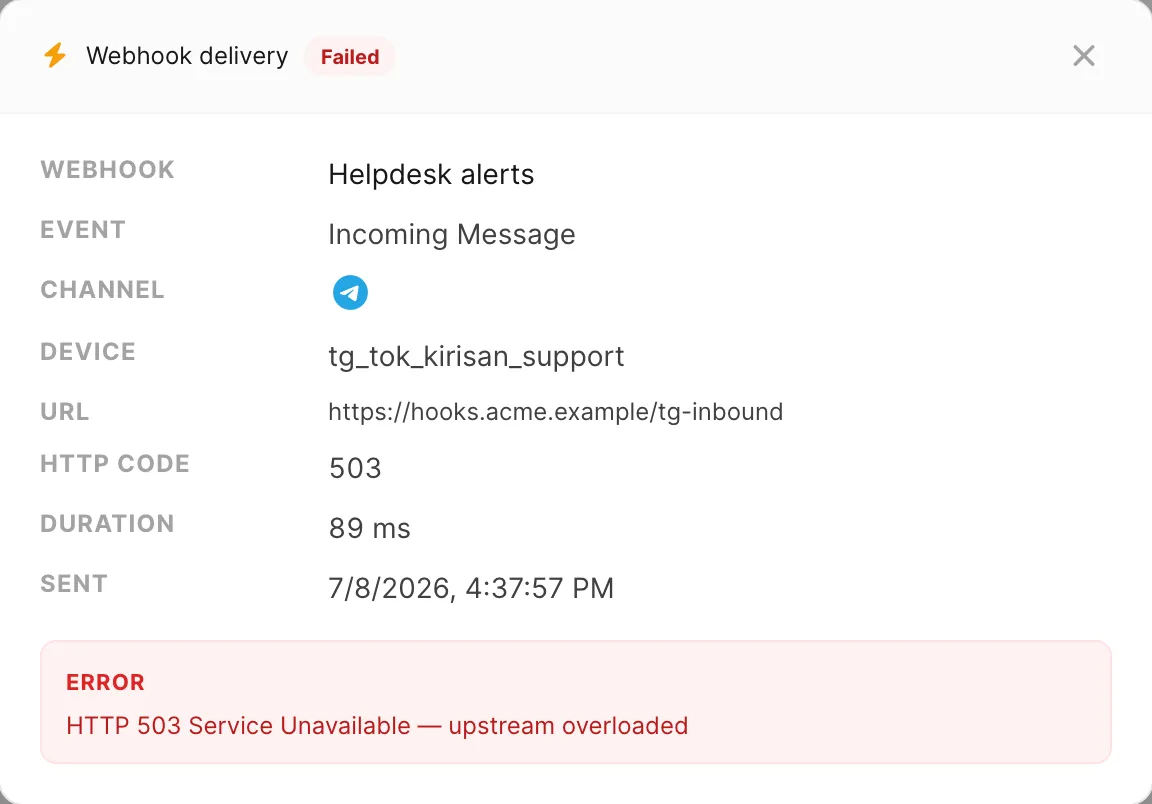
Baca Error dan HTTP code:
- 503 / 502 — server menolak atau kelebihan beban
- 401 / 403 — periksa X-Webhook-Secret jika Anda mengatur signing secret
- 0 atau timeout — Kirisan tidak bisa terhubung; verifikasi DNS, TLS, dan firewall
Perbaiki handler Anda, kirim tes baru dari Webhooks → Test, lalu konfirmasi baris success di Webhooks → Logs.
Selesai saat: Upaya terbaru menampilkan success.
Debug pengiriman untuk satu device
- Buka Webhooks → Logs.
- Di All devices, pilih device (label menampilkan nama + nomor atau nama bot).
- Pindai kolom Webhook dan URL untuk konfirmasi endpoint yang benar aktif.
- Klik baris mana pun untuk detail device dan waktu lengkap.
Perbaiki masalah umum
Gejala: Belum ada webhook — halaman kosong.
- Anda belum menyimpan endpoint — klik Add webhook.
- Anda mungkin di akun yang salah — periksa email di bilah atas.
Gejala: Status tetap Pending test.
- Buka Webhooks → Test dan kirim tes — URL Anda harus mengembalikan 200 atau 201.
- Konfirmasi URL HTTPS dan bisa dijangkau dari internet publik.
- Periksa Webhooks → Logs untuk error TLS atau timeout.
Gejala: Tes berhasil tetapi pesan live tidak pernah sampai.
- Konfirmasi status endpoint Active (bukan Pending test) di Webhooks → Webhook.
- Untuk Incoming Message: buka dialog edit device dan setel On incoming message → Webhook. Device harus menggunakan Webhook sebagai handler masuk atau tidak ada event yang aktif.
- Lalu lintas live menggunakan
"production": true— konfirmasi handler Anda tidak menolak payload production.
Gejala: Incoming Message tidak pernah aktif pada lalu lintas live.
- Konfirmasi On incoming message → Webhook disetel pada device (bukan Autoreply, Flow, atau Spreadsheet).
- Konfirmasi device terhubung pada endpoint dan endpoint Active.
- Hanya event yang dicentang yang aktif — aktifkan Incoming Message di editor endpoint.
Gejala: Event submission tidak pernah aktif.
- Aktifkan Submission pada endpoint dan hubungkan device yang memiliki formulir autoreply.
Gejala: Tes mengembalikan 401 atau 403.
- Saat Anda mengatur signing secret, handler harus membaca X-Webhook-Secret dari header permintaan.
- Izinkan payload tes dengan
"production": falsejika handler Anda memfilter field itu.
Gejala: Tes mengembalikan timeout atau error koneksi.
- Konfirmasi URL HTTPS dan bisa dijangkau dari internet publik (bukan
localhostatau IP privat). - Periksa validitas sertifikat TLS.
- Tinjau Webhooks → Logs untuk teks error yang sama.
Gejala: Daftar log kosong meskipun endpoint aktif.
- Reset semua filter (All events, All statuses, All channels, All devices).
- Untuk event Incoming Message, konfirmasi device menggunakan On incoming message → Webhook di pengaturan device.
- Picu pesan nyata atau gunakan Webhooks → Test, lalu refresh Webhooks → Logs.
Gejala: Server menolak permintaan.
- Parse JSON dari body permintaan. Gunakan header X-Kirisan-Event dan X-Kirisan-Device untuk routing.
- Saat signing secret disetel, bandingkan X-Webhook-Secret dengan nilai yang Anda konfigurasi sebelum memproses.
Terkait
- Referensi webhook — tur UI lengkap dan semua pengaturan
- Referensi log webhook — setiap kolom di tabel log
- Referensi payload webhook — bentuk JSON, verifikasi, dan contoh per channel
- Menerima pesan — pesan masuk tidak muncul di inbox
- Submission autoreply — sumber event Submission