Submissions
Buka Autoreply → Submission.
Untuk apa halaman ini
Formulir Submission mengumpulkan jawaban terstruktur di dalam WhatsApp (dan channel pesan lain ketika ditautkan dari autoreply). Anda mendefinisikan pertanyaan di sini, lalu memulai formulir dari template Autoreply dengan tipe respons Submission.
Tinjau sesi selesai dan berlangsung di Answer — tombol di bagian atas halaman ini membuka Autoreply → Submission → Answer (fitur sama, tampilan daftar sesi).
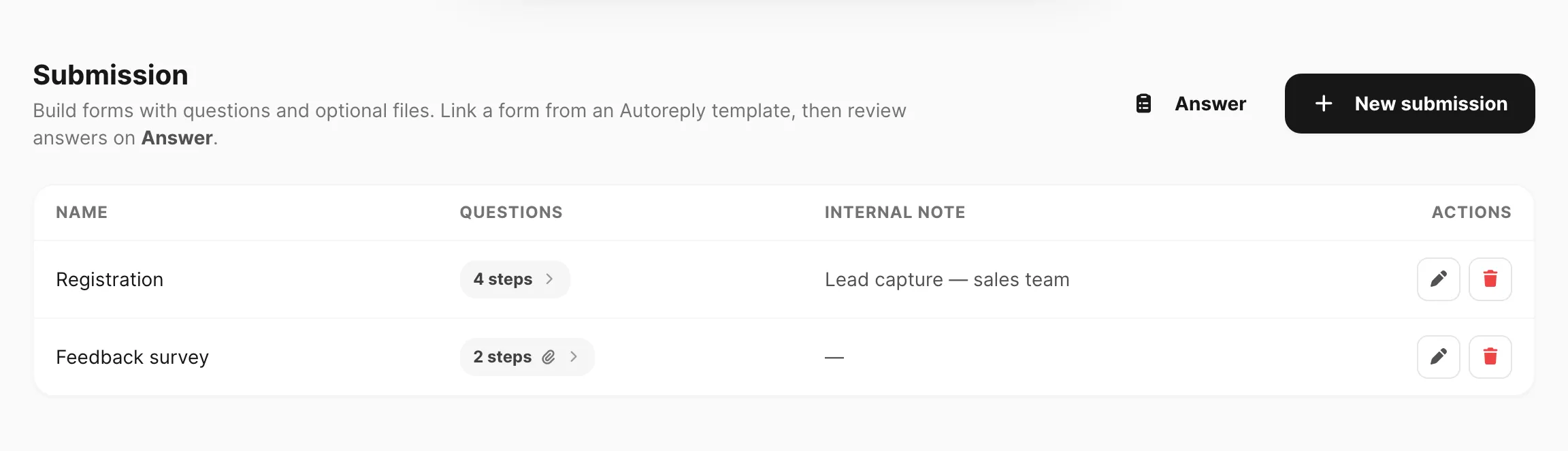
Contoh data ditampilkan.
Alur kerja end-to-end
- Buat formulir di Autoreply → Submission (pertanyaan, pesan, notify opsional).
- Tautkan dari Autoreply — tipe respons Submission, pilih formulir, tautkan device.
- Set mode device — On incoming message → Autoreply pada setiap device tertaut.
- Pengguna memicu formulir — mengirim keyword yang cocok dengan template autoreply Anda.
- Kirisan menjalankan sesi chat — pesan pembuka, pertanyaan satu per satu, review opsional, pesan penutup.
- Tinjau di Answer — filter sesi, buka View untuk jawaban per pertanyaan.
Daftar submission
| Kolom / kontrol | Fungsi |
|---|---|
| Answer | Membuka daftar sesi untuk semua formulir. |
| New submission | Membuat formulir. |
| Name | Judul formulir ditampilkan di pemilih autoreply dan di Answer. |
| Questions | Klik N steps untuk pratinjau teks pertanyaan dan lampiran. |
| Internal note | Catatan privat untuk tim (tidak dikirim ke pengguna). |
| Actions | Edit submission atau Delete submission. |
Buat atau edit formulir
Klik New submission atau edit baris.
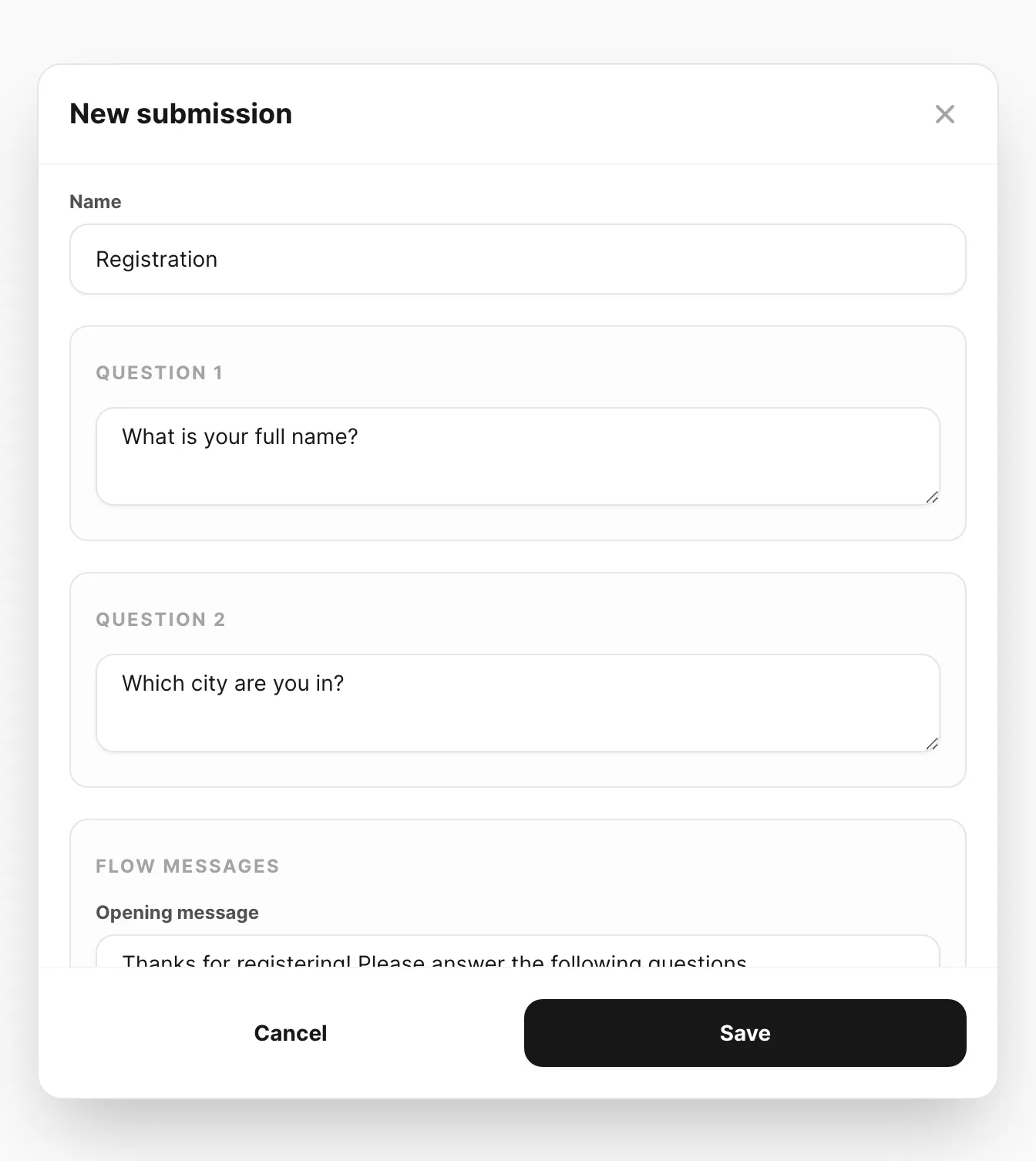
Contoh data ditampilkan.
Questions
- Masukkan Question text untuk setiap langkah.
- Opsional lampirkan file per pertanyaan (unggah atau Pick from Files) — gambar, PDF, dokumen Office, atau TXT hingga 10 MB.
- Klik Add question untuk langkah tambahan.
Kirisan mengajukan pertanyaan satu per satu sesuai urutan yang ditampilkan. Balasan pengguna ke setiap pesan menjadi jawaban untuk langkah tersebut (teks atau media).
Flow messages
| Field | Tujuan |
|---|---|
| Opening message | Dikirim sekali saat formulir dimulai (sebelum pertanyaan 1). |
| Closing message | Dikirim setelah pengguna mengonfirmasi dengan /done (saat review aktif) atau langsung setelah jawaban terakhir (saat review nonaktif). |
| Cancel message | Dikirim ketika pengguna mengetik /cancel atau sesi kedaluwarsa. |
| Review step | Saat diaktifkan, menampilkan ringkasan bernomor agar pengguna dapat memperbaiki jawaban sebelum submit. |
| Review message | Teks ditampilkan dengan ringkasan. Gunakan [[review]] di tempat jawaban bernomor harus muncul (lihat Variables). |
Contacts (opsional)
Ketika seseorang menyelesaikan formulir, Kirisan dapat menyimpannya sebagai kontak (jika baru) dan menambahkannya ke grup Contact → Groups yang Anda pilih di sini. Biarkan None untuk melewati.
Notify when complete (opsional)
Setelah pengguna selesai (mengirim /done saat review aktif, atau setelah jawaban terakhir saat review nonaktif), Kirisan dapat mengirim ringkasan teks ke hingga 5 tujuan:
| Field | Tujuan |
|---|---|
| Channel | WhatsApp atau Email. |
| WhatsApp number(s) | Satu atau lebih nomor, dipisahkan koma (misalnya 081234567890, 081298765432). |
| Email address(es) | Satu atau lebih alamat, dipisahkan koma. |
Klik Add destination untuk setiap baris. Untuk pengiriman server-to-server, tambahkan webhook dengan event submission.
Internal note
Catatan hanya untuk tim — ditampilkan di daftar submission, tidak pernah dikirim ke pengguna.
Klik Save untuk menyimpan formulir.
Perintah chat bawaan
Ini berfungsi selama sesi submission aktif (case-insensitive):
| Command | Kapan |
|---|---|
/cancel | Batalkan formulir kapan saja. |
/done | Submit jawaban — hanya saat Review step aktif, setelah ringkasan. |
1, 2, … | Hanya saat review — lompat ke pertanyaan itu untuk mengganti jawaban. |
Sebutkan ini di pesan pembuka atau review jika ingin pengguna mengetahuinya — Kirisan tidak menambahkannya otomatis.
Hubungkan formulir ke autoreply
- Simpan formulir submission di halaman ini.
- Buka Autoreply → Autoreply dan buat atau edit template.
- Set Response type ke Submission dan pilih formulir ini.
- Tautkan template ke device Anda.
- Pada setiap device, set On incoming message ke Autoreply di Channel → channel → Devices.
Ketika pengguna mengirim keyword yang cocok, sesi formulir dimulai. Hanya satu sesi submission aktif per pengirim per device sekaligus.
Answer — tinjau sesi
Buka Answer dari halaman Submission (atau buka daftar sesi setelah mengklik Answer).
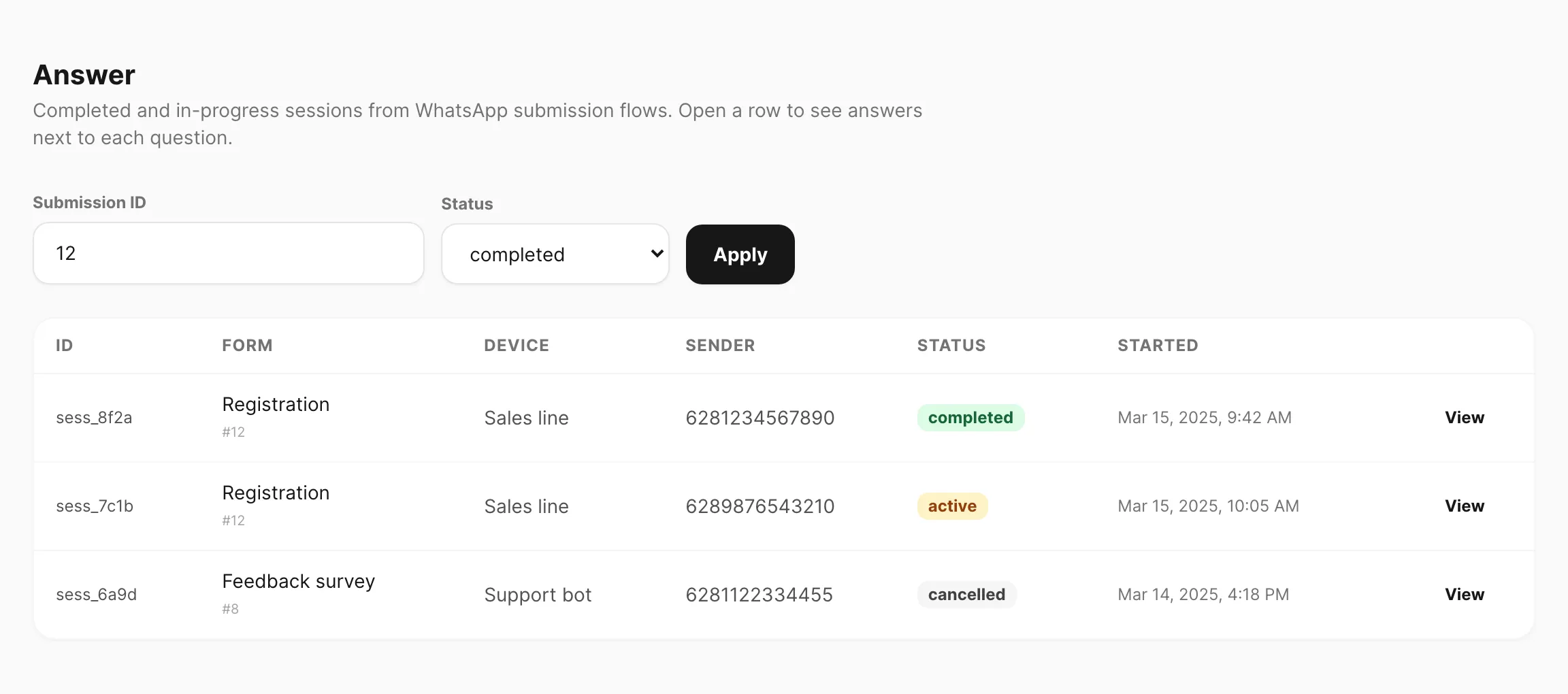
Contoh data ditampilkan.
Filter
| Kontrol | Fungsi |
|---|---|
| Submission ID | Batasi ke satu formulir — masukkan ID numerik di bawah nama formulir (misalnya #12). Kosongkan untuk semua formulir. |
| Status | Filter berdasarkan status sesi (lihat tabel di bawah). |
| Apply | Muat ulang tabel dengan filter Anda. |
Tabel sesi
| Kolom | Yang ditampilkan |
|---|---|
| ID | Identifikator sesi unik. |
| Form | Nama formulir dan ID submission (#…). |
| Device | Line WhatsApp atau bot yang menangani chat. |
| Sender | Telepon atau chat ID pengguna. |
| Status | Status sesi saat ini. |
| Started | Kapan sesi dimulai. |
| View | Buka jawaban per pertanyaan. |
Paginasi muncul di bawah jika baris lebih dari satu halaman.
Status sesi
| Status | Arti |
|---|---|
| active | Pengguna sedang menjawab pertanyaan (belum selesai). |
| review | Pengguna di ringkasan review (langkah review diaktifkan). |
| editing | Pengguna memilih nomor pertanyaan untuk mengubah jawaban saat review. |
| completed | Formulir selesai — jawaban final. |
| cancelled | Pengguna mengirim /cancel atau meninggalkan sesi. |
| expired | Sesi timeout sebelum selesai. |
Detail sesi
Klik View pada baris mana pun.
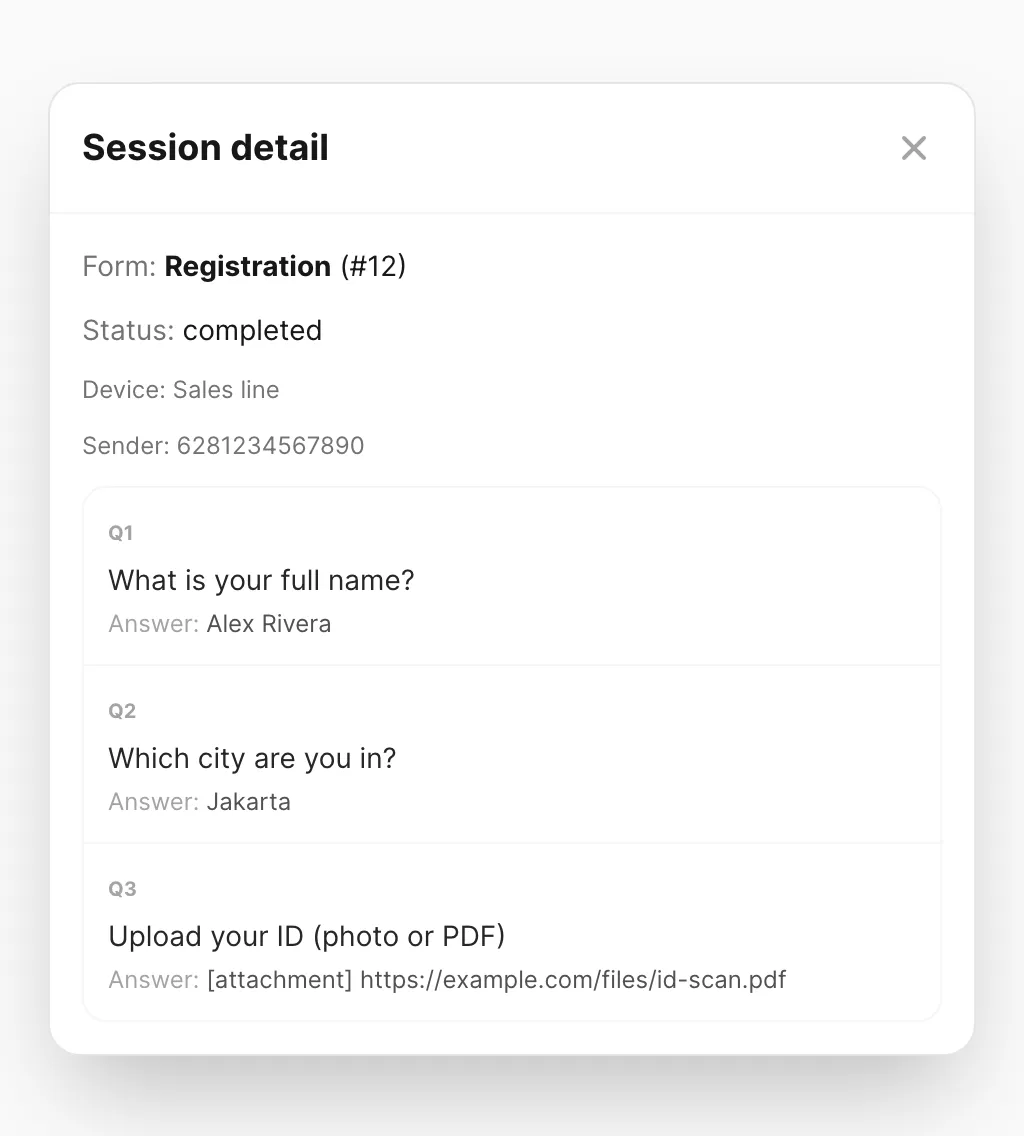
Contoh data ditampilkan.
Popup menampilkan:
- Nama dan ID Form
- Status, Device, dan Sender
- Setiap question dengan Answer pengguna (teks biasa dan tautan
[attachment]untuk unggahan)
Gunakan ini untuk memverifikasi pendaftaran, intake support, atau respons survei tanpa membuka inbox channel.
Webhook dan ekspor
Event submission dapat memicu webhook:
| Event | Kapan |
|---|---|
| submission | Ketika pengguna menyelesaikan formulir (jawaban final disertakan). |
Pasangkan dengan Notify when complete pada formulir untuk alert manusia, atau webhook untuk otomasi CRM.
Belum ada ekspor CSV di Answer saat ini — salin dari Session detail atau konsumsi payload webhook untuk ekspor massal.
Privasi
Hanya kumpulkan data yang Anda butuhkan. Beri tahu pengguna apa yang Anda simpan, terutama di WhatsApp dan Telegram di mana kepercayaan sesi penting.