Webhooks
Buka Webhooks → Webhook.
Kegunaan halaman ini
Webhooks mengirim permintaan POST real-time dari Kirisan ke URL yang Anda kontrol. Gunakan saat CRM, helpdesk, atau backend kustom Anda harus bereaksi terhadap pesan masuk atau formulir autoreply selesai — tanpa polling dashboard.
Ini fitur developer. Jika Anda hanya mengirim dari dashboard, Anda bisa melewati webhook.
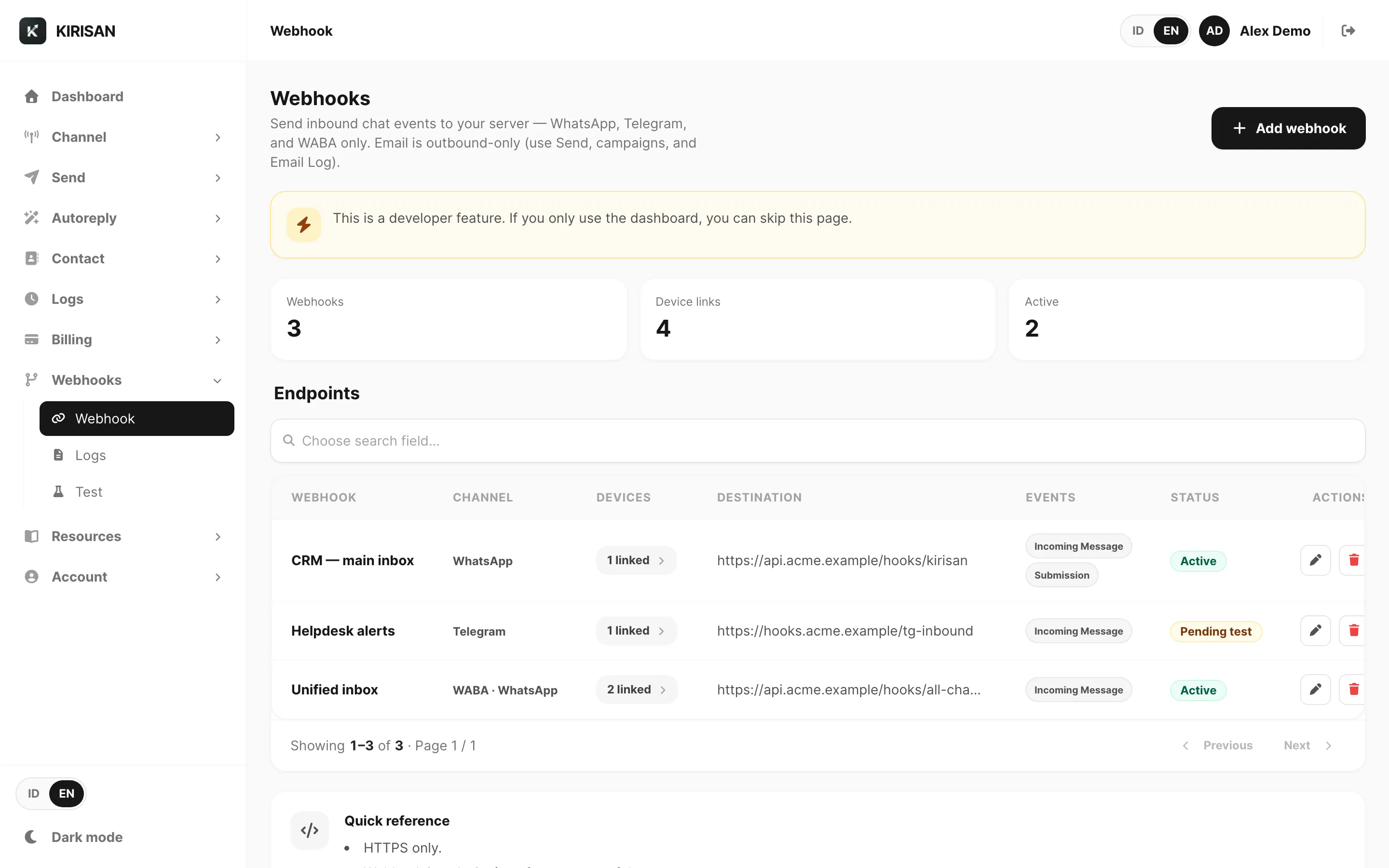
Contoh data ditampilkan.
| Kontrol | Fungsi |
|---|---|
| Add webhook | Buka editor untuk endpoint HTTPS baru |
| Summary cards | Hitung endpoint terkonfigurasi, tautan device, dan baris Active |
| Developer notice | Pengingat bahwa webhook menarget server Anda sendiri |
Summary cards
| Kartu | Arti |
|---|---|
| Webhooks | Grup endpoint berbeda (nama + URL + secret sama dihitung satu) |
| Device links | Total lampiran device di semua endpoint |
| Active | Endpoint mengirim lalu lintas live setelah uji berhasil |
Tabel endpoints
Setiap baris adalah satu webhook logis — satu URL tujuan dengan event dan device tertautnya.
| Kolom | Arti |
|---|---|
| Webhook | Nama tampilan yang Anda pilih di editor |
| Channel | WhatsApp, Telegram, WABA, atau Mixed channels saat satu URL mencakup lebih dari satu channel |
| Devices | Jumlah line atau bot tertaut — klik untuk membuka daftar device |
| Destination | URL HTTPS tempat Kirisan POST |
| Events | Badge event yang diaktifkan (Incoming Message, Submission, Message status di WABA) |
| Status | Active (live) atau Pending test (disimpan tetapi belum diverifikasi) |
| Row actions | Edit atau Delete seluruh grup endpoint |
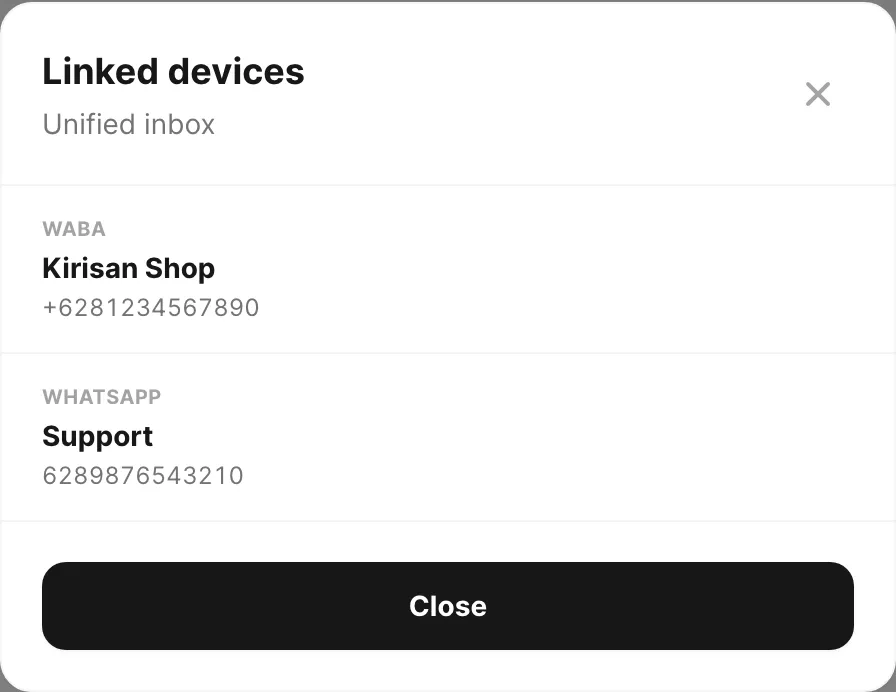
Contoh data ditampilkan.
Pencarian muncul saat Anda punya endpoint. Filter menurut Name atau URL (minimum tiga karakter).
Paginasi ditampilkan saat daftar melebihi satu halaman.
Belum ada webhook
Saat Anda belum mengonfigurasi endpoint, halaman menampilkan keadaan kosong.

Contoh data ditampilkan.
Klik Add webhook untuk membuat endpoint pertama, lalu selesaikan Webhooks → Test agar status menjadi Active.
Tambah atau edit webhook
Klik Add webhook atau Edit pada baris.
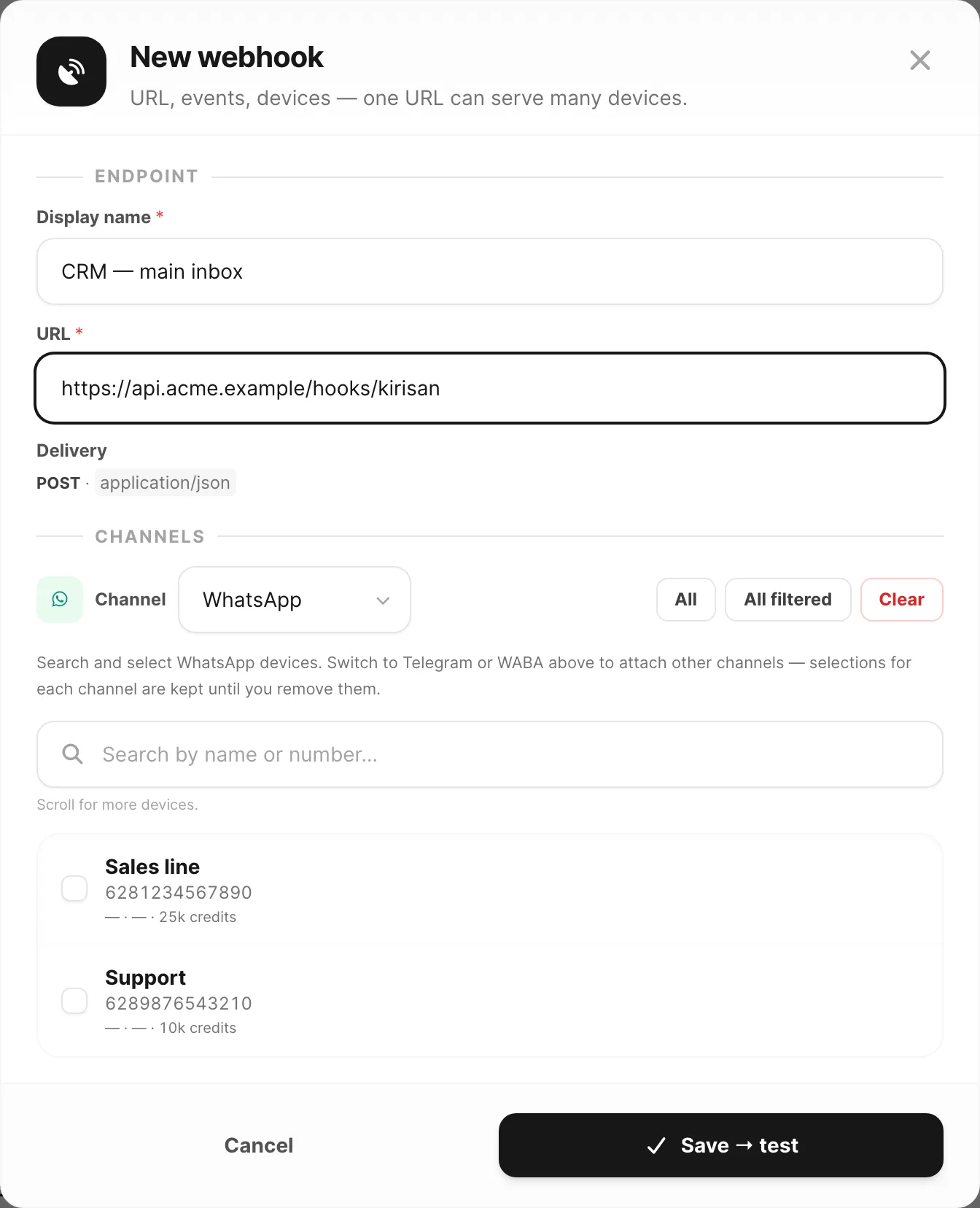
Contoh data ditampilkan.
Editor memiliki empat bagian:
Endpoint
| Field | Wajib | Arti |
|---|---|---|
| Display name | Ya | Label ditampilkan di tabel dan log |
| URL | Ya | Endpoint HTTPS di server Anda |
| Delivery | — | Kirisan mengirim POST dengan application/json |
Devices
Pilih satu atau lebih line atau bot per tab channel (WhatsApp, Telegram, WABA).
| Kontrol | Fungsi |
|---|---|
| Channel tabs | Beralih channel tanpa kehilangan pilihan di channel lain |
| Search | Temukan device di daftar channel saat ini |
| Select all / Select filtered / Clear | Lampirkan atau lepaskan device massal |
| Selected chips | Hapus device individual |
Setiap device hanya dapat memakai satu penangan inbound pada satu waktu. Untuk event Incoming Message, atur On incoming message → Webhook di device (pengaturan device WhatsApp, Telegram, atau WABA). Event Submission dipicu saat pengguna menyelesaikan formulir autoreply di device tertaut.
Events
| Event | Kapan Kirisan POST |
|---|---|
| Incoming Message | Pelanggan mengirim pesan di device tertaut dengan penanganan inbound webhook |
| Submission | Pengguna menyelesaikan formulir submission autoreply di device tertaut |
| Message status | Hanya WABA — tanda terima pengiriman atau baca untuk pesan WABA outbound |
Hanya event yang dicentang memicu pengiriman. Opsi bergantung pada tab channel.
Security
| Field | Arti |
|---|---|
| Signing secret (opsional) | Saat diatur, Kirisan menambahkan header X-Webhook-Secret pada setiap POST agar server Anda bisa menolak lalu lintas tidak ditandatangani |
Setelah Anda klik Save → test, Kirisan membuka Webhooks → Test. Endpoint tetap Pending test sampai uji mengembalikan 200 atau 201. Edit mengatur ulang status ke Pending test sampai Anda uji lagi.
Format pengiriman (referensi cepat)
Footer halaman merangkum kontrak:
- HTTPS only
- Merespons 200 atau 201 dengan cepat — antrekan pekerjaan berat di server Anda
- Body JSON mencakup kunci top-level seperti event, device, channel, sender, message, dan timestamp (bentuk persis bervariasi menurut event)
- Header permintaan mencakup X-Kirisan-Event dan X-Kirisan-Device; X-Webhook-Secret saat Anda mengonfigurasi secret
Untuk referensi payload lengkap (verifikasi, retry, dan contoh JSON per channel), lihat Dokumentasi integrasi Webhook. Untuk pintasan {{…}} di template dan autoreply, buka Resources → Variables → Incoming.
Active vs pending
| Status | Arti |
|---|---|
| Pending test | Disimpan tetapi tidak mengirim lalu lintas live |
| Active | Uji terakhir berhasil — event live POST ke URL Anda |
Periksa percobaan pengiriman di Webhooks → Logs. Kirim payload contoh dari Webhooks → Test.
Terkait
- Log webhook — riwayat pengiriman dan detail error
- Uji webhook — verifikasi URL sebelum go live
- Referensi payload webhook — JSON, verifikasi, dan contoh per channel
- Jalankan uji webhook — tutorial uji langkah demi langkah
- Tambah endpoint webhook — tutorial langkah demi langkah
- Autoreply submissions — event formulir yang dapat memicu webhook Submission
- Device WhatsApp — atur On incoming message → Webhook
- Resources → Variables — referensi envelope JSON lengkap