Buat akun Anda
2 min read
Cara masuk
Kirisan hanya memakai masuk dengan Google. Tidak ada username atau kata sandi Kirisan terpisah — tombol Continue with Google yang sama dipakai di halaman login dan register.
- Pengguna baru — masuk dengan Google sekali; Kirisan membuat workspace Anda secara otomatis.
- Pengguna lama — masuk dengan akun Google yang sama seperti sebelumnya.
Buat akun
- Buka dash.kirisan.com/register (atau login — keduanya memakai tombol Google yang sama).
- Klik Continue with Google dan selesaikan alur masuk Google.
- Anda tiba di beranda Dashboard — upaya kirim, tingkat keberhasilan, jumlah device, pengiriman terbaru, dan Campaign untuk tujuh hari terakhir.
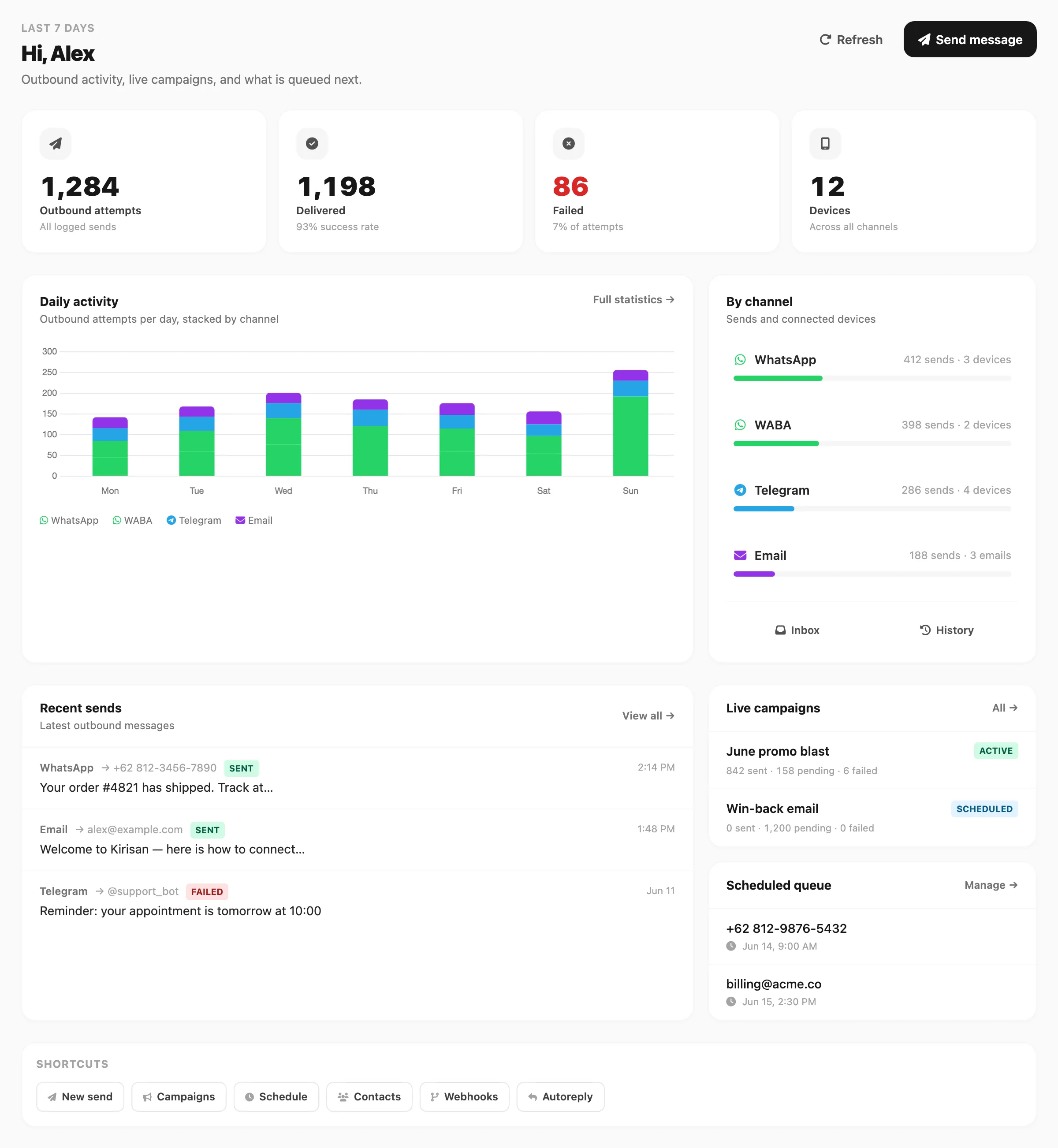
Data sampel ditampilkan.
Masuk lagi
Buka dash.kirisan.com/login dan gunakan Continue with Google. Sesi Anda tetap aktif sampai Anda keluar atau menghapus cookie browser.
Reset kata sandi
Kirisan tidak menawarkan login email/kata sandi. Jika Anda tidak bisa mengakses akun, pulihkan akses lewat Google (akun yang dipakai untuk masuk).
Untuk masalah spesifik Kirisan setelah masuk, lihat Settings & support.
Yang harus dilakukan pertama
Setelah masuk:
- Buka Channel dan hubungkan minimal satu device atau pengirim — lihat Ringkasan Channel.
- Opsional: tambahkan kontak di Contact → All Contacts.
- Kirim pesan uji dari Send → Send.