Koneksi
Hubungkan device WhatsApp atau nomor WABA sebelum mengirim. Setiap bagian di bawah adalah tugas bernomor — ikuti langkahnya, periksa Anda seharusnya melihat, lalu lanjutkan.
WhatsApp — periksa token akun terlebih dahulu
Lakukan ini sekali jika Channel → WhatsApp → Devices tidak menampilkan baris atau Anda tidak yakin Kirisan bisa melihat device Anda:
- Buka Channel → WhatsApp → Token, tambahkan atau perbarui token akun Fonnte Anda, lalu simpan.
- Kembali ke Channel → WhatsApp → Devices dan klik Refresh.
- Jika dropdown Fonnte account muncul, pilih akun yang memiliki device dan klik Refresh lagi.
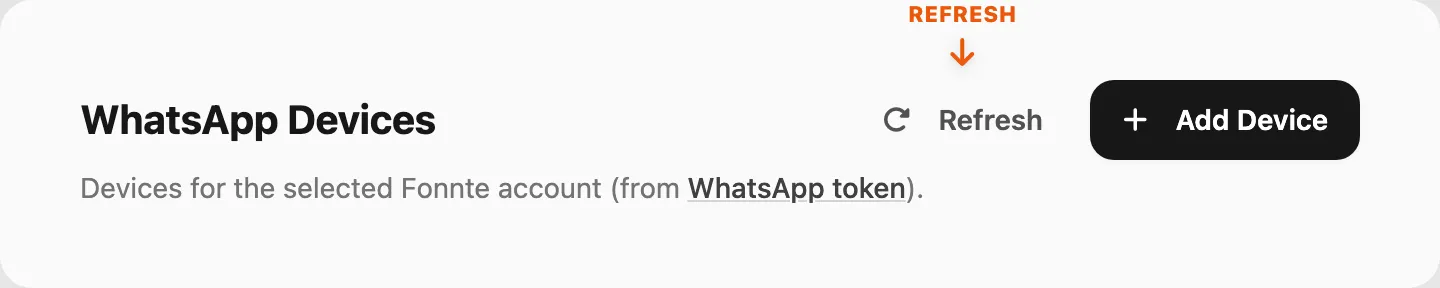
Anda seharusnya melihat setidaknya satu baris device setelah refresh.
Tambah dan hubungkan device WhatsApp
Tujuan: Daftarkan nomor WhatsApp baru dan hubungkan dengan memindai QR.
- Buka Channel → WhatsApp → Devices dan klik Add Device di header halaman.

- Masukkan Name (misalnya
Sales) dan Device number dengan kode negara, tanpa+(misalnya6281234567890). Klik Add Device.
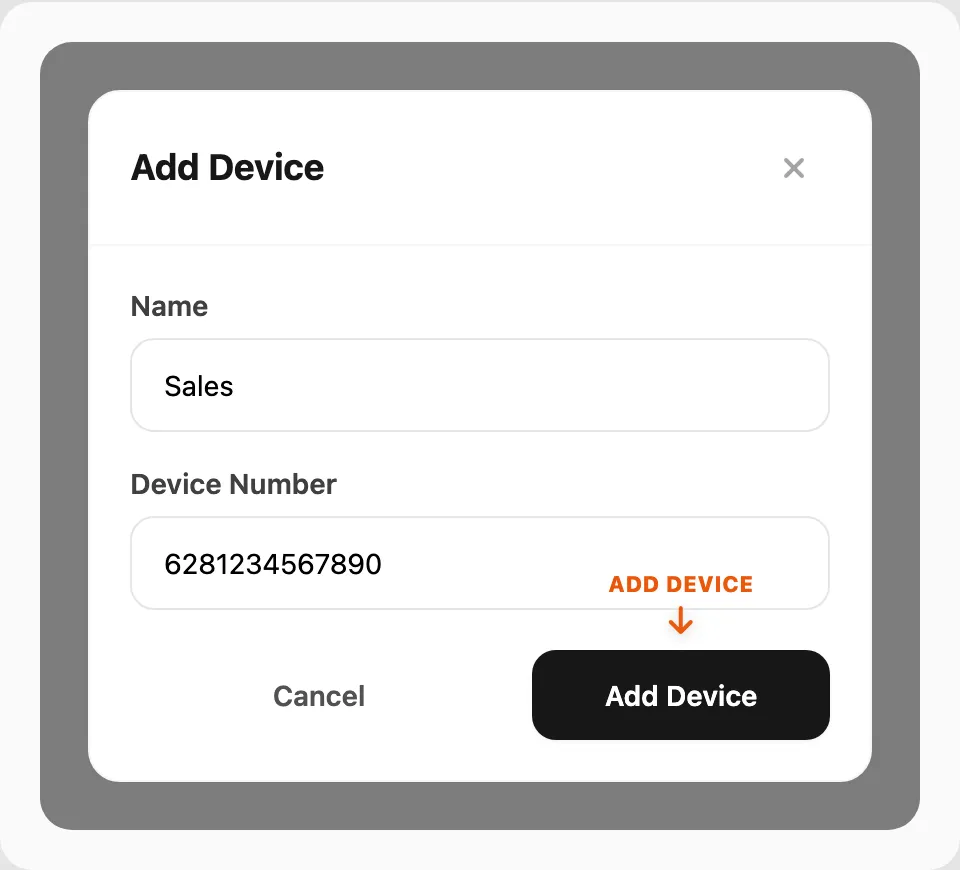
- Anda seharusnya melihat baris baru dengan Status
disconnect.
- Klik Connect pada baris baru dan ikuti langkah di Hubungkan device yang terputus di bawah.
Selesai saat: Baris menampilkan Status connect.
Hubungkan device WhatsApp yang terputus
Tujuan: Ubah badge merah disconnect menjadi hijau connect.
Mulai saat: Baris device menampilkan Status disconnect.
Kode QR (disarankan)
- Pada baris device, klik Connect.

- Anda seharusnya melihat modal Connect WhatsApp dengan tile QR code dan Pairing code.
- Klik tile QR code.
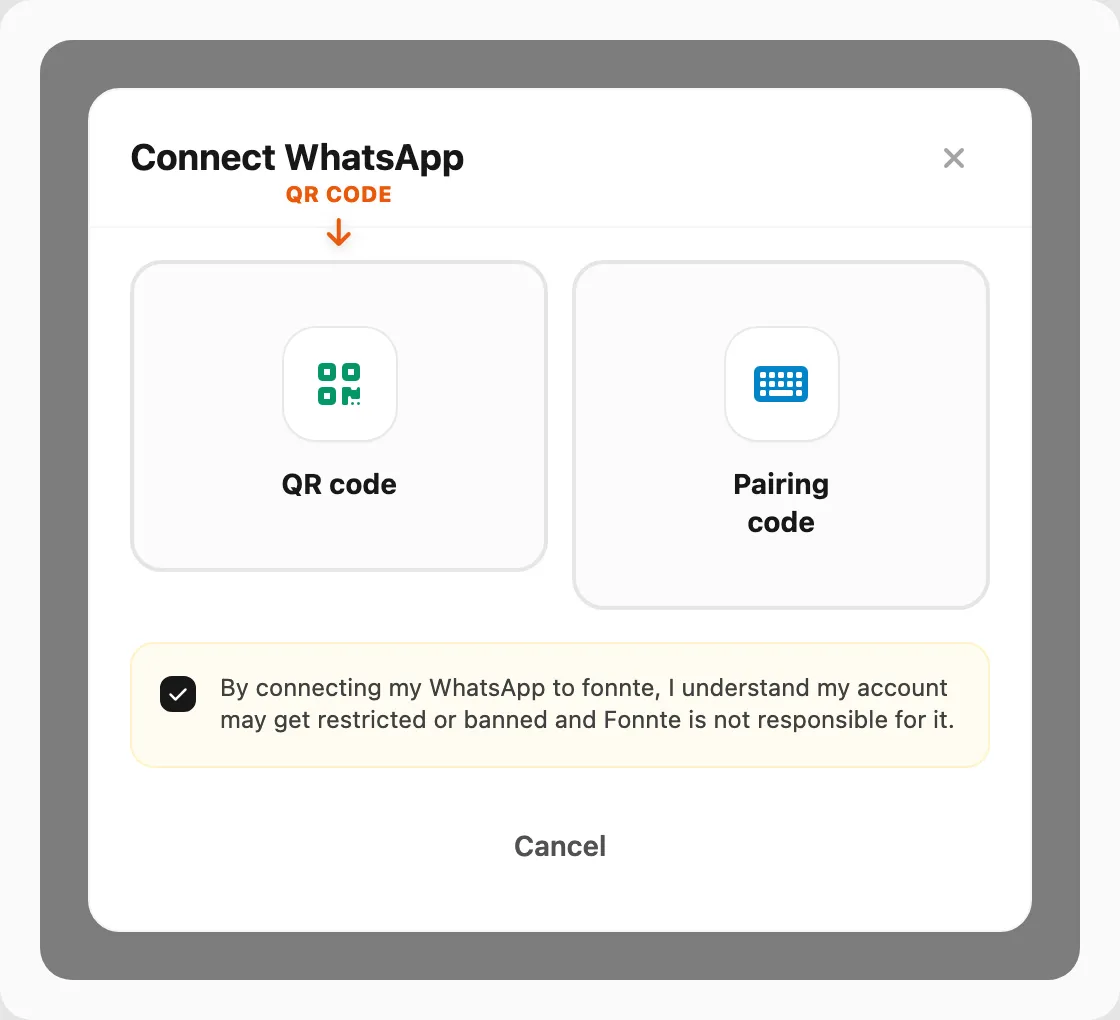
- Anda seharusnya melihat gambar kode QR. Biarkan modal terbuka.
- Di ponsel yang memiliki nomor WhatsApp ini, buka WhatsApp → Linked devices (Android: menu ⋮; iPhone: Settings).
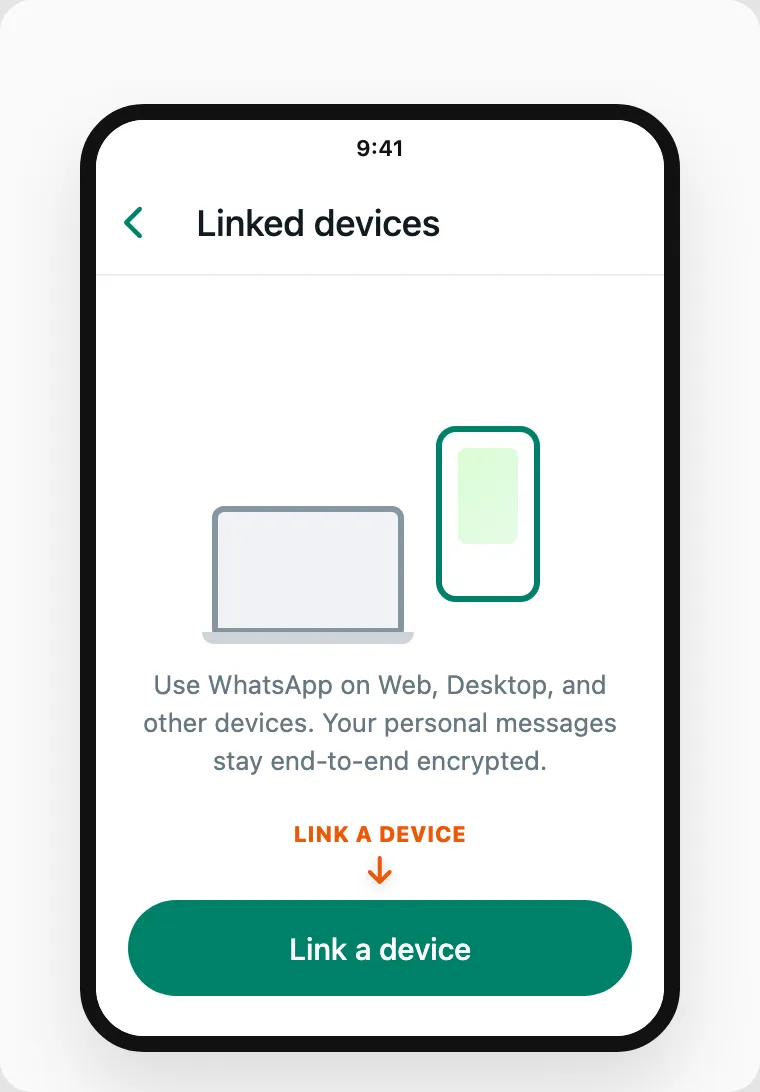
Ketuk Link a device, lalu arahkan kamera ke QR di layar.
Biarkan modal Kirisan terbuka hingga 55 detik.
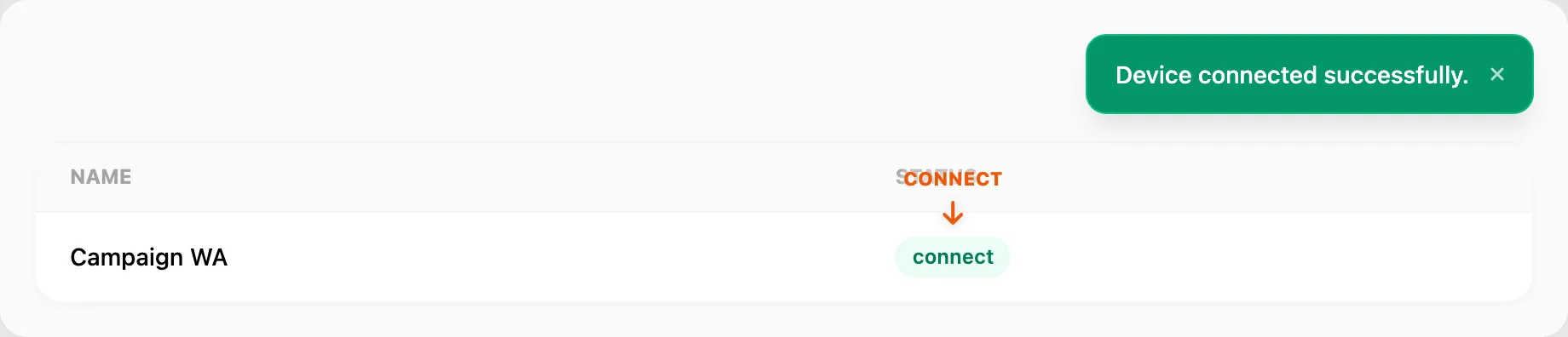
- Anda seharusnya melihat toast Device connected successfully. dan Status baris berubah ke
connect.
Selesai saat: Status connect dan Anda bisa mengirim uji dari Send → Send.
Kode pairing (jika QR gagal)
Gunakan ini jika kamera tidak bisa memindai layar atau QR habis waktu.
- Klik Connect → tile Pairing code.
- Masukkan nomor device (kode negara, tanpa
+) dan klik Get code.
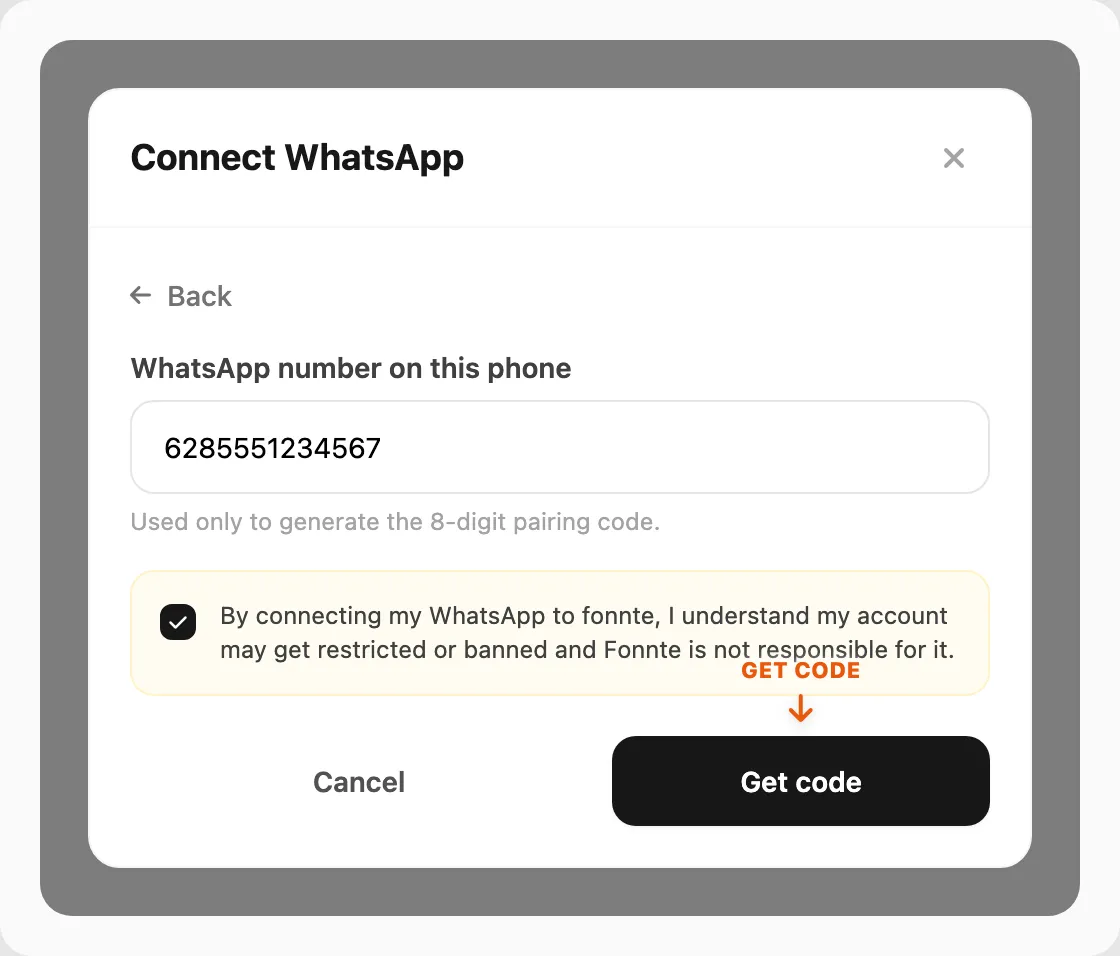
- Anda seharusnya melihat kode 8 digit di modal.
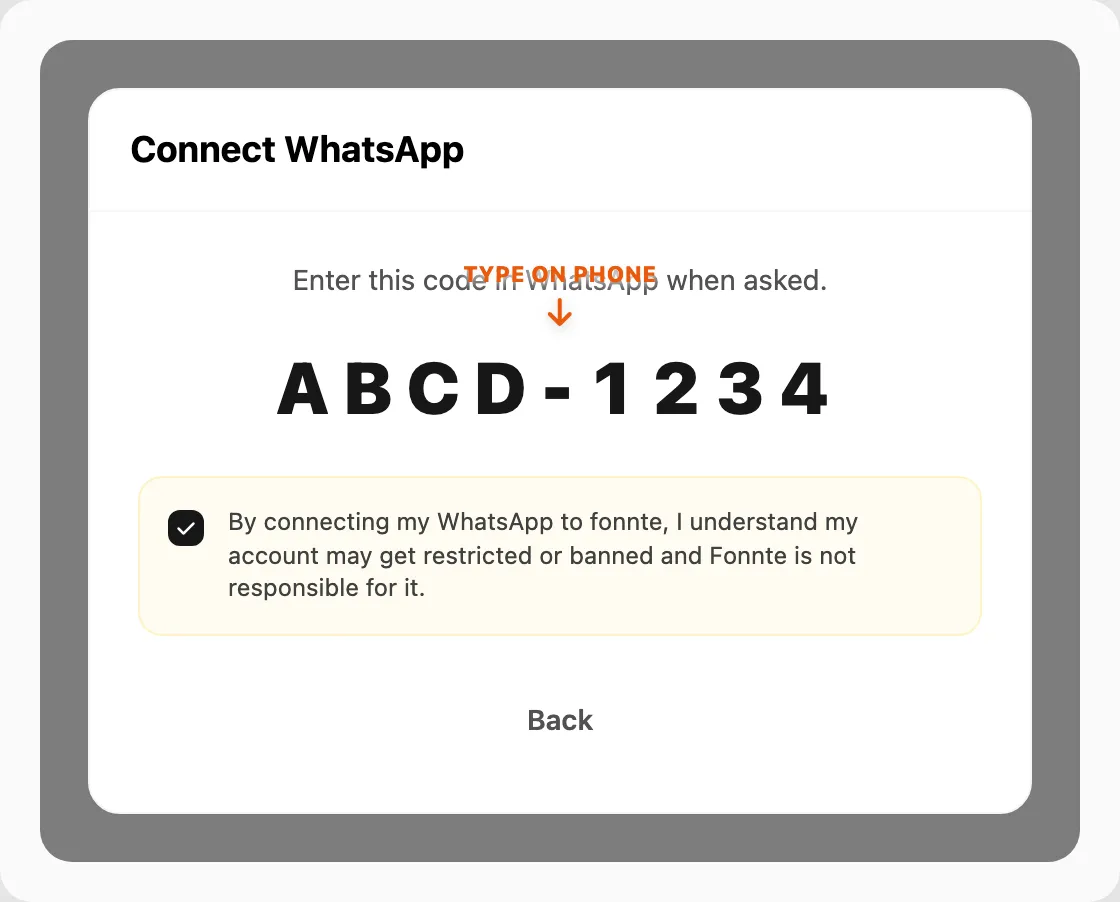
- Di ponsel: WhatsApp → Linked devices → Link with phone number instead, masukkan kode 8 digit.
- Tunggu hingga 55 detik tanpa menutup modal.
Selesai saat: Status connect.
Sambungkan ulang atau putuskan device WhatsApp
Sambungkan ulang (refresh sesi aktif)
Mulai saat: Status sudah connect tetapi pesan terasa tertunda atau basi.
Klik Reconnect pada baris.
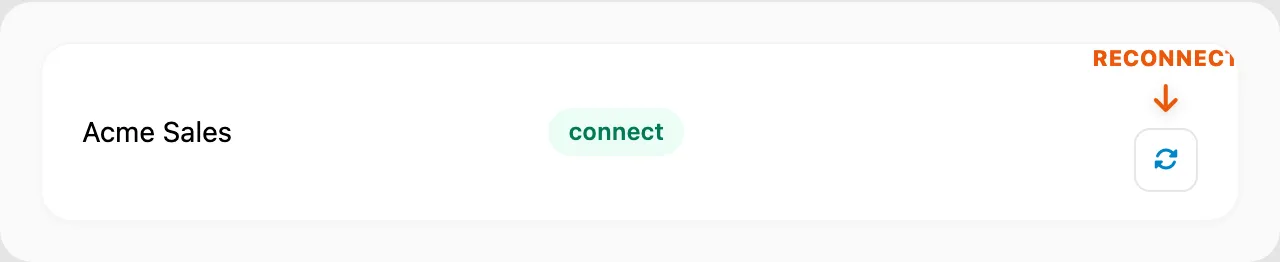
- Anda seharusnya melihat toast Reconnect requested. Tunggu beberapa detik, lalu kirim uji.
Jika masih gagal: Putuskan device, lalu hubungkan lagi dengan QR atau kode pairing.
Putuskan (jeda tanpa menghapus)
Mulai saat: Status connect dan Anda ingin menjeda tanpa menghapus baris.
Klik Disconnect, lalu konfirmasi.
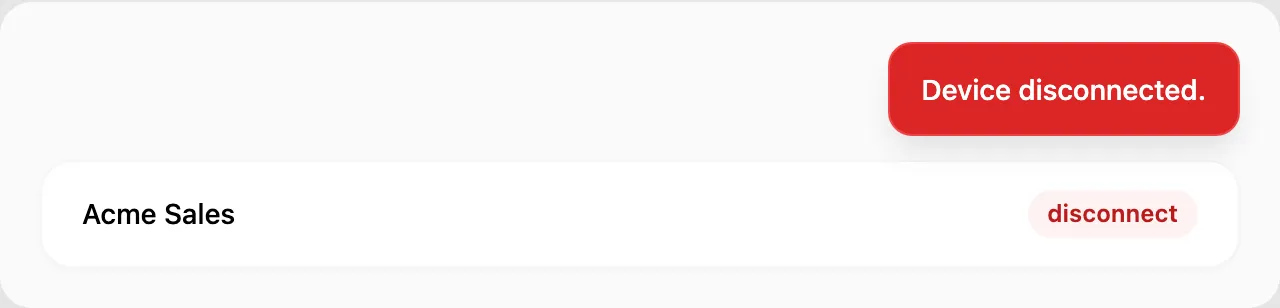
- Anda seharusnya melihat Status berubah ke
disconnect. Baris tetap di tabel — klik Connect lagi saat siap.
Hapus permanen
Klik Delete dan konfirmasi dialog. Ini tidak dapat dibatalkan.
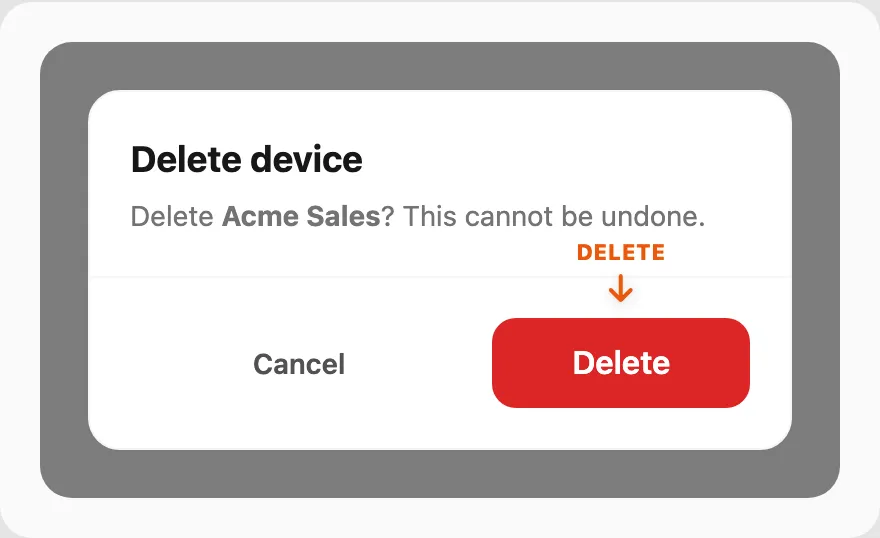
Lebih suka menjeda? Gunakan Disconnect saja.
Hubungkan nomor WABA (Connect with Meta)
Tujuan: Hubungkan nomor WhatsApp Business ke Kirisan lewat Meta sambil mempertahankan aplikasi WhatsApp Business di ponsel Anda.
Sebelum mulai:
- Perbarui WhatsApp Business di ponsel ke v2.24.17 atau lebih baru.
- Konfirmasi nomor aktif di aplikasi WhatsApp Business.
- Ketahui akun Meta (login Facebook) yang mengelola bisnis pemilik nomor.
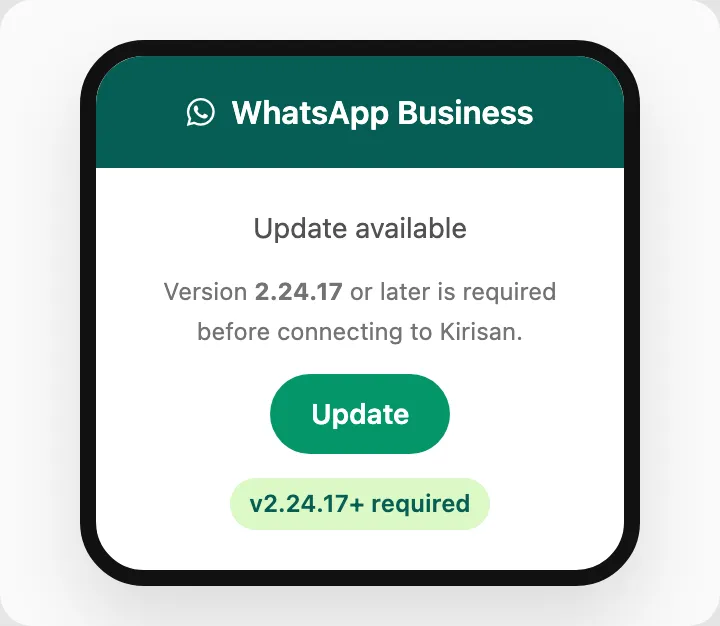
Langkah 1 — Mulai pendaftaran Meta
- Buka Channel → WABA → Devices. Klik Connect with Meta.

- Anda seharusnya melihat tombol berubah ke Connecting…, lalu jendela login Meta terbuka (popup atau tab baru). Jika tidak ada yang muncul, lihat Perbaiki masalah umum di bawah.
- Login dengan akun Meta yang mengelola nomor WhatsApp Business Anda.
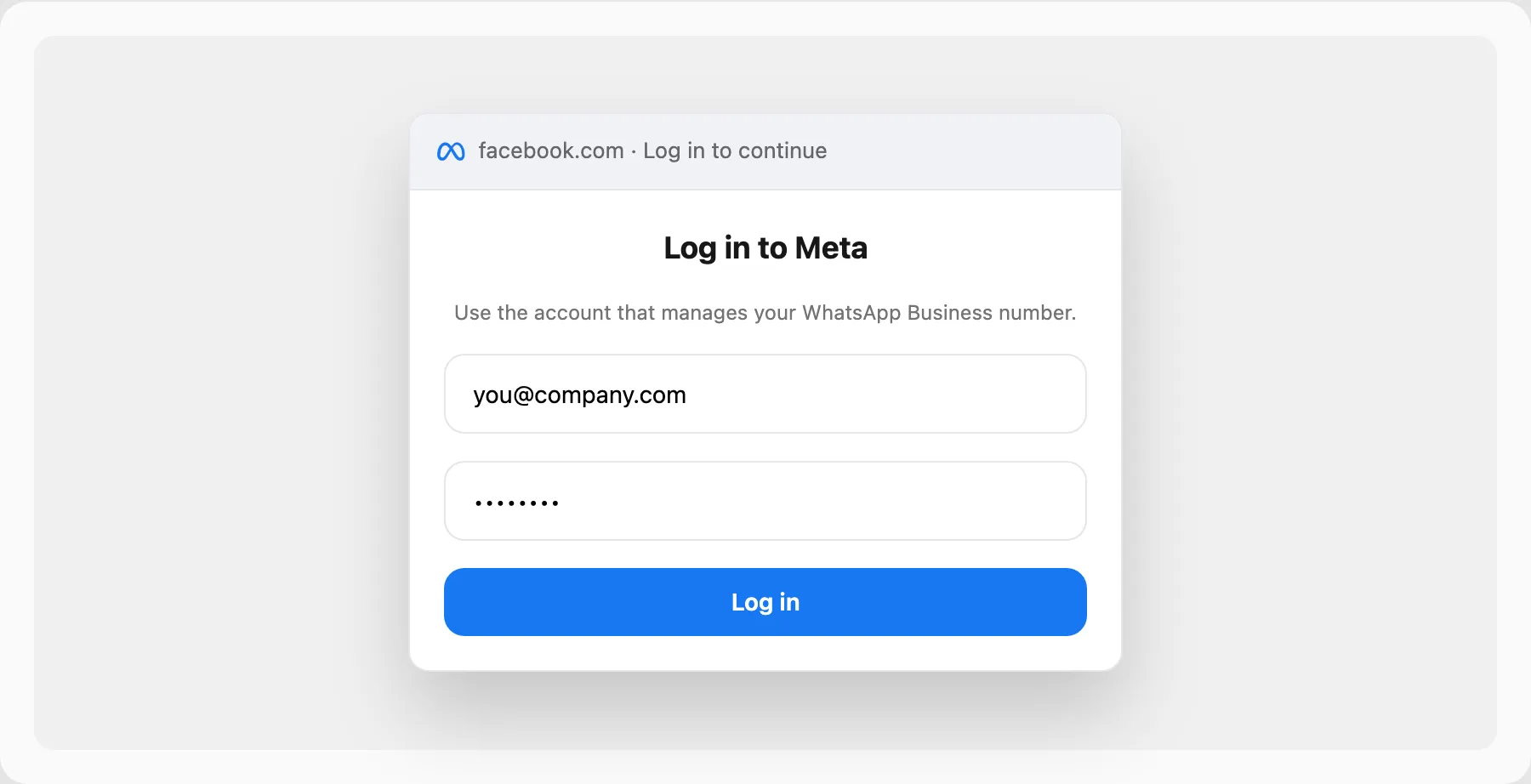
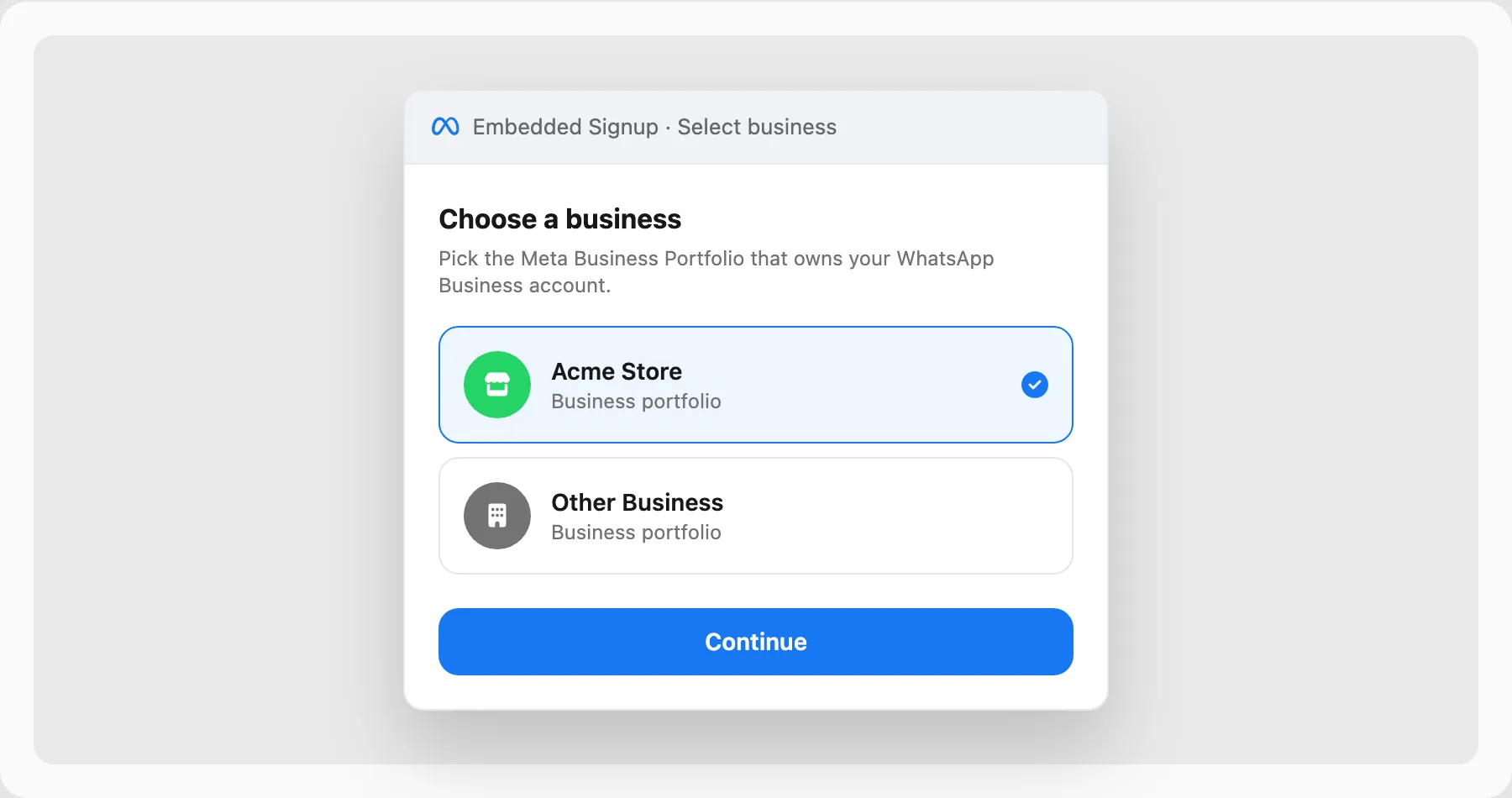
Langkah 2 — Pilih bisnis Anda
- Saat Meta meminta Business Portfolio, pilih yang memiliki nomor, lalu klik Continue.
Langkah 3 — Pilih nomor telepon Anda
- Pilih nomor dari daftar. Meta menampilkan catatan coexistence — aplikasi WhatsApp Business Anda tetap berfungsi.
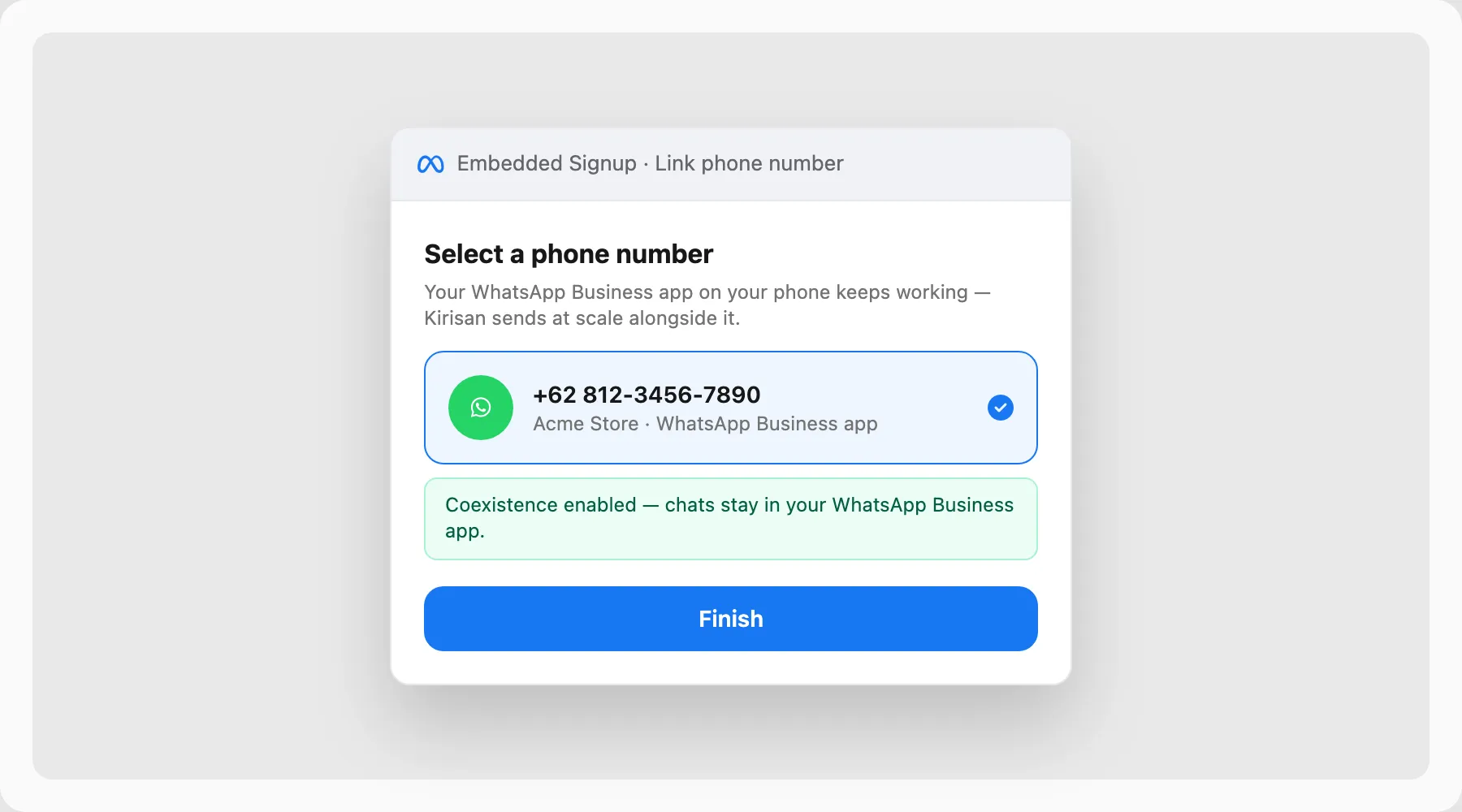
- Klik Finish (atau Continue / Done). Jangan tutup tab Kirisan saat Meta memproses.
Langkah 4 — Simpan token API Anda
- Kembali di Kirisan, banner hijau menampilkan API token Anda.
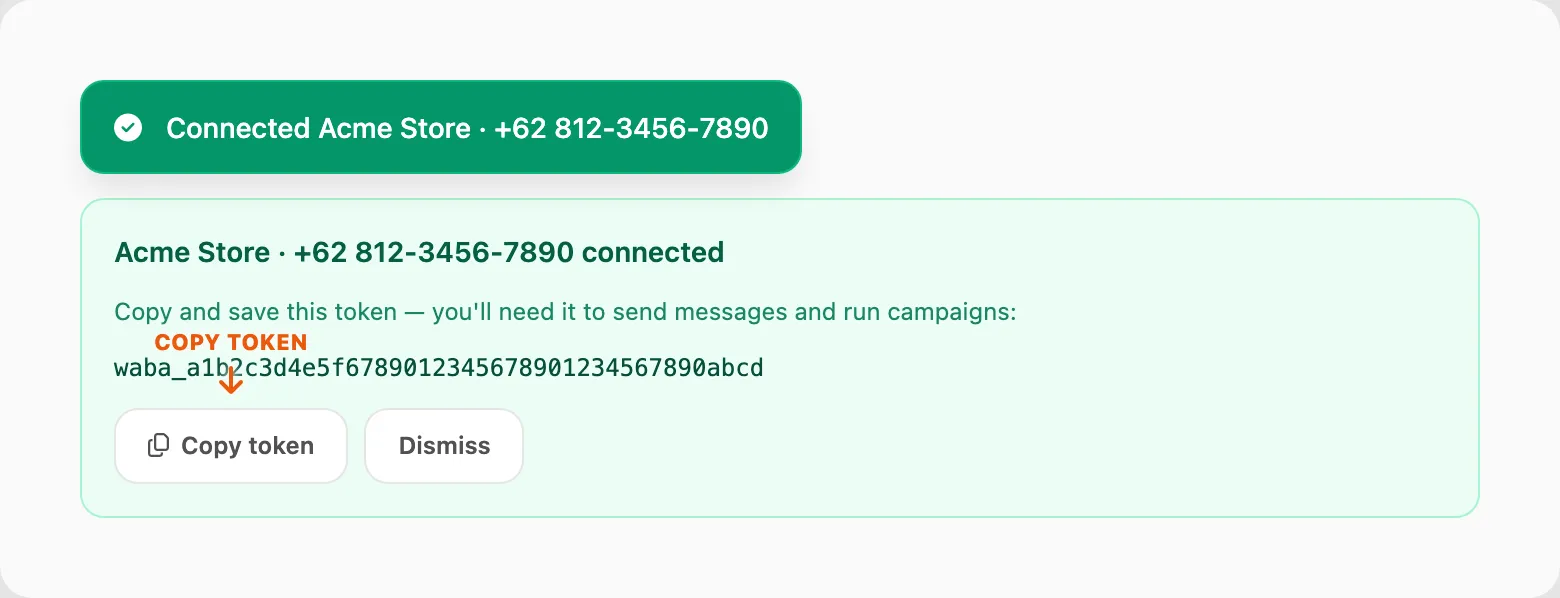
- Anda seharusnya melihat toast Connected <name> · +62 …
- Klik Copy token dan simpan dengan aman. Konfirmasi nomor muncul sebagai baris baru di tabel.

Selesai saat: Nomor ada di tabel dan Anda menyimpan token.
Selanjutnya: Sinkronkan template di Channel → WABA → Templates, lalu kirim uji dari Send → Send.
Sambungkan ulang nomor WABA (Meta mengeluarkan Anda)
Tujuan: Menyegarkan akses Meta pada nomor yang sudah ada di Kirisan, tanpa kehilangan token API atau paket berbayar.
Mulai saat: Pengiriman gagal setelah Meta mengeluarkan Anda, atau Cloud API mengembalikan error autentikasi / izin.
- Buka Channel → WABA → Devices.
- Pada baris nomor itu, klik Reconnect.
- Selesaikan masuk Meta dan pilih nomor WhatsApp Business yang sama.
- Saat Kirisan selesai, toast sukses menyatakan nomor terhubung ulang dan token serta paket tidak berubah.
Anda seharusnya melihat: Baris yang sama, token API yang sama, paket dan kredit yang sama.
Selesai saat: Kirim uji dari Send → Send berhasil lagi.
Jangan pakai Disconnect lalu Connect with Meta untuk ini. Itu membuat token baru dan kuota gratis baru, dan paket berbayar tidak bisa diputus sebelum habis masa berlakunya.
Jika Anda memang sudah menghapus nomor dari Kirisan, pakai Connect with Meta untuk menambahkannya lagi sebagai baris baru.
Salin token API device
- Buka Channel → WhatsApp → Devices.
- Di kolom Token pada baris yang benar, klik .
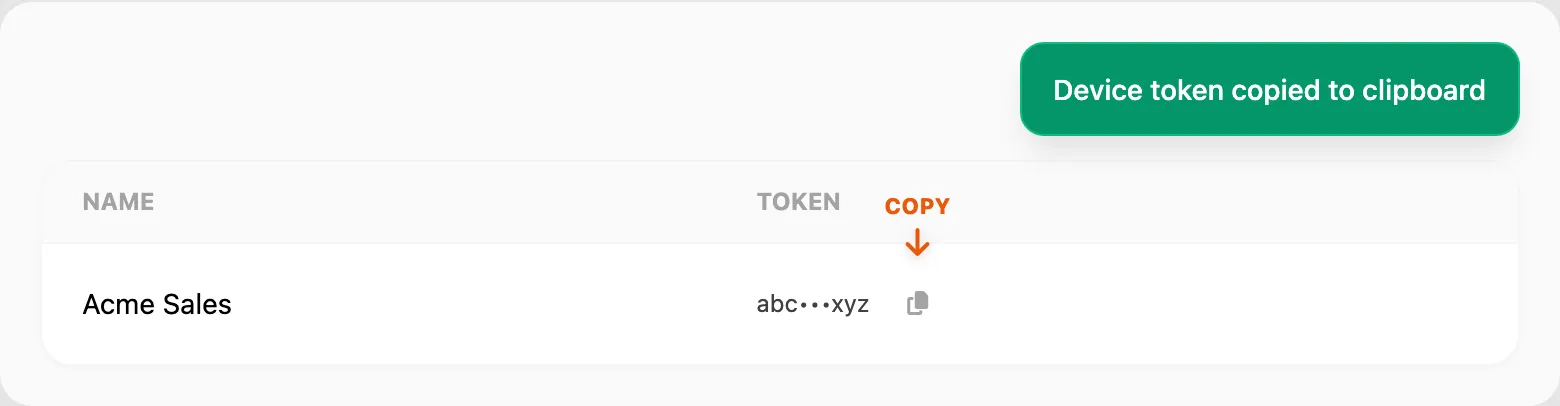
- Anda seharusnya melihat toast Device token copied to clipboard.
Kolom Token menampilkan pratinjau singkat. Ikon salin selalu memberikan token lengkap.
Catatan: Ini adalah token device (untuk mengirim), bukan token akun Fonnte di Channel → WhatsApp → Token.
WABA
- Buka Channel → WABA → Devices.
- Di kolom API token, klik pada baris.

- Anda seharusnya melihat toast konfirmasi.
Token lengkap selalu tersedia di sini — meskipun Anda menutup banner sukses setelah terhubung.
Perbaiki masalah umum
Daftar device WhatsApp kosong
Gejala: Anda klik Refresh tetapi tabel tidak punya baris.
- Buka Channel → WhatsApp → Token dan konfirmasi token akun tersimpan.
- Jika Fonnte account muncul di header, pilih setiap akun satu per satu dan klik Refresh setelah masing-masing.
- Login ke Fonnte langsung — jika device ada di sana, klik Add Device di Kirisan dengan nomor yang sama, lalu Connect.
QR habis waktu atau tidak pernah selesai
Gejala: Modal tertutup setelah ~55 detik; toast mengatakan penghubungan habis waktu.
- Konfirmasi nomor telepon di baris cocok dengan SIM di ponsel yang Anda gunakan untuk memindai.
- Di ponsel: WhatsApp → Linked devices — hapus device tertaut lama atau tidak dikenal, lalu coba lagi.
- Coba Pairing code alih-alih QR.
- Biarkan tab Kirisan di latar depan sampai Anda melihat Device connected successfully.
Status tetap disconnect setelah penghubungan
- Klik Refresh di halaman Devices dan tunggu tabel dimuat ulang.
- Jika masih
disconnect, klik Connect dan coba lagi dari awal. - Klik badge Package — jika Expires kedaluwarsa atau Quota 0, perpanjang di Billing → Order terlebih dahulu.
Salin token tidak bereaksi
- Klik sekali di latar belakang halaman, lalu klik ikon salin lagi (browser memerlukan klik langsung).
- Izinkan akses clipboard untuk
dash.kirisan.comdi pengaturan browser. - Anda seharusnya melihat toast Device token copied to clipboard. lalu tempel dengan Ctrl+V / Cmd+V.
WABA — Connect with Meta abu-abu
- Refresh halaman. Jika pesan merah muncul di catatan info, hubungi dukungan.
- Coba Chrome atau Edge dengan popup diizinkan untuk
dash.kirisan.com.
WABA — klik Connect with Meta tidak bereaksi
- Izinkan popup untuk dashboard Kirisan di browser Anda.
- Nonaktifkan pemblokir iklan sementara untuk situs ini.
- Periksa bilah alamat untuk ikon popup diblokir dan klik Allow.
WABA — “WhatsApp signup did not return a WABA ID”
- Jalankan Connect with Meta lagi dan selesaikan semua langkah hingga Finish tanpa mengganti tab.
- Konfirmasi Anda memilih nomor telepon (bukan hanya business portfolio) di layar Meta.
- Pastikan nomor ada di aplikasi WhatsApp Business v2.24.17+.
WABA — token hilang setelah terhubung
Ikuti Salin token API device — WABA di atas. Token lengkap selalu ada di baris.
WABA — pengiriman gagal setelah Meta mengeluarkan Anda
Gejala: Nomor masih di tabel, tetapi kirim keluar gagal dengan error autentikasi atau izin.
- Klik Reconnect pada baris itu.
- Selesaikan alur Meta dengan nomor yang sama.
- Jangan putuskan baris dulu — itu akan mengganti token dan menghapus paket berbayar.
Terkait
- Referensi device WhatsApp — kolom, badge, dan semua aksi
- Referensi device WABA — paket, slot gratis, dan aksi baris
- Mengirim pesan — device terhubung tetapi kirim masih gagal
- Send API — gunakan token device untuk mengirim secara programatik