Device WABA
Buka Channel → WABA → Devices.
Fungsi halaman ini
Setiap baris adalah nomor WABA — nomor telepon WhatsApp Business yang ditautkan melalui Meta. Kirisan mengirim pesan dan kampanye dalam skala besar atas nama Anda, sementara Anda tetap menggunakan aplikasi WhatsApp Business di ponsel untuk obrolan sehari-hari.
Pilih nomor terhubung saat mengirim dari Send → Send, kampanye, jadwal, aturan autoreply, atau Send API.
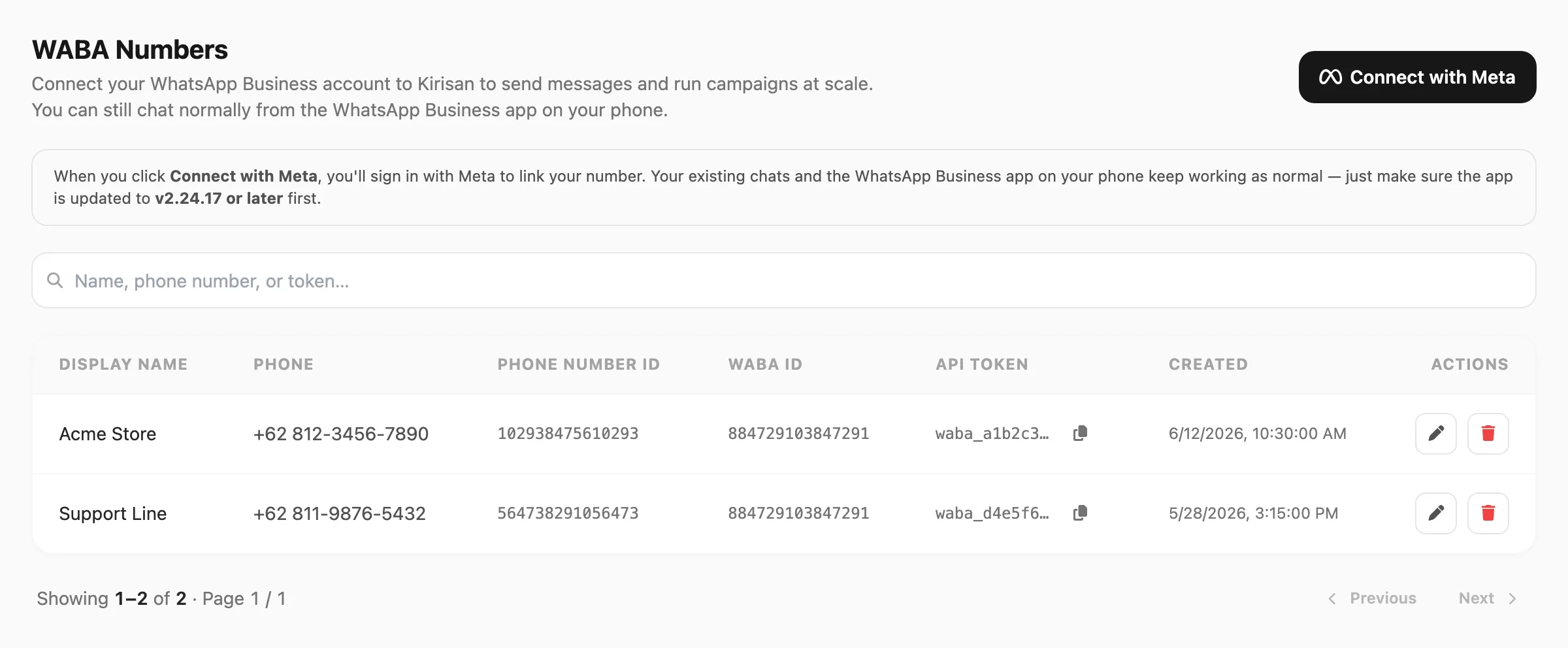
Data sampel ditampilkan.
| Kontrol header | Fungsi |
|---|---|
| Connect with Meta | Masuk dengan Meta dan tautkan nomor WhatsApp Business ke Kirisan |
Sebelum menghubungkan
Baca catatan info di bawah header halaman:
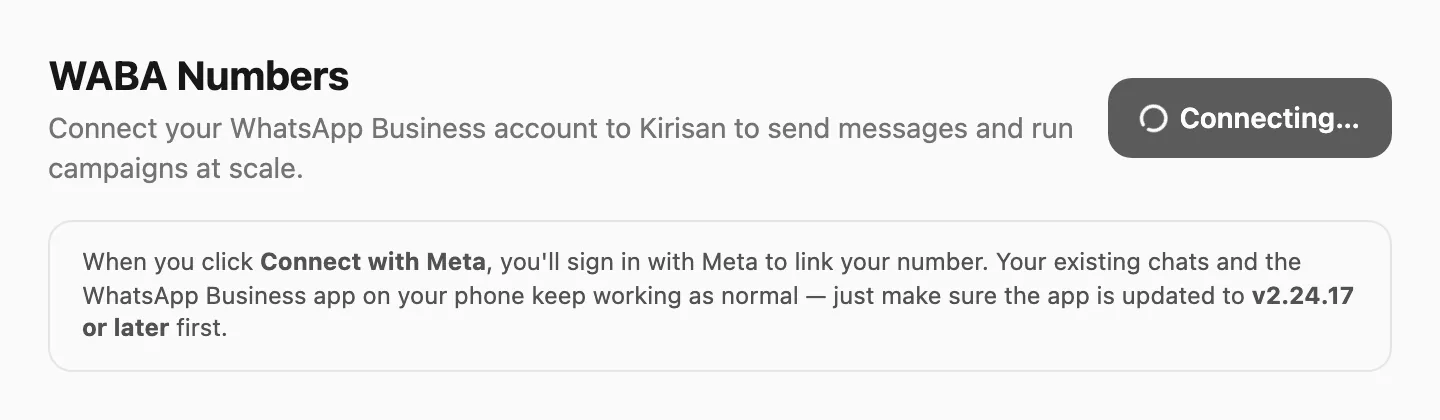
| Persyaratan | Mengapa penting |
|---|---|
| Aplikasi WhatsApp Business v2.24.17 atau lebih baru di ponsel yang memiliki nomor | Diperlukan untuk coexistence — aplikasi Anda tetap berfungsi sementara Kirisan mengirim via Cloud API |
| Akses bisnis Meta | Anda masuk dengan akun Meta yang mengelola nomor WhatsApp Business |
| Nomor sudah di WhatsApp Business | Nomor harus aktif di aplikasi WhatsApp Business sebelum ditautkan |
Obrolan yang ada tetap di aplikasi WhatsApp Business. Kirisan tidak menggantikan aplikasi di ponsel Anda.
Hubungkan nomor
Untuk panduan langkah demi langkah lengkap dengan tangkapan layar, lihat Connect with Meta — panduan langkah demi langkah.
- Perbarui aplikasi WhatsApp Business di ponsel Anda ke v2.24.17 atau lebih baru.
- Di Devices, klik Connect with Meta.
- Selesaikan alur masuk dan otorisasi Meta — pilih bisnis dan nomor telepon yang ingin ditautkan.
- Saat Kirisan selesai, banner sukses hijau muncul dengan token API Anda.
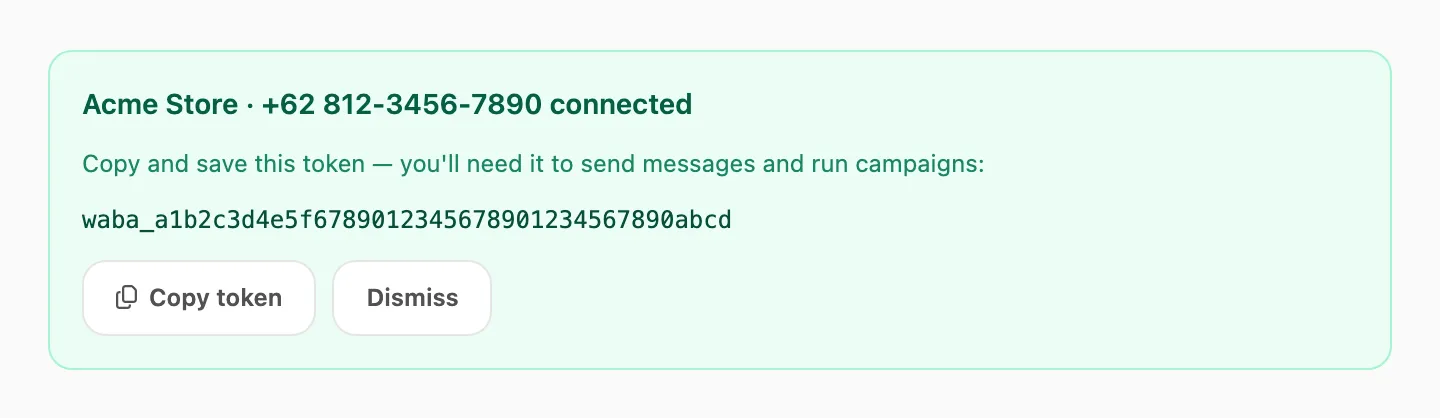
- Klik Copy token dan simpan token di tempat aman — Anda membutuhkannya untuk Send → Send, kampanye, dan Send API.
- Pastikan nomor muncul di tabel sebelum mengirim lalu lintas produksi.
Jika Anda menutup banner tanpa menyalin, gunakan tombol Copy token di kolom API token pada baris (token lengkap selalu tersedia di sana).
Pencarian
Pencarian berbasis field — klik area pencarian terlebih dahulu, pilih kolom yang dicari, lalu ketik kueri Anda.

| Langkah | Yang terjadi |
|---|---|
| 1. Klik pencarian | Popup Search in terbuka — Anda harus memilih field sebelum mengetik |
| 2. Pilih field | Display name, Phone, Phone number ID, WABA ID, atau API token |
| 3. Ketik | Kirisan memfilter tabel saat Anda mengetik (debounce singkat) |
Setelah Anda memilih field, bilah pencarian menampilkan nama field di kiri (misalnya Display name ▼). Klik untuk mengganti field — mengganti field menghapus kueri.
| Field pencarian | Cocok dengan | Panjang minimum |
|---|---|---|
| Display name | Nama bisnis yang mengandung kueri Anda | 3 karakter |
| Phone | Nomor telepon WhatsApp Business yang mengandung kueri Anda | 3 karakter |
| Phone number ID | ID nomor telepon Meta yang mengandung kueri Anda | 3 karakter |
| WABA ID | ID Akun WhatsApp Business yang mengandung kueri Anda | 3 karakter |
| API token | Token device Kirisan yang mengandung kueri Anda | 3 karakter |
Jika Anda mengetik kurang dari tiga karakter, Kirisan menunggu hingga minimum terpenuhi dan menampilkan petunjuk singkat di bawah bilah pencarian.
Paginasi di bawah tabel muncul jika hasil lebih dari satu halaman (25 baris per halaman).
Tabel nomor
Setiap baris adalah satu nomor WABA tertaut:

| Kolom | Arti |
|---|---|
| Display name | Label yang dilaporkan Meta untuk nomor ini (misalnya nama bisnis Anda) |
| Phone | Nomor telepon WhatsApp Business tertaut |
| Plan | Badge paket gratis atau berbayar — klik untuk membuka WABA plan (lihat Paket dan slot gratis di bawah) |
| Credits | Sisa kredit pengiriman pada nomor ini |
| Expires | Hari tersisa pada paket — Expired merah; di bawah 5 hari amber |
| Phone number ID | Pengenal Meta untuk nomor ini — berguna untuk dukungan dan integrasi |
| WABA ID | ID Akun WhatsApp Business di Meta |
| API token | Token device Kirisan untuk nomor ini — dipotong dengan tombol Copy token |
| Created | Kapan nomor dihubungkan di Kirisan |
| Actions | Reconnect, Edit, Disconnect, Copy token, dan opsional Use as active free device — lihat di bawah |
Paket dan slot gratis
Klik badge Plan mana pun untuk membuka WABA plan:
| Bagian | Yang ditampilkan |
|---|---|
| Summary | Apakah nomor ini adalah slot gratis aktif, diparkir di free tier, atau pada paket berbayar |
| Details | Kredit, masa berlaku, dan tanggal aktif sejak untuk nomor gratis |
| What to do next | Alihkan slot gratis, perpanjang di Billing → Order, atau salin token API |
Setiap nomor baru dimulai pada paket gratis dengan 1.000 kredit dan jendela validitas 30 hari. Saat periode gratis aktif berakhir, Kirisan mengisi ulang 1.000 kredit dan 30 hari lagi secara otomatis. Saat paket berbayar berakhir, nomor kembali ke gratis dengan 1.000 kredit (aturan sama — lihat Plans and quota).
Warna badge di tabel:
| Badge | Arti |
|---|---|
| Green Free | Nomor pengiriman gratis aktif (hanya satu nomor WABA yang dapat mengirim di free tier pada satu waktu) |
| Red Free | Nomor gratis diparkir — bukan slot pengiriman aktif |
| Violet plan name | Paket berbayar — badge menampilkan nama paket sebenarnya |
Pada free tier, hanya nomor gratis aktif yang dapat mengirim. Pada baris gratis diparkir, klik Use as active free device untuk mengalihkan slot (paling banyak sekali setiap 7 hari). Upgrade di Billing → Order menghapus nomor dari slot gratis secara otomatis.
Memperpanjang paket berbayar yang sama saat masih aktif menambah kredit dan memperpanjang masa berlaku dari tanggal saat ini. Mengganti ke paket berbeda mengganti kredit dan mengatur ulang masa berlaku dari hari ini — sisa kuota dan hari tidak dibawa. Lihat Plans and quota.
Biaya percakapan Meta terpisah — lihat Tagihan WABA.
Aksi baris
| Action | Fungsi | |
|---|---|---|
| Reconnect | Masuk lagi dengan Meta untuk menyegarkan koneksi nomor ini. Pakai jika Meta mengeluarkan Anda atau pengiriman gagal karena autentikasi. Token API dan paket tetap sama — jangan putuskan lalu hubungkan lagi. | |
| Edit | Konfigurasi penanganan pesan masuk dan pengambilan kontak opsional untuk nomor ini. | |
| Use as active free device | Pada baris free tier diparkir — mengalihkan satu slot pengiriman WABA gratis aktif ke nomor ini (sekali setiap 7 hari). | |
| Disconnect | Hapus nomor ini dari Kirisan. Aplikasi WhatsApp Business di ponsel Anda tidak terpengaruh. Anda bisa menghubungkan lagi kapan saja dengan Connect with Meta. | |
| Copy token | Di kolom **API token** — menyalin token device Kirisan lengkap ke clipboard Anda. |
Edit nomor
Klik Edit pada baris untuk memilih apa yang terjadi saat seseorang mengirim pesan ke nomor ini:
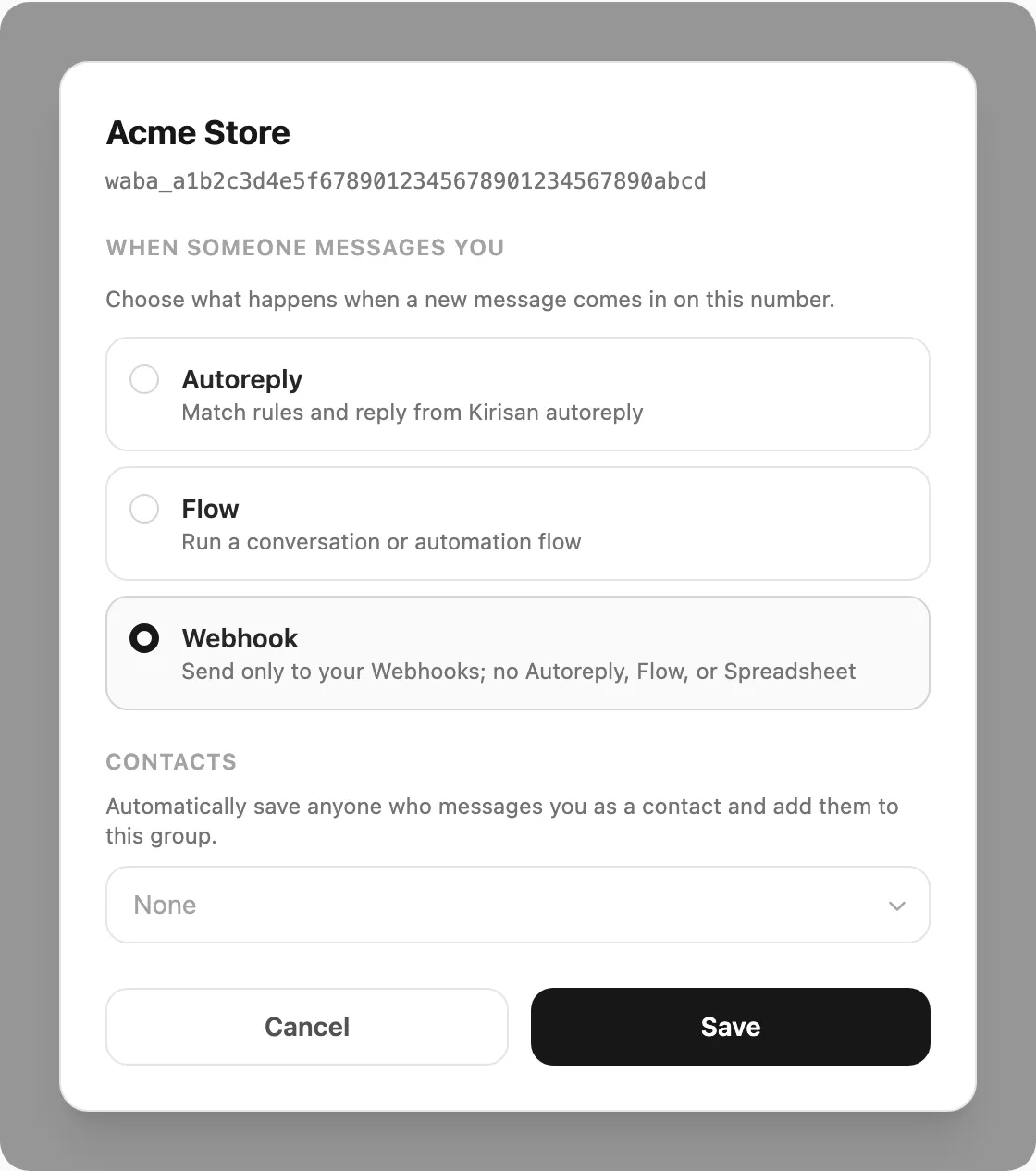
| Bagian | Fungsi |
|---|---|
| When someone messages you | Satu handler untuk pesan masuk baru: Autoreply, Flow, Spreadsheet, atau Webhook (default) |
| Contacts | Grup kontak opsional — jika diatur, pengirim baru disimpan ke kontak dan ditambahkan ke grup tersebut |
Klik Save untuk menerapkan. Display name dan ID Meta dikelola melalui Meta, bukan di dialog ini.
Putuskan nomor
Klik Disconnect pada baris:
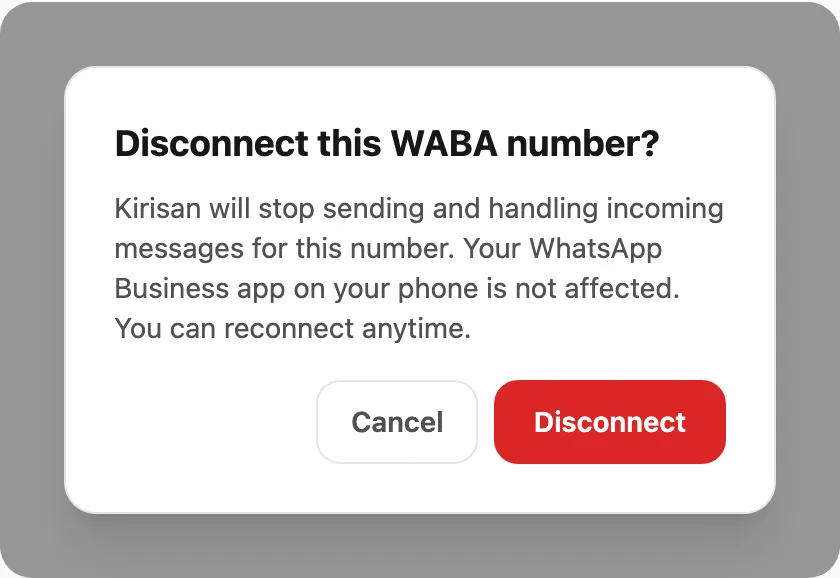
Konfirmasi di dialog. Kirisan berhenti mengirim dan menangani pesan masuk untuk nomor tersebut. Aplikasi WhatsApp Business di ponsel Anda tetap berfungsi normal.
Paket berbayar tidak bisa diputus sebelum masa berlakunya habis. Jika Anda hanya kehilangan akses Meta, pakai Reconnect — memutus nomor gratis lalu menghubungkan lagi membuat token baru dan kuota gratis baru.
Setelah terhubung
- Buka Templates — sinkronkan dan pilih template yang disetujui Meta untuk pengiriman keluar.
- Kirim tes dari Send → Send — pilih WABA dan nomor terhubung Anda.
- Opsional: atur Autoreply atau Webhooks menggunakan handler masuk yang Anda pilih di Edit.
Tugas & pemecahan masalah
Panduan langkah demi langkah Connect with Meta, salin token, sambungkan ulang, dan perbaikan umum: Device WABA — tugas & pemecahan masalah.
Terkait
- Tugas & pemecahan masalah — Connect with Meta langkah demi langkah dan kegagalan umum
- Ringkasan WABA — template, kotak masuk, dan langkah selanjutnya
- Templates — tata letak pesan yang disetujui Meta
- Logs — riwayat pengiriman keluar
- Inbox — baca percakapan masuk Cloud API
- Plans and quota — free tier, perpanjangan, perubahan paket, dan masa berlaku
- Place an order — beli atau perpanjang paket template WABA
- Tagihan WABA — harga percakapan Meta (bukan Kirisan Order)
- Send API — kirim secara programatik dengan token API device
- Authentication — token akun dan kunci device WABA untuk panggilan API