Log WABA
Buka Channel → WABA → Logs.
Fungsi halaman ini
Riwayat pengiriman keluar berpaginasi khusus WABA (WhatsApp Cloud API): ID log, device, nomor telepon penerima, pratinjau pesan, status pengiriman, perkiraan biaya Meta, dan stempel waktu.
Ini adalah data yang sama dengan Logs → History, difilter ke channel WABA. Gunakan saat Anda perlu melacak pengiriman Cloud API tertentu tanpa mencampur baris Fonnte WhatsApp, Telegram, atau email.
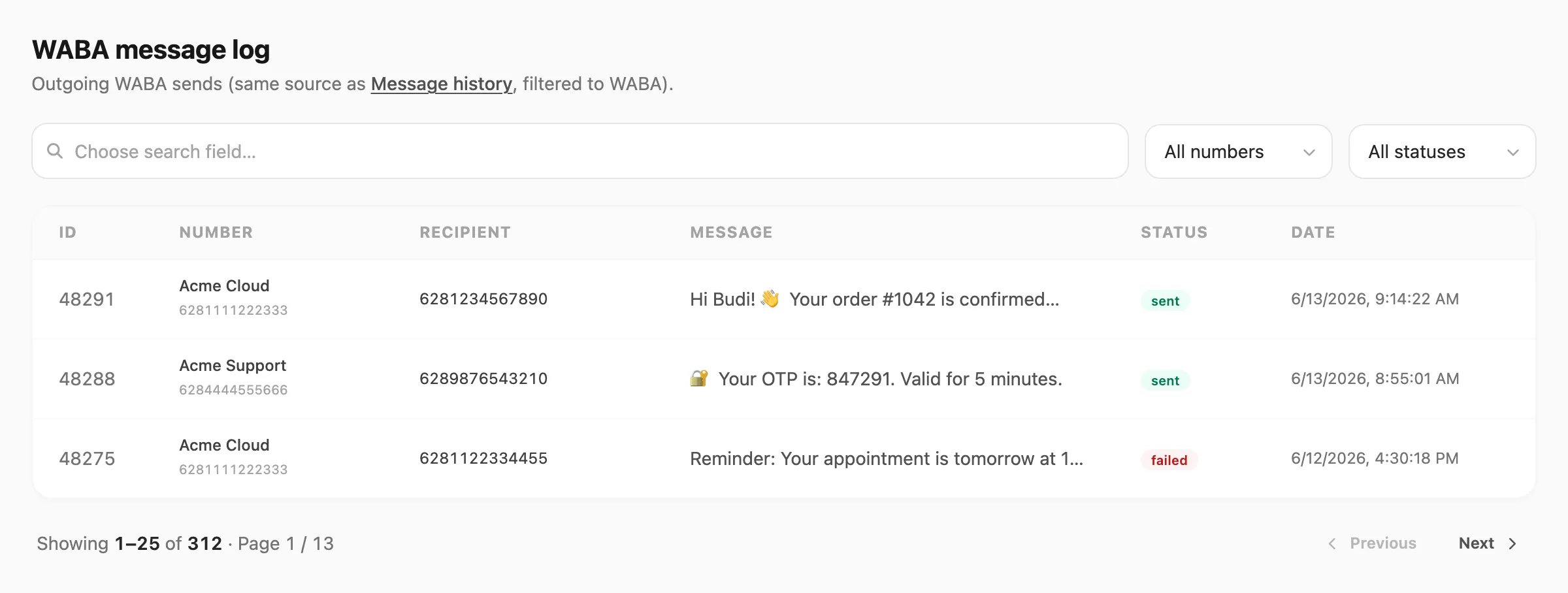
Data sampel ditampilkan.
Riwayat kirim disimpan 7 hari pada akun Free dan 30 hari pada akun berbayar — lihat Plan & kuota → Retensi data.
Pencarian dan filter
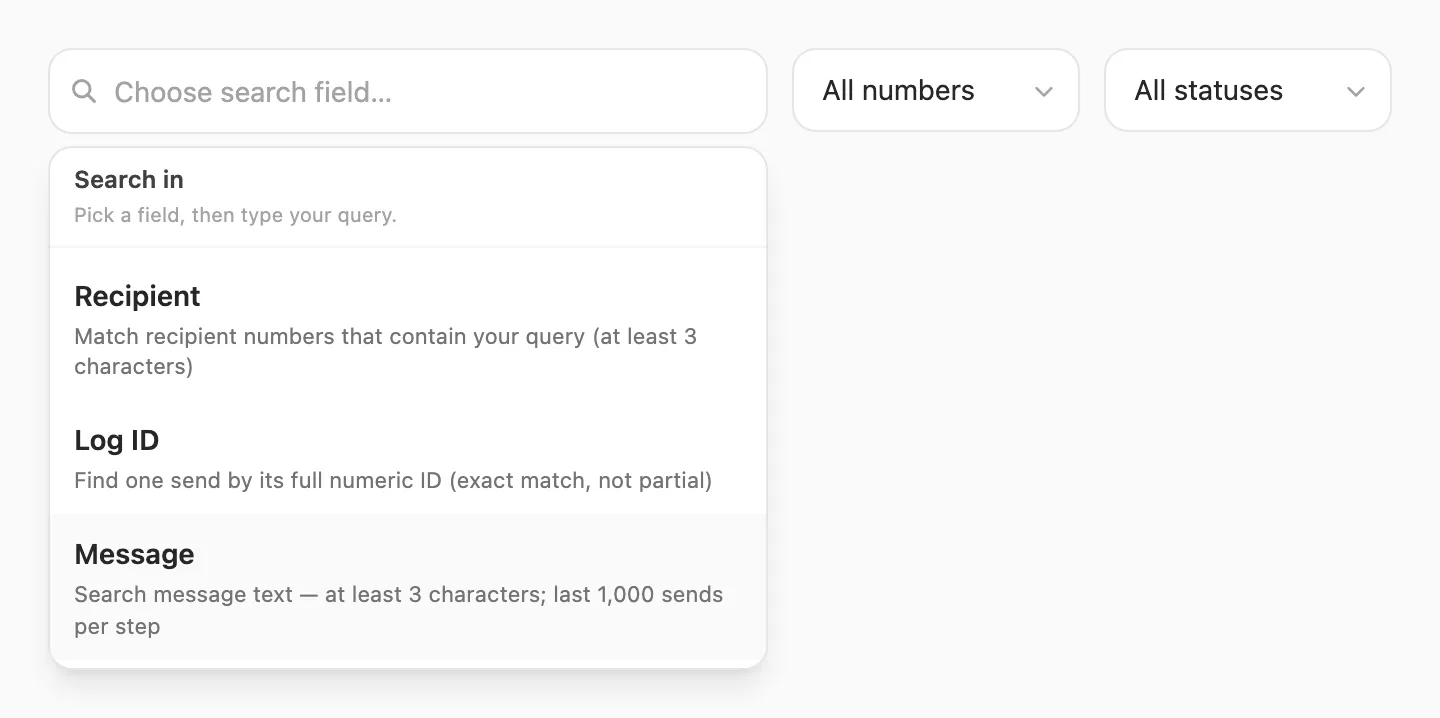
Pencarian berbasis field: klik area pencarian terlebih dahulu, pilih kolom yang dicari, lalu ketik kueri Anda.
| Langkah | Yang terjadi |
|---|---|
| 1. Klik pencarian | Popup Search in terbuka — Anda harus memilih field sebelum mengetik |
| 2. Pilih field | Recipient, Log ID, atau Message |
| 3. Ketik | Kirisan memfilter tabel saat Anda mengetik (debounce singkat) |
Setelah Anda memilih field, bilah pencarian menampilkan nama field di kiri (misalnya Recipient ▼). Klik untuk mengganti field — mengganti field menghapus kueri dan memuat ulang daftar.
Pada baris yang sama dengan pencarian (di kanan):
| Filter | Fungsi |
|---|---|
| Device | Membatasi baris ke satu nomor Cloud API terhubung — pilih All devices atau device WABA tertentu |
| Status | All statuses, Sent, atau Failed |
| Export CSV | Unduh baris yang cocok (hingga 50.000; mengikuti filter saat ini) |
Device dan Status berlaku bersama dan juga berlaku untuk pencarian jendela Recipient / Message dan langkah Continue search.
Filter device
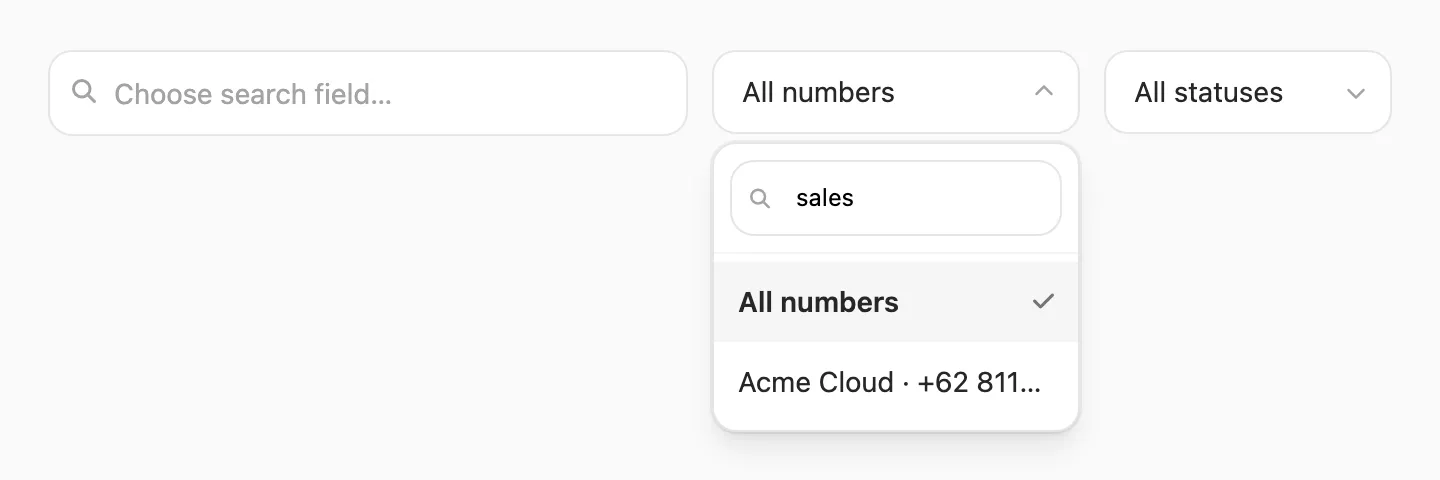
Buka dropdown Device untuk memilih device WABA. Daftar menampilkan setiap nomor terhubung sebagai display name · phone (label sama seperti di Devices).
Jika Anda memiliki banyak device, gunakan kotak pencarian di dalam dropdown — cocok dengan display name atau nomor telepon. All devices tetap disematkan di atas.
| Situasi | Yang Anda lihat di kolom Device |
|---|---|
| Pengiriman dicatat setelah pelacakan device dirilis | Display name + phone (atau hanya phone jika tanpa nama) |
| Pengiriman lama sebelum device disimpan | — (kosong) — gunakan penerima, pesan, atau tanggal sebagai gantinya |
Field pencarian
| Field pencarian | Cocok dengan | Panjang minimum |
|---|---|---|
| Recipient | Nomor telepon yang mengandung kueri Anda (misalnya 7890 cocok dengan 6281234567890) | 3 karakter |
| Log ID | ID numerik lengkap dan tepat dari kolom ID — bukan kecocokan sebagian (misalnya 48291, bukan 482) | Hanya ID lengkap |
| Message | Teks isi pesan yang mengandung kueri Anda (misalnya order di mana pun dalam teks) | 3 karakter |
Pencarian Recipient dan Message memindai 1.000 pengiriman terbaru per langkah (menghormati filter Device dan Status Anda). Saat pengiriman lama tersisa, Kirisan menampilkan Continue search — perilaku sama untuk kedua field.
Log ID berbeda: masukkan ID lengkap persis seperti yang ditampilkan di tabel. Kirisan tidak mencocokkan awalan atau fragmen — 482 tidak akan menemukan baris 48291.
Jika Anda mengetik kurang dari tiga karakter untuk Recipient atau Message, Kirisan menunggu hingga minimum terpenuhi dan menampilkan petunjuk singkat di bawah bilah pencarian.


Pencarian jendela dan Continue search
Pencarian Recipient dan Message tidak memindai seluruh log Anda sekaligus. Setiap langkah membaca 1.000 pengiriman terbaru (menghormati Device, Status, dan field pencarian aktif), lalu mencari kueri Anda di dalam baris tersebut — substring nomor telepon atau teks pesan.
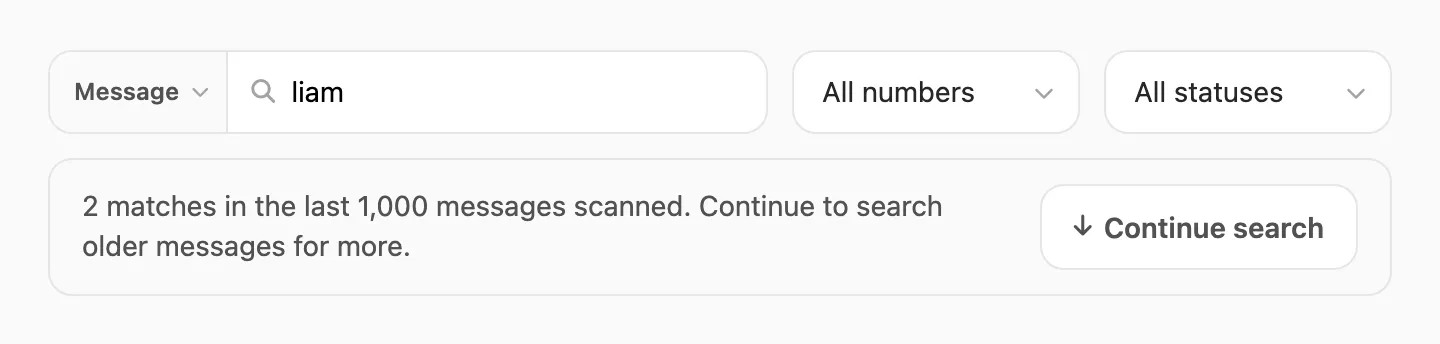
Saat Kirisan menyelesaikan langkah dan pengiriman lama masih ada, bilah muncul di bawah tabel dengan Continue search:
| Situasi | Yang Anda lihat |
|---|---|
| Kecocokan dalam 1.000 ini | Baris yang cocok di tabel; bilah menjelaskan berapa banyak ditemukan dan menawarkan Continue search jika riwayat lebih banyak tersisa |
| Tidak ada kecocokan, baris lama ada | Pesan tabel kosong untuk batch tersebut; Continue search memindai 1.000 berikutnya |
| Tidak ada kecocokan, akhir log | No ”…” found in your WABA log. — tidak ada lagi yang dipindai |
Klik Continue search sebanyak yang Anda butuhkan. Kecocokan baru dari langkah berikutnya ditambahkan ke tabel. Anda yang memutuskan kapan berhenti.
Pencarian Log ID menggunakan indeks dan mengembalikan hasil segera — tidak menggunakan Continue search.
Tabel log
Setiap baris adalah satu pengiriman WABA keluar:

| Kolom | Arti |
|---|---|
| ID | ID baris pengiriman unik — salin nomor lengkap untuk pencarian Log ID (hanya kecocokan tepat) |
| Device | Nomor Cloud API mana yang mengirim pesan (display name + phone jika dikonfigurasi di Devices) |
| Recipient | Nomor telepon WhatsApp tujuan |
| Message | Pratinjau terpotong dari isi pesan atau teks template |
| Status | sent (hijau) atau failed (merah) — bisa berubah menjadi delivered / read saat Meta mengirim webhook status |
| Biaya (perkiraan) | Estimasi biaya Meta per pesan setelah status delivered — lihat Biaya Meta di log |
| Date | Kapan pengiriman dicatat |
Baris bisa diklik — Kirisan membuka pratinjau gaya WhatsApp dari pesan lengkap.
Pratinjau pesan
Klik baris mana pun untuk membuka popup pratinjau:
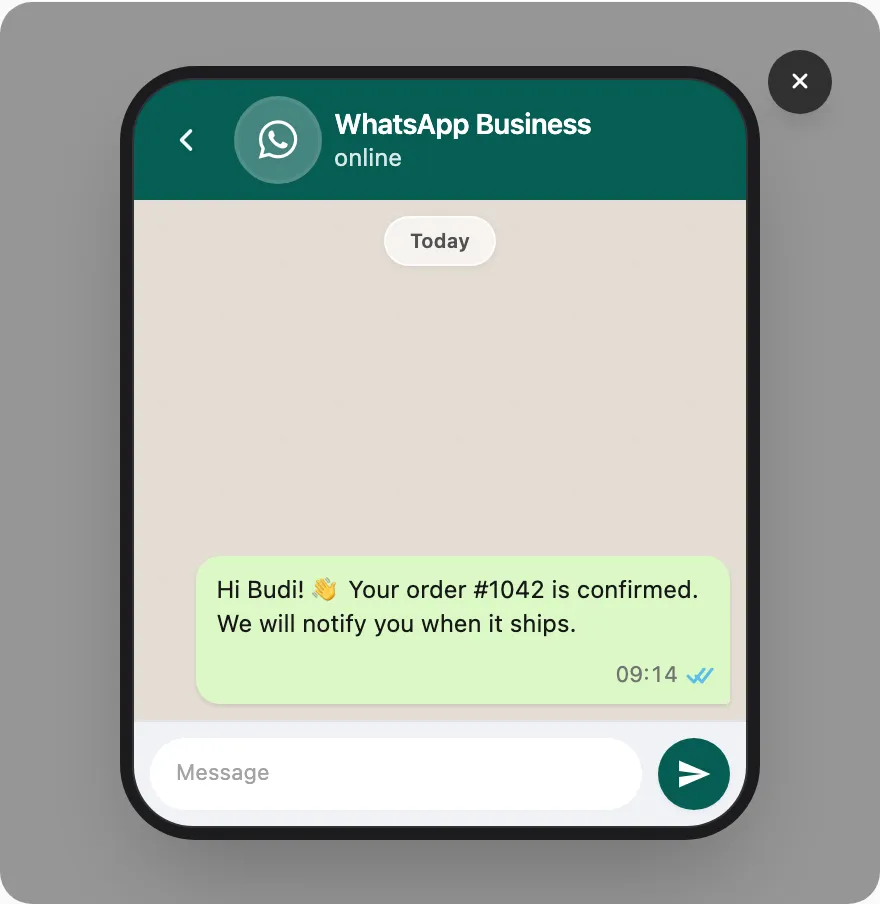
Tutup pratinjau dengan tombol ×, dengan mengklik di luar gelembung, atau dengan Escape.
Paginasi
Saat Anda tidak menggunakan pencarian jendela Recipient atau Message, paginasi di bawah tabel muncul untuk daftar panjang (misalnya Showing 1–25 of 312 · Page 1 / 13 dengan Previous dan Next).
Selama pencarian Recipient atau Message, hasil dari setiap langkah Continue search terakumulasi di tabel alih-alih menggunakan nomor halaman.
Biaya Meta di log
Kolom Biaya (perkiraan) muncul setelah Meta melaporkan pesan delivered lewat webhook status.
| Yang ditampilkan | Arti |
|---|---|
| Gratis | Meta mengklasifikasikan pesan sebagai tidak ditagih (misalnya dalam jendela layanan pelanggan) |
| ≈ $0.041 (contoh) | Perkiraan dari tarif publik WhatsApp × kategori Meta (marketing, utility, authentication) |
| — | Belum delivered, gagal, atau data pricing belum diterima |
Ini bukan faktur resmi Meta. Tagihan aktual ada di Meta Business Suite — lihat Tagihan WABA.
Export CSV menyertakan kolom estimated_cost dan pricing_category.
Tips
- Menjalankan dua nomor Cloud API? Filter Device terlebih dahulu, lalu cari Recipient atau Message — Anda hanya memindai pengiriman dari device tersebut.
- Mulai dengan Recipient saat pelanggan bertanya “apakah Anda mengirim pesan ke nomor saya?” — gunakan setidaknya tiga digit di mana pun dalam nomor.
- Gunakan Log ID saat Anda memiliki ID pengiriman lengkap dari tabel, respons API, atau dukungan — ID sebagian tidak berfungsi.
- Gunakan Message saat Anda ingat sebagian template atau teks isi tetapi bukan penerimanya — klik Continue search untuk melihat lebih jauh ke belakang.
- Filter Failed dan pasangkan dengan Device atau Devices jika kegagalan berkumpul pada satu nomor terputus.
- Riwayat lintas channel ada di Logs → History — lihat Message logs.
Terkait
- Statistics — tingkat pengiriman dan tren volume
- Message logs — History, log per channel, webhook
- Devices — status koneksi saat pengiriman gagal
- Templates — tata letak pesan yang disetujui Meta digunakan dalam pengiriman
- Tagihan WABA — paket Kirisan vs biaya percakapan Meta