Template WABA
Buka Channel → WABA → Templates.
Fungsi halaman ini
Template pesan Meta Cloud API — bahasa, kategori, header/body/footer/tombol, dan status persetujuan Meta.
Hanya template yang disetujui yang dapat memulai percakapan yang dimulai bisnis di luar jendela layanan pelanggan WhatsApp. Di dalam sesi yang masih terbuka Anda tetap bisa mengirim teks, media, dan tombol balas free-form tanpa template — tetapi tombol quick reply / URL / call hanya lewat template. Kirisan membuat dan memperbarui template di Meta untuk Anda; Meta status di daftar mencerminkan hasil tinjauan mereka.
Pilih WABA device di atas — template dimuat dan disinkronkan untuk nomor WhatsApp Business tersebut.
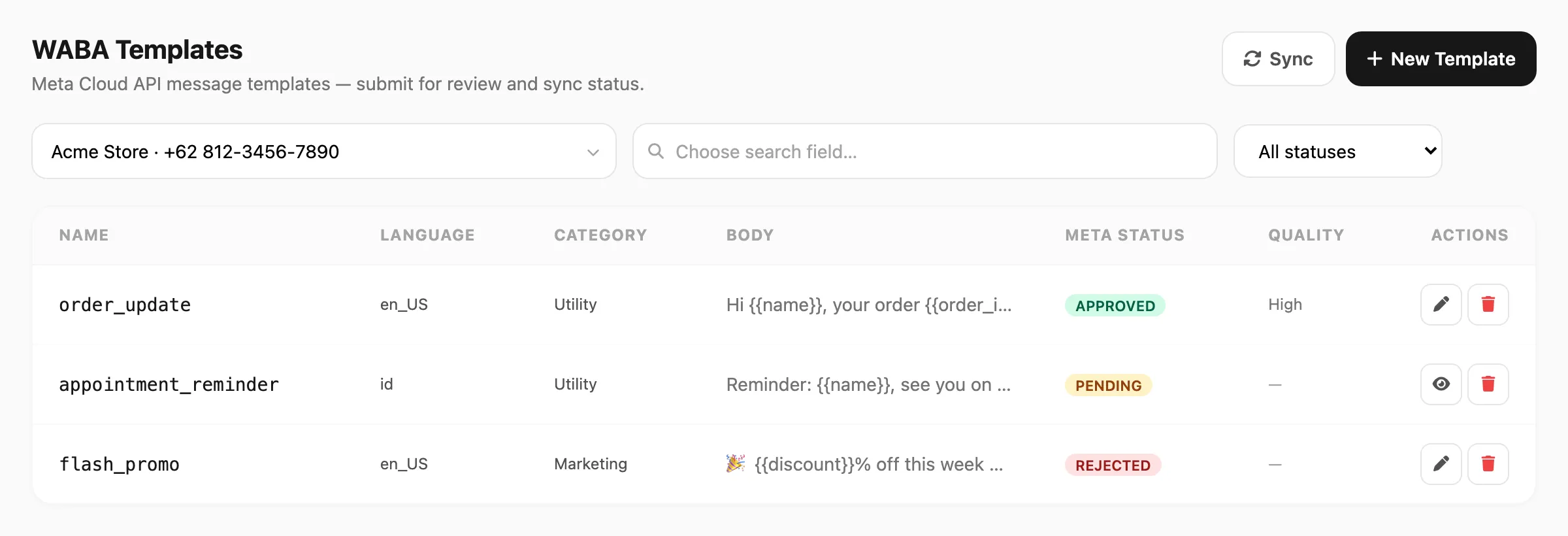
Data sampel ditampilkan.
Pencarian dan filter
Pencarian berbasis field — klik area pencarian terlebih dahulu, pilih kolom yang dicari, lalu ketik kueri Anda.
| Langkah | Yang terjadi |
|---|---|
| 1. Klik pencarian | Popup Search in terbuka — Anda harus memilih field sebelum mengetik |
| 2. Pilih field | Name, Body, Category, atau Language |
| 3. Ketik | Kirisan memfilter tabel saat Anda mengetik (debounce singkat) |
Setelah Anda memilih field, bilah pencarian menampilkan nama field di kiri (misalnya Name ▼). Klik untuk mengganti field — mengganti field menghapus kueri.
| Field pencarian | Cocok dengan | Panjang minimum |
|---|---|---|
| Name | Nama template yang mengandung kueri Anda | 3 karakter |
| Body | Teks body yang mengandung kueri Anda | 3 karakter |
| Category | Marketing, Utility, atau Authentication yang mengandung kueri Anda | 3 karakter |
| Language | Kode locale (misalnya en_US) atau labelnya yang mengandung kueri Anda | 3 karakter |
Jika Anda mengetik kurang dari tiga karakter, Kirisan menunggu hingga minimum terpenuhi dan menampilkan petunjuk singkat di bawah bilah pencarian.
Pada baris yang sama dengan pencarian (di kanan):
- Meta status — All statuses, Pending, Approved, atau Rejected
Klik Sync kapan saja untuk menarik status dan skor kualitas terbaru dari Meta. Jika Anda tidak melihat template, pilih device yang benar, klik Sync, lalu cari lagi.
Paginasi di bawah tabel muncul jika hasil lebih dari satu halaman (25 baris per halaman).
Daftar template

| Kolom | Arti |
|---|---|
| Name | ID template di Meta (huruf kecil, angka, garis bawah — tetap setelah dibuat) |
| Language | Kode locale (misalnya en_US) |
| Category | Marketing, Utility, atau Authentication |
| Body | Pratinjau teks body terpotong |
| Meta status | PENDING, APPROVED, REJECTED, dan status Meta lainnya |
| Quality | Peringkat kualitas Meta jika tersedia (High, Medium, Low) |
| Actions | Edit atau lihat (hanya baca saat pending), hapus |
Baris yang ditolak dapat menampilkan alasan Meta di bawah badge status.
Buat template
- Pilih WABA device, lalu klik New Template.
- Atur Name, Language, dan Category (aturan Meta berlaku — utility untuk pembaruan transaksional, marketing untuk promosi, authentication untuk pesan gaya OTP).
- Opsional tambahkan Header (none, text, image, video, atau document), Body wajib, Footer opsional, dan hingga tiga Buttons — setiap tombol salah satu dari quick reply, URL, atau call (bukan satu tipe “tombol” generik).
- Tambahkan
{{variables}}di teks header, body, atau tombol URL jika diperlukan. Isi sample values untuk setiap variabel logis — Meta memerlukan contoh saat pengajuan. - Periksa Live Preview di kanan.
- Klik Submit to Meta. Status menjadi PENDING hingga Meta menyetujui atau menolak.
Edit template
Buka baris dengan ikon edit (pen) saat Meta mengizinkan perubahan — biasanya template Approved, Rejected, atau Paused.
- Template Pending atau In appeal terbuka hanya baca hingga Meta menyelesaikan tinjauan.
- Menyimpan mengirim pembaruan ke Meta dan biasanya mengatur status kembali ke PENDING untuk tinjauan ulang.
- Name dan Language tidak bisa diubah setelah pembuatan pertama (batasan Meta).
Header, body, footer, dan tombol
| Bagian | Catatan |
|---|---|
| Header — Text | Opsional. Paling banyak satu variabel. Format WhatsApp: *bold*, _italic_, ~strike~, `code` |
| Header — Image / Video / Document | URL sampel HTTPS publik — Kirisan mengunggahnya ke Meta untuk tinjauan dan menggunakannya kembali saat mengirim |
| Body | Wajib. Hingga 1024 karakter. Format sama seperti teks header |
| Footer | Teks biasa opsional — tanpa variabel |
| Buttons | Hingga 3. Jenis: quick reply (quick_reply), URL (url), call (phone_number). Tombol URL boleh menyertakan satu variabel (biasanya di akhir tautan). Jenis tombol template ini terpisah dari tombol balas sesi di inbox / jalur interactive Send API — lihat Send API → Tombol. |
Variabel dan nilai sampel
Template WABA menggunakan parameter bernama Meta hanya dalam pesan: {{name}}, {{dayofweek}}, {{sender}}, dan seterusnya.
Jangan masukkan token server Kirisan ([[dow]], [[date-…]], [[u-…]]) di header, body, footer, atau teks tombol. Meta meninjau salinan template yang Anda ajukan; hanya {{variables}} yang termasuk di sana.
Gunakan Add variable / Insert, atau ketik {{name}} di body, text header, atau tombol URL.
| Di mana | Yang dapat Anda gunakan |
|---|---|
| Teks template (body, header, jalur URL) | Hanya {{variables}} |
| Sample values (panel Variables) | Teks biasa atau [[dow]], [[date-dd-mm-yyyy]], [[u-support_phone]], … |
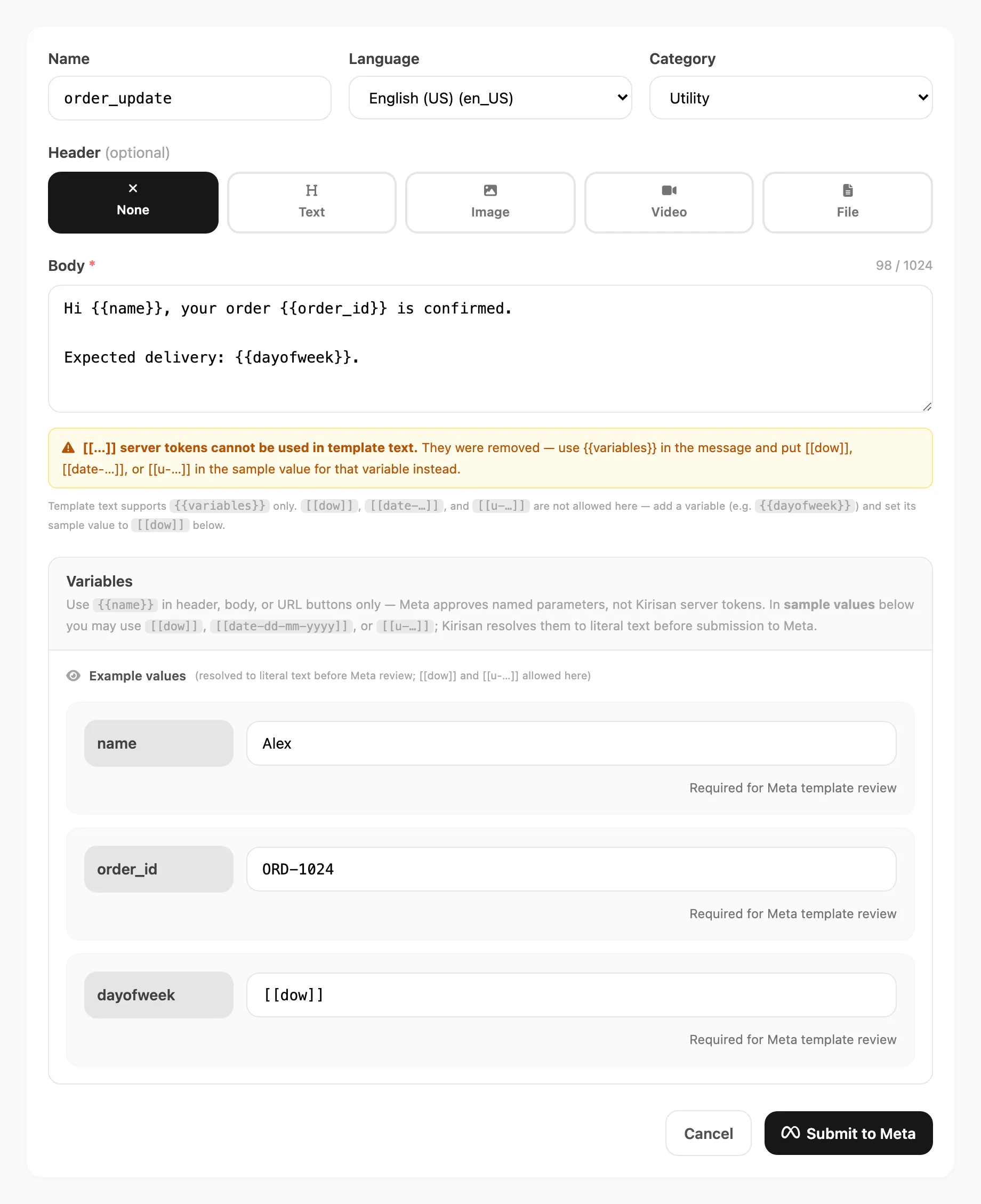
Auto-strip dan peringatan
Jika Anda mengetik atau menempel [[dow]], [[date-…]], atau [[u-…]] ke teks template (body, header, footer, atau tombol), Kirisan:
- Menghapus token segera — tidak bisa tetap di pesan
- Menampilkan peringatan amber di bawah body
- Menampilkan toast sekali per sesi edit
Baris bantuan di bawah body mengingatkan Anda: gunakan {{dayofweek}} (atau nama variabel lain) di pesan, dan masukkan [[dow]] di sample value variabel tersebut sebagai gantinya.
Saat pengajuan, Kirisan juga menolak sisa [[…]] di teks template di server sebagai jaring pengaman.
Nilai sampel dan tinjauan Meta
Meta memerlukan contoh literal untuk setiap {{variable}} dalam teks yang diajukan. Di panel Variables Anda bisa mengetik salah satu:
- Teks tetap — misalnya
Alexuntuk{{name}} - Token server — misalnya
[[dow]]untuk{{dayofweek}}
Kirisan menyelesaikan [[…]] ke teks nyata sebelum mengirim template ke Meta. Meta tidak pernah melihat [[dow]] — ia melihat Sunday (atau hari dalam minggu saat ini saat Anda mengajukan). Sampel tersimpan Anda bisa mempertahankan [[dow]] agar edit berikutnya tetap diperbarui otomatis; hanya payload Meta yang menggunakan literal yang diselesaikan.
Contoh — pembaruan pesanan
Body template (yang disetujui Meta):
Hi {{name}}, your order {{order_id}} is confirmed.

Expected delivery: {{dayofweek}}.| Variabel | Sampel yang Anda masukkan | Dikirim ke Meta sebagai contoh |
|---|---|---|
name | Alex | Alex |
order_id | ORD-1024 | ORD-1024 |
dayofweek | [[dow]] | Sunday (diselesaikan saat pengajuan) |
Jika Anda menempel Expected delivery: [[dow]] ke body, Kirisan menghapus [[dow]] dan meminta Anda menggunakan {{dayofweek}} dengan sampel [[dow]] sebagai gantinya.
Saat pengiriman, Send → Send dan Send API dapat meneruskan nilai berbeda untuk setiap penerima dan setiap {{variable}}.
Menggunakan ulang nama variabel yang sama
Meta tidak mengizinkan nama {{param}} yang sama muncul lebih dari sekali dalam komponen (misalnya dua kali di body). Kirisan menangani ini secara otomatis:
- Anda bisa mengetik variabel yang sama beberapa kali saat mengedit.
- Saat Anda mengetik, Kirisan menulis ulang duplikat secara real time:
- Kejadian ke-1 →
{{sender}} - Ke-2 →
{{sender_1}} - Ke-3 →
{{sender_2}} - dan seterusnya
- Kejadian ke-1 →
- Panel Variables masih menampilkan satu baris per nama logis (
sender) dengan satu nilai sampel. - Saat pengajuan, Meta menerima nama param unik; setiap sufiks menggunakan sampel dan nilai yang sama saat pengiriman.
Contoh — yang Anda ketik:
This is a message from {{sender}}. We will check whether {{sender}} is registered on our contact list. Meanwhile, {{sender}} should wait until further notification.Yang disimpan dan dikirim Kirisan ke Meta:
This is a message from {{sender}}. We will check whether {{sender_1}} is registered on our contact list. Meanwhile, {{sender_2}} should wait until further notification.Panel Variables: satu field — sender — dengan satu sampel (misalnya nomor telepon atau display name).
Jangan tambahkan baris sampel terpisah untuk sender_1 atau sender_2; Kirisan memetakannya dari sender secara otomatis.
Aturan penamaan variabel
- Hanya huruf kecil, angka, dan garis bawah (misalnya
order_id, bukanOrder-ID). - Nama dinormalisasi ke huruf kecil saat disimpan.
- Teks header dan tombol URL: paling banyak satu variabel logis masing-masing (duplikat nama yang sama tetap auto-suffix jika Anda menempelnya).
Hapus template
Gunakan ikon hapus (trash) pada baris. Kirisan meminta konfirmasi, lalu menghapus template dari Meta dan cache Kirisan Anda.
Gunakan template yang disetujui
Setelah APPROVED (atau REINSTATED):
- Buka Send → Send, pilih channel WABA dan device, lalu pilih template dari dropdown.
- Isi field penerima dan
{{variables}}untuk pengiriman tersebut. - Atau rujuk template dari kampanye, jadwal, autoreply (channel WABA), dan Send API.
Template dengan header gambar, video, atau dokumen memakai contoh media saat Meta meninjau template. Saat kirim lewat API, Anda bisa mengganti media per pesan dengan default_image_url, default_video_url, atau default_file_url di target.variables — lihat Send API → header media dinamis.
Jika Meta menolak template, baca alasannya di baris daftar, edit konten, dan simpan untuk mengajukan ulang.
Terkait
- Devices — hubungkan nomor Cloud API dengan Connect with Meta
- Ringkasan WABA — kotak masuk dan konteks channel
- Message variables —
[[date-…]],[[u-…]], dan pintasan{{sender}}masuk - API send — kirim template yang disetujui secara programatik