WABA templates
Open Channel → WABA → Templates.
What this page is for
Meta Cloud API message templates — language, category, header/body/footer/buttons, and Meta approval status.
Only approved templates can start business-initiated conversations outside WhatsApp’s customer service window. Inside an open session you can still send free-form text, media, and reply buttons without a template — but quick reply / URL / call buttons are template-only. Kirisan creates and updates templates on Meta for you; Meta status in the list reflects their review outcome.
Pick a WABA device at the top — templates load and sync for that WhatsApp Business number.
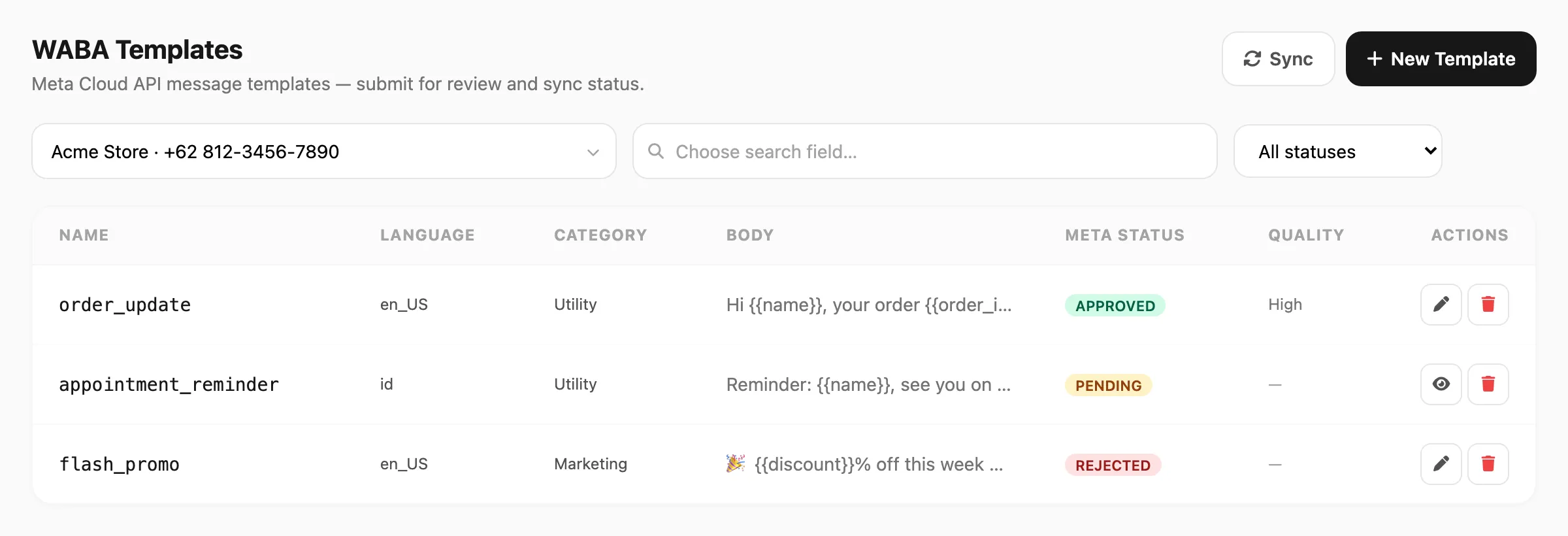
Sample data shown.
Search and filter
Search is field-based — click the search area first, pick which column to search, then type your query.
| Step | What happens |
|---|---|
| 1. Click search | A Search in popup opens — you must choose a field before typing |
| 2. Pick a field | Name, Body, Category, or Language |
| 3. Type | Kirisan filters the table as you type (short debounce) |
After you pick a field, the search bar shows the field name on the left (for example Name ▼). Click it to switch fields — changing the field clears the query.
| Search field | Matches | Minimum length |
|---|---|---|
| Name | Template name that contains your query | 3 characters |
| Body | Body text that contains your query | 3 characters |
| Category | Marketing, Utility, or Authentication that contains your query | 3 characters |
| Language | Locale code (for example en_US) or its label that contains your query | 3 characters |
If you type fewer than three characters, Kirisan waits until the minimum is met and shows a short hint under the search bar.
On the same row as search (to the right):
- Meta status — All statuses, Pending, Approved, or Rejected
Click Sync anytime to pull the latest statuses and quality scores from Meta. If you do not see a template, pick the correct device, click Sync, then search again.
Pagination below the table appears when results span more than one page (25 rows per page).
Template list

| Column | Meaning |
|---|---|
| Name | Template id on Meta (lowercase letters, numbers, underscores — fixed after create) |
| Language | Locale code (for example en_US) |
| Category | Marketing, Utility, or Authentication |
| Body | Truncated body text preview |
| Meta status | PENDING, APPROVED, REJECTED, and other Meta states |
| Quality | Meta quality rating when available (High, Medium, Low) |
| Actions | Edit or view (read-only while pending), delete |
Rejected rows may show Meta’s reason under the status badge.
Create a template
- Select a WABA device, then click New Template.
- Set Name, Language, and Category (Meta rules apply — utility for transactional updates, marketing for promotions, authentication for OTP-style messages).
- Optionally add a Header (none, text, image, video, or document), required Body, optional Footer, and up to three Buttons — each button is one of quick reply, URL, or call (not a single generic “button” type).
- Add
{{variables}}in header text, body, or URL buttons if needed. Fill sample values for each logical variable — Meta requires examples at submission time. - Check the Live Preview on the right.
- Click Submit to Meta. Status becomes PENDING until Meta approves or rejects.
Edit a template
Open a row with the edit (pen) icon when Meta allows changes — typically Approved, Rejected, or Paused templates.
- Pending or In appeal templates open read-only until Meta finishes review.
- Saving sends an update to Meta and usually sets status back to PENDING for re-review.
- Name and Language cannot be changed after the first create (Meta limitation).
Header, body, footer, and buttons
| Part | Notes |
|---|---|
| Header — Text | Optional. At most one variable. WhatsApp formatting: *bold*, _italic_, ~strike~, `code` |
| Header — Image / Video / Document | Public HTTPS sample URL — Kirisan uploads it to Meta for review and reuses it when sending |
| Body | Required. Up to 1024 characters. Same formatting as header text |
| Footer | Optional plain text — no variables |
| Buttons | Up to 3. Types: quick reply (quick_reply), URL (url), call (phone_number). URL may include one variable (typically at the end of the link). These template button kinds are separate from session reply buttons in the inbox / Send API interactive path — see Send API → Buttons. |
Variables and sample values
WABA templates use Meta named parameters only in the message: {{name}}, {{dayofweek}}, {{sender}}, and so on.
Do not put Kirisan server tokens ([[dow]], [[date-…]], [[u-…]]) in the header, body, footer, or button text. Meta reviews the template copy you submit; only {{variables}} belong there.
Use Add variable / Insert, or type {{name}} in the body, text header, or URL button.
| Where | What you can use |
|---|---|
| Template text (body, header, URL path) | {{variables}} only |
| Sample values (Variables panel) | Plain text or [[dow]], [[date-dd-mm-yyyy]], [[u-support_phone]], … |
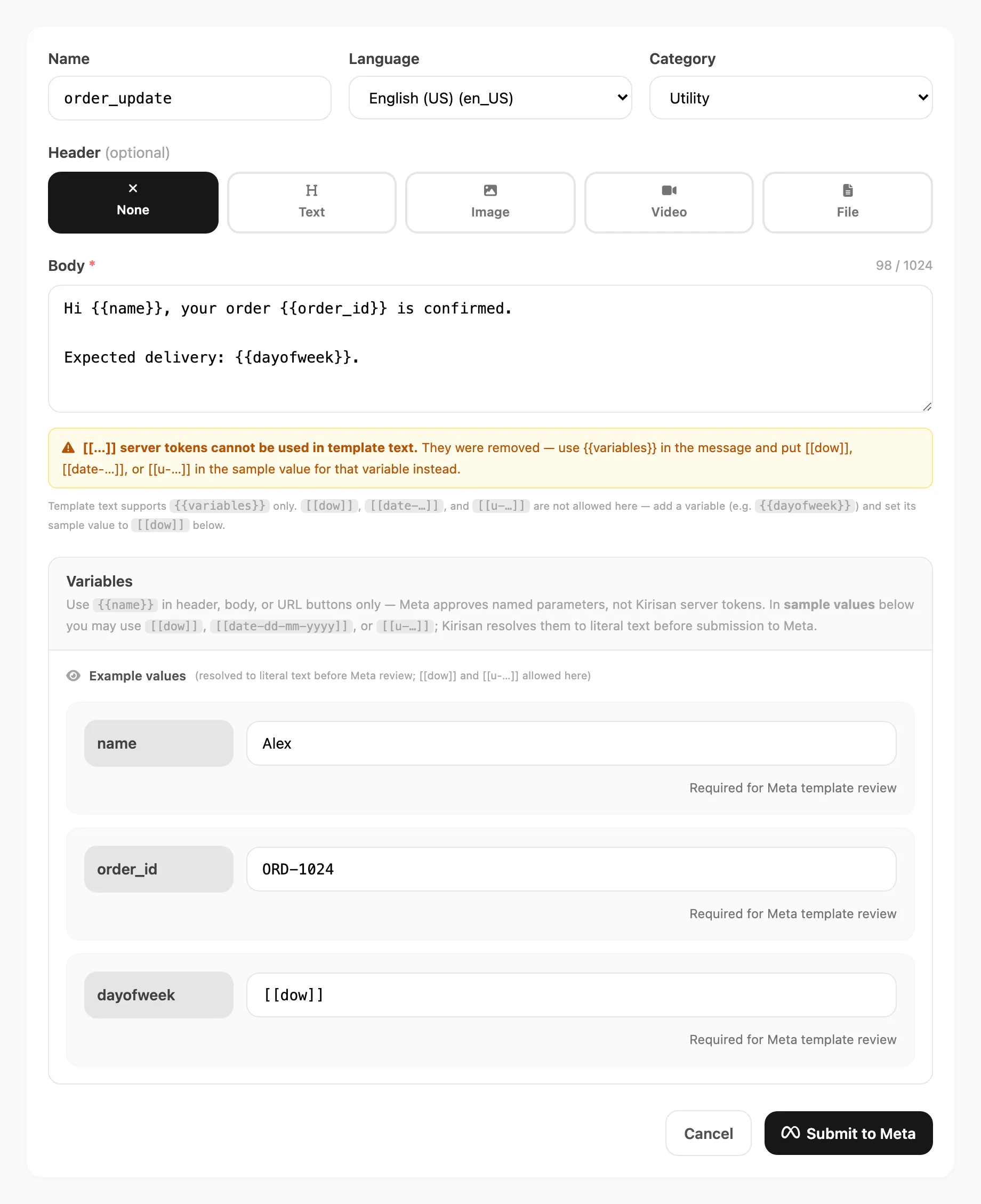
Auto-strip and warning
If you type or paste [[dow]], [[date-…]], or [[u-…]] into template text (body, header, footer, or buttons), Kirisan:
- Removes the token immediately — it cannot stay in the message
- Shows an amber warning under the body
- Shows a toast once per edit session
The helper line under the body reminds you: use {{dayofweek}} (or another variable name) in the message, and put [[dow]] in that variable’s sample value instead.
On submit, Kirisan also rejects any remaining [[…]] in template text on the server as a safety net.
Sample values and Meta review
Meta requires a literal example for every {{variable}} in the submitted text. In the Variables panel you can type either:
- Fixed text — for example
Alexfor{{name}} - Server tokens — for example
[[dow]]for{{dayofweek}}
Kirisan resolves [[…]] to real text before sending the template to Meta. Meta never sees [[dow]] — it sees Sunday (or the current weekday when you submit). Your stored sample can keep [[dow]] so the next edit still auto-updates; only the Meta payload uses the resolved literal.
Example — order update
Template body (what Meta approves):
Hi {{name}}, your order {{order_id}} is confirmed.

Expected delivery: {{dayofweek}}.| Variable | Sample you enter | Sent to Meta as example |
|---|---|---|
name | Alex | Alex |
order_id | ORD-1024 | ORD-1024 |
dayofweek | [[dow]] | Sunday (resolved at submit time) |
If you paste Expected delivery: [[dow]] into the body, Kirisan strips [[dow]] and prompts you to use {{dayofweek}} with sample [[dow]] instead.
At send time, Send → Send and the Send API can pass a different value for each recipient and each {{variable}}.
Reusing the same variable name
Meta does not allow the same {{param}} name to appear more than once in a component (for example twice in the body). Kirisan handles this automatically:
- You can type the same variable multiple times while editing.
- As you type, Kirisan rewrites duplicates in real time:
- 1st occurrence →
{{sender}} - 2nd →
{{sender_1}} - 3rd →
{{sender_2}} - and so on
- 1st occurrence →
- The Variables panel still shows one row per logical name (
sender) with one sample value. - On submit, Meta receives unique param names; every suffix uses the same sample and the same value at send time.
Example — what you type:
This is a message from {{sender}}. We will check whether {{sender}} is registered on our contact list. Meanwhile, {{sender}} should wait until further notification.What Kirisan stores and sends to Meta:
This is a message from {{sender}}. We will check whether {{sender_1}} is registered on our contact list. Meanwhile, {{sender_2}} should wait until further notification.Variables panel: one field — sender — with a single sample (for example a phone number or display name).
Do not add separate sample rows for sender_1 or sender_2; Kirisan maps them from sender automatically.
Variable naming rules
- Lowercase letters, numbers, and underscores only (for example
order_id, notOrder-ID). - Names are normalized to lowercase when saved.
- Header text and URL buttons: at most one logical variable each (duplicates of the same name still auto-suffix if you paste them).
Delete a template
Use the delete (trash) icon on a row. Kirisan asks for confirmation, then removes the template from Meta and your Kirisan cache.
Use approved templates
After APPROVED (or REINSTATED):
- Open Send → Send, pick the WABA channel and device, and choose the template from the dropdown.
- Fill recipient fields and any
{{variables}}for that send. - Or reference the template from campaigns, schedules, autoreply (WABA channel), and the Send API.
Templates with an image, video, or document header use sample media for Meta review. On API sends you can override media per message with default_image_url, default_video_url, or default_file_url in target.variables — see Send API — dynamic media headers.
If Meta rejects a template, read the reason on the list row, edit the content, and save to resubmit.
Related
- Devices — connect Cloud API numbers with Connect with Meta
- WABA overview — inbox and channel context
- Message variables —
[[date-…]],[[u-…]], and incoming{{sender}}shortcuts - API send — deliver approved templates programmatically