Billing & payment
Each section below is a numbered task. For full screen references, see the Billing reference docs. For free tier, renewals, plan changes, and expiry, see Plans and quota.
Place an order
Goal: Renew or upgrade plans for any channel.
- Open Billing → Order.
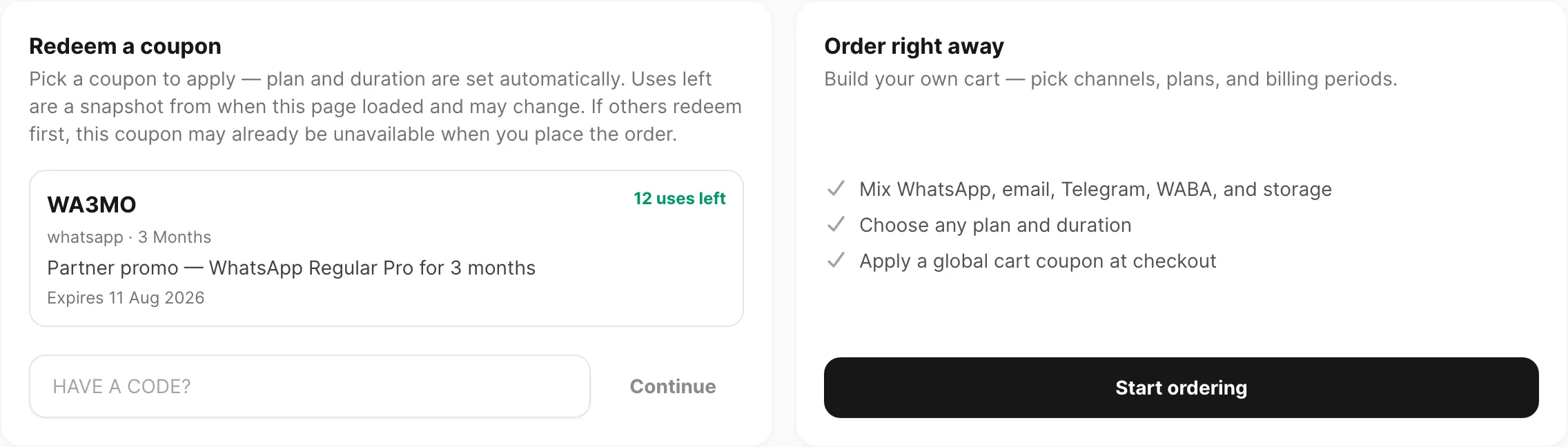
- If you see Redeem a coupon and Order right away, click Start ordering (unless you are redeeming a channel coupon — see Redeem a channel coupon below).
Select the channel tab (WhatsApp, WABA, Email, Telegram, or Storage).
In the checklist, tick the devices, numbers, or domains you want to upgrade.
Pick a plan in Plans & add-ons and set a Billing period.
- You should see a line appear in Order summary on the right showing the target count, plan, and price.
To include multiple channels in one checkout, switch tabs before clicking Place order — your cart lines stay until you submit.
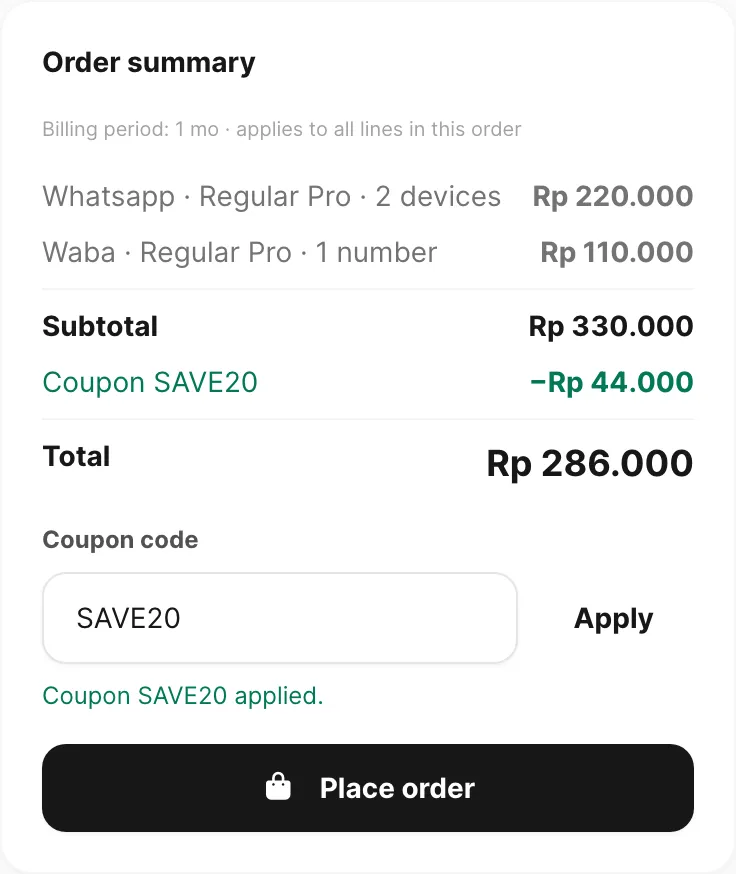
Confirm Billing period applies to every channel line, then click Place order.
- You should see a success toast with order IDs and Billing → Checkout opens automatically.
Done when: Billing → Checkout loads with your pending invoices and the Transfer amount.
Renew the same plan
Goal: Add credits and extend expiry without losing your current balance.
Start when: The target still has the same paid plan active (not expired) and you want more quota or time.
Open Channel → pick WABA, Telegram, or Email → Domains and click the Plan badge on the row.
Confirm the plan name matches what you want to buy (for example Regular on both the row and the order).
Open Billing → Order, select the matching channel tab, tick that target, and pick the same plan and Billing period.
Complete Place order and pay on Billing → Checkout.
- You should see on checkout: Currently expires … → expected active until … (expiry extends from your current date, not from today).
- After success, Credits on the row should increase by the plan quota for the period you bought.
Done when: Credits went up and Expires moved later without resetting to “just purchased today” unless the old plan had already expired.
If you pick a different plan tier while the current one is still active, Kirisan replaces credits and resets expiry from today — see Switch to a different plan. Reference: Plans and quota.
Switch to a different plan
Goal: Move a target from one paid tier to another (for example Lite → Regular).
Start when: You want a higher or lower tier and accept that leftover credits and remaining days on the old plan are not carried over.
Open Billing → Order, select the channel tab, and tick the target.
Pick the new plan (not the plan currently shown on the row).
Set Billing period and click Place order, then pay on Billing → Checkout.
- You should see Expected active until … from today (not “Currently expires … →”), because Kirisan starts a fresh term.
- After success, Credits match the new plan’s quota for the period — not old balance plus new.
Done when: The Plan badge shows the new tier and Expires reflects a new term from the payment date.
Activate the free sending slot
Goal: Let a parked free device, bot, or domain send on the free tier.
Start when: Sends fail with a free-tier or inactive-slot error, or the row shows red Free while another target on the same channel shows green Free.
Open Channel → WABA → Devices, Channel → Telegram → Devices, or Channel → Email → Domains.
Find the target you want to send from. If its Plan badge is red Free, it is parked.
Click Use as active free device (or Use as active free domain on email).
Confirm the dialog.
- You should see this row turn green Free and the previous active free row turn red Free.
- If Kirisan blocks the switch, you may be inside the 7-day cooldown — wait until the dialog shows the next allowed date.
Done when: The target you send from shows green Free (or a paid plan badge) and test sends succeed.
Every free target starts with 1,000 credits and a 30-day window. Only the active free slot refills automatically when the period ends. See Plans and quota.
Redeem a channel coupon
Goal: Use a channel coupon that locks the plan and billing period.
Start when: You have a channel coupon code, or Billing → Order lists coupons under Redeem a coupon.
- Open Billing → Order.
- On Redeem a coupon, click the coupon card (or type the code and click Continue).
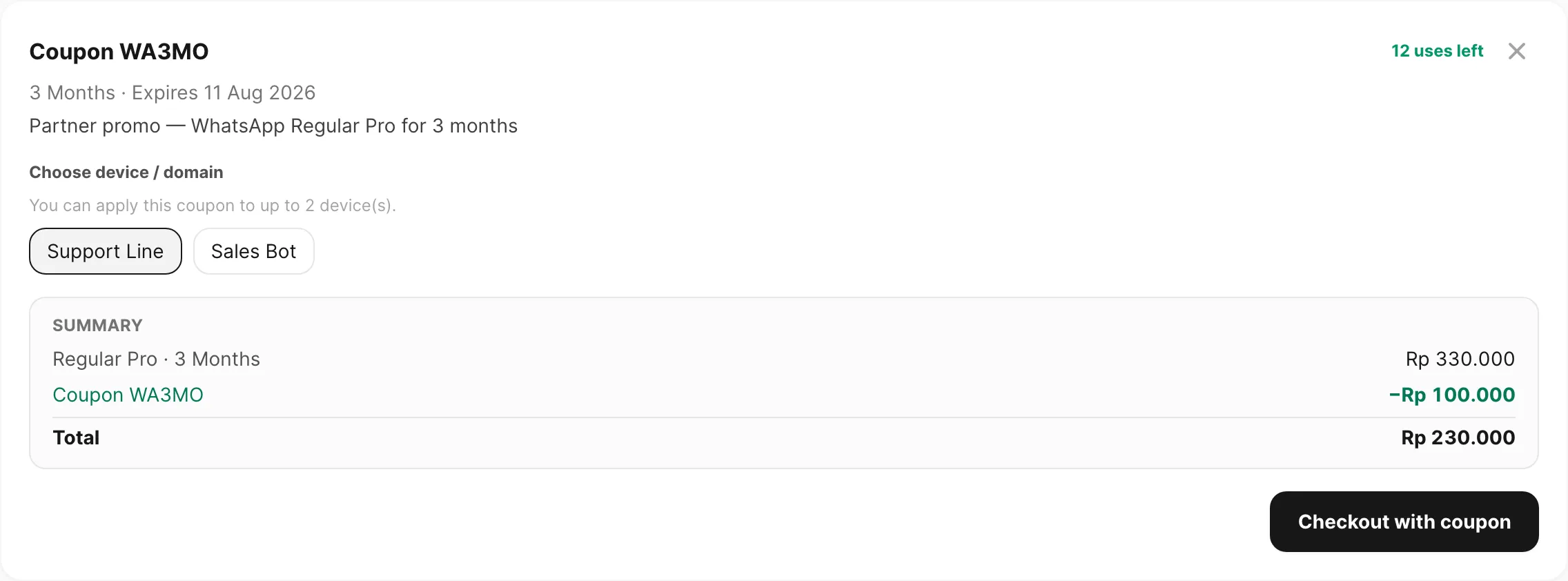
- Choose the channel if asked, then select the devices or domains to apply.
- Review Summary (Total after discount).
- Click Checkout with coupon.
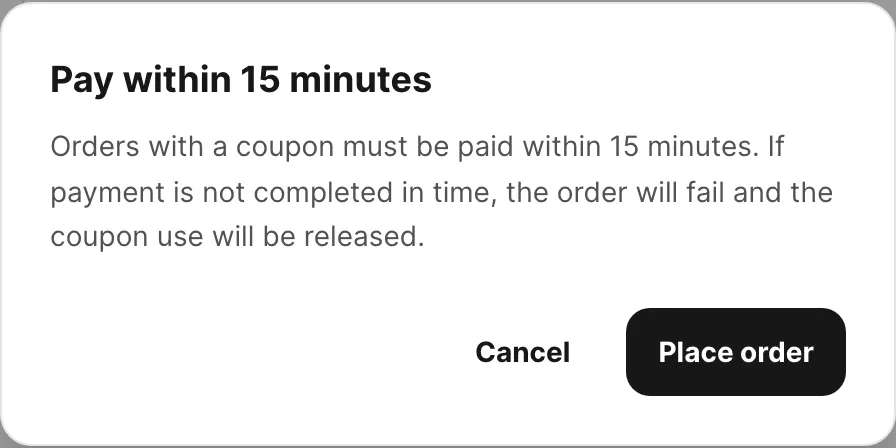
- If Total is above Rp 0, confirm Pay within 15 minutes.
Done when:
- Total still above Rp 0 — Billing → Checkout loads; pay within 15 minutes.
- Total = Rp 0 — Kirisan approves immediately and opens Billing → Receipts.
Reference: Place an order (Redeem a channel coupon).
Apply a coupon
Goal: Reduce a normal cart total with a global discount code.
Start when: You clicked Start ordering (or had no channel coupons), and Order summary shows at least one line and a Subtotal.
- Scroll to Coupon code below the totals in Order summary.
- Type your code (not case-sensitive) and click Apply.
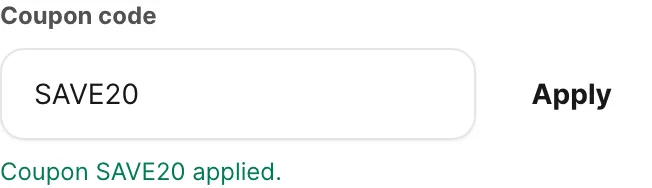
- You should see Coupon YOURCODE applied. in green. A Coupon row shows the discount and Total drops.
- Review Total, then click Place order.
- If Total is above Rp 0, confirm Pay within 15 minutes.
Done when:
- Total still above Rp 0 — discount is applied and Billing → Checkout loads — pay within 15 minutes.
- Total = Rp 0 — Kirisan approves the order immediately, shows a free-with-coupon toast, and opens Billing → Receipts. Plans apply right away; download the Free receipt PDF there. You do not use checkout or bank transfer.
Kirisan clears the coupon when you change targets, plans, or billing period. Click Apply again after finishing the cart.
Pay by bank transfer
Goal: Transfer the exact Transfer amount so Kirisan marks your invoices success.
Start when: You have pending invoices on Billing → Checkout (reached automatically after Place order when the total is above Rp 0, or via Pay on Billing → Invoice). Skip this section if a coupon made the order free — go to Download a receipt PDF.
Coupon orders with a balance due must be paid within 15 minutes or they fail.
- On Billing → Checkout, confirm every invoice you expect appears under Pending invoices.
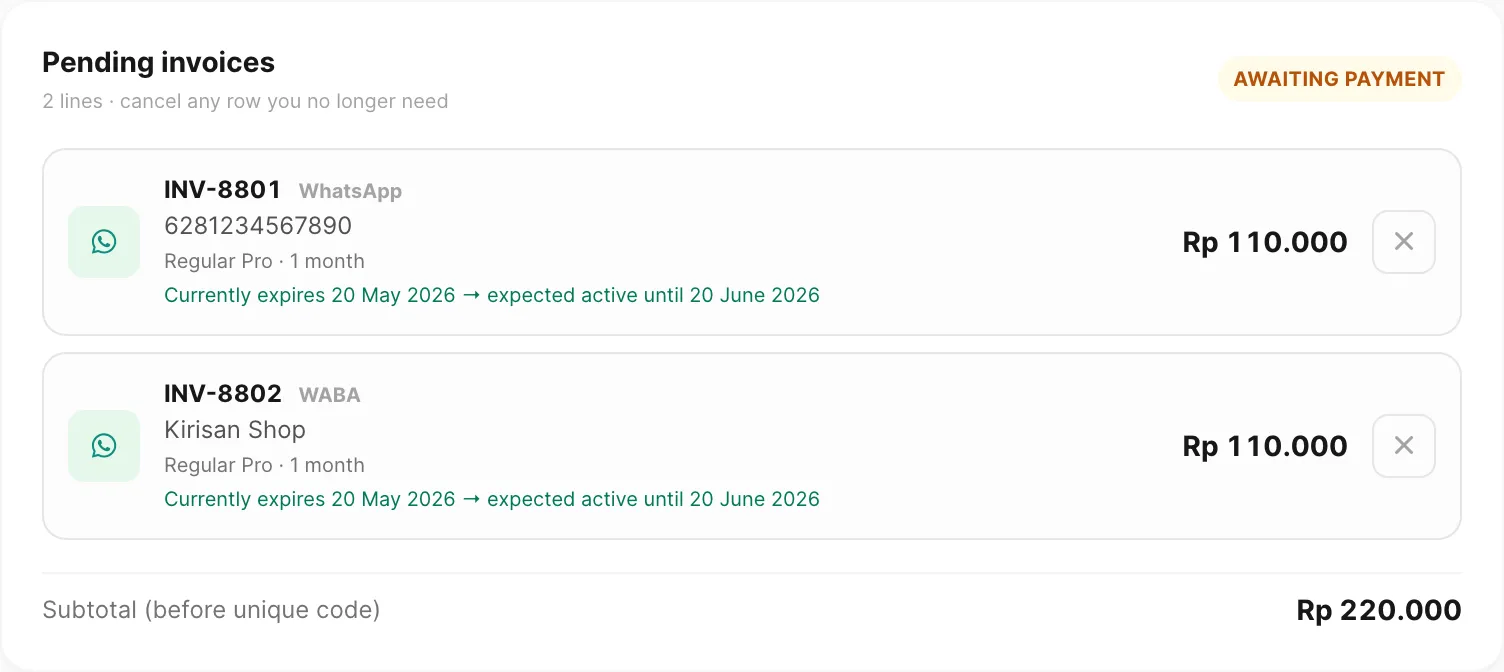
- Click Copy transfer amount in the Direct transfer panel.
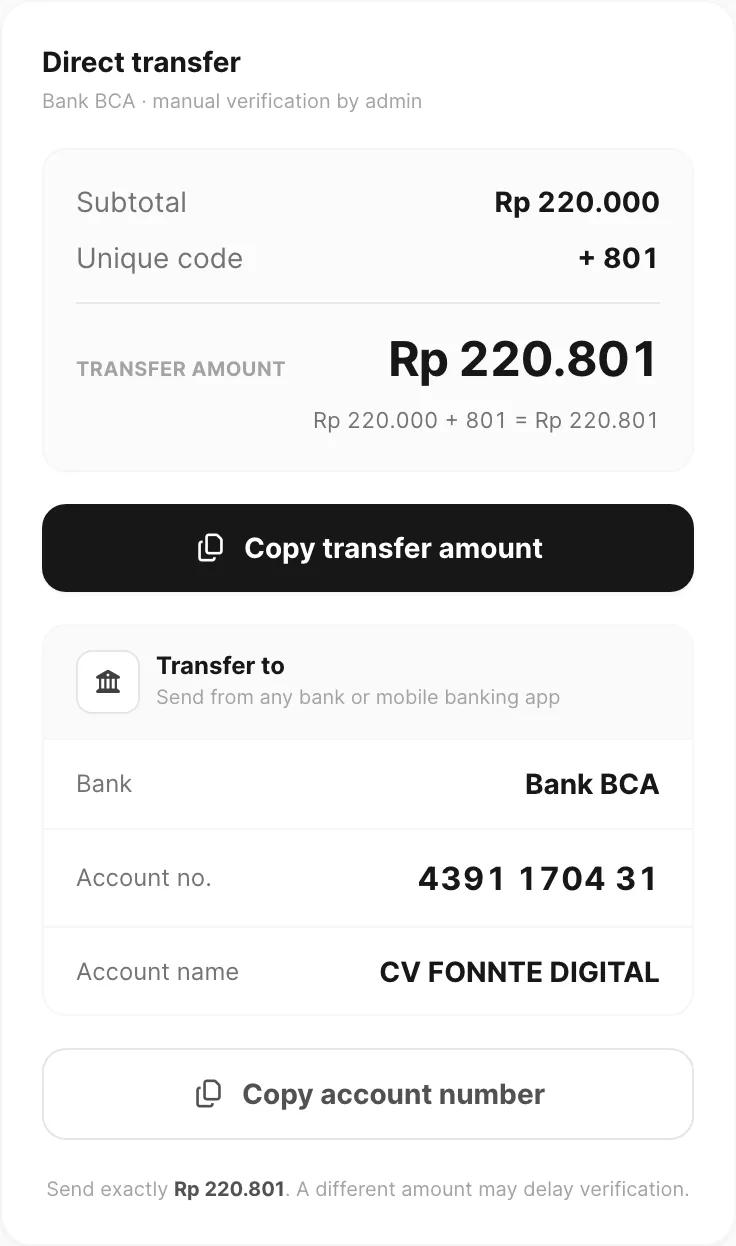
- This number includes the unique code — do not pay the subtotal alone; the unique code identifies your batch.
Optional: click Download invoice to save a PDF (Invoice · Awaiting payment) with line items, unique code, amount due, and BCA details.
In your banking app, send the Transfer amount to:
Bank BCA · 4391170431 · CV FONNTE DIGITAL
Keep your transfer receipt. Verification is manual — an admin matches the unique amount to your invoices.
- You should see invoices move from pending to success on Billing → Invoice after verification (timing depends on support hours).
Done when: All related invoices show success and your plan or quota is active.
Find invoices and confirm payment
- Open Billing → Invoice.
- Set Status to pending to see everything still unpaid, or success to confirm past payments.
- Search by INV-##### if you know the invoice number.
- Click a row for full details — Pay now reopens checkout for pending invoices.
Done when: Every invoice you paid shows success and the plan or storage quota is active on the channel page.
Cancel a pending invoice
Start when: You placed the wrong plan, duplicated an order, or changed your mind before paying.
- Open Billing → Invoice, filter Status → pending, and click the invoice row.
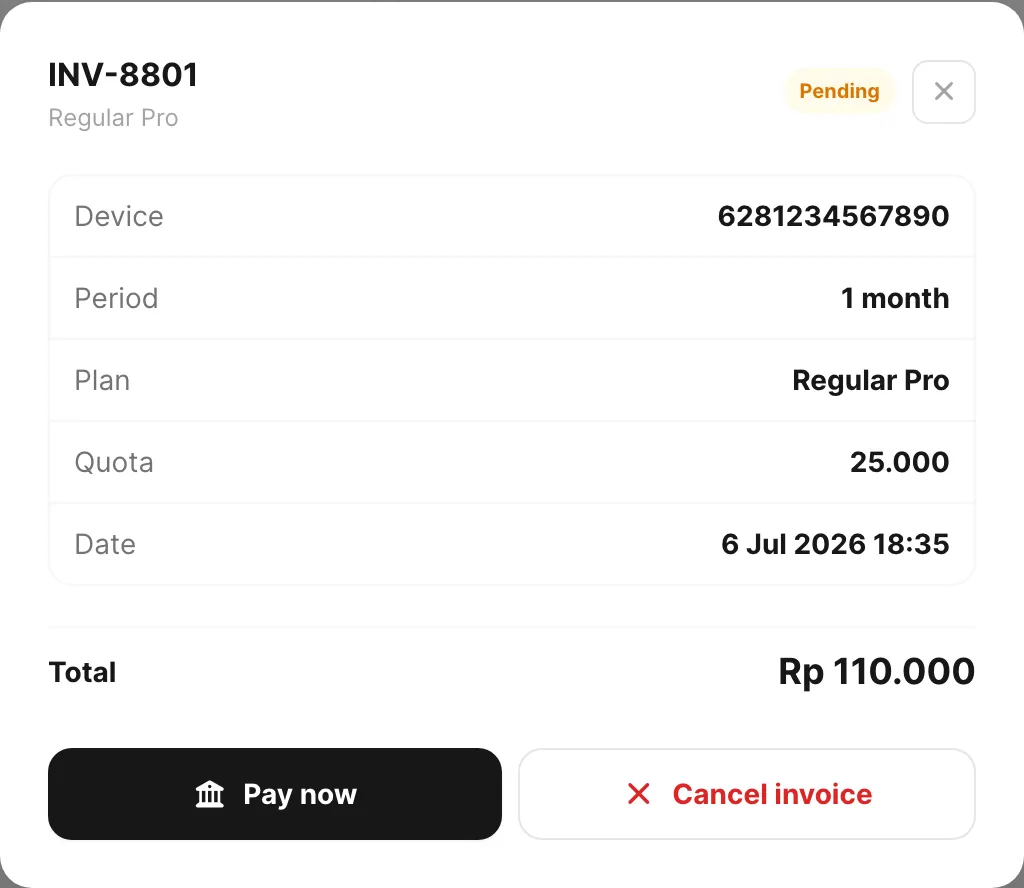
Click Cancel invoice and wait for the success message.
- You should see the row show cancelled after refresh.
- On Billing → Checkout, the cancelled line disappears from pending invoices.
Done when: The invoice shows cancelled.
Download a receipt PDF
Goal: Get a PDF after payment is completed (bank verification or free coupon).
Start when: Your invoices show success on Billing → Invoice, or Kirisan opened Billing → Receipts right after a free coupon order.
- Open Billing → Receipts.
- Find the row — Reference looks like
PAY-YYYYMMDD-#####, with the Paid date and PDF button. Method is transfer or coupon; Amount is the transfer total or Rp 0.
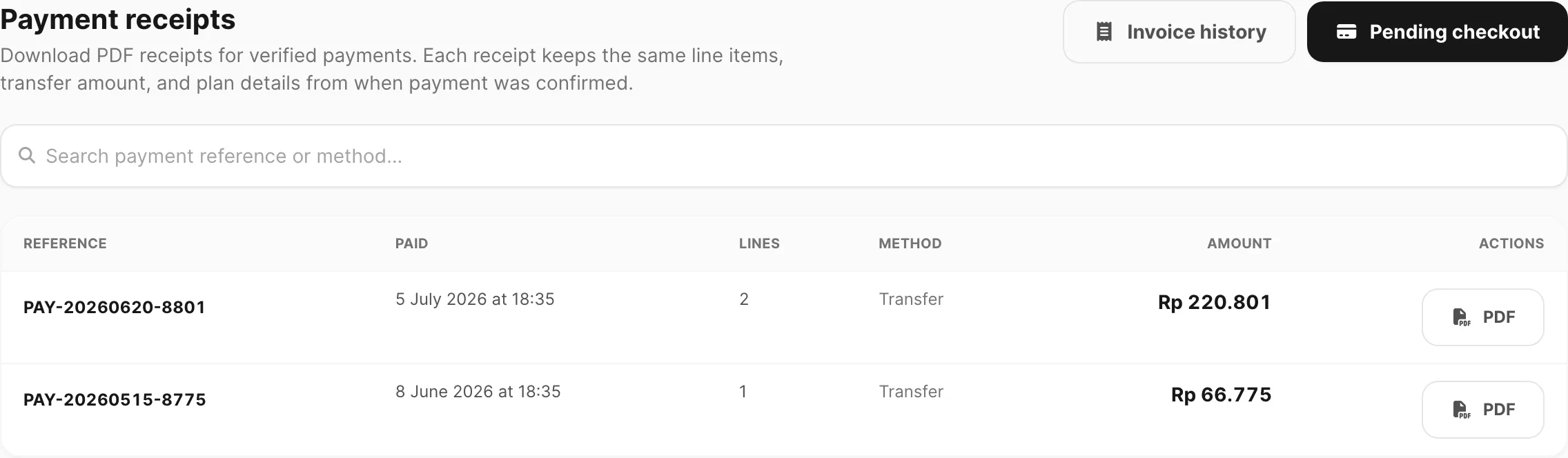
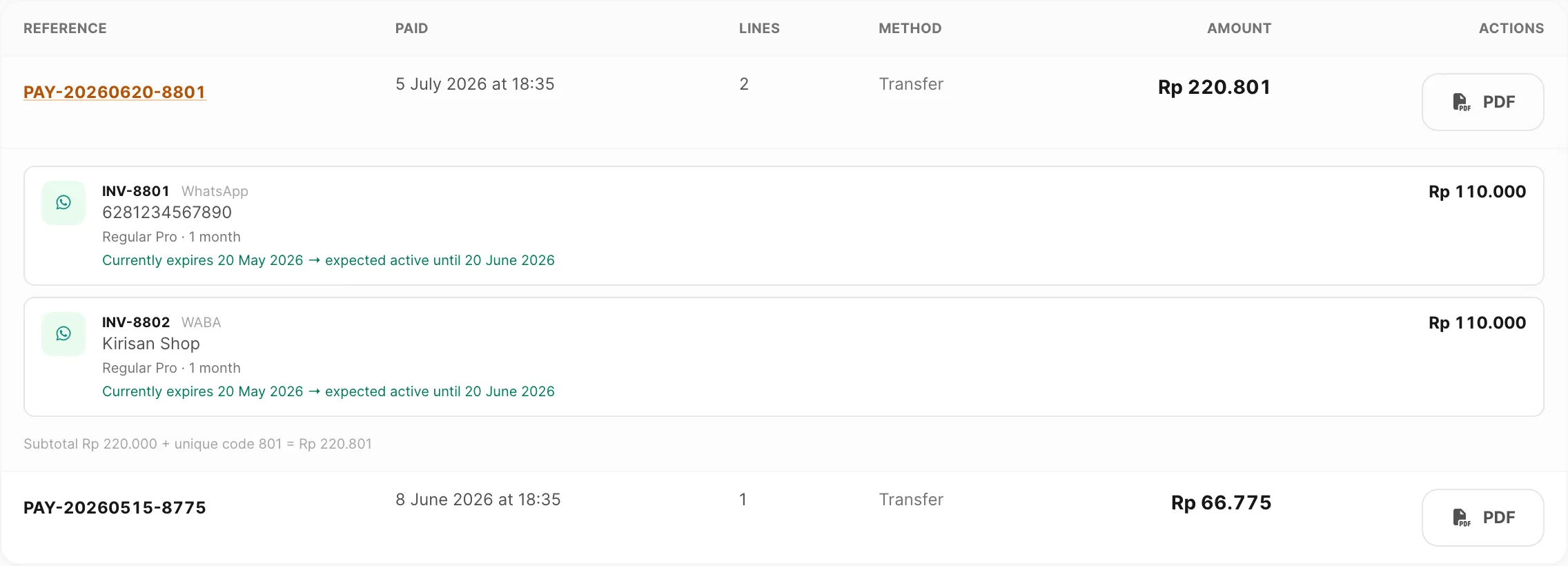
- Optional: click the Reference to expand and confirm the INV lines included.
- Click PDF and confirm the download.
Done when:
- Bank payment — PDF status Paid; amounts and BCA details match your transfer.
- Free coupon — PDF status Free; payment method Coupon; amount Free; no unique code or bank block.
To search by reference, paste the PAY-… code in the search box.
Order file storage
Goal: Increase account file space and upload/open allowances for media, attachments, and the file manager.
- Open Billing → Order and click the Storage tab.
- Read Storage usage — note space, writes, reads, and Expires.
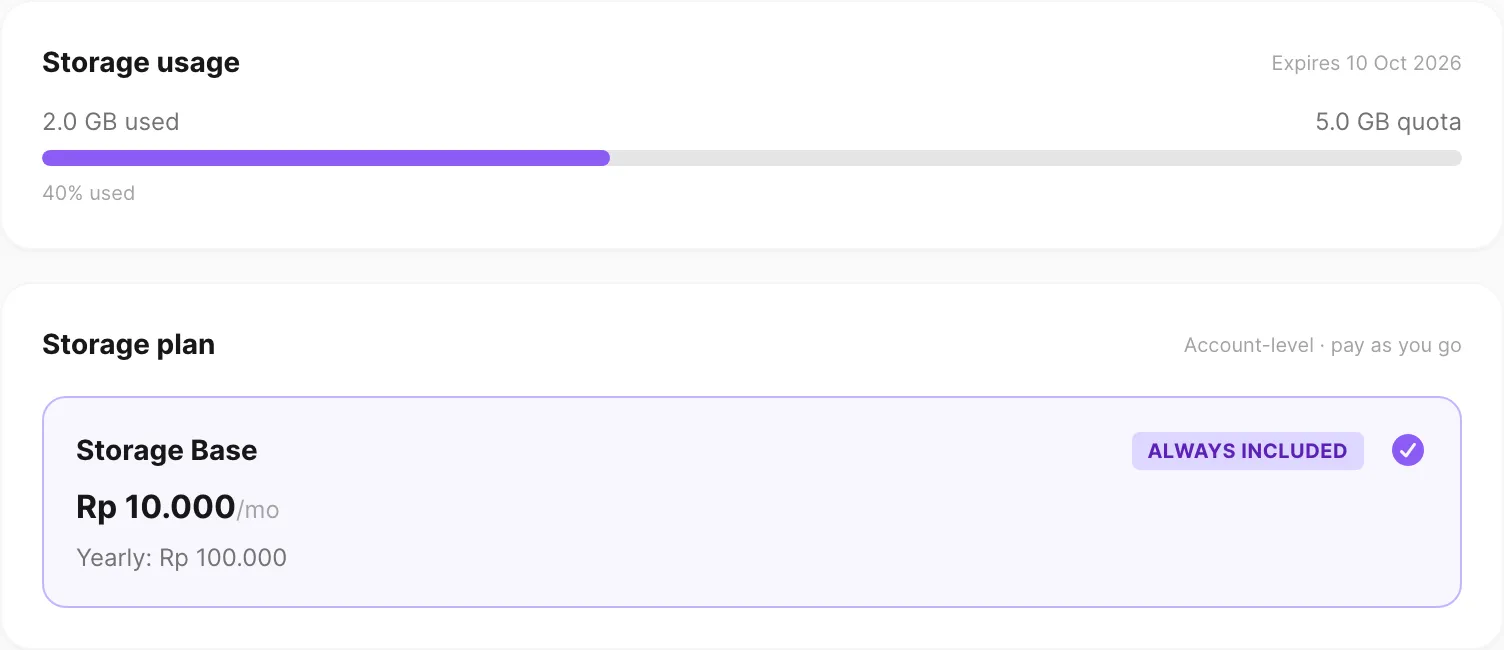
Under Storage plan, Storage Base is always included. Under Additional storage, click + to add extra GB (0–100). Each GB also adds write and read allowances. Deletes are free.
Optionally add Write packs or Read packs if you need more operations without more space.
Set a Billing period and check Order summary — it shows Storage Base, optional extra GB and packs, and Total quota.
Click Place order, then pay on Billing → Checkout (see Pay by bank transfer above).
Done when: The invoice shows success and Storage usage reflects the new space and allowances after refresh.
Fix common problems
Symptom: Target list is empty (“No WhatsApp devices on this account yet…”).
Add the device, number, or domain on the matching channel page first (Channel → WhatsApp → Devices, Channel → WABA → Devices, etc.), then return to Billing → Order and refresh.
Symptom: Place order button is greyed out.
- Select at least one target and a plan on the active channel tab.
- For Storage, select a valid Billing period — no device selection needed.
- Custom billing period must be a whole number from 1 to 120.
Symptom: WABA or Telegram plans do not load.
Confirm you have numbers or bots on the account. If the list stays empty, wait a moment and reload Billing → Order.
Symptom: A channel line disappeared from Order summary.
Switching tabs clears that tab’s selection if you did not pick both a target and a plan first. Re-select targets and the plan; other tabs’ lines stay unless you clicked Clear there.
Symptom: Coupon code rejected (Invalid coupon).
- Check spelling. Codes are not case-sensitive.
- The coupon may be limited to certain channels, plans, minimum amount, or number of uses.
- Some coupons are single-account — confirm you are on the correct account.
Symptom: Coupon disappeared after changing the cart.
Kirisan clears the coupon when targets, plans, or billing period change. Click Apply again.
Symptom: Coupon order became failed before I paid.
Coupon orders with a balance due must be paid within 15 minutes. After that, Kirisan marks them failed and releases the coupon use — place the order again and transfer promptly. Free (Rp 0) coupon orders skip this window.
Symptom: Invoice stays pending after bank transfer.
- Confirm you transferred Transfer amount (subtotal plus unique code), not the subtotal alone.
- Contact support with INV-##### and your transfer receipt.
Symptom: No invoices visible.
Clear all search text and set All statuses / All channels. If the table is still empty, no orders have been placed — use Billing → Order.
Symptom: No payment receipts yet.
- Verification may still be pending — check Billing → Invoice → Status → pending.
- Receipts are created only after invoices become success.
- For a PDF before paying, use Download invoice on Billing → Checkout.
Symptom: Receipt PDF button errors.
Try again on a stable connection. Note the Reference and contact support if it persists.
Symptom: Storage quota did not increase after payment.
Confirm the invoice status is success, not pending. Refresh Billing → Order or open Resources → Files to see updated limits.
Symptom: Upload fails even though space remains.
Your write allowance may be used up. Buy a write pack or more GB on Billing → Order → Storage. See Files (When an allowance runs out).
Symptom: Preview or send with attachment fails; space is fine.
Your read allowance may be used up. Buy a read pack or more GB on Billing → Order → Storage.
Symptom: Add-on shows “Use support to purchase…”
Some add-ons are not self-serve yet. Contact Kirisan support with the add-on name and the targets you need.
Symptom: Credits did not stack after I paid (balance looks replaced, not added).
You may have ordered a different plan while the old one was still active — Kirisan resets quota and expiry on plan change. To stack credits, buy the same plan again before expiry. See Renew the same plan and Plans and quota.
Symptom: Sends blocked — free tier not active / red Free badge.
Only one free WABA number, Telegram bot, or email domain can send at a time. Activate the target with the star action, or upgrade to paid on Billing → Order. See Activate the free sending slot.
Symptom: Credits show 0 on free tier but plan is not expired.
Confirm the row is green Free (active slot). Parked free targets do not auto-refill. Switch the slot or wait for the active free target’s refill cycle. Paid-expired targets return to free with 1,000 credits — refresh the page after a few minutes if you just crossed expiry.
Symptom: Paid plan expired — now on Free with 1,000 credits.
Expected behavior. Renew on Billing → Order to return to a paid tier, or keep using the active free quota until the next refill window.
Related
- Plans and quota — credits, renewals, plan changes, and expiry
- Place an order reference — full checkout UI tour
- Invoices reference — status filters and detail panel
- Checkout reference — bank transfer instructions
- Payment receipts reference — receipts table and PDF download
- Affiliate — commissions are separate from coupons
- Connection — add devices before ordering