File library
Open Resources → Files.
What this page is for
Files is your private, per-account media library. Upload a file once (see Allowed file types and size limits), then reuse it when composing autoreply responses, submission questions, or email templates — without re-uploading the same asset every time.
Recipients receive a short-lived link each time a file is sent; the library keeps the canonical copy on your account.
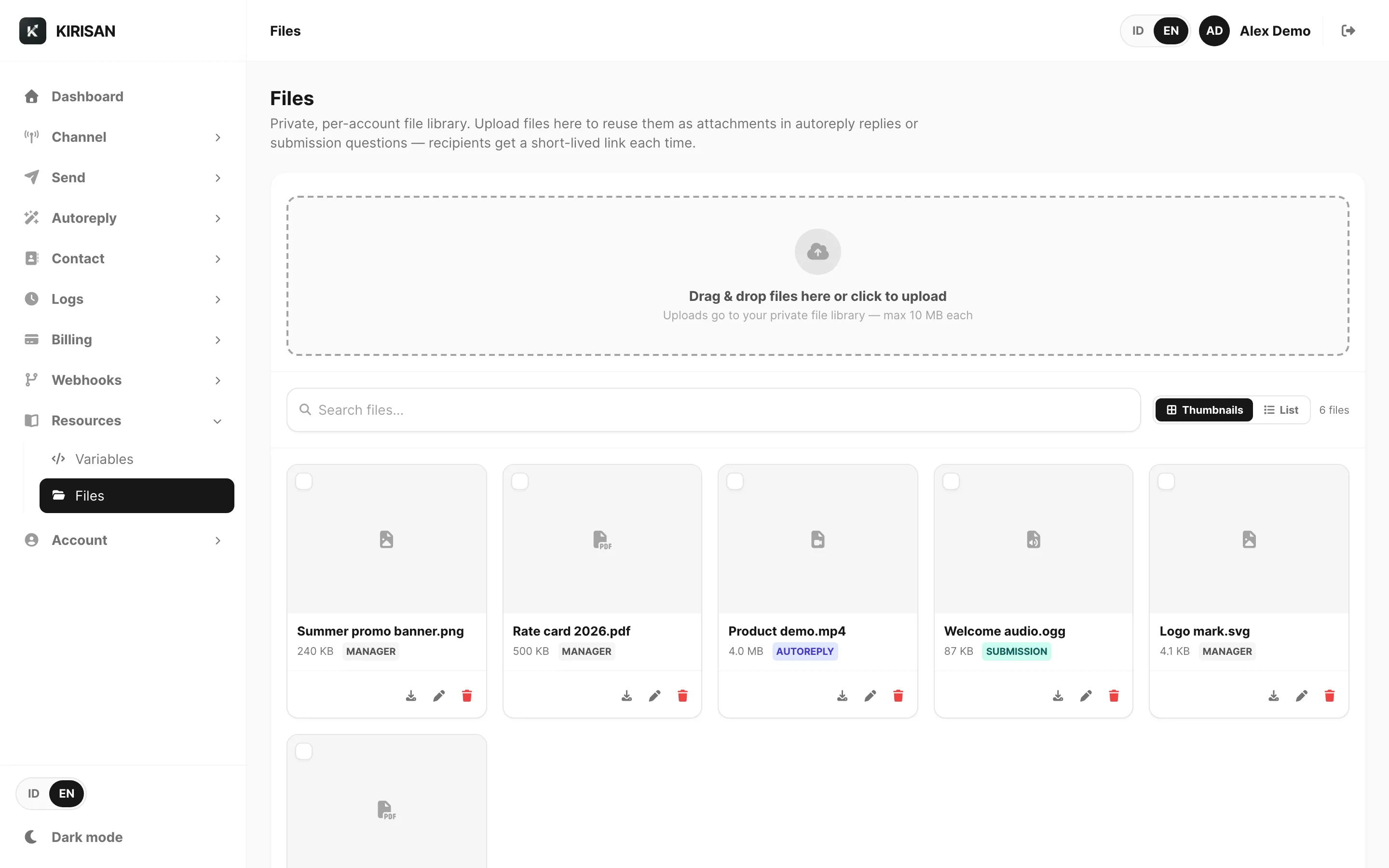
Sample data shown.
| Control | What it does |
|---|---|
| Upload | Pick one or more files from your computer |
| Drag and drop | Drop files anywhere on the file card to upload |
| Search files… | Filter by filename (debounced) |
| Thumbnails / List | Switch between grid tiles and a detailed table |
| Delete (N) | Bulk-delete selected files (appears when rows are ticked) |
Upload
Click Upload or drag files onto the card. Multiple files upload in parallel — a progress bar appears under the toolbar for each active upload.
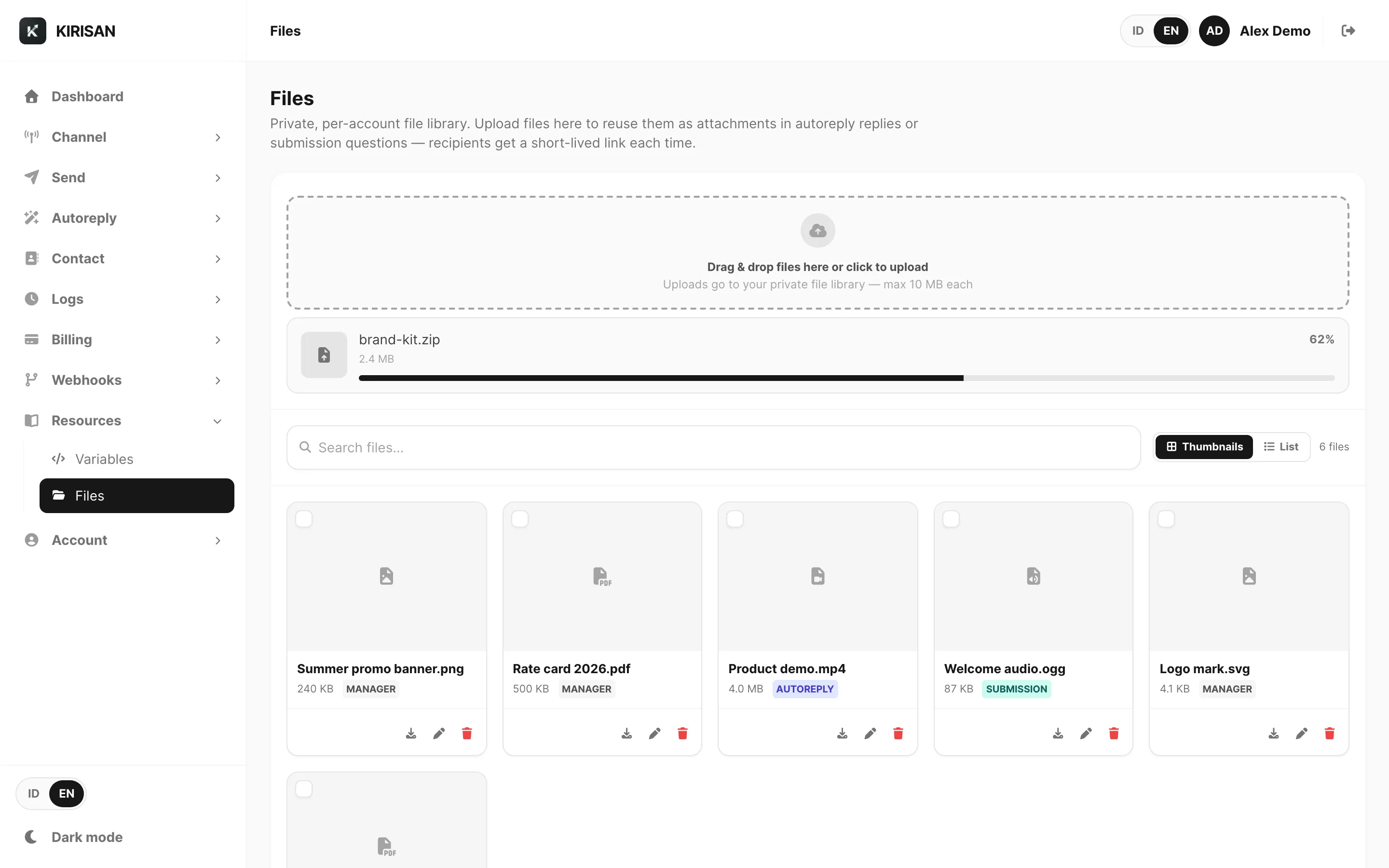
Sample data shown.
| Element | Meaning |
|---|---|
| Upload (header) | Opens the file picker — you can select multiple files at once |
| Progress rows | One row per file currently uploading, with filename and percentage |
| Drop files to upload | Appears while you drag files over the card (before you release) |
Uploads go directly to cloud storage (presigned PUT). If the browser cannot reach storage (for example CORS), Kirisan falls back to a server-side upload automatically.
There is no separate folder structure — all files live in one flat, searchable list per account.
Grid view
Thumbnails is the default view. Each tile shows:
| Element | Meaning |
|---|---|
| Checkbox | Select for bulk delete |
| Preview area | Image thumbnail, video first frame, PDF mini-preview, or type icon |
| Name | Filename (click tile to open preview in a new tab) |
| Size | Human-readable file size |
| Origin badge | Where the file was first stored — see Origin badges |
| Row actions | Download, Rename, Delete |
List view
Switch to List for a sortable table with columns for file name, MIME type, origin, size, upload date, and row actions.
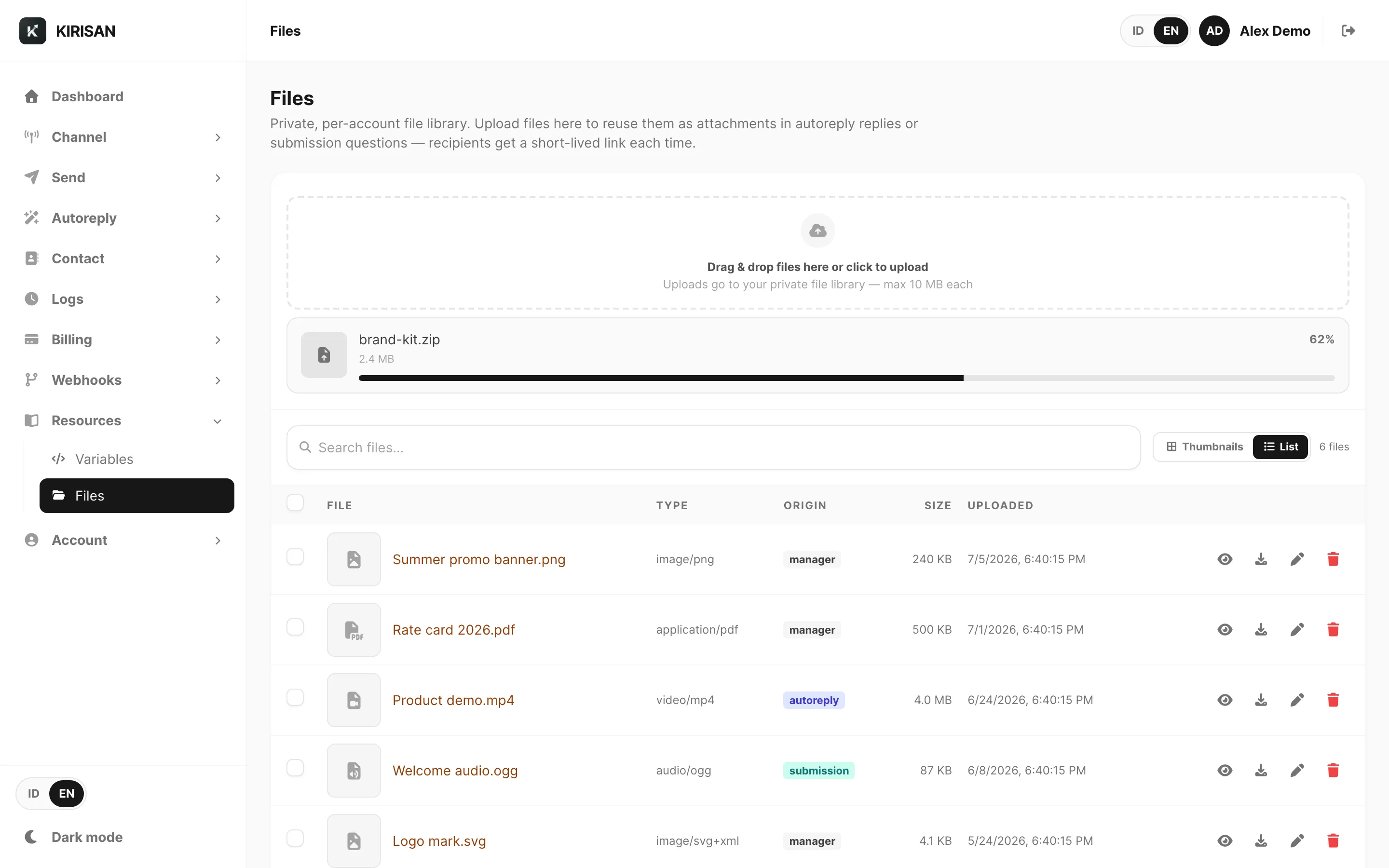
Sample data shown.
| Column | Meaning |
|---|---|
| File | Thumbnail + name (click to preview) |
| Type | MIME type (for example image/png) |
| Origin | manager, autoreply, submission, or incoming |
| Size | File size |
| Uploaded | Local date/time when the file was committed |
Use Select all in the header to tick every row on the current page for bulk delete.
Origin badges
| Badge | Meaning |
|---|---|
| manager | Uploaded directly on this page |
| autoreply | Saved from an autoreply attachment flow |
| submission | Saved from a submission question attachment |
| incoming | Saved from an inbound message (WhatsApp, Telegram, WABA, or email) when plan and storage allow |
All origins appear in the same library — you can preview, rename, or delete any file regardless of how it was added.
Storage usage (space, writes, reads)
The card at the top of Files shows three meters when storage is active (same numbers appear on Billing → Order → Storage):
| Meter | What it counts |
|---|---|
| Space | Bytes used vs purchased GB |
| Writes (uploads) | Each successful upload or inbound save. Deletes are free and do not use this meter |
| Reads (opens) | Each preview, download, inbox media open, webhook file URL, or send that reads the file |
Every purchased GB includes 10,000 writes and 100,000 reads. Storage Base (5 GB) includes 50,000 writes and 500,000 reads. Buy more GB or optional packs on Billing → Order.
When an allowance runs out
You can still have free space while writes or reads are exhausted — buy more packs or GB to continue.
| Limit hit | What happens |
|---|---|
| Space full | New uploads and inbound saves are rejected until you free space or buy more GB |
| Writes used up | New uploads and inbound saves are rejected (error: upload allowance used up). Deleting files is always free |
| Reads used up | Preview, download, inbox media links, and sends that read a library file are blocked (error: open allowance used up). Inbound files may still save to the library, but the webhook may not get a download url until you buy more reads |
Retention and cleanup
Incoming message attachments (incoming) are stored permanently and count toward your storage quota. They are not removed when inbox messages expire (inbox rows still expire: 7 days Free / 30 days paid).
When an inbox message is deleted by retention, Kirisan clears the file’s link (source_id) but keeps the file. Use Cleanup orphans on this page to delete incoming files whose inbox message no longer exists.
Files you upload here (manager, and library copies from autoreply/submission) are also permanent until you delete them.
If storage is not renewed
When a storage plan expires (and no platform default quota applies):
- New uploads and new inbound attachment saves are blocked immediately.
- Existing files stay for 14 days but are inaccessible (preview, download, and send from the library are blocked). Renew on Billing → Order during this grace period to restore access.
- After 14 days, remaining files are permanently deleted from the library and storage.
Row actions
| Action | What it does |
|---|---|
| Preview | Opens a short-lived presigned URL in a new browser tab |
| Download | Starts a download with the original filename |
| Rename | Change the display name (storage keys stay tied to your account) |
| Delete | Removes the file from your library and from storage permanently |
Deleting cannot be undone. If a template or autoreply still references the file, update that reference before deleting.
Empty library
When you have not uploaded anything yet:

Sample data shown.
Drop files on the card or click Upload to add your first file.
Where files are used
| Feature | How the library helps |
|---|---|
| Email templates | Pick hosted images for Image blocks — see Email templates |
| Autoreply | Attach library files in autoreply responses |
| Submissions | Attach files to form questions |
| Telegram inbound media | Short-lived mirrored URLs — see Variables → Incoming tab |
Allowed file types and size limits
Kirisan separates storing a file in your library from sending it on a channel. A file can sit in Files and still be rejected at send time if the channel does not support that format.
Size limits
| Path | Max size |
|---|---|
| Upload to Files, outbound attachments (send, templates, autoreply, email attach) | 10 MB per file |
| Inbound attachments saved from WhatsApp, Telegram, WABA, or email | 100 MB per file |
What you can store in Files
The library accepts any file type within the size limits above (images, documents, archives, audio, video, and others). There is no MIME allowlist on upload.
Inbound media is saved automatically when your plan includes attachments and storage quota is active.
What you can pick when sending (dashboard)
When attaching from Pick from Files or the upload dropzone in send / templates / autoreply / inbox reply, Kirisan filters by attachment kind:
| Attachment kind | Allowed types |
|---|---|
| Image | Any image/* (for example .jpg, .jpeg, .png, .gif, .webp) |
| Video | Any video/* (for example .mp4, .webm, .mov) |
| Document | .pdf, .doc, .docx, .xls, .xlsx, .ppt, .pptx, .txt, .zip |
Email reply/forward uses the document list for optional attachments. WABA template header samples use the same image / video / document filters for the selected header type.
The API (fileId / fileUrl) does not re-check this UI list — the channel still validates the bytes at send time.
Channel notes at send time
Even when a type is allowed in the picker, the destination channel may reject it:
| Channel | Typical send support |
|---|---|
| WhatsApp (device) | Image, video, document (and location). Prefer common formats such as JPEG/PNG, MP4, and PDF. |
| Telegram | Photo, video, or document via the bot API. Most document types (including ZIP) work as document. |
| WABA | Meta Cloud API media rules — commonly JPEG, PNG, WEBP, PDF, MP4 (and related audio formats where used). Unusual types may fail Meta upload. |
| Any attachment within the 10 MB send cap; recipients’ mail clients decide how to open it. HTML template Image blocks expect image files. |
If a send fails with an unsupported-type or media error, convert the file to a format in the table above (or a Meta-supported type for WABA) and try again.
Channel support
For channel setup and product pages:
Related
- Variables —
[[…]]and{{…}}placeholders in the same messages - Autoreply → Spreadsheet — keyword responses that can reference variables
- Email templates — image blocks from the file library