Perpustakaan file
Buka Resources → Files.
Kegunaan halaman ini
Files adalah perpustakaan media pribadi per akun Anda. Unggah file sekali (lihat Tipe file yang diizinkan dan batas ukuran), lalu gunakan ulang saat menyusun respons autoreply, pertanyaan submission, atau template email — tanpa mengunggah ulang aset yang sama setiap kali.
Penerima menerima tautan berumur pendek setiap kali file dikirim; perpustakaan menyimpan salinan kanonik di akun Anda.
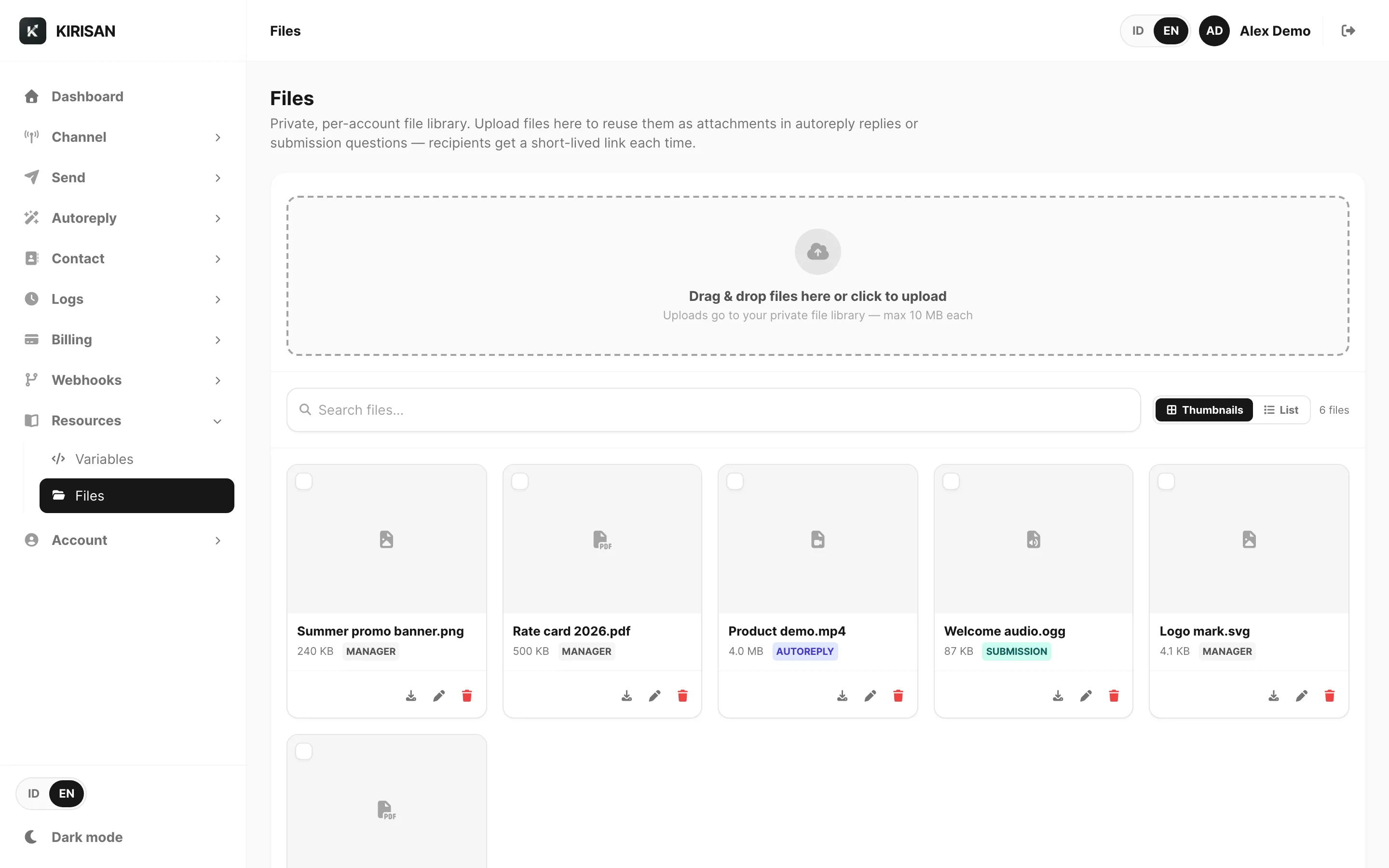
Contoh data ditampilkan.
| Kontrol | Fungsi |
|---|---|
| Upload | Pilih satu atau lebih file dari komputer Anda |
| Drag and drop | Lepaskan file di mana saja pada kartu file untuk mengunggah |
| Search files… | Filter menurut nama file (debounced) |
| Thumbnails / List | Beralih antara tile grid dan tabel detail |
| Delete (N) | Hapus massal file terpilih (muncul saat baris dicentang) |
Unggah
Klik Upload atau seret file ke kartu. Beberapa file diunggah paralel — bilah progres muncul di bawah toolbar untuk setiap unggahan aktif.
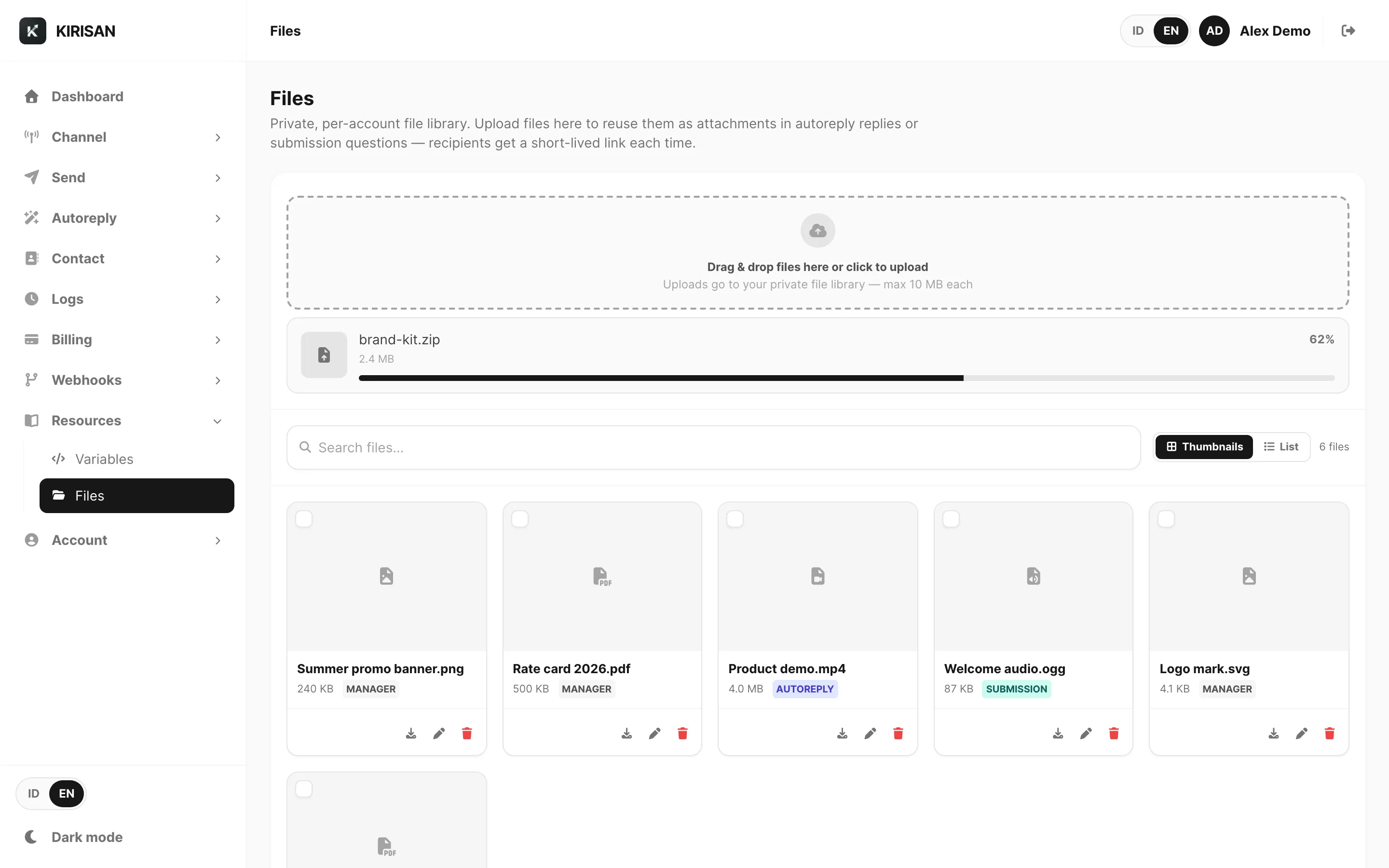
Contoh data ditampilkan.
| Elemen | Arti |
|---|---|
| Upload (header) | Membuka pemilih file — Anda bisa memilih beberapa file sekaligus |
| Baris progres | Satu baris per file yang sedang diunggah, dengan nama file dan persentase |
| Drop files to upload | Muncul saat Anda menyeret file ke kartu (sebelum melepaskan) |
Unggahan langsung ke cloud storage (presigned PUT). Jika browser tidak bisa menjangkau storage (misalnya CORS), Kirisan otomatis beralih ke unggahan sisi server.
Tidak ada struktur folder terpisah — semua file ada dalam satu daftar datar yang dapat dicari per akun.
Tampilan grid
Thumbnails adalah tampilan default. Setiap tile menampilkan:
| Elemen | Arti |
|---|---|
| Checkbox | Pilih untuk hapus massal |
| Area pratinjau | Thumbnail gambar, frame pertama video, mini-pratinjau PDF, atau ikon tipe |
| Name | Nama file (klik tile untuk membuka pratinjau di tab baru) |
| Size | Ukuran file yang mudah dibaca |
| Origin badge | Di mana file pertama kali disimpan — lihat Origin badges |
| Aksi baris | Download, Rename, Delete |
Tampilan list
Beralih ke List untuk tabel yang dapat diurutkan dengan kolom nama file, MIME type, origin, ukuran, tanggal unggah, dan aksi baris.
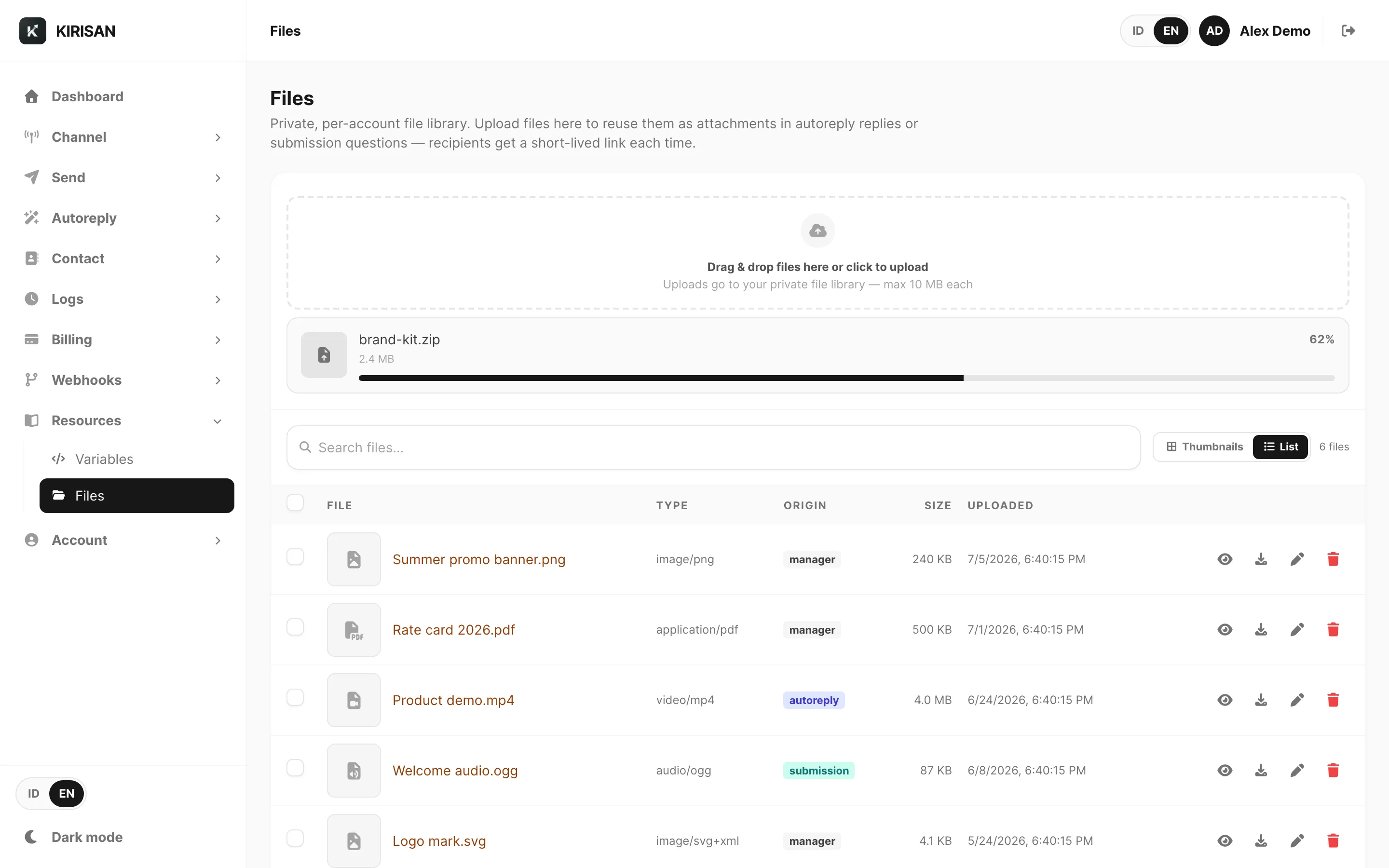
Contoh data ditampilkan.
| Kolom | Arti |
|---|---|
| File | Thumbnail + nama (klik untuk pratinjau) |
| Type | MIME type (misalnya image/png) |
| Origin | manager, autoreply, submission, atau incoming |
| Size | Ukuran file |
| Uploaded | Tanggal/waktu lokal saat file disimpan |
Gunakan Select all di header untuk mencentang setiap baris di halaman saat ini untuk hapus massal.
Origin badges
| Badge | Arti |
|---|---|
| manager | Diunggah langsung di halaman ini |
| autoreply | Disimpan dari alur lampiran autoreply |
| submission | Disimpan dari lampiran pertanyaan submission |
| incoming | Disimpan dari pesan masuk (WhatsApp, Telegram, WABA, atau email) saat paket dan storage mengizinkan |
Semua origin muncul di perpustakaan yang sama — Anda bisa pratinjau, ganti nama, atau hapus file apa pun terlepas dari cara penambahannya.
Penggunaan storage (disk, write, read)
Kartu di atas Files menampilkan tiga meter saat storage aktif (angka yang sama muncul di Billing → Order → Storage):
| Meter | Apa yang dihitung |
|---|---|
| Disk | Byte terpakai vs GB yang dibeli |
| Write (unggah) | Setiap unggahan atau simpanan masuk yang berhasil. Hapus gratis — tidak memakai meter ini |
| Read (buka) | Setiap pratinjau, unduh, buka media inbox, URL file webhook, atau kirim yang membaca file |
Setiap GB yang dibeli mencakup 10.000 write dan 100.000 read. Storage Base (5 GB) mencakup 50.000 write dan 500.000 read. Beli GB tambahan atau paket opsional di Billing → Order.
Saat kuota habis
Disk masih bisa sisa meski write atau read sudah habis — beli paket atau GB lagi untuk melanjutkan.
| Batas habis | Apa yang terjadi |
|---|---|
| Disk penuh | Unggahan baru dan simpanan inbound ditolak sampai Anda mengosongkan disk atau membeli GB |
| Write habis | Unggahan baru dan simpanan inbound ditolak (pesan: upload allowance used up). Menghapus file selalu gratis |
| Read habis | Pratinjau, unduh, tautan media inbox, dan kirim yang membaca file library diblokir (pesan: open allowance used up). File inbound mungkin tetap tersimpan, tetapi webhook bisa tanpa url unduhan sampai Anda membeli kuota read |
Retensi dan pembersihan
Lampiran pesan masuk (incoming) disimpan permanen dan dihitung ke kuota storage. Lampiran tidak dihapus saat pesan inbox kedaluwarsa (baris inbox tetap kedaluwarsa: 7 hari Free / 30 hari berbayar).
Saat pesan inbox dihapus oleh retensi, Kirisan menghapus tautan file (source_id) tetapi file tetap ada. Gunakan Bersihkan orphan di halaman ini untuk menghapus file incoming yang pesan inbox-nya sudah tidak ada.
File yang Anda unggah di sini (manager, serta salinan dari autoreply/submission) juga permanen sampai Anda menghapusnya.
Jika storage tidak diperpanjang
Saat paket storage kedaluwarsa (dan tidak ada kuota default platform):
- Unggahan baru dan penyimpanan lampiran inbound baru diblokir segera.
- File yang ada tetap selama 14 hari tetapi tidak dapat diakses (pratinjau, unduh, dan kirim dari library diblokir). Perpanjang di Billing → Order selama masa tenggang ini untuk memulihkan akses.
- Setelah 14 hari, file yang tersisa dihapus permanen dari library dan storage.
Aksi baris
| Aksi | Fungsi |
|---|---|
| Preview | Membuka URL presigned berumur pendek di tab browser baru |
| Download | Memulai unduhan dengan nama file asli |
| Rename | Ubah nama tampilan (storage keys tetap terikat ke akun Anda) |
| Delete | Menghapus file dari perpustakaan dan dari storage secara permanen |
Penghapusan tidak dapat dibatalkan. Jika template atau autoreply masih mereferensikan file, perbarui referensi tersebut sebelum menghapus.
Perpustakaan kosong
Saat Anda belum mengunggah apa pun:

Contoh data ditampilkan.
Lepaskan file di kartu atau klik Upload untuk menambahkan file pertama.
Di mana file digunakan
| Fitur | Bagaimana perpustakaan membantu |
|---|---|
| Email templates | Pilih gambar host untuk blok Image — lihat Email templates |
| Autoreply | Lampirkan file perpustakaan di respons autoreply |
| Submissions | Lampirkan file ke pertanyaan formulir |
| Media masuk Telegram | URL cermin berumur pendek — lihat Variables → Incoming tab |
Tipe file yang diizinkan dan batas ukuran
Kirisan memisahkan menyimpan file di perpustakaan dari mengirim file di channel. File bisa ada di Files tetapi tetap ditolak saat kirim jika channel tidak mendukung format tersebut.
Batas ukuran
| Jalur | Ukuran maksimum |
|---|---|
| Unggah ke Files, lampiran keluar (kirim, template, autoreply, lampiran email) | 10 MB per file |
| Lampiran masuk dari WhatsApp, Telegram, WABA, atau email | 100 MB per file |
Apa yang bisa disimpan di Files
Perpustakaan menerima semua tipe file dalam batas ukuran di atas (gambar, dokumen, arsip, audio, video, dan lainnya). Tidak ada allowlist MIME saat unggah.
Media masuk disimpan secara otomatis saat paket menyertakan lampiran dan kuota penyimpanan aktif.
Apa yang bisa dipilih saat mengirim (dashboard)
Saat melampirkan lewat Pick from Files atau dropzone unggah di kirim / template / autoreply / balas inbox, Kirisan memfilter menurut jenis lampiran:
| Jenis lampiran | Tipe yang diizinkan |
|---|---|
| Image | Semua image/* (misalnya .jpg, .jpeg, .png, .gif, .webp) |
| Video | Semua video/* (misalnya .mp4, .webm, .mov) |
| Document | .pdf, .doc, .docx, .xls, .xlsx, .ppt, .pptx, .txt, .zip |
Balas/teruskan email memakai daftar document untuk lampiran opsional. Sampel header template WABA memakai filter image / video / document yang sama sesuai jenis header.
API (fileId / fileUrl) tidak memeriksa ulang daftar UI ini — channel tetap memvalidasi byte saat kirim.
Catatan channel saat kirim
Meski tipe diizinkan di pemilih, channel tujuan bisa menolaknya:
| Channel | Dukungan kirim tipikal |
|---|---|
| WhatsApp (device) | Image, video, document (dan lokasi). Utamakan format umum seperti JPEG/PNG, MP4, dan PDF. |
| Telegram | Foto, video, atau dokumen lewat Bot API. Sebagian besar tipe dokumen (termasuk ZIP) berfungsi sebagai document. |
| WABA | Aturan media Meta Cloud API — biasanya JPEG, PNG, WEBP, PDF, MP4 (dan format audio terkait bila dipakai). Tipe tidak umum bisa gagal di unggah Meta. |
| Lampiran apa pun dalam batas kirim 10 MB; klien email penerima yang menentukan cara membukanya. Blok Image di template HTML mengharapkan file gambar. |
Jika kirim gagal karena tipe tidak didukung atau error media, konversi file ke format di tabel di atas (atau tipe yang didukung Meta untuk WABA), lalu coba lagi.
Dukungan channel
Untuk penyiapan channel dan halaman produk:
Terkait
- Variables — placeholder
[[…]]dan{{…}}di pesan yang sama - Autoreply → Spreadsheet — respons kata kunci yang dapat mereferensikan variabel
- Email templates — blok gambar dari perpustakaan file