Autoreply spreadsheet
Buka Autoreply → Spreadsheet.
Untuk apa halaman ini
Tautan Spreadsheet menghubungkan Google Sheet ke device WhatsApp atau Telegram Anda. Setiap baris mendefinisikan keyword, logic, dan teks response. Tim dapat mengedit sheet di Google Sheets; perubahan berlaku pada pesan masuk berikutnya — tidak perlu menyimpan aturan dashboard.
Agar balasan berjalan, set On incoming message ke Spreadsheet pada setiap device tertaut di Channel → WhatsApp → Devices atau Channel → Telegram → Devices.
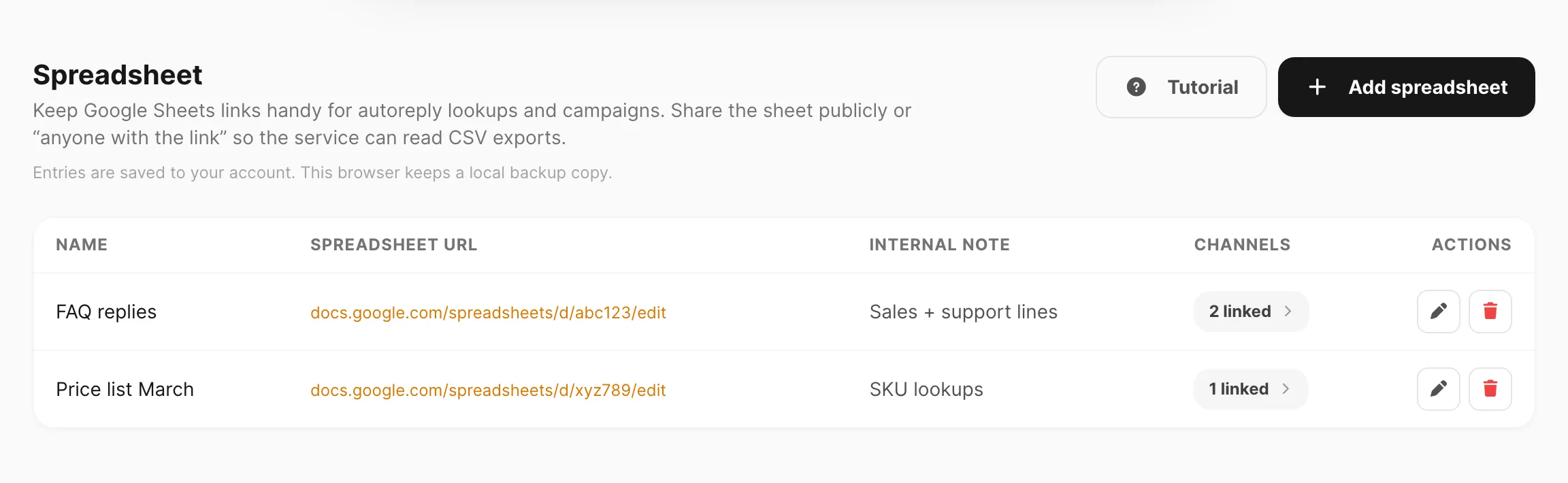
Contoh data ditampilkan.
Alur kerja end-to-end
- Siapkan Google Sheet dengan kolom
keyword,logic, danresponse(lihat Format sheet). - Bagikan sheet — Anyone with the link — Viewer.
- Add spreadsheet di halaman ini — nama, device, URL, catatan opsional.
- Set mode device — On incoming message → Spreadsheet pada setiap device tertaut.
- Uji — kirim pesan yang cocok dengan baris; Kirisan membalas dengan sel
responsebaris tersebut.
Daftar spreadsheet
| Kolom / kontrol | Fungsi |
|---|---|
| Tutorial | Panduan dalam dashboard — format sheet, nilai logic, berbagi, mode device. |
| Add spreadsheet | Tautkan Google Sheet baru ke satu atau lebih device. |
| Name | Label untuk referensi Anda. |
| Spreadsheet URL | Tautan ke Google Sheet (buka di tab baru). |
| Internal note | Catatan tim privat — tidak dikirim ke pengguna. |
| Channels | Klik N linked untuk melihat line WhatsApp atau bot Telegram. |
| Actions | Edit spreadsheet atau Remove spreadsheet. |
Entri disimpan ke akun Anda. Browser juga menyimpan salinan cadangan lokal.
Tambah atau edit tautan spreadsheet
Klik Add spreadsheet atau edit baris.
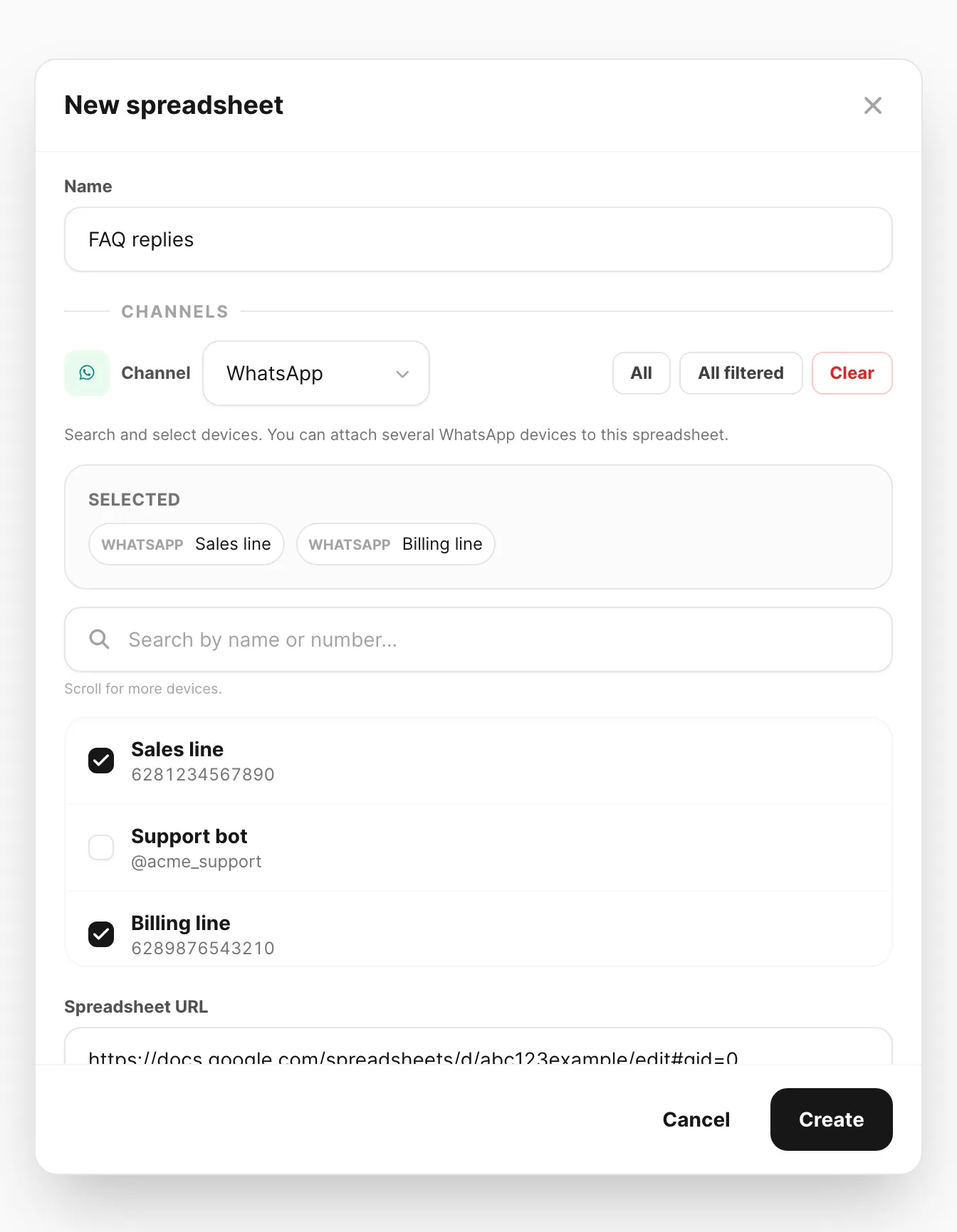
Contoh data ditampilkan.
| Field | Yang dimasukkan |
|---|---|
| Name | Label singkat (misalnya FAQ replies, Price list March). |
| Devices | Filter WhatsApp atau Telegram, cari, dan pilih satu atau lebih line atau bot. Gunakan All / All filtered untuk seleksi massal. |
| Spreadsheet URL | URL Google Sheets lengkap (https://docs.google.com/spreadsheets/d/…). |
| Internal note | Pengingat opsional untuk tim Anda. |
Klik Create (atau Save saat mengedit).
Teks bantuan di bawah URL mengingatkan bahwa sheet memerlukan kolom keyword, logic, dan response. Kolom response juga mendukung variabel server-side [[…]] — lihat Variables.
Tutorial (panduan dalam dashboard)
Klik Tutorial untuk setup langkah demi langkah di dalam dashboard.
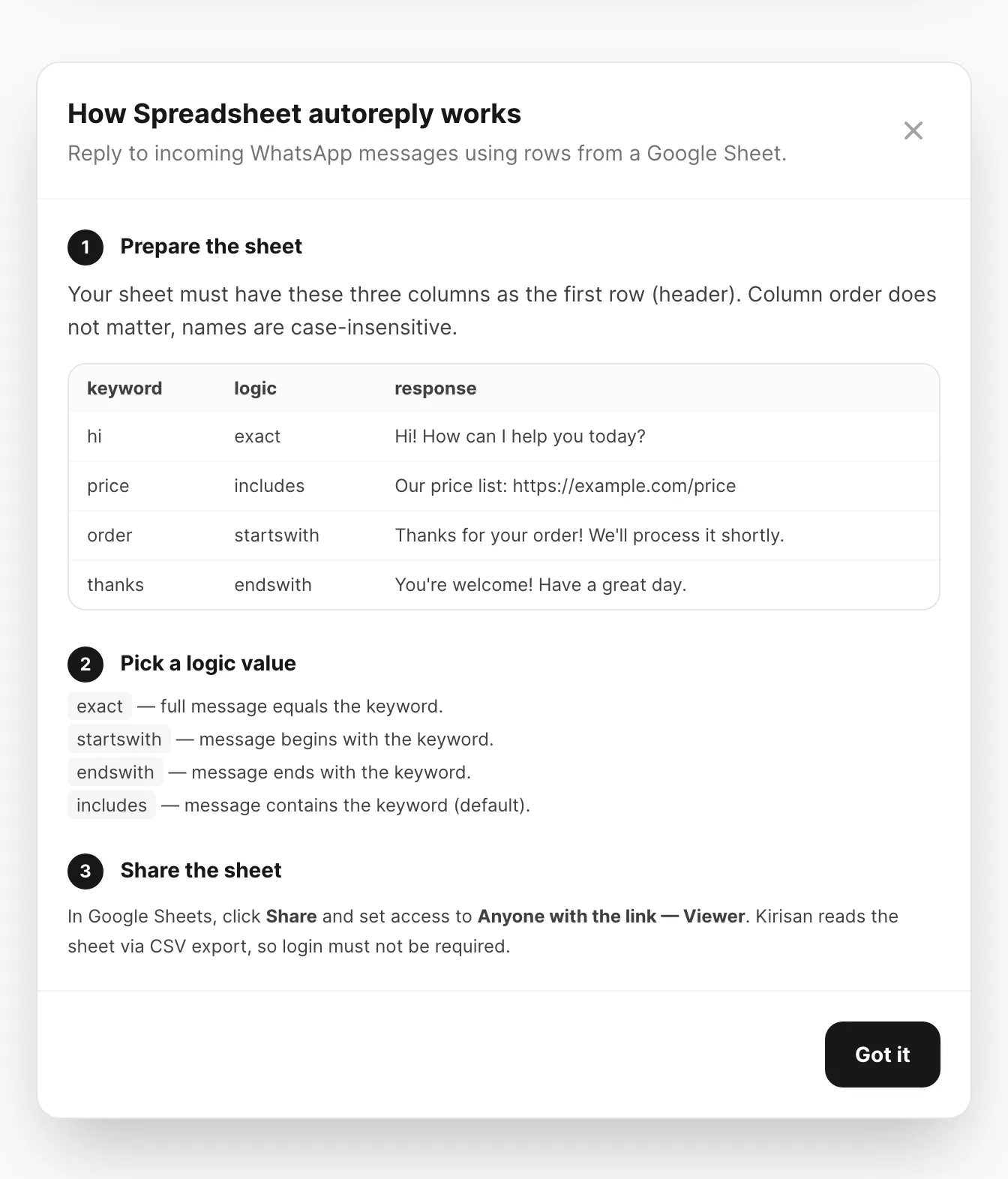
Contoh data ditampilkan.
Tutorial mencakup:
- Siapkan sheet — baris header (
keyword,logic,response) dengan nilai contoh — lihat juga Format sheet. - Pilih nilai logic —
exact,startswith,endswith,includes. - Bagikan sheet — akses viewer publik untuk ekspor CSV.
- Buat tautan spreadsheet — halaman ini.
- Ubah device ke mode Spreadsheet — pengaturan device.
- Cara balasan dipilih — urutan sheet dan baris.
- Nilai dinamis —
[[date-…]],[[time-…]], dll.
Format sheet
Baris pertama harus header dengan tiga nama kolom ini. Nama tidak peka huruf besar/kecil; urutan kolom tidak masalah. Kolom tambahan (misalnya catatan untuk tim) diabaikan.
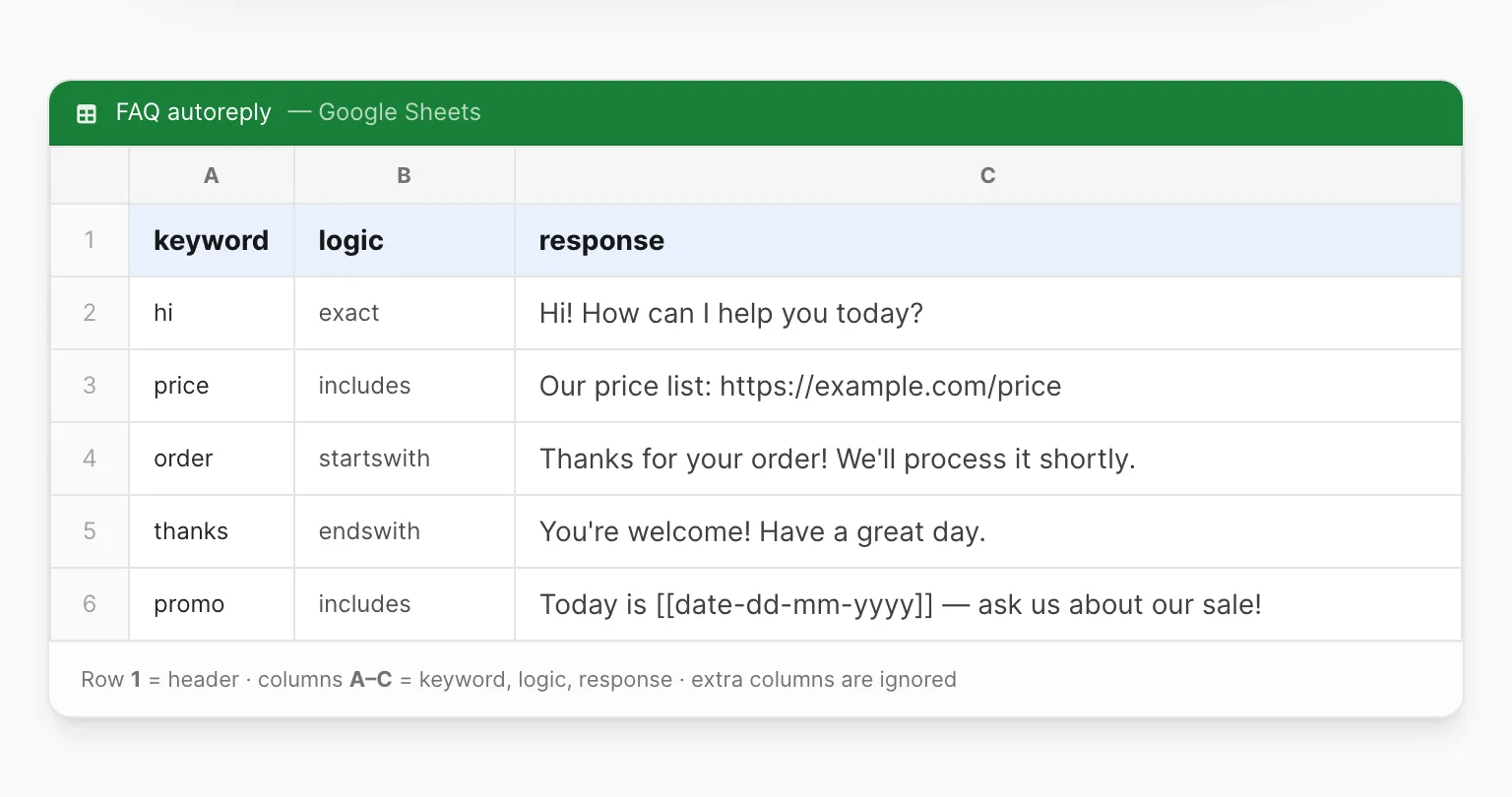
Contoh data ditampilkan — baris 1 adalah header; balasan dimulai dari baris 2.
| Kolom | Tujuan | Nilai contoh |
|---|---|---|
keyword | Teks pemicu dicocokkan dengan pesan masuk. | hi, price, order #123 |
logic | Cara membandingkan — lihat Nilai logic. | exact, includes, startswith, endswith |
response | Teks balasan dikirim ketika baris cocok. | Hi! How can I help you today? |
Contoh baris
| keyword | logic | response | Cocok ketika pengguna mengirim… |
|---|---|---|---|
hi | exact | Hi! How can I help you today? | Tepat hi (trim, huruf besar/kecil bebas — Hi juga valid). |
price | includes | Our price list: https://example.com/price | Pesan apa pun yang mengandung price, seperti what is the price?. |
order | startswith | Thanks for your order! We’ll process it shortly. | Pesan yang diawali order, seperti order 4821. |
thanks | endswith | You’re welcome! Have a great day. | Pesan yang diakhiri thanks, seperti ok thanks. |
promo | includes | Today is [[date-dd-mm-yyyy]] — ask us about our sale! | Pesan apa pun yang mengandung promo; [[date-dd-mm-yyyy]] diganti saat send. |
Baris dengan keyword atau response kosong dilewati.
Nilai logic
| Nilai | Cocok ketika | Contoh keyword | Contoh pesan masuk |
|---|---|---|---|
exact | Seluruh pesan sama dengan keyword (trim, case-insensitive). | hi | hi atau Hi |
startswith | Pesan diawali keyword. | order | order 4821 blue shirt |
endswith | Pesan diakhiri keyword. | thanks | received, thanks |
includes | Pesan mengandung keyword di mana saja (default jika kosong atau tidak dikenal). | price | send me the price list |
Letakkan aturan spesifik (exact) di atas yang umum (includes) dalam sheet.
Aktifkan mode Spreadsheet di device
Tautan spreadsheet hanya berjalan ketika device dalam mode Spreadsheet:
- Buka Channel → WhatsApp → Devices atau Channel → Telegram → Devices.
- Edit device.
- Di bawah On incoming message, pilih Spreadsheet (bukan Autoreply, Flow, atau Webhook).
- Simpan.
| Mode | Perilaku |
|---|---|
| Spreadsheet | Cocokkan baris dari sheet tertaut di halaman ini. |
| Autoreply | Template keyword dashboard — lihat Autoreply. |
| Flow | Pohon percakapan visual — lihat Flow. |
| Webhook | Teruskan ke server Anda saja. |
Hanya satu mode aktif per device sekaligus.
Cara balasan dipilih
- Semua spreadsheet tertaut ke device tersebut dicek sesuai urutan pembuatan di halaman ini.
- Dalam setiap sheet, baris discan dari atas ke bawah.
- Baris pertama yang
keyword-nya cocok (memakailogic-nya) menang. - Kirisan mengirim sel
responsebaris tersebut. - Jika tidak ada yang cocok di semua sheet tertaut, tidak ada autoreply yang dikirim.
Pencocokan tidak peka huruf besar/kecil. Setiap pesan masuk mengambil data sheet terbaru — edit di Google Sheets langsung berlaku.
Nilai dinamis di respons
Sel response mendukung variabel server-side dalam kurung siku ganda, misalnya:
[[date-dd-mm-yyyy]][[time-hh:mm]]
Lihat Variables untuk daftar lengkap.
Spreadsheet vs autoreply dashboard
| Autoreply dashboard | Mode Spreadsheet |
|---|---|
| Edit aturan di dashboard | Edit baris di Google Sheets |
| Balasan message, template, atau submission | Teks biasa dari kolom response |
| Mode device: Autoreply | Mode device: Spreadsheet |
Anda bisa menautkan beberapa sheet ke satu device, atau satu sheet ke banyak device. Mode Spreadsheet tidak membaca template autoreply dashboard — pilih satu mode per device.
Tautan spreadsheet di halaman ini hanya untuk device WhatsApp dan Telegram.
Tips
- Bagikan sheet sebagai Anyone with the link — Viewer sebelum go live.
- Jaga keyword unik dalam satu sheet agar pencocokan tidak tidak terduga.
- Gunakan sheet atau tab terpisah untuk set keyword yang tidak terkait.
- Untuk nomor WABA Cloud API, gunakan template Autoreply atau Flow — lookup spreadsheet untuk WhatsApp dan bot Telegram yang tertaut di sini.
Terkait
- Autoreply — aturan keyword dashboard (mode device terpisah)
- Flow — otomasi kanvas ketika sheet tidak cukup
- WhatsApp Devices — pengaturan On incoming message
- Telegram Devices — mode masuk bot