Autoreply keyword
Buka Autoreply → Autoreply.
Untuk apa halaman ini
Template Autoreply mencocokkan pesan masuk WhatsApp, Telegram, atau WABA berdasarkan keyword dan mengirim balasan otomatis — teks biasa, template channel, atau formulir submission.
Setiap device menangani pesan masuk dalam tepat satu mode. Agar aturan keyword berjalan, set On incoming message ke Autoreply pada device (lihat Aktifkan autoreply di device di bawah).
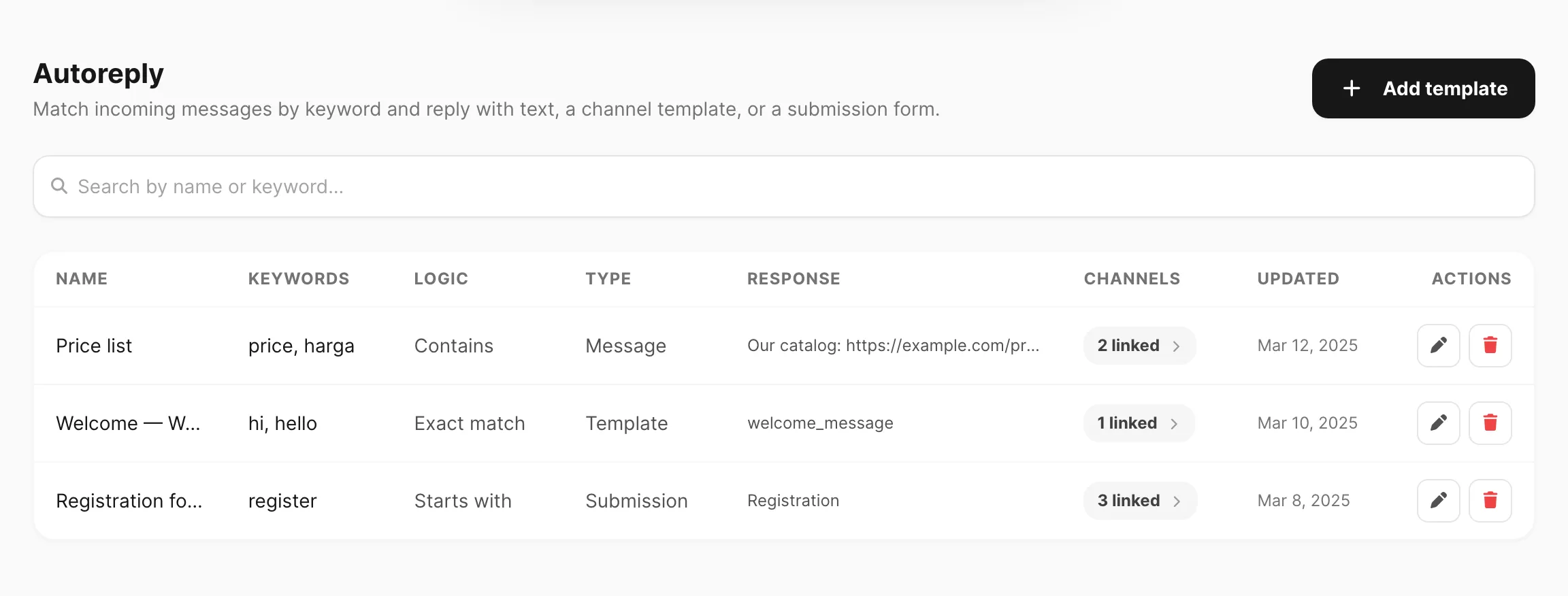
Contoh data ditampilkan.
Daftar template
| Kolom / kontrol | Fungsi |
|---|---|
| Add template | Membuka editor untuk membuat aturan keyword baru. |
| Search by name or keyword… | Memfilter daftar (minimal 3 karakter). |
| Name | Label opsional untuk referensi Anda — pencocokan tetap memakai Keywords. |
| Keywords | Frasa pemicu (dipisahkan koma di tabel jika ada beberapa). |
| Logic | Cara pesan masuk dibandingkan dengan keyword. |
| Type | Message, Template, atau Submission. |
| Response | Pratinjau teks balasan, nama template, atau nama formulir submission. |
| Channels | Klik N linked untuk melihat device atau bot yang memakai template ini. |
| Updated | Waktu simpan terakhir. |
| Actions | Edit template atau Remove template. |
Buat atau edit template
Klik Add template atau edit baris yang ada.
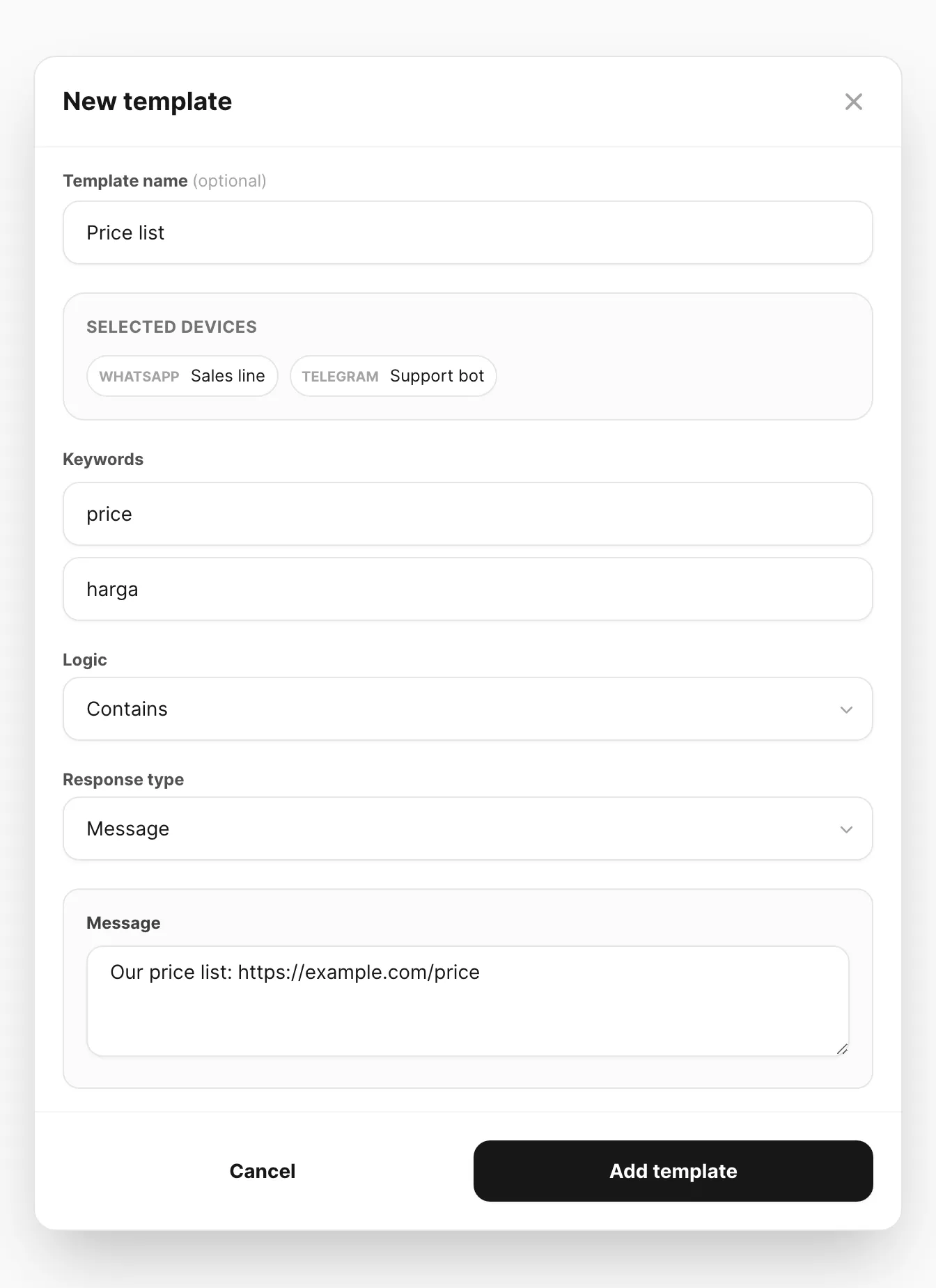
Contoh data ditampilkan.
1. Name (opsional)
Label singkat seperti Price list — membantu menemukan aturan di daftar. Keyword tetap mengontrol pencocokan.
2. Devices
Gunakan filter channel (WhatsApp, Telegram, atau WABA), cari, dan pilih satu atau lebih device atau bot. Gunakan All atau All filtered untuk menautkan banyak sekaligus.
Template yang sama dapat menargetkan beberapa channel. Untuk tipe respons Template, ganti filter channel untuk mengonfigurasi template WhatsApp, Telegram, atau WABA secara terpisah.
3. Keywords
Tambahkan satu keyword per field. Salah satu keyword dalam daftar dapat memicu aturan.
Klik Add keyword untuk pemicu lain (misalnya price dan harga).
4. Logic
| Logic | Cocok ketika |
|---|---|
| Exact match | Seluruh pesan sama dengan keyword (trim, case-insensitive). |
| Contains | Pesan menyertakan keyword di mana saja. |
| Starts with | Pesan diawali keyword. |
| Ends with | Pesan diakhiri keyword. |
Letakkan aturan spesifik di atas yang umum — Kirisan mengevaluasi template sesuai urutan daftar dan kecocokan pertama menang.
5. Response type
| Type | Yang Kirisan kirim |
|---|---|
| Message | Teks biasa, dengan lampiran gambar opsional dari unggahan atau Files. Teks yang sama ke semua device tertaut. |
| Template | Template tersimpan dari Channel → channel → Templates. Pilih template per channel ketika device mencakup WhatsApp, Telegram, dan WABA. |
| Submission | Memulai formulir submission — pertanyaan berjalan sebagai sesi chat di sisi pengirim. |
Klik Add template (atau Save changes) untuk menerapkan.
Aktifkan autoreply di device
Template keyword hanya berjalan ketika device dalam mode Autoreply:
- Buka Channel → WhatsApp → Devices, Channel → Telegram → Devices, atau Channel → WABA → Devices.
- Edit device.
- Di bawah On incoming message, pilih Autoreply (bukan Flow, Spreadsheet, atau Webhook).
- Simpan.
| Mode | Perilaku |
|---|---|
| Autoreply | Cocokkan template keyword di halaman ini. |
| Flow | Jalankan alur percakapan tertaut. |
| Spreadsheet | Cocokkan baris dari Google Sheet tertaut. |
| Webhook | Teruskan ke webhook saja — tanpa autoreply, flow, atau spreadsheet. |
Hanya satu mode aktif per device sekaligus.
Channel yang didukung
Template autoreply mendukung WhatsApp, Telegram, dan WABA. Email masuk tidak ditangani di sini — gunakan log email dan alur email Anda.
Tips
- Uji dengan telepon atau akun kedua sebelum menautkan line produksi.
- Gunakan Template untuk WABA ketika Meta memerlukan pesan template disetujui di luar jendela 24 jam.
- Pasangkan tipe respons Submission dengan formulir di Autoreply → Submission, lalu tinjau sesi di Answer (Submissions).
- Untuk FAQ berbasis sheet tanpa aturan dashboard, gunakan mode Spreadsheet.
Terkait
- Submissions — formulir multi-pertanyaan dipicu keyword
- Flow — pohon percakapan multi-langkah
- Spreadsheet — lookup keyword Google Sheet
- Webhooks — teruskan event masuk ke server Anda