Pengiriman terjadwal
Buka Send → Schedule di sidebar.
Kegunaan halaman ini
Scheduled sends mencantumkan pesan sekali yang Anda antrekan dari Send → Send dengan timing Schedule. Setiap baris adalah satu penerima (atau satu target multi-channel gabungan) yang diatur untuk keluar pada tanggal dan waktu mendatang.
Halaman ini bukan tempat campaign bulk muncul. Jika Anda menyimpan campaign dengan waktu mulai, lacak di Send → Campaign.
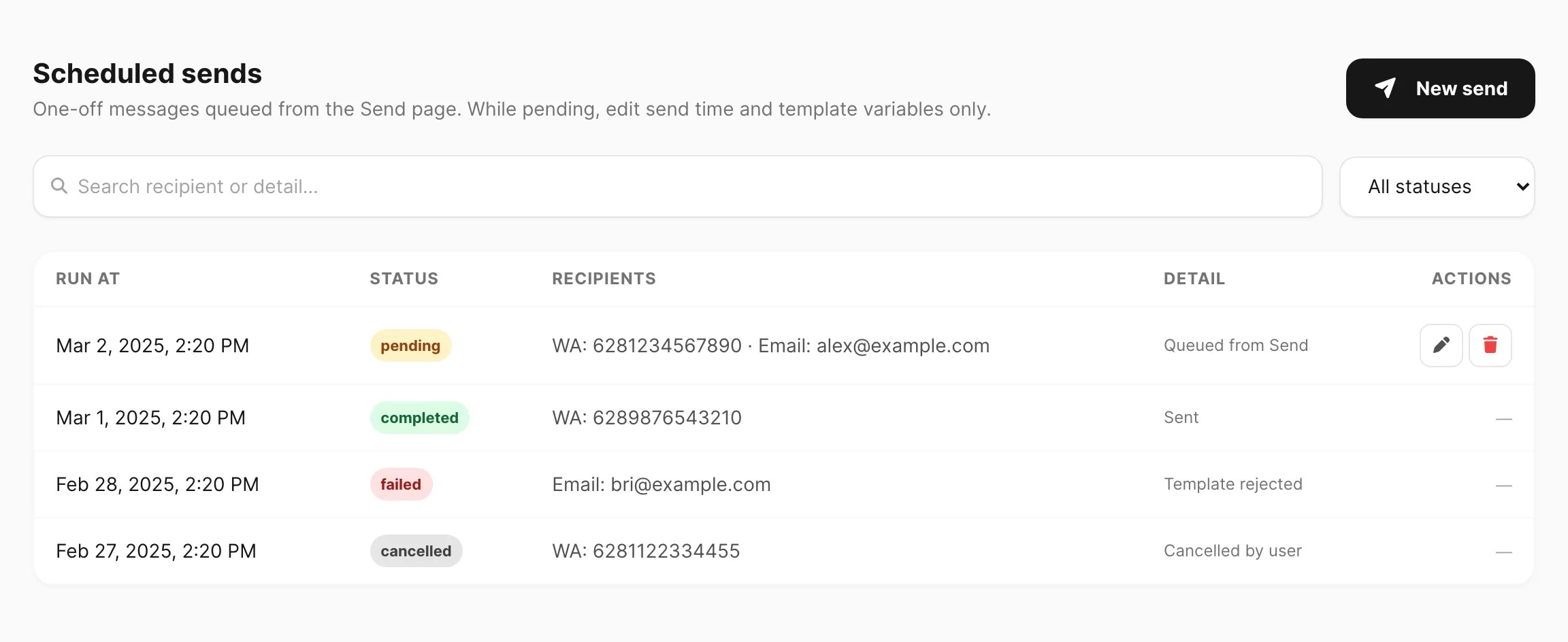
Contoh data ditampilkan.
Jadwalkan pengiriman sekali
- Buka Send → Send.
- Biarkan nama Campaign kosong — entri antrean terjadwal hanya untuk pengiriman tunggal.
- Aktifkan channel, pilih pengirim dan template, dan pilih target (Input atau satu Contact).
- Di langkah 4 (Timing), klik Schedule (bukan Now atau Recurring).
- Atur Date dan Time.
- Klik Send. Kirisan mengantre job dan mengonfirmasi bahwa job dijadwalkan.
Pesan muncul di Send → Schedule dengan status Pending sampai waktu run.
Untuk langkah layar Send lengkap, lihat Kirim pesan.
Scheduled sends vs scheduled campaigns
| Send → Schedule (halaman ini) | Send → Campaign | |
|---|---|---|
| Dibuat dari | Send → Send tanpa nama Campaign | Send → Send dengan Title, lalu Save Campaign |
| Penerima | Satu target per baris | Banyak penerima per kampanye |
| Timing diatur di | Langkah 4 Send → Schedule | Langkah 4 Send → Schedule, Now, atau Recurring |
| Dikelola di sini | Ya — daftar ini | Tidak — buka halaman detail kampanye |
| Edit saat menunggu | Waktu kirim + variabel template | Jadwal dan delay di detail kampanye (draft/paused) |
Daftar jadwal
| Kontrol / kolom | Fungsi |
|---|---|
| New send | Membuka Send → Send untuk mengantre pesan lain. |
| Search recipient or detail… | Filter menurut teks penerima atau detail (minimum 3 karakter). |
| All statuses | Dropdown filter — Pending, Processing, Completed, Failed, atau Cancelled. |
| Run at | Tanggal dan waktu lokal saat Kirisan akan mencoba pengiriman. |
| Status | Status job saat ini (lihat Status values di bawah). |
| Recipients | Ringkasan target yang diantre (misalnya WA: 628… · Email: user@…). |
| Detail | Catatan singkat setelah diproses, atau konteks antrean saat pending. |
| Actions | Edit dan Cancel hanya untuk baris Pending. |
Paginasi muncul di bagian bawah jika baris Anda lebih dari satu halaman.
Edit jadwal pending
Klik Edit schedule (ikon pena) pada baris Pending.
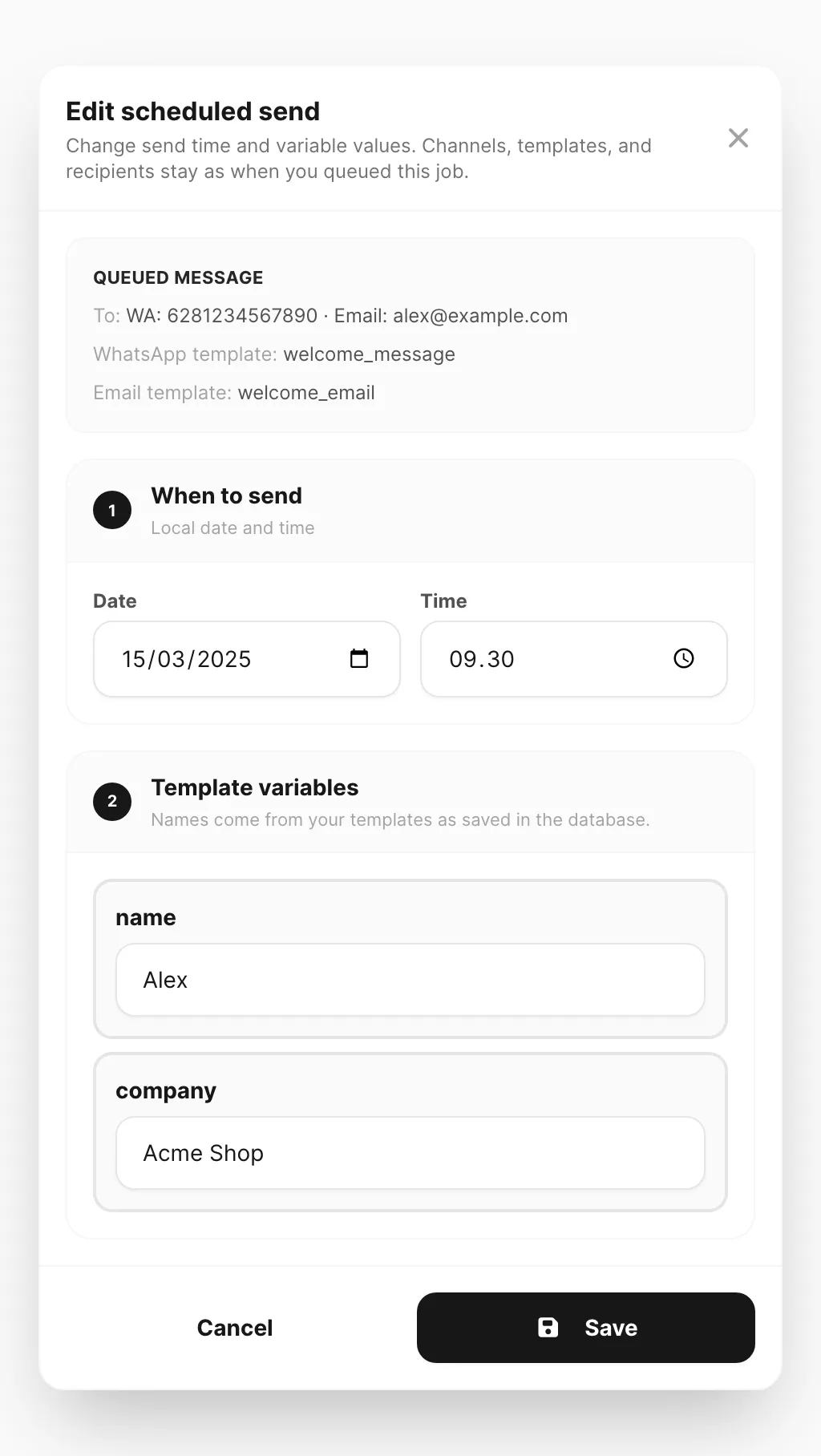
Contoh data ditampilkan.
Anda bisa mengubah:
| Bagian | Dapat diedit? |
|---|---|
| When to send — tanggal dan waktu | Ya — harus tetap di masa depan. |
| Template variables | Ya — nilai untuk placeholder seperti {{name}}. |
| Channel, template, penerima | Tidak — dibekukan sejak Anda mengantre job. |
Kotak Queued message menampilkan penerima dan nama template sebagai referensi. Jika template dihapus sejak Anda menjadwalkan pengiriman, modal menampilkan peringatan — batalkan dan buat pengiriman baru dari Send → Send jika Anda perlu template berbeda.
Klik Save untuk menerapkan perubahan, atau Cancel untuk menutup tanpa menyimpan.
Batalkan jadwal pending
Klik Cancel schedule (ikon sampah) pada baris Pending, lalu konfirmasi. Status menjadi Cancelled dan pesan tidak akan dikirim.
Anda tidak bisa membatalkan atau mengedit baris yang sudah Processing, Completed, atau Failed.
Status values
| Status | Arti |
|---|---|
| Pending | Menunggu waktu Run at. Dapat diedit dan dibatalkan. |
| Processing | Kirisan sedang mengirim sekarang. |
| Completed | Terkirim dengan sukses (periksa Logs → History atau log channel). |
| Failed | Pengiriman gagal saat run — baca Detail untuk alasan. |
| Cancelled | Anda membatalkan sebelum dijalankan. |
Setelah pengiriman terjadwal dijalankan
Job completed atau failed tetap di daftar sebagai referensi. Pesan aktual juga muncul di:
- Logs → History — aktivitas lintas channel
- Layar Logs channel — log pengiriman dengan filter status dan pratinjau
Tips
- Konfirmasi device atau pengirim target masih terhubung sebelum waktu Run at.
- Untuk WhatsApp dan WABA, pastikan template tetap Approved — template ditolak menyebabkan Failed saat pengiriman.
- Untuk menjadwalkan pengiriman bulk dengan banyak penerima, gunakan campaign dengan timing Schedule alih-alih halaman ini.
- Pengiriman Recurring hanya untuk kampanye — lihat Kirim pesan — Recurring campaigns.
Terkait
- Kirim pesan — susun dan antre pengiriman sekali terjadwal
- Campaigns — pengiriman bulk dan kampanye terjadwal
- Ringkasan dashboard — panel scheduled queue di beranda