Kirim pesan
Buka Send → Send di sidebar.
Untuk apa halaman ini
Layar Send dipakai untuk menyusun pesan keluar WhatsApp, Email, Telegram, dan WABA. Pakai untuk:
- Satu penerima — kirim sekarang atau jadwalkan satu pesan.
- Banyak penerima — masukkan campaign name, pilih target massal (CSV, spreadsheet, kontak, grup, atau grup WhatsApp), lalu klik Save Campaign untuk mengantre pengiriman yang terlacak.
Halaman disusun dalam empat langkah bernomor: Campaign name, Channels, Target, dan Timing.
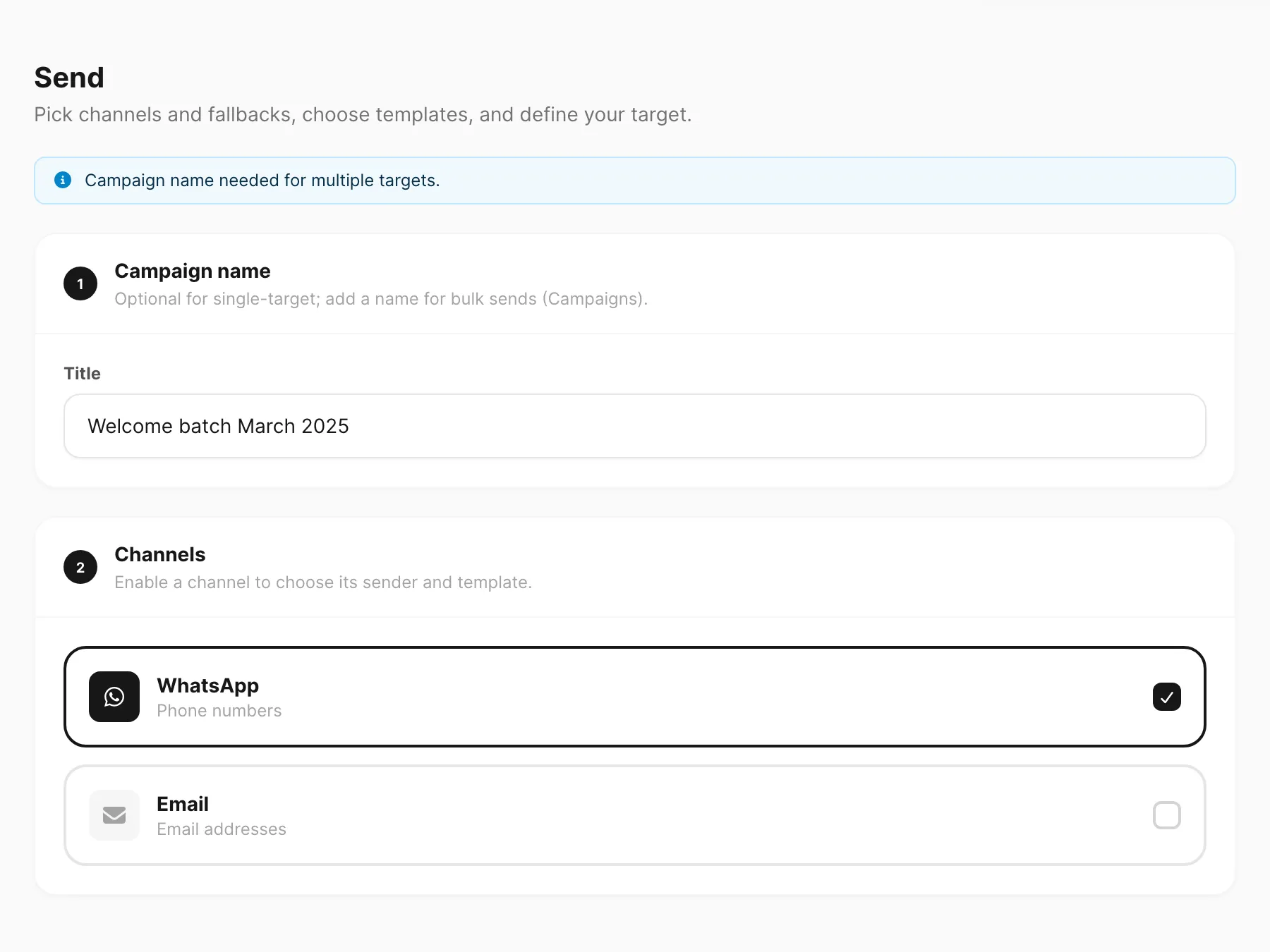 Contoh data ditampilkan.
Langkah 1 — Campaign name
| Kontrol | Fungsi |
|---|---|
| Title | Opsional untuk satu penerima. Wajib untuk target bulk (CSV, spreadsheet, beberapa kontak, grup, atau beberapa grup WhatsApp). Campaign tersimpan muncul di Send → Campaign. |
Catatan biru di atas mengingatkan bahwa nama Campaign wajib untuk beberapa target.
Langkah 2 — Channels
Aktifkan satu atau lebih channel. Setiap channel yang diaktifkan mekar untuk menampilkan Send from, Template, dan pengaturan fallback opsional.
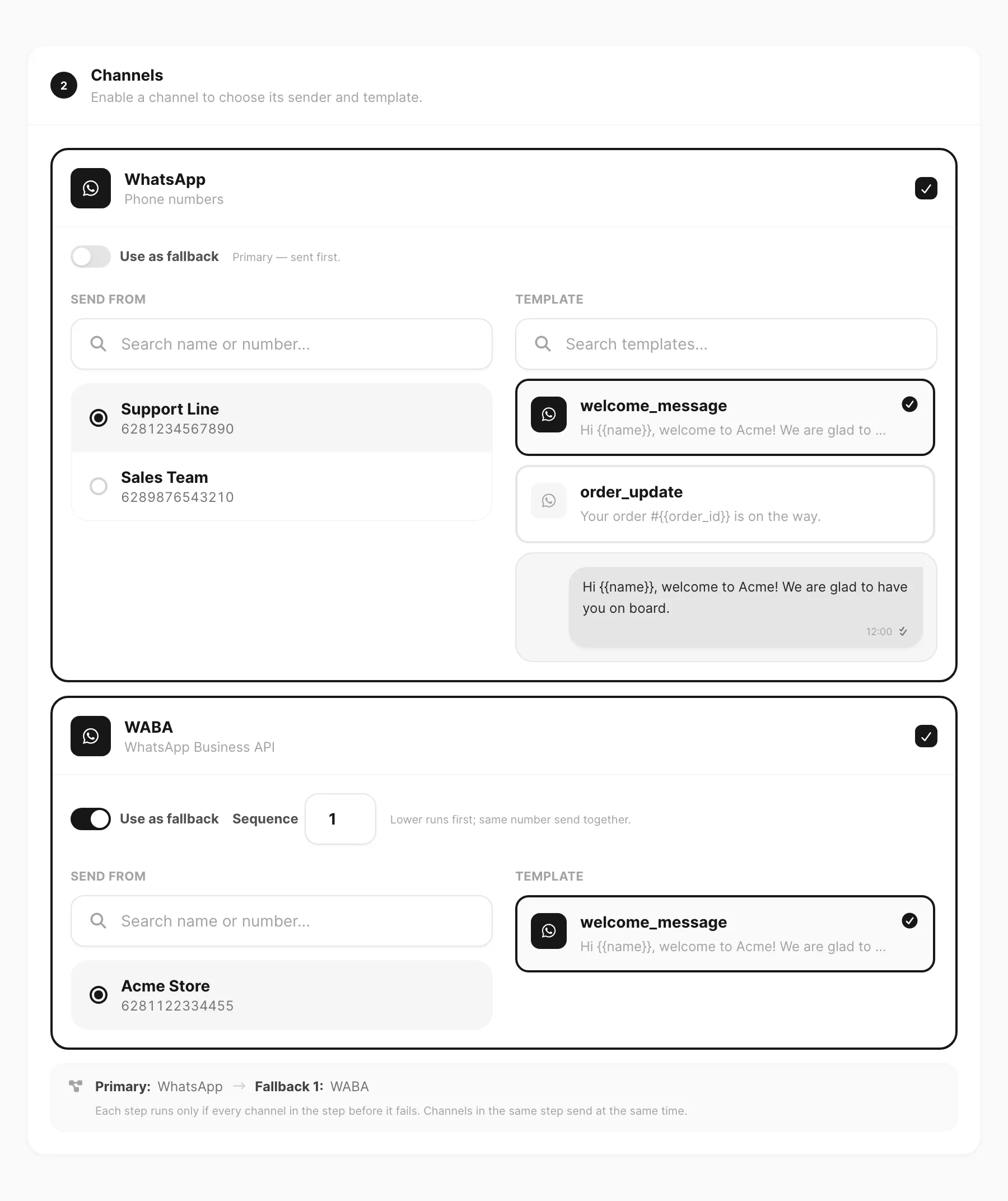 Contoh data ditampilkan.
| Kontrol | Fungsi |
|---|---|
| Baris channel (WhatsApp, Email, Telegram, WABA) | Nyalakan atau matikan channel. Awalnya semua mati — pilih hanya yang Anda butuhkan. |
| Use as fallback | Saat aktif, channel tersebut masuk tier fallback alih-alih tier primary. Channel primary dikirim dulu. |
| Sequence | Urutan tier fallback. Angka lebih kecil dijalankan dulu; channel dengan sequence sama dikirim bersamaan. |
| Send from | Daftar device yang bisa dicari, bot, atau pengirim email terhubung untuk channel tersebut. |
| Template | Daftar template aktif dan disetujui yang bisa dicari. Klik baris untuk memilih; pratinjau muncul di bawah. Email di halaman ini selalu memakai template (jenis transactional atau marketing). Email tanpa template hanya lewat Send API. |
| Ringkasan cascade | Menampilkan urutan Primary → Fallback 1 → Fallback 2. Tier fallback hanya dijalankan jika setiap channel di tier sebelumnya gagal. |
Contoh fallback
- WhatsApp — primary (fallback off)
- WABA — fallback, sequence 1
- Telegram — fallback, sequence 1 (dikirim bersama WABA jika WhatsApp gagal)
- Email — fallback, sequence 2 (hanya dijalankan jika WhatsApp, WABA, dan Telegram semua gagal)
Channel dalam sequence fallback yang sama dikirim paralel.
Langkah 3 — Target
Pilih siapa yang menerima pesan. Opsi tersedia bergantung pada apakah Anda memasukkan nama Campaign dan apakah timing diatur ke Recurring.
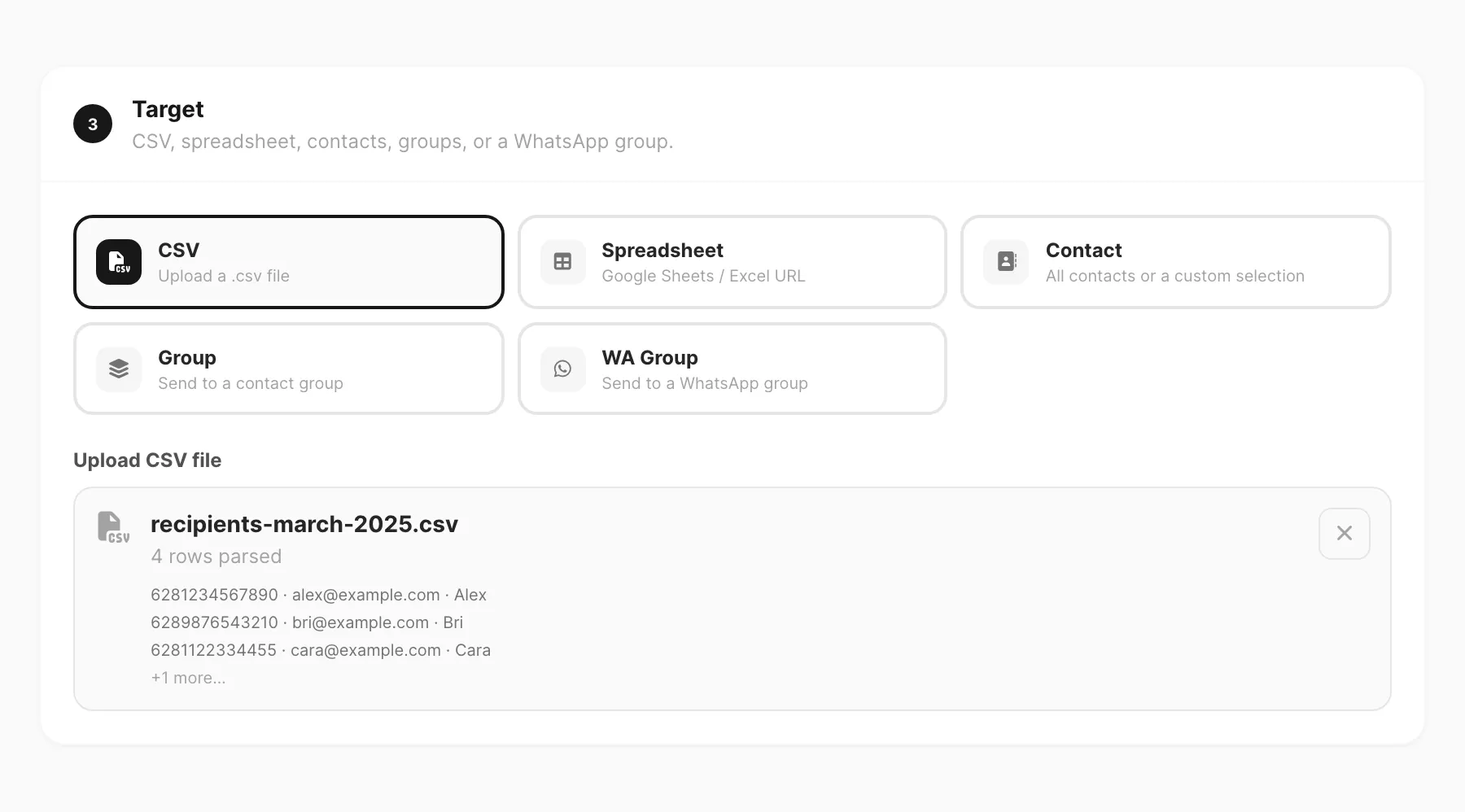 Contoh data ditampilkan.
Tipe target
| Target | Terbaik untuk | Catatan |
|---|---|---|
| Input | Pengiriman uji sekali | Satu telepon, email, chat ID, atau nomor WABA per channel yang diaktifkan. |
| CSV | Daftar penerima diunggah | Unggah file .csv. Memerlukan nama Campaign. |
| Spreadsheet | Google Sheets atau URL CSV | Tempel sheet yang dipublikasikan atau tautan CSV langsung. Memerlukan nama Campaign. |
| Contact | Kontak direktori | Satu kontak tanpa nama Campaign; All contacts atau multi-select dengan nama Campaign. |
| Group | Grup kontak dashboard | Semua anggota grup. Hanya kampanye. |
| WA Group | Obrolan grup WhatsApp | Satu grup untuk pengiriman tunggal; beberapa grup dengan nama Campaign. WhatsApp harus satu-satunya channel yang diaktifkan. |
Target mana yang muncul kapan
| Mode | Target tersedia |
|---|---|
| Tanpa nama Campaign | Input, Contact (satu), CSV, Spreadsheet, Group, WA Group (satu, WhatsApp-only) |
| Nama Campaign, kirim Now atau Schedule | CSV, Spreadsheet, Contact, Group, WA Group |
| Nama Campaign, Recurring | Spreadsheet, Group, Contact (all atau selected) |
Kolom CSV dan spreadsheet
Kolom bergantung pada channel yang Anda aktifkan:
| Channel diaktifkan | Nama kolom |
|---|---|
phone | |
email | |
| Telegram | telegram |
| WABA | waba |
| Opsional (semua mode) | name — dipakai sebagai variabel template |
Untuk Spreadsheet, gunakan Google Sheet yang dipublikasikan ke web atau URL CSV langsung dengan header kolom yang sama.
Langkah 4 — Timing
| Kontrol | Fungsi |
|---|---|
| Now | Kirim segera (satu penerima) atau mulai antrean kampanye langsung. |
| Schedule | Pilih Date dan Time untuk pengiriman mendatang. Tanpa nama Campaign, klik Send untuk mengantre job sekali di Send → Schedule. Dengan nama Campaign, klik Save Campaign — kampanye muncul di Send → Campaign dengan status Scheduled. |
| Recurring | Hanya kampanye. Atur tanggal/waktu mulai dan ulangi setiap N menit, jam, hari, minggu, bulan, atau tahun. Membatasi target ke Spreadsheet, Group, atau Contact (all atau selected). |
| Delay between recipients | Hanya kampanye. Jeda opsional (0–3600 detik) sebelum setiap penerima. Min dan max sama = delay tetap; nilai berbeda = delay acak dalam rentang tersebut. |
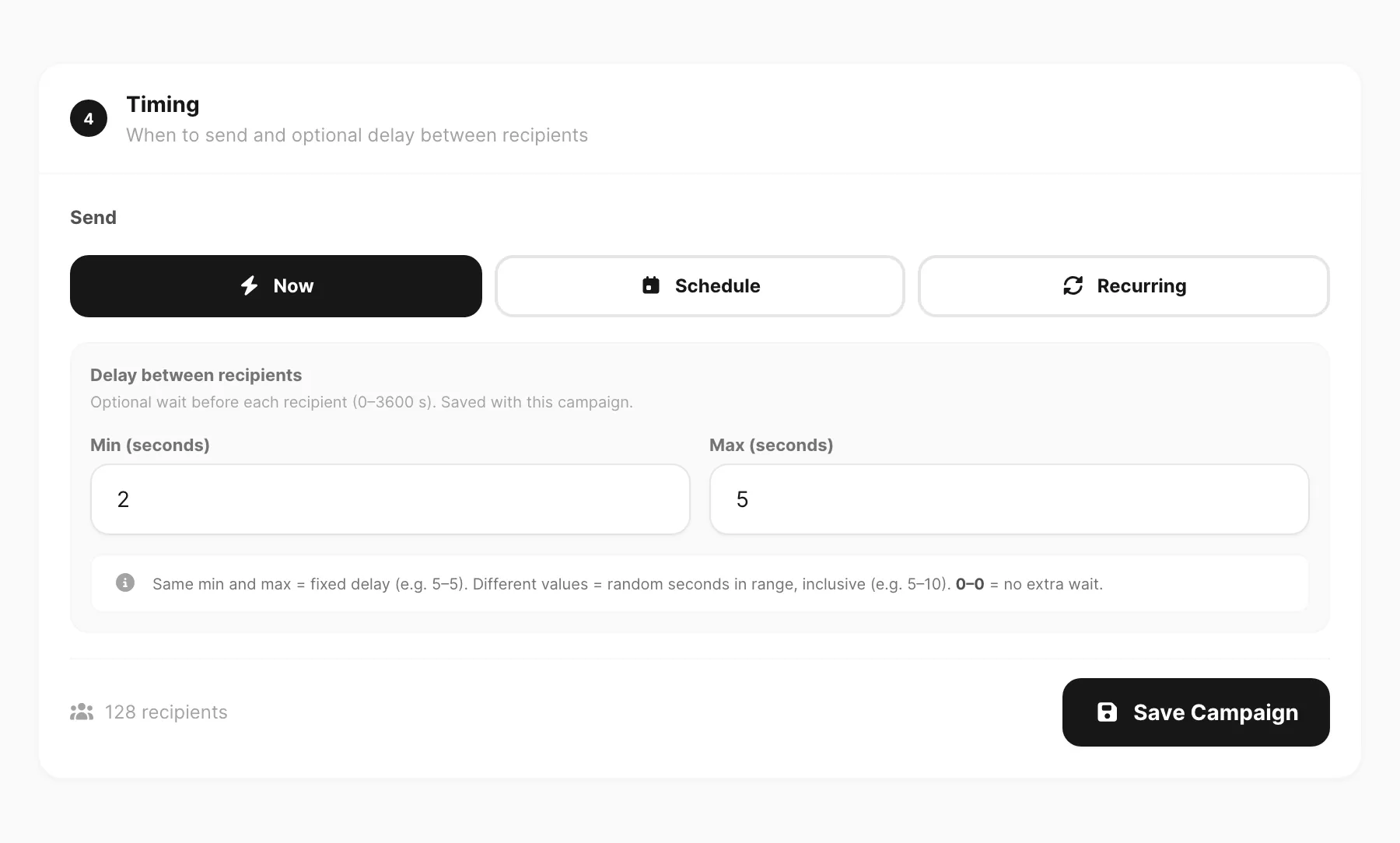 Contoh data ditampilkan.
Footer menampilkan jumlah penerima dan tombol aksi:
| Tombol | Kapan muncul |
|---|---|
| Send | Tanpa nama Campaign — satu penerima. |
| Save Campaign | Nama Campaign dimasukkan — pengiriman bulk disimpan ke Send → Campaign. |
Recurring campaigns
Recurring adalah mode timing khusus kampanye. Gunakan saat pesan yang sama harus keluar pada interval tetap dan daftar penerima dapat berubah antar run — misalnya Google Sheet yang Anda perbarui mingguan, atau grup kontak yang bertambah seiring waktu.
Recurring tidak tersedia untuk pengiriman sekali (tanpa nama Campaign). Jika Anda menghapus nama Campaign saat Recurring dipilih, timing kembali ke Now.
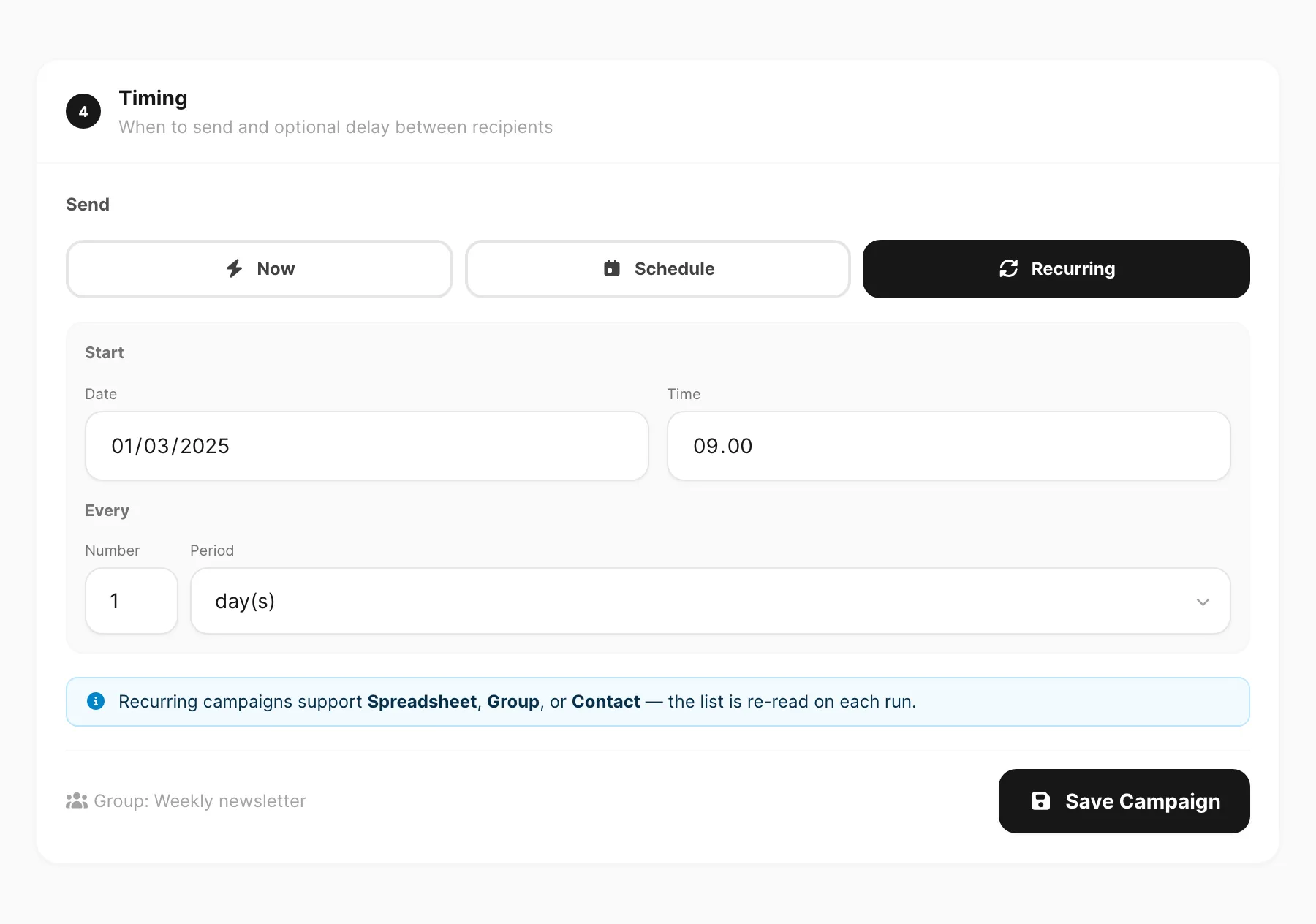
Contoh data ditampilkan.
Cara menyiapkan recurring
- Masukkan Title di langkah 1 (Campaign name).
- Konfigurasi Channels dan template seperti biasa.
- Di langkah 3 (Target), pilih Spreadsheet, Group, atau Contact (all contacts atau pilihan kustom) — tipe target lain disembunyikan saat Recurring dipilih.
- Di langkah 4 (Timing), klik Recurring (opsi ketiga, di samping Now dan Schedule).
- Atur Start — tanggal dan waktu untuk run pertama.
- Atur Every — angka dan periode: minute(s), hour(s), day(s), week(s), month(s), atau year(s).
- Opsional: atur Delay between recipients (sama seperti kampanye lain).
- Klik Save Campaign.
Apa yang terjadi setiap run
Saat kampanye recurring dijalankan, Kirisan membaca ulang sumber live:
| Target | Setiap run |
|---|---|
| Spreadsheet | Mengambil sheet atau URL CSV saat ini lagi — baris baru disertakan, baris yang dihapus dilewati. |
| Group | Memuat anggota saat ini dari grup kontak. |
| Contact | Memuat ulang All contacts atau daftar Selected Anda dari direktori. |
Setiap eksekusi adalah satu run. Setelah run selesai, kampanye menunggu sampai interval berikutnya, lalu memulai run lain dengan snapshot sumber yang segar. Lacak run di halaman detail kampanye.
Recurring vs Schedule
| Schedule | Recurring | |
|---|---|---|
| Run | Sekali, pada tanggal dan waktu yang dipilih | Berulang, setiap N menit/jam/hari/dll. |
| Target | CSV, spreadsheet, kontak, grup, grup WA | Spreadsheet, Group, atau Contact |
| Terbaik untuk | Blast sekali pada momen tertentu | Newsletter, daftar berbasis sheet, grup yang berubah |
Untuk pengiriman mendatang sekali ke satu penerima, biarkan nama Campaign kosong dan gunakan Schedule — kelola di Pengiriman terjadwal. Untuk blast bulk sekali pada momen tertentu, simpan kampanye dengan timing Schedule.
Template dan variabel
Template channel ada di Channel → channel → Templates. Di body template:
{{name}}— nilai per template atau per penerima (diatur di editor atau diteruskan saat kirim)[[u-name]]— konstanta custom seluruh akun dari Resources → Variables → Custom[[date-…]]/[[time-…]]— token tanggal dan waktu bawaan
Lihat WhatsApp Templates — Variables untuk rincian lengkap.
Saat Input adalah target dan template Anda memakai variabel, isi field variabel yang ditampilkan di bawah input penerima sebelum mengirim.
Media di template — atur File URL di editor template (tautan HTTPS langsung atau {{variable}}). File name opsional — kosongkan dan Kirisan menambahkan ekstensi dari file.
WhatsApp location — pilih Location di editor template. Hanya latitude dan longitude yang dikirim; tidak ada pesan atau caption. Lihat WhatsApp Templates — Location.
Setelah mengirim
Setiap pesan muncul di:
- Logs → History — aktivitas lintas channel
- Layar Logs channel sendiri — log pengiriman dengan filter status dan pratinjau
Pengiriman gagal menampilkan status error agar Anda bisa mencoba lagi atau memperbaiki konfigurasi device. Kampanye tersimpan dibuka dari Send → Campaign dengan progres live dan status per penerima.
Terkait
- Campaigns — lacak dan audit pengiriman bulk tersimpan
- Pengiriman terjadwal — kelola antrean jadwal
- Send API — kirim secara programatik dengan
/v1/send(termasuk email tanpa template) - Email templates — Type transactional vs marketing
- API errors — baca kode status dan alasan kegagalan channel