Template WhatsApp
Buka Channel → WhatsApp → Templates.
Fungsi halaman ini
Buat pesan WhatsApp yang dapat digunakan kembali — teks, lampiran opsional, dan placeholder — lalu gunakan dari Send → Send, kampanye, jadwal, dan alur autoreply.
Anda memerlukan account token Fonnte di Channel → WhatsApp → Token sebelum halaman ini dimuat.
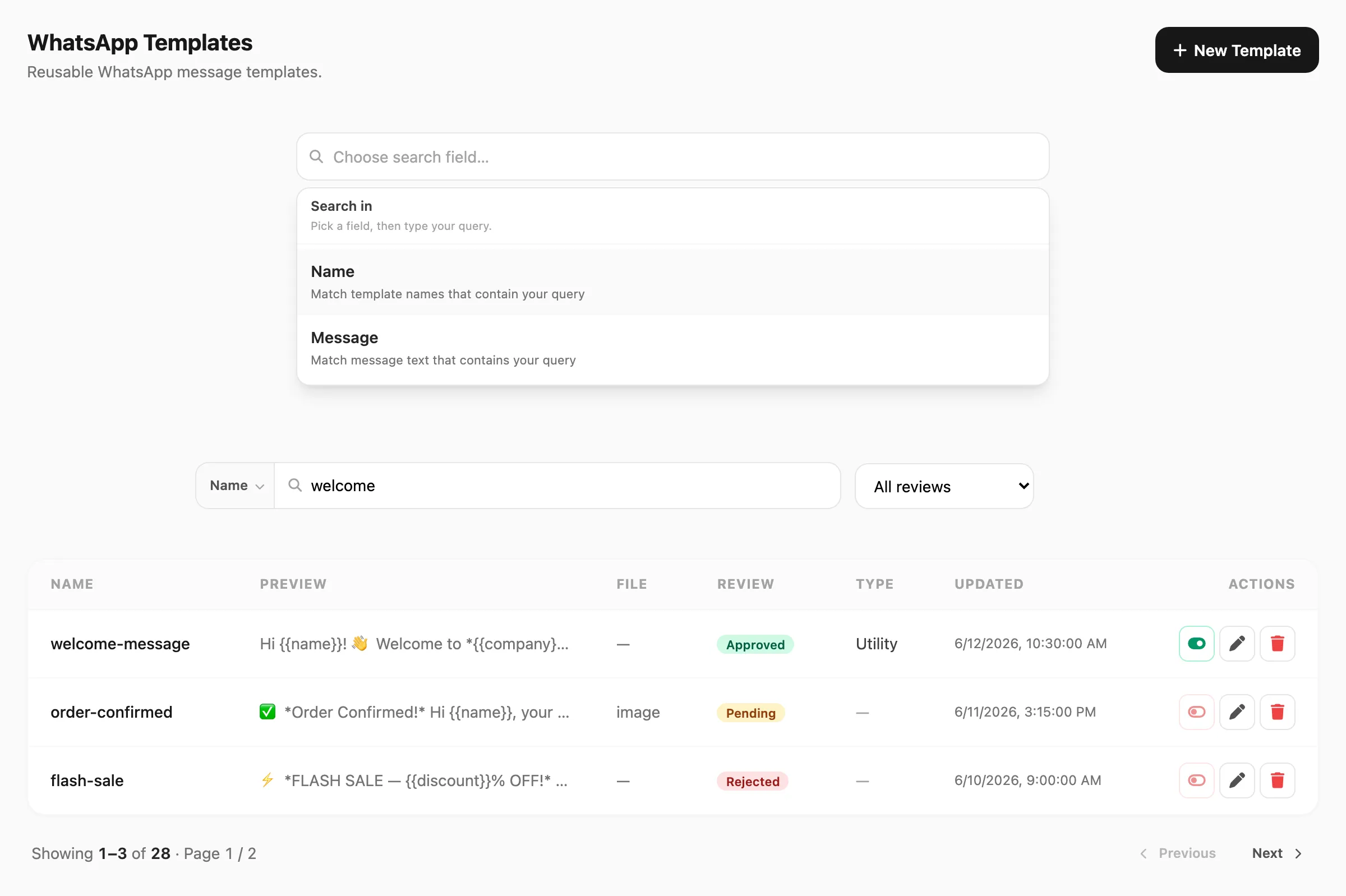
Data sampel ditampilkan.
| Kontrol header | Fungsi |
|---|---|
| New Template | Buka pemilih template, lalu editor |
| Back | Kembali ke daftar saat membuat atau mengedit |
Pencarian dan filter
Pencarian berbasis field — klik area pencarian terlebih dahulu, pilih kolom yang dicari, lalu ketik kueri Anda.
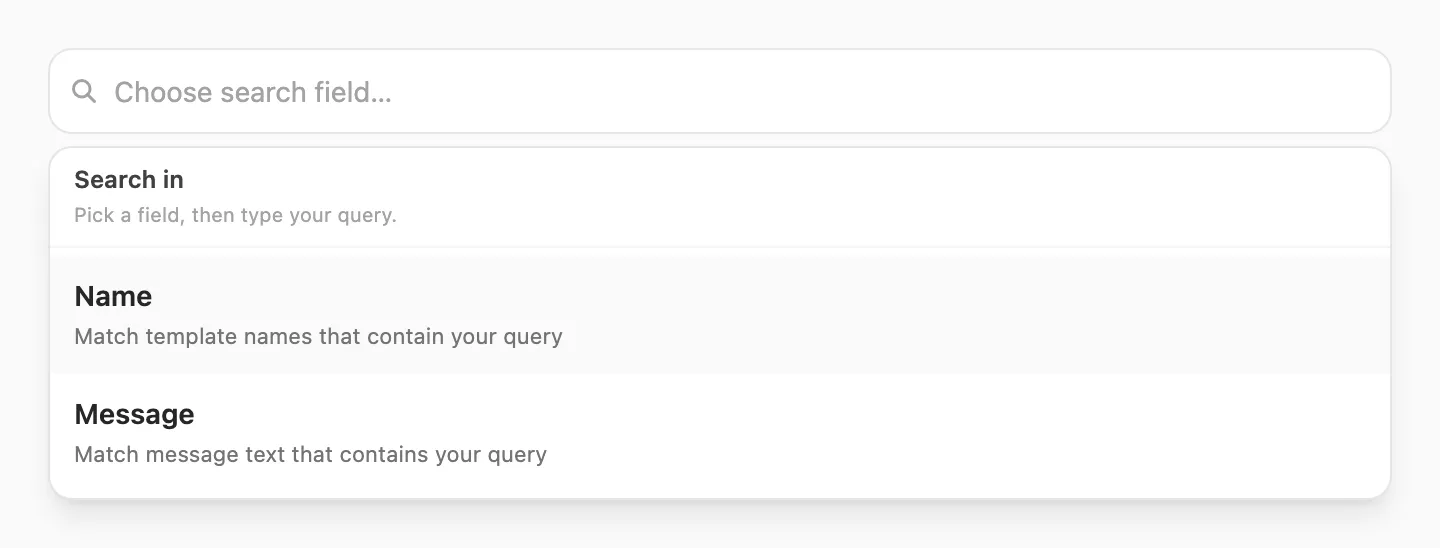
| Langkah | Yang terjadi |
|---|---|
| 1. Klik pencarian | Popup Search in terbuka — Anda harus memilih field sebelum mengetik |
| 2. Pilih field | Name atau Message |
| 3. Ketik | Kirisan memfilter tabel saat Anda mengetik (debounce singkat) |
Setelah Anda memilih field, bilah pencarian menampilkan nama field di kiri (misalnya Name ▼). Klik untuk mengganti field — mengganti field menghapus kueri.

| Field pencarian | Cocok dengan | Panjang minimum |
|---|---|---|
| Name | Nama template yang mengandung kueri Anda | 3 karakter |
| Message | Isi pesan yang mengandung kueri Anda | 3 karakter |
Jika Anda mengetik kurang dari tiga karakter, Kirisan menunggu hingga minimum terpenuhi dan menampilkan petunjuk singkat di bawah bilah pencarian.
Pada baris yang sama dengan pencarian (di kanan):
- Review — All reviews, Pending, Approved, atau Rejected
Daftar template
Setiap baris adalah satu template tersimpan:

| Kolom | Arti |
|---|---|
| Name | Pengenal yang Anda pilih (misalnya welcome-message) |
| Preview | Bagian pertama dari isi pesan |
| File | Tipe lampiran jika diatur (image, video, document, location), atau — |
| Review | Pending, Approved, atau Rejected — klik badge untuk membuka Template review (lihat Status review). Inactive muncul saat template dimatikan dan tidak bisa diklik |
| Type | Kategori yang ditetapkan setelah review (misalnya utility), atau — saat pending |
| Updated | Kapan template terakhir disimpan |
| Actions | Aktifkan/nonaktifkan, edit, atau hapus — lihat Aksi baris |
Paginasi di bawah tabel muncul jika hasil lebih dari satu halaman (misalnya Showing 1–25 of 28 · Page 1 / 2 dengan Previous dan Next).
Aksi baris
Tombol ikon berada di akhir setiap baris:
| Action | Fungsi | |
|---|---|---|
| Active toggle | Mengaktifkan atau menonaktifkan template **Approved**. Dinonaktifkan hingga review lulus — baris pending dan rejected tidak bisa diaktifkan. | |
| Edit | Membuka editor untuk template tersebut. | |
| Delete | Meminta konfirmasi, lalu menghapus template. |
Saat template dimatikan, toggle menampilkan merah (Inactive). Template yang disetujui dan aktif menampilkan hijau.
Buat template
- Klik New Template (atau Create your first template saat daftar kosong).
- Pilih tata letak awal atau Blank — lihat Pilih template awal.
- Masukkan Template name dan atur Active jika Anda ingin diaktifkan setelah disetujui.
- Tulis pesan (atau atur field Location / lampiran saja — lihat Editor pesan), tambahkan variabel jika diperlukan, dan periksa live preview.
- Klik Create Template. Kirisan meninjau konten; tombol menampilkan Reviewing… saat berjalan.
- Saat disetujui, template muncul di daftar dan Anda bisa menggunakannya di Send → Send dan tempat lain.
Pilih template awal
Pemilih menampilkan tata letak siap pakai yang dikelompokkan berdasarkan kategori:
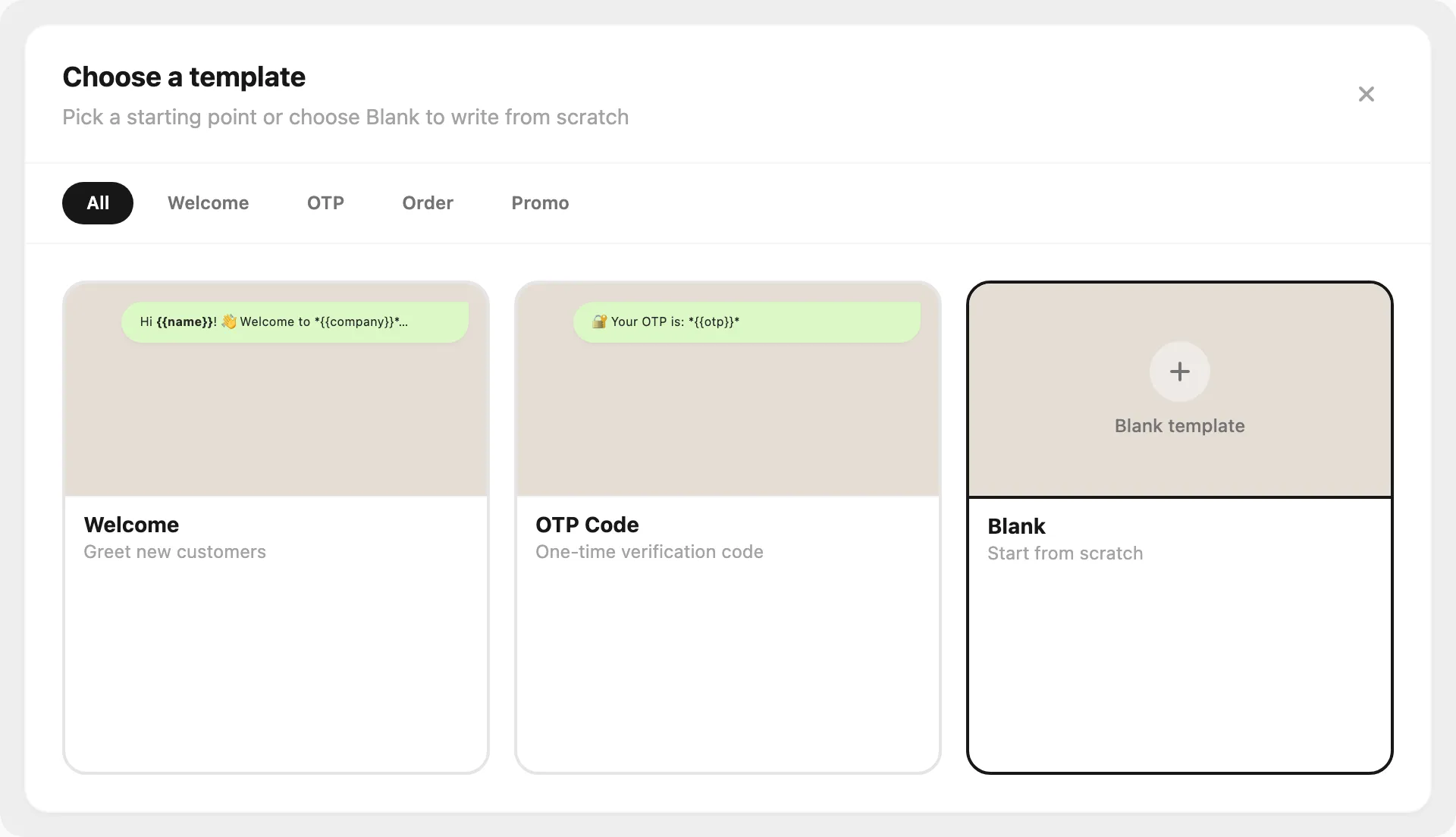
- Category tabs — filter berdasarkan Welcome, OTP, Order, Promo, dan lainnya, atau tetap di All
- Cards — masing-masing menampilkan pratinjau gaya WhatsApp; klik satu untuk memuatnya ke editor
- Blank — pesan kosong agar Anda bisa menulis dari awal
- Close () — kembali ke daftar tanpa membuat
Nama dan status aktif
Di bagian atas editor:
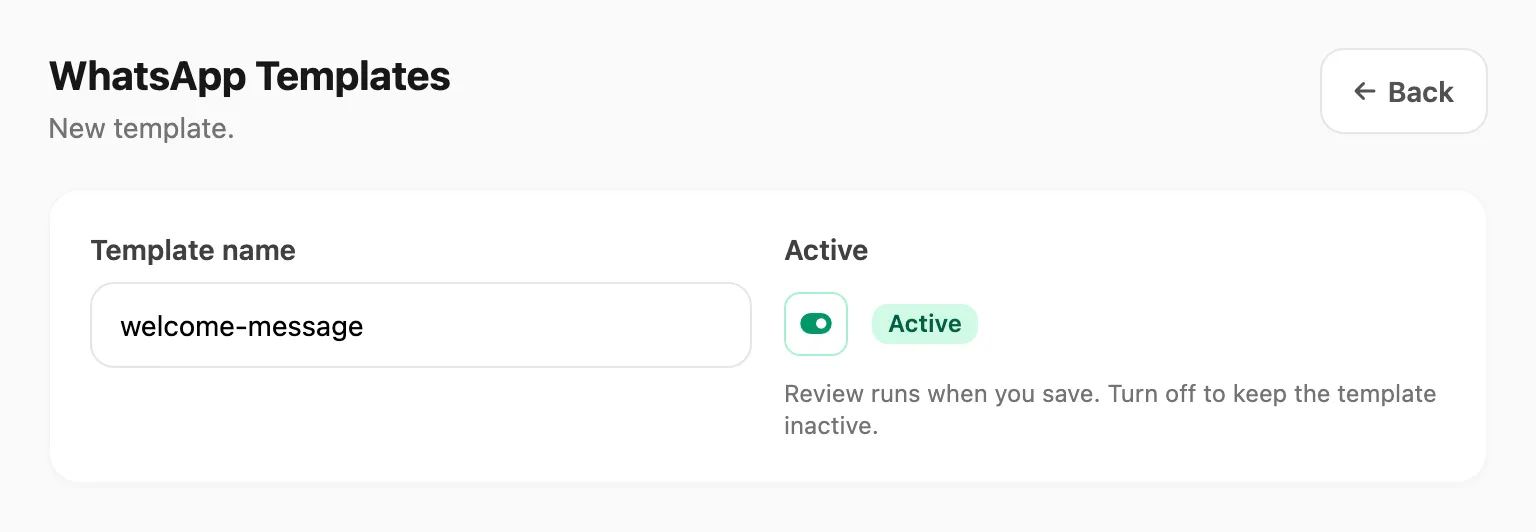
| Field | Arti |
|---|---|
| Template name | Nama bergaya id pendek (misalnya order-confirmed) |
| Active | Toggle aktif untuk mengaktifkan template setelah review lulus; nonaktif menyimpannya sebagai inactive. Toggle hijau = Active; toggle merah = Inactive. Template pending dan rejected tidak bisa diaktifkan dari daftar. |
Pada template baru, Kirisan menjalankan review saat Anda menyimpan. Jika template Rejected, buka Template review dari daftar (lihat Status review) — edit pesan dan simpan lagi untuk mengajukan ulang.
Editor pesan
Editor memiliki konten Anda di kiri dan Live Preview di kanan. Tangkapan layar di bawah menampilkan tata letak utama — hanya teks, gambar dengan caption, dan pin lokasi.
Lampiran
Pilih None, Image, Video, Document, atau Location.
Image, video, atau document
Saat tipe media dipilih, atur:
| Field | Yang dimasukkan |
|---|---|
| File URL | Tautan HTTPS publik ke file (misalnya https://cdn.example.com/photo.jpg). Harus dapat dijangkau Fonnte — bukan localhost atau IP privat. Tempel tautan langsung dan live preview memuatnya sebagai header gambar di atas gelembung. |
| File name | Nama tampilan opsional (misalnya invoice atau photo.jpg). Kosongkan dan Kirisan mendeteksi ekstensi sebenarnya dari URL saat pengiriman dan mengirimkannya ke Fonnte sebagai filename. |
Anda juga dapat menggunakan {{variable}} di File URL atau File name saat setiap penerima memerlukan tautan atau label berbeda. Saat pengiriman, Kirisan mengganti nilai dari Send → Send atau Send API, lalu mengirim URL yang diselesaikan. Untuk {{variables}} di File URL, isi example value di bawah Variables agar pratinjau dapat memuat gambar.
Field Message di bawah berfungsi sebagai caption saat media dilampirkan.
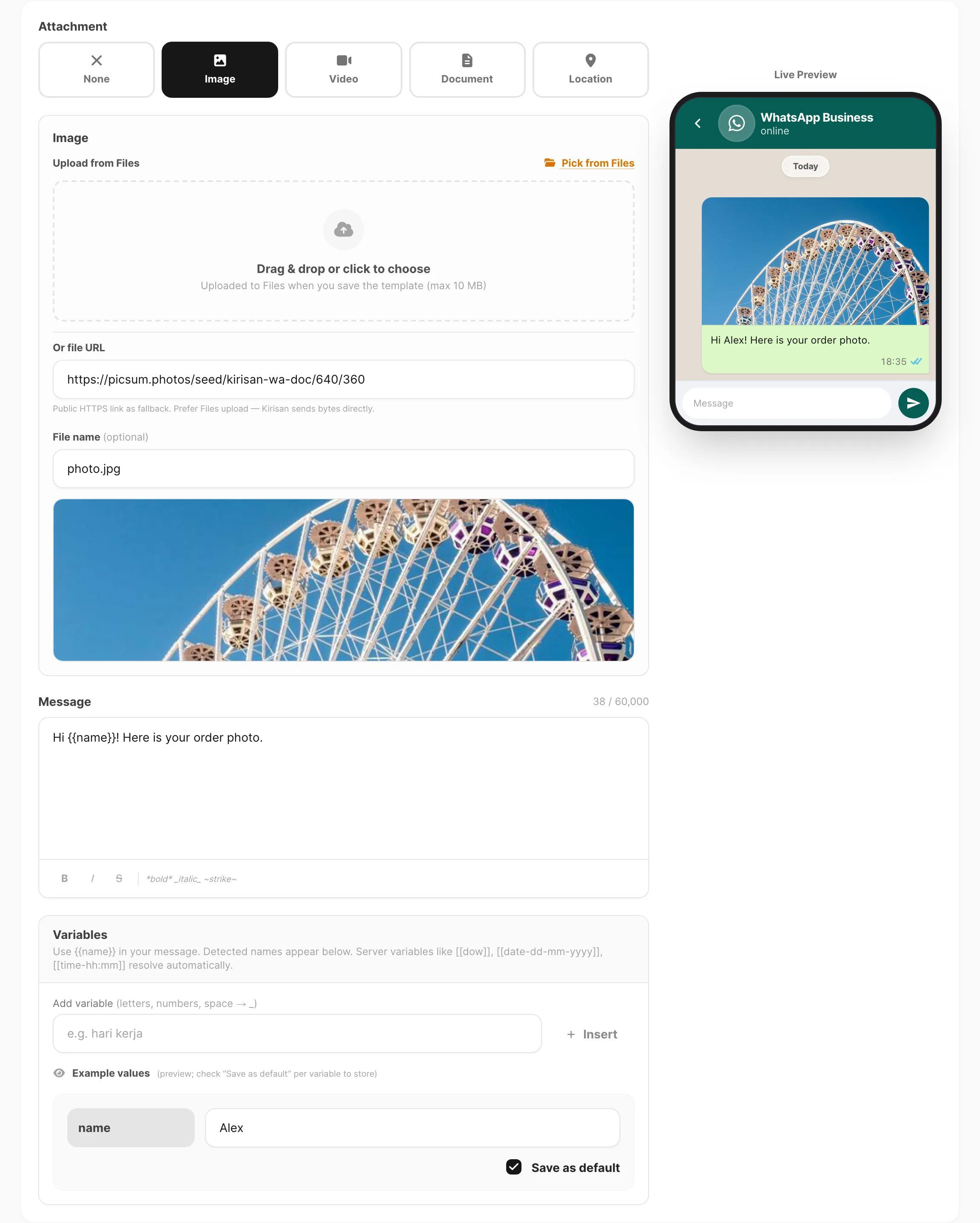
Data sampel ditampilkan.
Location
Pilih Location untuk mengirim pin peta saja — pesan lokasi WhatsApp tidak bisa menyertakan teks.
| Field | Yang dimasukkan |
|---|---|
| Latitude | Derajat desimal (WGS 84), misalnya -6.2088 |
| Longitude | Derajat desimal (WGS 84), misalnya 106.8456 |
Bagian Message dan Variables disembunyikan untuk template lokasi. Menyimpan menghapus teks pesan apa pun pada template. Saat pengiriman, hanya koordinat yang dikirim ke Fonnte.
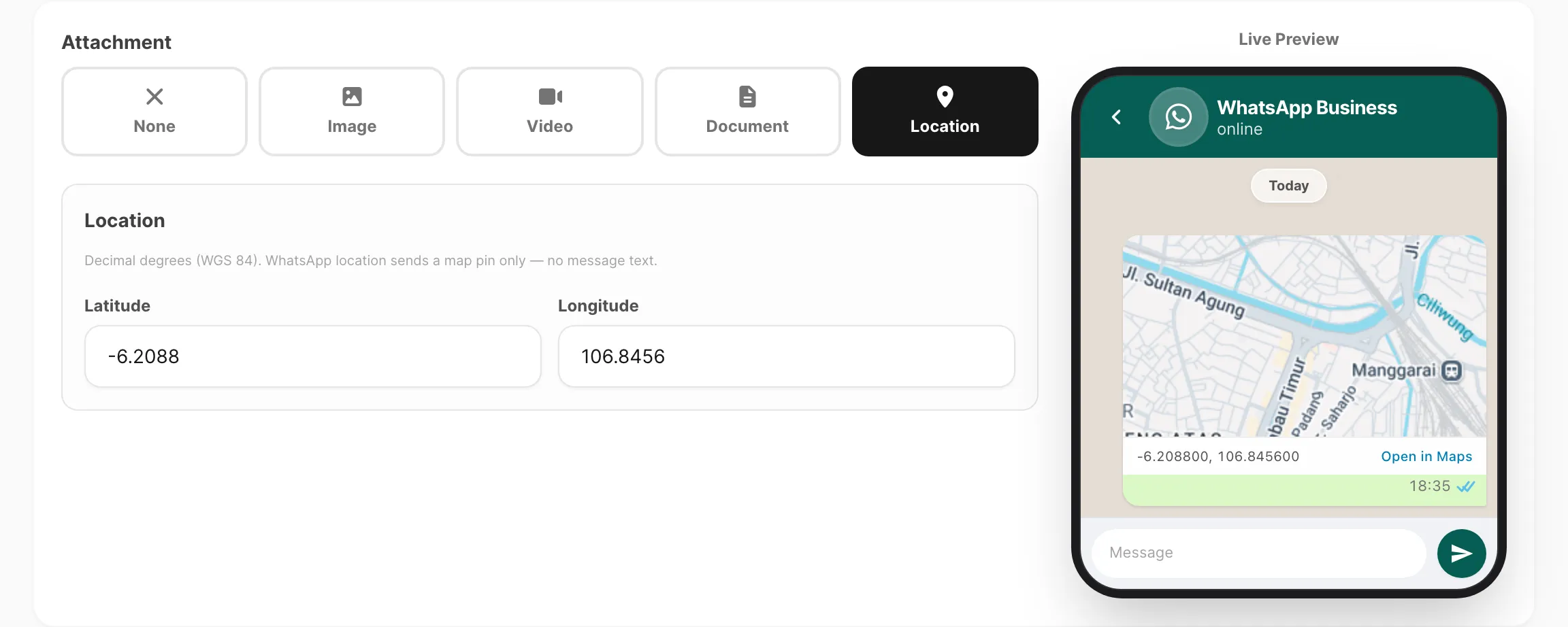
Data sampel ditampilkan.
Message
Ketik isi WhatsApp di kotak Message. Gunakan toolbar untuk pemformatan:
| Kontrol | Efek |
|---|---|
| B | Bungkus pilihan dengan * untuk bold |
| I | Bungkus dengan _ untuk italic |
| S | Bungkus dengan ~ untuk ~strikethrough~ |
Penghitung karakter menampilkan berapa banyak dari batas 60.000 karakter yang telah Anda gunakan.
Dengan None dipilih di bawah Attachment, hanya panel pesan dan variabel yang muncul — tanpa field file URL.
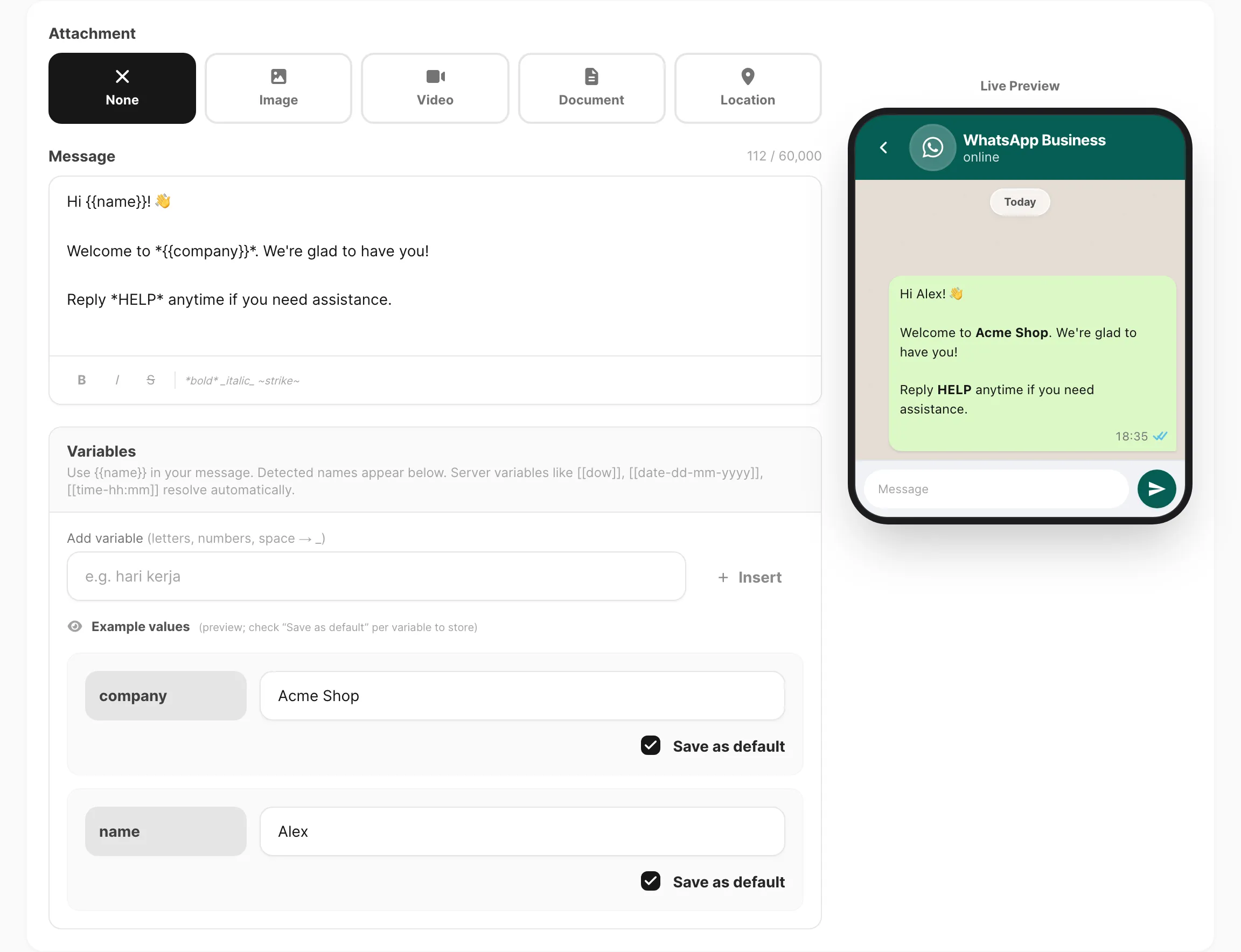
Data sampel ditampilkan.
Variables
Kirisan mendukung tiga gaya placeholder. Di editor, tambahkan di field Message (panel Variables tidak ditampilkan untuk template lokasi):
| Gaya | Contoh | Dari mana asalnya |
|---|---|---|
| Per pengiriman / per penerima | {{name}}, {{order_id}} | Gunakan Add variable / Insert, atau ketik {{name}} di field Message. Untuk media per penerima, Anda juga dapat memasukkan {{placeholders}} di File URL atau File name. Isi Example values untuk live preview; centang Save as default untuk menyimpan default hanya pada template ini. Saat pengiriman, Send → Send atau Send API dapat mengganti dengan nilai khusus penerima. |
| Server bawaan | [[date-dd-mm-yyyy]], [[time-hh:mm]], [[dow]] | Diselesaikan otomatis saat pengiriman. Lihat Resources → Variables → Time. |
| Kustom akun | [[u-support_phone]], [[u-promo_url]] | Didefinisikan sekali di Resources → Variables → Custom. Hanya variabel kustom aktif yang diganti; perbarui nilai di sana dan setiap template yang merujuk token tersebut mengambilnya pada pengiriman berikutnya. |
Contoh pesan yang mencampur ketiganya:
Hi {{name}}! Today is [[dow]], [[date-dd-mm-yyyy]].

Questions? WhatsApp [[u-support_phone]] or visit [[u-promo_url]].
{{…}} dan [[…]] tidak pernah bentrok — Anda bisa menggunakan keduanya dengan aman dalam teks yang sama.
Status review
Klik badge Pending, Approved, atau Rejected mana pun di kolom Review untuk membuka Template review:
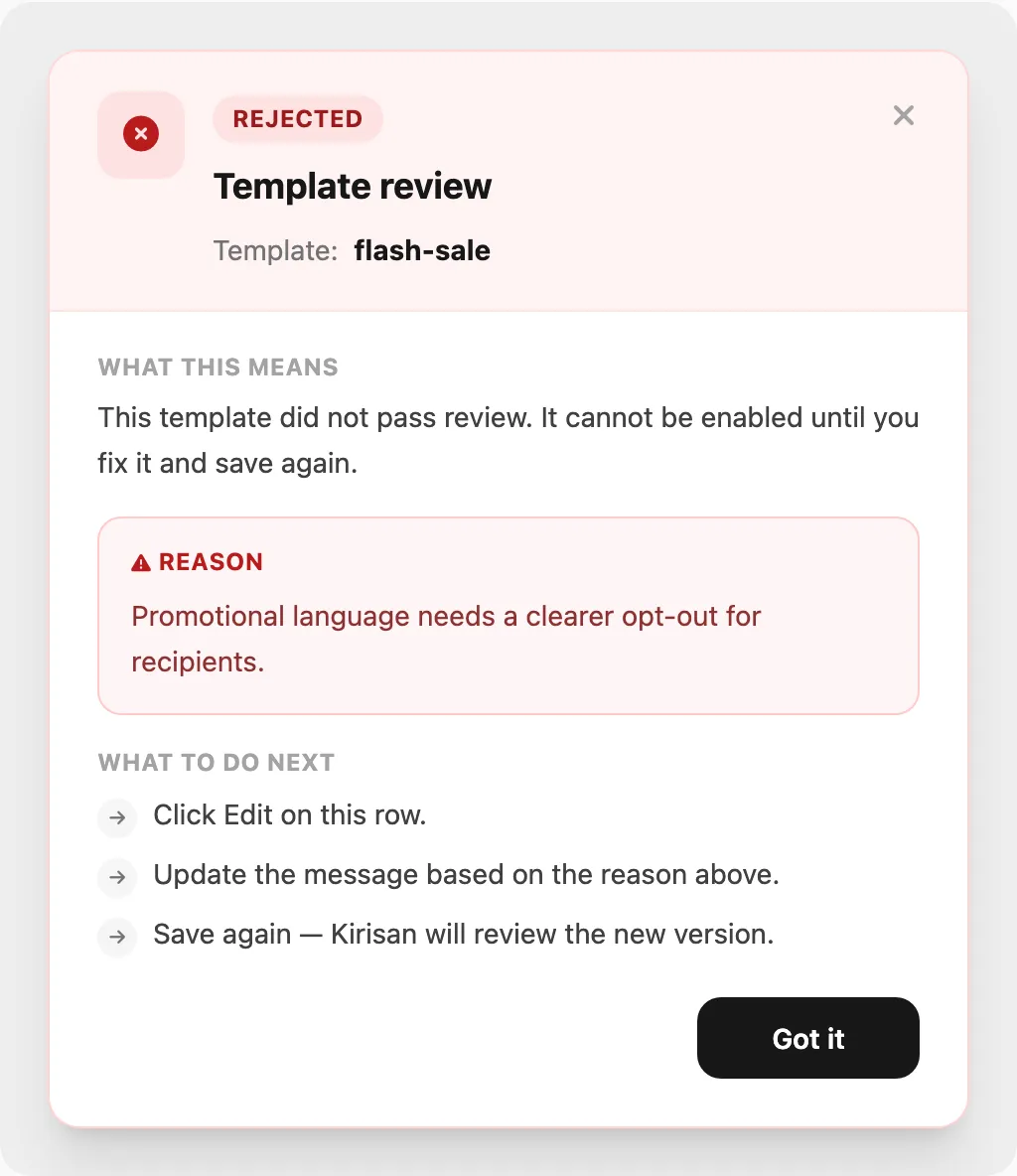
Sampel menampilkan template yang ditolak.
Popup mencakup:
| Bagian | Yang Anda lihat |
|---|---|
| Header | Badge status, nama template, dan tutup () |
| What this means | Ringkasan bahasa sederhana untuk status saat ini |
| Reason | Alasan penolakan lengkap (hanya template rejected) |
| What to do next | Langkah-langkah — edit dan simpan lagi, aktifkan toggle, atau tunggu review |
| Got it | Menutup popup |
| Status | Ringkasan |
|---|---|
| Pending | Kirisan sedang meninjau setelah simpan terakhir Anda — periksa kembali hingga status menjadi Approved |
| Approved | Lulus review — aktifkan toggle dan gunakan template dalam pengiriman (kategori ditampilkan saat ditetapkan) |
| Rejected | Tidak lulus — baca alasannya, klik Edit, perbaiki pesan, dan simpan untuk mengajukan ulang |
Menyimpan tanpa mengubah isi pesan melewatkan review baru. Ubah teks, nama, tipe lampiran, file URL, atau koordinat lokasi untuk memicu pemeriksaan lain.
Badge Inactive di samping badge review berarti template dimatikan — tidak bisa diklik.
Hapus template
Klik pada baris:
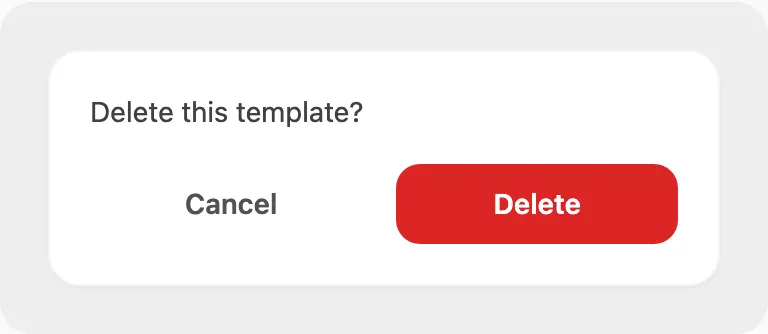
Konfirmasi untuk menghapus template. Pengiriman dan alur yang merujuknya perlu memilih template lain.
Di mana template digunakan
- Send → Send — pilih template saat menyusun pesan WhatsApp
- Campaigns and schedules — gunakan kembali template yang disetujui dalam pengiriman massal
- Autoreply and flows — node pesan dapat merujuk konten template
- Send API — kirim dengan id template dari integrasi Anda
Hanya template Approved dan Active yang tersedia di tempat Kirisan memfilter berdasarkan status.
Terkait
- Variables — placeholder bawaan dan kustom
[[u-…]] - Send messages — kirim menggunakan template
- Keyword autoreply — balas otomatis dengan teks template
- Devices — nomor WhatsApp yang mengirim pesan