Token WhatsApp
Buka Channel → WhatsApp → Token.
Fungsi halaman ini
Tautkan akun Fonnte Anda agar Kirisan dapat memuat dan mengelola device WhatsApp Anda di Devices.
Ini bukan sama dengan device token — token pengiriman per device yang ditampilkan pada setiap baris di Devices setelah nomor WhatsApp terhubung.
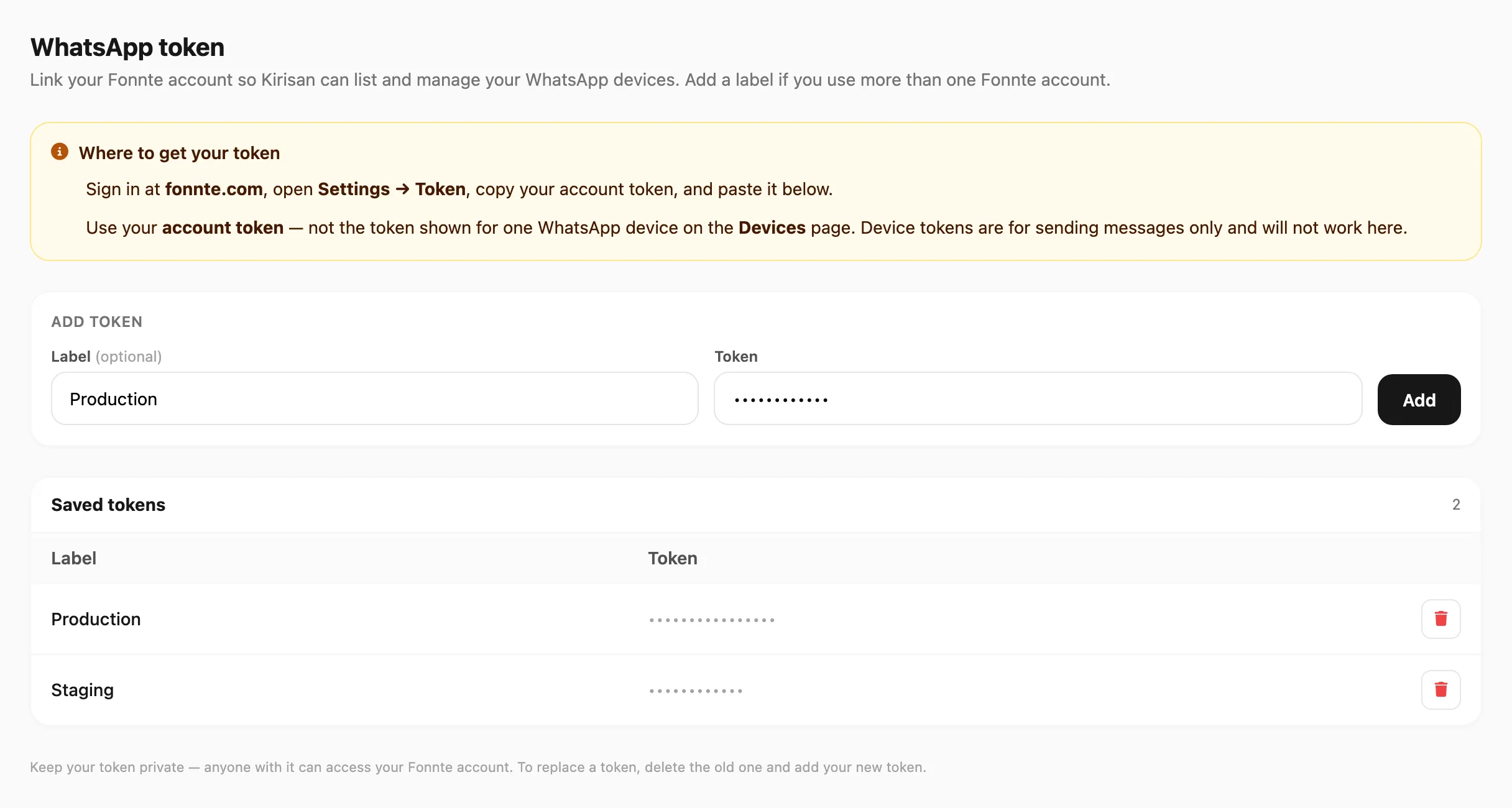
Data sampel ditampilkan.
Tambahkan label jika Anda menyimpan lebih dari satu akun Fonnte.
Token akun vs token device

| Jenis token | Dari mana Anda mendapatkannya | Digunakan untuk |
|---|---|---|
| Account token | Dashboard Fonnte → Settings → Token (fonnte.com) | Tambahkan di sini di Channel → WhatsApp → Token; menampilkan semua device untuk akun Fonnte tersebut |
| Device token | Setiap baris di Devices (ikon salin di kolom Token) | Mengirim pesan untuk satu nomor WhatsApp via API atau integrasi |
Hanya tempel account token di halaman ini. Device token tidak akan divalidasi dan tidak bisa menggantikan account token.
Tambah token

- Salin account token Fonnte Anda dari Settings → Token di fonnte.com.
- Opsional masukkan Label (misalnya
Production) untuk membedakan akun. - Tempel token ke Token dan klik Add.
- Kirisan memvalidasi token dengan Fonnte. Saat memeriksa, tombol menampilkan Checking….
- Jika berhasil, token muncul di bawah Saved tokens. Buka Devices dan klik Refresh untuk memuat device WhatsApp untuk akun tersebut.
Anda bisa menyimpan beberapa account token jika mengelola lebih dari satu akun Fonnte. Di Devices, gunakan pemilih Fonnte account untuk beralih di antaranya.
Token tersimpan

| Kolom | Arti |
|---|---|
| Label | Nama yang Anda pilih, atau — jika dikosongkan |
| Token | Nilai tersamarkan (hanya titik — token lengkap tidak pernah ditampilkan lagi setelah disimpan) |
| Delete | Hapus account token ini dari Kirisan |
Header menampilkan berapa banyak token tersimpan (misalnya 2).
Hapus token
Klik pada baris:
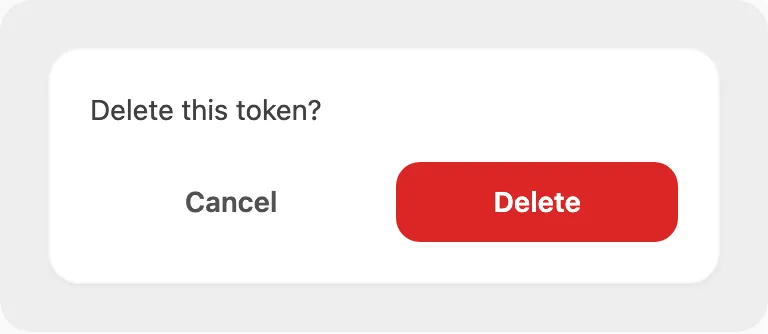
Konfirmasi untuk menghapus token dari akun Kirisan Anda. Device dari akun Fonnte tersebut hilang dari Devices hingga Anda menambahkan token lagi.
Tidak ada aksi edit — untuk merotasi atau mengganti token, hapus baris lama dan Add nilai baru.
Catatan keamanan
- Jaga kerahasiaan token Anda — siapa pun yang memilikinya dapat mengakses akun Fonnte Anda.
- Untuk mengganti token, hapus baris lama dan tambahkan token baru.
- Setelah Anda menghapus token, Devices, Templates, dan Inbox tetap tidak tersedia hingga Anda menambahkan token yang valid lagi.
Terkait
- Devices — hubungkan dan kelola device WhatsApp
- API authentication — token device untuk mengirim dari backend Anda