Device WhatsApp
Buka Channel → WhatsApp → Devices.
Fungsi halaman ini
Setiap baris adalah device WhatsApp dari akun Fonnte Anda. Pilih device terhubung saat mengirim dari Send → Send, kampanye, jadwal, atau aturan autoreply.
Daftar berasal dari account token Fonnte Anda — tambahkan satu di Channel → WhatsApp → Token terlebih dahulu, lalu klik Refresh di sini. Jika Anda mengelola beberapa akun Fonnte, gunakan pemilih Fonnte account saat muncul.
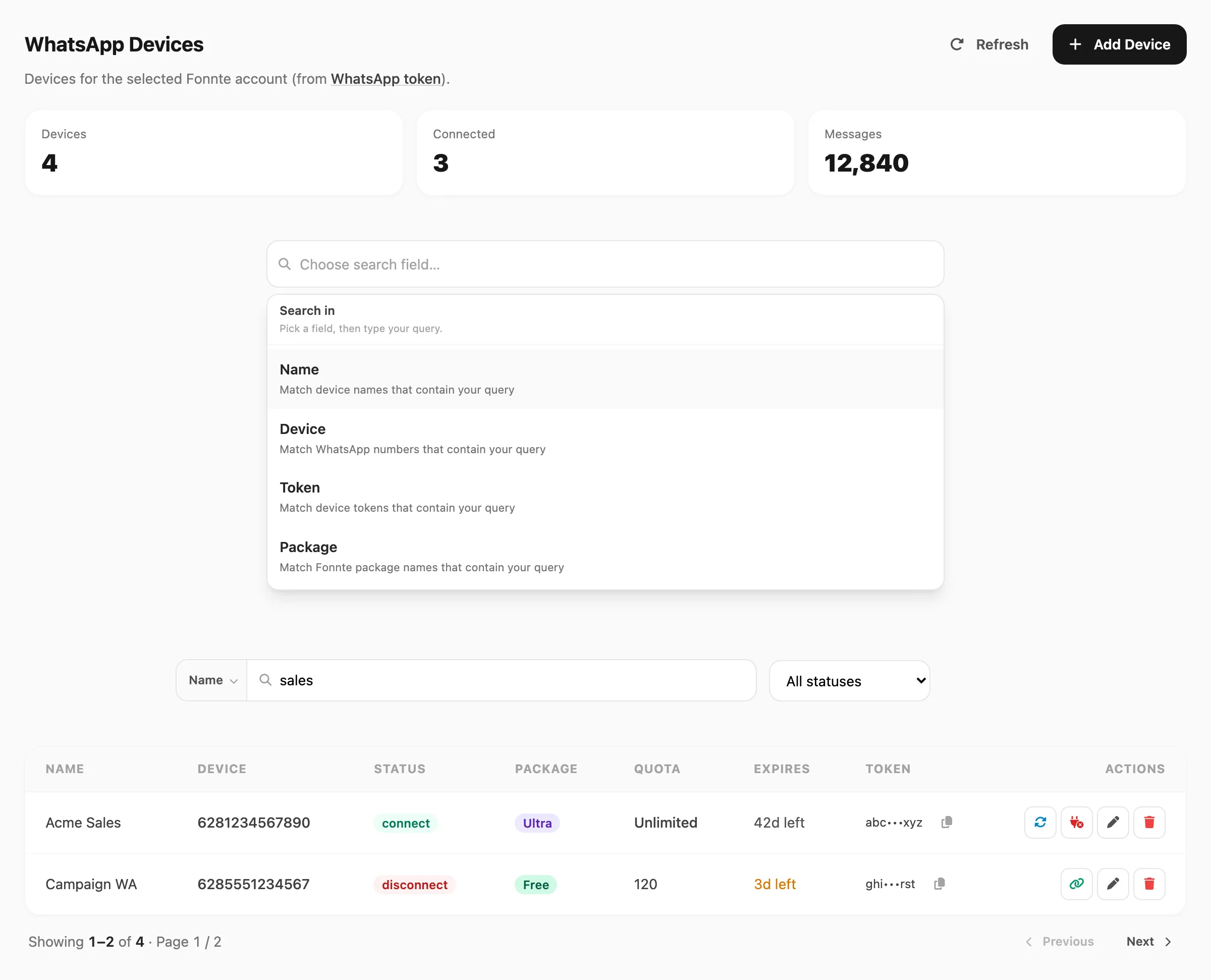
Data sampel ditampilkan.
| Kontrol header | Fungsi |
|---|---|
| Refresh | Muat ulang device dan jumlah ringkasan dari Fonnte |
| Add Device | Daftarkan device WhatsApp baru di Fonnte (nama + nomor) |
Kartu ringkasan
Tiga kartu menampilkan total untuk akun Fonnte terpilih:

| Kartu | Arti |
|---|---|
| Devices | Total device WhatsApp pada akun Fonnte ini |
| Connected | Device dengan status connect (siap mengirim dan menerima) |
| Messages | Jumlah pesan kumulatif yang dilaporkan Fonnte untuk akun |
Pencarian dan filter
Pencarian berbasis field — klik area pencarian terlebih dahulu, pilih kolom yang dicari, lalu ketik kueri Anda.
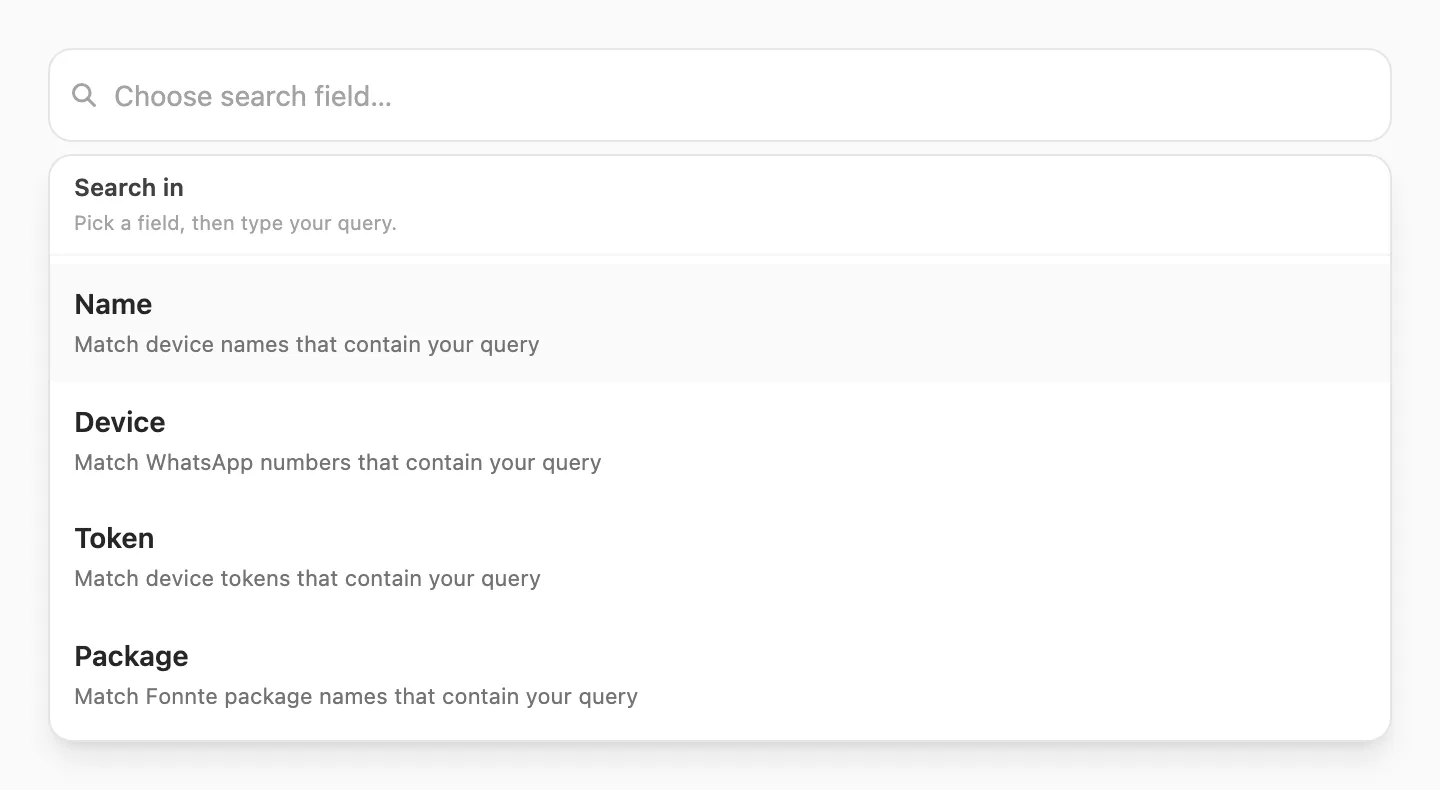
| Langkah | Yang terjadi |
|---|---|
| 1. Klik pencarian | Popup Search in terbuka — Anda harus memilih field sebelum mengetik |
| 2. Pilih field | Name, Device, Token, atau Package |
| 3. Ketik | Kirisan memfilter tabel saat Anda mengetik (debounce singkat) |
Setelah Anda memilih field, bilah pencarian menampilkan nama field di kiri (misalnya Name ▼). Klik untuk mengganti field — mengganti field menghapus kueri.

| Field pencarian | Cocok dengan | Panjang minimum |
|---|---|---|
| Name | Nama device yang mengandung kueri Anda | 3 karakter |
| Device | Nomor WhatsApp yang mengandung kueri Anda | 3 karakter |
| Token | Token API device yang mengandung kueri Anda | 3 karakter |
| Package | Nama paket Fonnte yang mengandung kueri Anda | 3 karakter |
Jika Anda mengetik kurang dari tiga karakter, Kirisan menunggu hingga minimum terpenuhi dan menampilkan petunjuk singkat di bawah bilah pencarian.
Pada baris yang sama dengan pencarian (di kanan):
- Status — All statuses, Connected, atau Disconnected
Tabel device
Setiap baris adalah satu device WhatsApp:

| Kolom | Arti |
|---|---|
| Name | Label untuk device di Kirisan atau Fonnte |
| Device | Nomor WhatsApp (id device Fonnte) |
| Status | connect = tertaut (badge hijau); disconnect = perlu ditautkan lagi (badge merah) |
| Package | Paket Fonnte — klik badge untuk membuka Device plan (lihat Paket di bawah) |
| Quota | Sisa kredit pengiriman — Ultra dan Master menampilkan Unlimited |
| Expires | Hari tersisa pada paket Fonnte — Expired merah; di bawah 5 hari amber |
| Token | Token API device terpotong dengan tombol Copy token |
| Actions | Tombol ikon — lihat Aksi baris di bawah |
Paginasi di bawah tabel muncul jika hasil lebih dari satu halaman.
Paket
Klik badge Package mana pun untuk membuka Device plan:
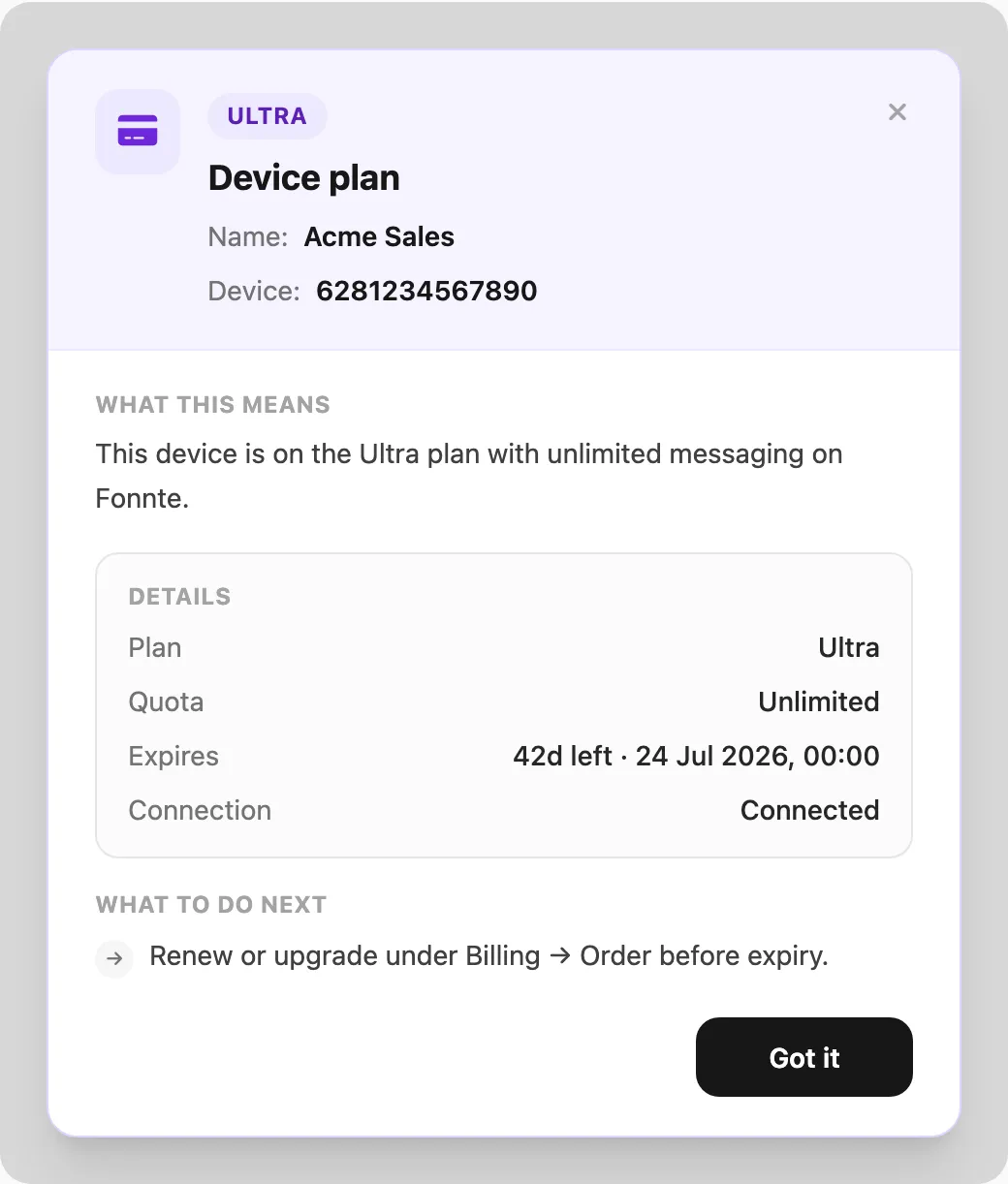
Popup mencakup:
| Bagian | Yang ditampilkan |
|---|---|
| Header | Badge status, Name, Device, dan tutup () |
| What this means | Ringkasan bahasa sederhana paket Fonnte untuk device ini |
| Details | Paket, kuota, masa berlaku, dan status koneksi |
| What to do next | Perpanjang di Billing → Order, hubungkan WhatsApp, atau pantau kuota |
| Got it | Menutup popup |
Warna badge di tabel:
| Badge | Arti |
|---|---|
| Green Free | Paket gratis dengan kredit dan masa berlaku valid |
| Red Free | Paket gratis kedaluwarsa atau kehabisan kuota |
| Violet plan name | Paket Fonnte berbayar (misalnya Lite, Ultra) — badge menampilkan nama paket sebenarnya |
Badge gratis WhatsApp mencerminkan kuota dan masa berlaku, bukan model slot gratis aktif/diparkir yang digunakan pada Telegram, WABA, dan domain Email. Setiap device WhatsApp terhubung mengirim sesuai paket Fonnte masing-masing.
Aksi baris
Tombol ikon muncul di kolom Actions (dan Copy token berada di kolom Token). Tombol koneksi mana yang Anda lihat tergantung Status baris.
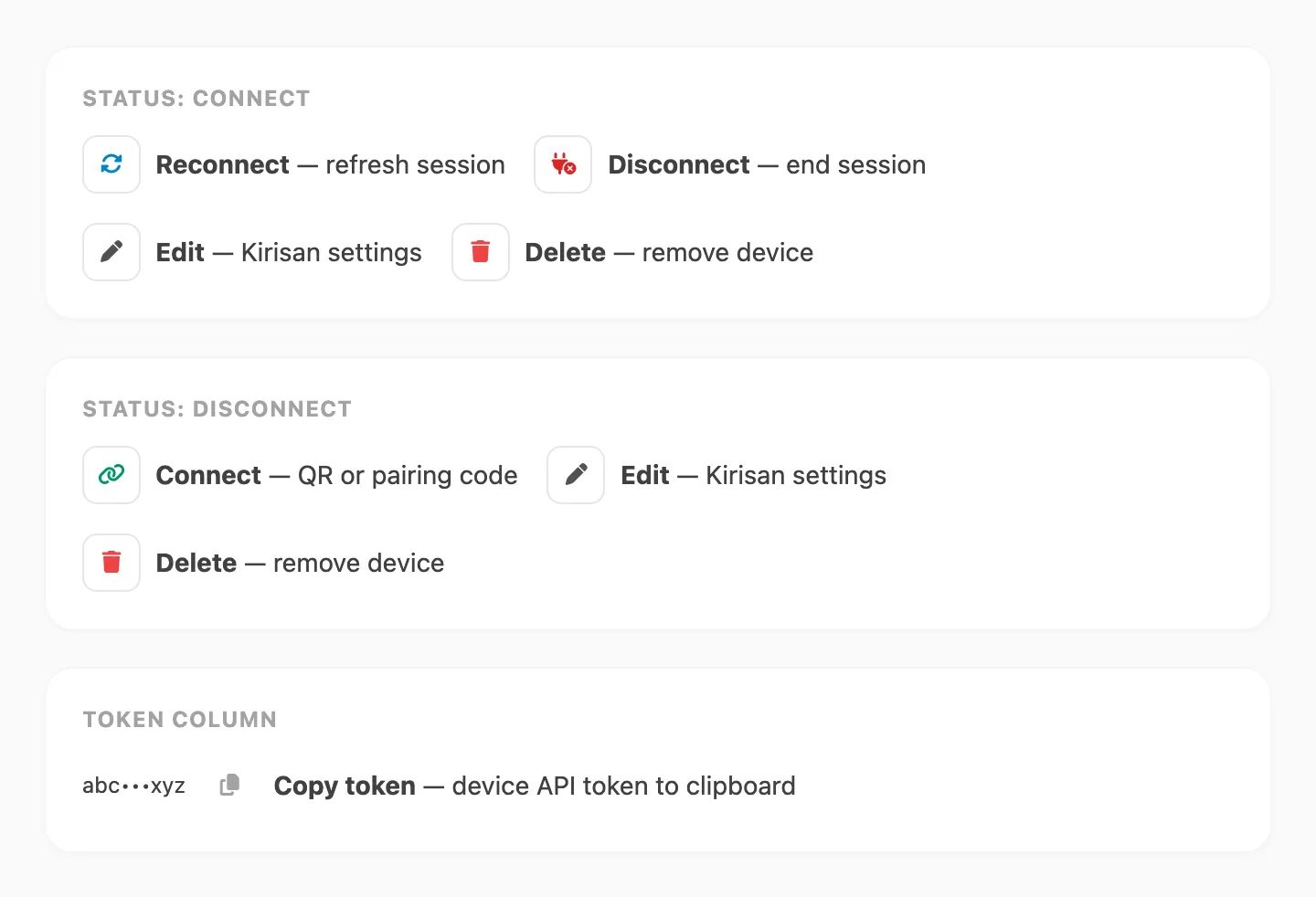
Saat status connect
| Action | Fungsi | |
|---|---|---|
| Reconnect | Meminta Fonnte menyegarkan sesi WhatsApp tanpa memindai QR lagi. Gunakan saat device terasa basi tetapi seharusnya masih tertaut. | |
| Disconnect | Mengakhiri sesi WhatsApp di Fonnte. Kirisan meminta konfirmasi terlebih dahulu; baris tetap di daftar dengan status disconnect. Anda bisa Connect lagi nanti. | |
| Edit | Membuka **Edit Device** untuk pengaturan khusus Kirisan (nama, kontak, Auto Read, handler masuk). | |
| Delete | Membuka dialog konfirmasi, lalu menghapus device secara permanen dari Fonnte melalui Kirisan. |
Saat status disconnect
| Action | Fungsi | |
|---|---|---|
| Connect | Membuka **Connect WhatsApp** agar Anda bisa menautkan ponsel dengan kode QR atau pairing code. | |
| Edit | Sama seperti di atas — pengaturan Kirisan dapat diubah sebelum atau setelah penautan. | |
| Delete | Sama seperti di atas — menghapus device dari Fonnte. |
Copy token
Di kolom Token, klik di samping token terpotong. Kirisan menyalin device API token lengkap ke clipboard untuk Send → Send, Send API, atau integrasi Anda.
Tambah device
Daftarkan device baru di Fonnte dari Kirisan:
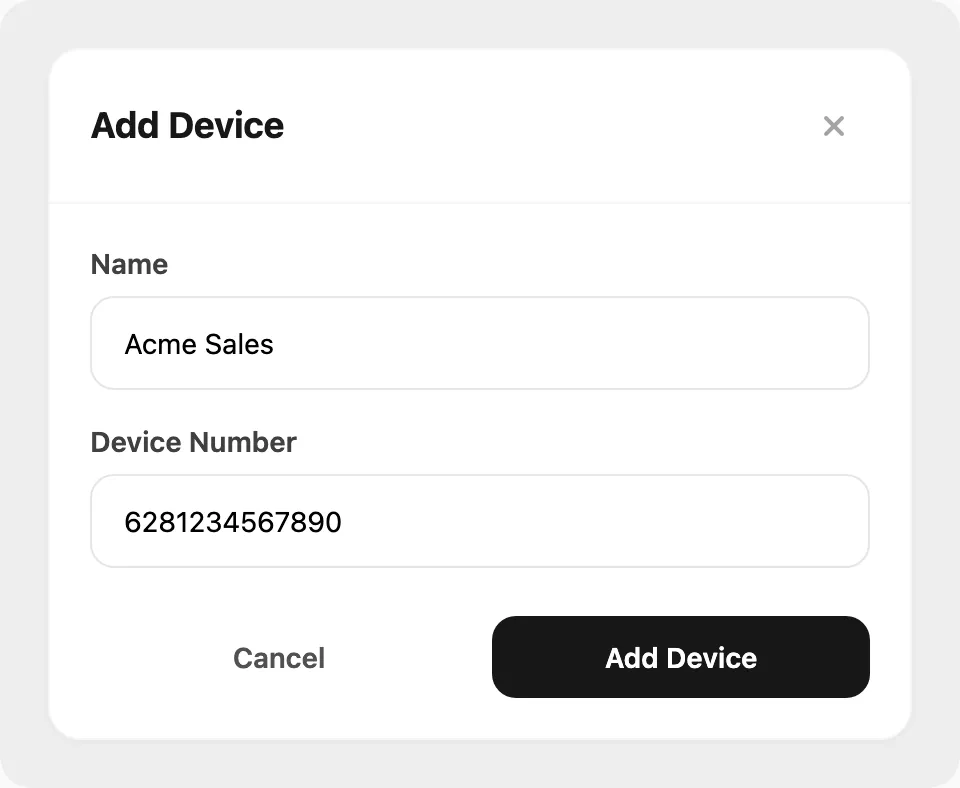
- Klik Add Device di header halaman.
- Masukkan Name dan Device number (kode negara, tanpa
+, misalnya6281234567890). - Klik Add Device untuk menyimpan.
- Pada baris baru, klik Connect dan selesaikan penautan agar status menjadi
connect.
Connect WhatsApp
Klik Connect pada baris dengan status disconnect:
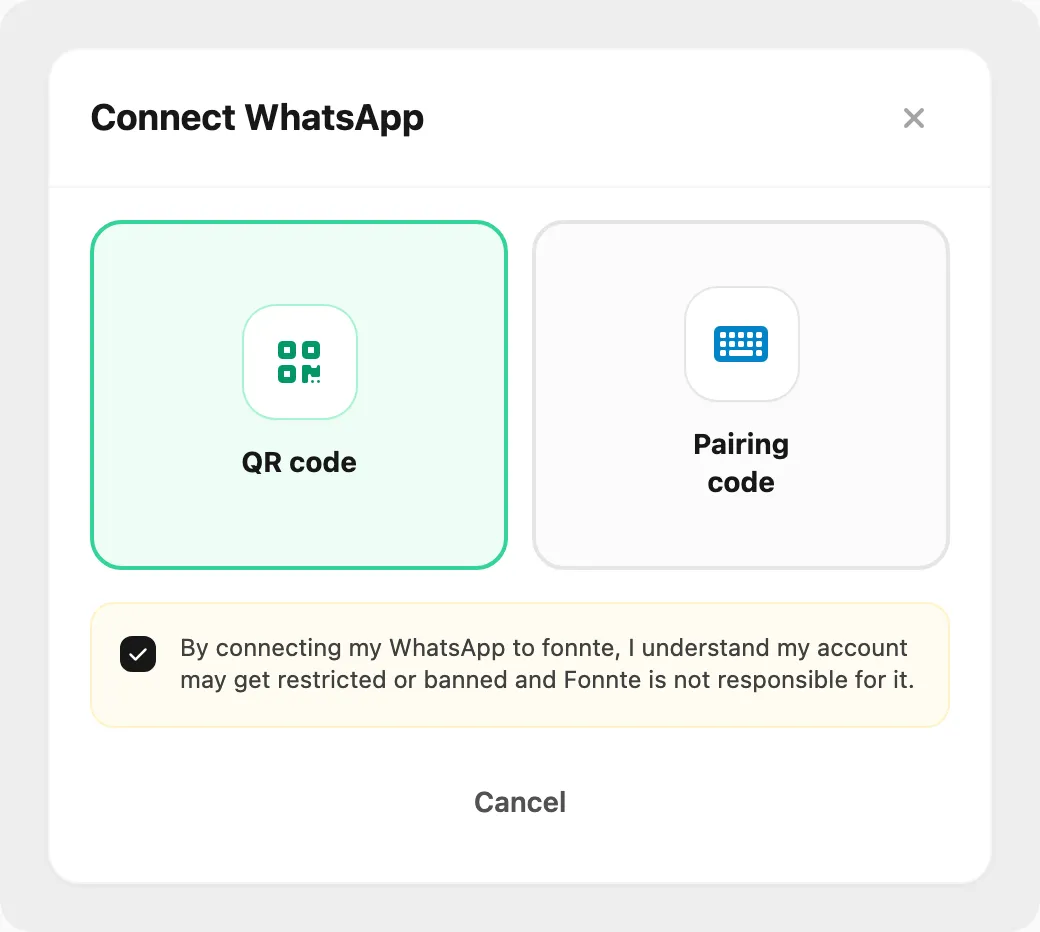
- QR code — pindai dengan WhatsApp di ponsel yang memiliki nomor.
- Pairing code — masukkan nomor Anda, klik Get code, lalu ketik kode 8 digit di WhatsApp.
Kirisan memeriksa Fonnte hingga sekitar 55 detik hingga device terhubung atau waktu habis. Baca pemberitahuan risiko Fonnte sebelum menautkan.
Edit device
Klik Edit pada baris mana pun:
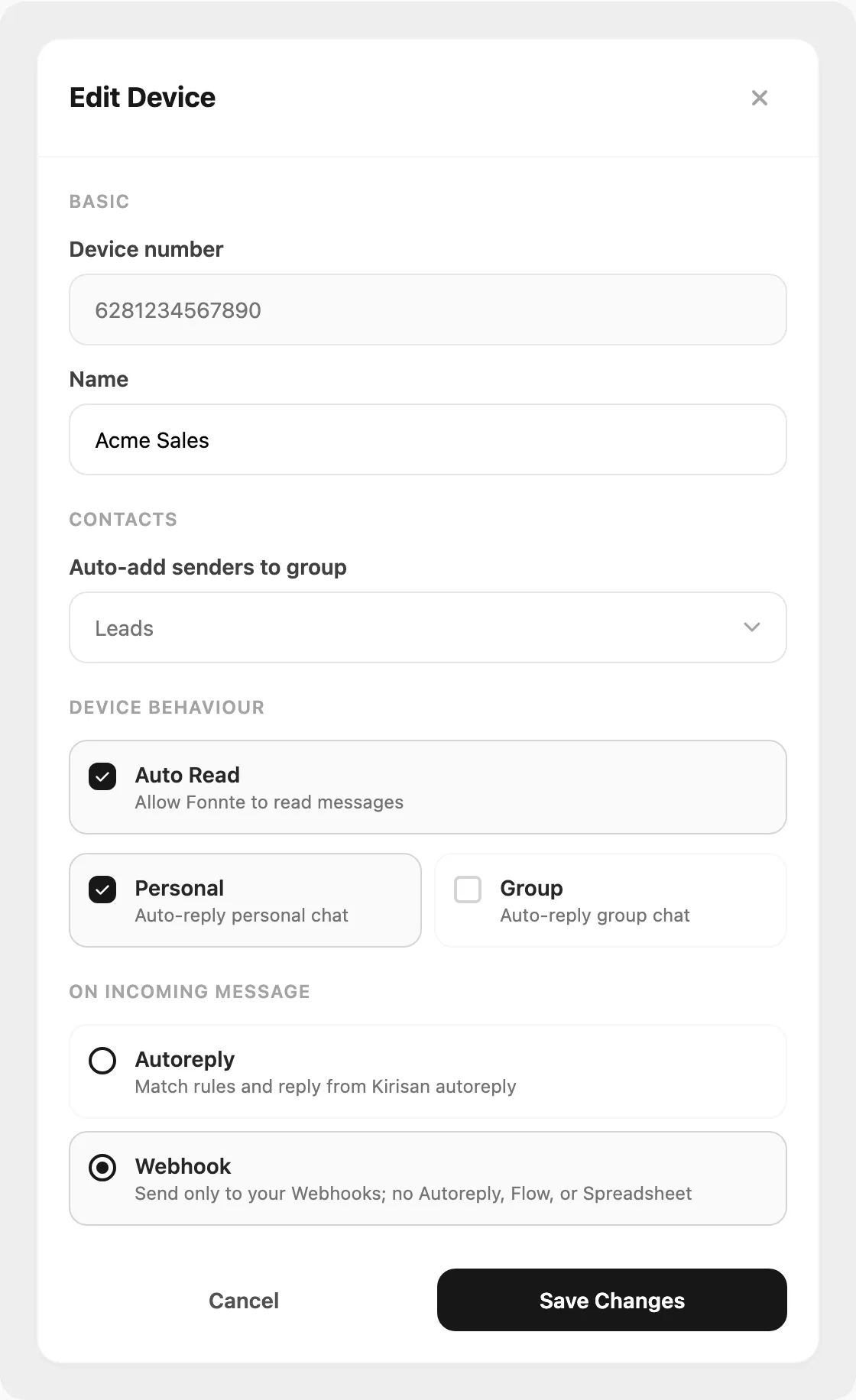
- Basic — nomor device (hanya baca) dan display name
- Contacts — Auto-add senders to group menyimpan nomor masuk baru ke grup kontak
- Auto Read — saat diaktifkan, pilih cakupan Personal, Group, dan/atau Quick Reply
- On incoming message — satu handler saat Auto Read aktif: Autoreply, Flow, Spreadsheet, atau Webhook
Pengaturan ini disimpan di Kirisan. Fonnte tetap mengelola koneksi dan penagihan untuk device.
Hapus device
Klik Delete pada baris mana pun:
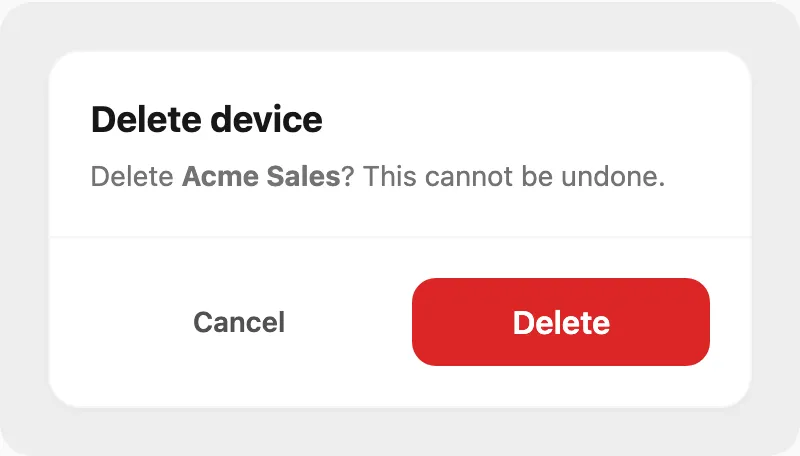
Konfirmasi di dialog untuk menghapus device dari Fonnte melalui Kirisan. Ini tidak dapat dibatalkan. Gunakan Disconnect jika Anda hanya ingin menjeda sesi tanpa menghapus baris.
Pemeriksaan sehari-hari
- Status — device terputus tidak bisa mengirim atau menerima hingga Anda Connect lagi.
- Package / quota / expires — klik badge Package untuk detail paket lengkap; perpanjang di Billing → Order sebelum kredit habis atau paket kedaluwarsa.
- Refresh — gunakan setelah mengubah token di halaman Token atau menautkan ponsel di luar Kirisan.
Tugas & pemecahan masalah
Panduan langkah demi langkah dan perbaikan (salin token, connect, disconnect, daftar kosong, timeout) ada di Device WhatsApp — tugas & pemecahan masalah.
Terkait
- Token — token akun Fonnte tingkat akun
- Templates — tata letak pesan yang disetujui
- Logs — riwayat pengiriman per device
- Place an order — beli atau perpanjang paket device
- Tugas & pemecahan masalah — panduan cara dan kegagalan umum