Order
Buka Billing → Order.
Untuk apa halaman ini
Gunakan Place an order untuk memperpanjang atau upgrade plan channel — device WhatsApp, nomor WABA, domain email, bot Telegram, atau storage akun. Anda bisa menebus kupon channel, atau menyusun keranjang multi-channel (dengan kupon global opsional). Baris berbayar berbagi satu checkout.
Tautan subtitle View invoices membuka Billing → Invoice untuk pesanan lama dan status bayar.
Pilih cara memesan
Jika Kirisan punya kupon channel yang tersedia untuk akun Anda, Billing → Order membuka dua kartu, bukan keranjang langsung:
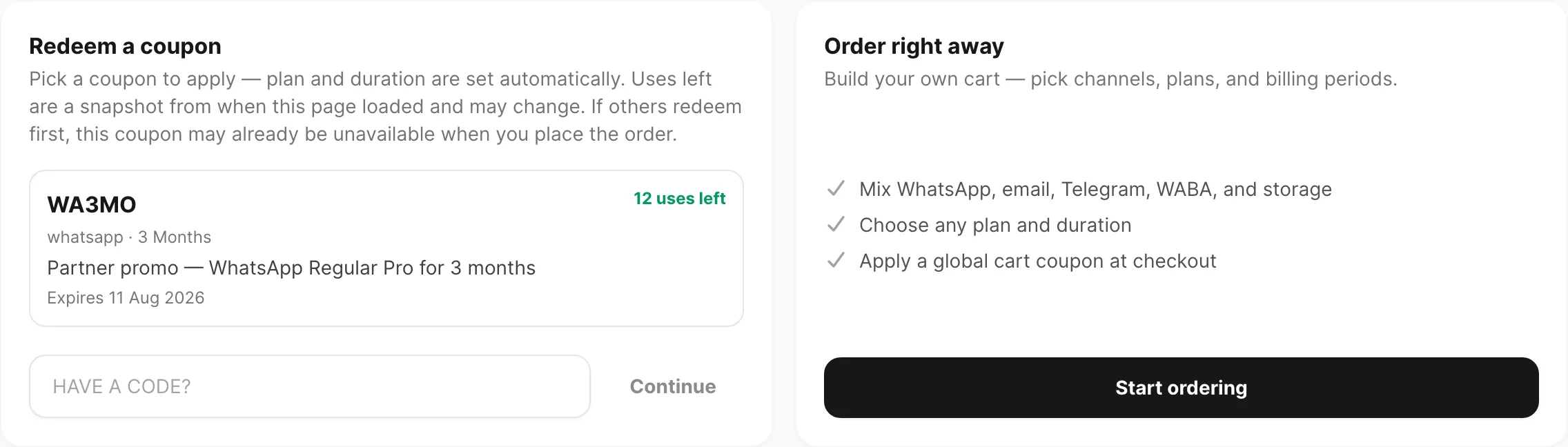
Contoh data ditampilkan.
| Kartu | Fungsi |
|---|---|
| Redeem a coupon | Pilih kupon channel dari daftar, atau ketik kode lalu Continue — plan dan periode billing ditetapkan oleh kupon |
| Order right away | Klik Start ordering untuk menyusun keranjang sendiri (channel, plan, dan periode apa saja). Gunakan kupon global nanti di Order summary |
Sisa pemakaian pada kartu kupon adalah snapshot saat halaman dimuat — bisa berubah jika orang lain menebus lebih dulu.
Jika tidak ada kupon channel menunggu, Kirisan melewati layar ini dan membuka keranjang langsung.
Klik Back to options kapan saja dari keranjang untuk kembali ke sini (saat kupon channel tersedia).
Ringkasan keranjang
Setelah Start ordering (atau saat tidak ada kupon channel), Anda mendapat builder pesanan lengkap:
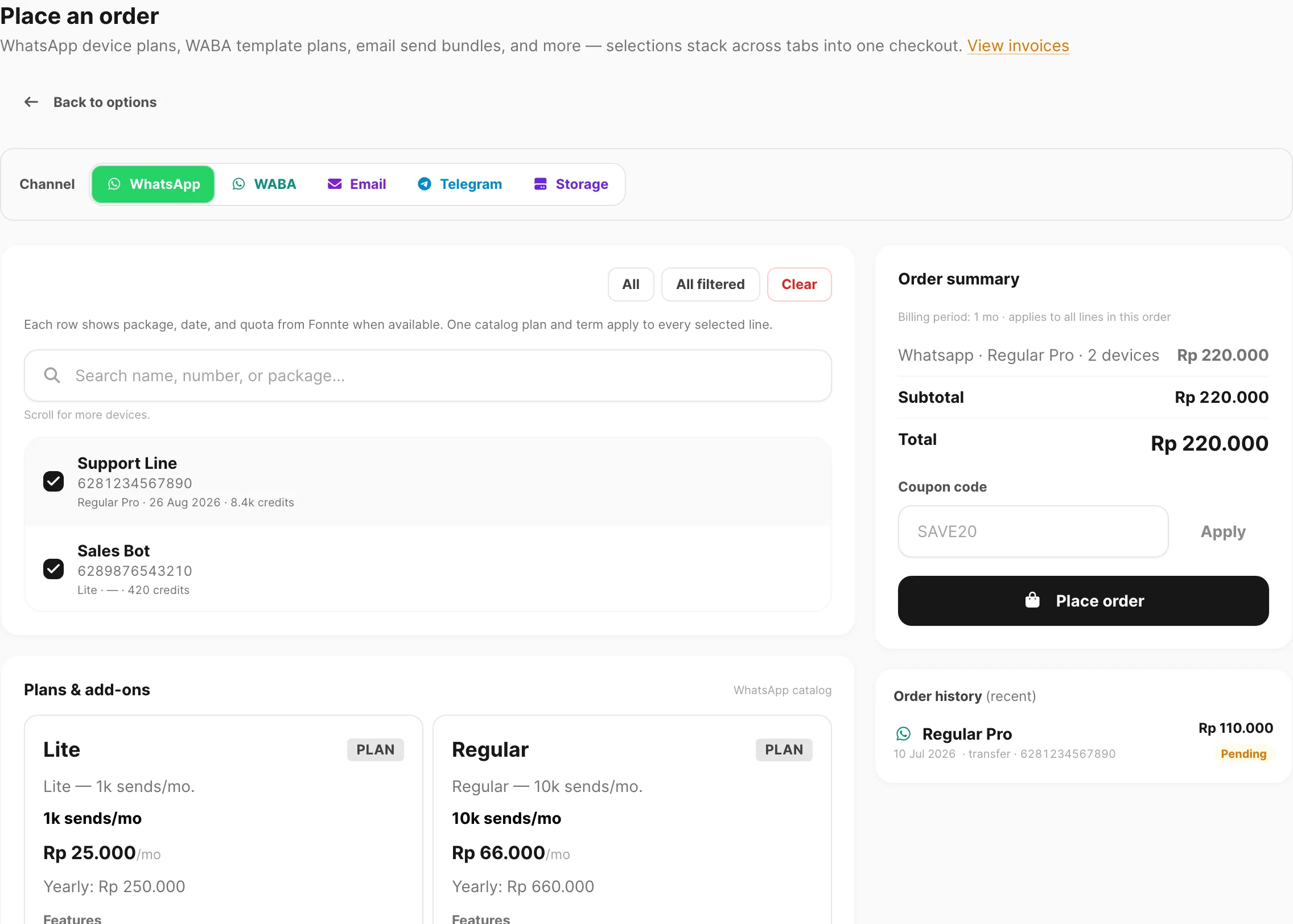
Contoh data ditampilkan.
| Area halaman | Fungsi |
|---|---|
| Tab Channel | Beralih antara WhatsApp, WABA, Email, Telegram, dan Storage — pilihan di tab lain tetap di keranjang |
| Kolom utama | Pilih target (device, nomor, domain, atau bot), pilih plan katalog, dan atur periode billing |
| Order summary | Total live untuk setiap baris channel di checkout ini |
| Place order | Submit pesanan gabungan dan lanjut ke checkout |
| Order history (recent) | Beberapa pesanan terakhir untuk tab channel aktif |
Tab channel
Lima tab mencakup setiap produk yang bisa dibeli:
| Tab | Yang Anda pesan |
|---|---|
| Plan device WhatsApp — satu baris pesanan per device terpilih | |
| WABA | Plan template WhatsApp Business API — satu baris per nomor terpilih |
| Plan send untuk domain terverifikasi — satu baris per domain terpilih | |
| Telegram | Plan bot — satu baris per bot terpilih |
| Storage | Disk file akun plus kuota write/read (base, GB ekstra, paket opsional) |
Anda bisa berganti tab saat menyusun pesanan. Order summary di kanan menyimpan baris dari setiap tab sampai Anda menghapus pilihan atau place order.
Pilih target
Di WhatsApp, WABA, Email, dan Telegram, checklist di bagian atas kolom utama tempat Anda memilih target plan.
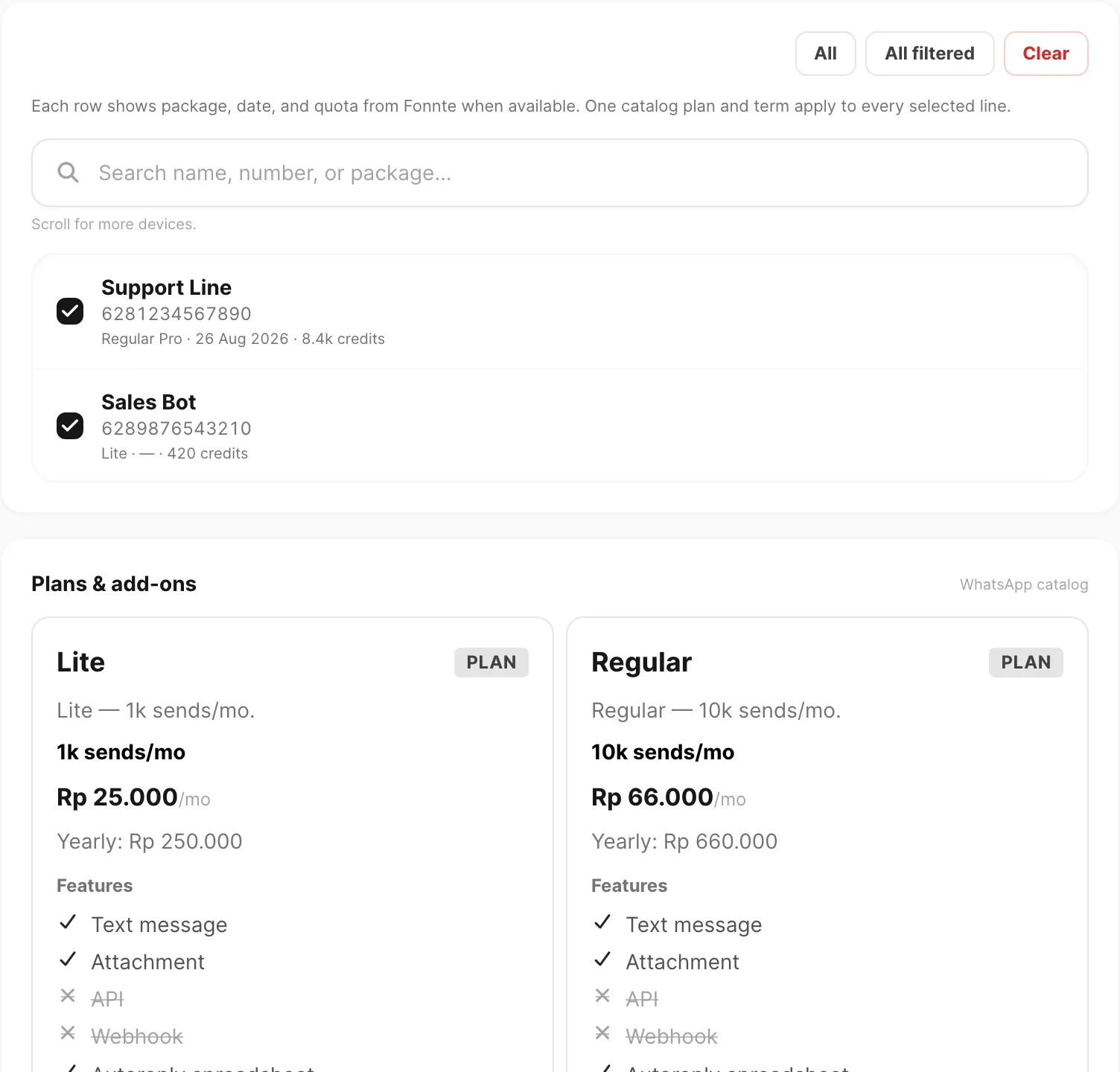
Contoh data ditampilkan.
| Kontrol | Fungsi |
|---|---|
| All | Pilih setiap target dalam daftar |
| All filtered | Pilih hanya baris yang cocok dengan pencarian saat ini |
| Clear | Batalkan semua pilihan target di tab ini |
| Kotak pencarian | Filter daftar (teks placeholder berubah per channel) |
Setiap baris tercentang menjadi baris pesanan sendiri dengan plan dan periode billing yang sama yang Anda pilih di bawah.
| Tab | Yang Anda pilih | Daftar kosong? |
|---|---|---|
| Device WhatsApp terhubung | Tambahkan device di Channel → WhatsApp → Devices dulu | |
| WABA | Nomor WABA tertaut | Klik Add number untuk membuka Channel → WABA → Devices |
| Domain pengiriman terverifikasi | Klik Add domain untuk membuka Channel → Email → Domains | |
| Telegram | Bot terdaftar | Klik Add bot untuk membuka Channel → Telegram → Devices |
Teks bantuan di bawah toolbar menjelaskan berapa banyak baris pesanan yang Kirisan buat (misalnya satu pesanan per bot).
Plans & add-ons
Di bawah pemilih target (di WhatsApp, WABA, Email, dan Telegram), kartu Plans & add-ons menampilkan katalog untuk channel itu.
- Klik kartu plan untuk memilih — border menyorot saat aktif.
- Baca badge Plan, harga per bulan, kuota atau daftar fitur, dan petunjuk tahunan opsional.
- Add-ons mungkin muncul di grid yang sama; jika checkout tidak tersedia untuk add-on, Kirisan menampilkan catatan untuk hubungi support.
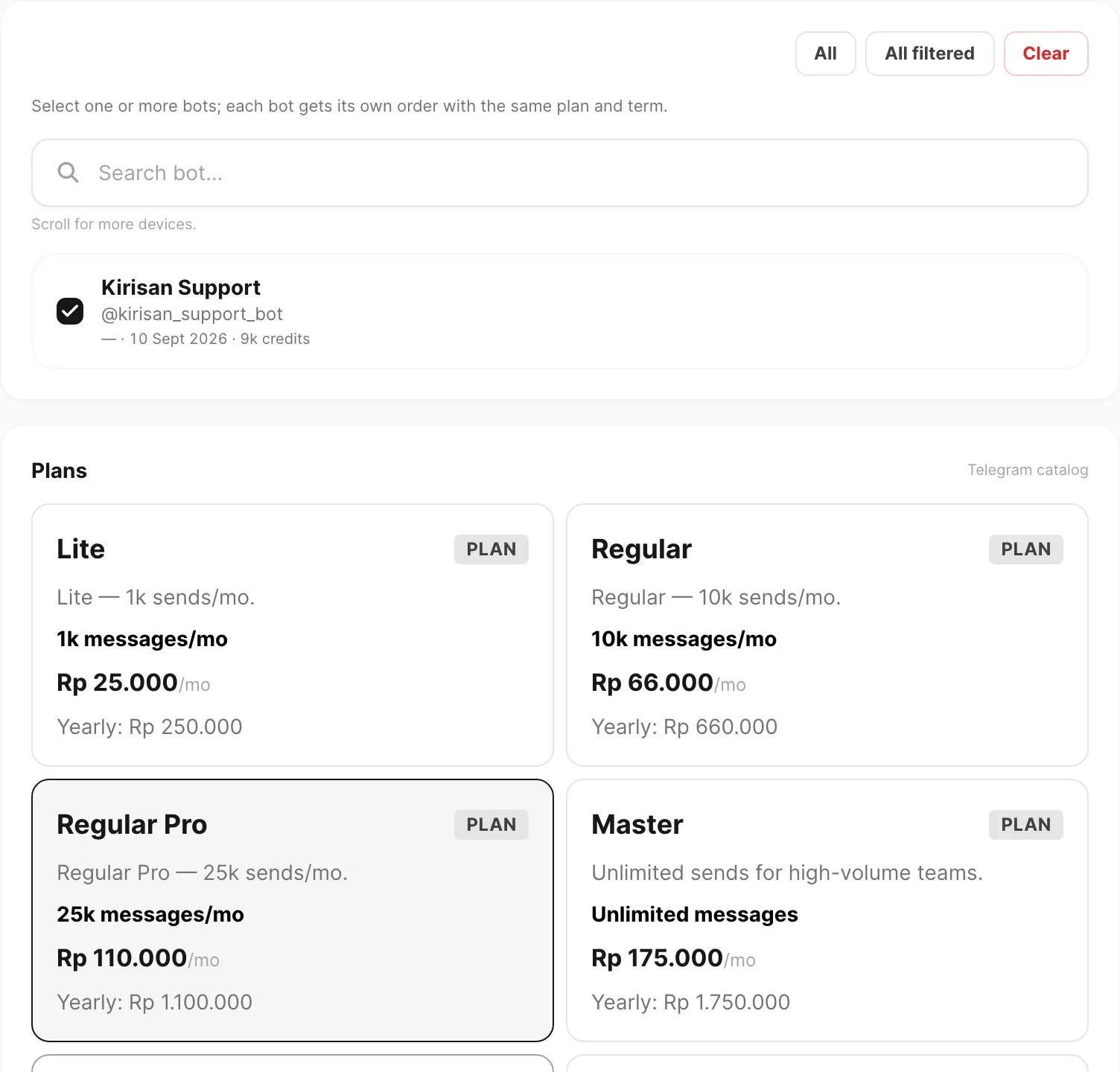
Contoh data ditampilkan.
Satu plan terpilih berlaku untuk semua target tercentang di tab itu untuk checkout ini.
WhatsApp, WABA, Email, dan Telegram berbagi nama tier plan, kuota, dan harga bulanan yang sama (tahunan 10× bulanan):
| Plan | Kuota / bln | Bulanan (IDR) |
|---|---|---|
| Lite | 1.000 send | Rp 25.000 |
| Regular | 10.000 send | Rp 66.000 |
| Regular Pro | 25.000 send | Rp 110.000 |
| Master | Unlimited | Rp 175.000 |
| Super | 10.000 send | Rp 165.000 |
| Advanced | 25.000 send | Rp 255.000 |
| Ultra | Unlimited | Rp 355.000 |
Master dan Ultra menampilkan pesan unlimited di channel yang mendukung. Super, Advanced, dan Ultra di WABA mencakup kapasitas template media.
Katalog Anda mungkin tidak mencantumkan setiap tier — hanya plan yang tersedia untuk akun Anda muncul di grid.
Periode billing
Kartu Billing period muncul saat Anda mengonfigurasi plan channel atau sudah punya baris di keranjang.
| Preset | Arti |
|---|---|
| 1 Month | Bayar satu siklus bulanan |
| 3 Months | Bayar tiga siklus bulanan di muka |
| 6 Months | Bayar enam siklus bulanan di muka |
| 1 Year | Bayar harga tahunan (atau sepuluh siklus bulanan jika harga tahunan tidak diset) |
Akun Anda mungkin menampilkan preset tambahan jika plan mendefinisikan term kustom.
Custom length membantu Anda memasukkan bilangan bulat 1 hingga 120, lalu pilih Months atau Years. Mengedit field kustom menimpa chip preset sampai Anda klik preset lagi.
Periode billing yang Anda pilih berlaku untuk setiap baris dalam pesanan ini — WhatsApp, WABA, email, dan Telegram bersama-sama berbagi satu term.
Untuk cara kredit, kedaluwarsa, perpanjangan, dan ganti plan bekerja setelah pembayaran, lihat Plans and quota.
Kupon
Kirisan mendukung dua jenis kupon. Keduanya berakhir di Billing → Checkout yang sama jika masih ada yang harus dibayar.
Tebus kupon channel
Kupon channel mengunci plan dan periode billing. Anda hanya memilih channel (jika lebih dari satu) dan device atau domain yang diterapkan.
- Di kartu Redeem a coupon, klik kupon dari daftar (atau masukkan kode lalu Continue).
- Pilih channel jika diminta, lalu pilih device / domain yang memenuhi syarat.
- Tinjau ringkasan (plan, periode, diskon, Total).
- Klik Checkout with coupon.
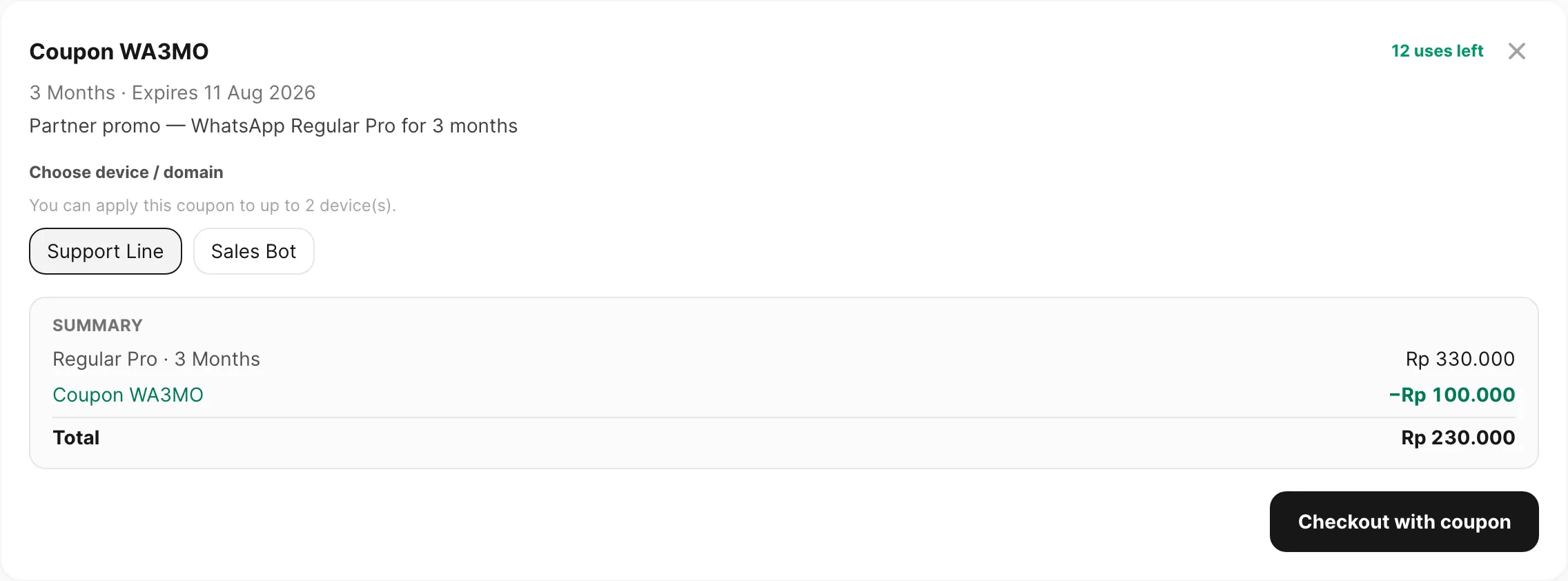
Contoh data ditampilkan.
| Kontrol | Fungsi |
|---|---|
| Header kupon | Kode, sisa pemakaian, kedaluwarsa, dan catatan opsional |
| Choose channel | Ditampilkan jika kupon mencakup lebih dari satu channel |
| Chip device / domain | Pilih target yang dikenai kupon (bisa ada batas) |
| Summary | Harga plan terkunci, diskon kupon, dan Total |
| Checkout with coupon | Membuat pesanan (dengan konfirmasi 15 menit jika Total > Rp 0) |
| × (Cancel redeem) | Keluar dari tebus dan kembali ke layar pilih |
Terapkan kupon global di keranjang
Kupon global dipakai di Order summary setelah Anda menyusun keranjang biasa (Start ordering).
Di bawah Subtotal dan Total, masukkan kode kupon dan klik Apply sebelum Place order.
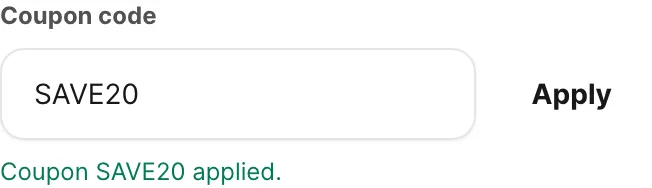
Contoh data ditampilkan.
| Kontrol | Fungsi |
|---|---|
| Coupon code | Ketik kode yang Kirisan atau partner berikan |
| Apply | Memvalidasi kode terhadap keranjang saat ini |
| Konfirmasi hijau | Ditampilkan saat kupon aktif |
| Baris Coupon | Diskon dikurangi dari Subtotal di Total |
Aturan yang perlu diingat:
- Susun keranjang dulu — minimal satu target dan plan sebelum Apply berfungsi.
- Jika Anda mengubah device, plan, atau Billing period, kupon dihapus; terapkan lagi.
- Kupon mungkin dibatasi channel, plan, minimum pesanan, kedaluwarsa, jumlah pemakaian, atau device per pengguna.
- Memasukkan kode kupon channel dari kartu tebus membuka alur tebus, bukan field keranjang.
Bayar dalam 15 menit
Saat pesanan kupon masih punya Total di atas Rp 0, Kirisan meminta konfirmasi sebelum membuat pesanan:
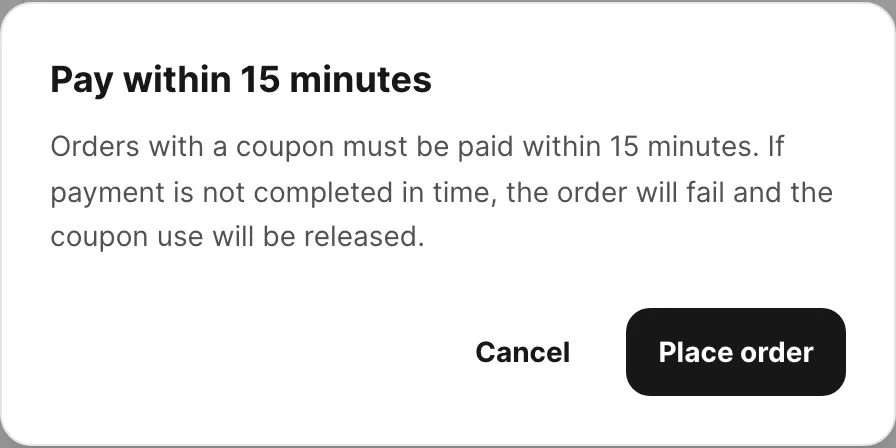
Contoh data ditampilkan.
- Judul Bayar dalam 15 menit (atau Pay within 15 minutes di bahasa Inggris).
- Anda harus membayar di Billing → Checkout dalam 15 menit, atau pesanan gagal dan pemakaian kupon dikembalikan.
- Klik Place order / Pesan untuk lanjut, atau Cancel untuk tetap di halaman order.
- Pesanan kupon gratis / Rp 0 melewati dialog ini — Kirisan menyetujui segera.
Saat kupon membuat total Rp 0
Jika diskon menutupi seluruh Total (misalnya kupon 100%), Kirisan menyetujui pesanan segera — tanpa transfer bank dan tanpa kode unik.
- Anda melihat toast sukses bahwa pesanan disetujui gratis dengan kupon.
- Kirisan membuka Billing → Receipts (bukan Checkout).
- Plan dan kuota langsung aktif, sama seperti setelah pesanan berbayar terverifikasi.
- Unduh PDF kuitansi gratis dari Billing → Receipts — status Free, metode Coupon, jumlah Free.
Jika Total masih lebih dari Rp 0 setelah kupon, Anda lanjut ke Billing → Checkout seperti biasa.
Untuk panduan langkah demi langkah, lihat Terapkan kupon dan Tebus kupon channel.
Tab Storage
Storage bersifat account-wide — berlaku untuk seluruh akun Kirisan, bukan satu device atau domain. Gunakan untuk media di send, lampiran autoreply, dan Resources → Files.
Buka tab channel Storage di Billing → Order.
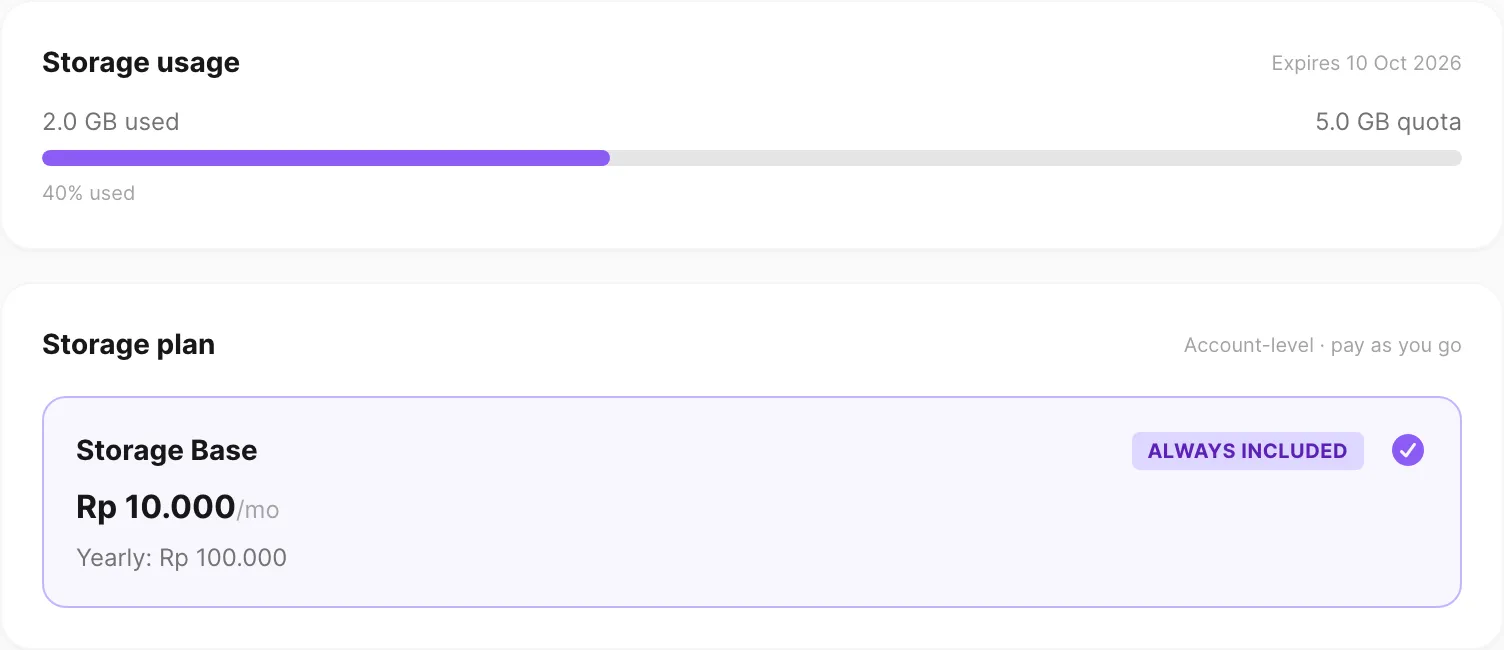
Contoh data ditampilkan.
Penggunaan storage
Kartu atas menampilkan disk dan pemakaian kuota ops:
| Elemen | Arti |
|---|---|
| Progress bar | Terpakai vs total disk (amber mendekati 70%, merah mendekati 90%) |
| X GB used / X GB quota | Disk saat ini dan batas berbayar |
| Write / Read | Berapa banyak kuota yang sudah terpakai pada term ini (hapus gratis) |
| Expires | Kapan term storage berbayar berakhir (disembunyikan jika belum diset) |
| Pesan free-tier | Ditampilkan jika belum ada kuota berbayar — beli Storage Base untuk 5 GB khusus |
Setiap GB mencakup 10.000 write dan 100.000 read. Lihat Files (Saat kuota habis) untuk apa yang diblokir jika meter penuh.
Plan storage
| Bagian | Fungsi |
|---|---|
| Storage Base | Selalu disertakan — 5 GB + 50rb write + 500rb read (tidak dapat dibatalkan) |
| Additional storage | Stepper + / − opsional (0–100 GB) — setiap unit menambah 1 GB + 10rb write + 100rb read |
| Paket write | Paket opsional 10.000 unggah (tanpa disk ekstra; hapus tetap gratis) |
| Paket read | Paket opsional 10.000 buka / unduh / pratinjau (tanpa disk ekstra) |
| Plan | Grant | Bulanan (IDR) |
|---|---|---|
| Storage Base | 5 GB + 50rb write + 500rb read | Rp 10.000 |
| Storage Extra | +1 GB + 10rb write + 100rb read | Rp 2.500 / GB |
| Write pack | +10.000 unggah | Rp 2.000 |
| Read pack | +10.000 buka | Rp 500 |
Pilih Billing period sama seperti di tab channel. Order summary menampilkan Storage Base, GB ekstra dan paket opsional, serta Total quota sebelum Anda klik Place order.
Untuk tutorial langkah demi langkah, lihat Order storage quota.
Ringkasan pesanan dan checkout
Kolom kanan adalah keranjang Anda.
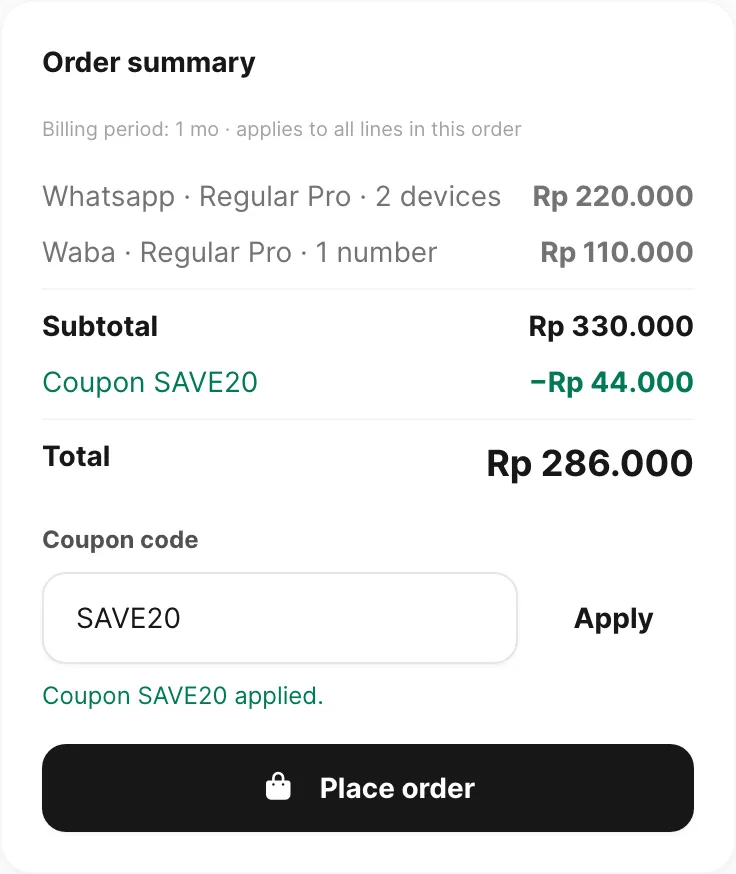
Contoh data ditampilkan.
| Baris | Arti |
|---|---|
| Channel · plan · count | Setiap baris bertumpuk (misalnya Whatsapp · Regular Pro · 2 devices) |
| Line total | Harga plan × periode billing × jumlah target |
| Total | Jumlah setiap baris di checkout ini |
| Coupon code | Diskon global opsional — lihat Terapkan kupon global di keranjang di atas |
| Place order | Membuat semua baris pesanan — lalu membuka Checkout (berbayar) atau Receipts (diskon penuh) |
Place order tetap nonaktif sampai Anda punya minimal satu target + plan valid (atau pilihan Storage) dan periode billing valid.
Setelah submit berhasil:
- Total di atas Rp 0 — toast konfirmasi dengan ID pesanan, lalu Billing → Checkout untuk transfer bank. Pesanan kupon dengan sisa bayar juga menampilkan Bayar dalam 15 menit terlebih dulu. Lihat Checkout.
- Total = Rp 0 dengan kupon — toast complimentary, lalu Billing → Receipts. Lihat Saat kupon membuat total Rp 0 di atas dan Kuitansi pembayaran.
Order history (recent)
Ketika Anda punya pesanan lama di tab channel aktif, daftar ringkas Order history (recent) muncul di bawah ringkasan. Setiap baris menampilkan nama plan, tanggal, metode pembayaran, target (nomor device atau domain jika relevan), harga, dan badge status (pending, success, atau failed).
Beralih tab channel untuk melihat riwayat terbaru produk itu. Untuk daftar lengkap dan invoice, gunakan View invoices atau buka Billing → Invoice.
Terkait
- Plans and quota — free tier, perpanjangan, ganti plan, dan kedaluwarsa
- Invoices — riwayat billing dan status
- Checkout — bayar invoice pending via transfer bank
- Payment receipts — unduh PDF setelah pembayaran diverifikasi atau pesanan kupon gratis
- Affiliate program — tautan referral partner dan komisi
- Terapkan kupon — diskon global langkah demi langkah
- Tebus kupon channel — tebus kupon channel langkah demi langkah
- Order storage quota — tutorial pemesanan storage
- Order WhatsApp and WABA in one checkout — tutorial multi-channel
- WhatsApp devices — hubungkan device sebelum memesan plan WhatsApp
- WABA devices — tautkan nomor WABA sebelum memesan plan template
- Email domains — verifikasi domain sebelum memesan plan email
- Telegram devices — tambahkan bot sebelum memesan plan Telegram