Place an order
Open Billing → Order.
What this page is for
Use Place an order when you need to renew or upgrade plans for your channels — WhatsApp devices, WABA numbers, email domains, Telegram bots, or account storage. You can redeem a channel coupon, or build a multi-channel cart (with an optional global coupon). Paid lines share one checkout.
The subtitle link View invoices opens Billing → Invoice for past orders and payment status.
Choose how to order
If Kirisan has channel coupons available for your account, Billing → Order opens with two cards instead of the cart:
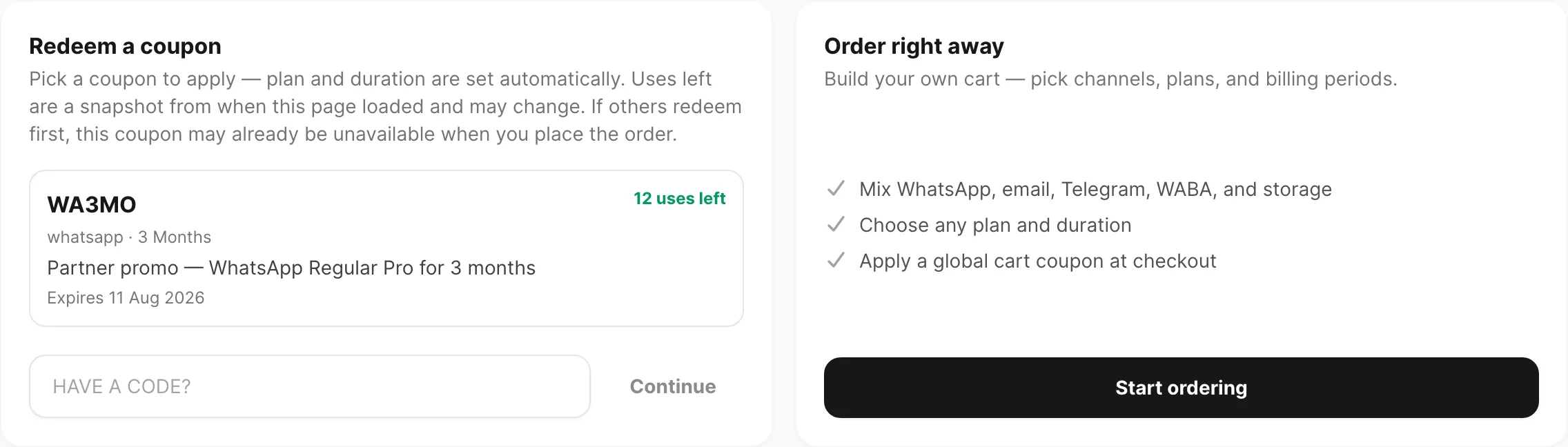
Sample data shown.
| Card | What it does |
|---|---|
| Redeem a coupon | Pick a listed channel coupon, or type a code and click Continue — plan and billing period are fixed by the coupon |
| Order right away | Click Start ordering to build your own cart (any channel, plan, and period). Use a global coupon later in Order summary |
Uses left on coupon cards are a snapshot from when the page loaded — they can change if others redeem first.
If you have no channel coupons waiting, Kirisan skips this screen and opens the cart directly.
Click Back to options anytime from the cart to return here (when channel coupons are available).
Cart overview
After Start ordering (or when there are no channel coupons), you get the full order builder:
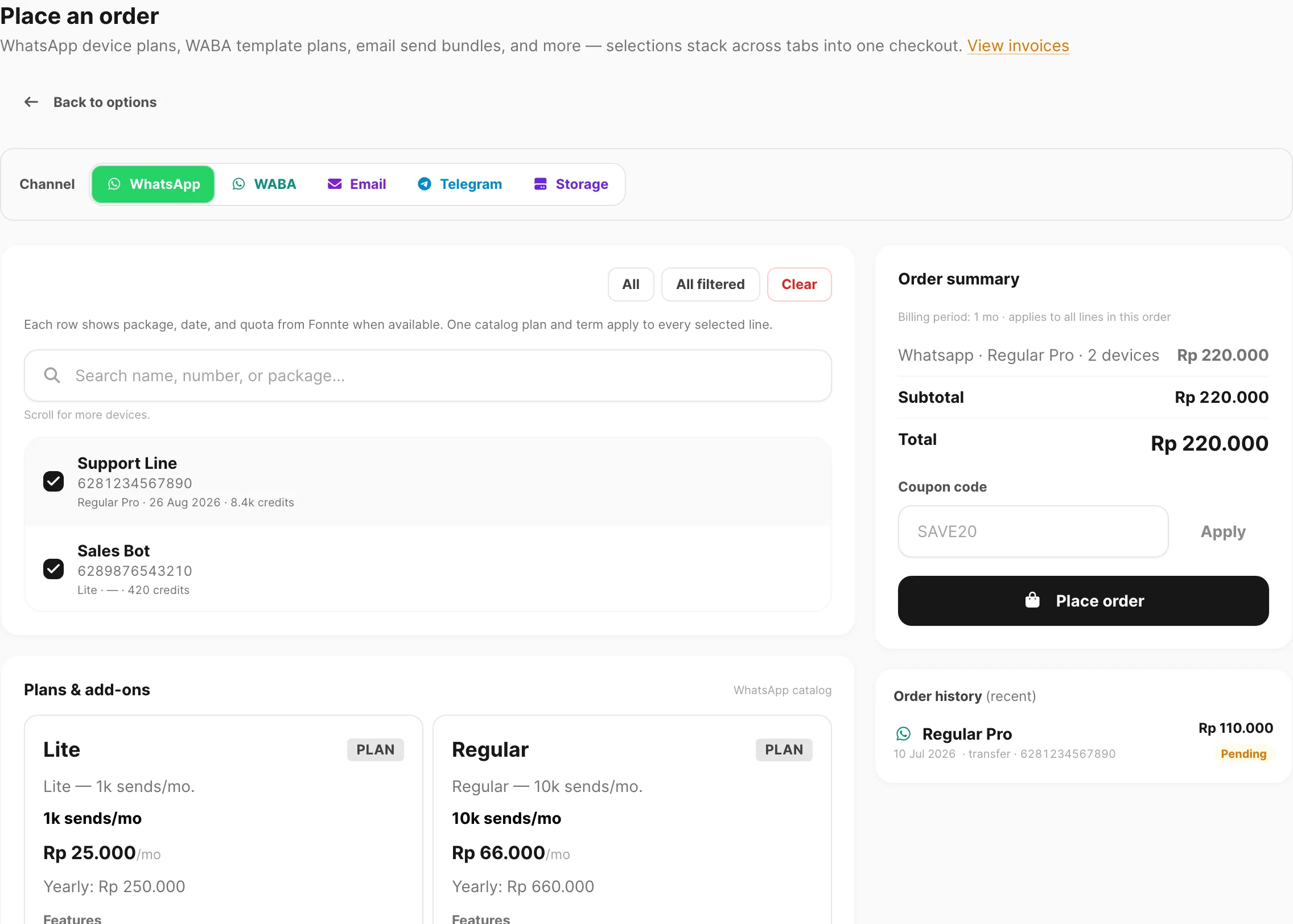
Sample data shown.
| Page area | What it does |
|---|---|
| Channel tabs | Switch between WhatsApp, WABA, Email, Telegram, and Storage — selections on other tabs stay in your cart |
| Main column | Choose targets (devices, numbers, domains, or bots), pick a catalog plan, and set the billing period |
| Order summary | Live total for every channel line in this checkout |
| Place order | Submit the combined order and continue to checkout |
| Order history (recent) | Last few orders for the active channel tab |
Channel tabs
Five tabs cover every product you can buy:
| Tab | What you order for |
|---|---|
| WhatsApp device plans — one order line per selected device | |
| WABA | WhatsApp Business API template plans — one line per selected number |
| Send plans for verified domains — one line per selected domain | |
| Telegram | Bot plans — one line per selected bot |
| Storage | Account file space plus write/read allowances (base, extra GB, optional packs) |
Switch tabs freely while building an order. The Order summary on the right keeps lines from every tab until you clear selections or place the order.
Choose targets
On WhatsApp, WABA, Email, and Telegram, the checklist at the top of the main column is where you pick what the plan applies to.
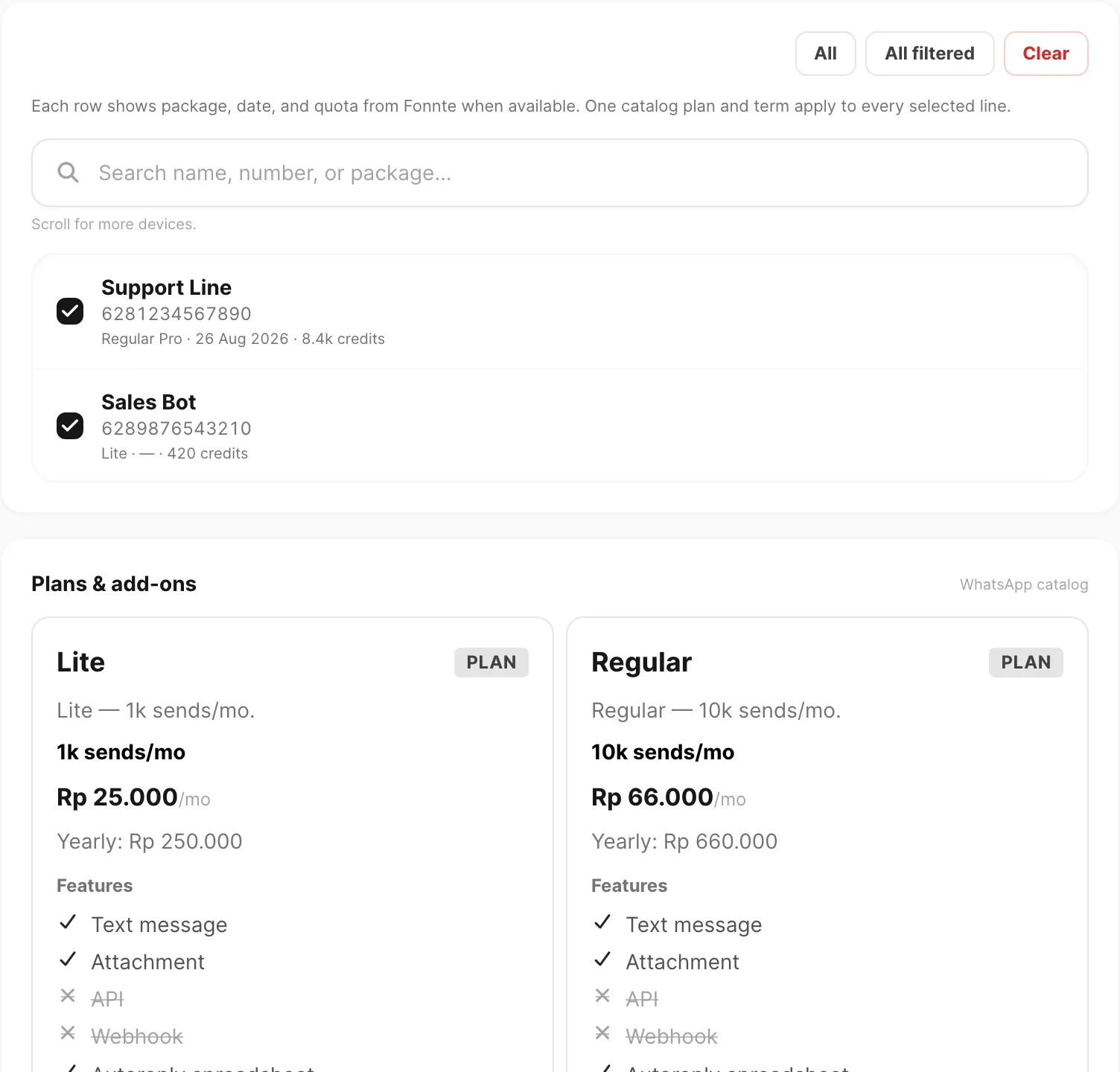
Sample data shown.
| Control | What it does |
|---|---|
| All | Select every target in the list |
| All filtered | Select only rows that match your current search |
| Clear | Deselect all targets on this tab |
| Search box | Filter the list (placeholder text changes per channel) |
Each checked row becomes its own order line with the same plan and billing period you pick below.
| Tab | You select | Empty list? |
|---|---|---|
| Connected WhatsApp devices | Add devices under Channel → WhatsApp → Devices first | |
| WABA | Linked WABA numbers | Click Add number to open Channel → WABA → Devices |
| Verified sending domains | Click Add domain to open Channel → Email → Domains | |
| Telegram | Registered bots | Click Add bot to open Channel → Telegram → Devices |
Helper text under the toolbar explains how many order lines Kirisan creates (for example one order per bot).
Plans & add-ons
Below the target picker (on WhatsApp, WABA, Email, and Telegram), the Plans & add-ons card shows the catalog for that channel.
- Click a plan card to select it — the border highlights when active.
- Read the Plan badge, price per month, quota or feature list, and optional yearly hint.
- Add-ons may appear in the same grid; if checkout is not available for an add-on, Kirisan shows a note to contact support.
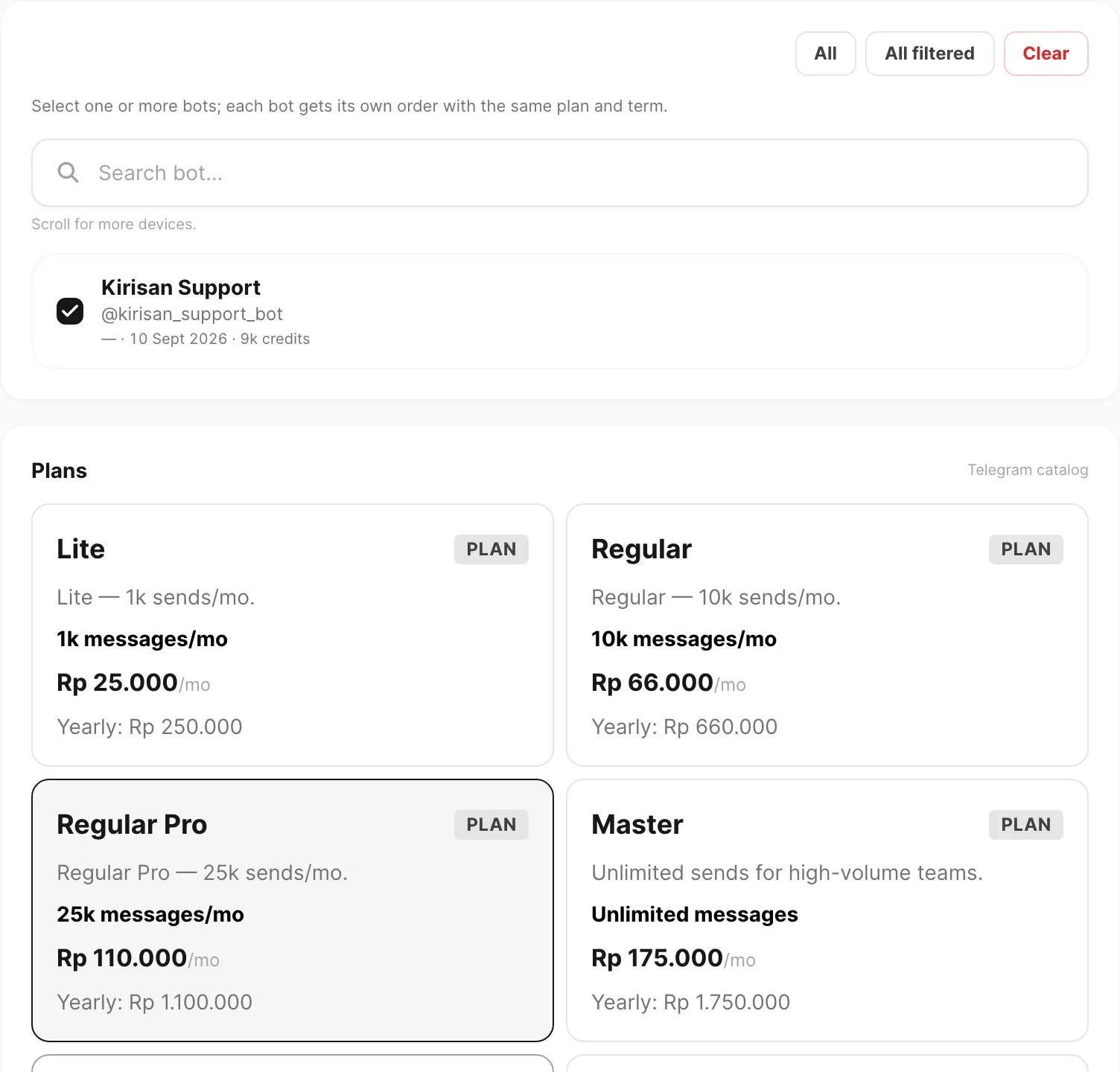
Sample data shown.
One selected plan applies to all checked targets on that tab for this checkout.
WhatsApp, WABA, Email, and Telegram share the same plan tier names, quotas, and monthly prices (yearly is 10× monthly):
| Plan | Quota / mo | Monthly (IDR) |
|---|---|---|
| Lite | 1,000 sends | Rp 25.000 |
| Regular | 10,000 sends | Rp 66.000 |
| Regular Pro | 25,000 sends | Rp 110.000 |
| Master | Unlimited | Rp 175.000 |
| Super | 10,000 sends | Rp 165.000 |
| Advanced | 25,000 sends | Rp 255.000 |
| Ultra | Unlimited | Rp 355.000 |
Master and Ultra show unlimited messaging where your channel supports it. Super, Advanced, and Ultra on WABA include media template capacity.
Your catalog may not list every tier — only plans available for your account appear in the grid.
Billing period
The Billing period card appears when you are configuring a channel plan or already have lines in your cart.
| Preset | Meaning |
|---|---|
| 1 Month | Pay one monthly cycle |
| 3 Months | Pay three monthly cycles upfront |
| 6 Months | Pay six monthly cycles upfront |
| 1 Year | Pay the yearly price (or ten monthly cycles if no yearly price is set) |
Your account may show extra presets if plans define custom terms.
Custom length lets you enter any whole number from 1 to 120, then choose Months or Years. Editing the custom fields overrides the preset chips until you click a preset again.
The billing period you choose applies to every line in this order — WhatsApp, WABA, email, and Telegram together share one term.
For how credits, expiry, renewals, and plan changes work after payment, see Plans and quota.
Coupons
Kirisan supports two coupon styles. Both end on the same Billing → Checkout screen when money is still due.
Redeem a channel coupon
Channel coupons lock the plan and billing period. You only pick the channel (if more than one) and which devices or domains to apply.
- On the Redeem a coupon card, click a listed coupon (or enter a code and Continue).
- Choose the channel if asked, then select eligible devices / domains.
- Review the summary (plan, period, discount, Total).
- Click Checkout with coupon.
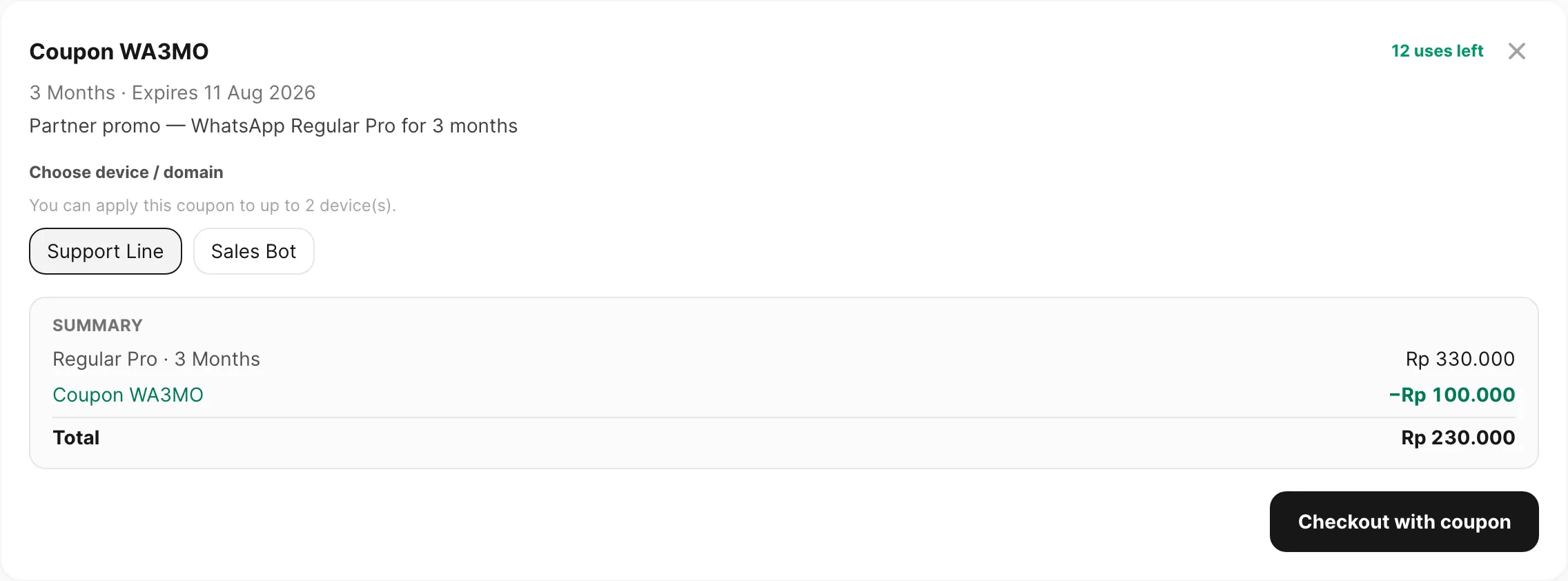
Sample data shown.
| Control | What it does |
|---|---|
| Coupon header | Code, uses left, expiry, and optional note |
| Choose channel | Shown when the coupon covers more than one channel |
| Device / domain chips | Select what the coupon applies to (limits may apply) |
| Summary | Locked plan price, coupon discount, and Total |
| Checkout with coupon | Places the order (with the 15-minute confirm when Total > Rp 0) |
| × (Cancel redeem) | Leave redeem and return to the choose screen |
Apply a global coupon in the cart
Global coupons work inside Order summary after you build a normal cart (Start ordering).
Below Subtotal and Total, enter a coupon code and click Apply before Place order.
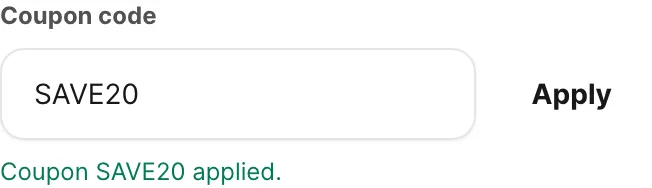
Sample data shown.
| Control | What it does |
|---|---|
| Coupon code | Type the code Kirisan or your partner gave you |
| Apply | Validates the code against your current cart |
| Green confirmation | Shows when the coupon is active |
| Coupon row | Discount subtracted from Subtotal in Total |
Rules to keep in mind:
- Build your cart first — you need at least one target and plan before Apply works.
- If you change devices, plans, or Billing period, the coupon clears; apply it again.
- Coupons may be limited by channel, plan, minimum order, expiry, usage count, or devices per user.
- Entering a channel coupon code from the redeem card opens redeem instead of the cart field.
Pay within 15 minutes
When a coupon order still has Total above Rp 0, Kirisan asks you to confirm before placing it:
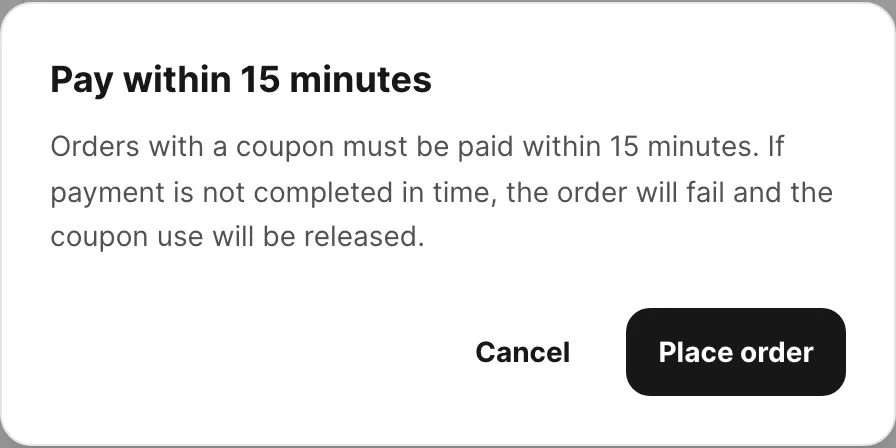
Sample data shown.
- Title Pay within 15 minutes (or Bayar dalam 15 menit in Indonesian).
- You must pay on Billing → Checkout within 15 minutes, or the order fails and the coupon use is released.
- Click Place order to continue, or Cancel to stay on the order page.
- Free / Rp 0 coupon orders skip this dialog — Kirisan approves them immediately.
When the coupon makes the total Rp 0
If the discount covers the full Total (for example a 100% coupon), Kirisan approves the order immediately — no bank transfer and no unique code.
- You see a success toast that the order was approved free with your coupon.
- Kirisan opens Billing → Receipts (not Checkout).
- Plans and quota apply right away, the same as after a verified paid order.
- Download the free receipt PDF from Billing → Receipts — status Free, payment method Coupon, amount Free.
If Total is still greater than Rp 0 after the coupon, you continue to Billing → Checkout as usual.
For step-by-step walkthroughs, see Apply a coupon and Redeem a channel coupon.
Storage tab
Storage is account-wide — it applies to your whole Kirisan account, not to a single device or domain. Use it for media in sends, autoreply attachments, and Resources → Files.
Open the Storage channel tab on Billing → Order.
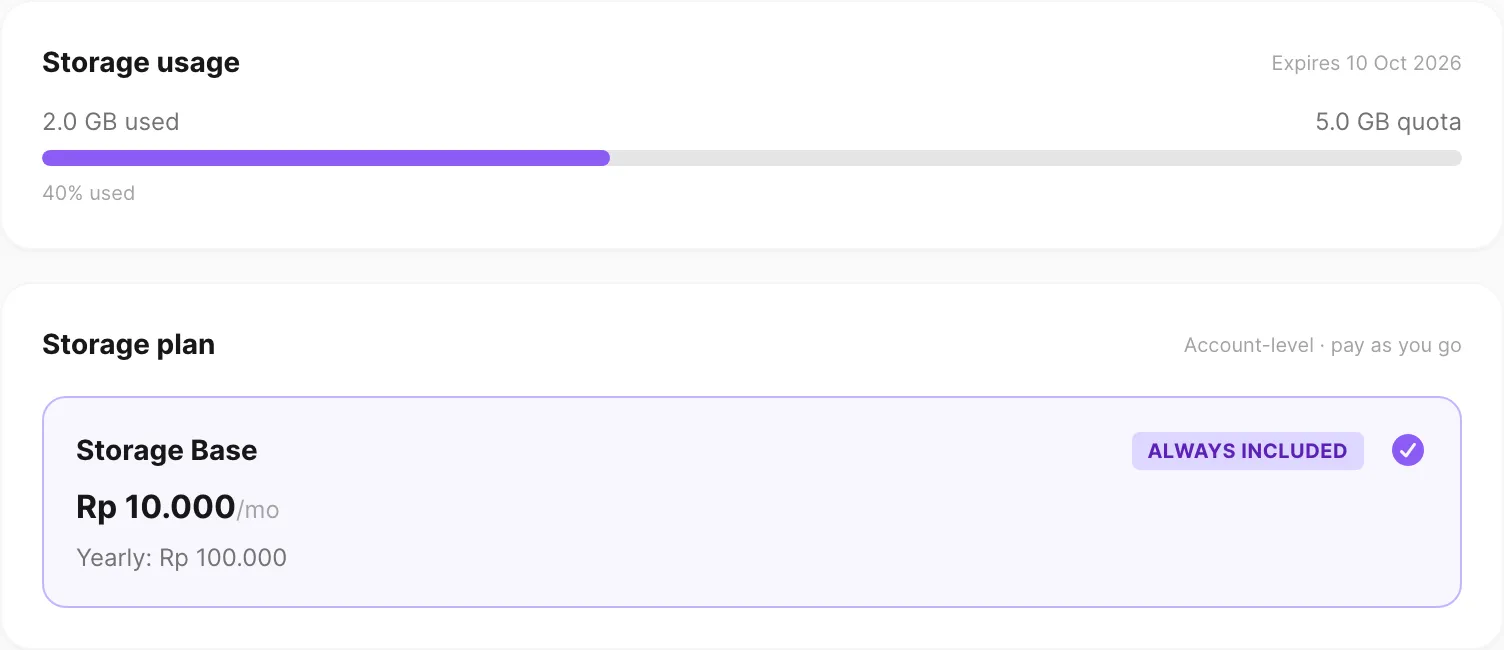
Sample data shown.
Storage usage
The top card shows space and allowance usage:
| Element | Meaning |
|---|---|
| Progress bar | Used vs total space (turns amber near 70%, red near 90%) |
| X GB used / X GB quota | Current space and paid cap |
| Writes / Reads | How many of your included allowances you have used this term (deletes are free) |
| Expires | When your paid storage term ends (hidden if not set) |
| Free-tier message | Shown when you have no paid quota yet — purchase Storage Base for a dedicated 5 GB |
Each GB includes 10,000 writes and 100,000 reads. See Files (When an allowance runs out) for what is blocked when a meter is full.
Storage plan
| Part | What it does |
|---|---|
| Storage Base | Always included — 5 GB + 50k writes + 500k reads (cannot deselect) |
| Additional storage | Optional + / − stepper (0–100 GB) — each unit adds 1 GB + 10k writes + 100k reads |
| Write packs | Optional packs of 10,000 uploads (no extra space; deletes stay free) |
| Read packs | Optional packs of 10,000 opens / downloads / previews (no extra space) |
| Plan | Grant | Monthly (IDR) |
|---|---|---|
| Storage Base | 5 GB + 50k writes + 500k reads | Rp 10.000 |
| Storage Extra | +1 GB + 10k writes + 100k reads | Rp 2.500 / GB |
| Write pack | +10,000 uploads | Rp 2.000 |
| Read pack | +10,000 opens | Rp 500 |
Pick Billing period the same way as on channel tabs. Order summary shows Storage Base, optional extra GB and packs, and Total quota before you click Place order.
For a step-by-step tutorial, see Order storage quota.
Order summary and checkout
The right column is your cart.
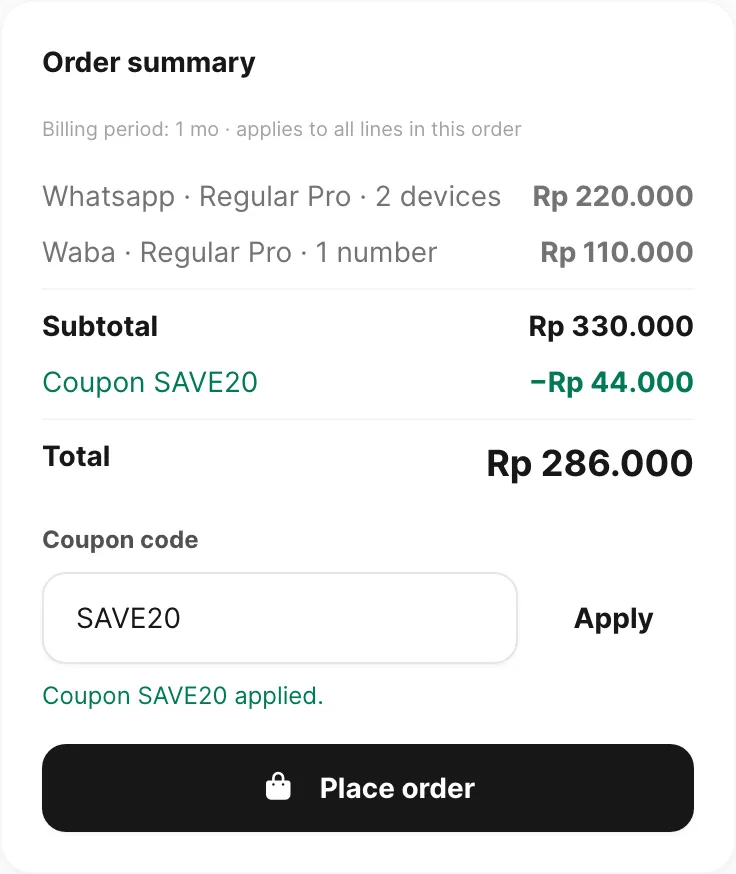
Sample data shown.
| Row | Meaning |
|---|---|
| Channel · plan · count | Each stacked line (for example Whatsapp · Regular Pro · 2 devices) |
| Line total | Plan price × billing period × number of targets |
| Total | Sum of every line in this checkout |
| Coupon code | Optional global discount — see Apply a global coupon in the cart above |
| Place order | Creates all order lines — then opens Checkout (paid) or Receipts (fully discounted) |
Place order stays disabled until you have at least one valid target + plan (or a Storage selection) and a valid billing period.
After a successful submit:
- Total above Rp 0 — confirmation toast with order IDs, then Billing → Checkout for bank transfer. Coupon orders with a balance due also showed Pay within 15 minutes first. See Checkout.
- Total = Rp 0 with a coupon — complimentary toast, then Billing → Receipts. See When the coupon makes the total Rp 0 above and Payment receipts.
Order history (recent)
When you have past orders on the active channel tab, a compact Order history (recent) list appears under the summary. Each row shows the plan name, date, payment method, target (device number or domain when relevant), price, and status badge (pending, success, or failed).
Switch channel tabs to see recent history for that product. For the full list and invoices, use View invoices or open Billing → Invoice.
Related
- Plans and quota — free tier, renewals, plan changes, and expiry
- Invoices — billing history and status
- Checkout — pay pending invoices by bank transfer
- Payment receipts — download PDF after payment is verified or a free coupon order
- Affiliate program — partner referral link and commissions
- Apply a coupon — step-by-step global discount at checkout
- Redeem a channel coupon — step-by-step channel coupon redeem
- Order storage quota — step-by-step storage ordering
- Order WhatsApp and WABA in one checkout — multi-channel tutorial
- WhatsApp devices — connect devices before ordering WhatsApp plans
- WABA devices — link WABA numbers before ordering template plans
- Email domains — verify domains before ordering email plans
- Telegram devices — add bots before ordering Telegram plans