Sending messages
Use this guide when messages are not being delivered after the device or number appears connected.
Device connected but sends fail
Work through this checklist from top to bottom:
Check Status — Open Channel → WhatsApp → Devices (or WABA / Telegram / Email). If Status is
disconnect, connect the device first.Check Quota — If Credits shows
0, open Billing → Order to renew, or check whether the target is red Free (parked) and activate the free slot. Click the Plan badge for details. See Plans and quota.Check Expires — If the badge shows Expired (red text), renew before sending again, or wait for free-tier refill if you are on the green Free active slot.
Check the device token — If you send via the API, copy the token fresh from the Token / API token column on the correct row. A token from a different device will fail. See Copy a device API token.
Check linked devices on the phone — For WhatsApp: open WhatsApp → Linked devices on the phone. If Kirisan is missing, connect again.
Check the inbound handler — If you expect sends to trigger autoreply or flow, open the device edit dialog and confirm On incoming message is set correctly.
Messages deliver but look wrong
Symptom: Message was sent but recipient sees the wrong content or format.
- Confirm your
contentblock uses the correct channel key (whatsapp,waba,telegram, oremail). See Send API. - For WABA, only approved templates can start business-initiated conversations. Check template status in Channel → WABA → Templates.
- For WhatsApp variables, confirm placeholders (
[[varname]]) match your template and the send payload fills every variable.
Bulk or campaign sends stop partway through
Symptom: A campaign or schedule shows fewer sent rows than expected.
- Open Send → Campaign or Send → Schedule and check the row Status — it may be paused or failed.
- Open Channel → WhatsApp → Logs (or the relevant channel log) and filter by the send time to find error rows.
- Check Quota — a large batch can exhaust credits mid-send; renew under Billing → Order.
- An email campaign can show paused if that template kind is blocked on Channel → Email → Domains (the
transactionalormarketinglabel under Sending health). Acknowledge first, then resume the campaign after sending is reopened.
Email API says queued but Logs is still empty
Goal: Confirm a marketing or no-template email the API accepted actually sent.
Start when: POST /v1/send returns "queued": true and a "request_id", but Channel → Email → Logs does not show a row yet.
Wait a few seconds, then open Channel → Email → Logs.
Filter Sender to the sender you used, or search Recipient.
If it is still empty, set up a send status webhook and match
request_id.- You should see a sent or failed row after Kirisan sends (not when the API answers
queued).
- You should see a sent or failed row after Kirisan sends (not when the API answers
Done when: The log row (or webhook) shows the final result. Credits are deducted only when the email sends.
Marketing or no-template email is rejected immediately
Goal: Read the rejection reason and fix the request.
Start when: The API returns "status": false with rate_limited, queue_full, not_in_email_pool, or email_lane_blocked.
Read
"reason"on the root or on"channels.email.reason".Match it to the table in API errors.
For
rate_limited, waitretry_afterseconds (at most 2 requests per second per domain for marketing and no-template).For
queue_full, wait until some emails send, then try again.For
not_in_email_pool, send a transactional template or no-template email to that address first — or use an address you have already emailed.For
email_lane_blockedoremail_domain_suspended, open Channel → Email → Domains and acknowledge the blocked kind.- You should see the next request succeed after the cap, wait-in-line, recipient list, or domain block is cleared.
Done when: The request returns "status": true (immediate or queued).
Sending health is Blocked for one kind of email
Goal: Reopen the blocked kind of email without stopping the others.
Start when: The Sending is blocked banner appears on Channel → Email → Domains, or a send fails with email_lane_blocked.
- Open Channel → Email → Domains.
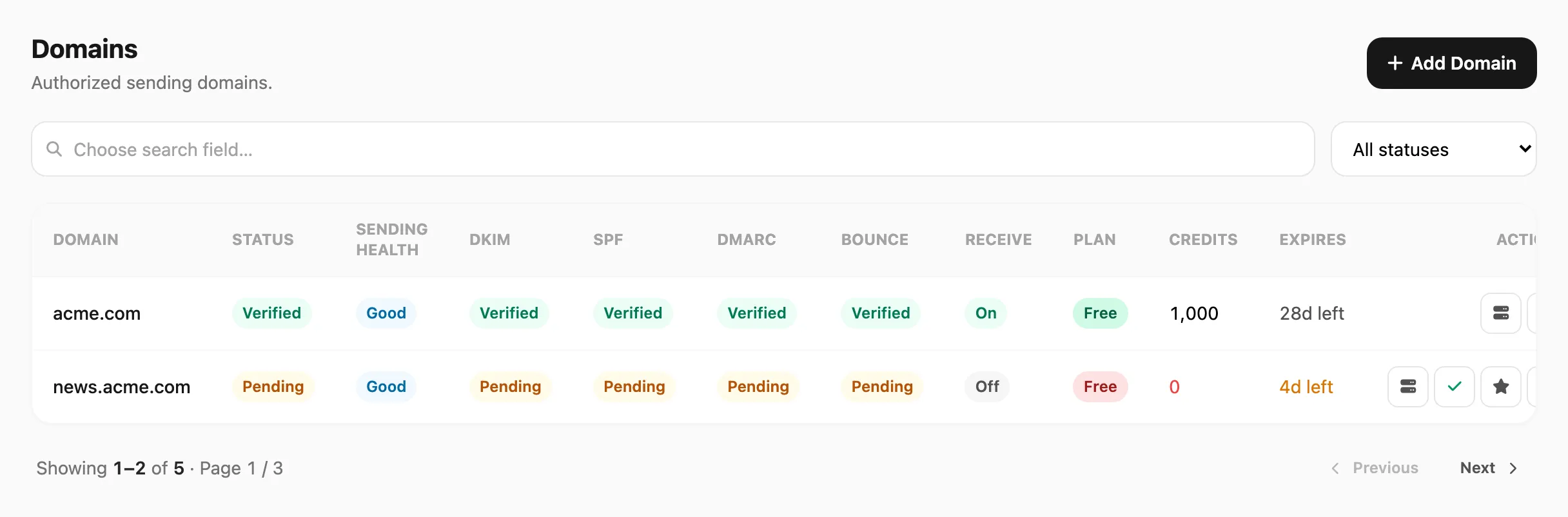
Sample data shown.
In Sending health, read the Blocked badge and the small label under it (
transactional,marketing, orraw).Click Acknowledge on the banner or Acknowledge block on the row.
Fill in What did you fix? in the Acknowledge sending block popup, then submit.
- You should see Pending admin review, then the banner Acknowledgement received. Waiting for admin to reopen sending.
Done when: The Blocked badge is gone for that kind. Other kinds on the same domain may already have been sending.
Send statistics look wrong
Open Logs → Statistics to compare time windows and read channel breakdowns.
Today’s count seems off
- Open Logs → Statistics and click Today in the header.
- Total sends and the subtitle show per-channel counts for the current UTC day.
- To compare with a longer window, click 7 days and scroll the Daily activity chart to the rightmost bar (today’s UTC date).
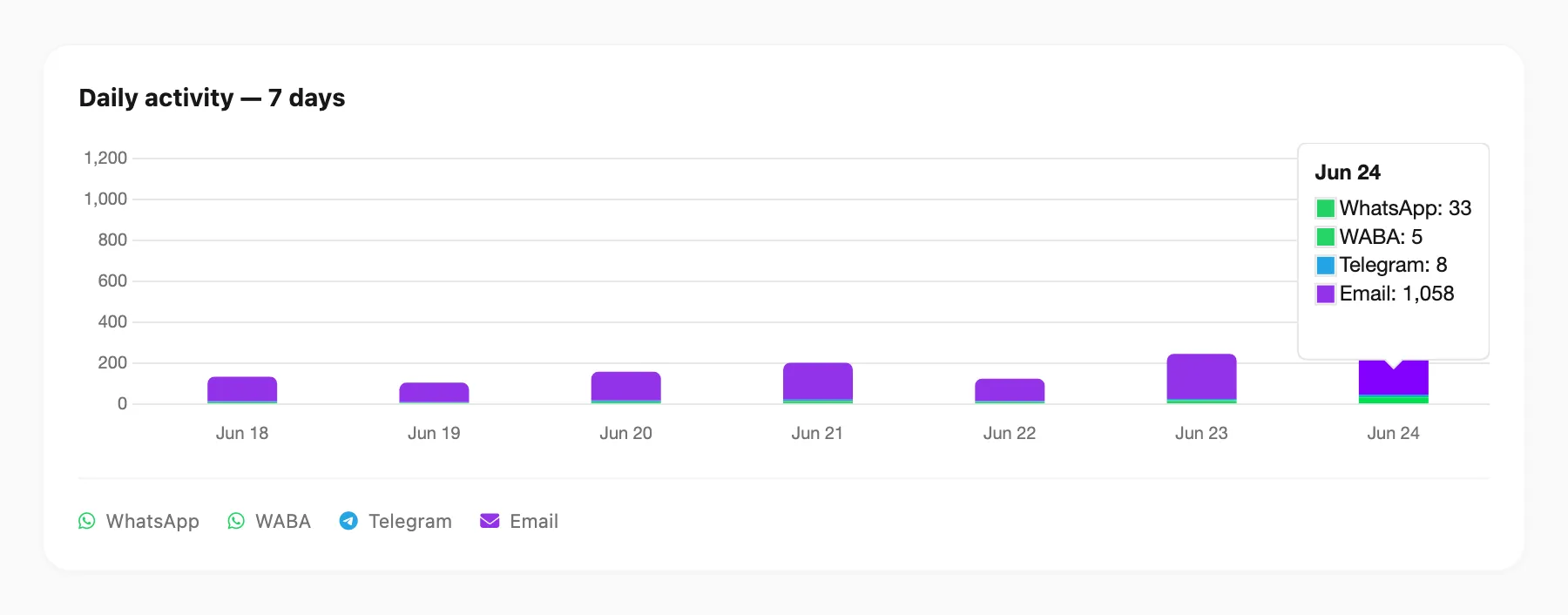
- You should see the hover panel total match what Today showed.
30-day chart looks empty
Click 30 days, then scroll right in the Daily activity chart — the current day is always the rightmost bar.
Counts differ between Statistics and channel logs
- Logs → Statistics counts every outbound send attempt across all channels in one place.
- Per-channel logs (for example Channel → WhatsApp → Logs) show device-level detail for that channel only.
- Use Statistics for totals; use per-channel logs when you need to trace a specific message.
Fix common problems
Symptom: Read count is always 0.
Expected when WhatsApp read receipts are not available for your sends. Delivered and Failed still update normally.
Symptom: Email opens or bounces missing from Statistics.
Open Channel → Email → Statistics for email engagement and deliverability. Logs → Statistics shows outbound send attempts only.
Symptom: Can’t see a per-device breakdown.
Open Channel → WhatsApp → Statistics (or Telegram / WABA) for a By device table. Logs → Statistics does not split by device.
Related
- Connection — device not linking or token issues
- Receiving messages — inbound messages not appearing
- Webhook — webhook not firing on live traffic
- Send API — full request body, including the three kinds of email
- API errors —
rate_limited,queue_full, and other email reasons - Domains — Sending health and Acknowledge
- Statistics reference — every column and chart explained