Start here
Everyone starts the same way: create a workspace, sign in, connect a channel, and understand what your plan allows. These four steps matter whether you later use the dashboard or call the API — Kirisan cannot send or receive until a device (or email sender) exists, and every send counts against plan limits.
When you finish this page, pick the User or Developer path.
1. Create an account
Kirisan uses Google sign-in only — there is no separate Kirisan password. The first time you continue with Google, Kirisan creates a workspace for that Google account. Returning users land in the same workspace.
Your workspace holds channels, contacts, templates, autoreply rules, files, and billing for one account.
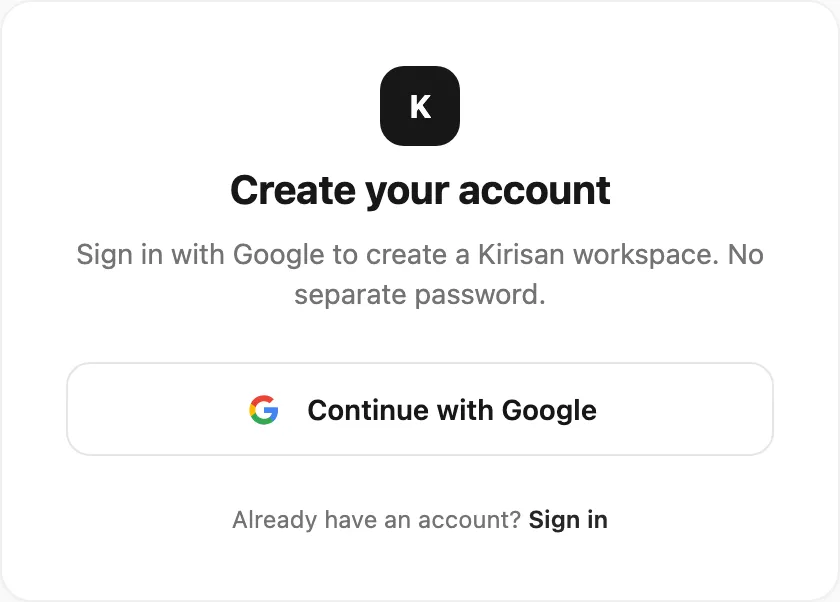
- Docs: Create your account
- Dashboard: Register
2. Login
Open the dashboard with the same Google account. Home shows a short overview of recent sends and connected devices; the sidebar is how you move between Channel, Send, Autoreply, Logs, Billing, and the rest.
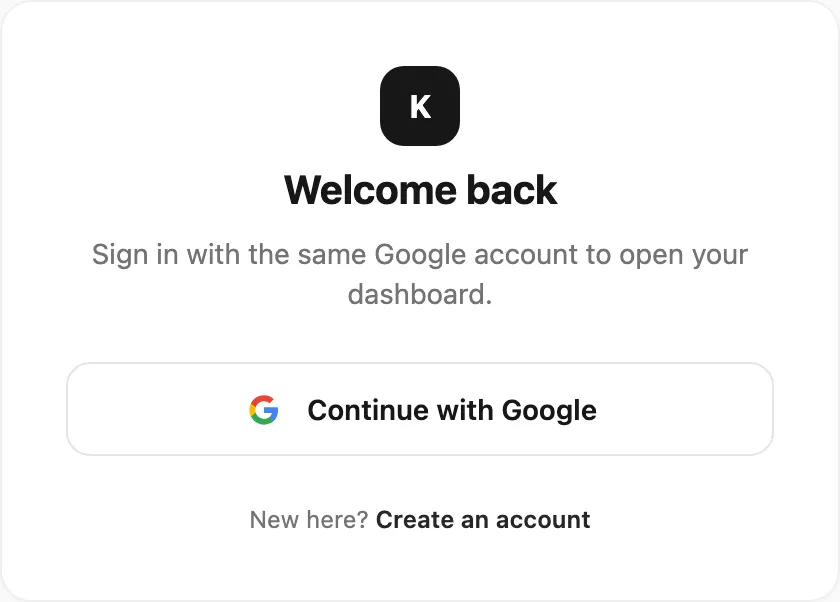
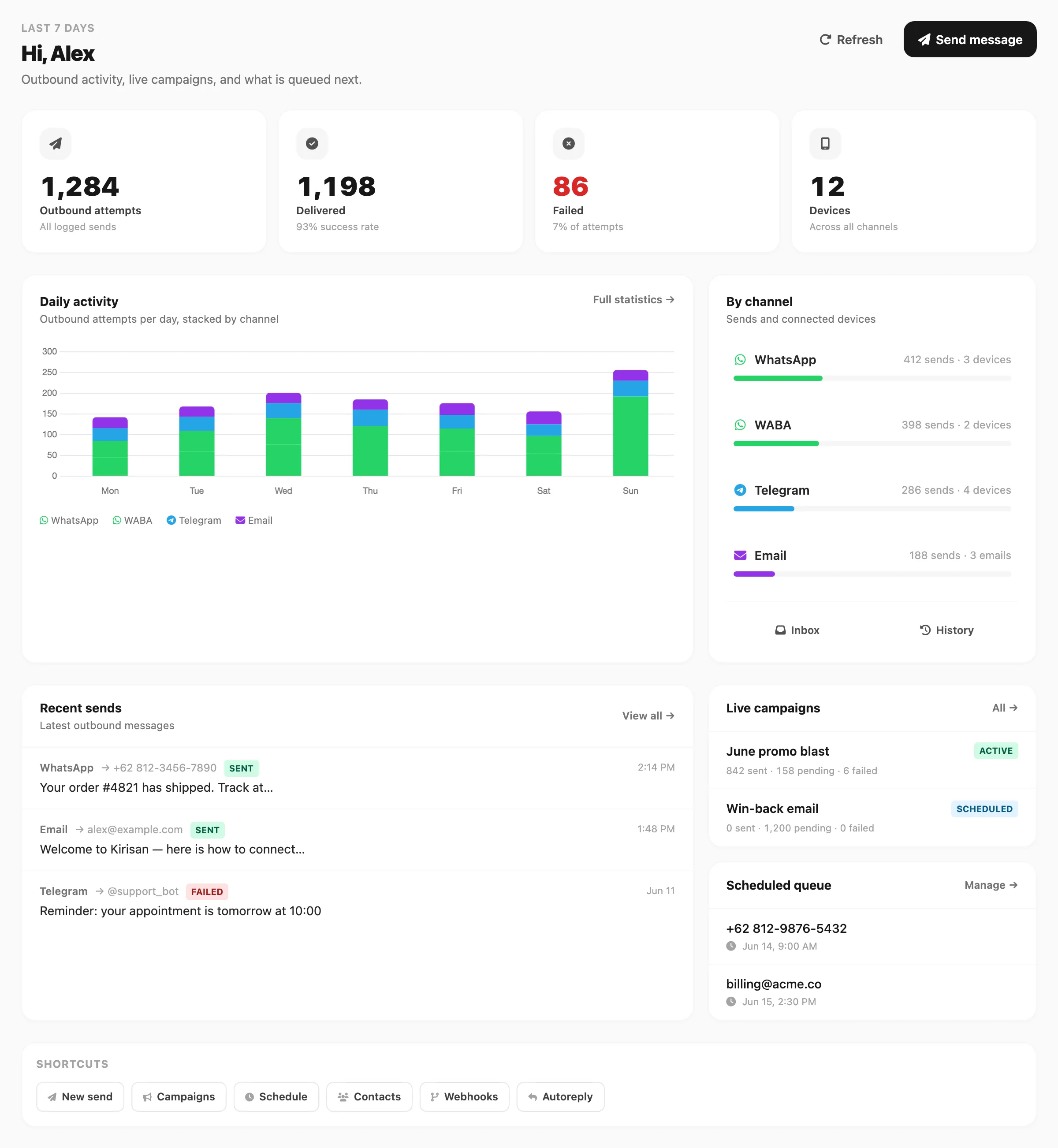
Spend a minute on the Dashboard tour so names in later roadmap steps match what you see on screen.
- Docs: Getting started overview · Dashboard tour
- Dashboard: Login
3. Channels & devices
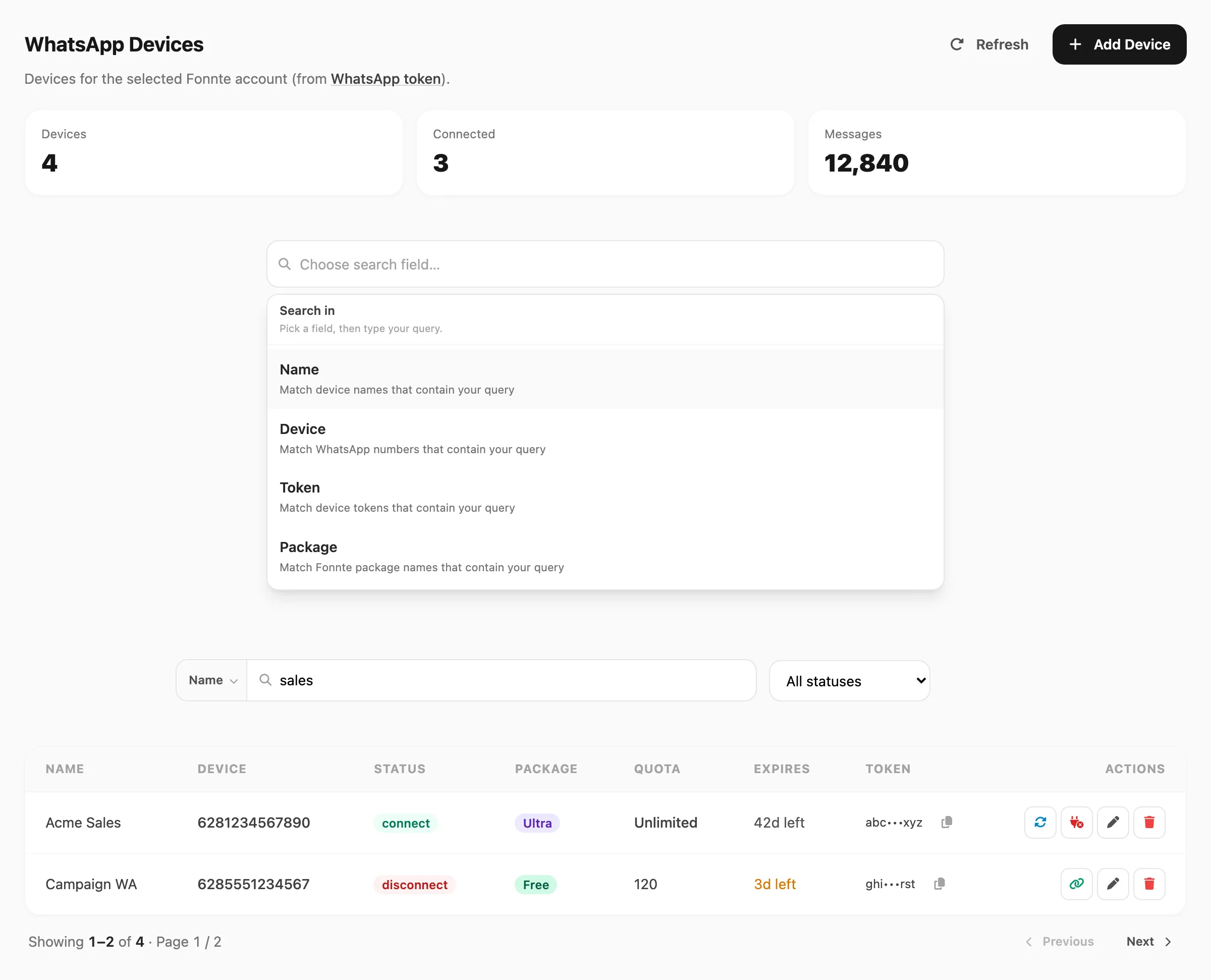
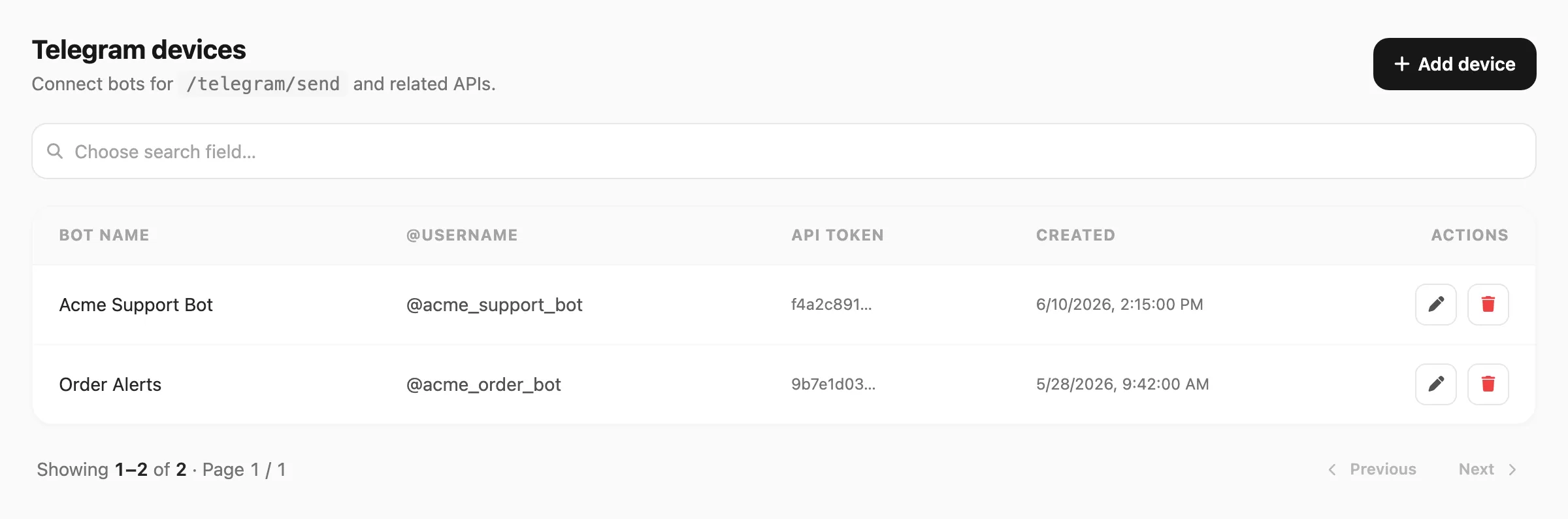
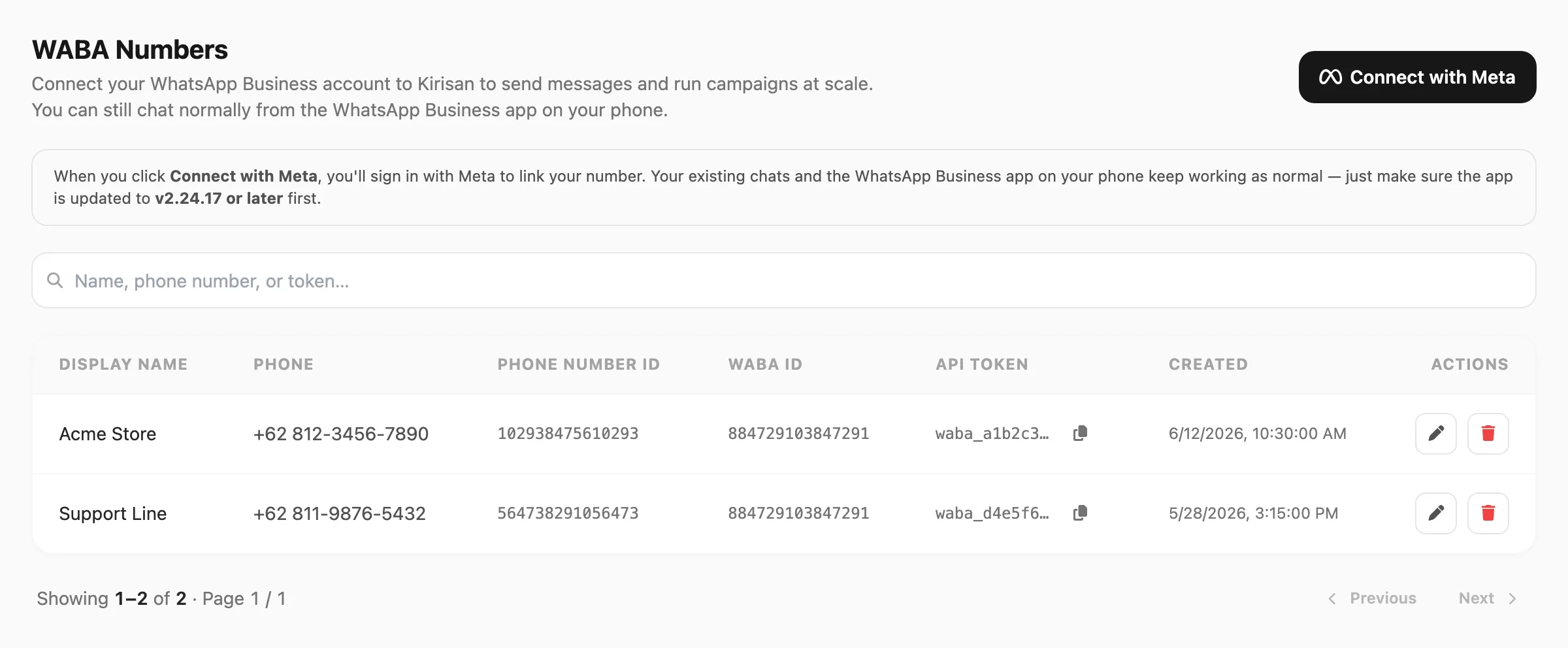
A channel is the messaging pipe: WhatsApp, Telegram, WhatsApp Cloud API (WABA), or email. A device (bot, Cloud API number, or email sender) is the concrete endpoint that actually sends and receives on that channel.
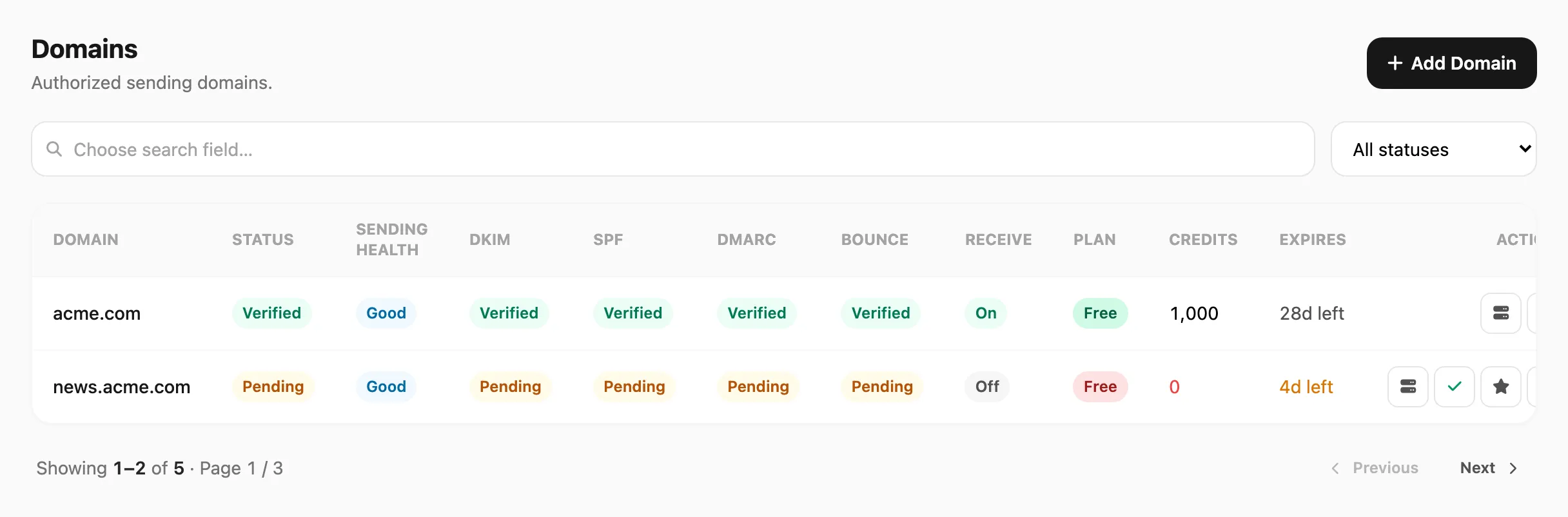
Until at least one device or sender is connected and healthy, Send, autoreply, inbox, and the API have nothing to use. Each channel has its own connection flow (Fonnte WhatsApp device, Telegram bot token, Meta WABA number, verified email domain + sender address).
| Channel | What you connect | Docs | Dashboard |
|---|---|---|---|
| Fonnte-linked phone / device | Devices | Devices | |
| Telegram | Bot from BotFather | Devices | Devices |
| WABA | Cloud API phone number | Devices | Devices |
| Verified domain, then sender addresses | Domains · Emails | Domains · Emails |
Channel comparison and when to pick which: Channels overview.
4. Plans, expiry & quotas
Kirisan billing is not only “can I log in?” — it controls how much you can send, how long data is kept, and whether attachments / file storage are included.
Worth understanding early:
- Device / domain plan expiry — when a channel plan ends, sends on that device stop until you renew or change plan.
- Message quota — outbound attempts consume quota; campaigns and API share the same pool for that device.
- Attachment tier — some plans allow media; others are text-oriented.
- Storage quota — inbound media saved to Files and uploads count toward storage when storage is active.
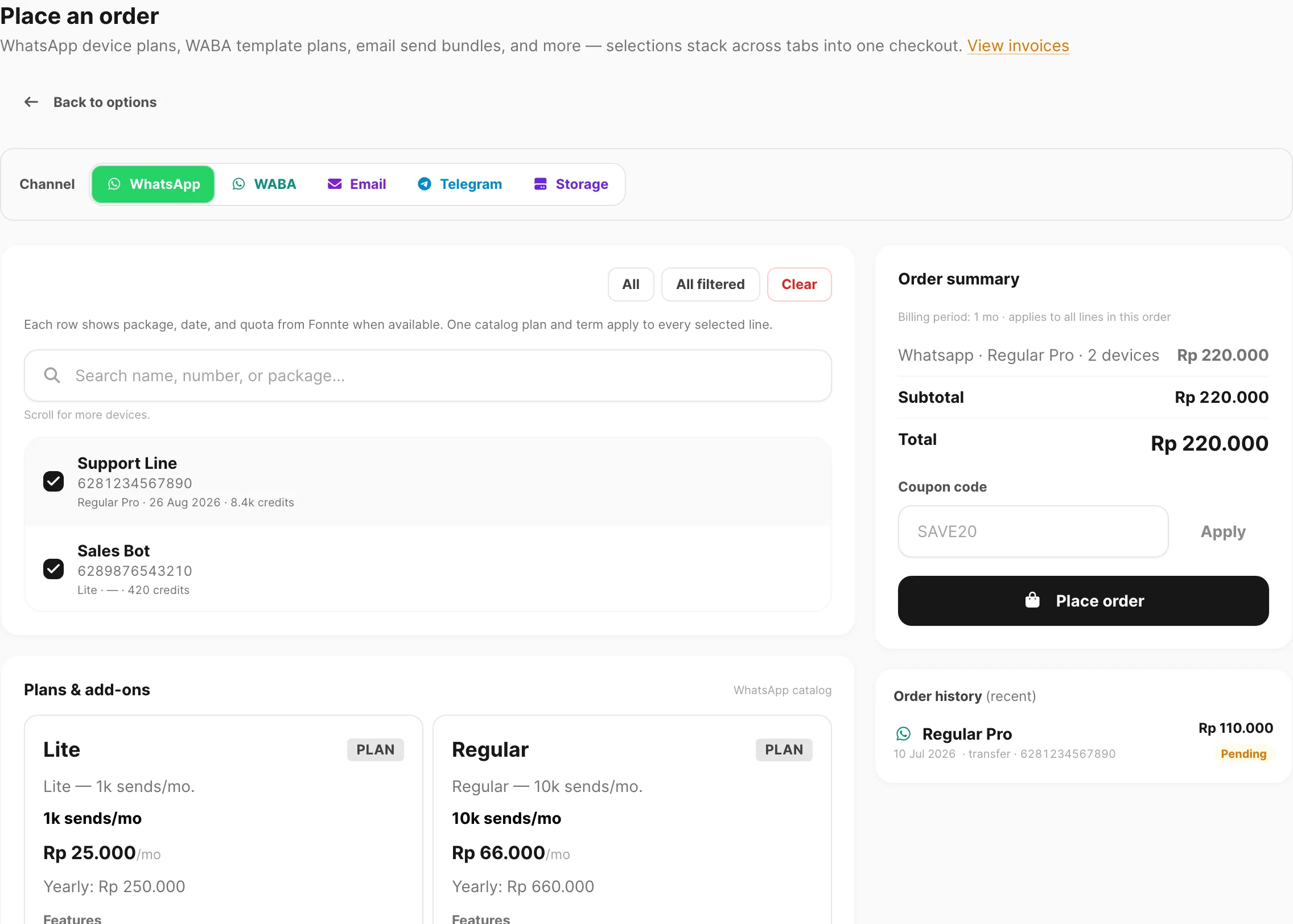
Open Order to see what you have and what you can buy.
- Docs: Plans and quota · Order
- Dashboard: Order
Next
Choose how you want to work: Choose your path.