Payment receipts
Open Billing → Receipts.
What this page is for
Payment receipts are saved when a payment batch is completed — either after admin verifies your bank transfer, or immediately when a coupon covers the full order (Rp 0). Each receipt is a snapshot of the batch at that moment — line items, amounts, and plan details — so you can download the PDF later even after pending invoices leave Billing → Checkout.
Use receipts when:
- You paid but did not click Download invoice on checkout
- A coupon made the order free and Kirisan sent you here after Place order
- You need a PDF copy for accounting or support
- You want to confirm what was included in a past payment
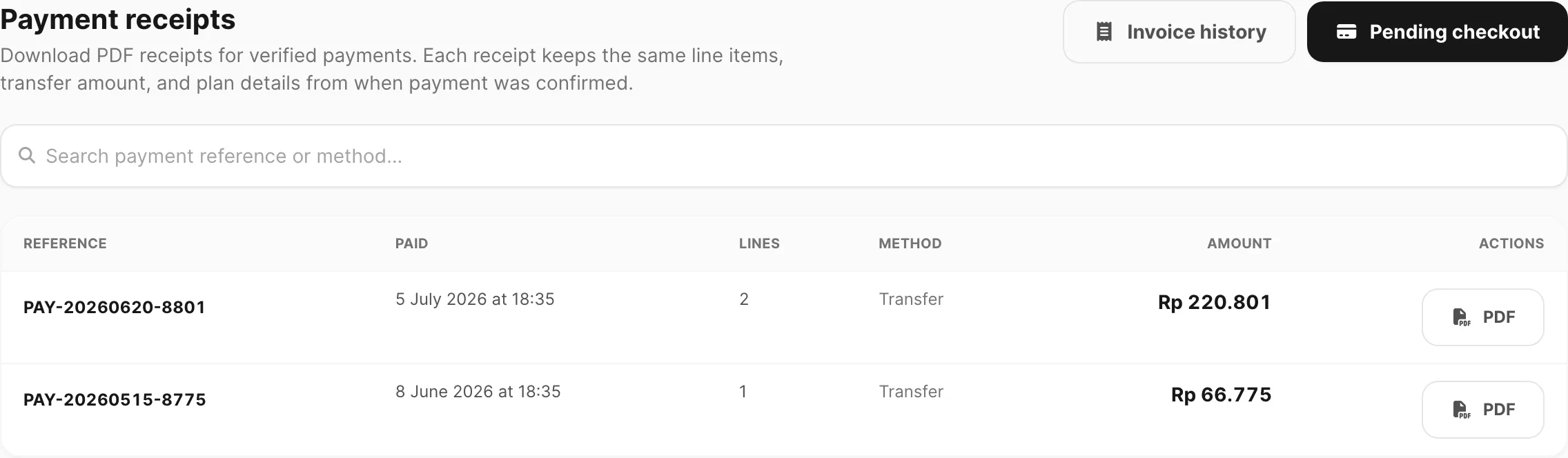
Sample data shown.
| Control | What it does |
|---|---|
| Invoice history | Open Billing → Invoice for per-line status |
| Pending checkout | Open Billing → Checkout for unpaid invoices |
| Search | Find receipts by payment reference or method |
Receipts appear only after invoices move to success. Pending or cancelled lines are not listed here.
No receipts yet
If you have not completed a verified payment, the page shows an empty state.
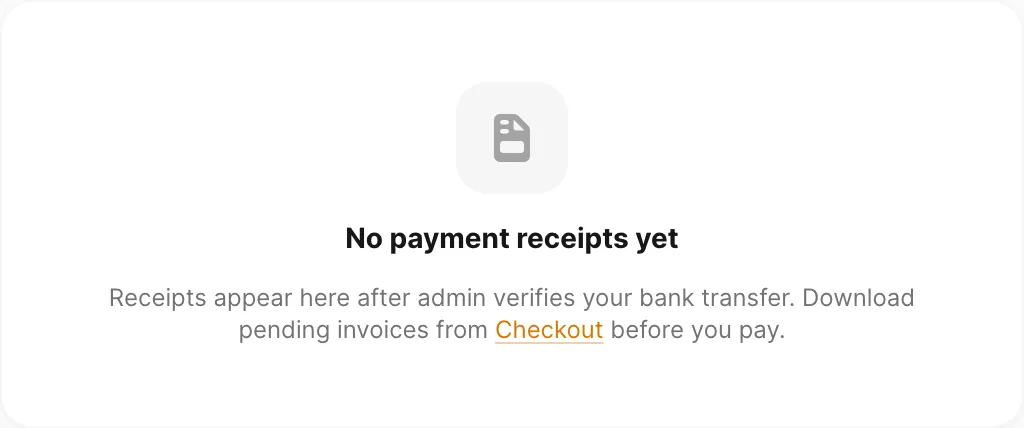
Sample data shown.
| Control | What it does |
|---|---|
| Checkout link in the message | Open Billing → Checkout to download a PDF before you pay |
| Pending checkout (header) | Same — pay or download while invoices are still pending |
After admin confirms your transfer, refresh Billing → Receipts or open Billing → Invoice and filter Status → success.
Search
The search box matches payment reference (for example PAY-20260620-8801) and payment method (for example transfer). Results update after a short pause while you type.
Pagination appears when you have more receipts than one page can show.
Receipts table
Each row is one verified payment batch — usually the same group you paid together on checkout.
| Column | Meaning |
|---|---|
| Reference | Payment ID (PAY-YYYYMMDD-firstInvoiceId) — click to expand line items |
| Paid | Date and time the payment was recorded (verification or complimentary approval) |
| Lines | Number of invoice lines in the batch |
| Method | transfer for bank payments, or coupon when the order was fully discounted |
| Amount | Transfer total (subtotal + unique code), or Rp 0 for free coupon receipts |
| Download the receipt PDF for this batch |
Expanded line items
Click a Reference to expand the row without leaving the page.
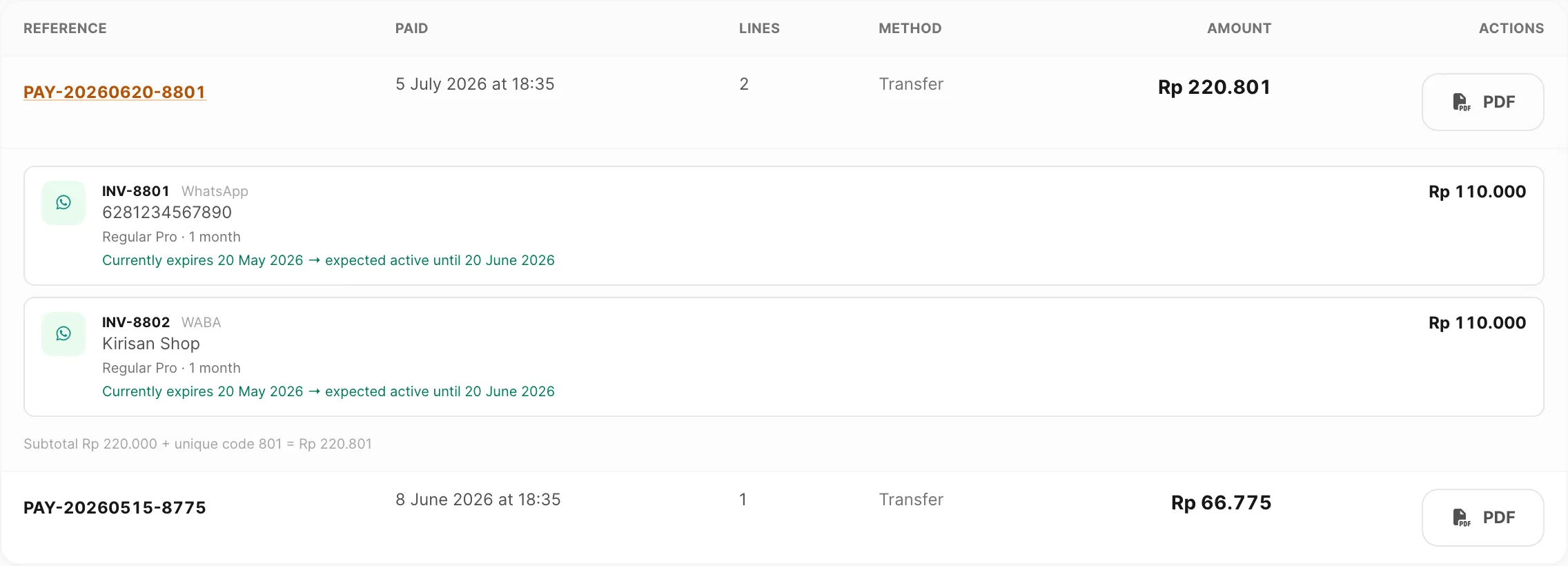
Sample data shown.
Each nested card shows:
| Part | Meaning |
|---|---|
| INV-##### | Original invoice number |
| Channel | WhatsApp, WABA, Email, Telegram, or Storage |
| Identifier | Device, WABA name, domain, bot, or storage label |
| Plan line | Plan name · period frozen at payment time |
| Expiry line | Expected active-until dates captured when payment was verified |
| Line price | Amount for that invoice |
| Footer equation | For paid transfers: Subtotal + unique code = transfer amount. Free coupon batches show Rp 0 with no unique code. |
Click the reference again to collapse the row.
Download receipt PDF
Click PDF on any row to generate a Receipt document. The PDF always includes:
- Kirisan brand mark, payment reference, and paid date
- Bill-to (your name and email)
- Each line with channel, identifier, plan, period, and expiry snapshot
What else appears depends on the payment:
| Kind | Status on PDF | Amounts | Bank / unique code |
|---|---|---|---|
| Bank transfer | Paid | Subtotal, unique code, Amount paid | BCA details from the original transfer |
| Full coupon (Rp 0) | Free | Subtotal Rp 0, Amount due shows Free | None — payment method Coupon (CODE) |
Content matches what was stored at approval — not live device expiry dates.
Receipt vs checkout PDF
| Checkout — Download invoice | Receipts — PDF | |
|---|---|---|
| When | While invoices are pending | After payment is verified, or immediately for a free coupon order |
| Title / status | Invoice · Awaiting payment | Receipt · Paid or Free |
| Line items | Current pending list | Frozen snapshot at payment time |
| Unique code & bank | Yes (pending transfer) | Yes for transfers; omitted on free coupon receipts |
| Where | Billing → Checkout | Billing → Receipts |
Related
- Plans and quota — credits and expiry after payment
- Checkout — pay pending invoices and download pre-payment PDF
- Invoices — per-line status and detail panel
- Place an order — create new invoices
- Affiliate program — partner commissions after verified payment
- Download a receipt PDF — step-by-step tutorial
- Pay by bank transfer — complete payment first