Checkout
Buka Billing → Checkout.
Judul halaman bertuliskan Payment — itu layar yang sama dengan Billing → Checkout di sidebar.
Untuk apa halaman ini
Checkout tempat Anda menyelesaikan transfer bank untuk invoice yang masih pending. Kirisan mencantumkan setiap baris belum bayar dari Place order terbaru (atau pesanan lama yang belum dibayar), menampilkan detail rekening BCA, dan menambahkan kode unik ke subtotal agar support dapat mencocokkan transfer Anda.
Anda bisa membuka checkout:
- Otomatis setelah Place order atau Checkout with coupon di Billing → Order ketika total masih lebih dari Rp 0
- Dari Billing → Invoice — klik Pay di header halaman
- Kapan saja dari Billing → Checkout di sidebar
Jika kupon membuat pesanan Rp 0, Kirisan melewati checkout dan membuka Billing → Receipts — lihat Place an order (Saat kupon membuat total Rp 0).
Pesanan kupon dengan sisa bayar: bayar dalam 15 menit setelah pesanan dibuat. Jika waktu habis, pesanan gagal dan pemakaian kupon dikembalikan. Kirisan menampilkan dialog Bayar dalam 15 menit sebelum Anda konfirmasi — lihat Place an order (Bayar dalam 15 menit).
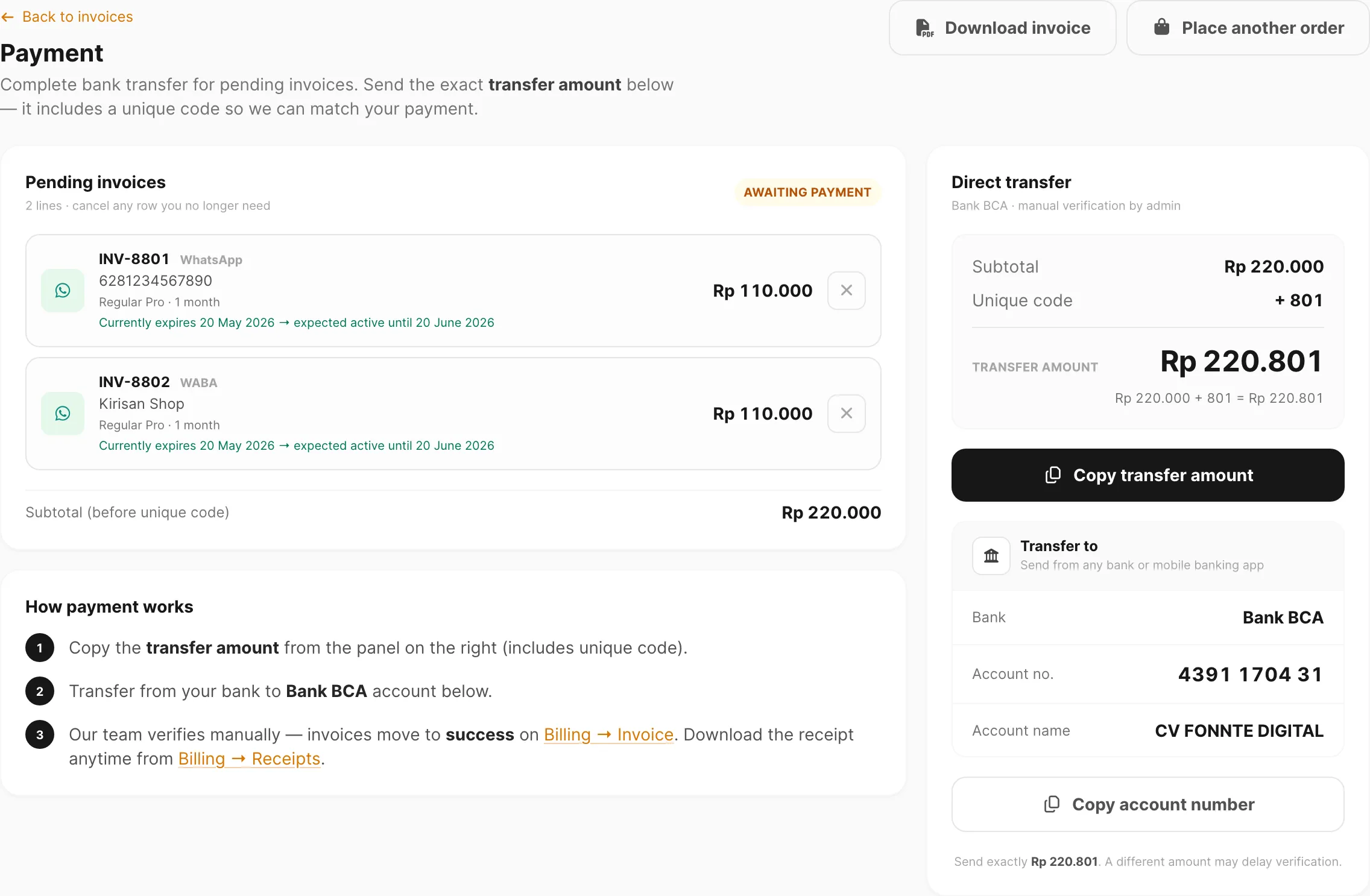
Contoh data ditampilkan.
Tata letak halaman
Checkout memakai layout dua kolom di layar besar:
| Area | Yang ditampilkan |
|---|---|
| Kiri | Daftar invoice pending, subtotal, dan langkah How payment works |
| Kanan (sticky) | Direct transfer — jumlah, tombol salin, dan detail rekening bank |
Di mobile, panel transfer muncul di bawah daftar invoice.
Kontrol header
| Kontrol | Fungsi |
|---|---|
| Back to invoices | Kembali ke Billing → Invoice |
| Download invoice | Simpan PDF dengan item baris, detail plan, dan total transfer |
| Place another order | Buka Billing → Order tanpa meninggalkan checkout |
Download invoice hanya muncul jika minimal satu invoice pending tercantum.
Tidak ada invoice pending
Ketika semuanya sudah dibayar atau Anda belum memesan, checkout menampilkan empty state alih-alih panel pembayaran.
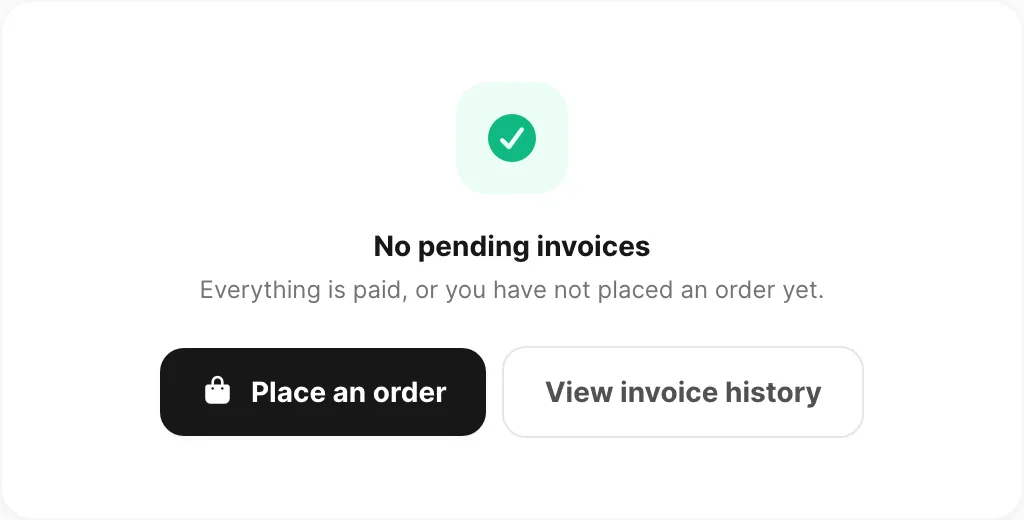
Contoh data ditampilkan.
| Kontrol | Fungsi |
|---|---|
| Place an order | Buka Billing → Order |
| View invoice history | Buka Billing → Invoice |
Invoice pending
Kartu kiri mencantumkan setiap invoice pending dalam satu batch pembayaran.
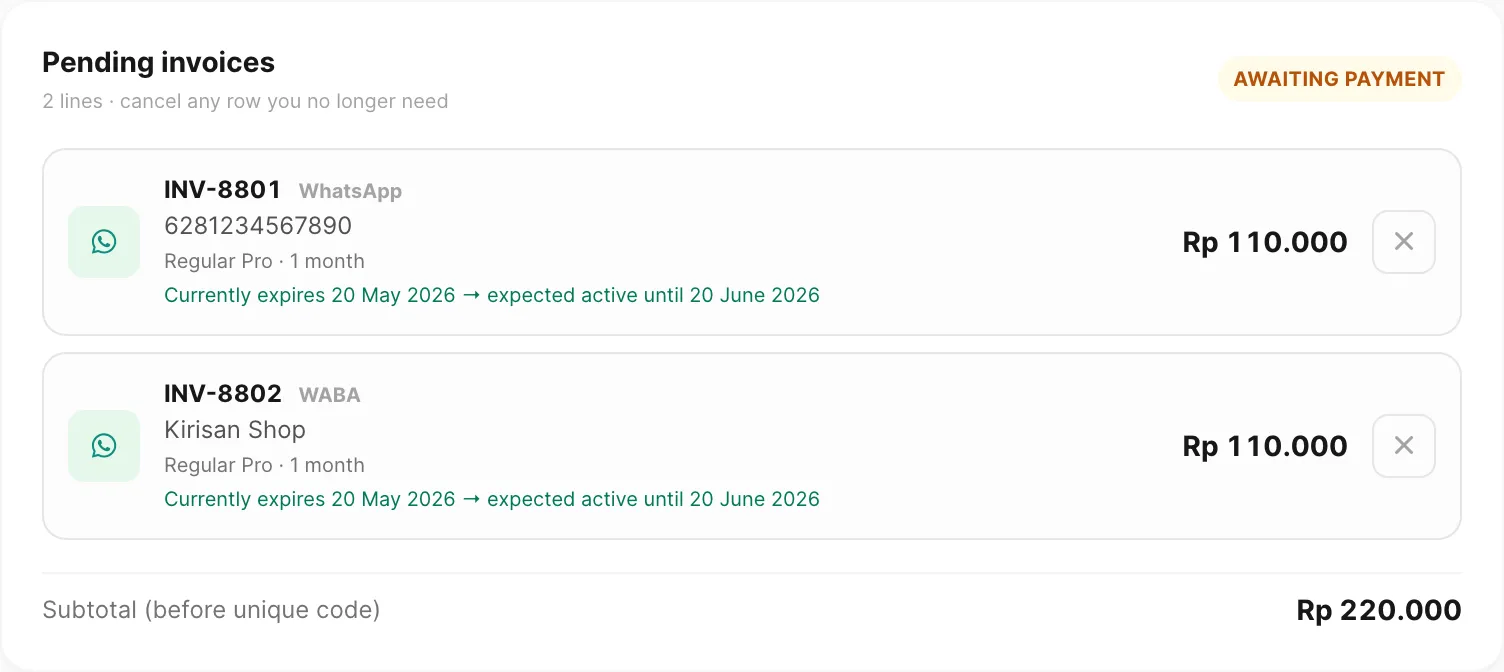
Contoh data ditampilkan.
| Bagian baris | Arti |
|---|---|
| INV-##### | Nomor invoice untuk baris pesanan itu |
| Label channel | WhatsApp, WABA, Email, Telegram, atau Storage |
| Identifier | Nomor device, nama tampilan WABA, domain, username bot, atau label storage |
| Baris plan | Nama plan · periode (misalnya Regular Pro · 1 month) |
| Baris expiry | Currently expires … → expected active until … saat perpanjangan; Expected active until … untuk pembelian baru |
| Price | Jumlah baris dalam IDR (sebelum kode unik bersama) |
| × | Batalkan invoice pending itu |
| Badge Awaiting payment | Pengingat bahwa batch memerlukan transfer bank |
| Footer Subtotal | Jumlah semua baris tercantum — kode unik ditambahkan di panel transfer |
Klik × pada baris untuk membatalkan invoice yang tidak lagi Anda butuhkan. Baris yang dibatalkan hilang dari checkout dan tampil cancelled di Billing → Invoice.
Cara pembayaran bekerja
Langkah bernomor di kiri merangkum alur:
- Salin Transfer amount dari panel kanan (termasuk kode unik).
- Transfer dari bank Anda ke rekening Bank BCA yang ditampilkan di bawah jumlah.
- Tunggu verifikasi manual — status berpindah ke success di Billing → Invoice. Unduh receipt nanti dari Billing → Receipts.
Direct transfer
Kirisan saat ini menerima pembayaran via Direct transfer ke Bank BCA.
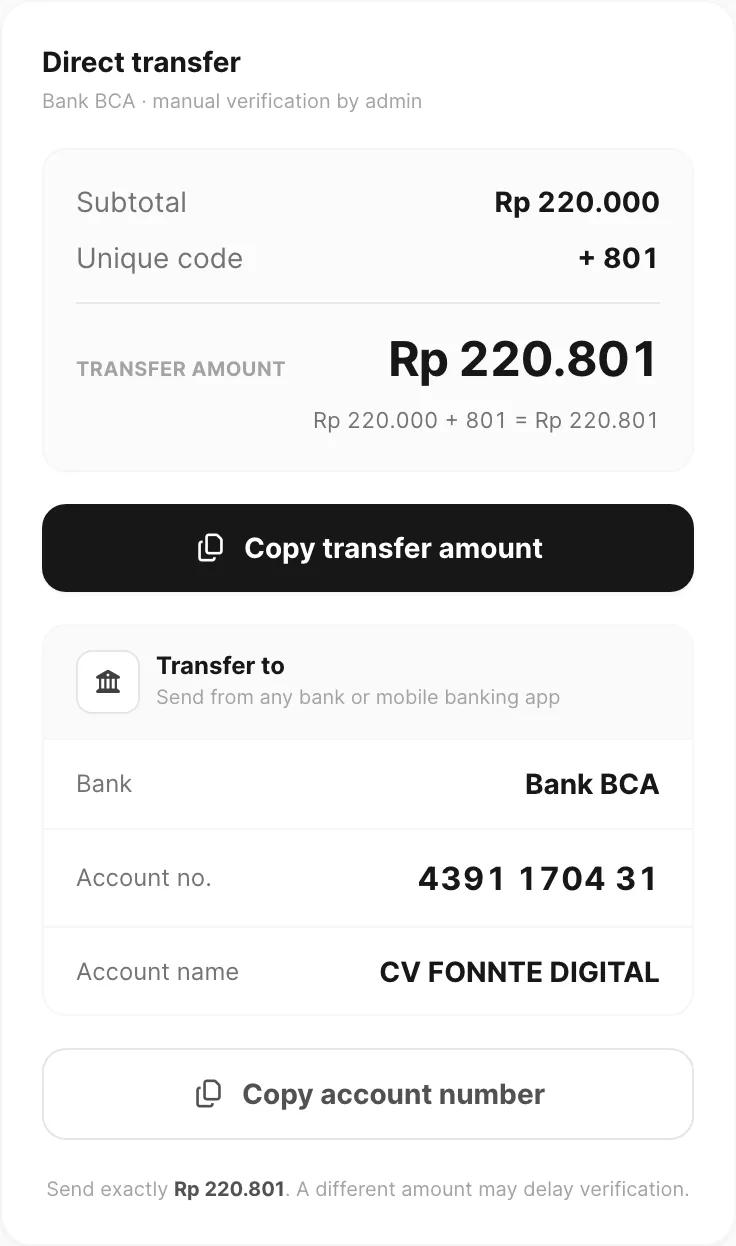
Contoh data ditampilkan.
| Field | Arti |
|---|---|
| Subtotal | Jumlah semua invoice pending |
| Unique code | Sufiks dari ID invoice pertama Anda (invoice id mod 1000) — ditambahkan sekali per batch |
| Transfer amount | Subtotal + unique code — kirim tepat jumlah ini |
| Baris persamaan | Menampilkan subtotal + unique code = transfer amount |
| Copy transfer amount | Menyalin jumlah transfer penuh ke clipboard |
| Transfer to | Blok bank dengan detail rekening |
| Bank | Bank BCA |
| Account no. | 4391 1704 31 (tampilan) — 4391170431 saat disalin |
| Account name | CV FONNTE DIGITAL |
| Copy account number | Menyalin 4391170431 tanpa spasi |
Catatan di bawah blok bank mengingatkan untuk mengirim tepat Transfer amount. Jumlah berbeda dapat menunda verifikasi.
Pembayaran online instan (VA / QRIS) mungkin muncul di sini jika diaktifkan di akun Anda — tidak ditampilkan di layout checkout default.
Unduh PDF invoice
Klik Download invoice sebelum atau setelah transfer. PDF berjudul Invoice, status Awaiting payment, dan mencakup:
- Logo Kirisan, bill-to (nama dan email Anda), serta referensi dokumen (
PAY-YYYYMMDD-#####) - Setiap baris pending dengan channel, identifier, plan, periode, dan tanggal active-until yang diharapkan
- Subtotal, kode unik, Amount due, dan detail Transfer to BCA
Setelah pembayaran diverifikasi, unduh Receipt berbayar dari Billing → Receipts (status Paid, dengan snapshot baris yang sama). Pesanan kupon diskon penuh memakai kuitansi Free — tanpa kode unik atau blok bank.
Setelah Anda bayar
- Buka Billing → Invoice dan filter Status → success untuk mengonfirmasi pembayaran.
- Unduh PDF receipt dari Billing → Receipts jika belum disimpan dari checkout.
- Plan berbayar diterapkan ke device, domain, bot, atau nomor sesuai setiap baris — lihat Plans and quota untuk cara kredit dan kedaluwarsa diperbarui (perpanjangan vs ganti plan).
- Jika invoice tetap pending setelah 24 jam, periksa kembali jumlah transfer sudah termasuk unique code, lalu hubungi support dengan nomor INV-##### Anda.
Terkait
- Plans and quota — kredit, perpanjangan, dan ganti plan setelah pembayaran
- Place an order — buat invoice
- Apply a coupon — diskon sebelum checkout
- Invoices — riwayat lengkap dan filter status
- Payment receipts — PDF setelah verifikasi
- Download a receipt PDF — tutorial langkah demi langkah
- Pay by bank transfer — tutorial langkah demi langkah
- Order storage quota — beli Storage Base dan GB tambahan