Log webhook
Buka Webhooks → Logs.
Kegunaan halaman ini
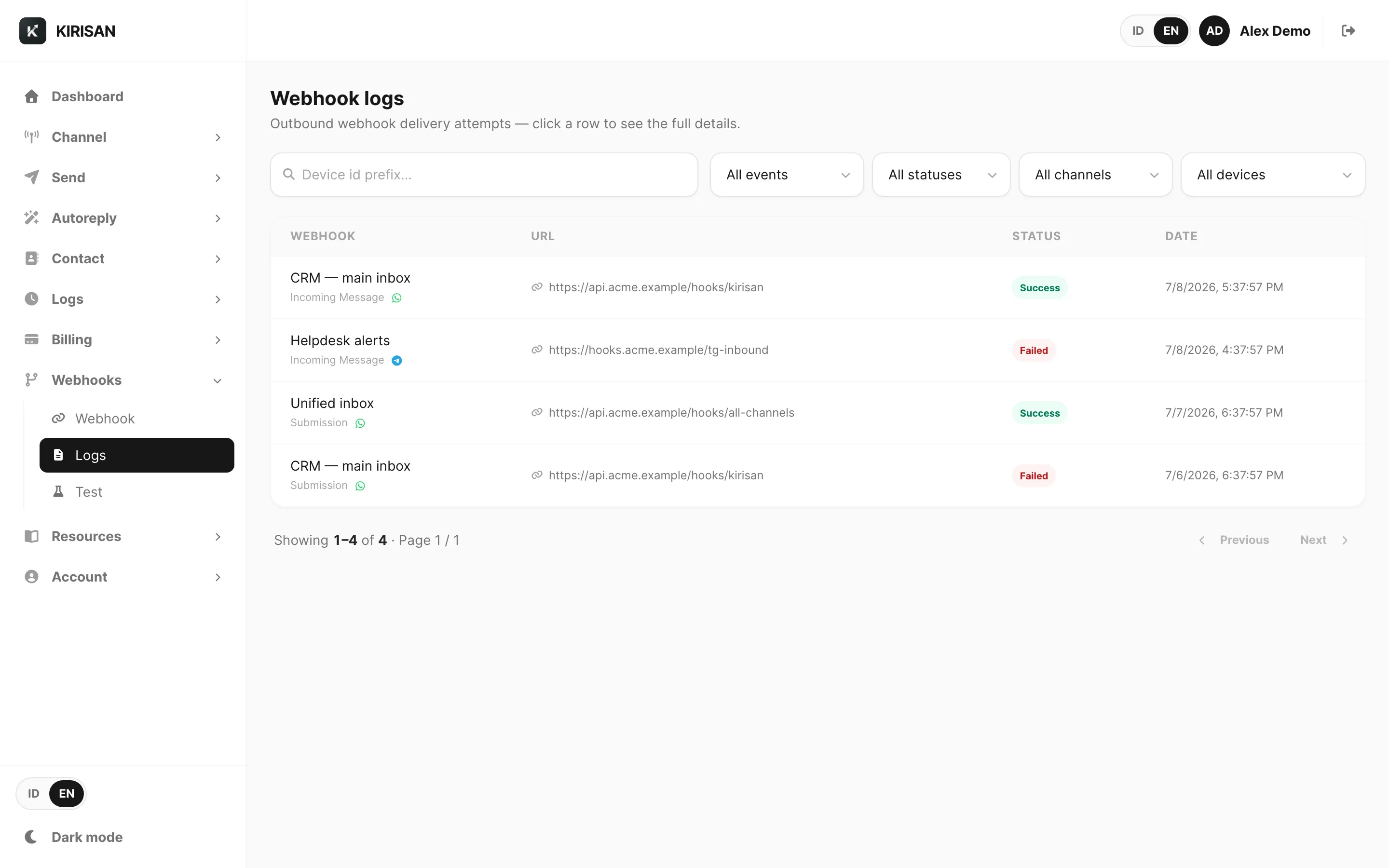
Webhook logs mencatat setiap POST outbound yang dikirim Kirisan ke URL HTTPS tersimpan Anda — lalu lintas live dan pengiriman uji. Gunakan halaman ini untuk mengonfirmasi pengiriman berhasil, menemukan percobaan gagal, dan membaca kode HTTP serta teks error.
Ini berbeda dari Webhooks → Test, yang mengirim JSON contoh sesuai permintaan. Logs menampilkan apa yang benar-benar terjadi di produksi (dan setelah uji).
Contoh data ditampilkan.
Intro halaman
Subtitle menjelaskan alur kerja: setiap baris adalah satu percobaan pengiriman — klik baris untuk membuka popup detail lengkap.
Filter dan pencarian
| Kontrol | Fungsi |
|---|---|
| Search | Cocokkan device id prefix — ketik awal nomor WhatsApp, token Telegram, atau token WABA (pencarian terindeks) |
| All events | Incoming message, Submission, atau Submission completed — atau tampilkan semua |
| All statuses | Success atau Failed — atau tampilkan semua |
| Channel | WhatsApp, Telegram, WABA, atau Email — atau semua channel |
| All devices | Batasi ke satu device tertaut dari endpoint webhook Anda |
Mengubah filter apa pun memuat ulang tabel dari halaman 1.
Tabel logs
Setiap baris adalah satu percobaan pengiriman ke satu endpoint:
| Kolom | Arti |
|---|---|
| Webhook | Nama tampilan dari Webhooks → Webhook |
| Subline | Tipe event (misalnya incoming message) dan ikon channel |
| URL | URL HTTPS tujuan yang menerima POST |
| Status | success (server Anda mengembalikan 2xx) atau failed |
| Date | Kapan Kirisan mengirim permintaan |
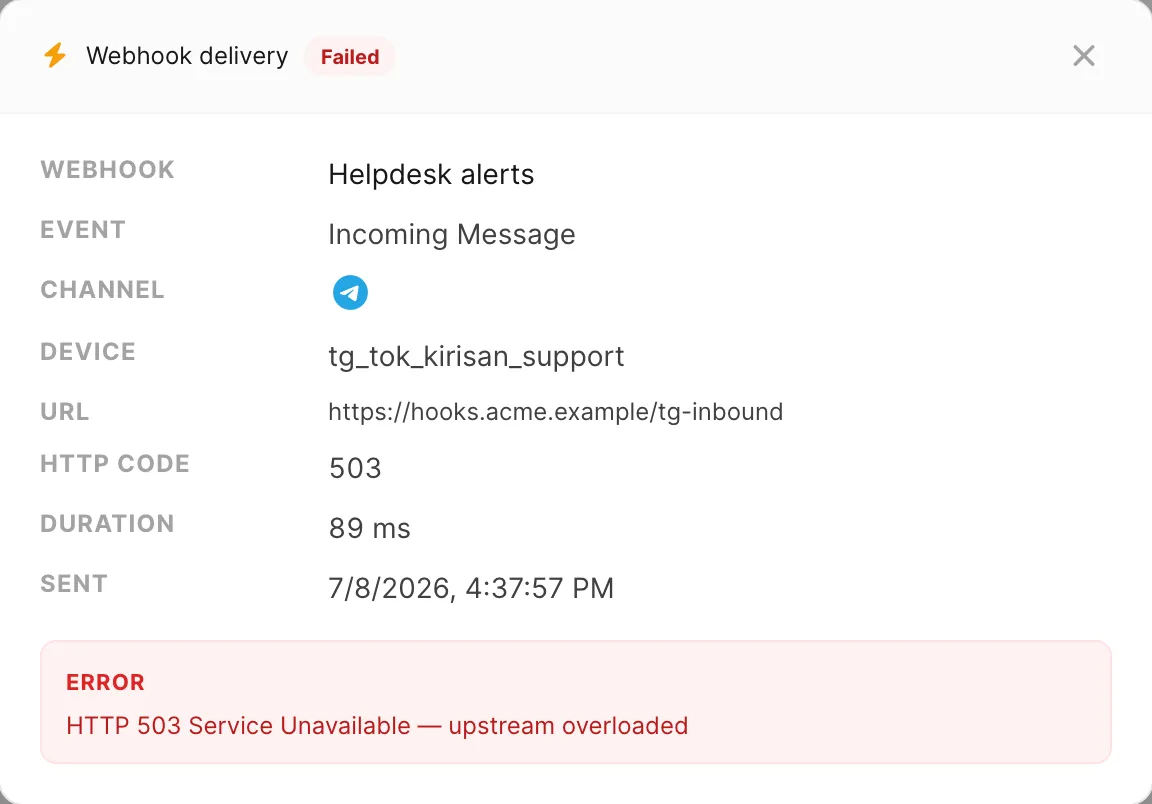
Baris bisa diklik — Kirisan membuka popup detail dengan kode HTTP, durasi, device id, dan teks error saat pengiriman gagal.
Contoh data ditampilkan.
Field popup detail
| Field | Arti |
|---|---|
| Webhook | Nama tampilan endpoint |
| Event | Tipe event yang memicu POST |
| Channel | WhatsApp, Telegram, WABA, atau Email |
| Device | Token device atau nomor terkait pengiriman ini |
| URL | URL tujuan lengkap |
| HTTP code | Status respons dari server Anda (kosong saat koneksi gagal sebelum respons) |
| Duration | Waktu round-trip dalam milidetik |
| Sent | Stempel waktu percobaan |
| Error | Alasan kegagalan — timeout, error koneksi, atau ringkasan respons non-2xx |
Belum ada log
Saat tidak ada yang cocok dengan filter Anda — atau Anda belum menerima pengiriman apa pun — tabel menampilkan No logs found.

Contoh data ditampilkan.
Alasan umum daftar kosong:
- Belum ada webhook Active — selesaikan Webhooks → Test dulu
- Filter terlalu sempit — reset All events, All statuses, Channel, dan Device
- Lalu lintas live belum mengenai device tertaut sejak endpoint aktif
Success vs failed
| Status | Arti |
|---|---|
| success | Server Anda merespons 200 atau 201 dalam batas timeout |
| failed | Status HTTP non-2xx, error koneksi, atau timeout — buka baris untuk teks Error |
Setelah pengiriman gagal, perbaiki server atau URL Anda, lalu tunggu event live berikutnya atau jalankan Webhooks → Test dan periksa log lagi.
Paginasi
Saat Anda punya banyak percobaan, gunakan paginasi di bagian bawah (Showing range). Total count dibatasi untuk performa pada riwayat sangat besar — persempit filter jika Anda perlu device atau jendela waktu tertentu.
Terkait
- Referensi Webhooks — konfigurasi endpoint dan device
- Uji webhook — kirim POST contoh dan aktifkan endpoint pending
- Debug pengiriman gagal — troubleshoot langkah demi langkah
- Jalankan uji webhook — verifikasi URL sebelum go live
- Resources → Variables — referensi payload JSON