Statistik email
Buka Channel → Email → Statistics.
Fungsi halaman ini
Kesehatan deliverability untuk email — volume, tingkat bounce dan keluhan, pola domain, dan apakah Anda masih dapat mengirim.
Gunakan Logs untuk pengiriman individual (penerima, subjek, teks error). Statistics menampilkan agregat dan tren.
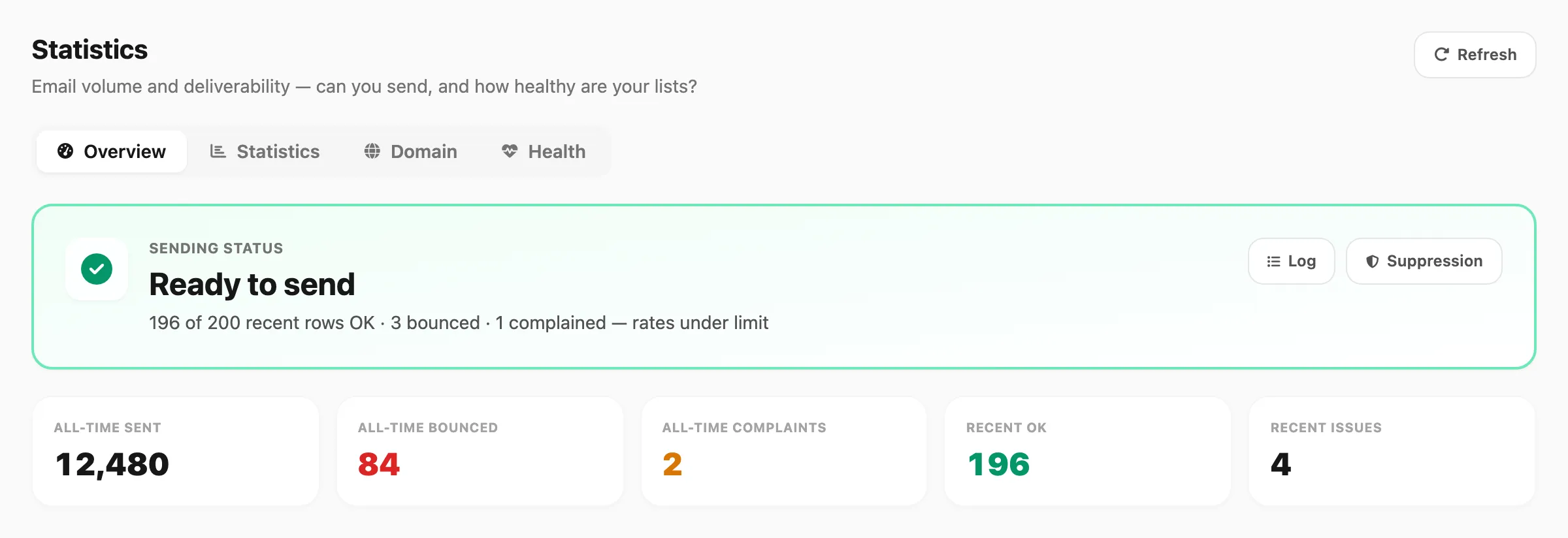
Data sampel ditampilkan.
| Kontrol header | Fungsi |
|---|---|
| Refresh | Memuat ulang semua tab dari server |
Tab
Empat tab di bagian atas halaman:
| Tab | Yang ditampilkan |
|---|---|
| Overview | Status pengiriman, KPI terbaru, grafik volume harian, what to fix, domain dengan bounce |
| Statistics | Total sepanjang waktu, grafik volume harian, rincian sampel terbaru, per tipe template |
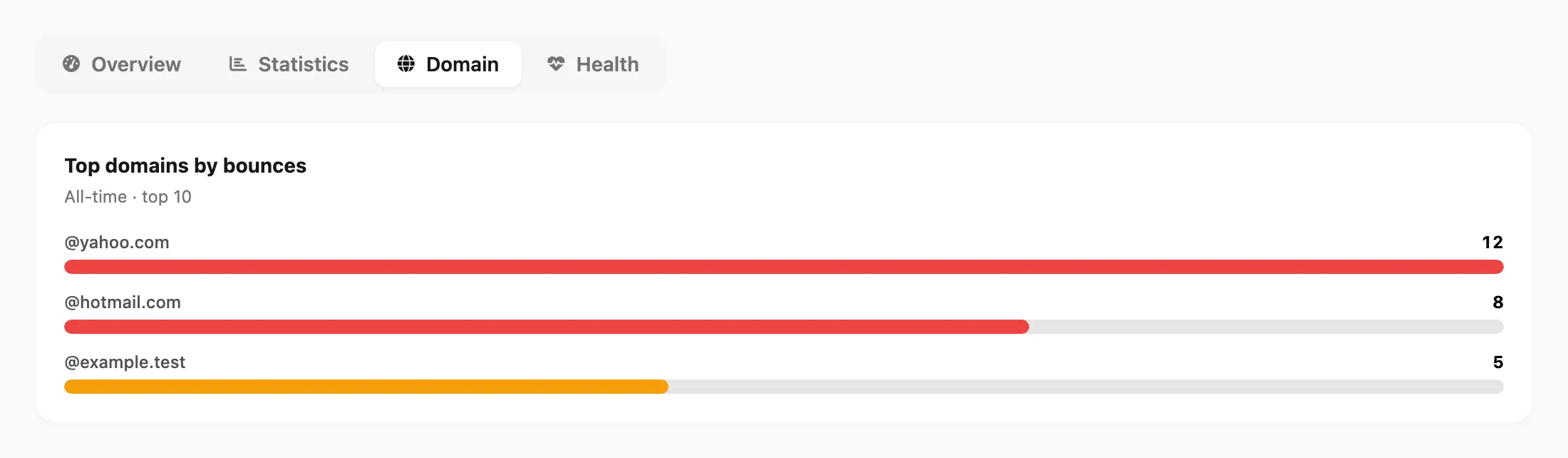
| Domain | Pola bounce sepanjang waktu per domain penerima (@gmail.com, @company.com, …) |
| Health | Ringkasan deliverability 7 dan 30 hari terakhir serta skor kesehatan |
Tab Overview menampilkan badge saat What to fix memiliki item terbuka.
Tab Overview
Status pengiriman
Kartu atas menjawab “Apakah saya bisa mengirim sekarang?”
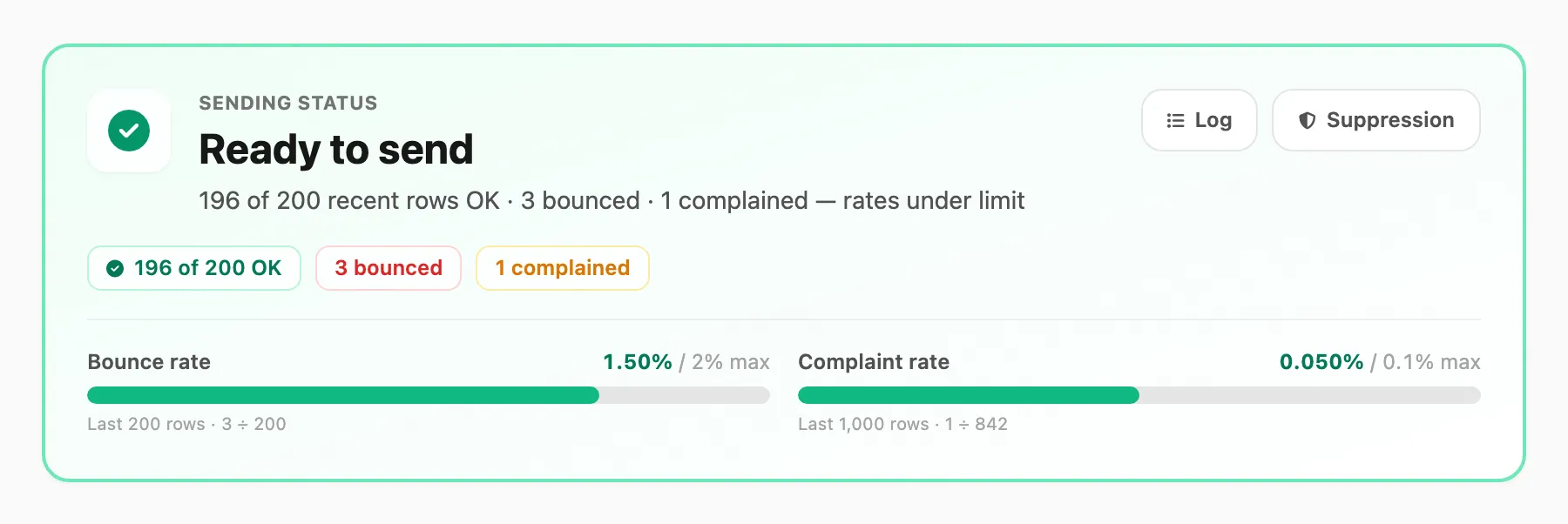
| Status | Arti |
|---|---|
| Ready to send | Tingkat bounce dan keluhan terbaru di bawah batas |
| Send with caution | Ada bounce atau keluhan, tetapi belum melewati batas |
| Action required | Tingkat bounce atau keluhan melewati batas |
| Sending suspended | Pengiriman diblokir sampai tingkat membaik atau dukungan mengaktifkan kembali |
Di bawah headline, bar progres menampilkan Bounce rate dan Complaint rate terhadap batas (lihat Batas tingkat).
Tautan cepat di kartu membuka Logs dan Suppression.
Strip KPI

| KPI | Arti |
|---|---|
| All-time sent | Pengiriman sukses sepanjang waktu |
| All-time bounced | Baris sepanjang waktu dicatat sebagai bounced (lihat Bounced vs failed) |
| All-time complaints | Keluhan spam sepanjang waktu |
| Recent OK | Baris OK dalam sampel 200 terakhir |
| Recent issues | Bounce + keluhan dalam sampel yang sama |
Grafik volume harian
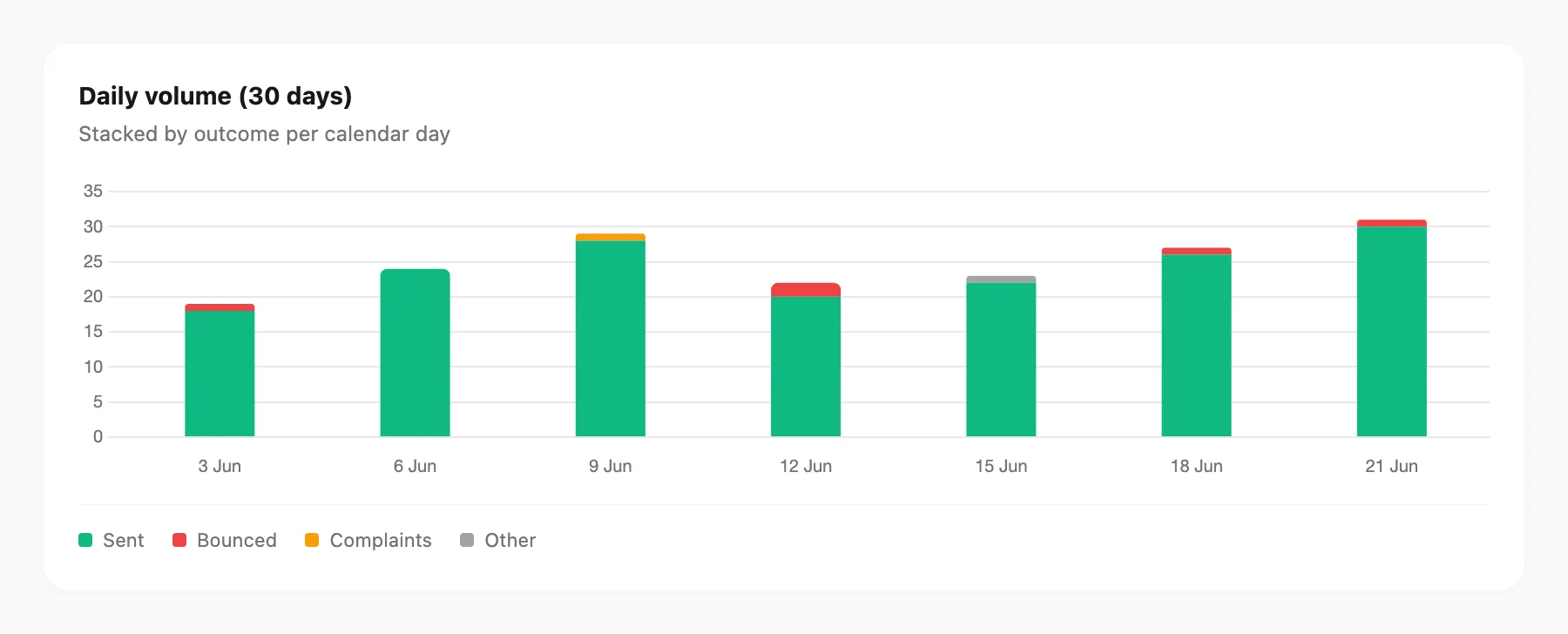
Bar bertumpuk untuk 30 hari terakhir (juga di tab Statistics):
| Segmen | Arti |
|---|---|
| Sent | Terkirim / diterima OK |
| Bounced | Status bounced |
| Complaints | Status complained |
| Other | Termasuk failed dan status non-OK lainnya |
Arahkan kursor ke bar untuk rincian jumlah hari itu.
What to fix
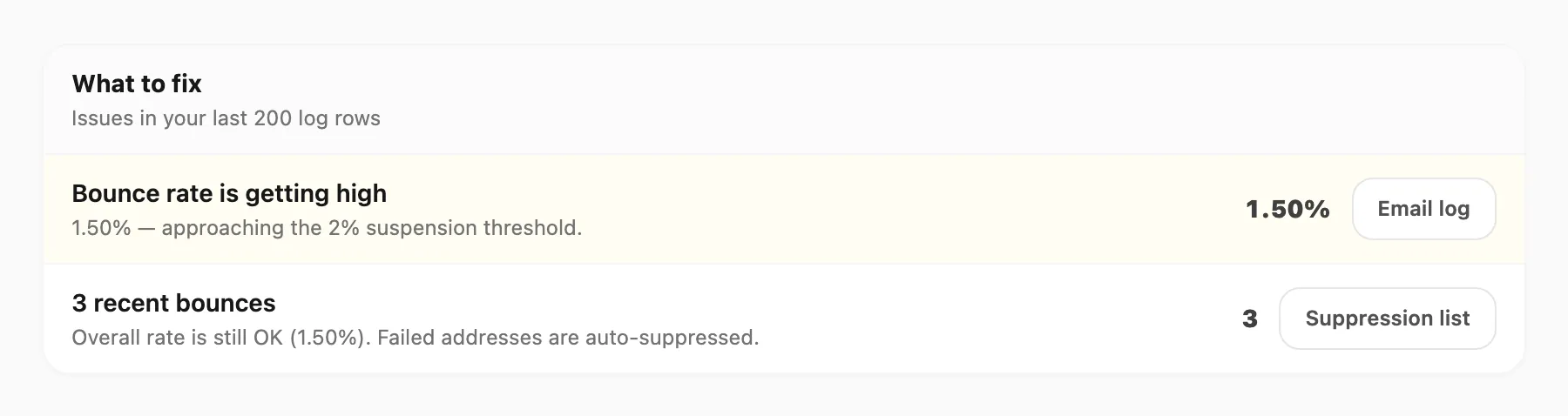
Saat ada yang perlu perhatian, Kirisan mencantumkan masalah dengan penjelasan singkat dan tombol ke Logs atau Suppression.
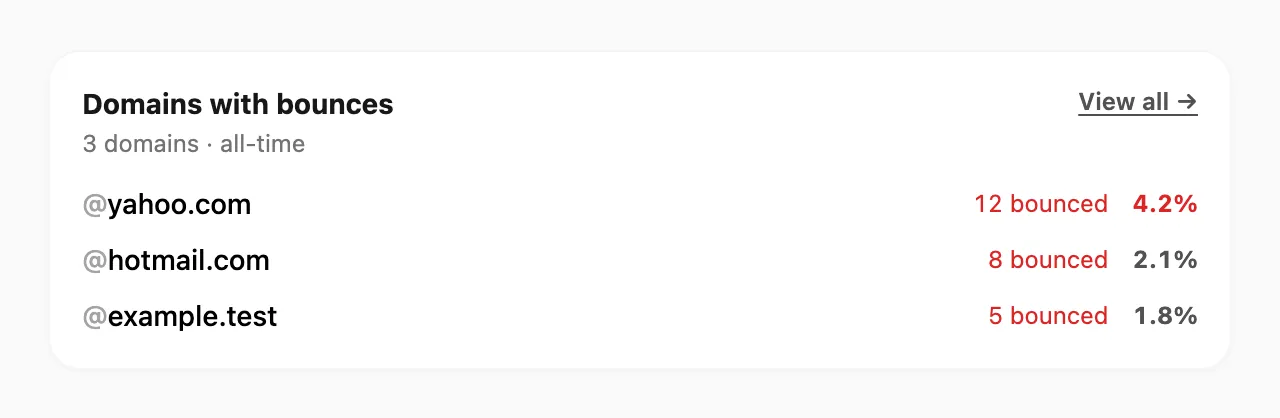
Domain dengan bounce
Pratinjau domain penerima dengan bounce sepanjang waktu terbanyak. Klik View all → untuk membuka tab Domain.
Bounced vs failed
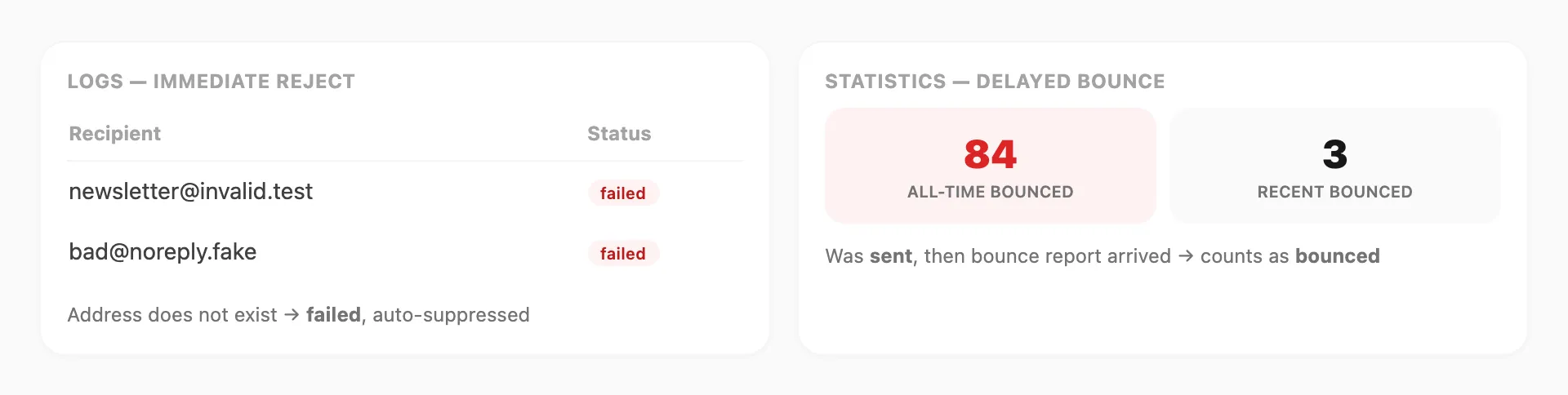
Statistics dan Logs menggunakan label berbeda untuk masalah pengiriman. Keduanya dapat menambahkan alamat ke Suppression.
| Hasil | Yang terjadi | Statistics | Logs |
|---|---|---|---|
| Sent | Diterima server mail penerima | OK dalam sampel terbaru | sent |
| Failed | Ditolak segera (alamat buruk, error SMTP) | Tidak dihitung sebagai bounced — muncul di grafik Other | failed — filter Failed |
| Bounced | Terkirim, lalu laporan bounce tiba nanti | Dihitung ke Bounced dan bounce rate | Mungkin masih sent |
| Complained | Penerima mengklik Report spam | Dihitung ke Complained dan complaint rate | — |
| Suppressed | Diblokir sebelum kirim | Tidak termasuk perhitungan tingkat | — |
Kasus tipikal “email tidak ada”: Kirisan menolak saat kirim → failed di Logs dan alamat otomatis di-suppress, tetapi Bounced di Statistics tidak naik kecuali laporan bounce nanti dicatat sebagai bounced.
Itulah mengapa Failed di Logs bisa tinggi sementara Bounced di Statistics tetap rendah.
Tab Statistics

Kartu sepanjang waktu
Empat kartu di atas: All-time sent, All-time bounced, All-time complaints, dan All-time bounce rate.
Sampel terbaru
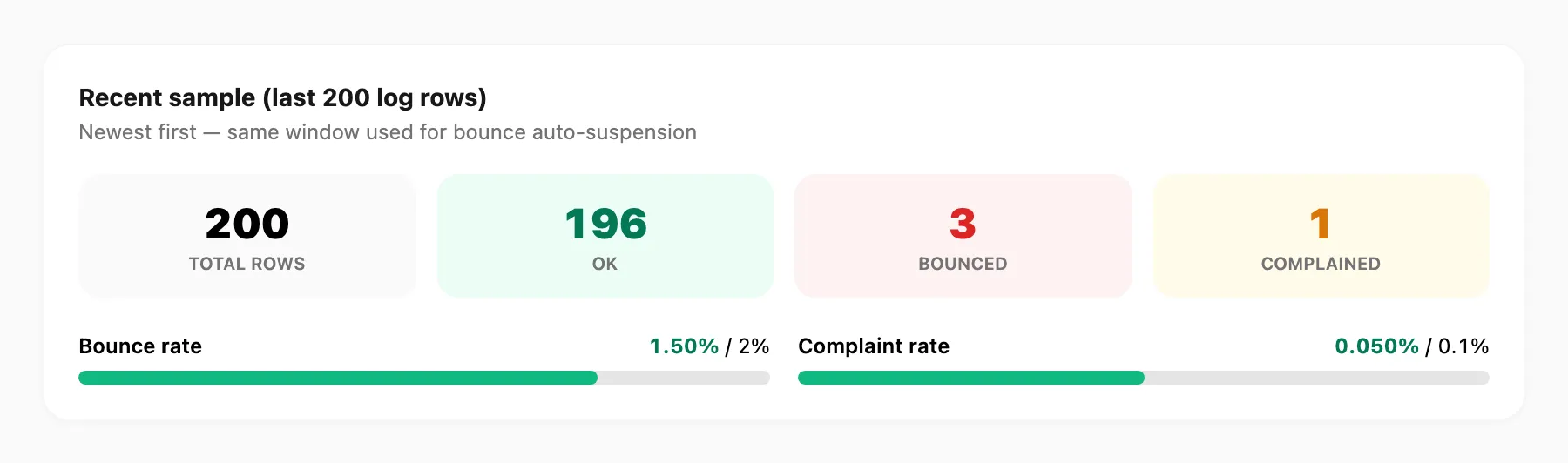
Rincian 200 baris log terakhir Anda (terbaru dulu) — jendela yang sama digunakan untuk auto-suspension bounce:
| Tile | Arti |
|---|---|
| Total rows | Baris dalam sampel |
| OK | Bukan bounced atau complained |
| Bounced | Baris bounced dalam jendela ini |
| Complained | Baris keluhan dalam jendela ini |
Bar progres di bawah menampilkan Bounce rate dan Complaint rate vs batas.
Grafik Daily volume (30 days) juga muncul di tab ini — sama seperti di Overview (lihat Grafik volume harian).
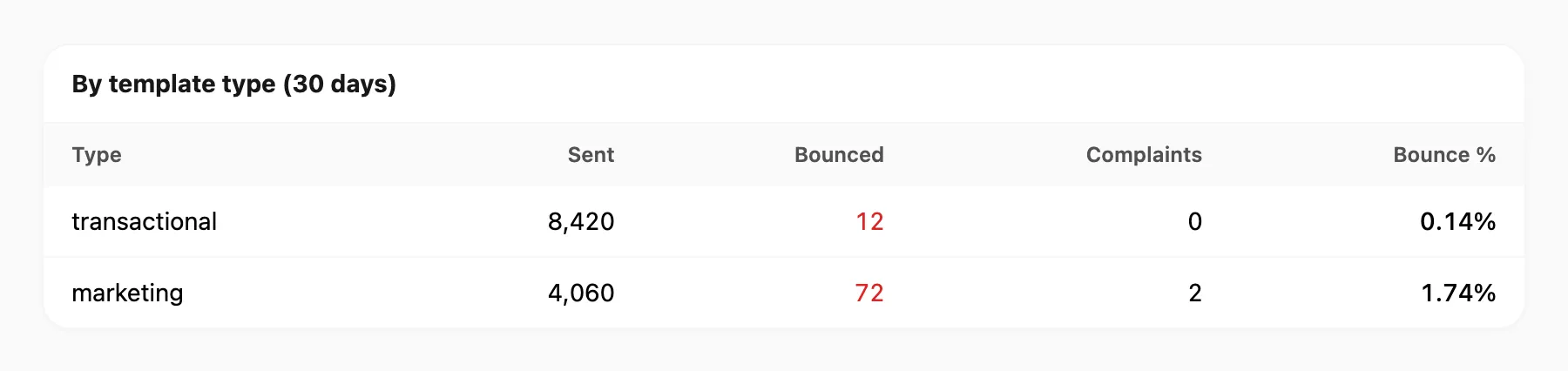
Per tipe template (30 hari)
Tabel pengiriman, bounce, keluhan, dan bounce % dikelompokkan per tipe template email (jika data ada).
Tab Domain
Tabel sepanjang waktu domain penerima:
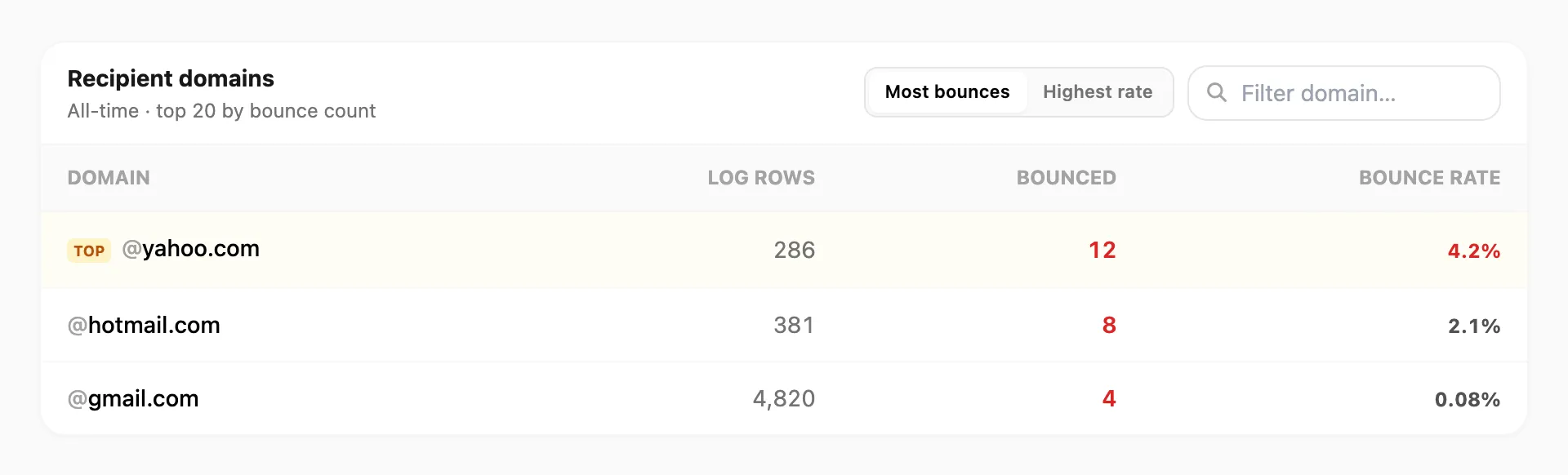
| Kolom | Arti |
|---|---|
| Domain | Bagian setelah @ dalam alamat penerima |
| Log rows | Baris pengiriman sepanjang waktu ke domain tersebut |
| Bounced | Bounce sepanjang waktu ke domain tersebut |
| Bounce rate | Bounced ÷ log rows |
| Kontrol | Fungsi |
|---|---|
| Most bounces / Highest rate | Urutan sort |
| Filter domain… | Kotak pencarian — mempersempit tabel |
Grafik bar di atas tabel menampilkan 10 domain teratas berdasarkan jumlah bounce jika data ada.
Pola domain historis tidak sendiri mengubah Sending status di Overview jika sampel terbaru Anda bersih.
Tab Health
Deliverability berbasis kalender (7 dan 30 hari terakhir):
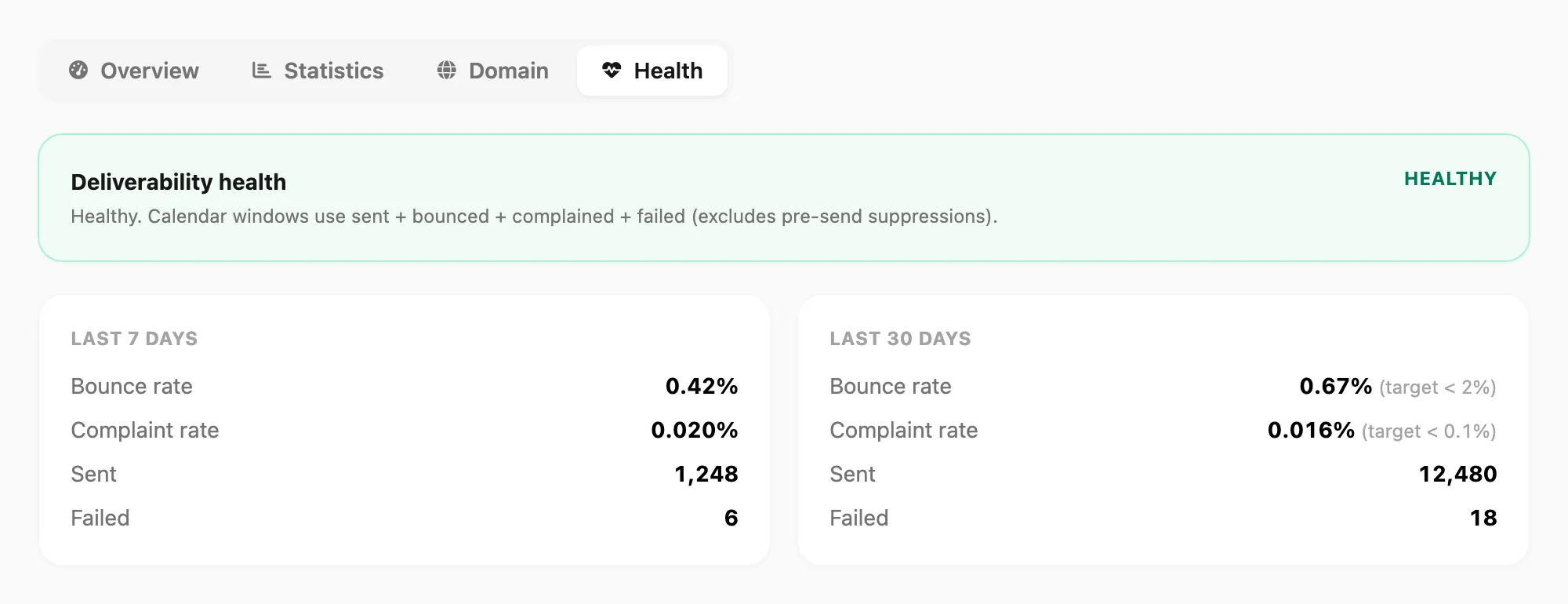
| Field | Arti |
|---|---|
| Bounce rate | Bounced ÷ (sent + bounced + complained + failed) dalam jendela |
| Complaint rate | Complained ÷ penyebut yang sama |
| Sent | Pengiriman sukses dalam jendela |
| Failed | Kegagalan kirim segera dalam jendela |
| Suppressed (pre-send) | Diblokir sebelum SMTP — dikecualikan dari penyebut tingkat |
Health menggunakan rentang tanggal. Status pengiriman Overview menggunakan jendela jumlah kirim (200 / 1.000 baris terakhir) untuk logika suspensi.
Batas tingkat
Kirisan dapat menangguhkan pengiriman saat tingkat terbaru melebihi:
| Metrik | Batas | Sampel |
|---|---|---|
| Bounce rate | 2% | 200 baris log terakhir (minimum 50 kirim) |
| Complaint rate | 0.1% | 1.000 baris log terakhir (minimum 500 kirim) |
Contoh:
- 4 bounce dalam 200 kirim terakhir = 2% — di batas bounce.
- 1 keluhan dalam 1.000 kirim = 0.1% — di batas keluhan; 2 keluhan = 0.2% — melewati batas.
Alamat gagal dari bounce dan keluhan otomatis di-suppress agar Anda tidak mengirim lagi.
Tips
- Gunakan Overview untuk “apakah saya bisa mengirim?” dan Health untuk “bagaimana 30 hari terakhir?”
- Alamat buruk ditolak saat kirim → filter Failed di Logs, bukan Bounced di Statistics.
- Setelah lonjakan bounce atau keluhan, periksa Suppression sebelum kampanye berikutnya.
- Tab Domain sepanjang waktu — Overview bersih dapat hidup berdampingan dengan bounce lama di satu domain.
- Klik Refresh setelah memperbaiki kualitas daftar untuk memperbarui tingkat.
Tampilan lintas channel
Untuk email bersama WhatsApp, WABA, dan Telegram, buka Logs → Statistics atau lihat Statistics.
Terkait
- Statistics — Logs → Statistics (semua channel)
- Logs — riwayat sent / failed per pengiriman dan pencarian
- Suppression — penerima diblokir
- Domains — domain pengiriman terverifikasi dan Sending health