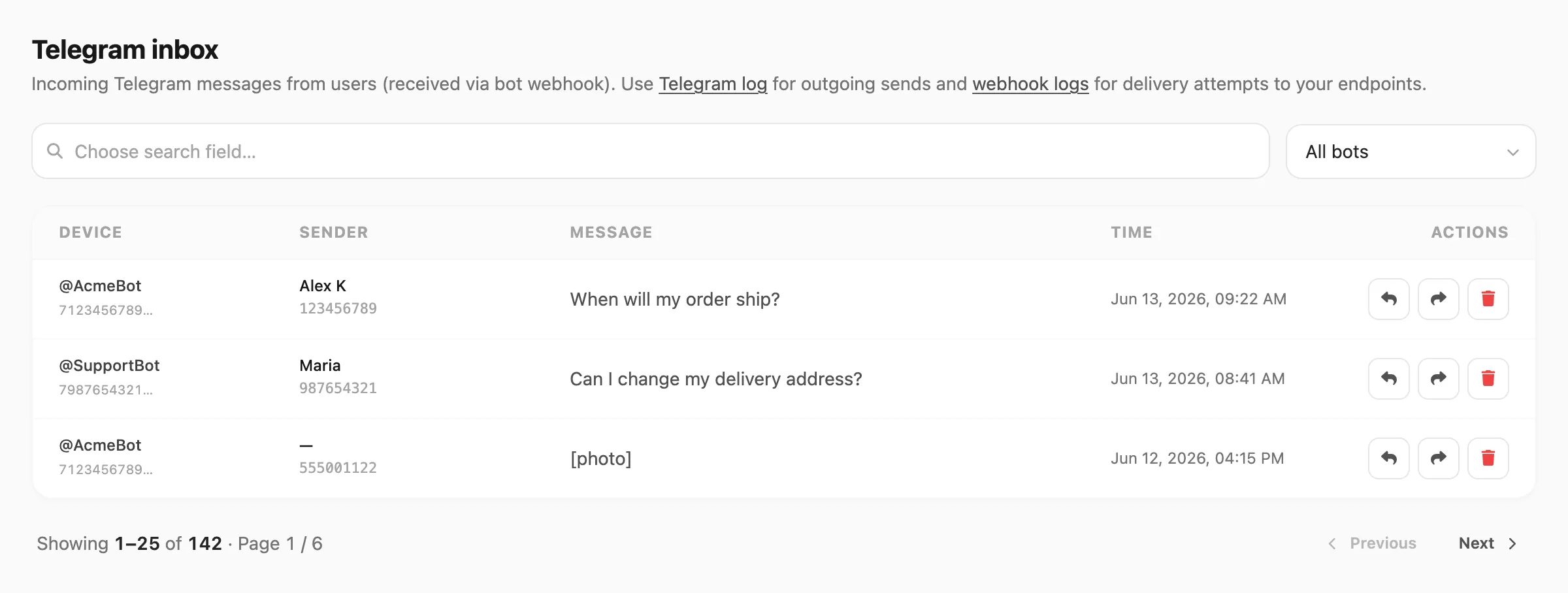
Telegram inbox
Read inbound Telegram messages from connected bots.
Open Channel → Telegram → Inbox.
What this page is for
Paginated inbound message history for Telegram only: sender name and chat id, message preview, which bot received the message, and timestamp.
Use this page to review user replies and commands, spot patterns before tuning autoreply, or confirm that inbound traffic reaches the right bot.

Sample data shown.
Search and filter
Search is field-based: click the search area first, pick which column to search, then type your query.

| Step | What happens |
|---|---|
| 1. Click search | A Search in popup opens — you must choose a field before typing |
| 2. Pick a field | Sender or Message |
| 3. Type | Kirisan filters the table as you type (short debounce) |
After you pick a field, the search bar shows the field name on the left (for example Sender ▼). Click it to switch fields — changing the field clears the query and reloads the list.
On the same row as search (to the right):
| Filter | What it does |
|---|---|
| Bot | All bots or one connected Telegram bot |
The Bot filter applies together with Sender / Message window search and Continue search steps.
Bot filter
The dropdown lists every bot registered under Devices — @username labels when Telegram provides them, otherwise a short token snippet.
When you operate multiple bots, filter Bot first to focus on one inbox.

Search fields
| Search field | Matches | Minimum length |
|---|---|---|
| Sender | Chat id or display name that contains your query | 3 characters |
| Message | Message body text that contains your query | 3 characters |
Sender and Message search scan the most recent 1,000 inbound messages per step (respecting your Bot filter). When older messages remain, Kirisan shows Continue search.
If you type fewer than three characters, Kirisan waits until the minimum is met and shows a short hint under the search bar.

Window search and Continue search
Each step reads the most recent 1,000 inbound messages (respecting Bot and the active search field), then looks for your query inside those rows.
When Kirisan finishes a step and older messages still exist, a bar appears below the table with Continue search:

Click Continue search as many times as you need. New matches from later steps are added to the table.
During Sender or Message search, pagination is hidden — use Continue search instead of page numbers.
Inbox table
Each row is one inbound Telegram message. Device is the first column so you can tell which bot received it when you operate multiple bots.

| Column | Meaning |
|---|---|
| Device | Bot that received the message — @username and Kirisan token snippet |
| Sender | User display name and Telegram chat id |
| Message | Truncated preview — text, attachment labels such as [photo], or button taps |
| Time | When the message was received |
Rows are clickable — Kirisan opens a Telegram-style preview of the full message.
Message preview
Click any row to open the preview popup:

The preview uses the same Telegram-style bubble as templates. It shows text, inline buttons, location pins, and media placeholders when the attachment is no longer stored.
Close the preview with the × button, by clicking outside the bubble, or with Escape.
Pagination
When you are not using Sender or Message window search, pagination below the table appears for long lists (for example Showing 1–25 of 142 · Page 1 / 6 with Previous and Next).
Tips
- Run multiple bots? Filter Bot first, then search Sender or Message — you only scan messages for that bot.
- The inbox is read-only — there is no inline reply. Respond from Send → Send, a campaign, or let autoreply rules answer automatically.
- Connect and manage bots under Devices.
Related
- Telegram devices — connect bots with BotFather tokens
- Telegram logs — outbound send history
- Telegram overview — bots, templates, and logs