Campaigns
Buka Send → Campaign di sidebar.
Kegunaan halaman ini
Campaign mengelompokkan banyak pesan outbound di bawah satu nama. Anda melacak progres secara real time, menjeda atau membatalkan run, dan membuka kampanye apa pun untuk audit setiap penerima — berguna untuk blast marketing, pengumuman, dan tinjauan kepatuhan.
Kampanye dibuat di Send → Send (lihat Kirim pesan). Halaman Campaign mencantumkan setiap kampanye tersimpan dan membuka tampilan detail untuk progres dan status per orang.
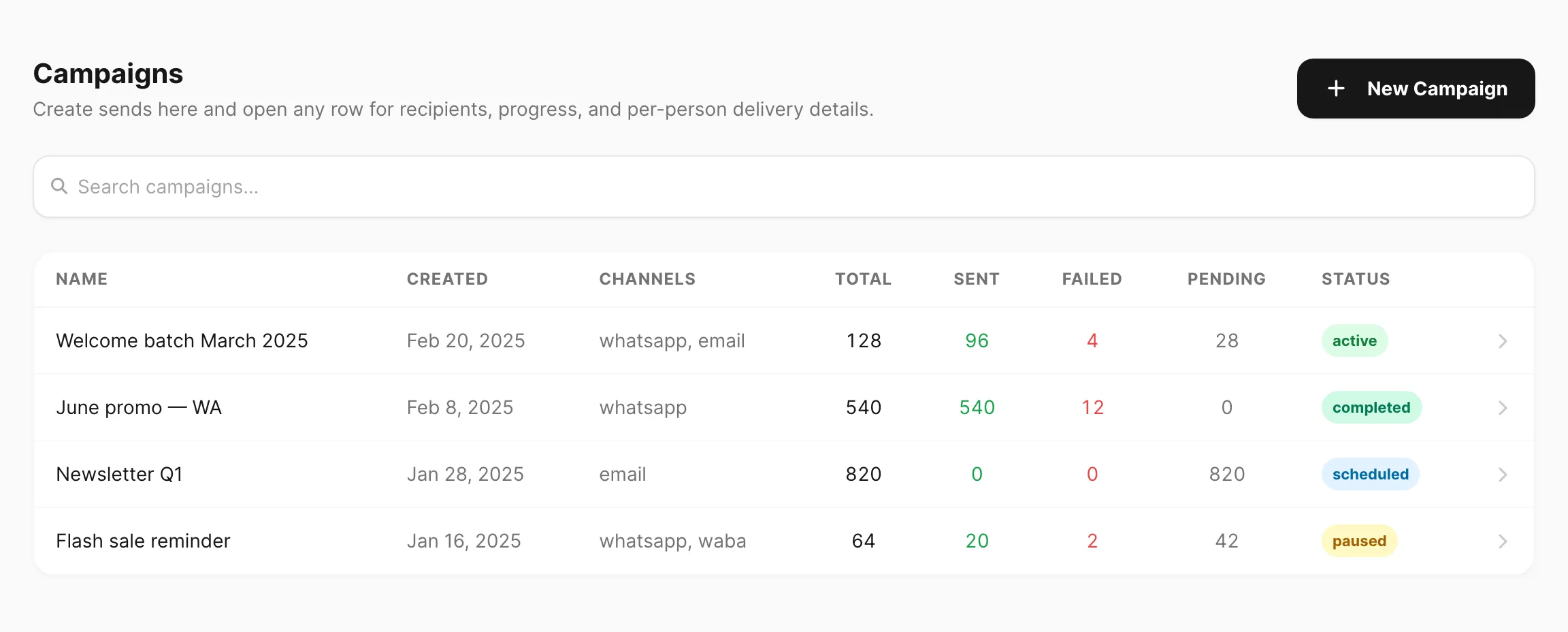
Contoh data ditampilkan.
Daftar kampanye
| Kontrol / kolom | Fungsi |
|---|---|
| New Campaign | Membuka Send → Send agar Anda bisa menyusun dan menyimpan kampanye baru. |
| Search campaigns… | Filter menurut nama Campaign atau kunci channel (minimum 3 karakter). |
| Name | Judul kampanye dari langkah 1 di layar Send. Klik baris untuk membuka detail. |
| Created | Tanggal kampanye pertama kali disimpan. |
| Channels | Channel yang diaktifkan (whatsapp, email, telegram, waba). |
| Total | Jumlah penerima dalam kampanye. |
| Sent | Penerima di mana setiap channel yang diaktifkan terkirim dengan sukses. |
| Failed | Penerima di mana setiap channel gagal. |
| Pending | Penerima yang belum diproses. |
| Status | Status siklus hidup kampanye (lihat Campaign status di bawah). |
Paginasi muncul di bagian bawah jika kampanye Anda lebih dari satu halaman.
Buat kampanye
- Buka Send → Send.
- Masukkan Title di langkah 1 (Campaign name).
- Aktifkan channel, pilih pengirim dan template, dan pilih target bulk (CSV, spreadsheet, kontak, grup, atau grup WhatsApp).
- Atur Timing — Now, Schedule, atau Recurring — dan delay opsional antar penerima. Lihat Recurring campaigns di bawah jika Anda perlu pengiriman berulang dari spreadsheet atau grup.
- Klik Save Campaign. Kirisan menyimpan kampanye dan membuka halaman detailnya.
Untuk panduan layar Send langkah demi langkah, lihat Kirim pesan.
Detail kampanye
Klik baris apa pun di daftar (atau ikuti redirect setelah Save Campaign) untuk membuka tampilan detail.
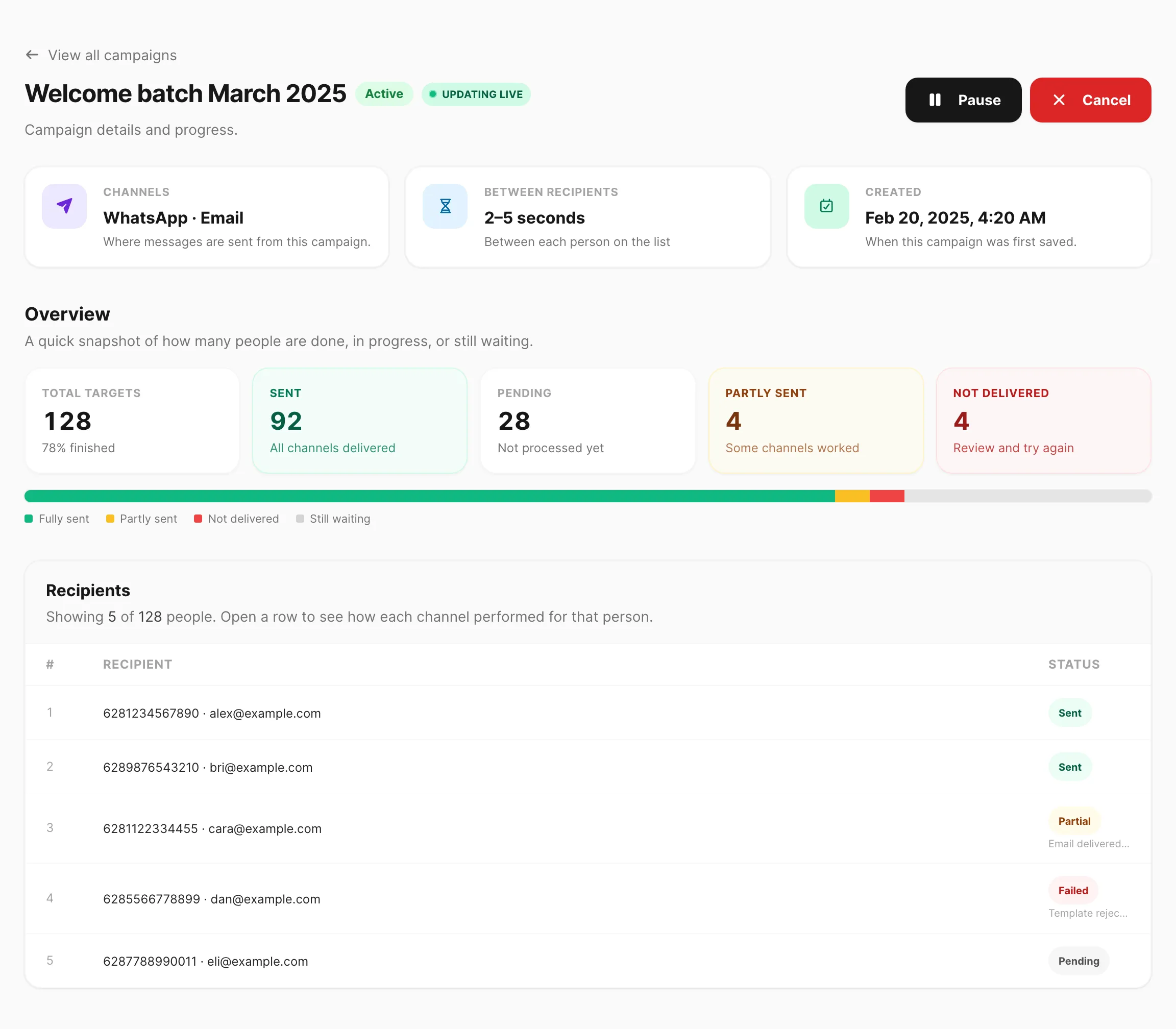
Contoh data ditampilkan.
Header dan aksi
Judul menampilkan nama Campaign dan badge Status saat ini. Saat kampanye Active, indikator Updating live muncul dan angka diperbarui otomatis setiap beberapa detik.
| Status | Aksi tersedia |
|---|---|
| Draft | Start campaign, Delete |
| Active | Pause, Cancel |
| Scheduled | Pause, Cancel |
| Paused | Continue, Cancel |
| Cancelled | Delete |
| Completed | Tidak ada aksi — tinjau hasil di tabel di bawah |
Kartu setup
Tiga kartu merangkum bagaimana kampanye dikonfigurasi:
| Kartu | Arti |
|---|---|
| Channels | Channel mana yang mengirim (misalnya WhatsApp · Email). |
| Between recipients | Rentang delay antar orang, atau No pause. |
| Created | Kapan kampanye pertama kali disimpan. |
Schedule and delays (draft atau paused)
Saat status Draft atau Paused, bagian Schedule & delays yang dapat diedit muncul:
| Kontrol | Fungsi |
|---|---|
| Schedule date / Schedule time | Atur kapan pengiriman harus dimulai. Kosongkan keduanya jika tidak ada jadwal tetap. |
| Delay min (s) / Delay max (s) | Jeda antar penerima (0–3600 detik). |
| Refresh targets | Baca ulang sumber live (spreadsheet atau grup) dan tambah/hapus penerima. Ditampilkan saat kampanye punya sumber dinamis. |
| Save changes | Terapkan edit jadwal dan delay. |
Overview
Lima kartu KPI dan bilah progres bertumpuk menampilkan pengiriman sekilas:
| KPI | Arti |
|---|---|
| Total targets | Semua orang di daftar penerima. |
| Sent | Semua channel yang diaktifkan terkirim untuk orang tersebut. |
| Pending | Belum diproses. |
| Partly sent | Minimal satu channel berhasil tetapi tidak semua (umum dengan multi-channel atau fallback). |
| Not delivered | Setiap channel gagal untuk orang tersebut. |
Bilah memakai hijau (fully sent), amber (partly sent), merah (not delivered), dan abu-abu (masih menunggu).
Tabel penerima
Mencantumkan setiap orang dalam kampanye. Klik baris untuk membuka Delivery details untuk status per channel.
| Kolom | Arti |
|---|---|
| # | Nomor baris dalam daftar. |
| Recipient | Telepon, email, atau target gabungan dari sumber Anda. |
| Status | Hasil keseluruhan: Sent, Partial, Failed, atau Pending. Alasan singkat mungkin muncul di bawah baris failed atau partial. |
Kampanye sangat besar menampilkan 10.000 baris pertama di tabel; angka overview tetap mencerminkan daftar lengkap.
Delivery details
Klik baris penerima untuk melihat kinerja setiap channel untuk orang tersebut.
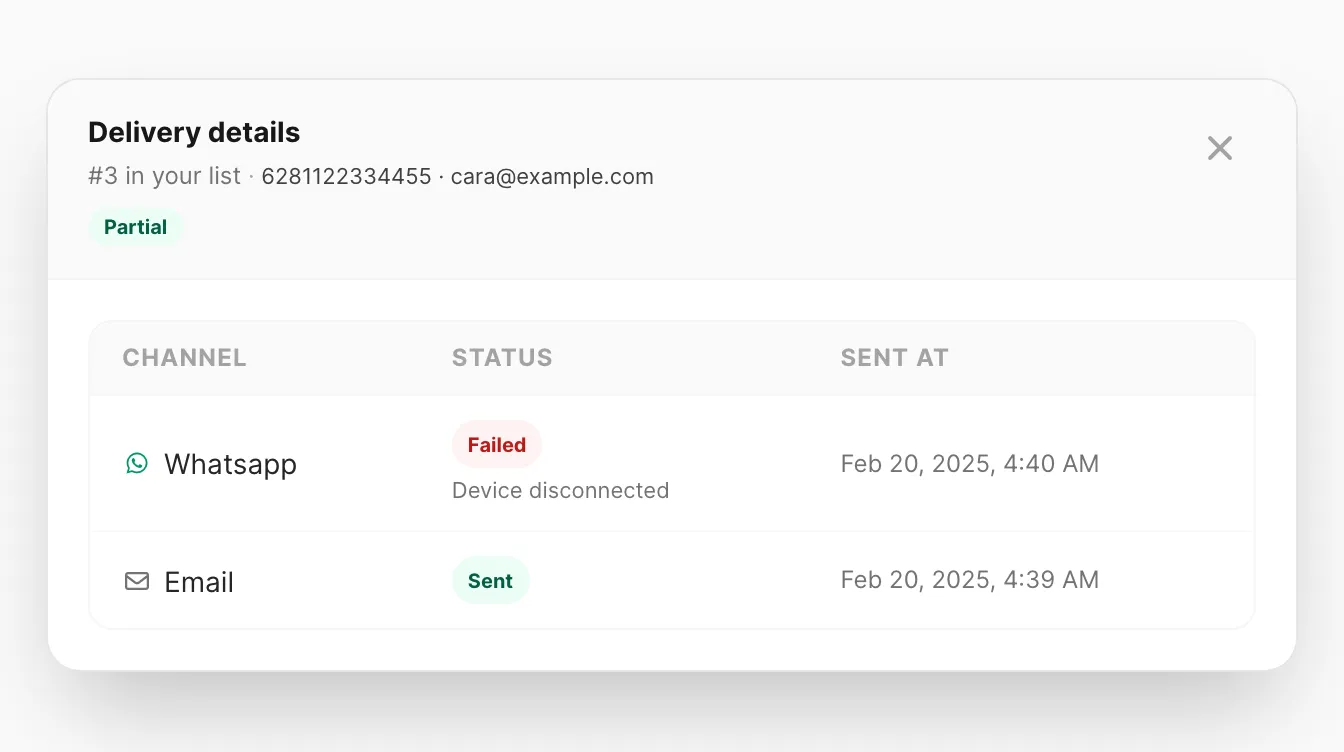
Contoh data ditampilkan.
| Kolom | Arti |
|---|---|
| Channel | WhatsApp, Email, Telegram, atau WABA. |
| Status | Hasil untuk channel tersebut saja. |
| Sent at | Kapan channel tersebut selesai diproses. |
Gunakan tampilan ini untuk melihat channel mana yang gagal saat baris keseluruhan Partial.
Recurring campaigns
Recurring campaign mengirim pada jadwal berulang (dikonfigurasi di Send → Send dengan timing Recurring). Setiap kali run dimulai, Kirisan memuat ulang sumber Spreadsheet, Group, atau Contact agar daftar penerima mencerminkan data terbaru.
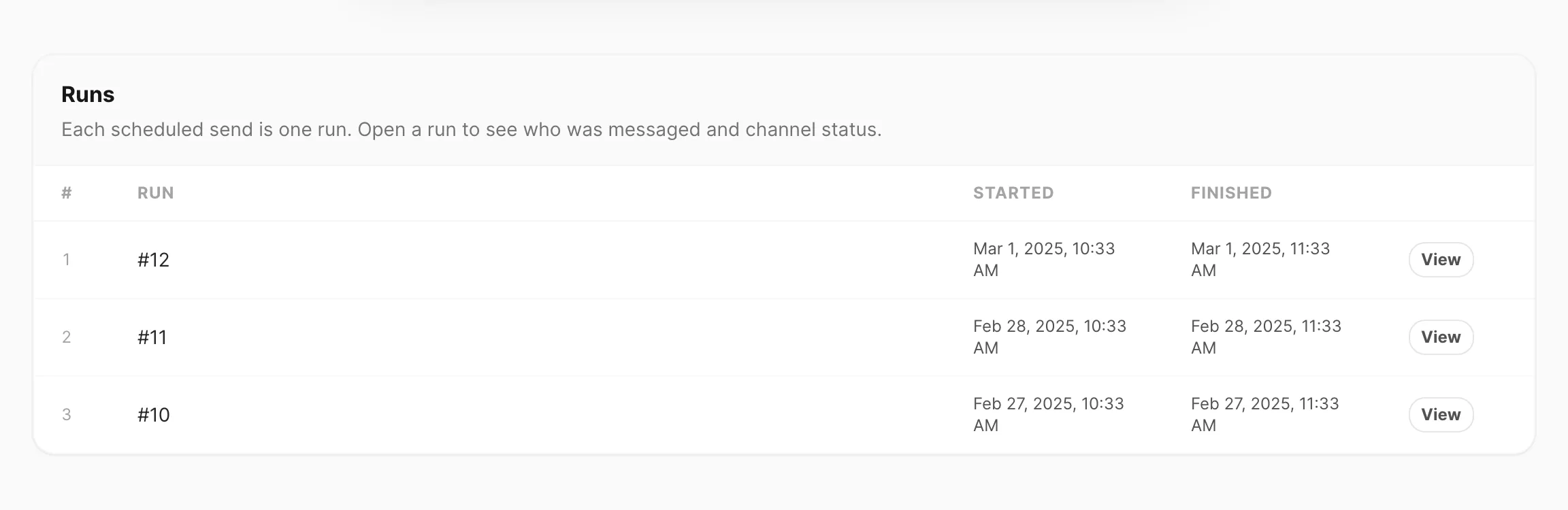
Contoh data ditampilkan.
Menyiapkan recurring
Recurring dikonfigurasi di layar Send, bukan di daftar Campaign:
- Send → Send → masukkan Title kampanye.
- Langkah 3: pilih Spreadsheet, Group, atau Contact (all atau selected).
- Langkah 4: pilih Recurring, atur tanggal/waktu Start, dan Every (interval + periode).
- Save Campaign, lalu Start campaign di halaman detail (jika status Draft).
Langkah layar Send lengkap: Kirim pesan — Recurring campaigns.
Tabel Runs
Di halaman detail, kampanye recurring menampilkan tabel Runs alih-alih satu daftar penerima datar:
| Kolom | Arti |
|---|---|
| # | Nomor baris. |
| Run | Id run (misalnya #12). |
| Started | Kapan run ini dimulai. |
| Finished | Kapan semua penerima dalam run ini selesai diproses, atau In progress saat masih mengirim. |
| View | Membuka daftar penerima untuk run tersebut saja. |
Klik View untuk melihat siapa yang dipesan dalam siklus itu dan status masing-masing. Gunakan Delivery details pada baris dengan cara yang sama seperti kampanye normal.
Siklus hidup
| Fase | Yang Anda lihat |
|---|---|
| Draft | Disimpan tetapi belum dimulai. Edit jadwal/delay, lalu Start campaign. |
| Scheduled | Menunggu run berikutnya (waktu mulai pertama atau interval berikutnya setelah run sebelumnya). |
| Active | Run sedang mengirim. KPI overview dan Updating live berlaku untuk run saat ini. |
| Completed | Tidak ada run lebih lanjut dijadwalkan (misalnya setelah Anda cancel, atau saat recurrence berakhir). |
Antar run kampanye kembali ke Scheduled sampai interval berikutnya. Pause menghentikan pengiriman; Continue melanjutkan. Cancel menghentikan semua run mendatang.
Refresh targets
Saat status Draft atau Paused, Refresh targets membaca ulang spreadsheet, grup, atau sumber kontak dan memperbarui daftar tersimpan sebelum run berikutnya.
What changed
Jika ada, timeline What changed mencantumkan event kampanye (start, pause, cancel, dan aksi serupa) dengan stempel waktu — terbaru di atas.
Campaign status
| Status | Arti |
|---|---|
| Draft | Disimpan tetapi belum dimulai. Edit jadwal dan delay, lalu Start campaign. |
| Scheduled | Menunggu waktu mulai yang dikonfigurasi, atau run recurring berikutnya. |
| Active | Pengiriman sedang berlangsung. |
| Paused | Dihentikan sementara. Continue untuk melanjutkan. |
| Completed | Semua penerima diproses. |
| Cancelled | Dihentikan permanen. Penerima pending tidak akan dikirimi. |
Campaign vs Send sekali
| Send (tanpa nama Campaign) | Campaign (nama di langkah 1) | |
|---|---|---|
| Terbaik untuk | Uji cepat, satu penerima | Siaran besar atau terlacak |
| Opsi target | Input, satu kontak, CSV, spreadsheet, satu grup WA | CSV, spreadsheet, kontak, grup, grup WA |
| UI progres | Hanya History dan log channel | Daftar dan detail kampanye live |
| Tombol aksi | Send | Save Campaign |
*CSV dan spreadsheet memerlukan nama Campaign sebelum dapat disimpan.
Terkait
- Kirim pesan — susun dan simpan kampanye
- Pengiriman terjadwal — pengiriman terjadwal sekali (bukan kampanye bulk)
- Ringkasan dashboard — panel live campaigns di beranda