Grup kontak
Buka Contact → Groups.
Fungsi halaman ini
Groups membagi direktori All Contacts Anda ke dalam daftar bernama — misalnya Newsletter, VIP, atau Region — Jakarta. Gunakan grup sebagai target Send → Send atau Campaign, pada kampanye recurring, saat mengimpor kontak, dan saat device auto-add pengirim masuk.
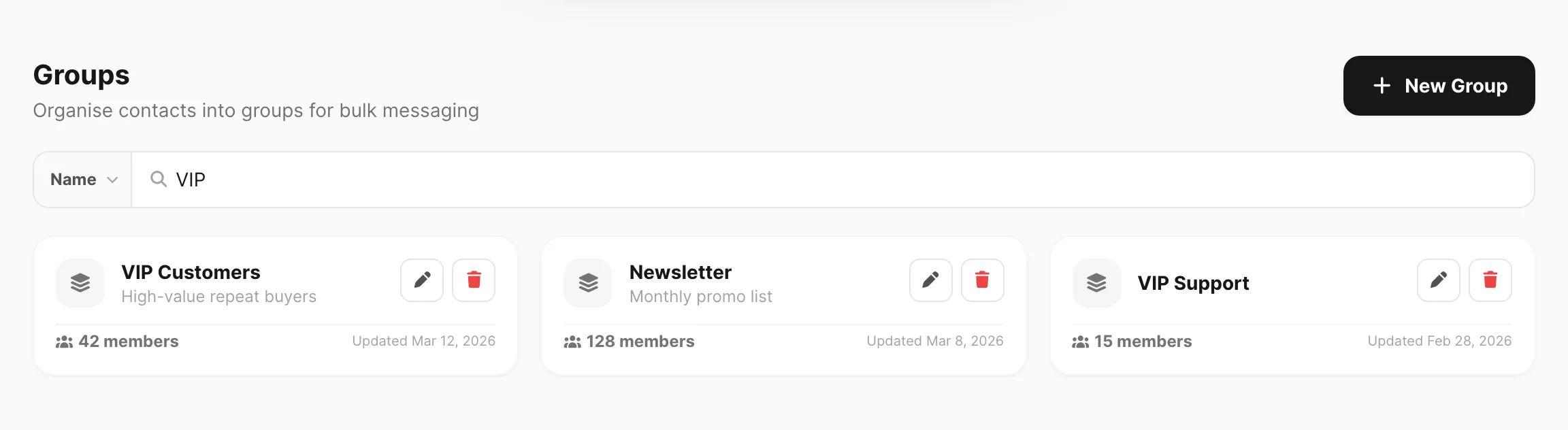
Data sampel ditampilkan.
Daftar grup
| Kontrol | Fungsi |
|---|---|
| New Group | Buat grup dengan nama, deskripsi opsional, dan anggota. |
| Search | Berbasis field — pilih Name atau Description, lalu ketik (minimum 3 karakter). Lihat Cari grup. |
| Group card | Menampilkan nama, deskripsi, jumlah anggota, dan tanggal terakhir diperbarui. |
| Edit | Ubah nama, deskripsi, atau daftar anggota. |
| Delete | Hapus grup. Kontak tetap di All Contacts — hanya keanggotaan grup yang dihapus. |
Paginasi muncul jika Anda memiliki lebih banyak grup daripada satu halaman.
Cari grup
Pencarian berbasis field — klik area pencarian terlebih dahulu, pilih Name atau Description, lalu ketik kueri Anda (minimum 3 karakter).
| Langkah | Yang Anda lakukan |
|---|---|
| 1. Klik pencarian | Popup Search in terbuka — pilih Name atau Description sebelum mengetik |
| 2. Ketik kueri | Kirisan memfilter kartu grup setelah Anda mencapai panjang minimum |
| 3. Ganti field | Klik pill field di kiri (misalnya Name ▼) untuk mengganti kolom — mengganti menghapus kueri |
| Field pencarian | Cocok dengan |
|---|---|
| Name | Nama grup yang mengandung teks Anda (tidak peka huruf besar/kecil) |
| Description | Deskripsi yang mengandung teks Anda |
Jika Anda mengetik kurang dari tiga karakter, Kirisan menunggu dan menampilkan petunjuk singkat di bawah bilah pencarian.
Buat atau edit grup
Klik New Group atau Edit pada kartu.
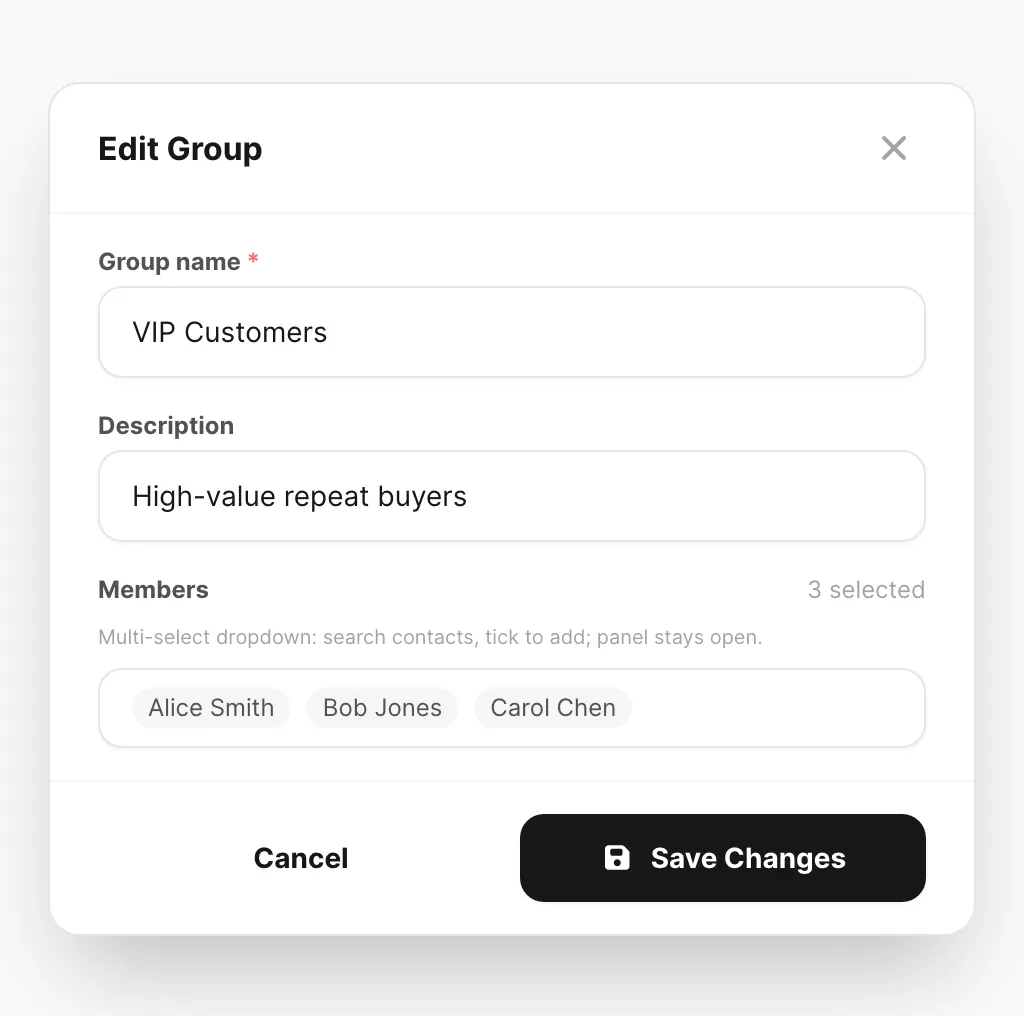
Data sampel ditampilkan.
| Field | Yang dimasukkan |
|---|---|
| Group name | Wajib — ditampilkan di kartu dan pemilih target pengiriman. |
| Description | Catatan opsional untuk tim Anda (dapat dicari di halaman ini). |
| Members | Cari dan centang kontak dari All Contacts. Pemilih tetap terbuka saat Anda memilih beberapa orang. |
Klik Create Group (atau Save Changes saat mengedit).
Menyimpan mengganti daftar anggota dengan tepat kontak yang Anda pilih — hapus centang untuk mengeluarkan anggota dari grup.
Di mana grup digunakan
| Fitur | Cara grup digunakan |
|---|---|
| Send → Send | Target Group — kirim pesan ke semua anggota (nama Campaign wajib). |
| Campaigns | Pengiriman massal dan recurring memuat ulang keanggotaan grup setiap kali. |
| Import contacts | Opsional menambahkan setiap baris impor ke satu atau lebih grup. |
| Device settings | Auto-add senders to group pada device WhatsApp, Telegram, atau WABA. |
| Autoreply submissions | Grup opsional saat formulir selesai. |
Lihat Send messages dan Campaigns.
Tips
- Satu kontak dapat termasuk dalam banyak grup — gunakan grup terpisah untuk segmen yang tumpang tindih.
- Menghapus grup tidak menghapus kontak — buka All Contacts untuk menghapus orang sepenuhnya.
- Untuk grup obrolan WhatsApp (bukan daftar kontak), lihat WA Groups.
Terkait
- All Contacts — direktori dan impor
- WA Groups — grup obrolan WhatsApp
- Send messages — target pengiriman Group
- Campaigns — pengiriman massal dan berulang
- WhatsApp Devices — auto-add pengirim ke grup