History
Buka Logs → History untuk pengiriman lintas channel, atau buka log channel untuk satu channel saja.
Kegunaan halaman ini
Riwayat pengiriman outbound lintas channel — ID log, device, penerima, pratinjau pesan, channel, status, dan stempel waktu — WhatsApp, Telegram, WABA, dan email dalam satu tabel yang dapat dicari.
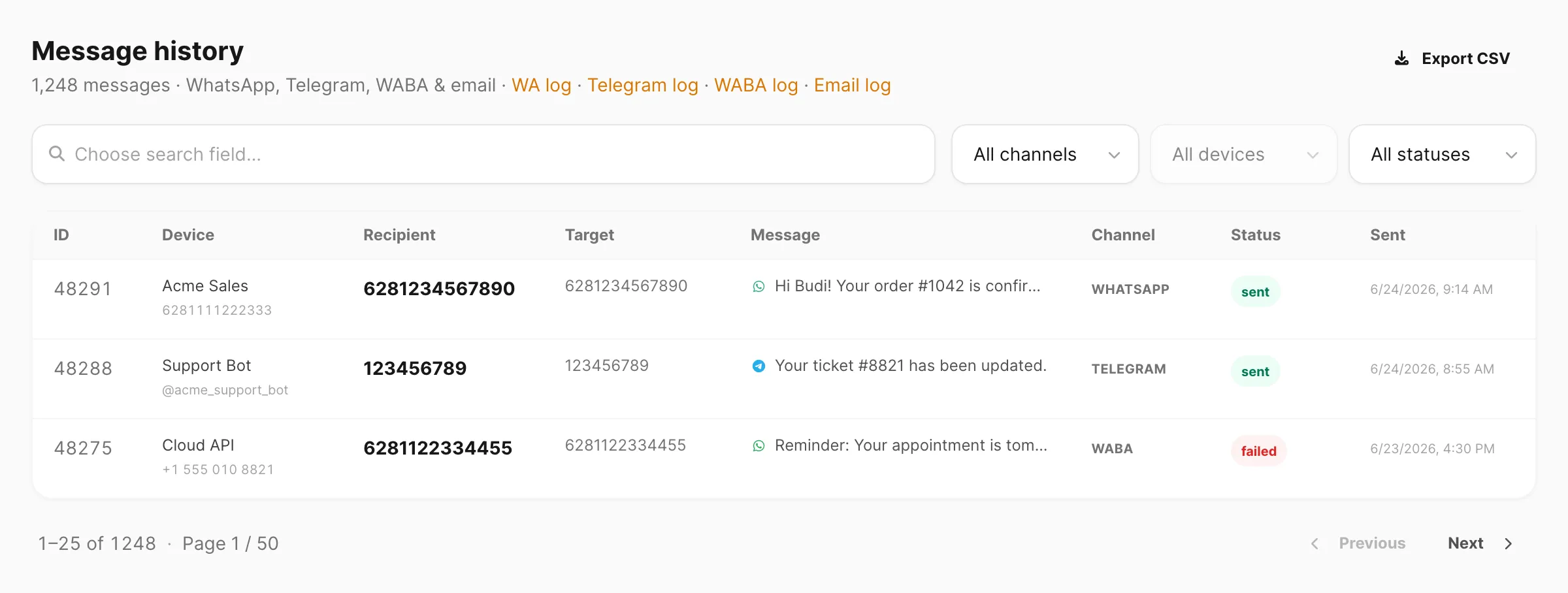
Contoh data ditampilkan.
Retensi
Data audit kirim di balik log ini disimpan 7 hari pada akun Free dan 30 hari pada akun berbayar. Lihat Plan & kuota → Retensi data.
Riwayat lintas channel
Logs → History menggabungkan aktivitas outbound WhatsApp, Telegram, WABA, dan email sehingga Anda bisa melacak pengiriman tanpa membuka setiap log channel.
Gunakan filter Channel untuk membatasi ke satu channel, atau gunakan pintasan di subtitle halaman (WA log, Telegram log, WABA log, Email log) untuk melompat ke halaman log khusus channel tersebut.
Pencarian dan filter
Pencarian berbasis kolom: klik area pencarian dulu, pilih kolom yang dicari, lalu ketik kueri Anda.
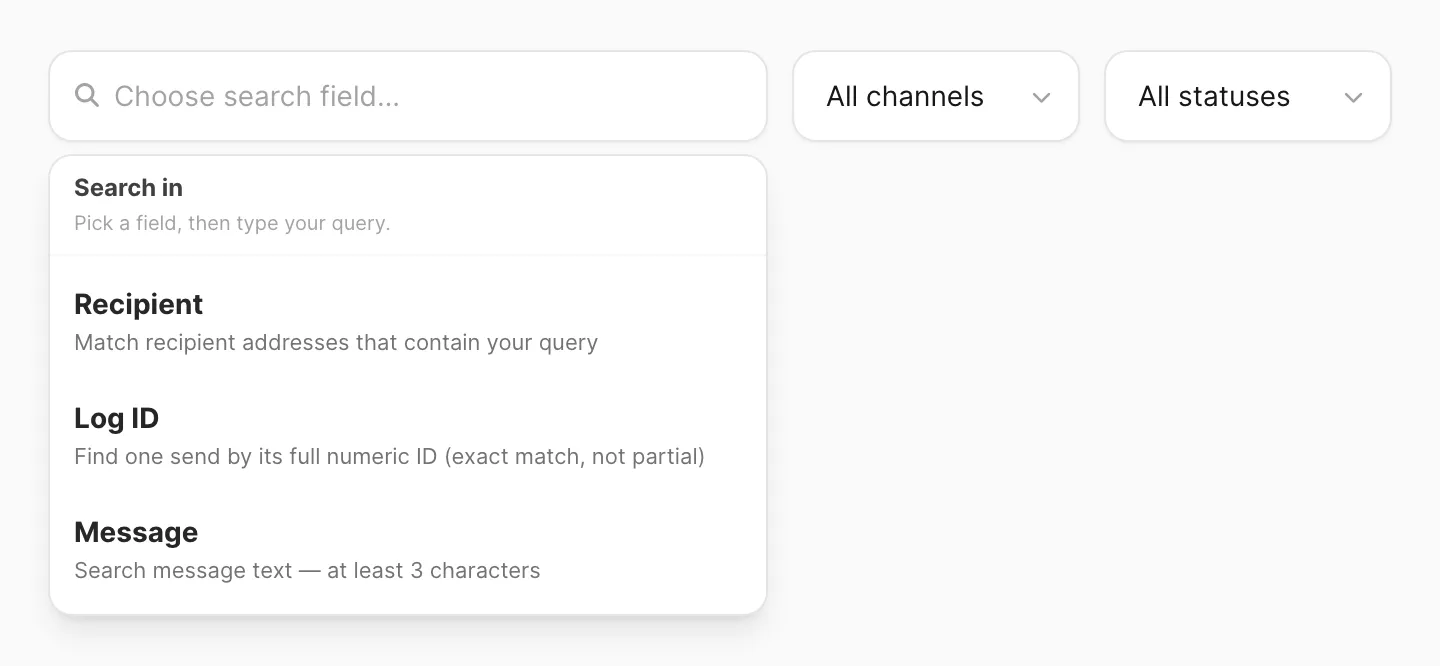

| Filter / kontrol | Fungsi |
|---|---|
| Search | Recipient, Log ID, atau Message — lihat kolom pencarian di bawah |
| Channel | All channels, WhatsApp, Telegram, WABA, atau Email |
| Device | Filter menurut device pengirim — pilih Channel dulu (nomor WhatsApp, bot Telegram, device WABA, atau pengirim email) |
| Status | All statuses, Sent, atau Failed |
| Export CSV | Unduh baris yang cocok (termasuk ID dan Device) |
Kolom pencarian
| Kolom pencarian | Cocok dengan | Panjang minimum |
|---|---|---|
| Recipient | Nomor telepon atau alamat email yang mengandung kueri Anda | 3 karakter |
| Log ID | Seluruh ID numerik persis dari kolom ID | Hanya ID lengkap |
| Message | Isi pesan atau teks subjek yang mengandung kueri Anda | 3 karakter |
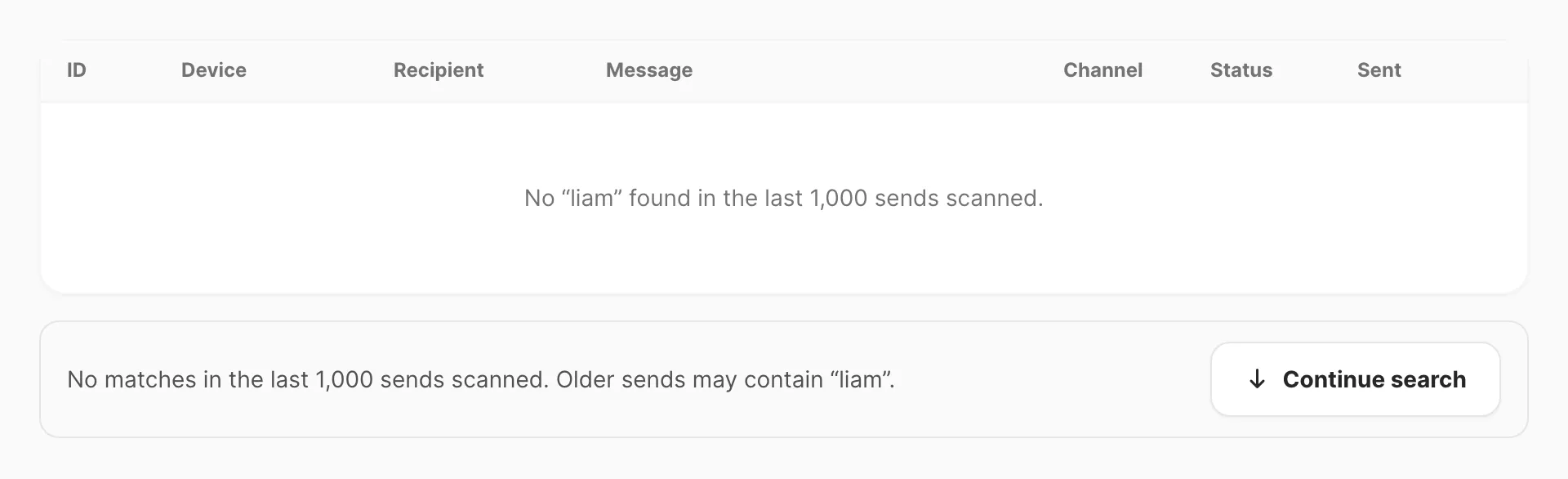
Pencarian Recipient dan Message memindai 1.000 pengiriman terbaru per langkah (menghormati Channel, Device, dan Status). Jika pengiriman lama mungkin masih cocok, Kirisan menampilkan Continue search di bawah tabel — perilaku yang sama dengan log per channel.
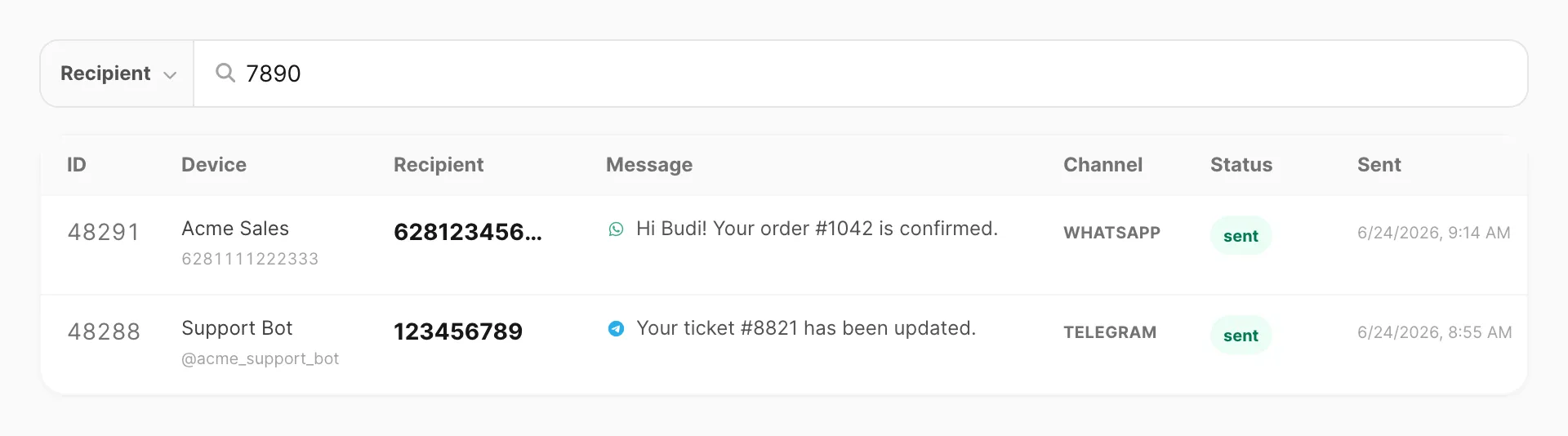
Log ID mengembalikan hasil segera dan tidak memakai Continue search. Masukkan seluruh ID numerik dari kolom ID (hanya kecocokan persis).
Tabel history
Setiap baris adalah satu pengiriman outbound:
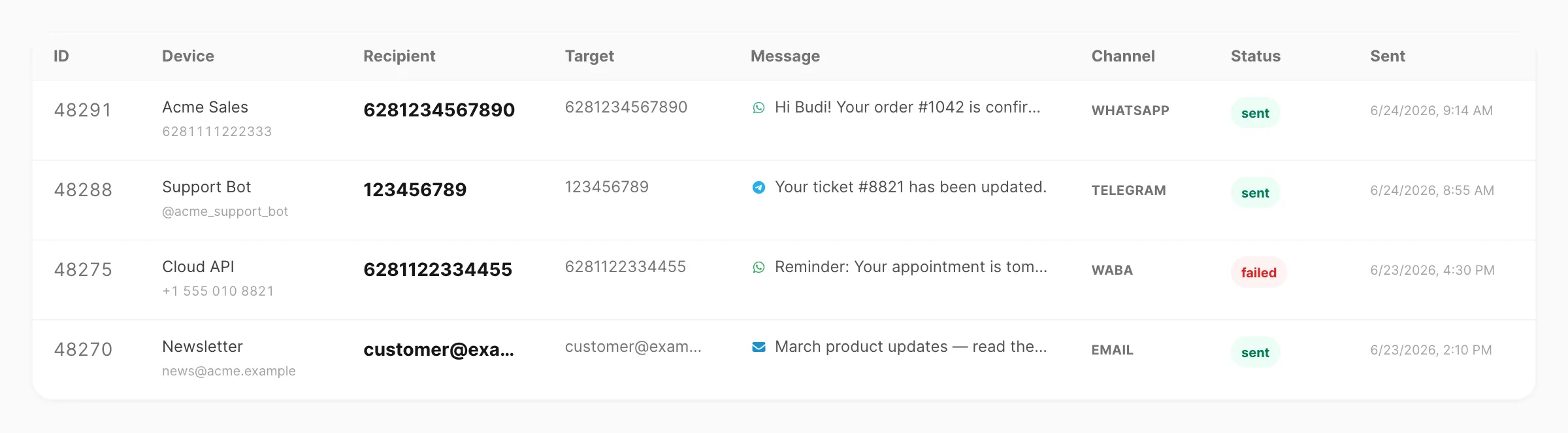
| Kolom | Arti |
|---|---|
| ID | ID baris pengiriman unik — salin seluruh angka untuk pencarian Log ID (hanya kecocokan persis) |
| Device | Device pengirim untuk channel tersebut — lihat di bawah |
| Recipient | Tujuan utama (telepon, chat id, atau email) |
| Target | Nilai target mentah dari payload pengiriman (jika berbeda dari Recipient) |
| Message | Pratinjau terpotong dengan ikon channel |
| Channel | WhatsApp, Telegram, WABA, atau Email |
| Status | sent atau failed |
| Sent | Kapan pengiriman dicatat |
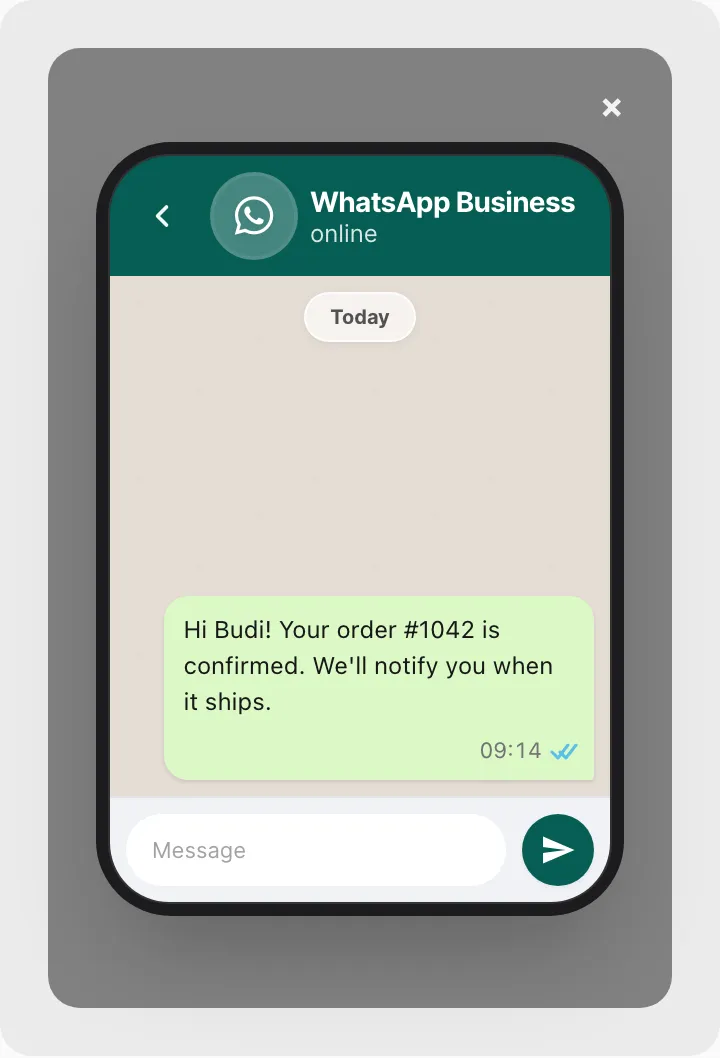
Baris bisa diklik — Kirisan membuka pratinjau pesan sesuai channel (gelembung gaya WhatsApp, gelembung Telegram, atau pratinjau HTML email).
Ketika pencarian Recipient atau Message memindai batch tanpa kecocokan tetapi masih ada pengiriman lebih lama, gunakan Continue search:
Kolom Device menurut channel
| Channel | Device menampilkan |
|---|---|
| Nama device + nomor Fonnte (dari Devices) | |
| Telegram | Username atau nama bot (dari Devices) |
| WABA | Nama tampilan + telepon Cloud API (dari Devices) |
| Nama pengirim + alamat from (dari Emails) |
Jika pelacakan device tidak disimpan untuk pengiriman lama, Device menampilkan — — gunakan Recipient, Message, atau Log ID sebagai gantinya.
Tips
- Filter Channel dulu, lalu Device jika Anda perlu satu nomor WhatsApp, bot, device WABA, atau pengirim email.
- Cari Recipient atau Message setelah mempersempit Channel (dan opsional Device).
- Gunakan Log ID jika dukungan atau respons API memberi Anda ID baris persis dari kolom ID.
- Log per channel juga menawarkan filter Device (atau Sender untuk email) jika Anda bekerja di satu channel saja.
Log per channel
Setiap channel mengekspos log sendiri yang dapat dicari dan dipaginasi dengan ID, Device (atau Sender untuk email), kolom pencarian, dan perilaku Continue search yang sama:
| Channel | Menu sidebar |
|---|---|
| Channel → WhatsApp → Logs | |
| Telegram | Channel → Telegram → Logs |
| WABA | Channel → WABA → Logs |
| Channel → Email → Logs |
Baris biasanya mencakup status, penerima, pratinjau konten, dan stempel waktu. Baris gagal menampilkan detail error untuk dukungan.
Pratinjau log Email menampilkan teks biasa yang diekstrak dari body HTML (tanpa markup). Daftar Recent sends di beranda dashboard memakai gaya yang sama untuk baris email.
Log webhook
Webhooks → Logs mencantumkan percobaan pengiriman ke endpoint Anda — kode HTTP, durasi, dan pesan error.
Log khusus email
Selain log pengiriman, tinjau:
- Email → Bounce — alamat yang gagal permanen atau sementara
- Email → Suppression — penerima yang diblokir
Terkait
- Inbox — pesan masuk WhatsApp, WABA & Telegram (Logs → Inbox)
- Statistics — volume lintas channel dan tren pengiriman (Logs → Statistics)
- Baca statistik lintas channel — bandingkan jendela waktu dan baca grafik harian
- Log WhatsApp
- Log Telegram
- Log WABA
- Log Email