Uji webhook
Buka Webhooks → Test.
Kegunaan halaman ini
Webhook test mengirim JSON contoh ke URL yang Anda simpan di Webhooks → Webhook — bukan lalu lintas pelanggan nyata. Gunakan untuk mengonfirmasi server Anda menerima POST Kirisan dan mengembalikan 200 atau 201 sebelum go live.
Endpoint Pending memerlukan satu uji berhasil di sini sebelum Kirisan mengirim event live.
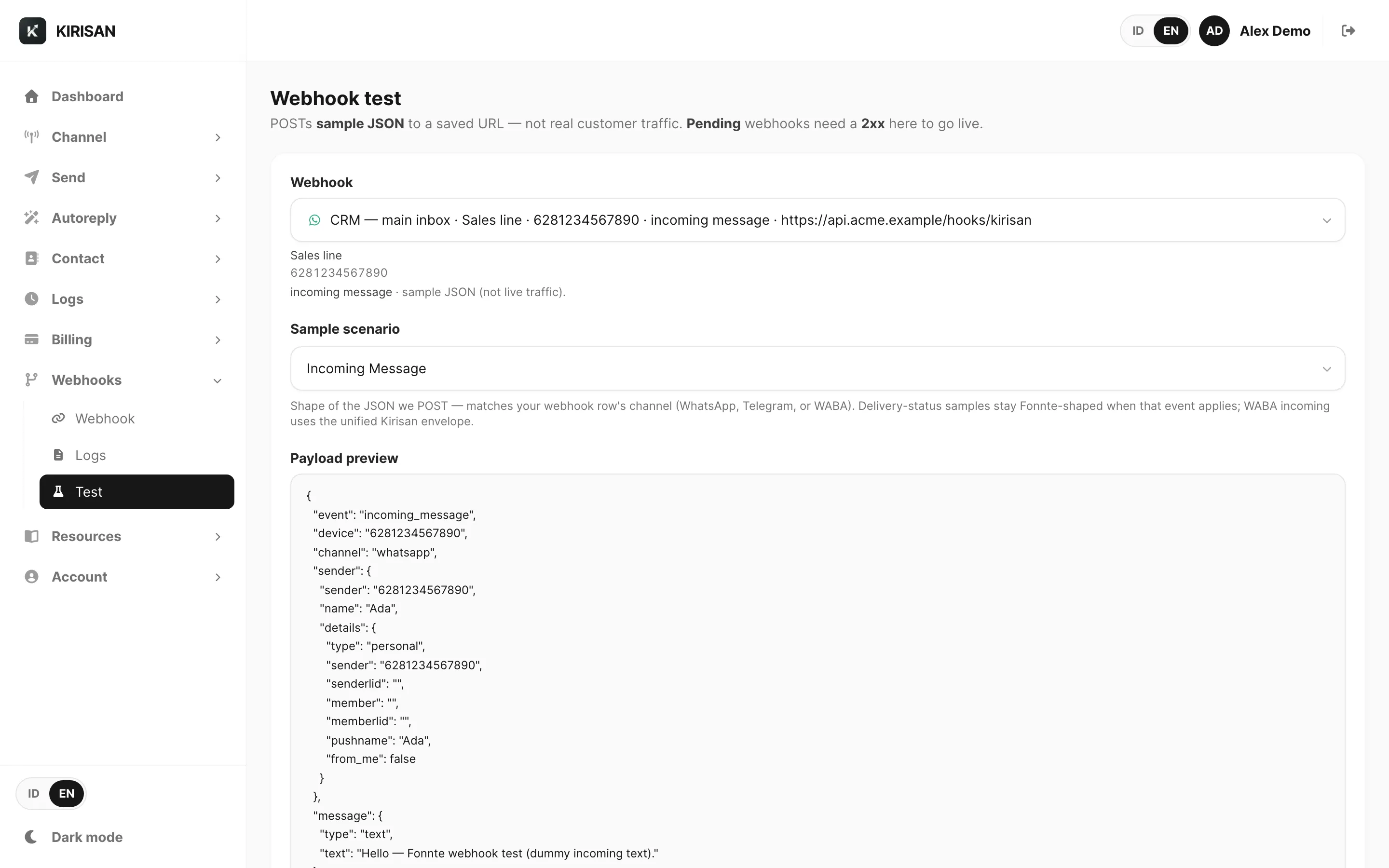
Contoh data ditampilkan.
Intro halaman
Subtitle menjelaskan kontrak:
- Lalu lintas adalah JSON contoh, bukan pesan live
- Webhook Pending menjadi Active setelah respons 2xx
Belum ada webhook
Saat Anda belum menyimpan endpoint, halaman meminta Anda menambahkan dulu.

Klik Webhooks untuk membuka Webhooks → Webhook dan membuat endpoint.
Setelah simpan — banner aktivasi
Saat Anda klik Save → test di Webhooks → Webhook, Kirisan membuka halaman ini dan mengingat batch yang baru Anda simpan.

Satu uji berhasil (2xx) mengaktifkan setiap endpoint dari simpanan terakhir Anda. Pilih baris apa pun dari batch tersebut — Anda tidak perlu menguji setiap device secara terpisah.
Form uji
| Kontrol | Fungsi |
|---|---|
| Webhook | Pilih baris tersimpan mana yang diuji — label menampilkan nama, device, event, URL, dan pending saat belum aktif |
| Device summary | Nama tampilan dan identifier untuk baris terpilih |
| Sample scenario | Tipe event untuk baris ini (Incoming Message atau Submission) — sesuai yang Anda konfigurasi di Webhooks → Webhook |
| Payload preview | JSON read-only yang akan Kirisan POST — bentuk mengikuti channel baris (WhatsApp, Telegram, atau WABA) |
| Send test | POST contoh ke URL Anda dan tampilkan hasil |
Payload uji menyertakan "production": false agar handler Anda bisa mengabaikan atau mengarahkannya terpisah dari lalu lintas live.
Sample scenario menurut channel
| Channel | Pratinjau Incoming Message |
|---|---|
| Envelope ternormalisasi dengan sender, message, dan metadata | |
| Telegram | Bentuk top-level sama; sender.details mencakup chat_id dan user_id |
| WABA | Body subscriber Cloud API datar untuk channel tersebut |
Pratinjau Submission mencakup submission, answers, started_at, dan completed_at.
Send test dan baca hasil
Klik Send test. Kirisan POST ke URL Anda dan menampilkan kartu hasil di bawah form.
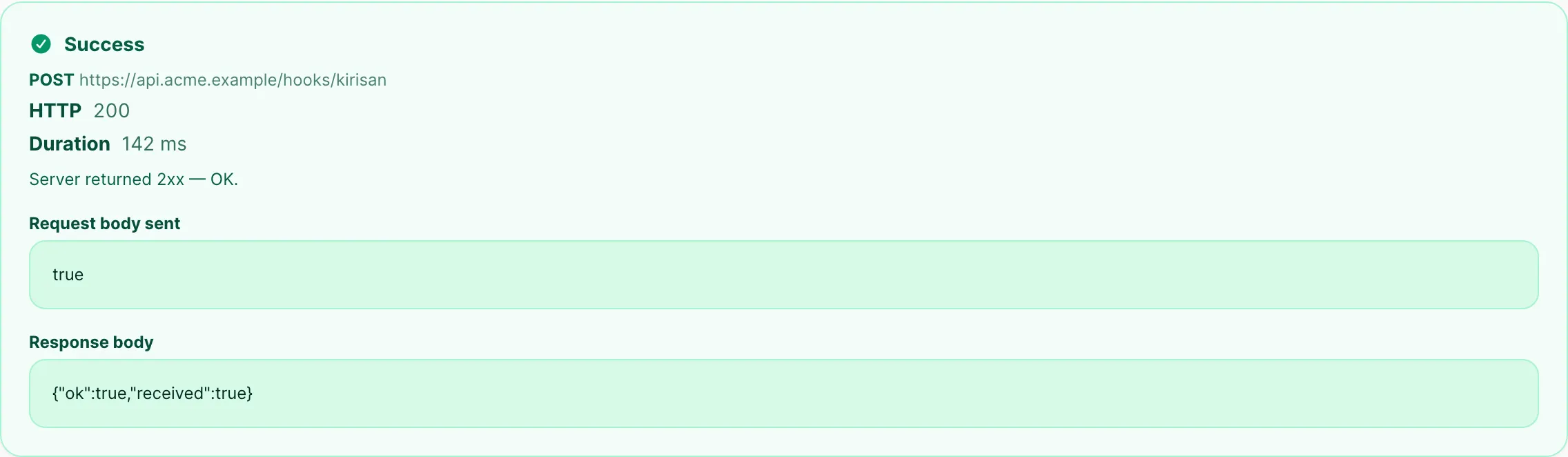
Contoh data ditampilkan.
| Bagian hasil | Arti |
|---|---|
| Success / Failed | Apakah server Anda mengembalikan 2xx |
| POST + URL | Metode dan tujuan yang dipanggil |
| HTTP | Kode status dari server Anda |
| Duration | Waktu round-trip dalam milidetik |
| Request body sent | JSON persis yang Kirisan posting |
| Response body | Balasan server Anda (dipotong jika sangat besar) |
Saat sukses:
- Toast mengonfirmasi Webhook test succeeded (2xx)
- Baris pending dari batch simpanan terakhir berubah ke Active di Webhooks → Webhook
- Dropdown Webhook diperbarui — suffix pending hilang
Saat gagal:
- Kartu berubah merah dengan Failed, status HTTP, dan detail error
- Perbaiki server Anda, lalu klik Send test lagi
- Periksa Webhooks → Logs untuk percobaan yang sama
Apa yang harus dilakukan server Anda
| Periksa | Mengapa |
|---|---|
| Kembalikan 200 atau 201 dengan cepat | Kirisan memperlakukan kode lain sebagai kegagalan; handler lambat dapat timeout |
| Terima POST dengan application/json | Sesuai pengiriman pada webhook live |
| Baca header X-Kirisan-Event dan X-Kirisan-Device | Arahkan menurut event dan device tanpa parsing body dulu |
| Bandingkan X-Webhook-Secret saat Anda mengatur signing secret | Tolak permintaan yang tidak cocok dengan secret terkonfigurasi |
| Antrekan pekerjaan berat secara asinkron | Balas 2xx dulu, lalu proses di background |
Terkait
- Referensi Webhooks — konfigurasi endpoint dan device
- Referensi payload webhook — JSON lengkap untuk setiap event
- Log webhook — tinjau percobaan pengiriman setelah uji atau lalu lintas live
- Jalankan uji webhook — tutorial langkah demi langkah
- Tambah endpoint webhook — buat endpoint dulu
- Resources → Variables — referensi envelope JSON lengkap