Flow percakapan
Buka Autoreply → Flow.
Untuk apa halaman ini
Flow adalah pohon percakapan visual: kirim pesan, tunggu balasan, cabang berdasarkan kondisi, panggil API eksternal, simpan variabel, dan tambahkan jeda. Flow berjalan tanpa agen online — ideal untuk wizard onboarding, routing support, dan pemesanan terpandu.
Setiap device menangani pesan masuk dalam satu mode. Agar flow berjalan, set On incoming message ke Flow pada device di Channel → WhatsApp → Devices atau Channel → Telegram → Devices.
Setiap device hanya dapat ditautkan ke satu flow sekaligus — bukan beberapa flow pada line atau bot yang sama. Satu flow tetap dapat ditautkan ke banyak device. Pemilih device menyembunyikan line dan bot yang sudah ditautkan ke flow lain; untuk memindahkan device, buka flow tersebut, hapus device, lalu tautkan di sini.
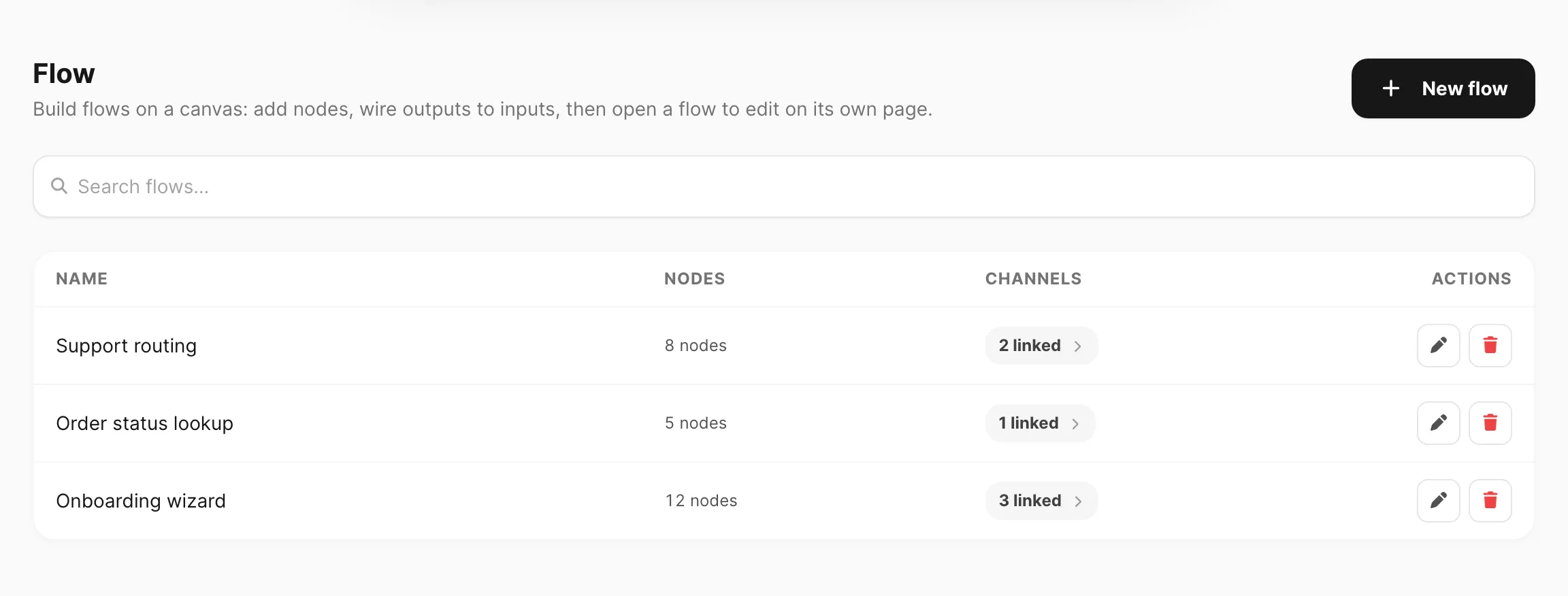
Contoh data ditampilkan.
Daftar flow
| Kolom / kontrol | Fungsi |
|---|---|
| New flow | Membuka editor kanvas kosong. |
| Search flows… | Memfilter berdasarkan nama (minimal 3 karakter). |
| Name | Judul flow. |
| Nodes | Jumlah langkah di kanvas. |
| Channels | Klik N linked untuk melihat line WhatsApp atau bot Telegram yang terpasang pada flow ini. |
| Actions | Edit flow (membuka halaman editor) atau Delete flow. |
Buat flow
- Klik New flow.
- Buka Settings (panel kiri) — masukkan Name, atur durasi Session, dan tautkan device WhatsApp atau Telegram.
- Klik + (kanan bawah kanvas) untuk membuka palet node — Start sudah ada di kanvas untuk flow baru.
- Tambahkan node (Text, Response, Condition, dll.) dan hubungkan titik output → titik input.
- Klik setiap node untuk mengedit kontennya (teks pesan, URL HTTP, cabang kondisi, dan seterusnya).
- Klik Run untuk mensimulasikan jalur dengan pesan uji sebelum go live.
- Klik Save (atau Create).
Editor flow
Editor terbuka di halaman sendiri saat Anda membuat atau mengedit flow. Secara default panel Settings disembunyikan agar kanvas memakai lebar penuh — klik Settings di header untuk membuka nama, session, dan opsi device.
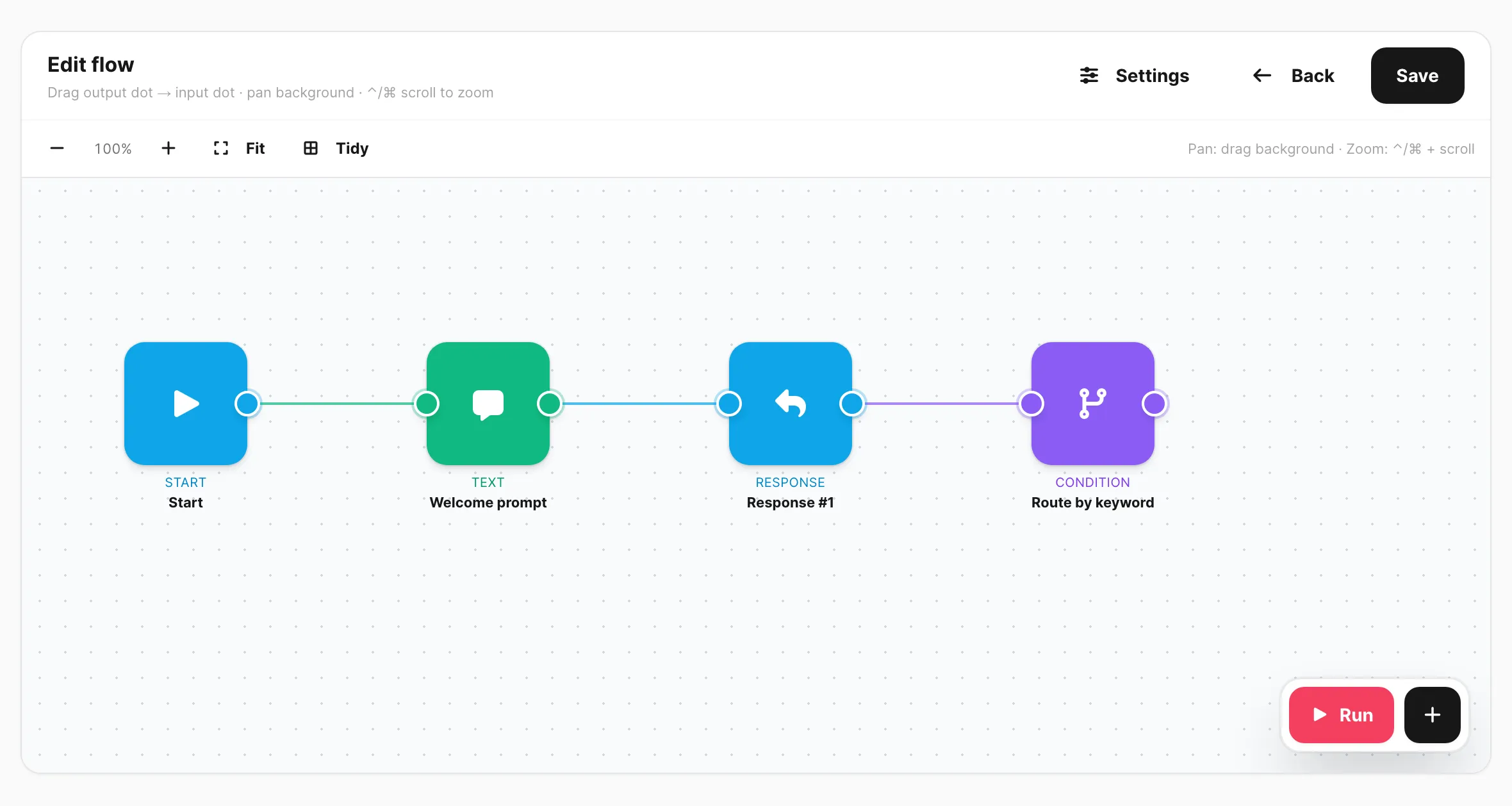
Contoh data ditampilkan.
Header
| Kontrol | Fungsi |
|---|---|
| Settings / Hide settings | Menampilkan atau menyembunyikan panel kiri (nama, session, device). |
| Back | Kembali ke daftar flow. |
| Save / Create | Menyimpan flow ke akun Anda. |
Panel Settings
Klik Settings untuk membuka panel kiri.
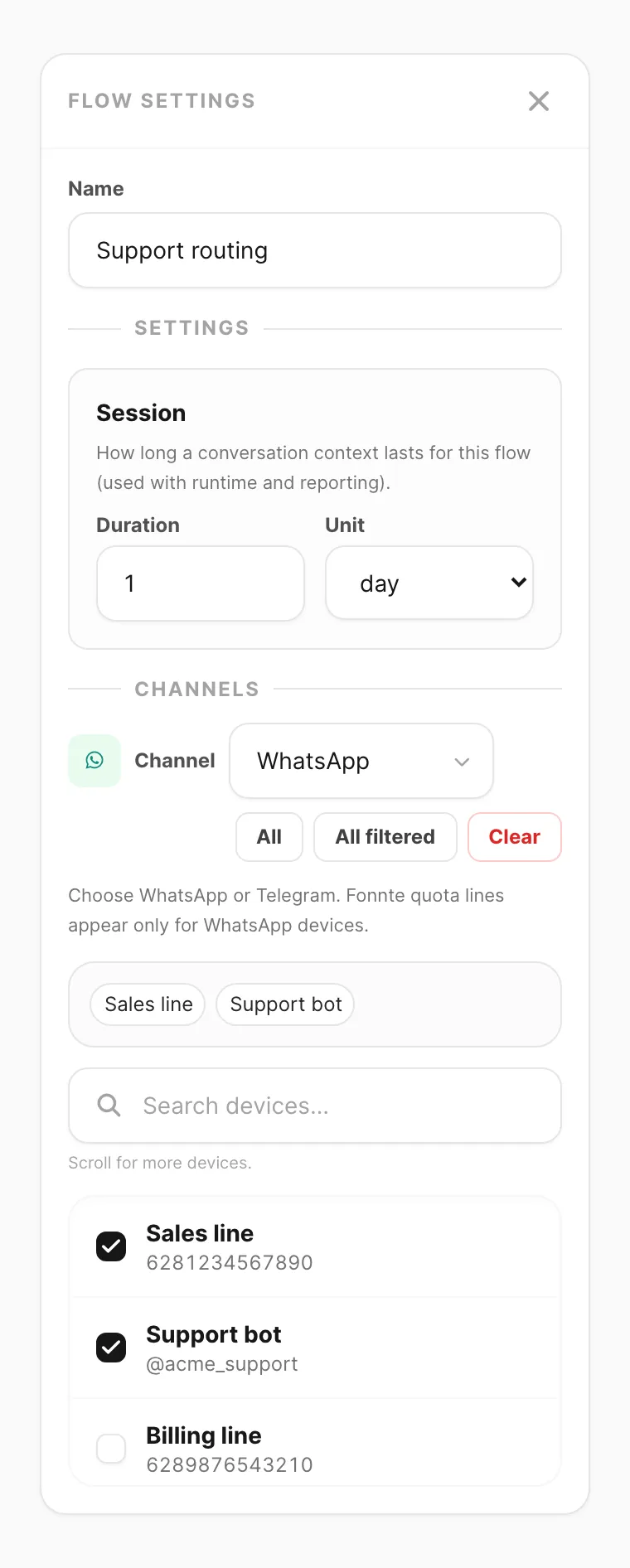
Contoh data ditampilkan.
| Field | Fungsi |
|---|---|
| Name | Judul flow — ditampilkan di daftar. |
| Session — Duration / Unit | Batas idle percakapan (misalnya 1 day). Jika kontak diam lebih lama dari ini, pesan berikutnya memulai flow dari Start lagi. |
| Device picker | Tautkan satu atau lebih device WhatsApp, Telegram, atau WABA. Pola sama seperti Autoreply — cari, pilih baris, atau pakai All / All filtered. Setiap device hanya boleh milik satu flow; device yang sudah di flow lain tidak ditampilkan sampai Anda lepaskan tautannya di sana. |
Toolbar kanvas
| Kontrol | Fungsi |
|---|---|
| − / + | Perkecil dan perbesar zoom. |
| Fit | Membingkai semua node dalam tampilan. |
| Tidy | Mengatur ulang node secara otomatis di grid. |
Interaksi kanvas:
- Pan — seret latar bertitik.
- Zoom — Ctrl/Cmd + scroll.
- Connect — seret dari titik output (kanan node) ke titik input (kiri node lain).
- Edit node — klik ikon pena saat hover, atau klik kartu node.
- Delete connection — arahkan ke edge dan klik tombol ×.
Setiap flow memerlukan node Start — eksekusi dimulai di sana saat pesan masuk.
Palet tambah node
Klik + (di samping Run) untuk membuka palet.
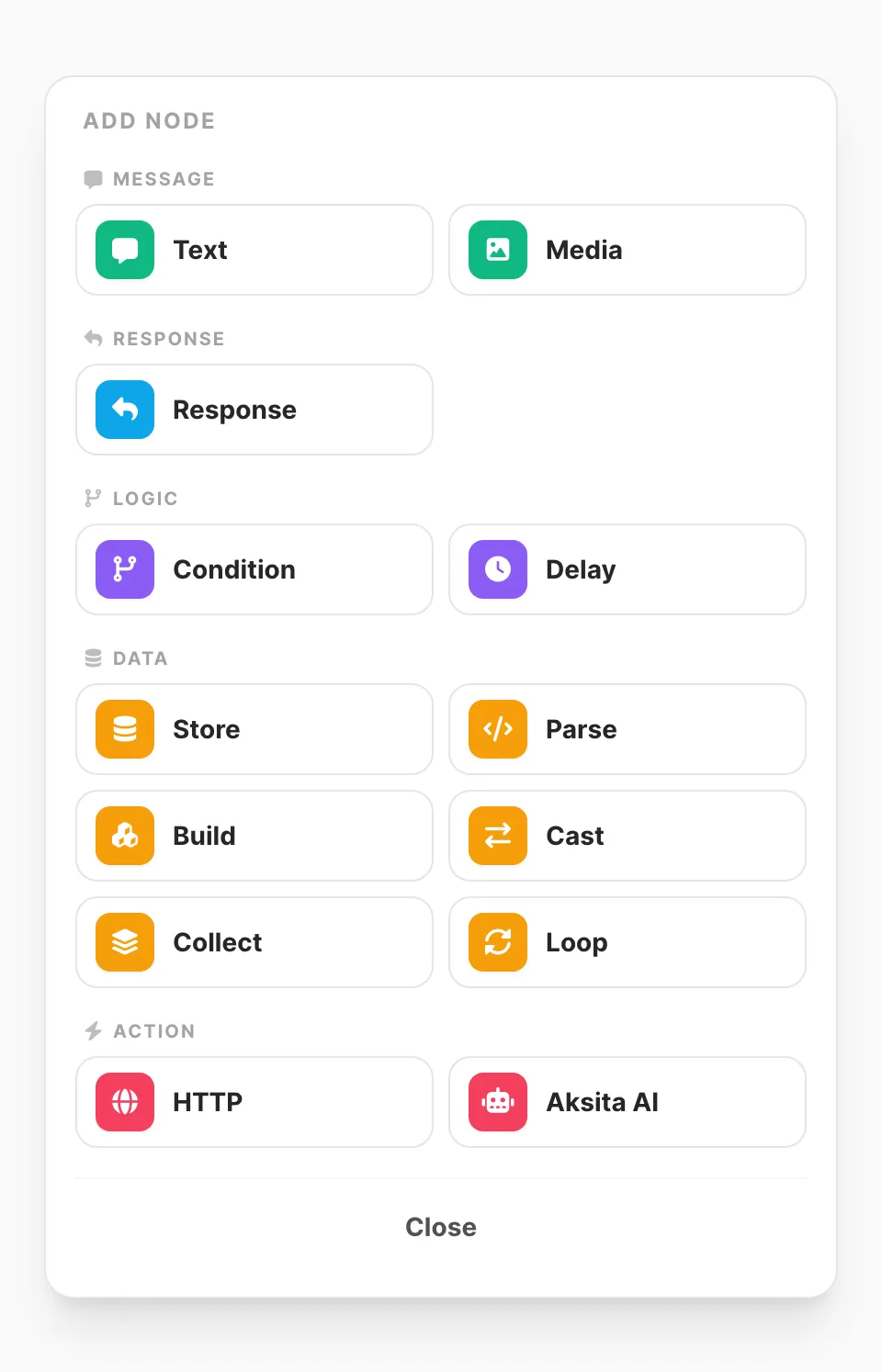
Contoh data ditampilkan.
| Grup | Node |
|---|---|
| Message | Text, Media |
| Response | Response — jeda sampai pengguna membalas |
| Logic | Condition, Delay |
| Data | Store, Parse, Build, Cast, Collect, Loop |
| Action | HTTP — panggil URL eksternal · Aksita AI — chat lewat Aksita (success / error) |
Node API dan Webhook lama mungkin muncul di flow lama — gunakan HTTP untuk pekerjaan baru.
Edit node (contoh: Text)
Klik ikon pena node untuk membuka editor.
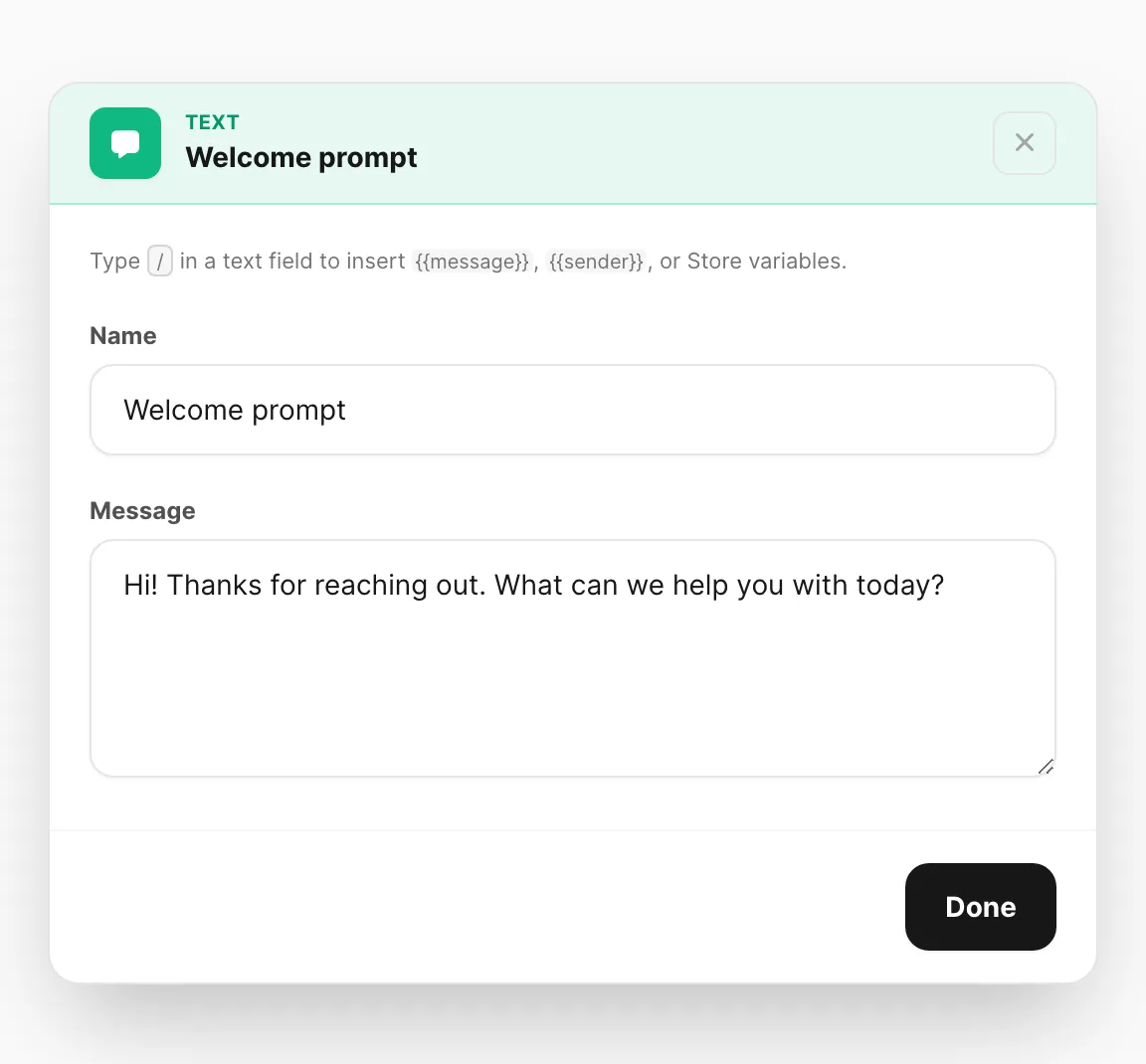
Contoh data ditampilkan.
Ketik / di field teks untuk menyisipkan variabel flow seperti {{message}}, {{sender}}, {{http_body_success}}, atau nama Store. Token server seperti [[date-dd-mm-yyyy]] berasal dari Resources → Variables.
| Node | Pengaturan utama |
|---|---|
| Text | Body pesan. |
| Media | URL file dan Caption opsional. |
| Response | Tanpa field tambahan — menunggu pesan masuk berikutnya (tersedia sebagai {{message}} di downstream). |
| Condition | Cabang If / Else if. Sisi kiri adalah field bebas: nama polos (message, year, variabel Store) atau {{variables}} (ketik / untuk sisip). Operator seperti =, contains, startswith. Hubungkan setiap output cabang secara terpisah; gunakan Else jika tidak ada yang cocok. |
| Store | Setel satu atau lebih variabel bernama. Setiap baris punya nama dan template nilai (mis. {{message}}, {{http_body_success}}, atau teks campur). Prefer Store untuk literal/template; gunakan Parse untuk mengambil field dari JSON. |
| Delay | Tunggu rentang detik acak sebelum melanjutkan. Delay bersifat durable — bertahan setelah restart API dan dilanjutkan lintas instance. |
| Parse | Muat sumber JSON (mis. {{http_body_success}}) dan klik node di grafik path untuk memetakannya ke variabel bernama. output / error (sumber non-JSON). |
| Build | Bangun objek JSON dari baris kunci/nilai ke satu variabel (pakai ulang di body HTTP sebagai {{payload}}). Tipe leaf memakai aturan cast yang sama dengan Cast (string / int / float / bool). output / error. |
| Cast | Ubah nilai ke string / int / float / bool dan tulis ke variabel sesi (pratinjau langsung sebelum → sesudah; float mempertahankan desimal; bool truthy/falsy). output / error (tanpa penulisan parsial jika gagal). |
| Collect | Tambahkan nilai ke variabel array JSON (maks. 100), termasuk JSON bersarang. Pratinjau menampilkan struktur array setelah ditambah. output / error. |
| Loop | Ulangi array JSON saja (maks. 100). Editor hanya menawarkan variabel array sebagai sumber. Output each (mengisi variabel item/indeks — hubungkan body kembali ke Loop ini), exit saat selesai, error jika sumber bukan array. |
| HTTP | Method, URL, header, body — cabang pada Success, Failed, atau Error. Hanya body respons JSON yang diterima. Success jika kondisi sukses cocok; Failed jika body JSON tetapi kondisi tidak cocok; Error untuk kegagalan jaringan/server atau body non-JSON (termasuk HTML/teks 4xx/5xx). Gunakan Test di dalam node untuk memverifikasi permintaan. Minimal satu tes berhasil wajib untuk menyimpan; hasil gagal atau error berikutnya tidak menghalangi penyimpanan. Sampel tiap cabang disimpan terpisah. Variabel: {{http_body_success}} / {{http_status_success}}, {{http_body_failed}} / {{http_status_failed}}, {{http_error}}. Gunakan Store / Parse untuk menyalin ke nama Anda sendiri. |
| Aksita AI | API key, template pesan (default {{message}}), konteks tambahan dan conversation ID opsional. Cabang success / error. Memakai ulang {{aksita_conversation_id}} jika ada, atau membuat sesi baru. Variabel: {{aksita_response}}, {{aksita_conversation_id}}, {{aksita_message_id}}, {{aksita_remaining_credits}}, {{aksita_error}}. Gunakan Coba Aksita untuk tes langsung. Lihat Aksita AI. |
Klik Done untuk menutup editor node.
Untuk node Aksita AI, editor menampilkan API key, template pesan, dan opsi percakapan:
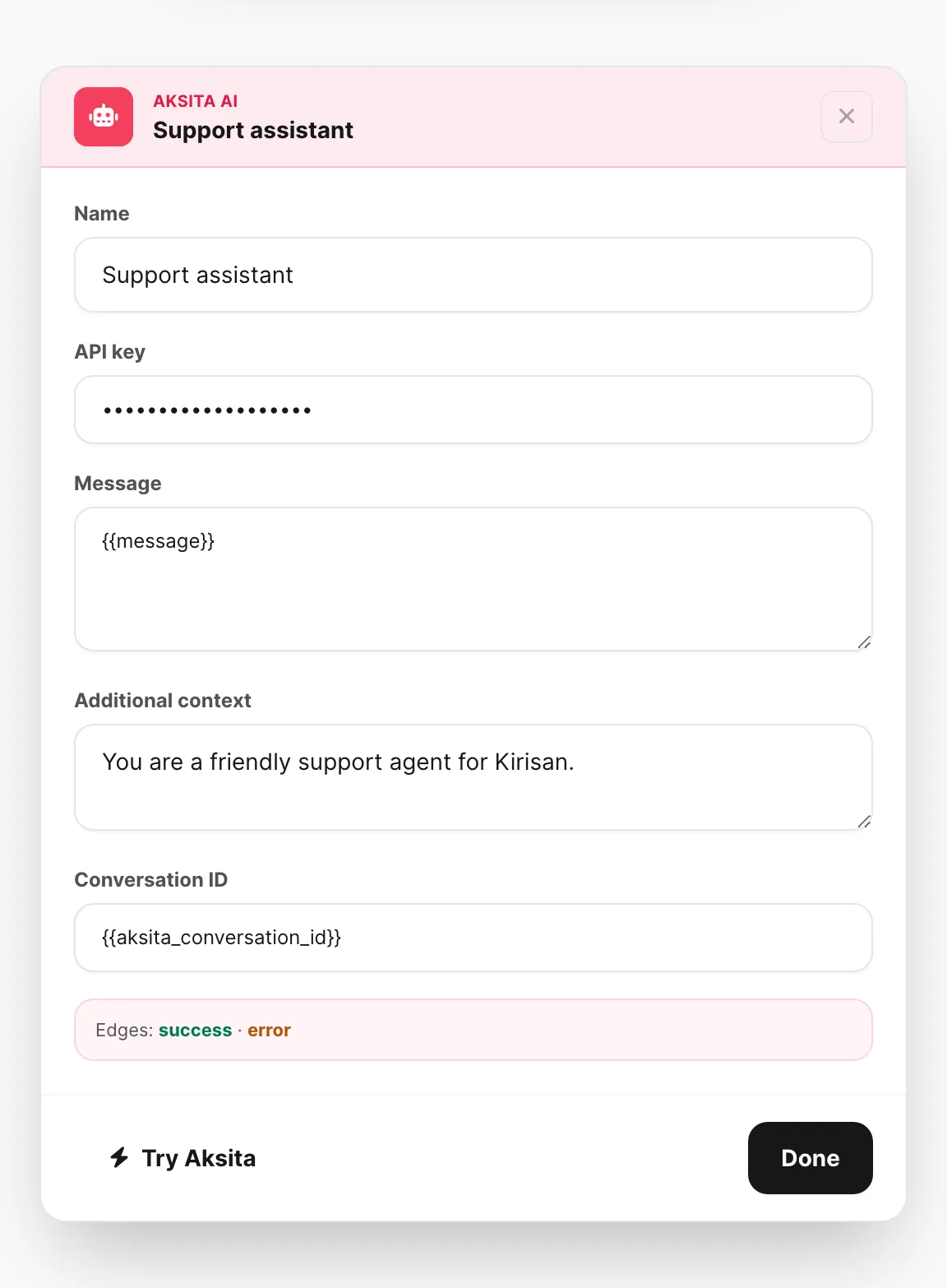
Contoh data ditampilkan.
Coba flow (Run)
Klik Run di kanvas untuk mensimulasikan percakapan tanpa mengirim pesan nyata.
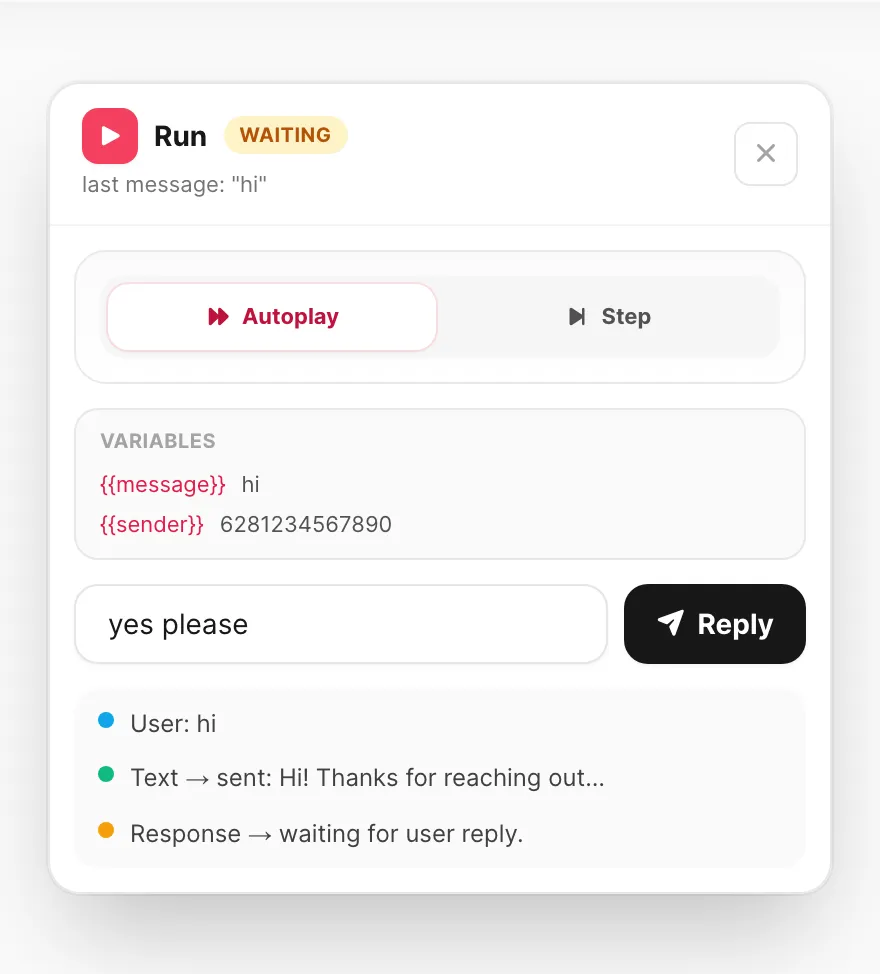
Contoh data ditampilkan.
- Ketik pesan pengguna pertama dan klik Run.
- Pilih Autoplay (maju otomatis) atau Step (tekan Next per node).
- Ikuti log saat setiap node dieksekusi — inspector Variabel menampilkan map saat ini.
- Di node Response, field pesan muncul lagi — ketik balasan dan klik Reply.
- Di node HTTP / Aksita, pilih cabang simulasi atau jalankan permintaan nyata.
Klik Stop atau tutup panel untuk mereset. Perbaiki kanvas, lalu uji lagi sebelum menautkan device produksi.
Tautkan flow ke device
- Di panel Settings editor, pilih device WhatsApp, Telegram, dan/atau WABA (atau campur pada flow yang sama).
- Save flow.
- Pada setiap device tertaut, buka Channel → channel → Devices, edit device, dan set On incoming message ke Flow.
Saat pesan masuk di device tersebut, Kirisan menjalankan satu flow tertaut itu dari node Start. Satu device tidak bisa menjalankan dua flow — jika sudah tertaut di tempat lain, hapus dulu dari flow tersebut, lalu tambahkan di sini. Hanya satu handler masuk yang aktif per device — Flow menggantikan Autoreply, Spreadsheet, dan Webhook untuk line atau bot tersebut.
Flow vs autoreply keyword
| Autoreply keyword | Flow |
|---|---|
| Balasan sekali jalan atau mulai submission | Dialog multi-putaran dengan cabang |
| Cepat disetel di modal | Lebih baik untuk wizard, menu, dan lookup API |
| Urutan daftar — keyword pertama yang cocok menang | Satu flow per device — banyak template dapat berbagi device, tetapi device hanya menjalankan satu flow |
Gunakan Autoreply untuk FAQ sederhana; gunakan Flow ketika pengguna harus menjawab beberapa pertanyaan atau Anda perlu kondisi dan panggilan HTTP.
Tips
- Buat Start → Text pertama singkat agar pengguna mendapat konfirmasi cepat.
- Gunakan Store + Condition untuk mengingat pilihan (misalnya kategori produk).
- Letakkan cabang Condition spesifik di atas yang umum — kecocokan pertama menang, lalu Else.
- Satu device hanya menjalankan satu flow — lepaskan tautannya dari flow lain sebelum memindahkan.
- Uji dengan Run sebelum menautkan device produksi.
- Durasi Session di Settings adalah TTL idle — setelah kedaluwarsa, pesan berikutnya dimulai ulang dari Start.
- Setelah HTTP, tambahkan node Store untuk menyalin
{{http_body_success}},{{http_body_failed}}, atau{{http_error}}(atau template) ke variabel bernama untuk node Text / Condition berikutnya.
Terkait
- Autoreply — balasan keyword sederhana
- Submissions — formulir terstruktur (alternatif flow panjang)
- Spreadsheet — balasan berbasis sheet tanpa kanvas
- Variables —
{{message}}, field Store, dan token[[…]]