Multics inbox
Open Multics → Inbox.
What this page is for
A two-pane live chat for WhatsApp, Telegram, and WABA: conversations on the left, the full message thread on the right. Incoming and outgoing messages appear in one timeline so you can reply like a normal chat app.
Use this when you want to handle chats, not only browse a message table.
| Inbox | Best for |
|---|---|
| Multics → Inbox | Threaded chat, reply in context, work across channels |
| Channel → … → Inbox | Flat inbound history for one channel |
| Logs → Inbox | Cross-channel inbound table (read-only) |
Email is not included here. Channel table inboxes and Logs → Inbox stay available for search, export, and history review.
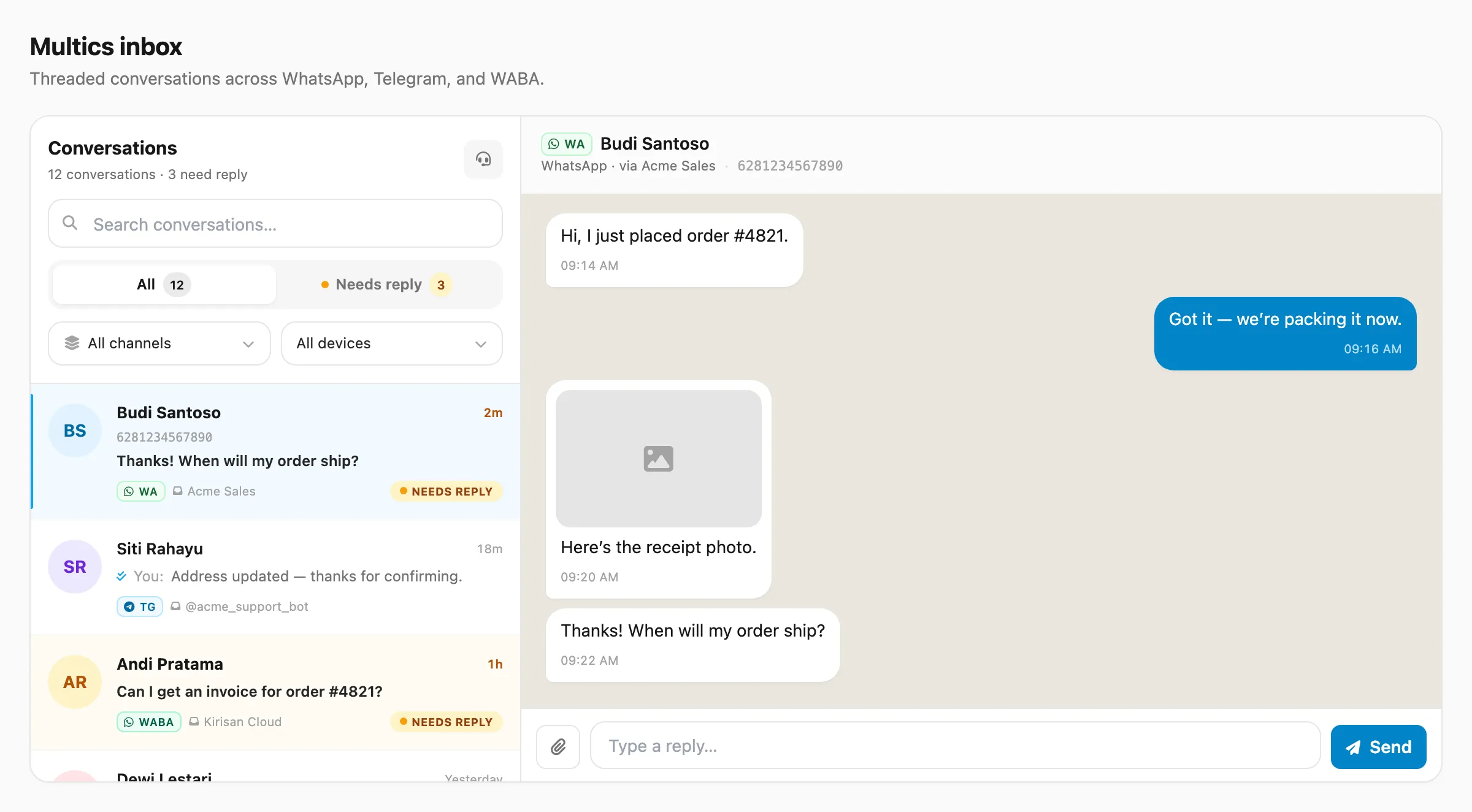
Sample data shown.
Messages follow the same retention as other inboxes: 7 days on Free accounts and 30 days on paid accounts — see Plans & quota → Data retention.
Layout
| Pane | What you see |
|---|---|
| Left — Conversations | Contacts ordered by latest activity, with preview, channel badge, device, and time |
| Right — Thread | Full chat for the selected contact (text, media, location, buttons) |
On small screens, opening a conversation shows the thread; use back to return to the list.
Conversation list
Views
| Tab | Shows |
|---|---|
| All | Every conversation matching your filters |
| Needs reply | Conversations whose latest message is inbound (customer waiting) |
| Unassigned | Conversations not currently taken by an agent |
The header summarizes total conversations and how many need a reply. Conversations waiting on you are highlighted so they stand out in the list. Rows also show an Unassigned badge or the assignee’s name.
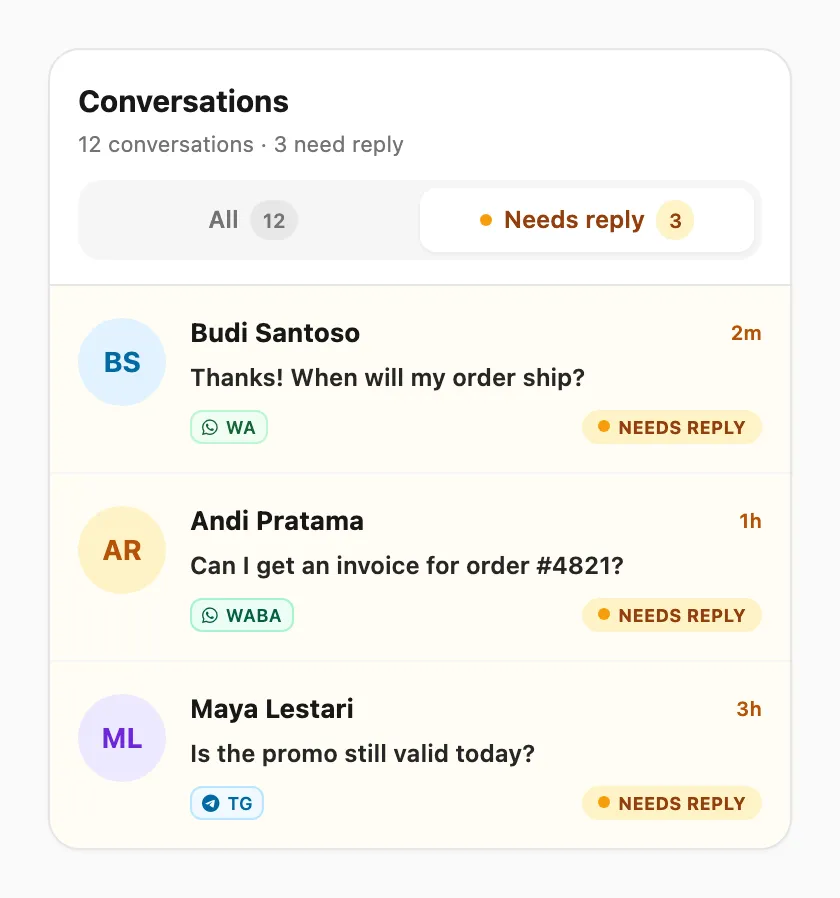
Filters and search
| Control | What it does |
|---|---|
| Channel | All channels, WhatsApp, Telegram, or WABA |
| Device | Limit to one WhatsApp number, Telegram bot, or WABA line (options follow the channel filter) |
| Search | Match contact name, sender id/number, or last-message preview |
Each row shows:
- Contact name (and sender id when different)
- Last message preview — outbound previews are prefixed with You:
- Channel badge (WA / TG / WABA) and device
- Relative time
- Unassigned or assignee name (and Needs reply highlighting when the last message is from the customer)
Assignment (claim before reply)
Multics uses claim-before-reply for everyone (owner and agents):
| Role | Reply |
|---|---|
| Account owner | May reply only when the conversation is open and assigned to them (Take or Assign to yourself first). Owner can still Assign to others without claiming. |
| Team member (agent) | May reply only when the conversation is open and assigned to them |
| Action | Who | What it does |
|---|---|---|
| Take | Owner or agent | Claims an unassigned chat for yourself |
| Assign | Owner | Force-assigns a chat to any agent (or yourself) |
| Transfer | Owner or current assignee | Moves an open chat to another agent |
| Release | Owner or current assignee | Returns the chat to Unassigned (not the same as End) |
| End chat | Owner or current assignee | Closes the chat — replies are blocked until reopen |
| Reopen | Owner or last assignee | Sets the chat back to Unassigned so someone must Take again |
| Request takeover | Another agent | Asks the current assignee (or owner) to hand the chat over; expires by TTL |
Use Login in the inbox header to go on duty. That stores a duty session in the database, loads conversations, starts the live connection (SSE), and unlocks Take, reply, and Request takeover. Logout ends duty, hides the inbox, and stops live updates. Off duty shows a Login gate only — chats are not loaded or shown.
Only one Login per agent is allowed. Opening Multics on duty in a second tab or browser is blocked until you Logout on the active session (or about 90 seconds after an abrupt close, when the session goes stale).
If no agent is on duty, the optional no active agent message (configured in Multics → Settings) can be sent and the chat stays unassigned for manual Take.
If the chat is not assigned to you, the composer shows Take this chat to reply (or Login first if you are off duty; use Request takeover when it is already assigned to someone else). Closed chats show a banner and block reply until reopen.
Invite agents from Account → Team; see them under Multics → Agents.
Live updates
Live updates run only while you are on duty (after Login). Kirisan then keeps the conversation list and open thread updated over SSE, and keeps your duty session fresh.
When a new inbound message arrives for a conversation you already had in the list, Kirisan plays a short notification sound (after the first successful load). Stay logged in (on duty) with the tab open if you want that live feel.
Thread
Select a conversation to open the chat. Messages show as bubbles: customer on one side, your outbound replies and sends on the other. Outbound bubbles can show the agent name (actor) who sent the reply when that was recorded.
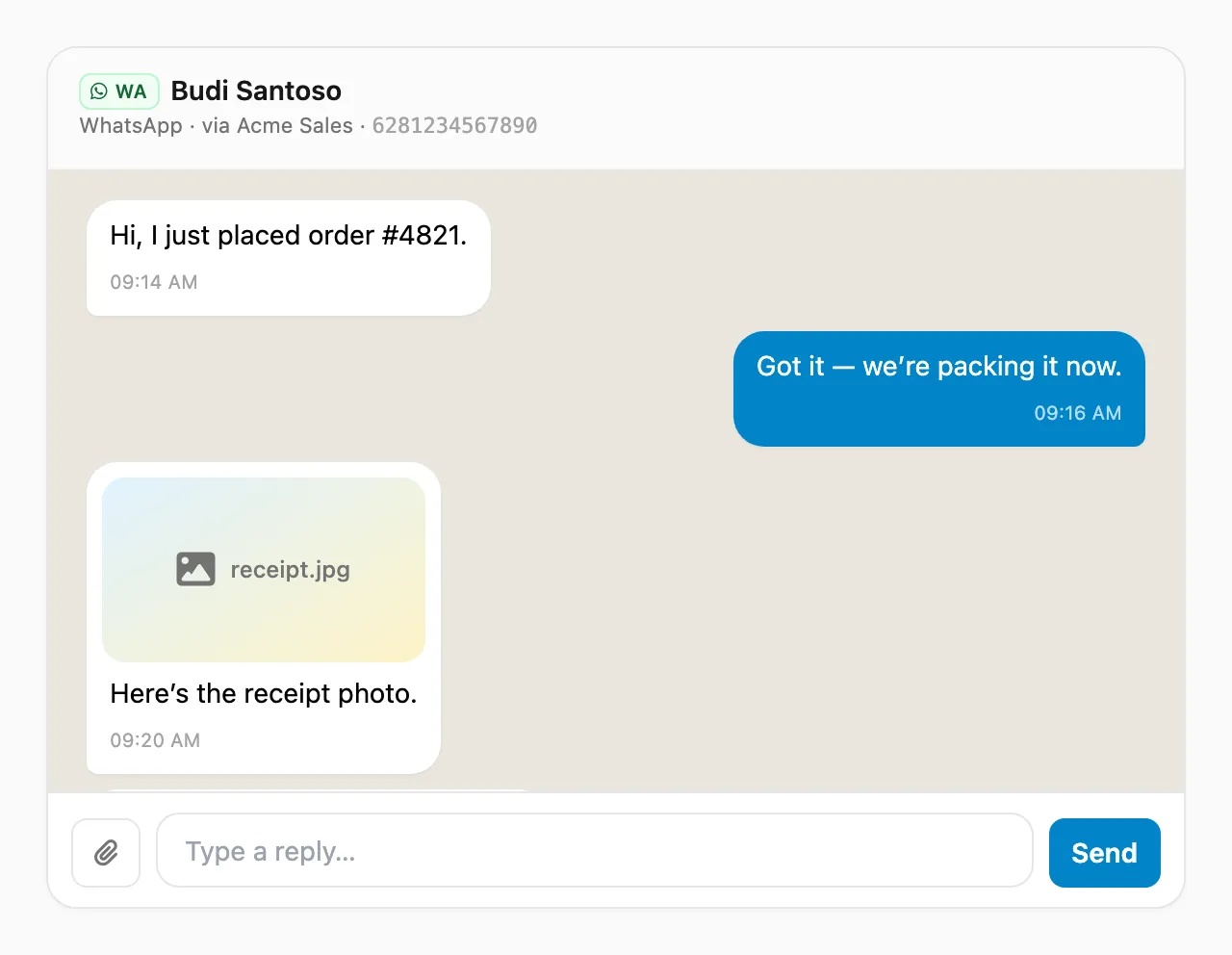
Supported content in the thread includes:
- Text
- Images (click to open full size in a new browser tab — view, not download)
- Video
- Documents / files
- Location (map preview when coordinates are available)
- Button labels from interactive messages
You can delete a message from the thread when your team permissions allow it.
Reply and forward
Reply uses the same dashboard reply flow as channel inboxes (not the public send API).
| Action | How |
|---|---|
| Text reply | Type in the footer and send |
| Quick replies | Insert an owner-managed template (text and/or attachment): type / in the reply box (searchable; Tab or Enter to insert) or use the bookmark control |
| Rich reply | Open the composer for media, location, or buttons |
| Forward | Send the message to another target on the same channel |
Permissions follow your team roles for that channel’s inbox actions (reply, forward, delete, export) plus Multics actions (take, assign, transfer, end, takeover, quick_reply) when enabled.
Cross-channel forward (for example WhatsApp → Telegram) is not supported yet.
Export
If export is allowed for your account/role, you can download matching conversation data as CSV from the page controls (same idea as other inboxes; limits and filters apply).
Tips
- Start on All channels, then narrow channel or device when volume is high.
- Use Unassigned or Needs reply as your working queues.
- Prefer Multics for day-to-day chatting; use channel or Logs inboxes when you need table search over a large inbound history.
- Configure opening messages, session expiry, and quick replies in Multics → Settings.
Related
- Multics settings
- Multics agents
- Multics stats
- WhatsApp inbox — table view
- Telegram inbox — table view
- WABA inbox — table view
- Logs → Inbox — cross-channel inbound table
- Plans & quota — retention