Team
Open Account → Team.
What this page is for
Team lets the account owner invite coworkers to sign in with Google and work inside the same Kirisan account. You choose which sidebar pages and buttons they see, and which channel devices they may use. Team members work on your devices, contacts, and sends — they do not get a separate billing account.
Only the account owner can open this page. Team members do not see Account → Team in the sidebar.
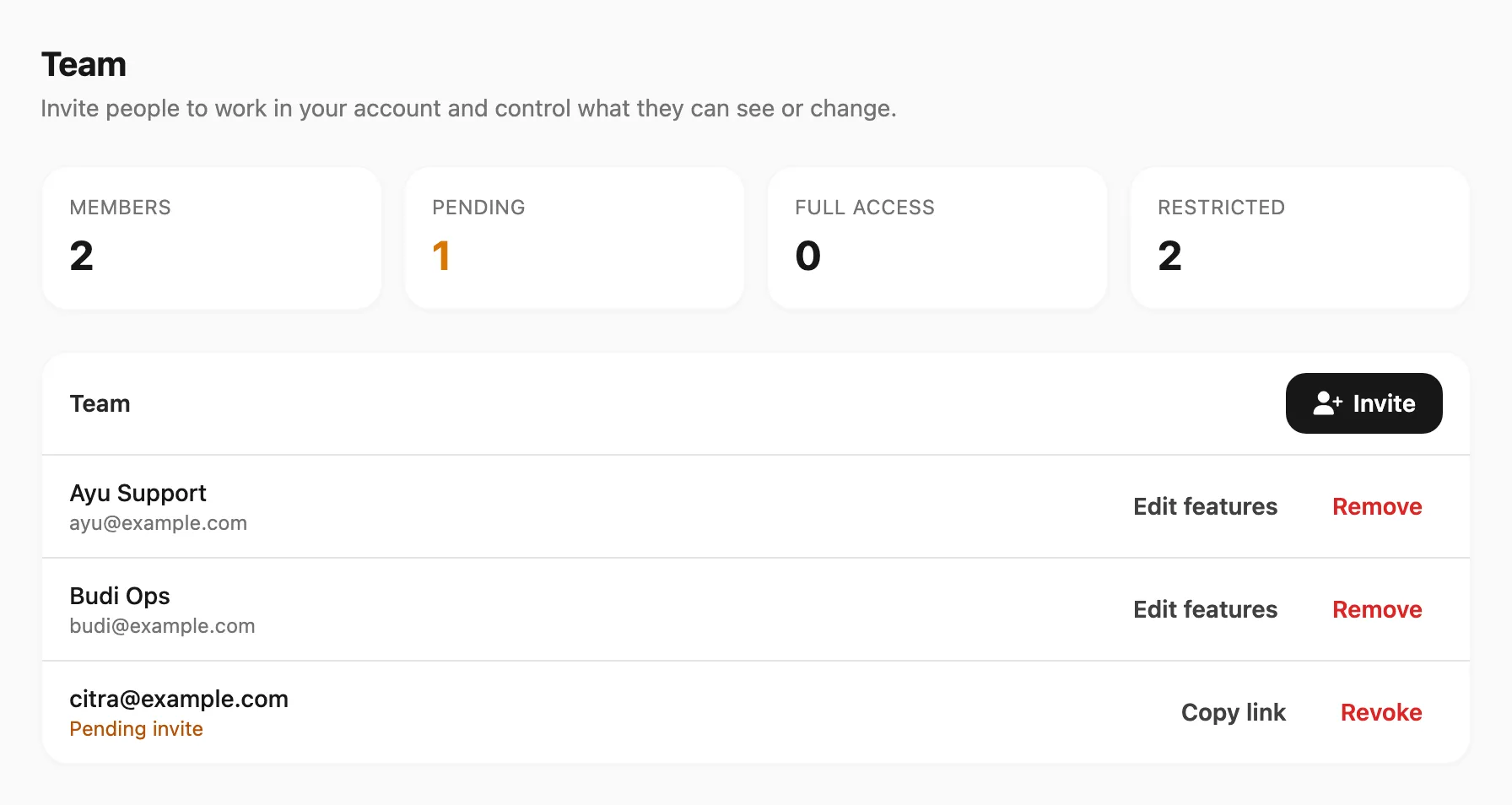
Sample data shown.
Summary cards

| Card | Meaning |
|---|---|
| Members | People who already accepted an invite and can sign in |
| Pending | Invites waiting for Google sign-in |
| Full access | Members with every page and action visible (no restrictions saved) |
| Restricted | Members with at least one page or action hidden |
Team list
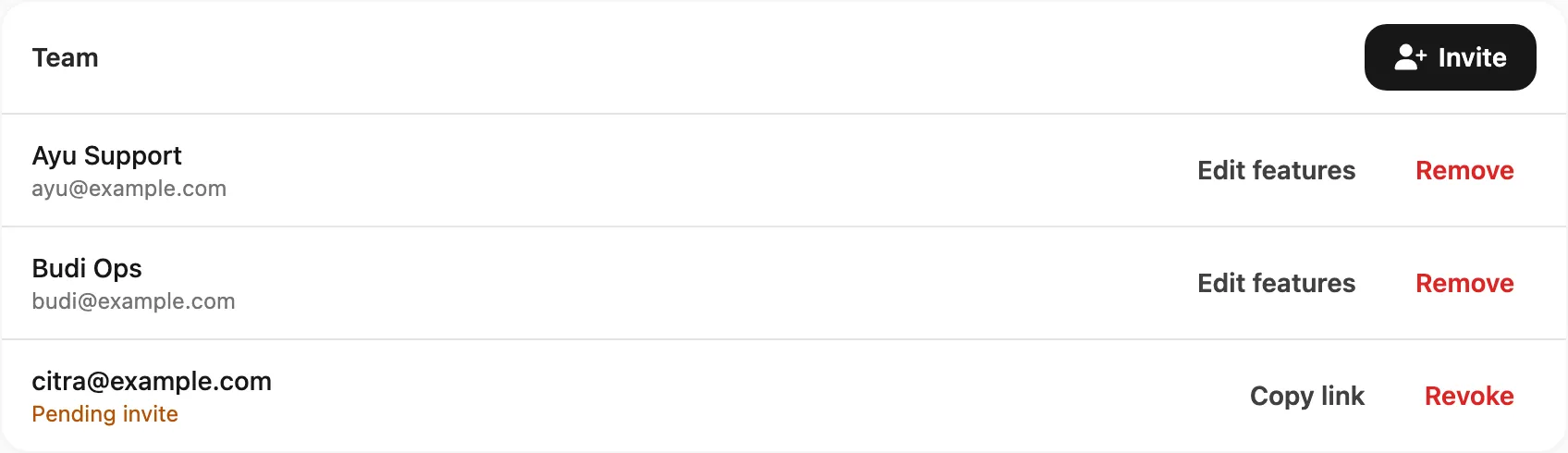
Sample data shown.
| Control | What it does |
|---|---|
| Invite | Start a new invite (email, access, devices, confirm) |
| Edit features | Change a member’s pages, actions, and device access |
| Remove | Remove a member from your team — they keep their Google login but lose access to your data |
| Copy link | Copy the invite URL for a pending invite (expires in 7 days) |
| Revoke | Cancel a pending invite so the link stops working |
Invite someone
Click Invite, then complete the four steps.
1. Email
Enter the invitee’s email. They must sign in with Google using that same address.
People who already have their own standalone Kirisan account with that Google email cannot be converted into a team member — create the invite only for addresses that are new to Kirisan, or ask them to use a different Google account.
2. Access
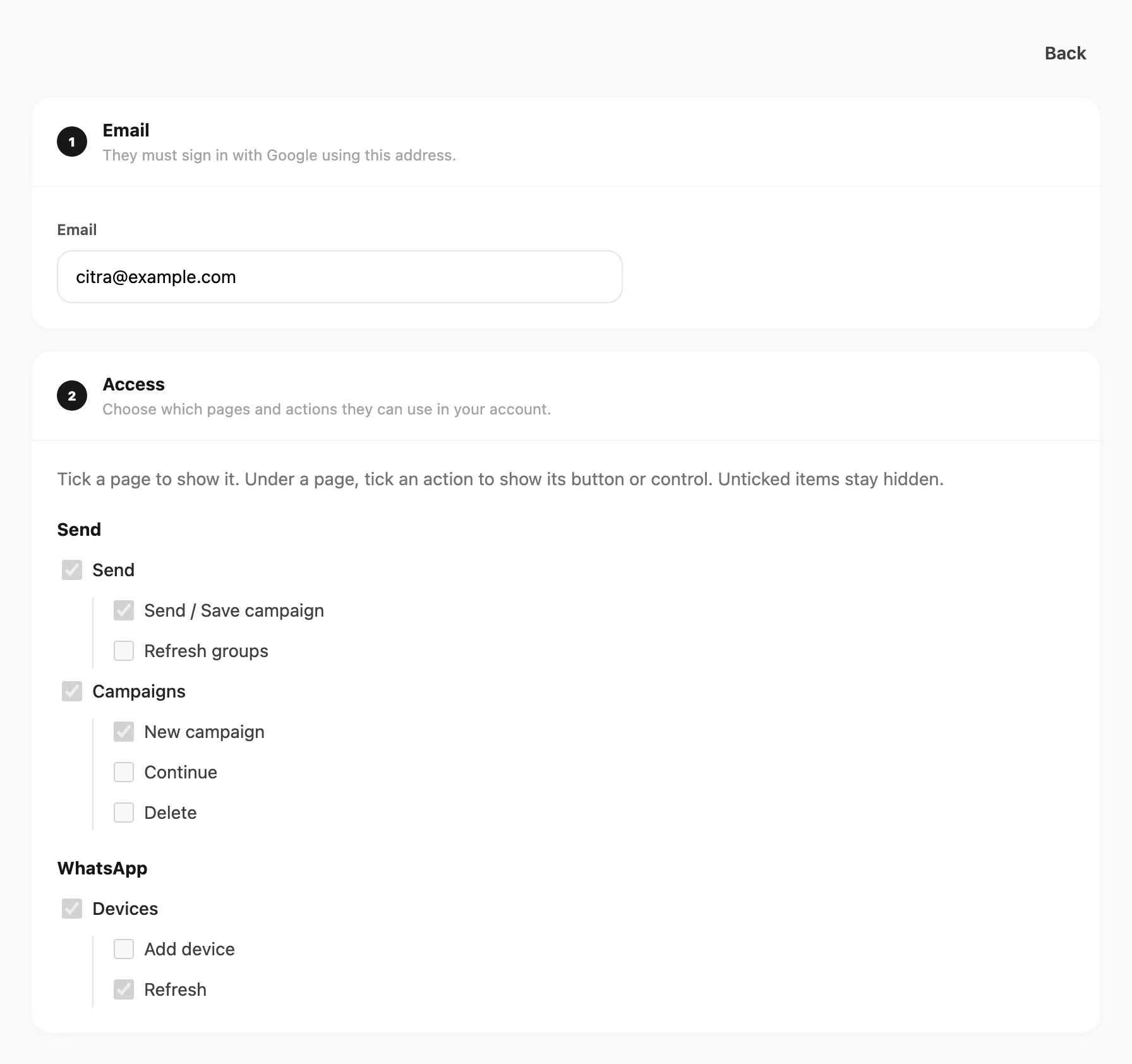
Sample data shown.
| Rule | What happens |
|---|---|
| Page ticked | That sidebar page is visible |
| Page unticked | The page is hidden (including if they type the URL) |
| Action ticked | The button or control is shown |
| Action unticked | The button or control is hidden |
New invites start with pages and actions off (hidden). Tick only what the person needs. When Kirisan adds new pages or buttons later, they stay hidden for existing restricted members until you enable them in Edit features (full-access members are unchanged).
Team members cannot buy plans, place orders, or change billing — those routes stay blocked even if a billing page is visible.
3. Devices
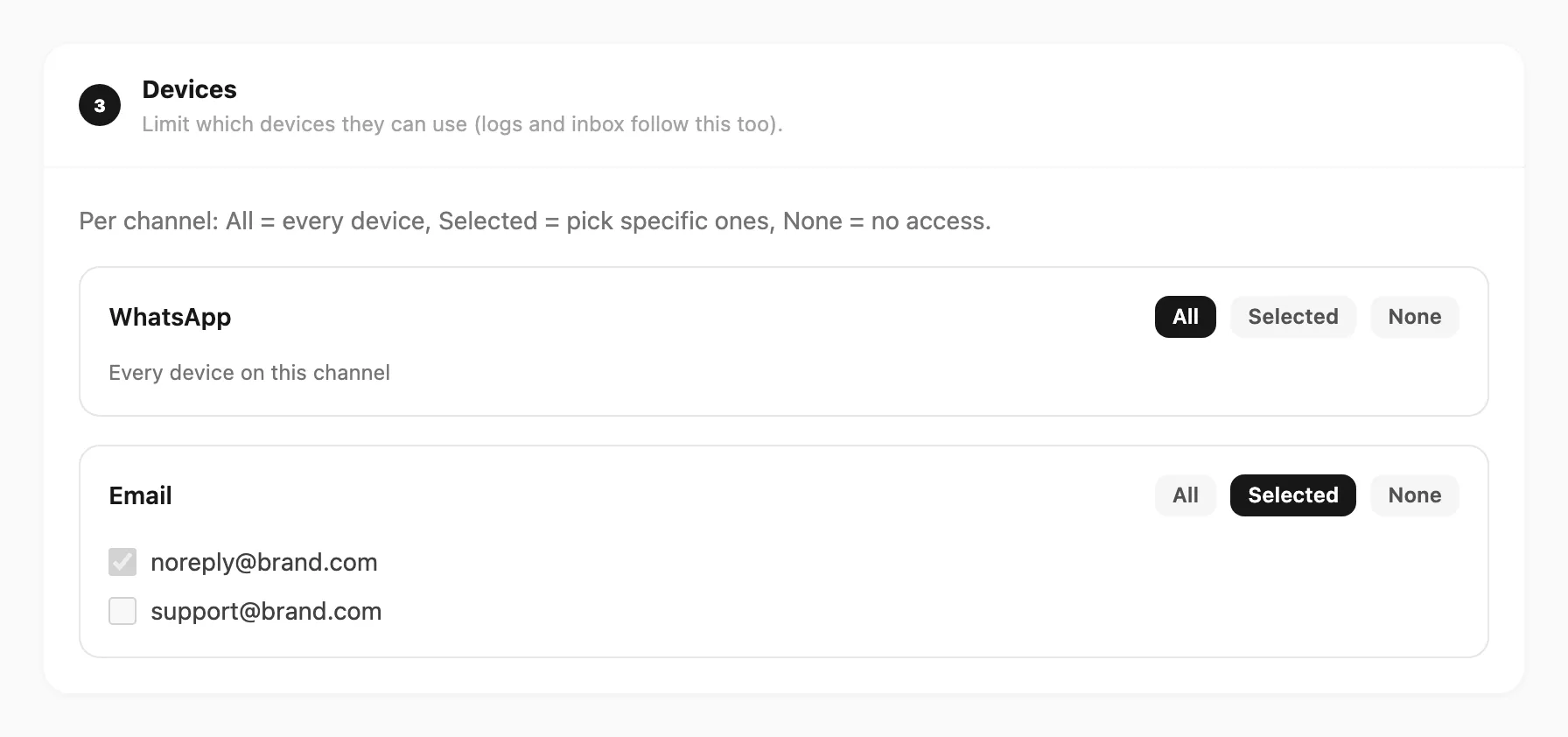
Sample data shown.
Limit which WhatsApp, WABA, Telegram, and email devices they can use. Logs, Inbox, and Send follow the same device rules.
| Mode | Meaning |
|---|---|
| All | Every device on that channel |
| Selected | Only the devices you tick |
| None | No access to that channel’s devices |
4. Confirm
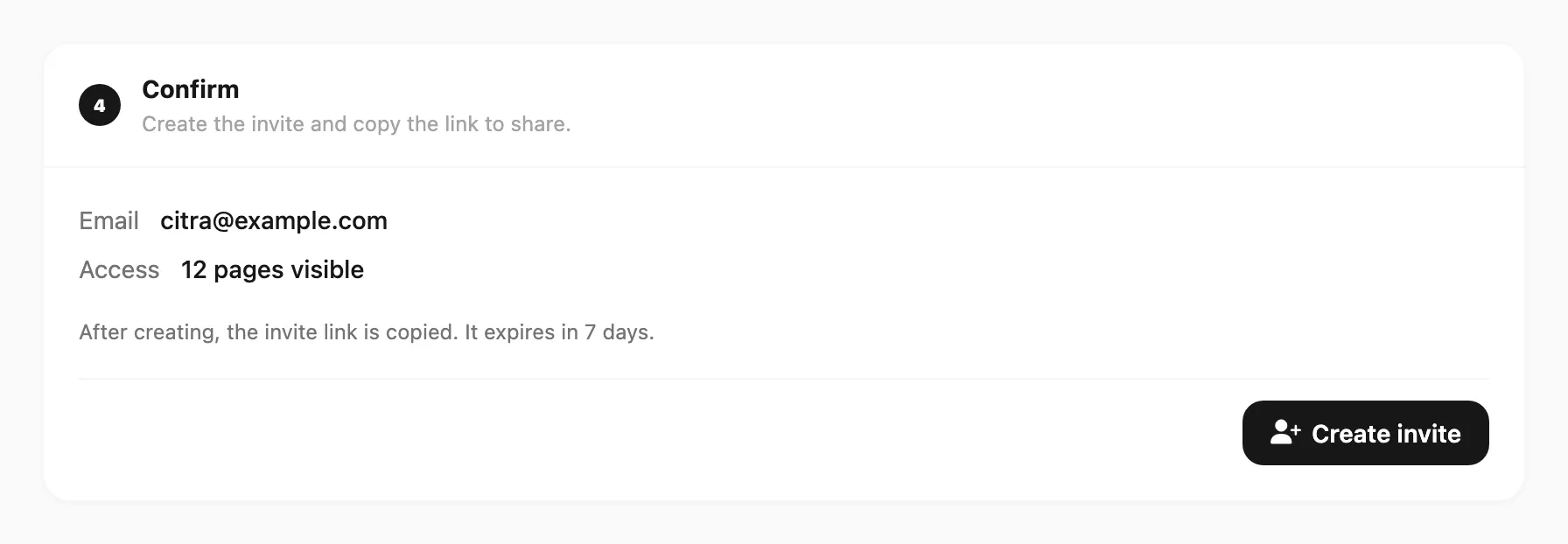
Sample data shown.
Review the email and how many pages are visible, then click Create invite. Kirisan copies the invite link — share it with them. The link expires in 7 days.
What team members can do
After they accept, they sign in with Google and land in your account with the pages and actions you allowed.
- They send and reply using your connected devices (within device limits).
- Their API token on Account → Settings is the account token used for sending on your behalf.
- They do not manage Team, and they cannot purchase or change plans.
To change access later, open Edit features on their row, update Access and Devices, then Save features.
Related
- Settings & support — profile and API token
- Invite a teammate — step-by-step invite and fixes
- Send messages — sending from the dashboard