Invite a teammate
For the full page tour, see Team.
Invite a coworker
Goal: Create an invite and share a link so they can join your account.
Start when: You are the account owner and need someone else to send, reply, or manage part of the dashboard.
- Open Account → Team.
- Click Invite.
- Enter their email (must match the Google account they will use).
- Under Access, tick the pages and actions they need. Leave the rest unticked so those buttons stay hidden.
- Under Devices, choose All, Selected, or None for each channel.
- Click Create invite. The invite link is copied automatically.
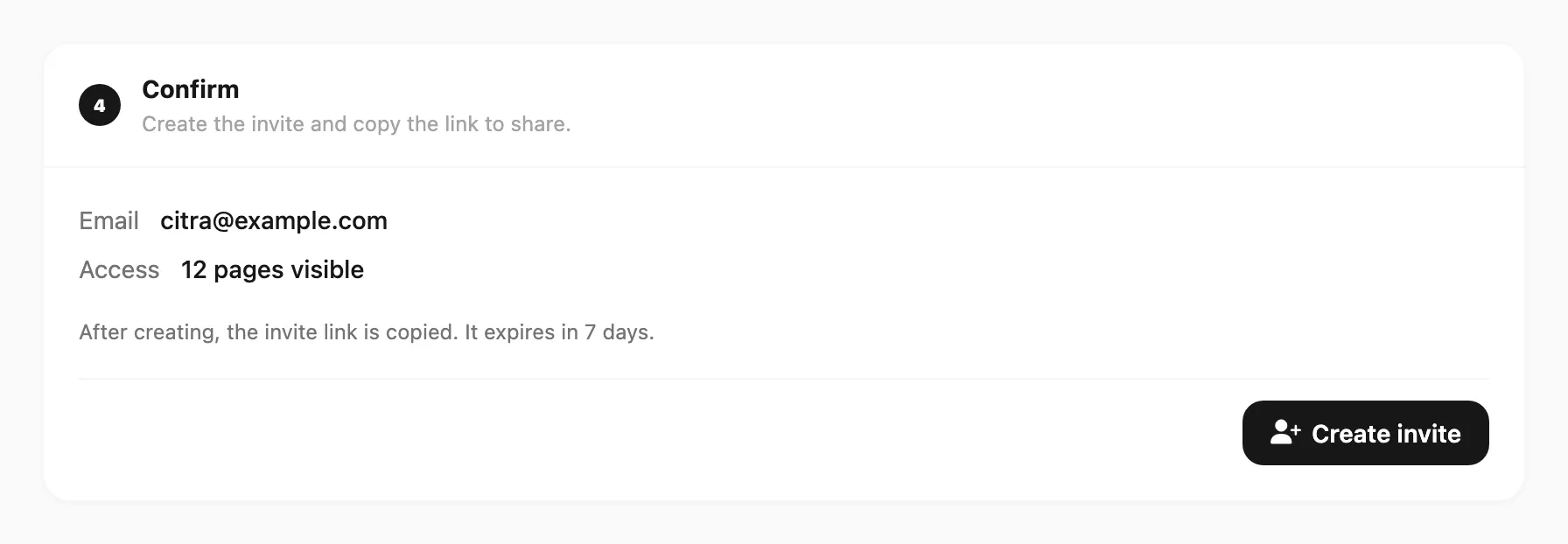
Sample data shown.
You should see: A new row under the team list with Pending invite, plus toast that the invite was created.
Done when: You can paste the link to them (or click Copy link again). The link expires in 7 days.
Accept an invite (teammate)
Goal: Join the owner’s Kirisan account with Google.
Start when: You received an invite link from a Kirisan account owner.
- Open the invite link in a browser.
- Sign in with Continue with Google using the same email as the invite.
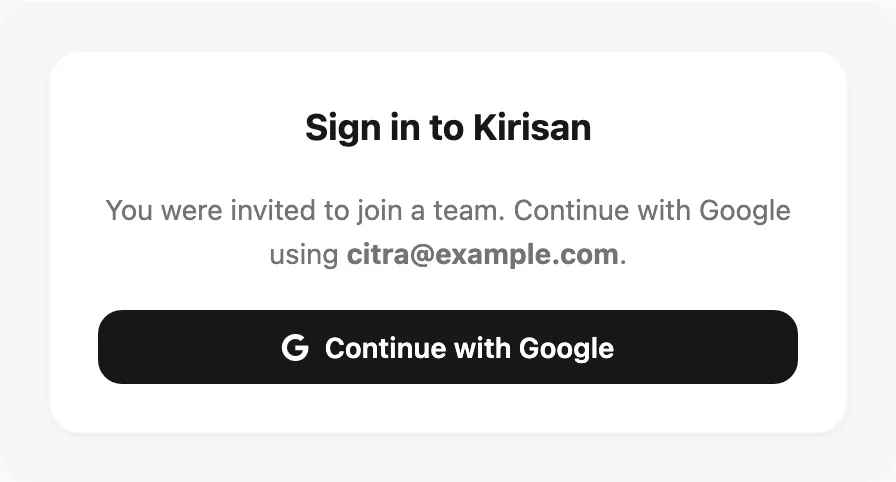
Sample data shown.
- After Google sign-in, you land in the owner’s account with only the pages they allowed.
You should see: The dashboard (or the first page you are allowed to open), not Account → Team.
Done when: You can open an allowed page (for example Send → Send) and see the owner’s devices you were granted.
Change a member’s access
Goal: Hide or show pages, actions, or devices for someone already on the team.
Start when: A teammate can see too much, or cannot find a button they need.
- Open Account → Team.
- Click Edit features on their row.
- Update Access and Devices.
- Click Save features.
- Ask them to refresh the page or sign out and sign in again.
You should see: Toast that features were saved.
Done when: After they refresh, unticked buttons are gone and newly ticked ones appear.
Fix common problems
Symptom: Invite says the email already has an account.
They already use that Google email as a standalone Kirisan account. Kirisan cannot convert it into a team member. Invite a different Google email, or they keep their own account separately.
Symptom: Teammate signed in but does not see your devices or data.
They may have signed in with a different Google email than the invite, creating their own account. Confirm the invite email, revoke the old invite if needed, and send a new link. They must use exactly that Google address.
Symptom: A page or button is missing for a teammate.
Open Edit features and tick that page or action, then Save features. Ask them to refresh. Unticked items stay hidden on purpose.
Symptom: Teammate can open Send but cannot use a device.
Check Devices for that member — the channel may be None, or Selected without that device ticked. Save, then have them refresh.
Symptom: Teammate cannot buy a plan or pay an invoice.
Expected. Team members cannot manage billing. The account owner must place orders and pay.
Symptom: Pending invite link stopped working.
Invites expire after 7 days, or were Revoked. Create a new invite and share the new link.
Related
- Team — full reference
- Settings & support — profile and API token