Email Inbox
Open Channel → Email → Inbox.
What this page is for
Kirisan can receive mail at addresses you registered under Emails, when the domain is the active free slot or on a paid plan, Receive is On on Domains, and inbound MX has been verified. Parked free domains reject inbound mail.
From the inbox you can read, reply, forward, or delete inbound messages. Bulk outbound still uses Send / campaigns.
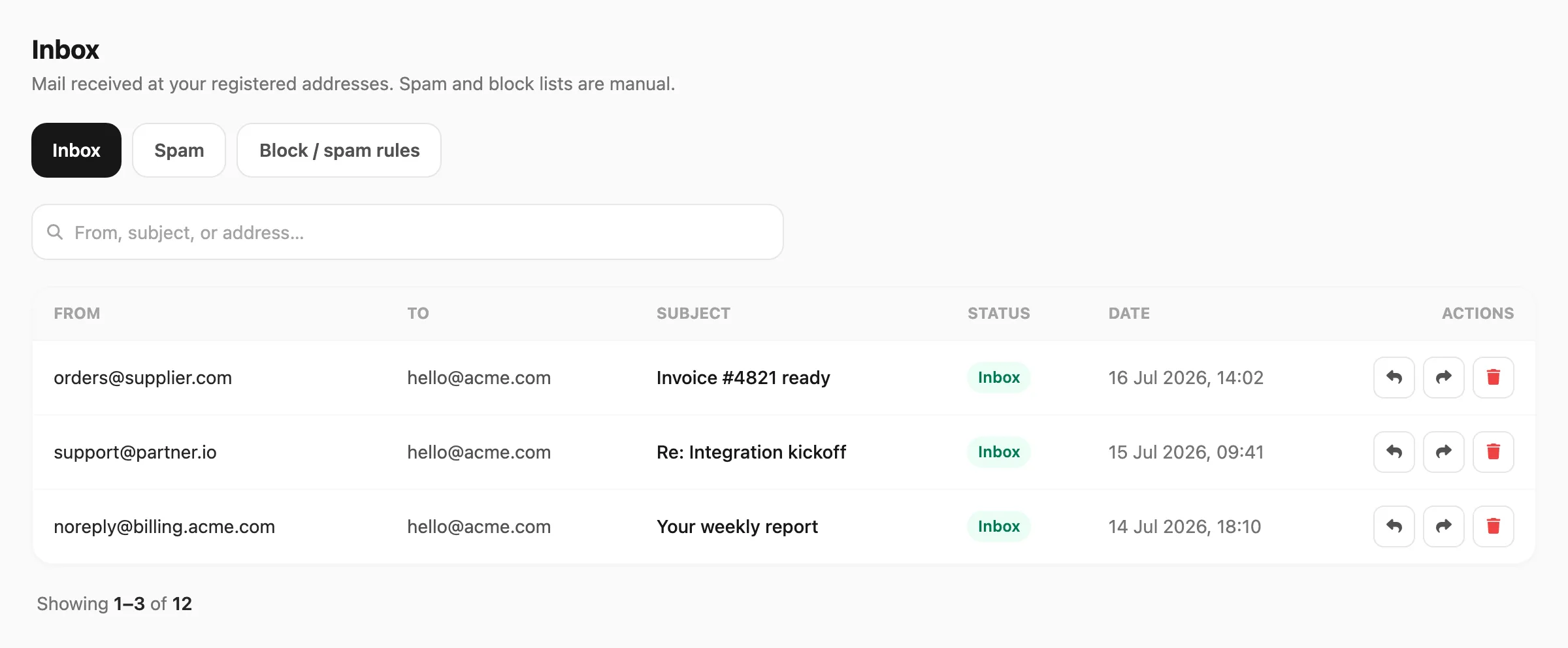
Sample data shown.
| Tab | What you see |
|---|---|
| Inbox | Accepted messages |
| Spam | Messages filed as spam (manual rules or Mark as spam) |
| Block / spam rules | Manual sender email or domain rules |
Retention
Inbox and spam messages are kept 7 days on Free email domains and 30 days on paid domains, then removed automatically. Stored inbound attachments follow the same windows (see Files).
Use Export CSV in the page header to download the current Inbox or Spam tab (up to 50,000 rows; respects search). Block rules are not included in the export.
Before mail can arrive
- Domain verified for sending (DKIM / SPF / DMARC / bounce CNAME) under Domains.
- Turn Receive On for the domain. If inbound MX is not verified yet, Kirisan opens the DNS popup with MX records — add them (or use Add to Cloudflare), then Verify DNS. Receive turns on automatically when MX is ok.
- Register the address under Emails. Per-address receive mode defaults to inherit; you can force on/off per sender there.
Pointing apex MX at Kirisan replaces your previous mail host for the whole domain.
Read a message
- Open the Inbox or Spam tab.
- Optionally search by from, subject, or address.
- Click a row to open the detail, or use the actions in the right column.
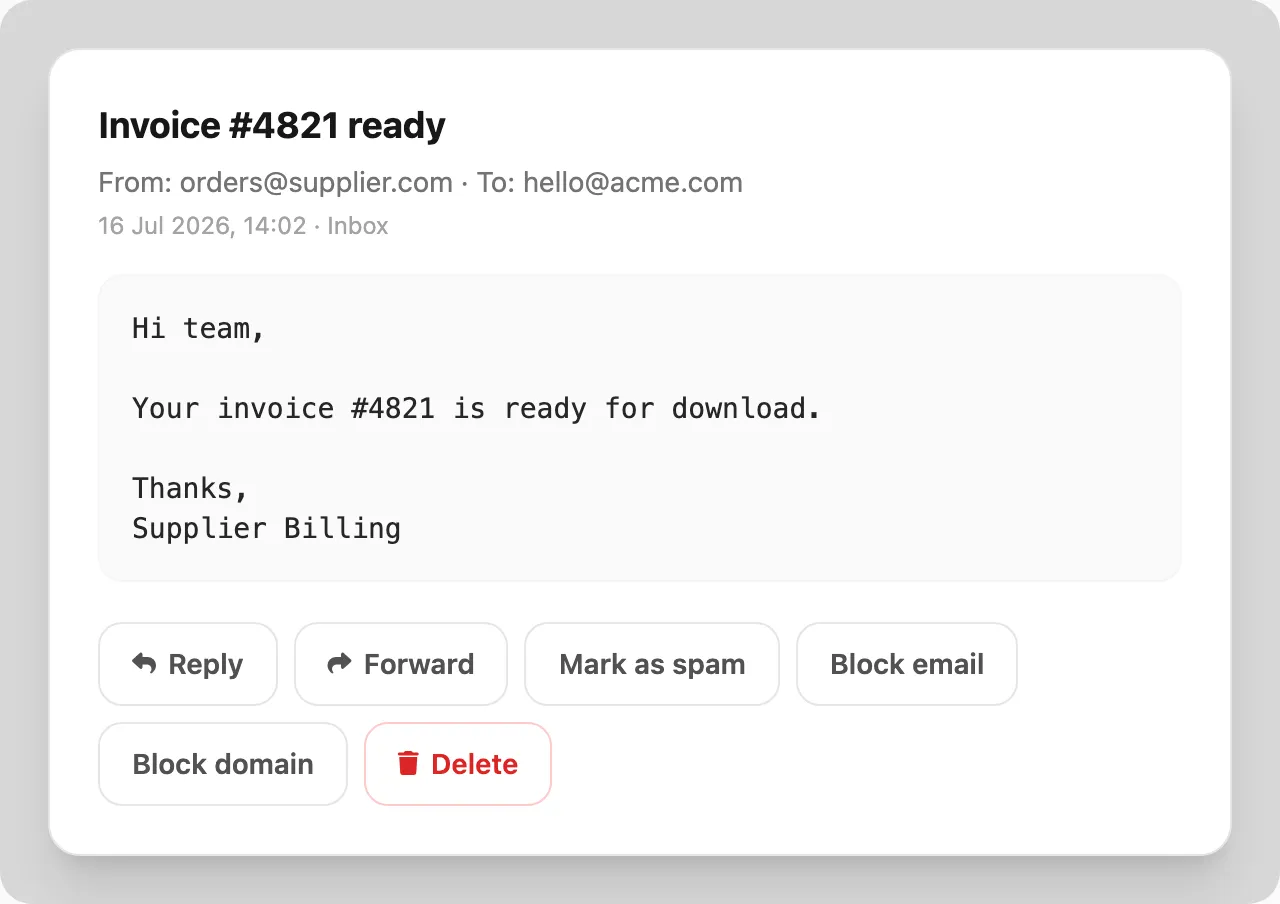
| Control | What it does |
|---|---|
| Mark as spam | Moves the message to Spam (and can add a spam rule for that sender) |
| Not spam | Moves a Spam message back to Inbox |
| Block email | Blocks this sender address at SMTP |
| Block domain | Blocks the sender’s domain (ends-with match) |
| Reply | Opens a reply composer to the sender |
| Forward | Forwards the original email to another address |
| Delete | Removes the message from the inbox (after confirmation) |
The same actions are available in each table row’s action column.
Reply
- Click Reply on a row, or Reply in the message detail.
- Subject is prefilled with a Re: prefix (editable).
- Write the body in the email (HTML) editor — attachment optional.
- Send.
The reply is sent from the address that received the inbound message to the original sender, and is threaded with standard reply headers so mail clients keep it in the same conversation.
Forward
- Click Forward on a row or in the message detail.
- Fill in To and adjust the subject (Fwd: is prefilled).
- The preview shows the original email body — what is forwarded is the stored inbound content, not a rebuilt template.
- If the message had an attachment, check Include original attachment to send it along (on by default).
- Send.
Delete
Click Delete on a row or in the detail, then confirm. Deletion cannot be undone.
Block / spam rules
Open the Block / spam rules tab to add or remove rules without opening a message.
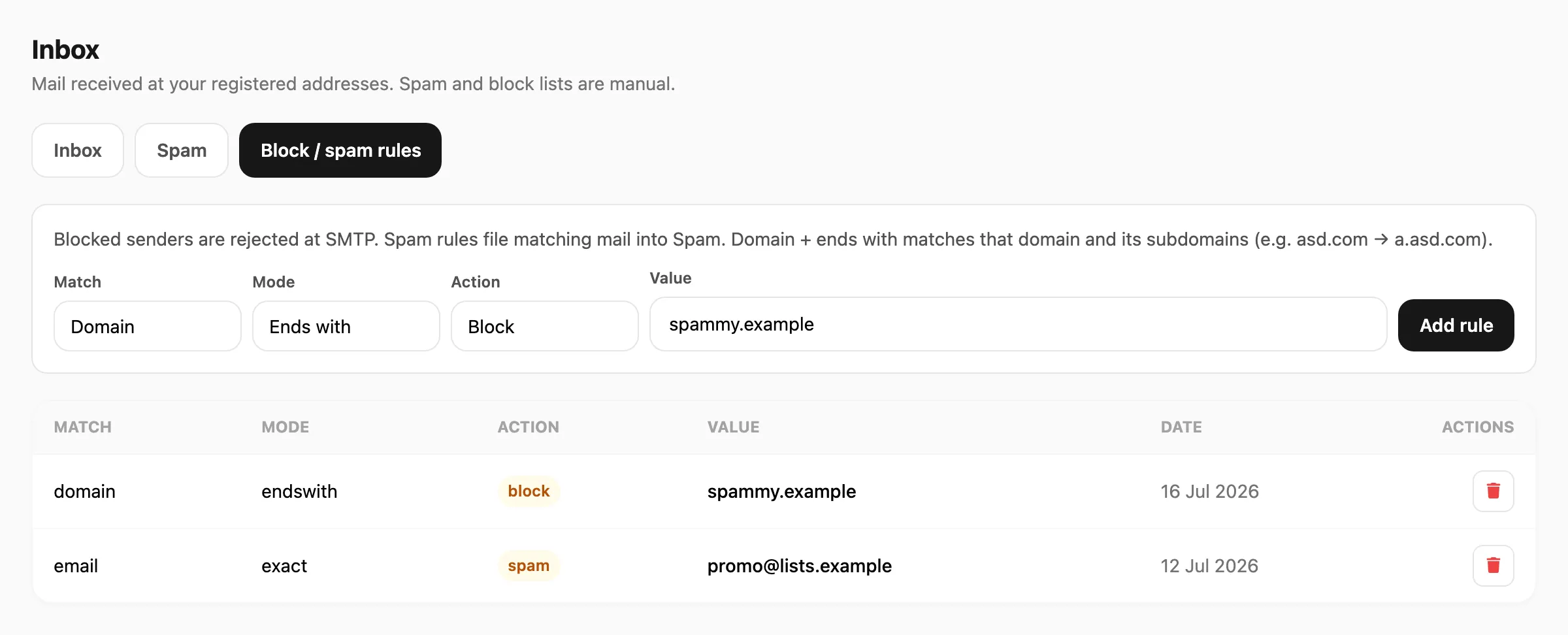
| Control | What it does |
|---|---|
| Match | Email or Domain |
| Mode | Exact, Contains, Starts with, or Ends with |
| Action | Block (reject at SMTP) or Spam (accept and file under Spam) |
| Value | Address or domain to match |
| Add rule | Saves the rule |
| Delete | Removes a rule after confirmation |
- Matching uses the envelope sender (
MAIL FROM), not only the visible From header. - Block always wins over spam when both match.
- For domain + ends with,
asd.commatchesasd.comanda.asd.com(notevilasd.com).