Aksita AI
Open Integration → Aksita AI.
What this page is for
The Integration page is a guide — it shows your human-agent callback URL and which devices use Aksita mode. It does not store API keys.
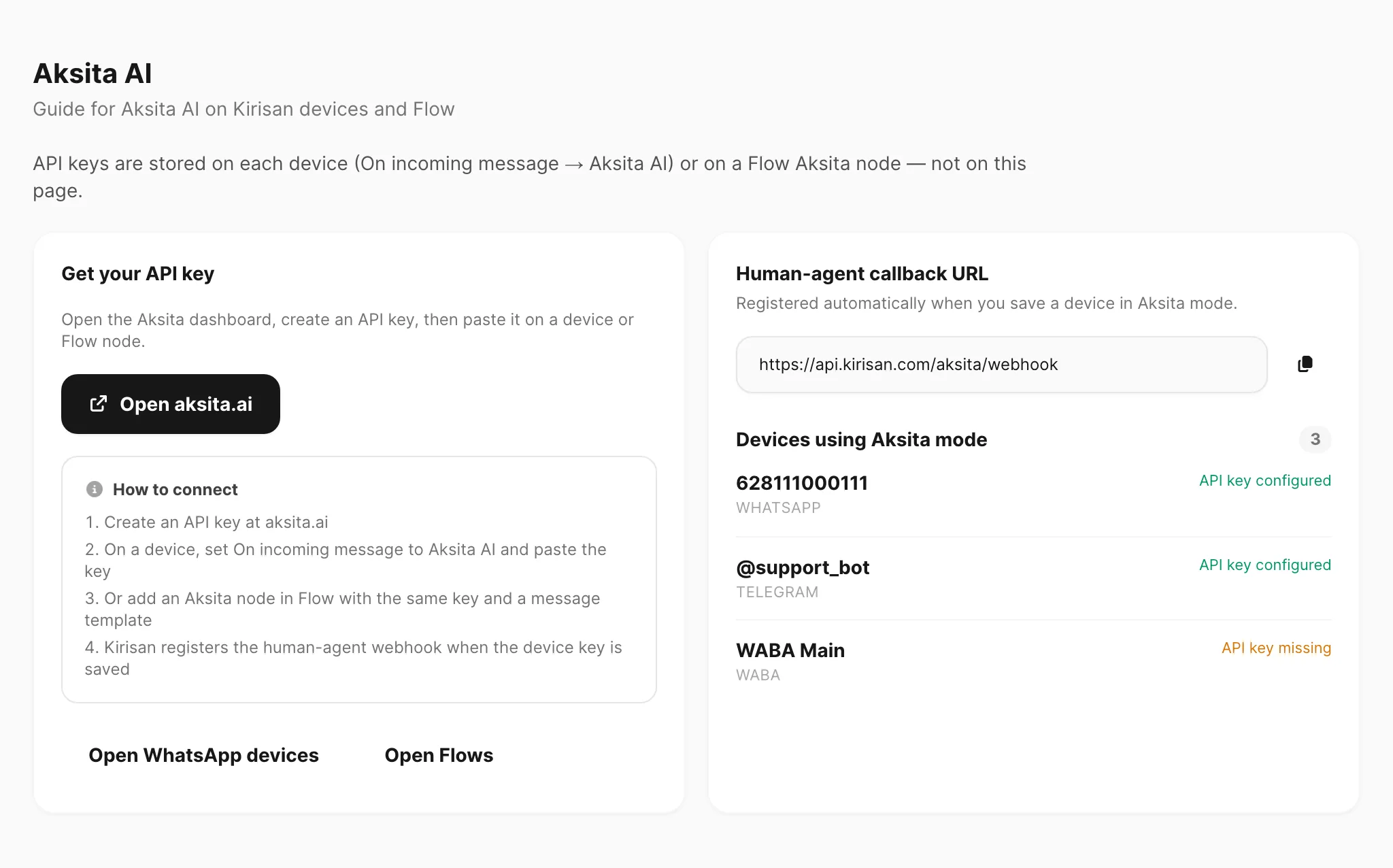
Sample data shown.
Keys live in two places:
- Device settings — set On incoming message to Aksita AI and paste the key (WhatsApp, Telegram, or WABA).
- Flow Aksita node — paste the key on the node (plus a message template).
Create keys in the Aksita dashboard.
Device mode: Aksita AI
Edit a WhatsApp, Telegram, or WABA device, choose Aksita AI for On incoming message, and paste the API key.
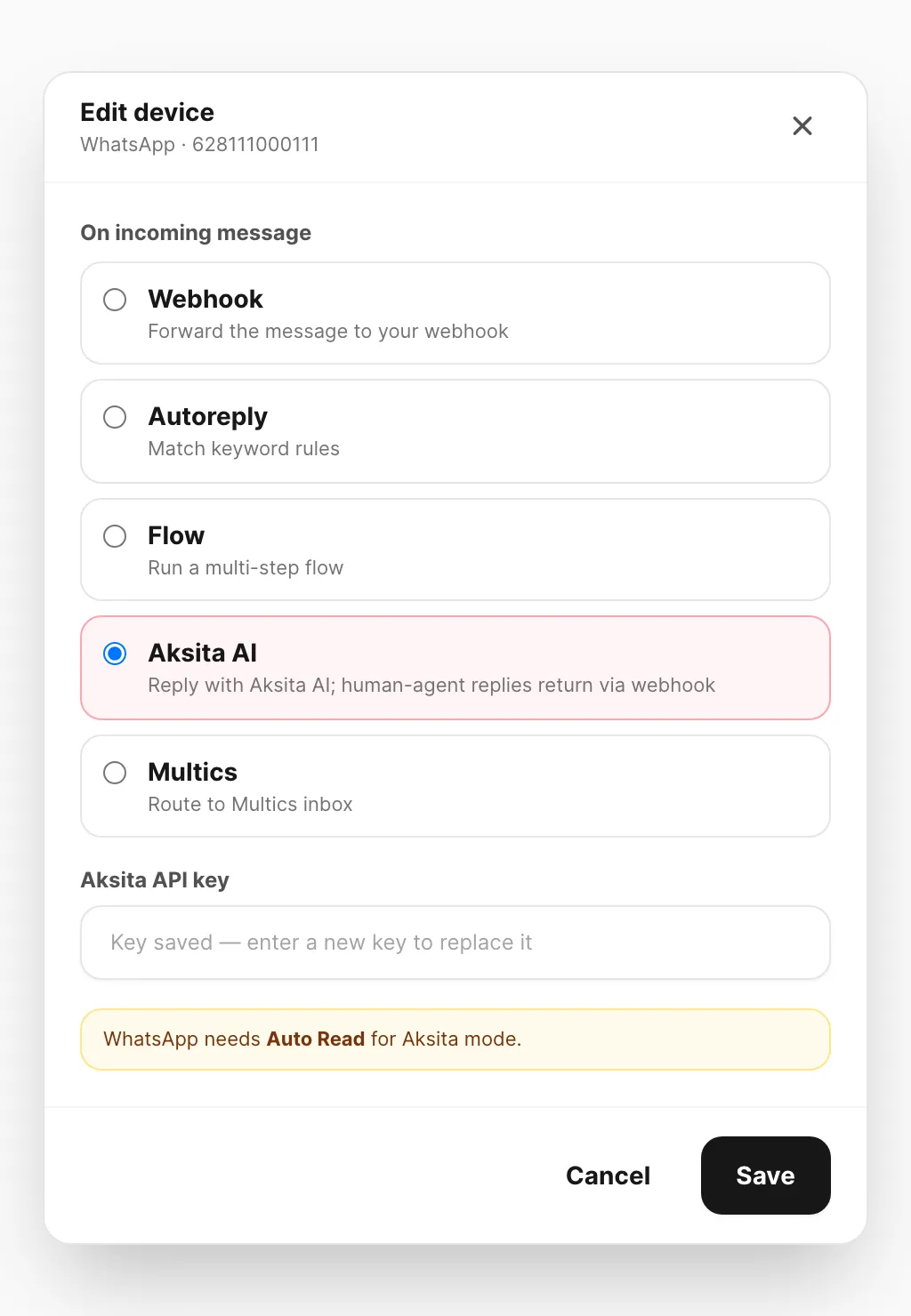
Sample data shown.
When a device’s inbound mode is Aksita AI:
- An inbound user message creates or reuses an Aksita
conversation_idfor that sender. - Kirisan calls Aksita
POST /chatand sends each string inresponse[]back on the channel. - On save with an API key, Kirisan registers
PUT /webhookso human-agent replies from Aksita POST to your Kirisan callback (/aksita/webhook). - Failures are logged; keyword autoreply does not run as a fallback.
WhatsApp devices need Auto Read (same as Autoreply / Flow / Spreadsheet).
Flow node: Aksita
In the Flow editor Action palette, add Aksita AI.
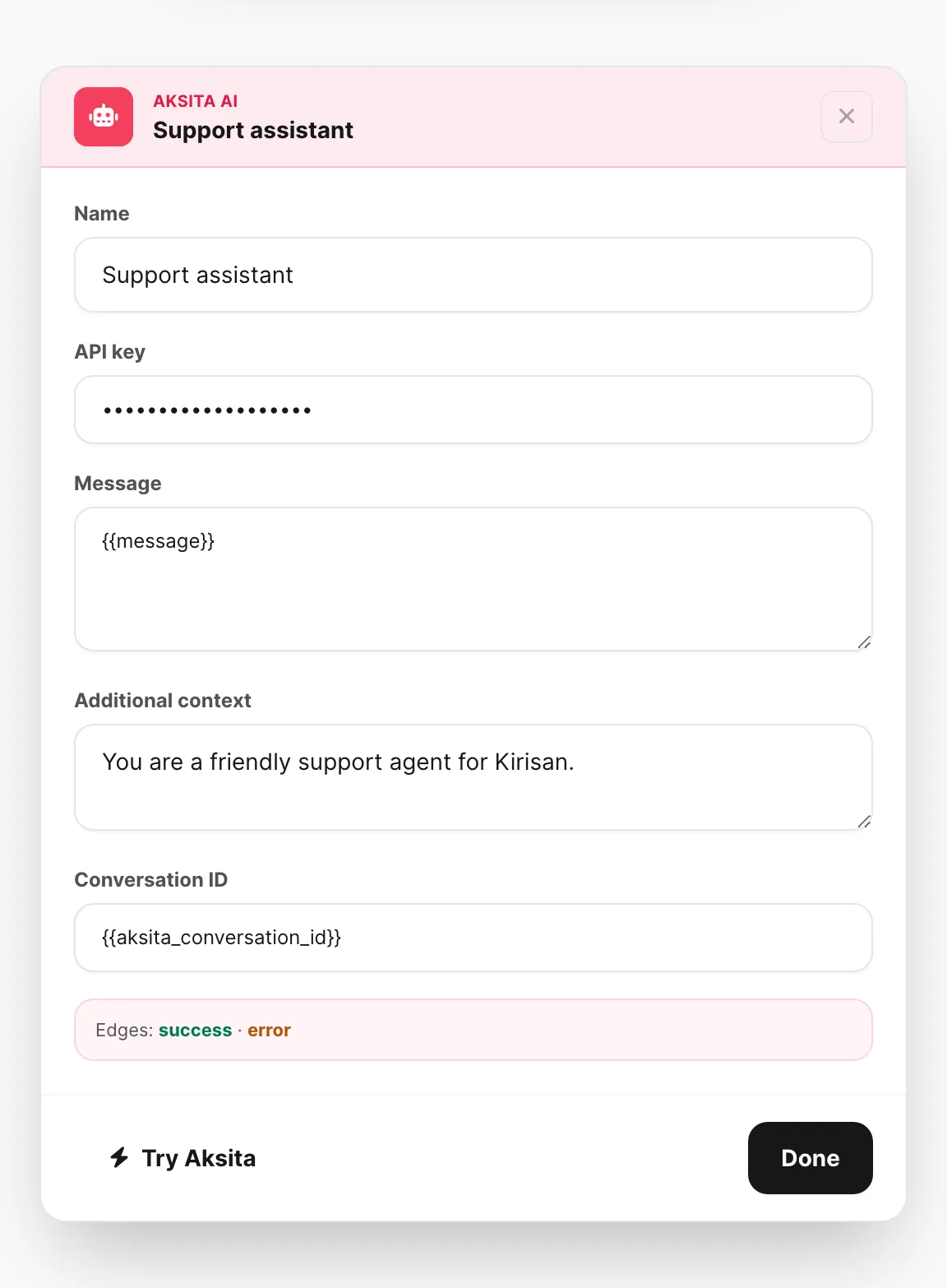
Sample data shown.
| Field | Purpose |
|---|---|
| API key | Aksita X-API-Key |
| Message | Template (default {{message}}) |
| Additional context | Optional |
| Conversation ID | Optional; reuse {{aksita_conversation_id}} or leave empty to create a session |
Edges: success / error.
Variables on success: {{aksita_response}}, {{aksita_conversation_id}}, {{aksita_message_id}}, {{aksita_remaining_credits}}. On error: {{aksita_error}}.
Use Try Aksita in the node to run a real chat request while editing.