Conversation flows
Open Autoreply → Flow.
What this page is for
A flow is a visual conversation tree: send messages, wait for replies, branch on conditions, call external APIs, store variables, and add delays. Flows run without an agent online — ideal for onboarding wizards, support routing, and guided ordering.
Each device handles inbound messages in one mode. For flows to run, set On incoming message to Flow on the device under Channel → WhatsApp → Devices or Channel → Telegram → Devices.
Each device can be linked to only one flow at a time — not multiple flows on the same line or bot. One flow may still link to many devices. The device picker hides lines and bots that are already linked to another flow; to move a device, open that other flow, remove the device, then link it here.
Sample data shown.
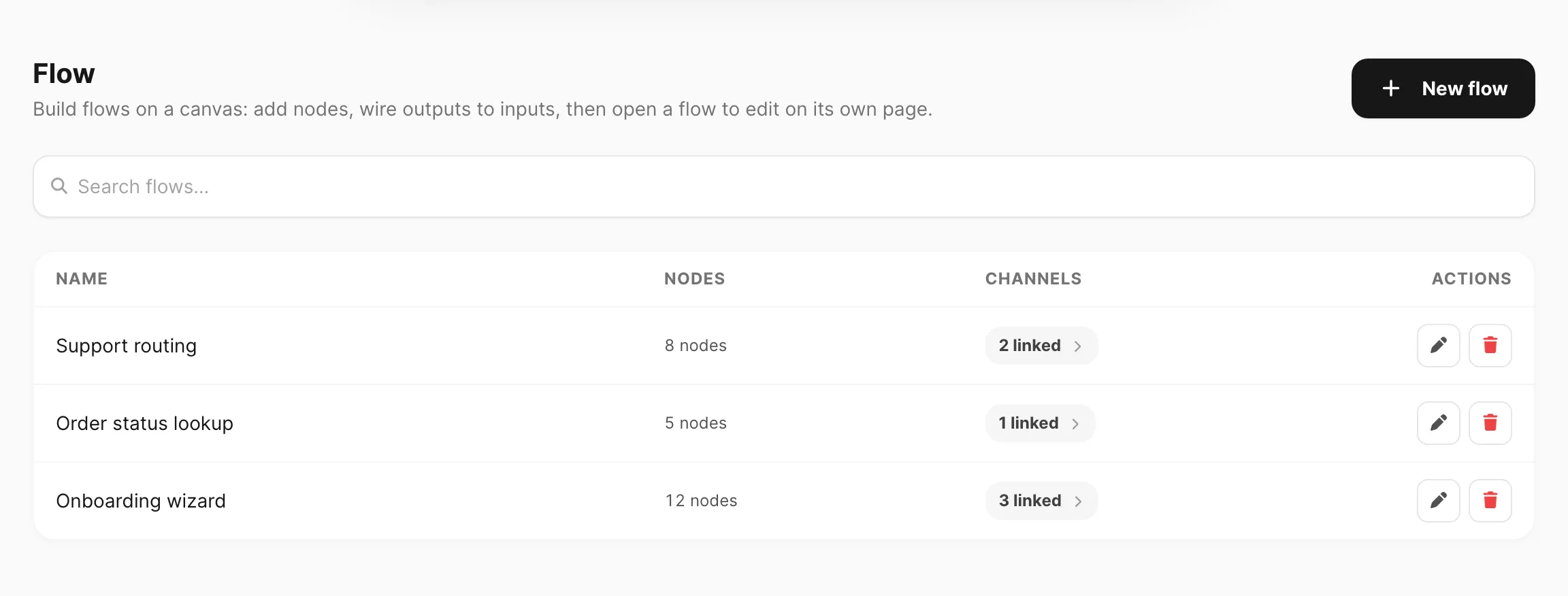
Flow list
| Column / control | What it does |
|---|---|
| New flow | Opens a blank canvas editor. |
| Search flows… | Filters by name (minimum 3 characters). |
| Name | Flow title. |
| Nodes | Number of steps on the canvas. |
| Channels | Click N linked to see WhatsApp lines or Telegram bots attached to this flow. |
| Actions | Edit flow (opens the editor page) or Delete flow. |
Create a flow
- Click New flow.
- Open Settings (left panel) — enter a Name, set Session duration, and link WhatsApp or Telegram devices.
- Click + (bottom-right of the canvas) to open the node palette — add Start is already on the canvas for new flows.
- Add nodes (Text, Response, Condition, etc.) and connect output dot → input dot.
- Click each node to edit its content (message text, HTTP URL, condition branches, and so on).
- Click Run to simulate the path with a test message before going live.
- Click Save (or Create).
Flow editor
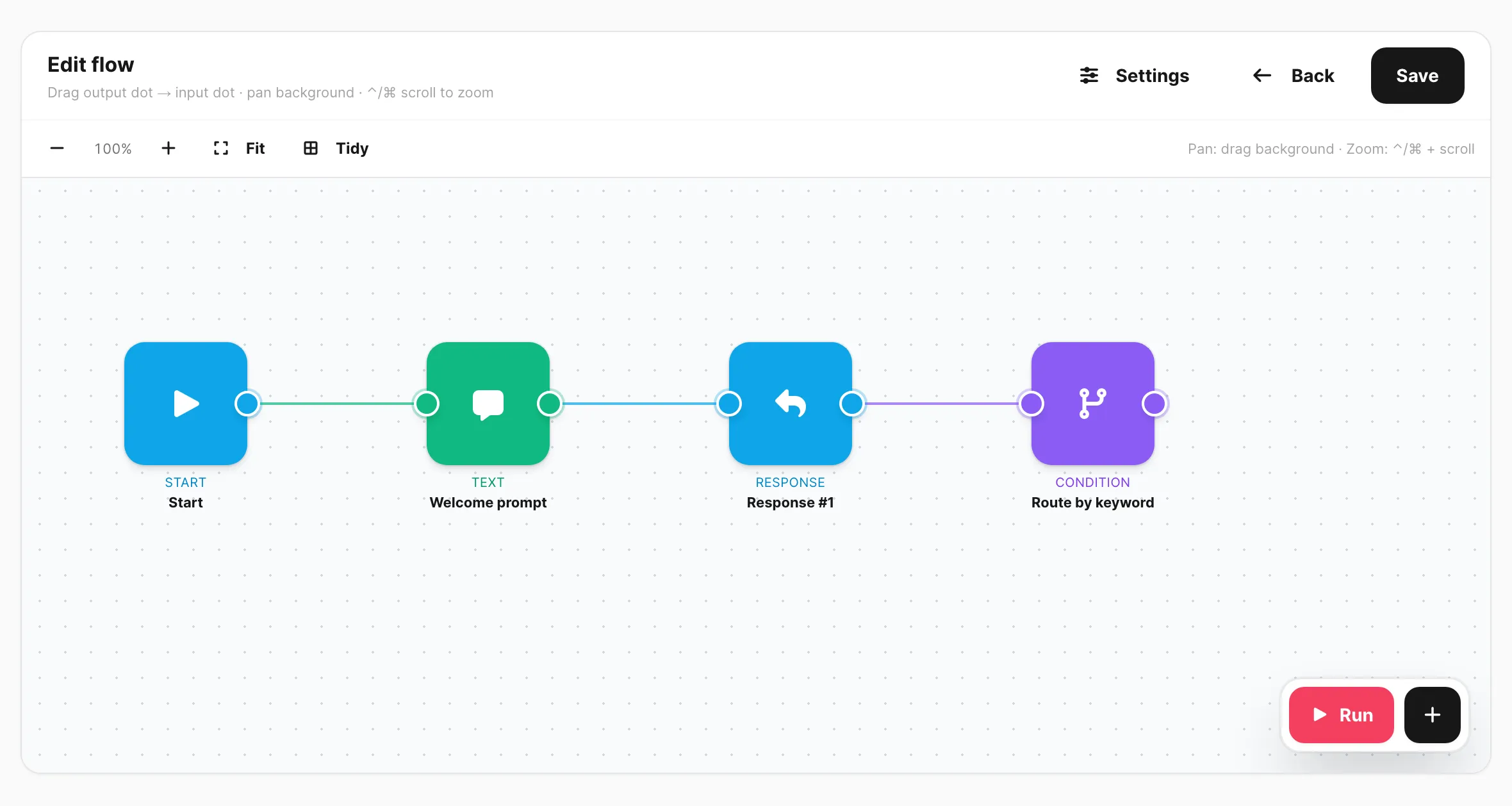
The editor opens on its own page when you create or edit a flow. By default the Settings panel is hidden so the canvas uses the full width — click Settings in the header to open name, session, and device options.
Sample data shown.
Header
| Control | What it does |
|---|---|
| Settings / Hide settings | Show or hide the left panel (name, session, devices). |
| Back | Return to the flow list. |
| Save / Create | Persist the flow to your account. |
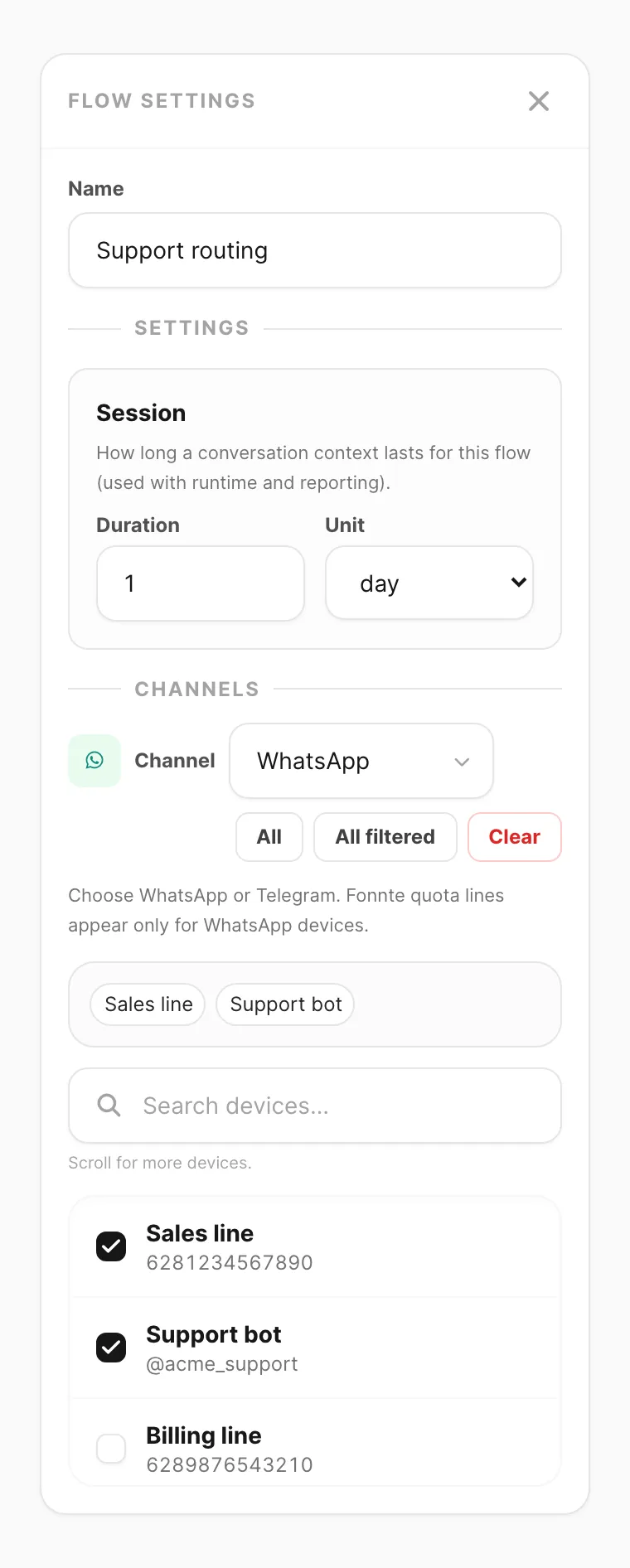
Settings panel
Click Settings to open the left panel.
Sample data shown.
| Field | What it does |
|---|---|
| Name | Flow title — shown in the list. |
| Session — Duration / Unit | Idle timeout for this conversation (for example 1 day). If the contact is silent longer than this, the next message starts the flow from Start again. |
| Device picker | Link one or more WhatsApp, Telegram, or WABA devices. Same pattern as Autoreply — search, pick rows, or use All / All filtered. Each device can belong to one flow only; devices already on another flow are not shown until you unlink them there. |
Canvas toolbar
| Control | What it does |
|---|---|
| − / + | Zoom out and in. |
| Fit | Frame all nodes in view. |
| Tidy | Auto-arrange nodes on the grid. |
Canvas interactions:
- Pan — drag the dotted background.
- Zoom — Ctrl/Cmd + scroll.
- Connect — drag from an output dot (right of a node) to an input dot (left of another node).
- Edit node — click the pen icon on hover, or click the node card.
- Delete connection — hover an edge and click the × button.
Every flow needs a Start node — execution begins there when a message arrives.
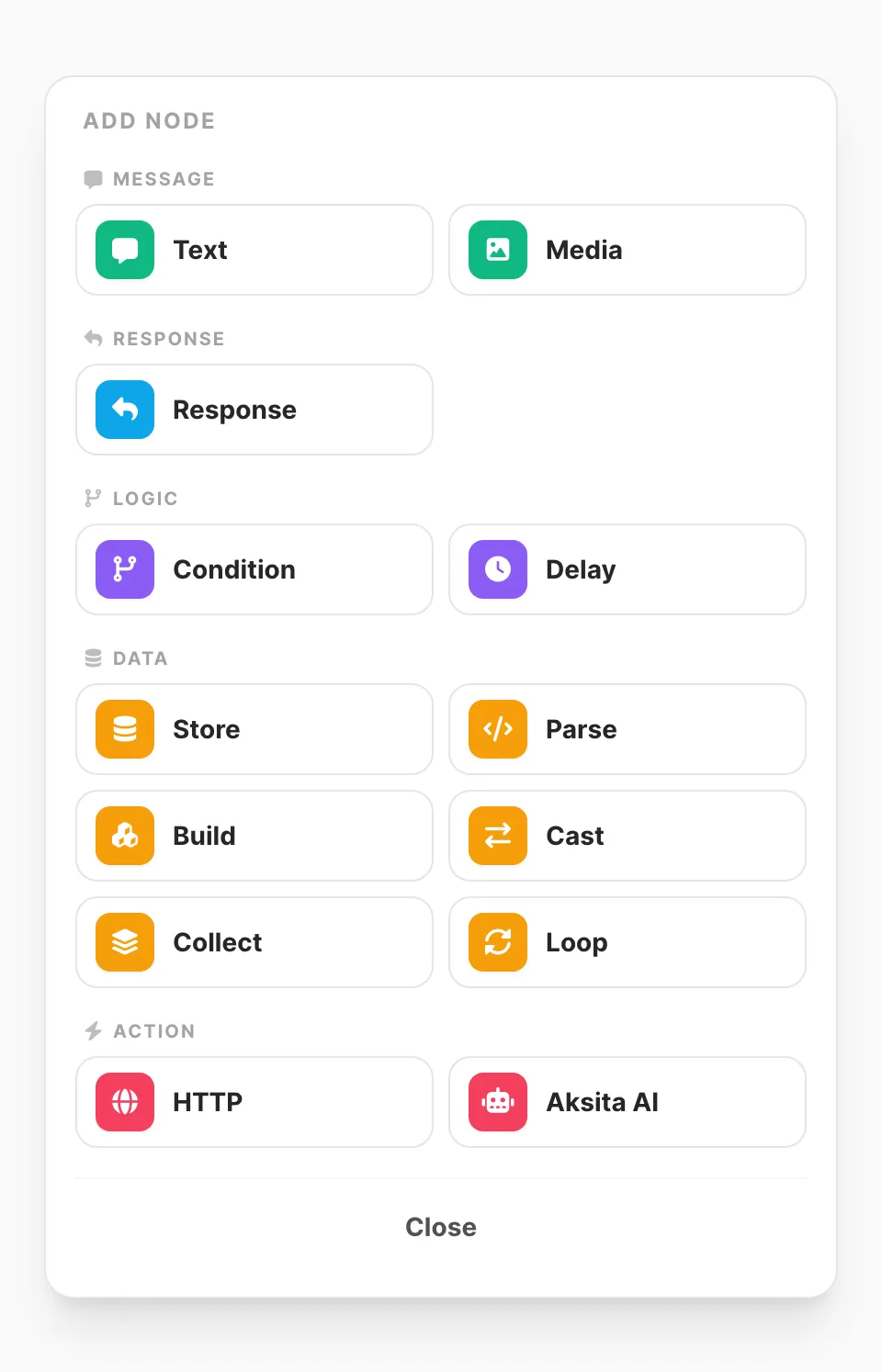
Add node palette
Click + (next to Run) to open the palette.
Sample data shown.
| Group | Nodes |
|---|---|
| Message | Text, Media |
| Response | Response — pause until the user replies |
| Logic | Condition, Delay |
| Data | Store, Parse, Build, Cast, Collect, Loop |
| Action | HTTP — call an external URL · Aksita AI — chat via Aksita (success / error) |
Legacy API and Webhook nodes may appear on older flows — use HTTP for new work.
Edit a node (example: Text)
Click a node’s pen icon to open its editor.
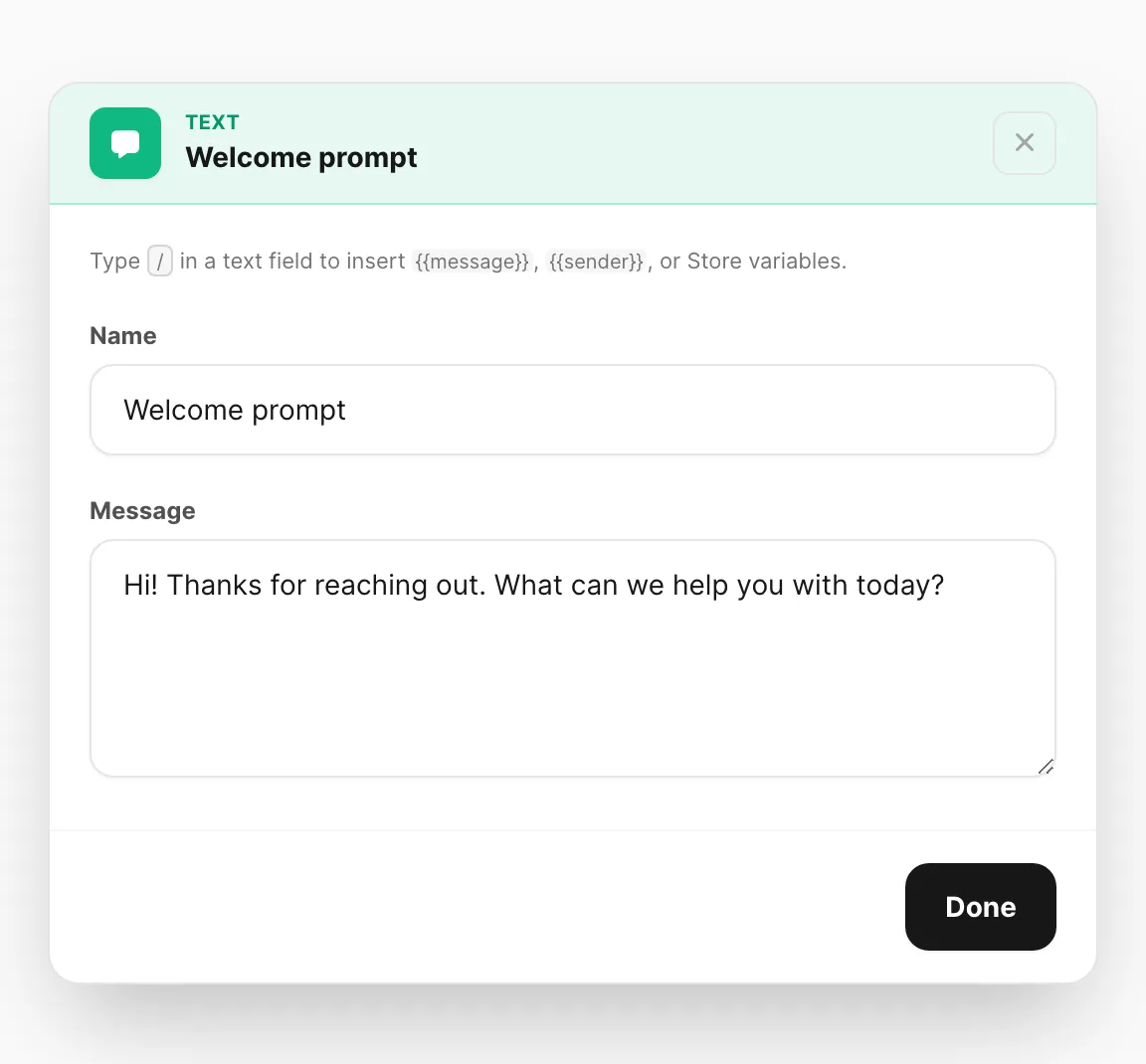
Sample data shown.
Type / in text fields to insert flow variables such as {{message}}, {{sender}}, {{http_body_success}}, or Store names. Server tokens like [[date-dd-mm-yyyy]] come from Resources → Variables.
| Node | Main settings |
|---|---|
| Text | Message body. |
| Media | File URL and optional Caption. |
| Response | No extra fields — waits for the next inbound message (available as {{message}} downstream). |
| Condition | If / Else if branches. The left side is a free field: bare names (message, year, Store vars) or {{variables}} (type / to insert). Operators like =, contains, startswith. Connect each branch output separately; use Else when nothing matched. |
| Store | Set one or more named variables. Each row has a name and a value template (e.g. {{message}}, {{http_body_success}}, or mixed text). Prefer Store for literals/templates; use Parse to pull fields from JSON. |
| Delay | Wait a random range of seconds before continuing. Delays are durable — they survive API restarts and resume across instances. |
| Parse | Load a JSON source (e.g. {{http_body_success}}) and click nodes in the path graph to map them into named variables. output / error (non-JSON source). |
| Build | Build a JSON object from key/value rows into one variable (reuse in HTTP body as {{payload}}). Leaf types use the same cast rules as Cast (string / int / float / bool). output / error. |
| Cast | Coerce values to string / int / float / bool and write them into session variables (live preview shows before → after; float keeps decimals; bool is truthy/falsy). output / error (no partial writes on failure). |
| Collect | Append a value onto a JSON array variable (max 100), including nested JSON. Live preview shows the array structure after append. output / error. |
| Loop | Iterate a JSON array only (max 100). The editor only offers array variables as the source. Outputs each (sets item/index vars — connect the body back to this Loop), exit when done, error if the source is not an array. |
| HTTP | Method, URL, headers, body — branches on Success, Failed, or Error. Only JSON response bodies are accepted. Success when the success condition matches; Failed when the body is JSON but the condition does not match; Error for network/server failures or any non-JSON body (including 4xx/5xx HTML/text). Use Test inside the node to verify the request. At least one successful test is required to save; later failed or error results do not block saving. Samples for each edge are stored separately. Vars: {{http_body_success}} / {{http_status_success}}, {{http_body_failed}} / {{http_status_failed}}, {{http_error}}. Use Store / Parse to copy into your own names. |
| Aksita AI | API key, message template (default {{message}}), optional additional context and conversation ID. Branches on success / error. Reuses {{aksita_conversation_id}} when set, otherwise creates a session. Vars: {{aksita_response}}, {{aksita_conversation_id}}, {{aksita_message_id}}, {{aksita_remaining_credits}}, {{aksita_error}}. Use Try Aksita for a live test. See Aksita AI. |
Click Done to close the node editor.
For an Aksita AI node, the editor shows the API key, message template, and conversation options:
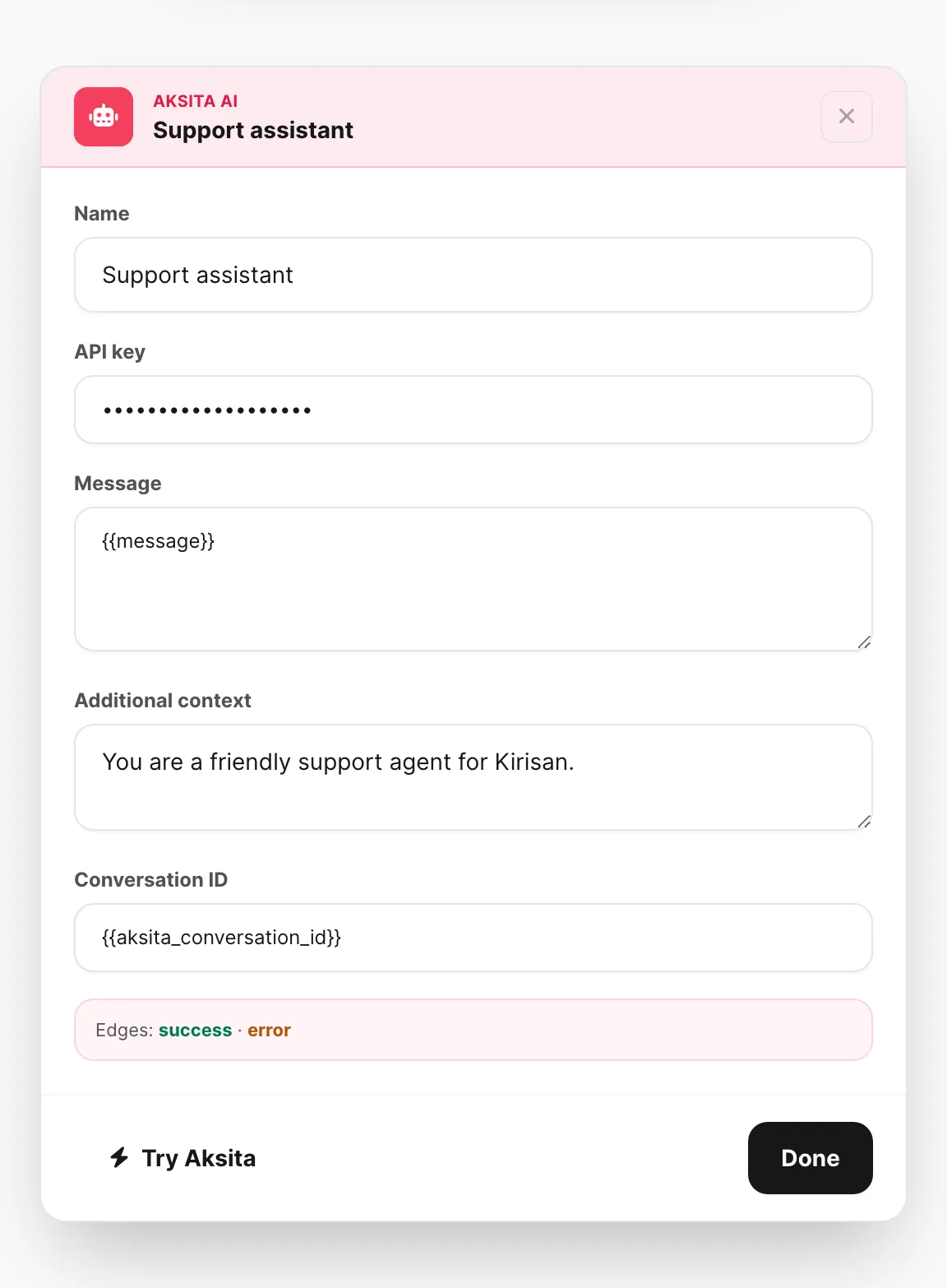
Sample data shown.
Try a flow (Run)
Click Run on the canvas to simulate the conversation without sending real messages.
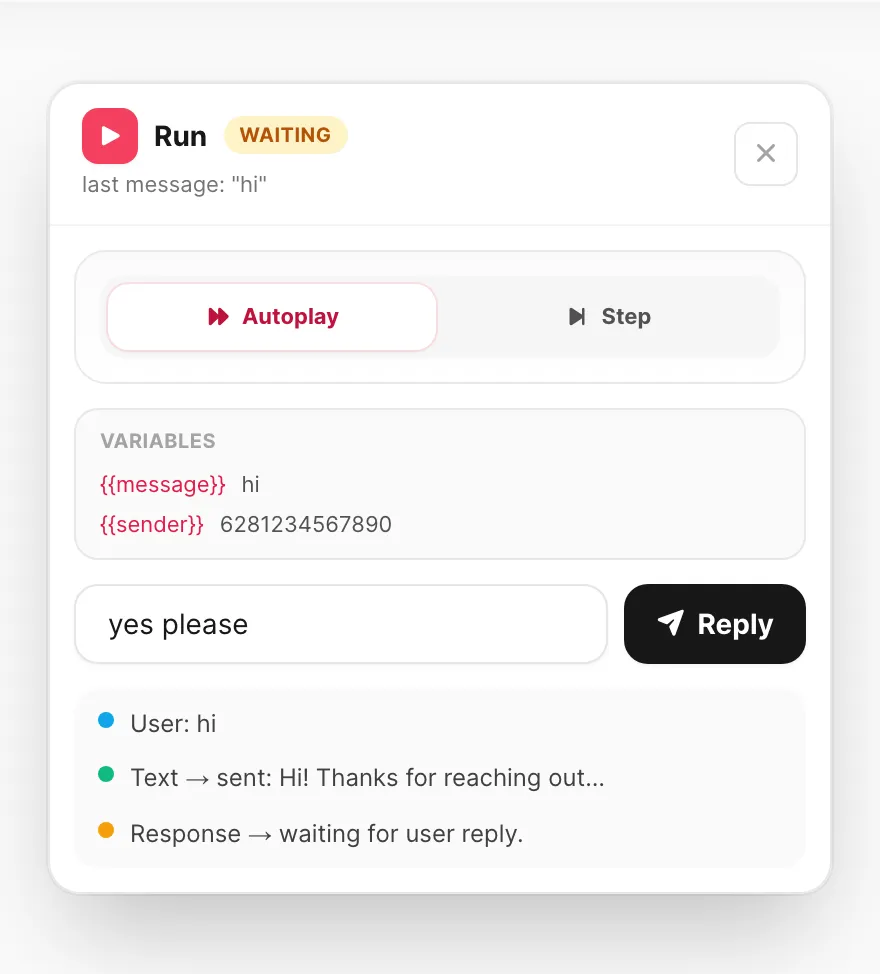
Sample data shown.
- Type a first user message and click Run.
- Choose Autoplay (advances automatically) or Step (press Next for each node).
- Follow the log as each node executes — the Variables inspector shows the current map.
- At a Response node, the message field appears again — type a reply and click Reply.
- At an HTTP / Aksita node, pick a simulated branch or run a real request.
Click Stop or close the panel to reset. Fix the canvas, then test again before linking production devices.
Link a flow to devices
- In the editor Settings panel, pick WhatsApp, Telegram, and/or WABA devices (or mix them on the same flow).
- Save the flow.
- On each linked device, open Channel → channel → Devices, edit the device, and set On incoming message to Flow.
When a message arrives on that device, Kirisan runs that one linked flow from the Start node. A device cannot run two flows — if it is already linked elsewhere, remove it from that flow first, then add it here. Only one inbound handler is active per device — Flow replaces Autoreply, Spreadsheet, and Webhook for that line or bot.
Flows vs keyword autoreply
| Keyword autoreply | Flow |
|---|---|
| Single-shot reply or submission start | Multi-turn dialog with branches |
| Fast to set up in a modal | Better for wizards, menus, and API lookups |
| List order — first keyword match wins | One flow per device — many templates can share a device, but a device runs only one flow |
Use Autoreply for simple FAQs; use Flow when the user must answer several questions or you need conditions and HTTP calls.
Tips
- Keep Start → first Text short so users get a quick acknowledgment.
- Use Store + Condition to remember choices (for example product category).
- Put specific Condition branches above broad ones — first match wins, then Else.
- A device runs one flow only — unlink it from another flow before moving it.
- Test with Run before linking production devices.
- Session duration in Settings is the idle TTL — after it expires, the next message restarts from Start.
- After HTTP, add a Store node to copy
{{http_body_success}},{{http_body_failed}}, or{{http_error}}(or templates) into named variables for later Text / Condition nodes.
Related
- Autoreply — simple keyword replies
- Submissions — structured forms (alternative to long flows)
- Spreadsheet — sheet-based replies without a canvas
- Variables —
{{message}}, Store fields, and[[…]]tokens